Book summary: PowerApps Portals Authentication


I recently read the kindle version of the book PowerApps Portal Authentication by Debajit Dutta and Chandana Kommuri.

The book covers in detail the different authentication methods available for the PowerApps Portals and also provides detailed instructions to set them up.

The different topics included in the book are

  • Local authentication – Self Registrations and Invitations.
  • External Authentication – with Google, Facebook, LinkedIn, Azure Active Directory (B2C and B2B)

This is the first and the only book in the market on PowerApps Portals, and I think it would be very helpful for the Dynamics 365 professionals, as authentication is the basic and most important piece of information needed while configuring PowerApps Portals for the customers.

What I like about the books in general is it gives us all the required information at the same place, instead of being scattered all around out there in the web, and also that information coming from the expert(s) who have been working on it (because of which you’d be buying the book in the first place) adds to its credibility. The book not only covers all the required details (how and why) for setting up the authentication but also presents it simply and concisely. The chapters start with how to register the portals with the external authentication provider, the authentication mechanism available, settings required in portals, etc. There is a specific pattern or consistency about the way chapters are written in the book, which will make it very easy to be referenced when required. Being around 150 pages, the book was also a quick read.

Grab your copy at the link below !

https://www.amazon.in/PowerApps-Portal-Authentication-Debajit-Dutta-ebook/dp/B085X2HL4W

How to – Use Word Template to combine multiple images attached to notes in a single document in Dynamics 365


Recently in one of our projects, we had proposed Dynamics 365 for Phone / Tablet as the device for our sales user. The user will be capturing the image of the customer’s document and will be attaching it in notes, which will then later be moved to the document management system.

Here, one of the requirements was to merge / combine all the images that are attached to the notes for a particular record into a single document.

Here we can make use of Word Template to achieve the same.

Open the entity’s (e.g. lead) record for which we want to create the word template.

  • Click on Download Template to design the word template.

  • Select Note as the related entity.

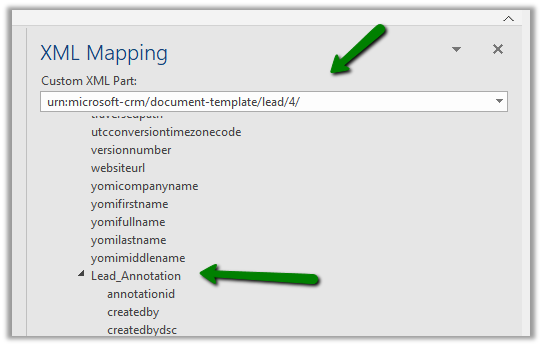
  • In the word document, go to Developer Tab and click on XML Mapping Pane ribbon button.

  • Insert a table and select its row.

  • Select the appropriate XML part from the drop down and navigate to Lead_Annotation child node in the XML Mapping section.

  • And map it to the row selected as shown below.

  • This is how the table would appear

  • Next add the documentbody à Insert Content Control à Picture to one of its columns to display the images.

  • This is how it would appear
  • We can also add additional fields of notes if needed.

  • Save the template.
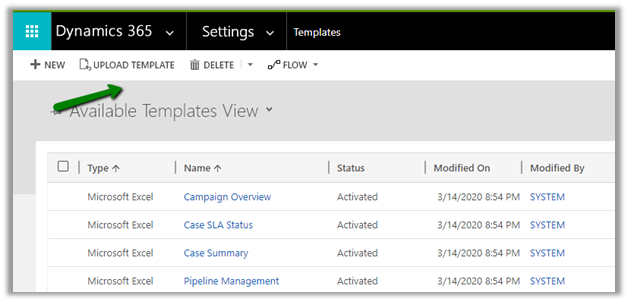
  • Go to Settings à Template and upload the template.

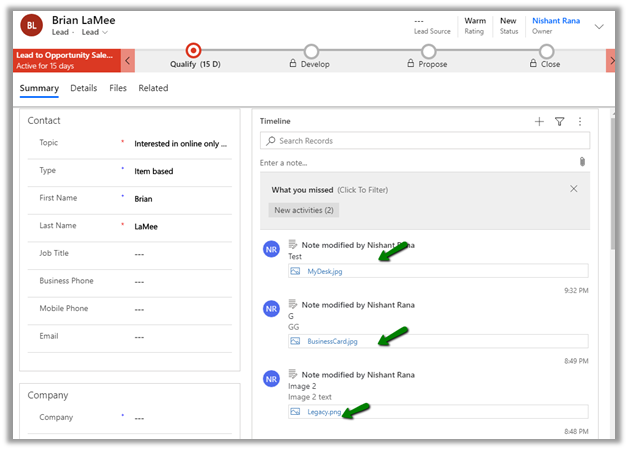
  • To test it, let us go open the lead record which has 3 different notes with image attached as shown below.

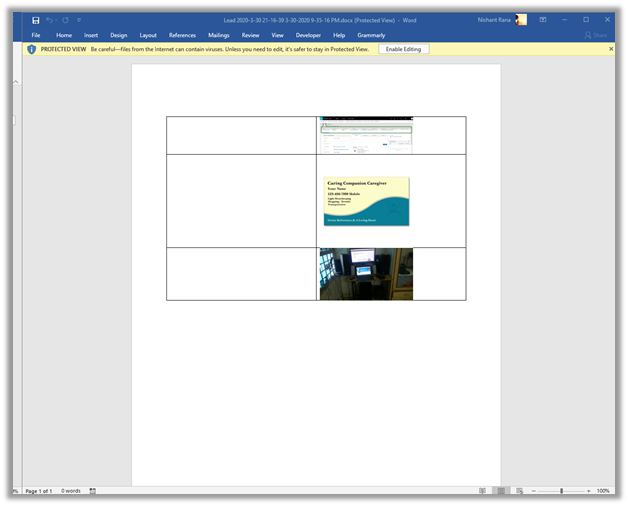
  • Now let us generate the document based on the template uploaded.

  • The document will show all the images attached to the notes.

  • We can increase the size of the picture and remove the border from the table to make it appear better.

From Mobile –

This slideshow requires JavaScript.

Get more detail on attachments here à

https://nishantrana.me/2020/03/30/attachments-to-notes-in-dynamics-365-for-phone-and-tablet-app/

Generate PDFà

https://nishantrana.me/2020/02/13/save-and-email-pdf-options-added-to-dynamics-365-sales-2020-release-wave-1-plan/

Hope it helps..

Advertisements

PCF Control for Email Validation using Email Validator API


The control uses the Email Validator API that checks for fake DNS and regex functions to check email for length and accepted characters.

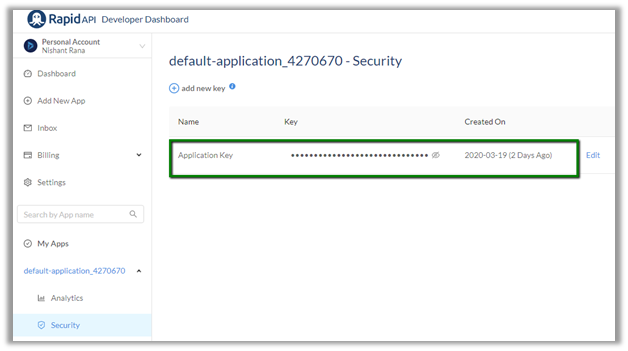
To use the API, Login to RapidAPI and get the API Key.

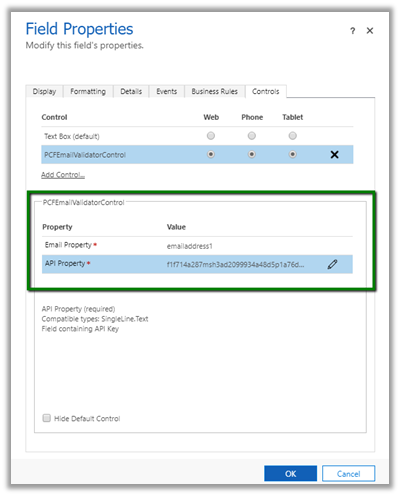
Use this key for the API property required by the PCF Control to call the API.

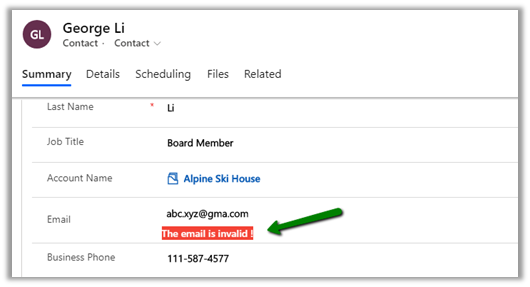
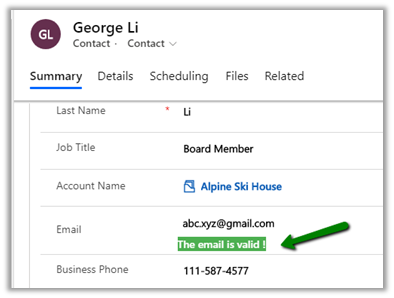
The control will check pass on the email address and based on the response received i.e. isValid true or false, will display the appropriate message just below the field.

The Email Validator API needs to be updated as at times it will show valid domains as invalid. So will not suggest to use this in the production environment.

This control is more of an example of how we can call the APIs, get the response and show the result.

Get the source code here

https://github.com/nishantranacrm/PCFEmailValidatorControl

Hope it helps..

Filtering Enhancements to Views in Dynamics 365 – 2020 Release Wave 1


Below are some of the enhancements added to the filtering experience for the views in 2020 Release Wave 1.

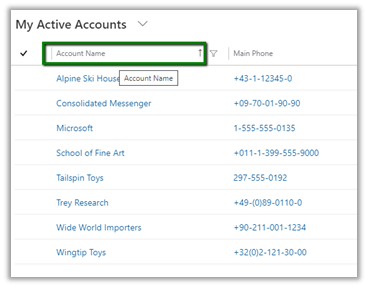
Previously to sort the records we had to click on either the sort icon or the header to sort the records.

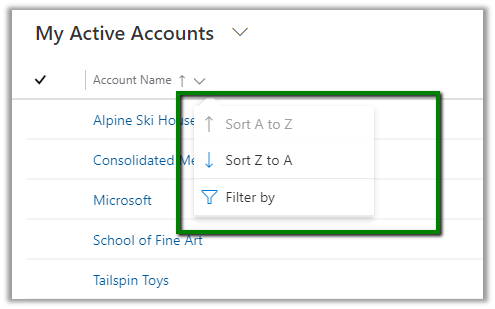
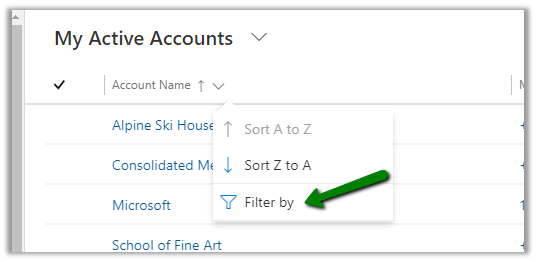
With the 2020 Release Wave 1 clicking on the header or sort or filter symbol with open the below screen with the option of both sort and filter. Also if we see, the options to sort and filter have moved closer to the header text of the column instead of right-aligned in the previous version.

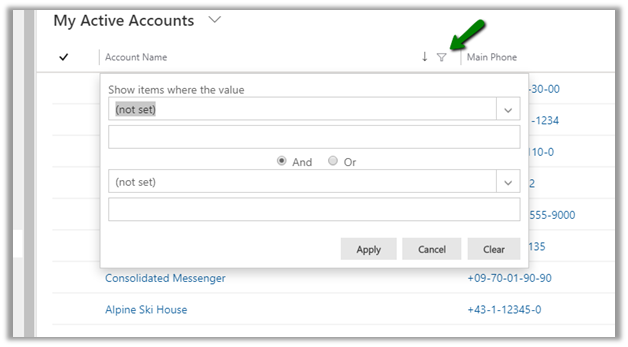
And for filtering also we had to specifically click on the filter icon earlier.

For the text field below filter options will be displayed earlier

For Wave 1 Release 2020, we need to select Filter By

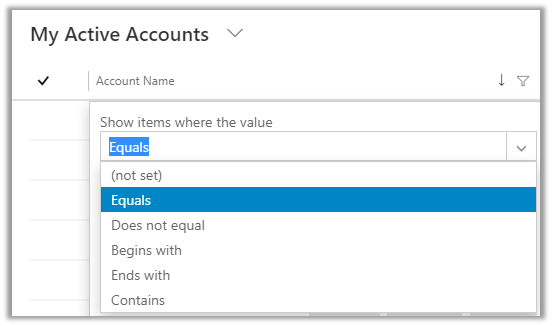
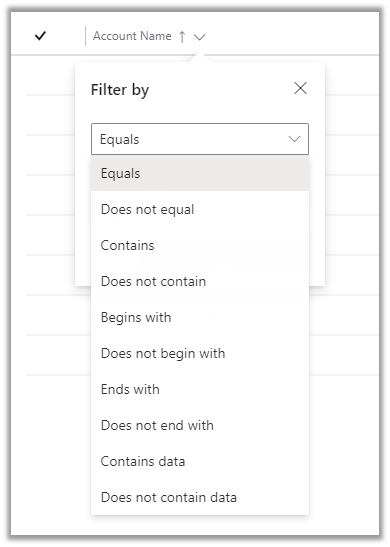
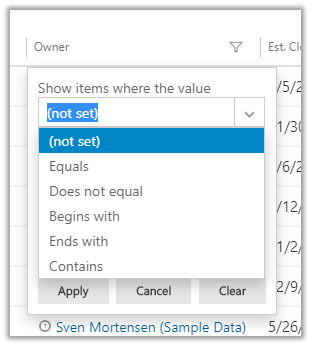
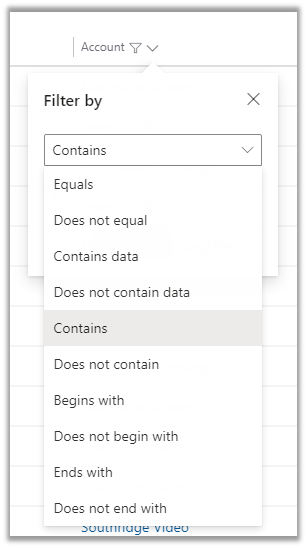
And below are the filter options available for the text fields.

The most helpful here would be the addition of Contains data and Does not contain data filter.

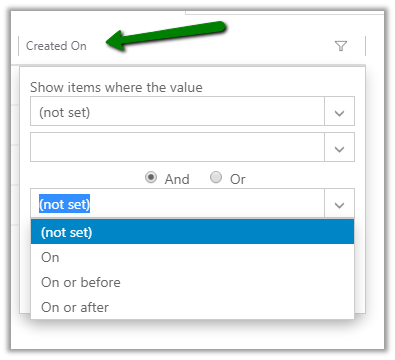
For the Datetime field prior to Wave 1 Release 2020, we had the below very limited filter options available.

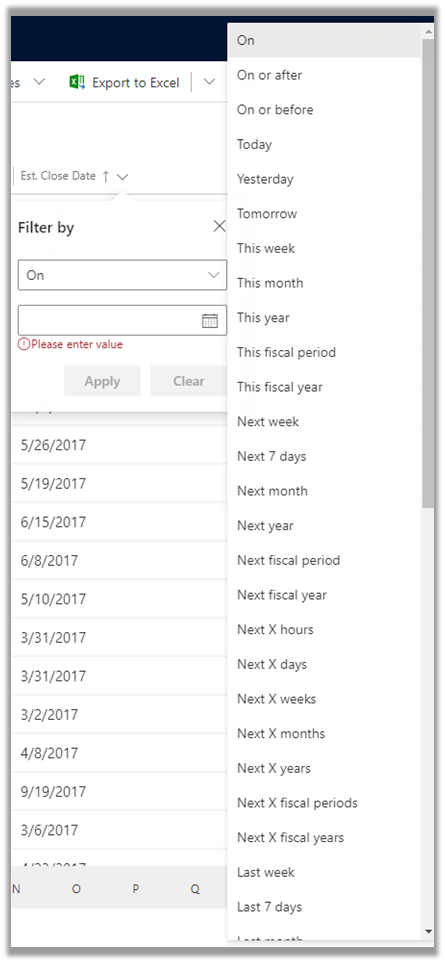
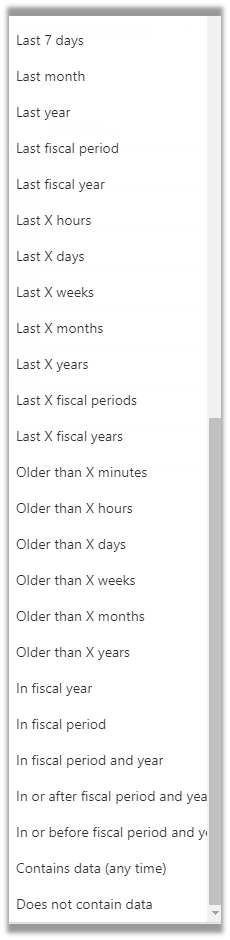
Now in Wave 1 Release 2020, we have the following filter options specific to DateTime field added

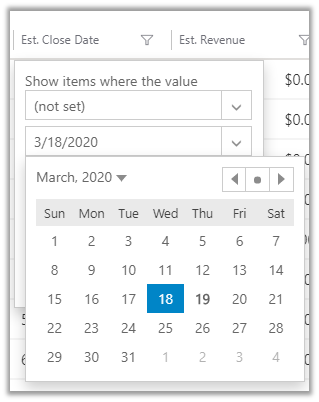
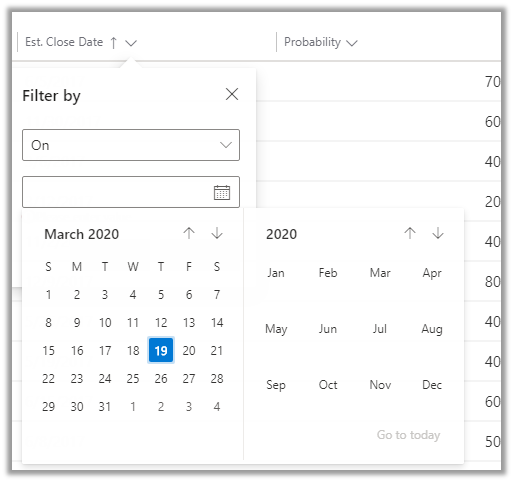
along with updated Calendar View for selecting the date

Earlier à

Now à

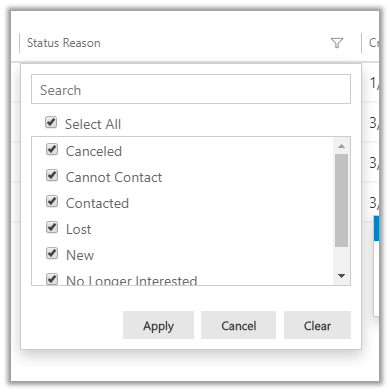
For Optionset fields

Earlier à

Now à

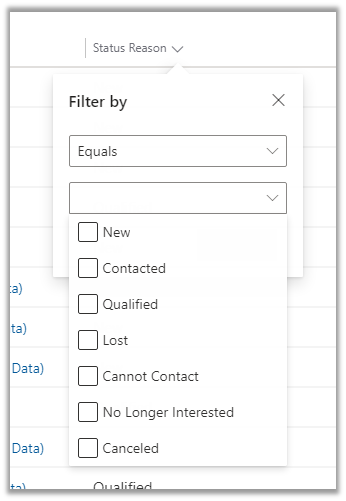
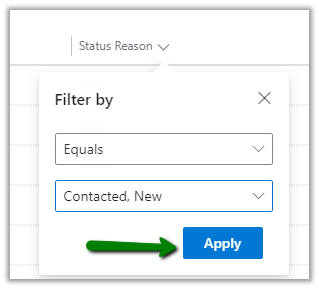
Instead of having all the options selected now it comes as unselected and to apply the filter we need to select the specific value and then click on Apply.

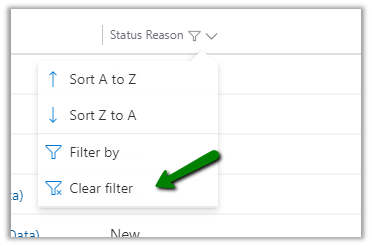
And select Clear Filter to clear the filtering

For Lookups à

Earlier

Now à

  • For Numeric Field we now have the contains
    data and does not contain data filter options added.

These enhancements specific to filtering will definitely add to more productivity for the users.

Check other blog posts on

Release 2020 Wave 1: https://nishantrana.me/2020-release-wave-1/

Release 2019 Wave 2: https://nishantrana.me/2019/12/31/dynamics-365-2019-release-wave-2-blog-posts/

Hope it helps..

SLA Enhancements in Dynamics 365 Customer Service – 2020 Release Wave 1


2020 Release Wave 1 adds the new enhanced experience which includes easy to use interface and Power Automate in the Unified Client Interface for the SLA Administration.

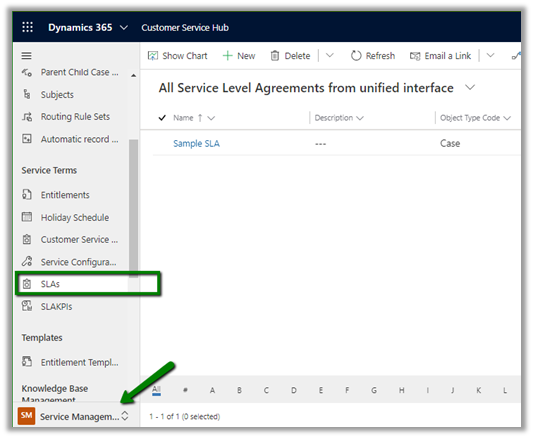
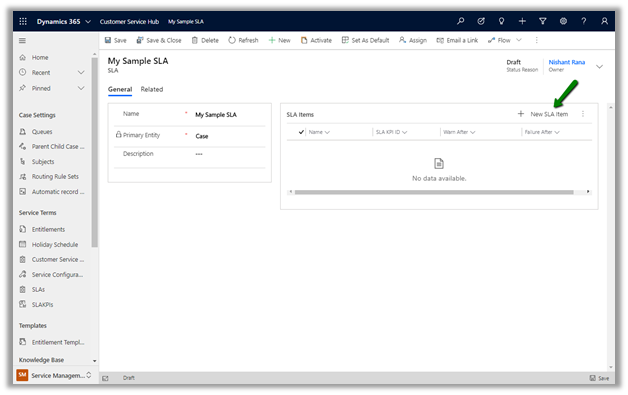
To define SLA, the admin can navigate to Service Management à Service Terms à SLAs.

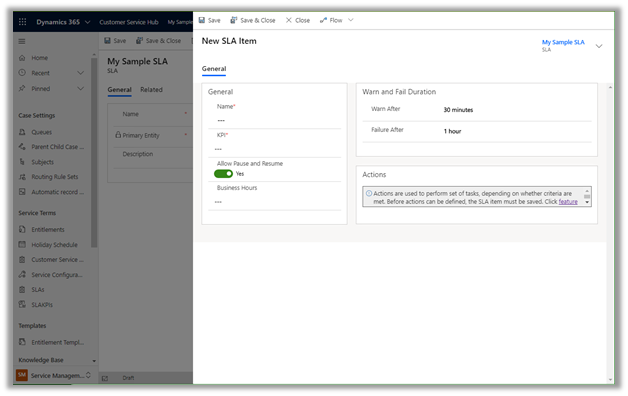
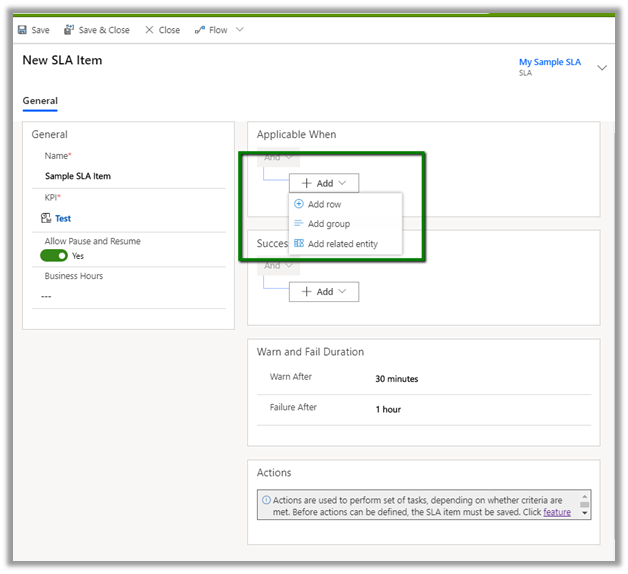
The new SLA Item window now opens in the modal dialog

It includes the condition builder

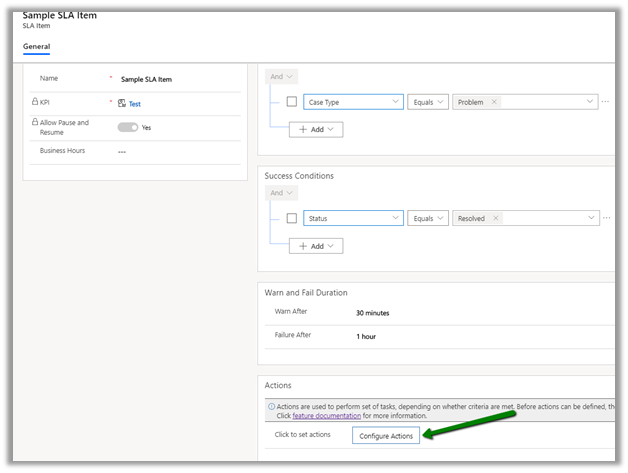
Action now use the Power Automate, here clicking on Configure Actions

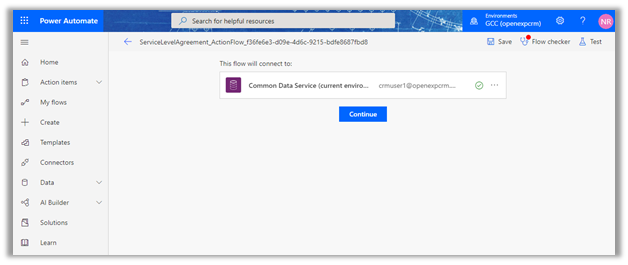
takes us to the Power Automate

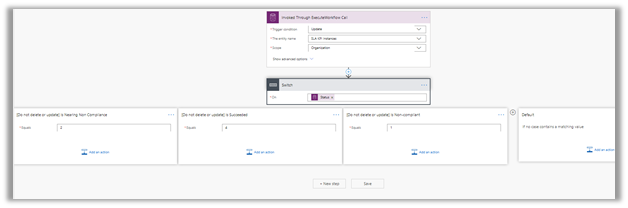
With below flow defined à

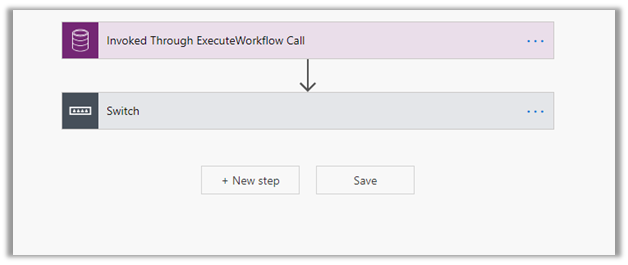
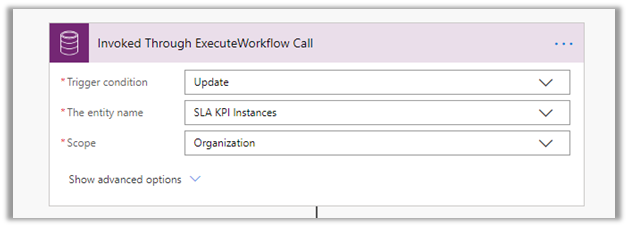
Invoked Through ExecuteWorkflow Call Trigger à

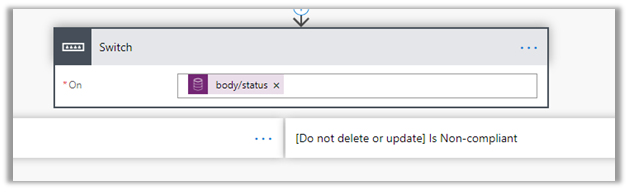
The Switch condition step with four different cases defined.

Here nearing Is Nearing Non-Compliance is where we will define our Warning
Actions.

Is Succeeded = Success Actions.

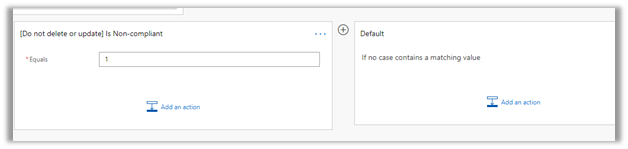
Is Non-compliant would be used to specify Failure Actions.
And lastly, we can define the Default option.

The old SLA Item interface à

Thus, these features bring the unified client interface experience close to the legacy web client.

Check other blog posts on

Release 2020 Wave 1: https://nishantrana.me/2020-release-wave-1/

Release 2019 Wave 2: https://nishantrana.me/2019/12/31/dynamics-365-2019-release-wave-2-blog-posts/

Hope it helps..

Routing Rule, Site, Queue Item enhancements added in Unified Client in Dynamics 365 Customer Service – 2020 Release Wave 1


With 2020 Release Wave 1 we have few features that were existing in the either in Legacy Web Client or in other entities added in Unified Client Interface which includes

  • Case Routing Rules

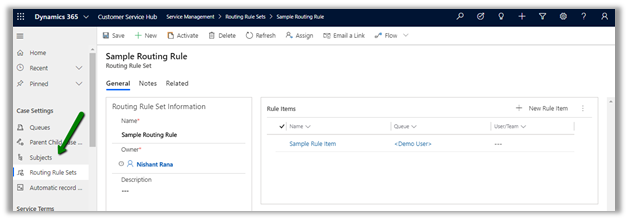
This option is now added in Service Management à Case Settings now.

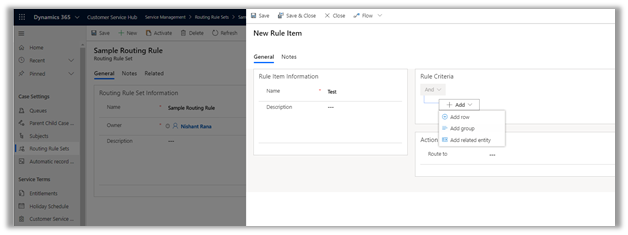
Also, it brings the enhanced experience that uses the new UCI interface.

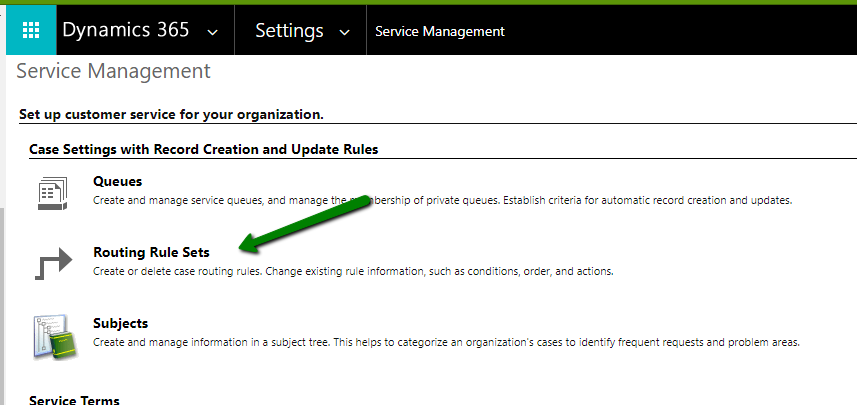
Earlier to create we had to navigate to Advanced Settings  – Service Management – Routing Route Sets to define them

RoutingRule

  • Site Entity support

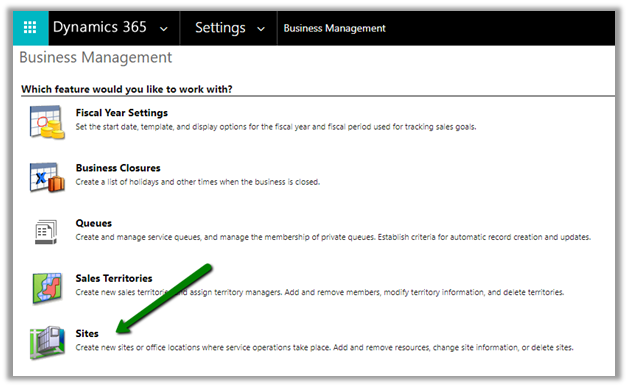
Earlier to create site records, we need to go to Settings à Business Management

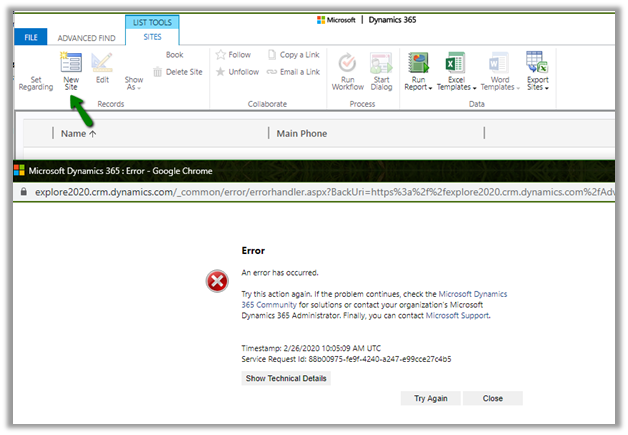
If we try creating the Site record from Advanced Find in 2019 Release wave 2 Plan, we’d encounter below error

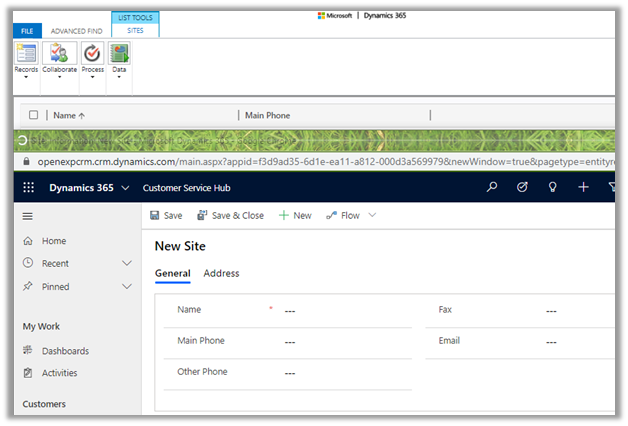
However, with the 2020 Release 1 Wave plan, we can now create the Site records through advanced find without the need to going to settings.

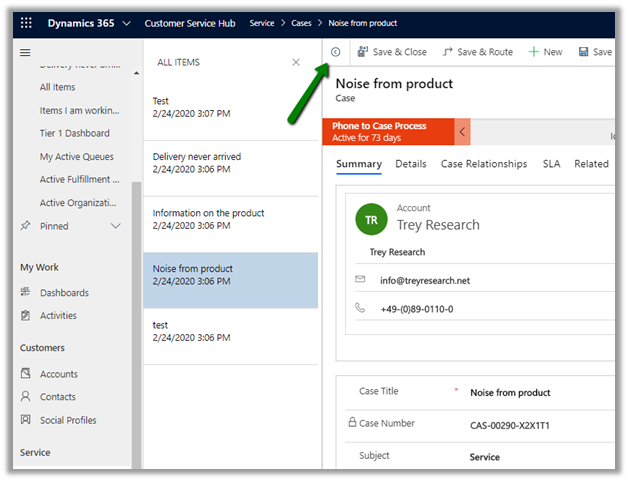
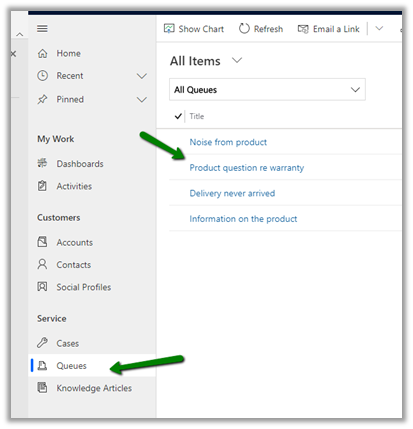
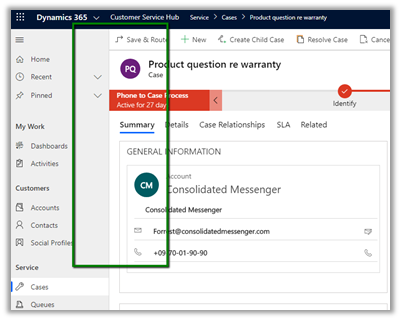
  • Record set navigation” is added to the Queue Items for the agents to easily navigate between records.

Previously the user had to open the record from the Queue to see the details close it and then open another record to check the details.

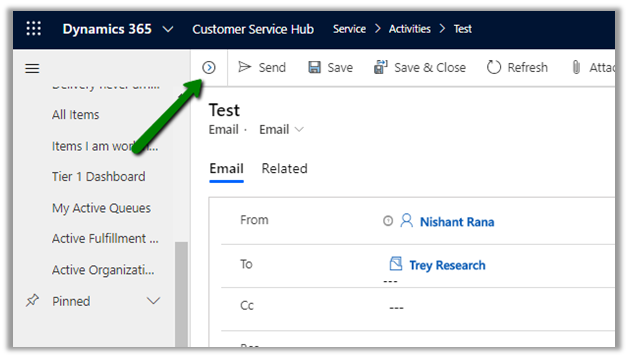
Missing record set navigation option earlier

Check other blog posts on

Release 2020 Wave 1: https://nishantrana.me/2020-release-wave-1/

Release 2019 Wave 2: https://nishantrana.me/2019/12/31/dynamics-365-2019-release-wave-2-blog-posts/

Hope it helps..