Now Maximum of 10 alternate keys can be defined for an entity/table – 2021 Release Wave 1 – Dynamics 365


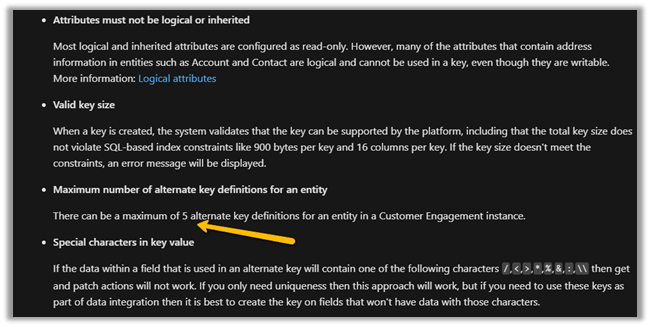
Previously, a maximum of 5 alternate keys could be defined for an entity.

https://docs.microsoft.com/en-us/dynamics365/customerengagement/on-premises/developer/define-alternate-keys-entity#create-alternate-keys

With 2021 Release Wave 1, the limit has been increased to 10.

https://docs.microsoft.com/en-us/power-platform-release-plan/2021wave1/data-platform/increased-alternate-key-limits

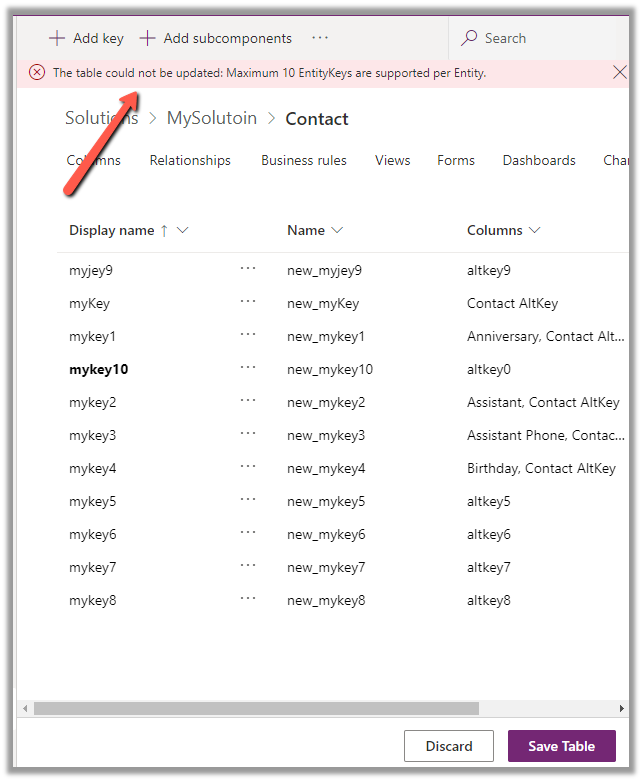
While trying to create the 11th key we will get the below error message as shown below

The table could not be updated: Maximum 10 EntityKeys are supported per Entity.

Check other posts on 2021 Release Wave 1  –

Blog posts on 2021 Release Wave 1 – Dynamics 365

Hope it helps..

Advertisements
Advertisements

How to – Customize Quick Actions in Dynamics 365 CE / Model-driven Power Apps


As part of the enhanced Search Experience, contextual quick actions were introduced in the platform :- https://nishantrana.me/2021/02/09/improved-search-experience-now-adds-quick-actions-2021-release-wave-1-dynamics-365/

E.g. we have Assign, Share, Email quick actions available for Contact, Account, and other entities for the relevance search results.
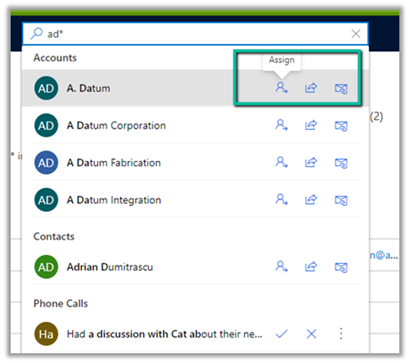
There can be a maximum of 5 quick actions per entity/table.

The quick actions are a subset of commands available for an entity/table at the Home grid level.

Below are the new rules (Enable Rule) introduced through which these contextual quick actions/commands can be shown or hidden.

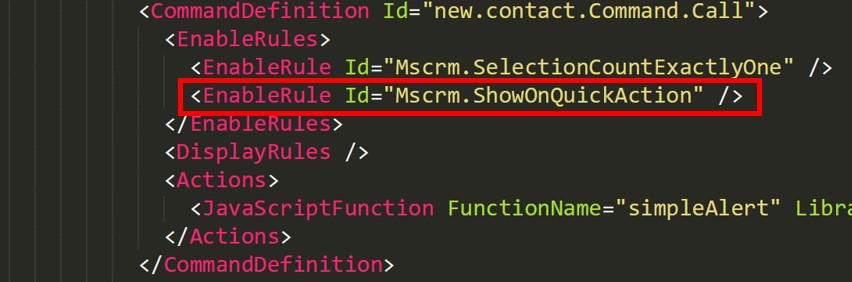
  • ShowOnQuickAction – Command will only appear as a Quick Action within Search and will be hidden from the home grid.
  • ShowOnGridAndQuickAction – Command will appear for both Grid and as a quick action.
  • ShowOnGrid – command will only appear for the grid.

To apply these rules, we can use our favorite Ribbon Workbench tool.

Select Customize Command option for the respective command/button within the Home.

Add a new Enable Rule for the command.

Select IsCore as true.

Apply the Enable Rule for the other commands as shown below.

Here we have used the Contact entity/table.

Assign

ShowOnQuickAction

Share

ShowOnGridAndQuickAction

Email a link

ShowOnGrid

Follow

ShowOnGridAndQuickAction

On successful publishing of the above rules, as expected we can see – Assign command hidden and Share, Email a Link and Follow available in the Home grid

And with the quick actions, we can see Assign, Share and Follow available and Email a link command hidden.

Get the details – https://powerapps.microsoft.com/en-us/blog/search-quick-actions-are-now-customizable-in-model-driven-power-apps/

Other posts on 2021 Release Wave 1

https://nishantrana.me/2021/04/21/blog-posts-on-2021-release-wave-1-dynamics-365/

Hope it helps..


Advertisements

Duplicate Detection limitations – Dynamics 365


Some time back, had reblogged about Duplicate detection limitations.

The original post – https://crmfunda.wordpress.com/2018/09/26/d365-limitations-of-duplicate-detection-rules/, talks about the below limitations

Let us check each one of them with the enhanced experience that we now have in the platform

  • Duplicate Detection works seamless for Dynamics 365 for Phone app also as shown in the screenshot below.

  • Duplicate detection check kicks in when we qualify the lead

Here, qualifying the lead, pops up Duplicate Detection dialog box listing both the matching Account and Contact record.

We can either choose ignore and save to create a new record or click on continue to merge the record with the selected record(s).

  • On activating a matching inactive contact record,

Duplicate Detection is not triggered.

Duplicate detection can be setup to run on the following events – 

dd

  • While trying to publish 6th Duplicate Detection rule for Account entity,

we get the below exception

System.Web.HttpUnhandledException: Exception of type ‘System.Web.HttpUnhandledException’ was thrown. —> Microsoft.Crm.CrmException: The selected record type already has the maximum number of published rules. Unpublish or delete existing rules for this record type, and then try again.

Thus maximum 5 duplicate detection rules can be published per entity.

More on Duplicate Detection

Hope it helps..
Advertisements

Set Custom Message and disable background processes inside the Administration mode for Sandbox and Production Environment – Power Platform


Recently while trying to enable Administration mode for one our environments, we realized 2 new options.

  • Background Operations – for disabling any background operations.
  • Custom Message – define the custom message for the users.

For CRM On-Premise, we used to place a custom HTML page + URL
Rewrite during the maintenance window.

Nicely document here – https://debajmecrm.com/dynamics-crm-maintenance-page/

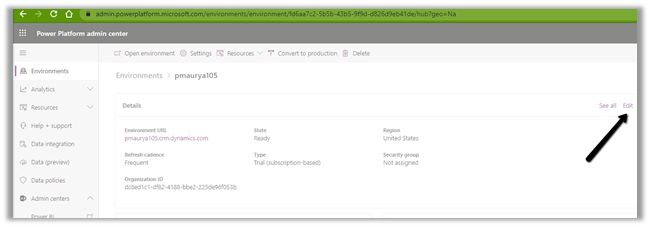
Login to https://admin.powerplatform.microsoft.com/ with System Administrator role, select the Environment, and click on Edit.

Enable the Administration mode, and set the custom message.

Click on Save to make the change, within a minute or so the process will complete.

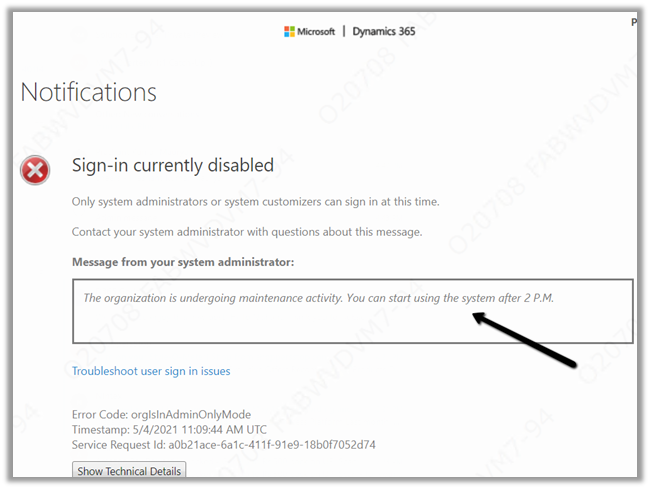
And the non-system administrator and customizer users will see the below page with our custom message as shown below.

Get more details –

https://docs.microsoft.com/en-us/power-platform/admin/admin-mode

Hope it helps..

Advertisements

Fixed – ClientErrorAborted while creating flow in Power Automate


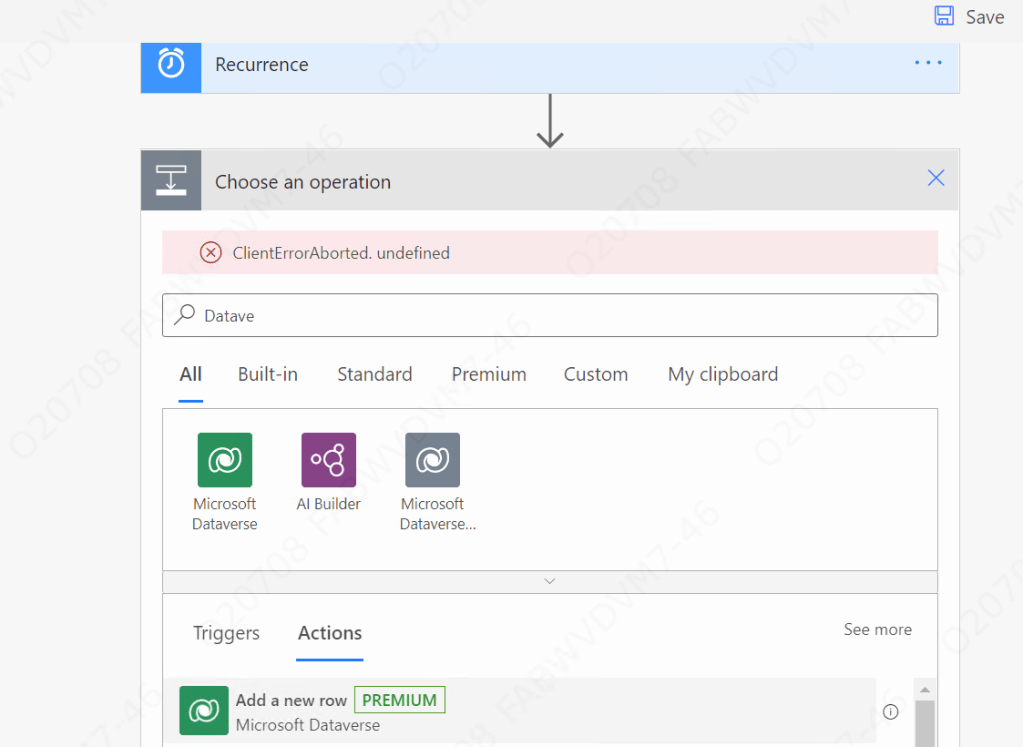
Recently while creating a flow in Power Automate we got the ClientErrorAborted error.

clientaborted

Users were having all the required licenses / roles.

And only a few users were getting the error, who were accessing the Power Platform from their VDI.

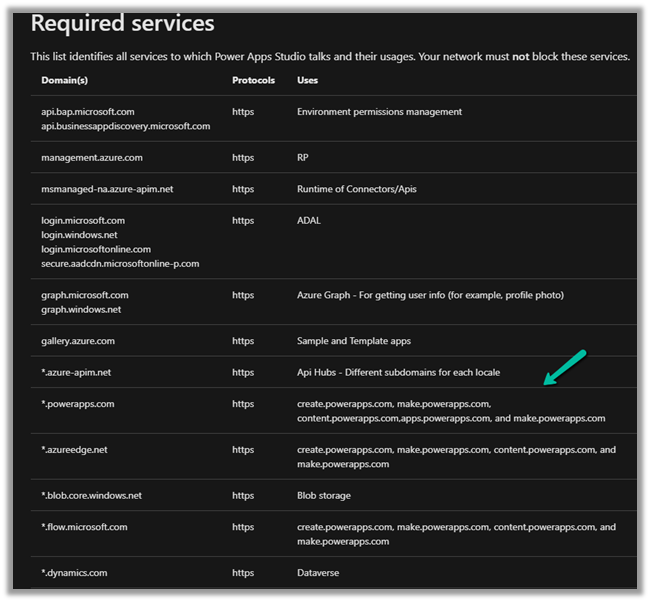
Eventually, after some analysis, we realized that it was because some of the required services were blocked.

We raised the Microsoft Support Ticket who suggested verifying and if required whitelist the below services.

https://docs.microsoft.com/en-us/powerapps/maker/canvas-apps/limits-and-config#required-services

Whitelisting them fixed the issue for us.

Hope it helps..

Advertisements

Status Reason filter (Timeline control), Multiline field (Quick View Form) and Improved accessibility for BPF on mobile app – 2021 Release Wave 1


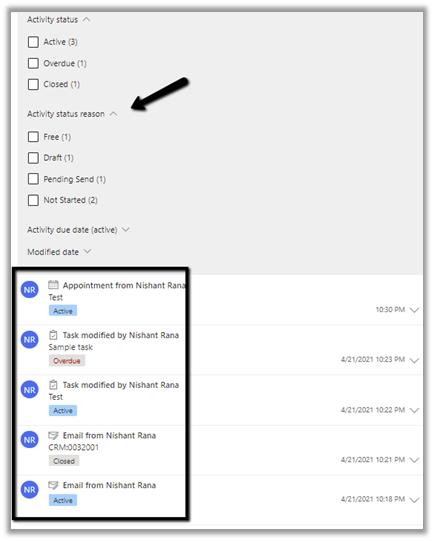
  • 2021 Release Wave 1 for Dynamics 365 adds a new Status Reason filter for the Timeline control.

Activity status reason filter will show the status reasons of all the activities in the timeline. For the total 5 activities in the timeline, the filter shows the corresponding status reasons of all the activities divided among Free, Draft, Pending Send, Not Started status.

  • Another enhancement is in the way the multi-line text field is rendered within the Quick View Form. Now users do not have to click and scroll on the field to see the full content.

Below is the Quick View Form of Contact within the Account entity.

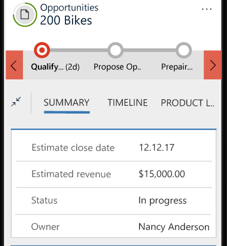
  • Business Process Flow experience has been updated for the mobile app, making it similar to the web application.

Earlier – 

bpf1

Now – It includes the name and duration for the Business Process Flow within the Mobile App as shown below.

bpf2

Check other blog posts on 2021 Release Wave 1 :

Blog posts on 2021 Release Wave 1 – Dynamics 365

Hope it helps..
Advertisements