Two way communication between CRM and Azure Service bus


ansrikanth's avatarSrikanth Alluri

This is the next level of my previous post on Azure service bus integration with CRM. If you haven’t gone through it already, I would highly recommend you to go through it first over here as whatever we are going to do here in this post is kind of an extension to my previous one.

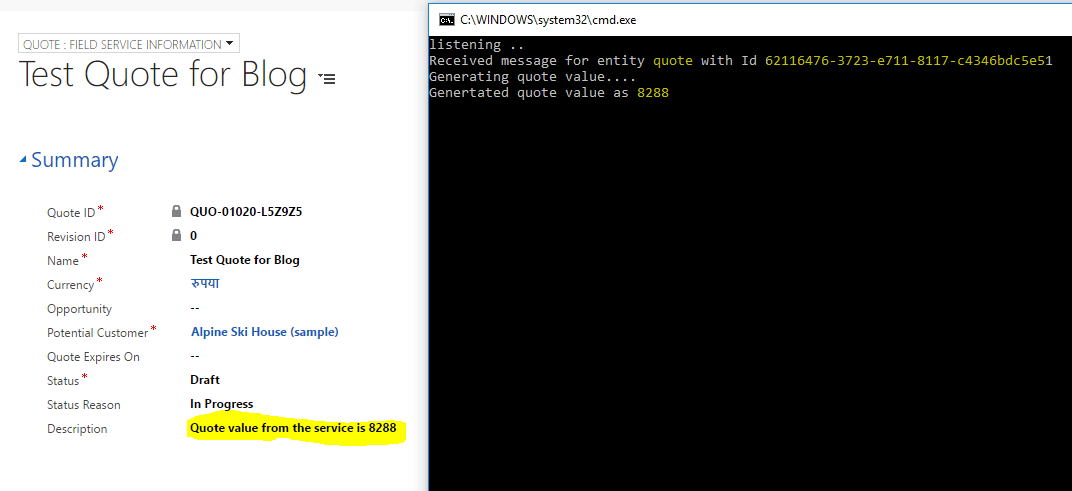
So, in the last post, we saw how we can pass the CRM entity information to ASB (Azure Service Bus) whenever it got created/updated/any other plugin actions happened. And you must have noticed by now that it would be an asynchronous job for us, meaning CRM would be in ‘fire and forget’ mode. All it knows is it has dropped a ‘Message’ in a Queue, it doesn’t know when it got picked up and when it got processed and who picked it up etc. In some cases this might be the exact behavior we are…


View original post 1,462 more words

How to – use Dynamics 365 Marketing JavaScript API to set hidden field’s value


Dynamics Marketing JavaScript API is only available for the marketing form hosted as Script. It is not available for forms hosted as Iframe.

More on embedding form on external page – https://nishantrana.me/2022/11/10/how-to-embed-marketing-form-on-an-external-page/

Add a reference to form-loader.js or load.js to access the API.

Below is our form with a hidden field in it.

Based on the current living situation (drop down), we want to set the value of the Financially Capable field (bool) – the hidden field’s value as either True or False.

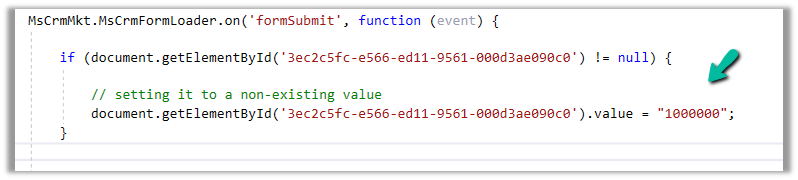
For this, we have added the below script, in the formSubmit event.

formSubmit triggers on form submit before the form submission is sent to the server.

Check all the events here – https://learn.microsoft.com/en-us/dynamics365/marketing/developer/marketing-form-client-side-extensibility#form-events

The script – Get the id of the element through browser’s developer tools.

Hope it helps..

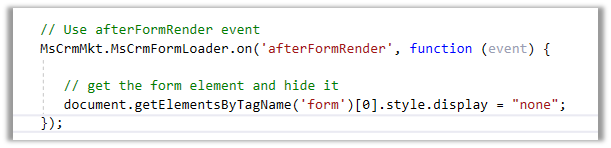
  // Extending Marketing form with code 
        // formSubmit - Triggers on form submit before the form submission is sent to the server.
        MsCrmMkt.MsCrmFormLoader.on('formSubmit', function (event) {
          
            // get the id of the elements through developer tools of the browser
            // based on selected current living situation (optionset)
            if (document.getElementById('deb110aa-e266-ed11-9561-000d3ae090c0') != null) {
                var selectedCurrentLivingValue = document.getElementById('deb110aa-e266-ed11-9561-000d3ae090c0').value;
                if (selectedCurrentLivingValue == 881990000) {
                    // set the value of Financially Capable field (boolean)- true / false
                    document.getElementById('dcc46e64-2867-ed11-9561-000d3ae090c0').value = "1";
                }
                else {
                    document.getElementById('dcc46e64-2867-ed11-9561-000d3ae090c0').value = "0";
                }
            }
        });
Advertisements

Fixed – Hide field option missing for dropdown (OptionSet) field in Marketing Form – Dynamics 365 Marketing


Recently while designing the marketing form, we realized the Hide field option missing for our dropdown fields.

There are 2 ways to solve this –

In the HTML designer mode for the Marketing form –

  • Add the attribute hidden=”hidden” for the field

The field will be hidden but the Hide field toggle won’t be available in the designer.

  • Change the data-editorblocktype from “Field-dropdown” to “Field-checkbox“.

This adds the Hide field toggle option in the designer.

The result –

The helpful thread – https://community.dynamics.com/365/marketing/f/dynamics-365-for-marketing-forum/391470/how-do-i-populate-lead-source-from-a-hidden-field-on-marketing-form

Hope it helps..

Advertisements

How to – use Page Personalization in Dynamics 365 Marketing


Page personalization uses cookies stored in the user’s browser for identifying the contact, and then fetches values for the contact record using JavaScript.

For page personalization to work –

  • The domain should be authenticated
  • It must use HTTPS
  • Contact should have Prefilling enabled i.e. Prefill Marketing Form field in the Contact record should have the value Allow.
  • Specify the contact fields to be made available.

Below is the marketing form (landing page) that we’d be using.

The form has a Remember Me element in it required for Personalized Pages. It gets automatically added to the form if we enable PreFill for the form.

https://nishantrana.me/2022/11/16/how-to-enable-prefill-for-marketing-forms/

We have only kept Pre Fill enabled for the City field. The other fields in the form have prefilled disabled.

Create a new personalized page, navigate to Outbound marketing >> Marketing Content >> Personalized Pages and add

Personalized page fields to it

After adding the fields, Click on Go live.

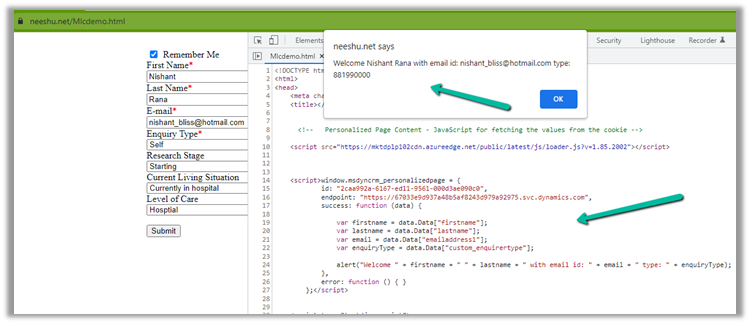
Going live generates the JavaScript
code, that we’d paste into our page, in the <head> section of the HTML.

As we have added 3 Personalized page fields, we will have access to the value of only these 3 fields on the page where this script is used, even though our Marketing form can have multiple fields or even if the cookie has other values stored as part of another marketing form.

Below we have added the JavaScript code in the head section and modified it to fetch the value of 3 fields added and also we have the code for embedding the Marketing form.

Lastly, we have a Div element to show the personalized message to the user.

Below is our page

Let us populate the values and submit the details (with Remember me enabled)

Let us refresh the page after a few seconds. This is because in the background we will have the lead/contact record either created or updated based on what we have specified in the Marketing form.

As expected, we have the div populated with First Name, Last Name, and City details using the Personalized Page’s JavaScript.

Also as we had Pre-fill enabled for only the City field, we can see the value automatically populated for it.

Please referhttps://meganvwalker.com/d365-marketing-personalised-pages-on-your-website/

Get more detailshttps://learn.microsoft.com/en-us/dynamics365/marketing/personalized-page-content

https://learn.microsoft.com/en-us/dynamics365/marketing/personalized-page-content#test-your-page-personalization

Hope it helps..

Advertisements

Implementing Dynamics 365 Service Bus Listener using Azure Function


yanivrdt's avatarYanivRDT

One of the built-in triggers for Azure Function App is Service Bus (ASB) queue trigger, which makes Azure Function a listener for ASB events.
While Azure Service Bus provides a robust decoupling mechanism, the receiving side has to poll for messages or implement a listener

This trigger makes Azure Functions an ideal implementation component for Inbound Asynchronous Integration with Microsoft Dynamics 365,
one that allows you to write custom code, but releases you from explicitly writing a listener.
An Inbound Asynchronous Integration pattern describes scenarios where a business event occurs in an external application and must be reflected into Dynamics 365.
Processing of the event in Dynamics 365 does not occur immediately and sometimes no response is required from Dynamics 365 side (one way).

In this post I’ll walkthrough the process of setting an Azure Function as an ASB one-way listener which posts incoming messages into Dynamics 365.
To…

View original post 281 more words

How to enable prefill for marketing forms


Check the previous posts on hosting marketing forms for more details

How to – embed marketing form on an external page

Here we will see Prefill in action.

https://learn.microsoft.com/en-us/dynamics365/marketing/form-prefill#create-a-landing-page-form-with-prefill-enabled

We have created the below marketing form (type – Landing Page) right now (currently Pre-fill is set as default false for the form/fields)

Submit the form –

We can see the contact / lead records created as part of submission.

The contact has Do not allow for Prefill marketing form field

Opening the website we don’t see any pre-fill information as expected.

Now let us enable prefill for the fields and for the form.

Enabling Prefill for form automatically adds the Remember me element to the form. It is tied to Prefill marketing form field on the contact record as we saw earlier and required for prefilling to work.

Let us submit the form, this time with Remember me as true.

We can see Prefill marketing form field set as Allow for the contact.

Load the marketing form page again and we can see the value already pre-filled or populated for the user.

We saw how we can enable prefilling for Landing Page type form, by enabling prefill as true at form and field level and adding the remember me element.

For form type – Subscription Center, pre-filling is already enabled for all the fields regardless of their prefill setting, and at the form level also it is set as true and the field is read-only.

Here we do not have to add a remember-me element.

Here we must include the Do not email element.

Prefill in the case of subscription form

Hope it helps..

Advertisements