Fixed – Package Deployer (USD) not connecting to CRM Organization


Hi, while trying to set up USD in the Dynamics 365 Online environment

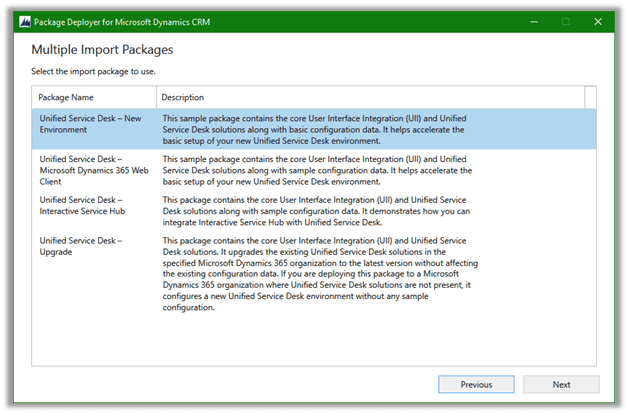
We were facing the issue with the USD’s Package Deployer, after login, it was showing the Organizations but on trying to connect to them, it was again taking back to the login screen.

This was because we were using below old version of the Package Deployer

Dynamics365-USD-2.2.0.755-PackageDeployer

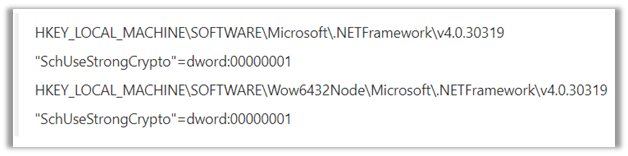
To get it working as suggested by Microsoft we had to update the registry and add the following key – “SchUseStrongCrpto

This makes the .NET application, in our case, the older version of the Package Deployer to use TLS 1.2 required for connecting to Version 9.0 of Dynamics 365.

After making the registry change, we were able to move forward.

We will not be facing the same issue with newer version of USD

https://community.dynamics.com/365/customerservice/b/unifiedservicedeskblog/posts/unified-service-desk-4-1-general-availability

Hope it helps.

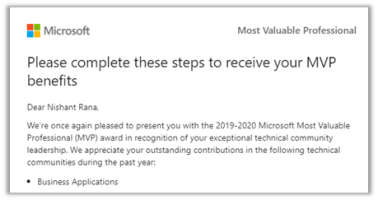
Thanks Microsoft for the MVP (Business Applications) award once again!


Thanks Microsoft for this recognition and thanks to all the wonderful and passionate Dynamics 365 (CRM) professionals who have inspired and motivated me and others for several years, to keep learning and contributing in the community and to grow in the process!

Dynamic CRM – User Profile Migration


Check out the new XrmToolBox tool – User Profile Migration

rahultiwary's avatarRahul Tiwary CRM Blogs

Recently, I have been working on a project which has lot of users belongs to different BU’s having different roles and they are part of multiple Teams. Now, once we are done with UAT it was time to go and configure PROD. The timeline to go live was very strict and we have more than 1000+ users which must be configured with their respective BU’s, roles and Teams as per UAT. Cloning was not an option for us. So, we decided to come up with a tool which will download all enabled Users with their Business Unit, Roles assigned to them and Teams they belong to in an xml format from UAT. And once all the deployment steps are completed, we just uploaded the downloaded xml with the tool that we built which will find the users in target system and assign security role and Teams as per the xml.

View original post 247 more words

Getting FormContext in Power Apps Custom Component framework–Gotchas!


Debajit's avatarDebajit's Dynamic CRM Blog

Before I proceed further some disclaimers here. If you are thinking from the title that I have been able to resolve the problem completely, unfortunately it’s not. My approach works for certain scenarios and not for all scenarios and I will explain where it works and where it doesn’t. And this is of the time I am writing this blog. Very soon Microsoft may release something much simpler.

Ever since I wrote the article on in-depth walkthrough of Power Apps custom control, I have been flooded with questions and one of them was – “How do I get the formContext inside my custom control code so that I can interact with other attributes on the form?”. And in the series of blogs, I have used Xrm.Page construct to access some attributes on the form and as we all know, it has been deprecated. Honestly when I used Xrm.Page I…

View original post 822 more words

How to – Add Style to Custom Component in PowerApps Component Framework


Kindly refer the previous post, here we will be adding style to the component created in the post.

https://nishantrana.me/2019/06/06/step-by-step-create-a-very-simple-powerapps-custom-component-to-show-the-guid-of-the-record/

Let us continue with our previous sample component and try adding style to it.

  • Open ControlManfiest.Input.xml and specify the CSS file to be referred.

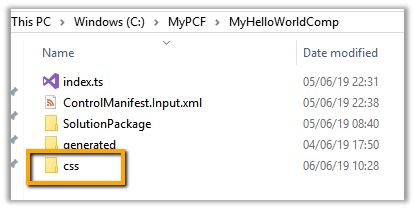
  • Uncomment the CSS tag in the manifest and create a new folder named CSS and place the CSS file there.

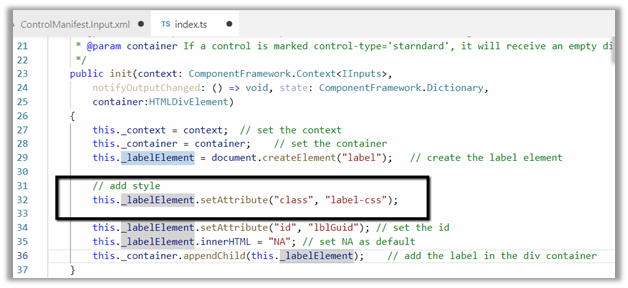
  • Edit the index.ts file and add the class to the label

  • Edit the CSS file

  • Edit the version number in case of updating the existing control in ControlManifest.Input.xml

  • Followed by the build command
  • npm run build


  • After the successful build, we can see the CSS added in the out folder for the component


  • Run the MSBuild command to generate the new solution zip files


  • Import the managed solution.
  • Open any of the existing contact records, we can see the style is applied to the control.

Hope it helps..

Advertisements

Step by Step – Create a very simple PowerApps Custom Component to show the GUID of the record


Update – use context instead of Xrm.Page

https://nishantrana.me/2019/10/22/using-pcf-custom-control-builder-xrmtoolbox-plugin-to-update-existing-control-in-dynamics-365-powerapps/

Also,

https://nishantrana.me/2020/01/20/best-resources-to-start-with-power-apps-code-component-pcf/

Go through below articles to get a better understanding

Below is the quick step by step guide to get started (sort of Hello World example) 

  • Install NPM (that comes with Node.js)

https://nodejs.org/en/

http://download.microsoft.com/download/D/B/E/DBE69906-B4DA-471C-8960-092AB955C681/powerapps-cli-0.1.51.msi

  • Install Visual Studio 2017 or later or Download .NET Core 2.2 along with Visual Studio Code.
  • Create the new folder for the project, and in Developer Command Prompt for VS 2017 navigate to the folder and run the below command to create a new component project

pac pcf init

– -namespace <namespace for the component>

– -name <name of the component>

– -template <component type>


It adds the following files in the folder.


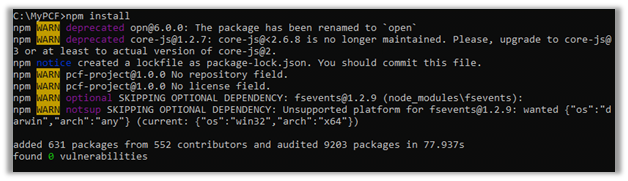
  • Next run npm install command to install the project dependencies.
  • Open the ControlManifest.Input.xml file created inside the folder created with the control’s name.
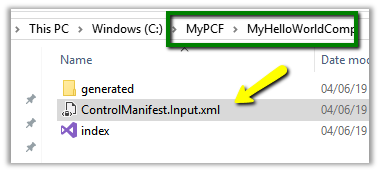
  • Here we have opened it in Visual Studio Code, for this simple example purpose let us not change the default values.
  • Open the index.ts which wherein we’d be writing code for our custom control

  • Add the following line of code to add a label control that will display that GUID of the record.

  • Run npm run build command to build the control

  • To test the control run npm start command

*Use ctrl + c è to terminate the job.

  • Create a new folder to hold the solution

  • Run the below command to define the publisher name and prefix and initialize the solution files creation

pac solution init – -publisherName [publisher name] – -customizationPrefix [publisher prefix]

  • Run the below command to add reference to our custom control in the solution

pac solution add-reference – -path [path to pcfproj file]

i.e. reference of the below path.

  • This creates the file with extension cdsproj

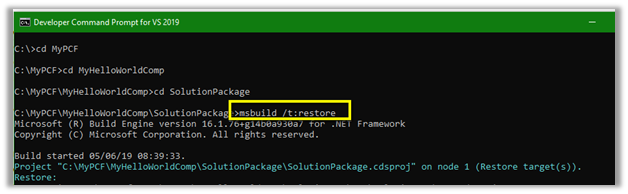
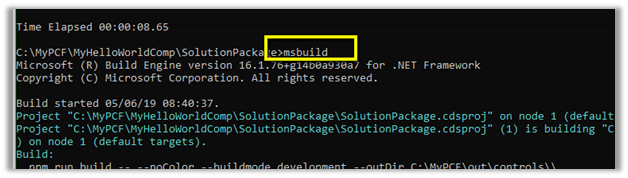
  • To generate Zip File run the below command in the Developer Command Prompt for Visual Studio 2017
    • MSBUILD /t:restore
    • MSBUILD

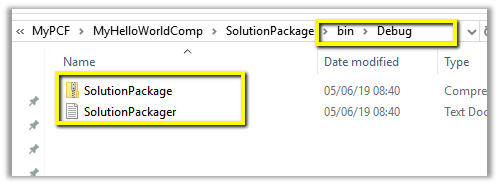
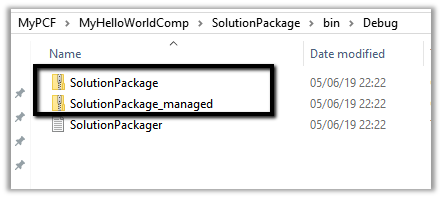
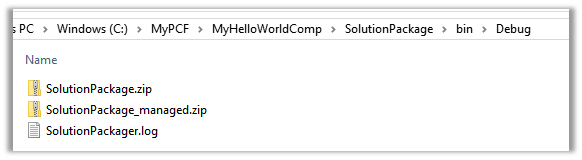
  • This adds the Solution zip in the bin Debug folder.

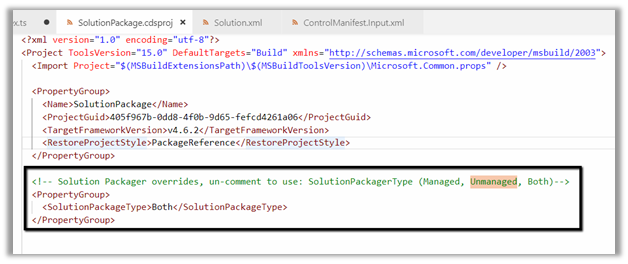
  • To get both managed and unmanaged solution, update the cdsproj file

  • We can see both managed and unmanaged solution created.

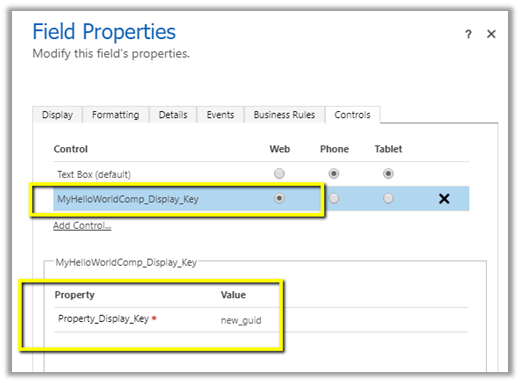
  • Import the solution in Dynamics 365 CE and open any of the entity’s form. Here we have created a new text field named GUID in the Contact form and have set our custom control for that field.

For reference à

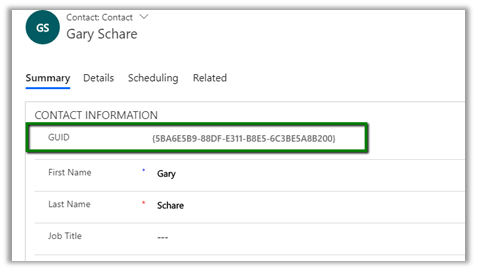
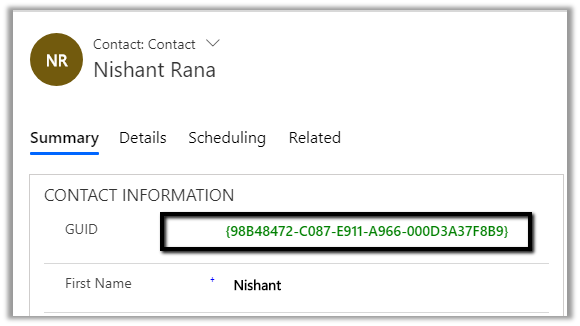
  • After publishing the changes, we can see the GUID being displayed in the form.

  • To update the control, change the version for it in the ControlManifest.Input.xml

Followed by

  • npm run build
  • msbuild
  • Importing the new solution file generated

In a nutshell below are the high-level steps à

1. Install npm

2. Install PowerApps CLI

3. Install Visual Studio 2017 or later

4. Create a new folder for the project.

5. Navigate to the folder in Developer Command Prompt and run the following command to create the component project

pac pcf init –namespace <component namespace> –name <component name> –template <component type>

1

6. Install the project dependencies using below command

npm -install

7. Update ControlManifest.Input.xml

8. Update index.ts

9. Build the project

npm run build

10. Use the below command to test the component

npm start

11. Create a folder for holding the solution zip and related files. Navigate to that folder and run the below command.

pac solution init – -publisherName [publisher name] – -customizationPrefix [publisher prefix]

2

12. Add reference of the custom component in the solution

pac solution add-reference – -path [path to pcfproj file]

3

13. To create the Solution Zip File

MSBUILD /t:restore

MSBUILD

4

14. Import the solution file and use it inside Dynamics 365 CE.

lastly – Don’t forget to check the wonderful PCF Gallery

https://pcf.gallery/

Hope it helps..