Notes on Dynamics 365 for Phones and Tablets app – Part 8 (Mobile Offline)


Check the other articles of this series

Continuing our previous post, here we’d cover the configuration steps and details around offline support for Dynamics 365 for Phones app.

To begin with,

The mobile offline is only available and is supported for iOS (>= 13.1904) and Android (> =4.3.19043) devices.

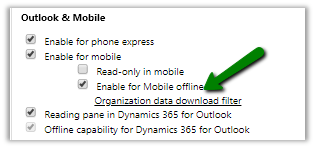
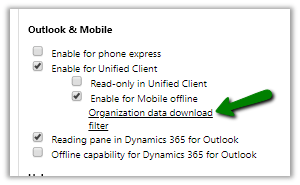
To enable an entity for offline, we need to check the Enable for Mobile offline option for it.
Below are some of the main entities for which we can enable the mobile offline option (along with newer entities added in the product and the custom entities)

Account Activity Pointer Appointment Attachment Case
Competitor Competitor Address Connection Connection Role Contact
Email Lead Opportunity Opportunity Product Phone Call
Position Product Task Team User

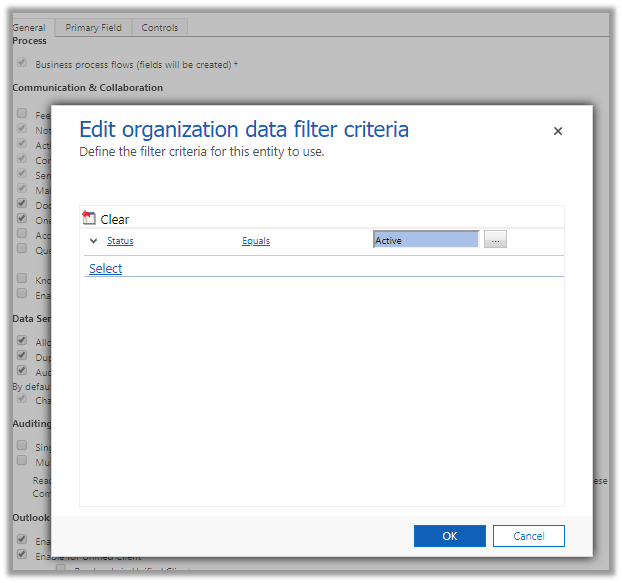
How much data is synchronized?

This is governed by
the Organization data download filter.

Select the entity enabled for Mobile offline and click on the link, and specify the filter
Next, we need to specify the Mobile Offline Profiles, navigate to Settings à Mobile Offline
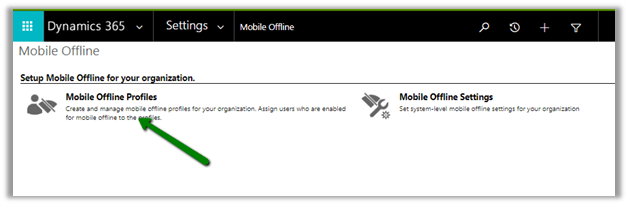
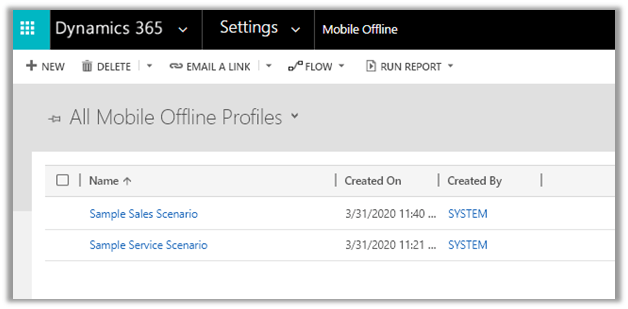
Below are 2 profiles already available.
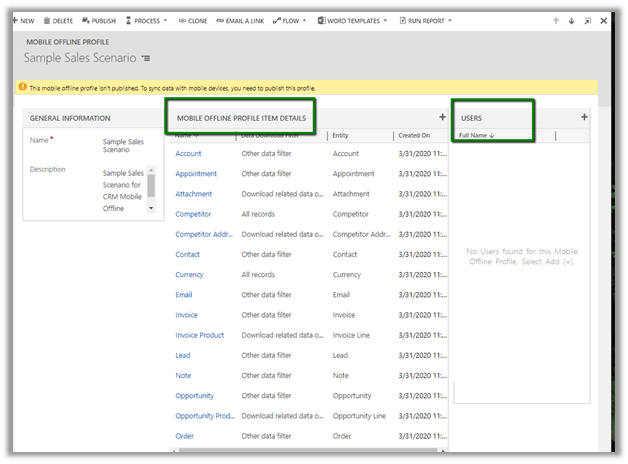
The sample sales scenario profile :
Let us create a new mobile offline profile, with add only the contact entity in it.
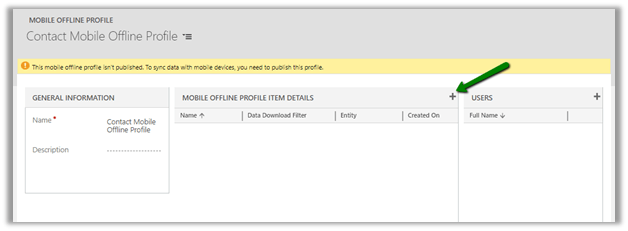
In the new mobile profile item record, we have selected Contact as the entity.

For Data Downloaded Filter we have 4 options as shown below
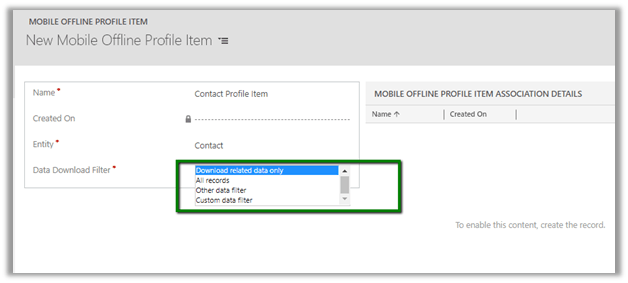
  • All records
  • Custom data filter
  • Other data filter
  • Download related data only

All records will download all the data without any filtering, for the user specified.
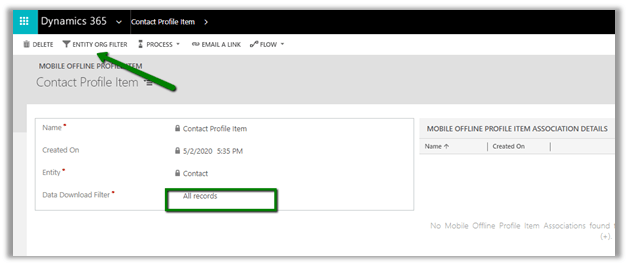
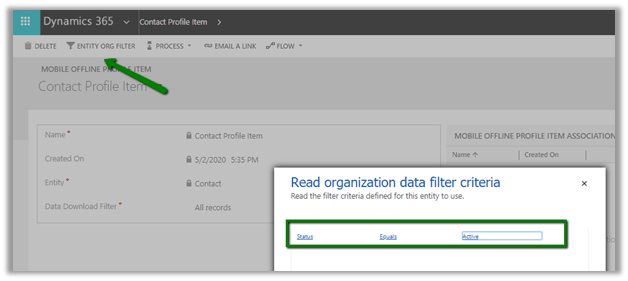
The ENTITY ORG FILTER will open the filter that was defined for the contact entity earlier.
Let us now add the users for the mobile offline profile.
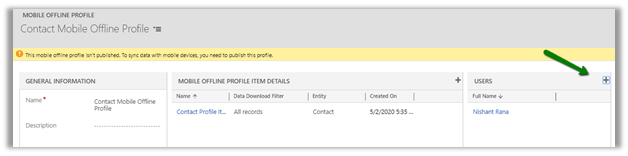
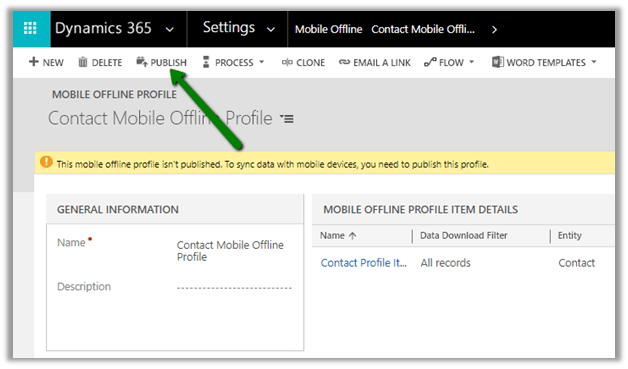
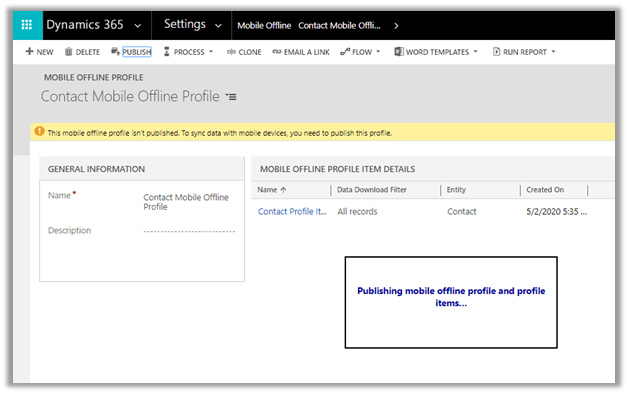
Now let us Publish the profile.
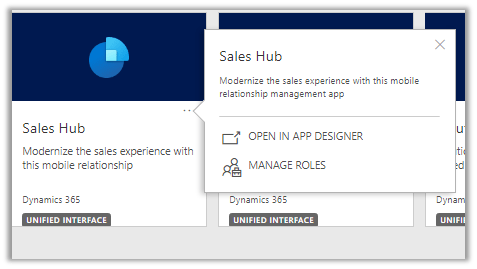
Next, navigate to Settings – Advanced Settings – My Apps and open the model-driven app in the app designer.
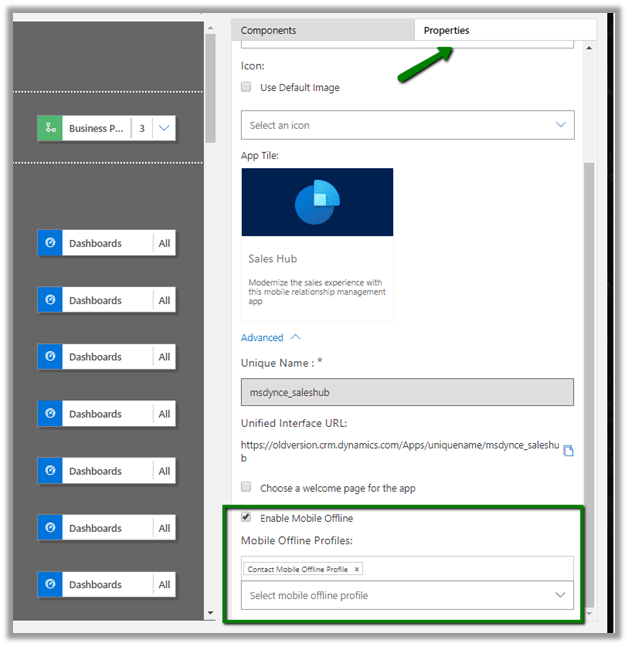
In the properties tab, check Enable Offline profile and select the profile created for contact.
Now we are done with our basic setup.

In the next post, we’d see how all these configuration settings affect the end-user in the offline mode through Dynamics 365 for Phones App.

Hope it helps..

How to – Access fields on QuickView Form (Control) through JavaScript in Dynamics 365


Suppose we have below Account’s Quick View Control on contact entity.

Now to access the email address attribute we can use the below Jscript on the Contact’s form onload event.

The result à email address field is hidden in the quick view form.

https://docs.microsoft.com/en-us/powerapps/developer/model-driven-apps/clientapi/reference/formcontext-ui-quickforms/isloaded

Hope it helps..

Advertisements

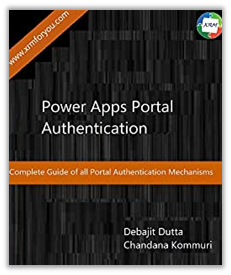
Book summary: PowerApps Portals Authentication


I recently read the kindle version of the book PowerApps Portal Authentication by Debajit Dutta and Chandana Kommuri.

The book covers in detail the different authentication methods available for the PowerApps Portals and also provides detailed instructions to set them up.

The different topics included in the book are

  • Local authentication – Self Registrations and Invitations.
  • External Authentication – with Google, Facebook, LinkedIn, Azure Active Directory (B2C and B2B)

This is the first and the only book in the market on PowerApps Portals, and I think it would be very helpful for the Dynamics 365 professionals, as authentication is the basic and most important piece of information needed while configuring PowerApps Portals for the customers.

What I like about the books in general is it gives us all the required information at the same place, instead of being scattered all around out there in the web, and also that information coming from the expert(s) who have been working on it (because of which you’d be buying the book in the first place) adds to its credibility. The book not only covers all the required details (how and why) for setting up the authentication but also presents it simply and concisely. The chapters start with how to register the portals with the external authentication provider, the authentication mechanism available, settings required in portals, etc. There is a specific pattern or consistency about the way chapters are written in the book, which will make it very easy to be referenced when required. Being around 150 pages, the book was also a quick read.

Grab your copy at the link below !

https://www.amazon.in/PowerApps-Portal-Authentication-Debajit-Dutta-ebook/dp/B085X2HL4W

Solved – window onload undefined error in Dynamics 365


Recently we got the below issue raised by the user on form load of one of the entities.


Most of the times this issue will arise because of the control / attribute being referenced in the JavaScript, being not available on the form.

And same was the case here, one of the JavaScript’s associated with the ribbon button, was referring to business process field (header_process_xxxxx) which was not available on the form.

Hope it helps..
Notes on Dynamics 365 for Phones and Tablets app – Part 7 (Custom Controls)


Check the other articles of this series

Continuing the previous post on the Dynamics 365 mobile app, here we will cover the custom controls.

Custom controls were added to the product in version 9.0 and were part of the new Unified Interface, for us to use at that time. Now we all can create custom control using PowerApps Component Framework (earlier known as Custom Control Framework).

Check out the PCF Gallery for all the custom controls developed by the community.

https://pcf.gallery/

In this post let us look at out of the box custom controls available in the product and how it renders within the Dynamics 365 for Phone App.

Let us start with the custom control for the list.

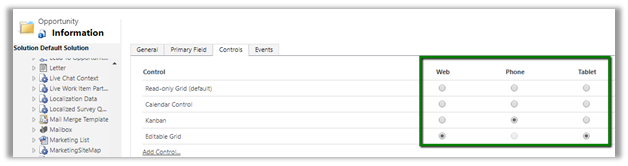
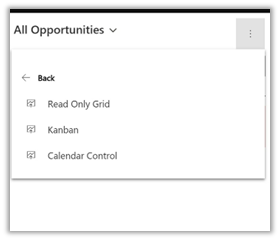
For the opportunity entity, we have defined below custom control. The Editable Grid option is disabled for Phone.

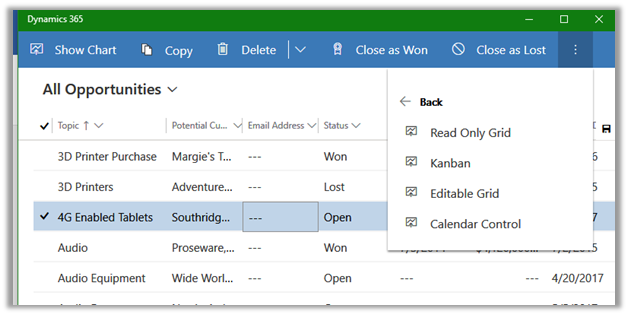
The tablet app shows the Editable grid as default with the option of switching the view.

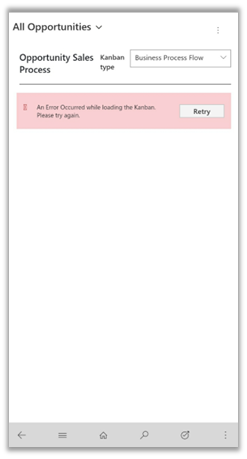
For the Phone App, it seems Kanban’s view has some issues. We can switch to all other views configured except the editable which is not available for the phone app.


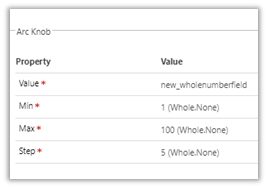
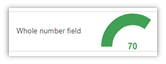
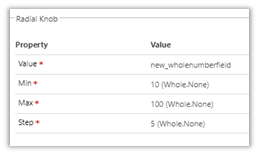
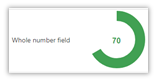
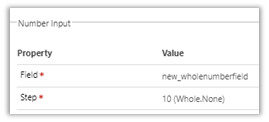
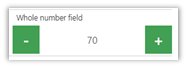
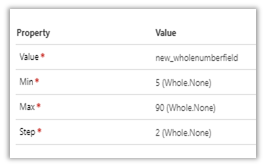
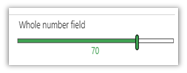
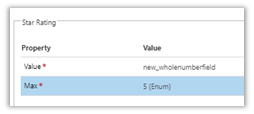
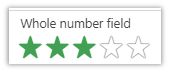
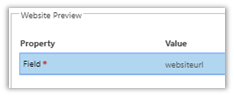
Below is the table that lists the out of the box custom control, along with its properties and how they are rendered in the phone app, for quick reference.

Field Type Control Property
Whole Number
&
Money
Arc Knob

Radial Knob
Number Input
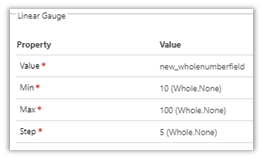
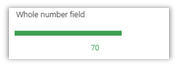
Linear Gauge
Linear Slider
Whole Number Star Rating (max 5)
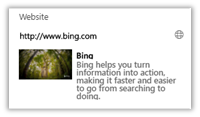
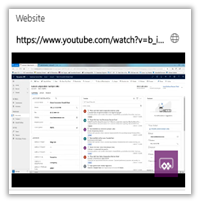
URL Website Preview
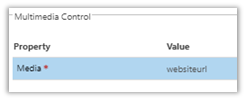
Multimedia
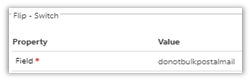
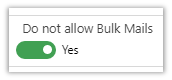
Boolean Flip Switch
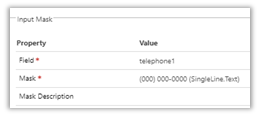
Single line of text Input mask
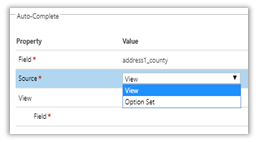
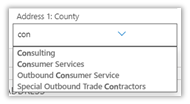
Auto complete
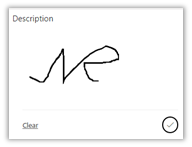
Multiline of text Pen
Option set Option set (max 3)

Hope it helps..
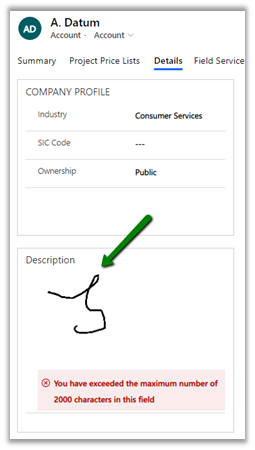
Error – You have exceeded the maximum number of 2000 characters in this field while using Pen Control in Dynamics 365


We might get the below error while using the pen control.
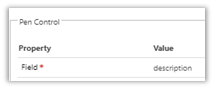

Just make sure that we have set the field to the minimum length recommended by Microsoft i.e. 15000.


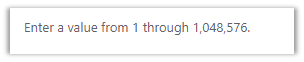
The maximum value that can be set for the text area (multiple line of text) field is 1048576.


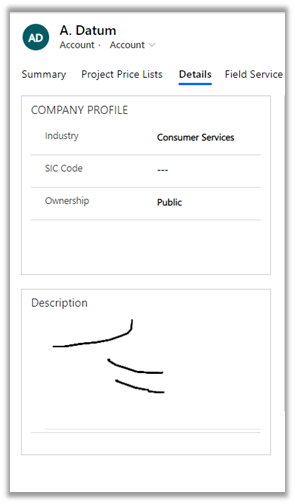
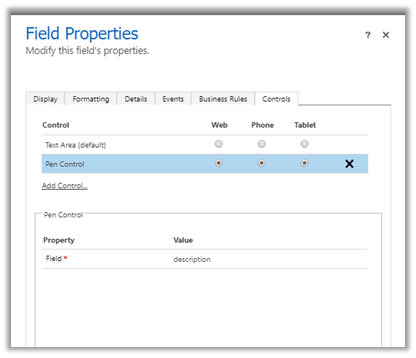
Earlier pen control was not available for the Web client.

https://community.dynamics.com/crm/f/microsoft-dynamics-crm-forum/284081/can-t-check-pen-control-for-web-on-dynamics-crm-365/1036343#1036343

But now they can be enabled for the web as well.


Hope it helps..