How to -Provision Omnichannel for Dynamics 365 Customer Service


For one of our projects we are exploring capabilities of Omnichannel.

Below are the steps for provisioning the Omnichannel for Dynamics 365 Customer Service for quick reference.

Posts on Omnichannel for Customer Service (Dynamics 365)

First, we need to make sure we have the Customer Service Hub already installed.

https://trials.dynamics.com/

Next, we need to have an active subscription of Chat for Dynamics 365 Customer Service or Dynamics 365 Digital Messaging

The other options

https://docs.microsoft.com/en-us/dynamics365/omnichannel/try-channels

Navigate to Microsoft 365 Admin Center

https://admin.microsoft.com/

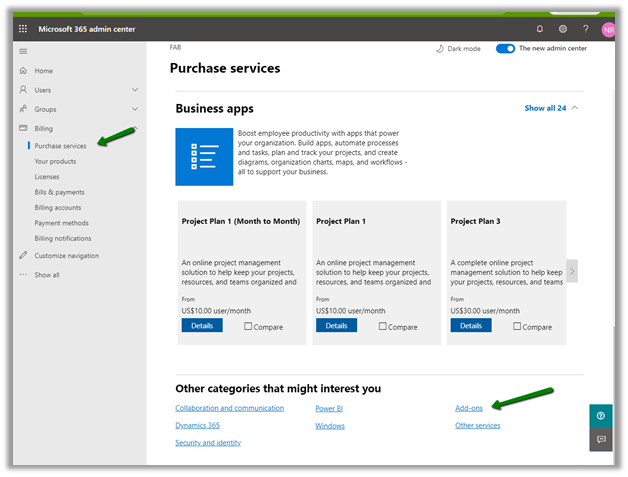
Select Purchase services
à
Add-ons

Select Dynamics 365 Customer Service Digital Messaging Add-on trial.

And also assign the add-on license to the users who need to work with Omnichannel Service.

Login to Data access consent URL using the Global Tenant Admin account and give the consent.

We’d be presented with the below message.

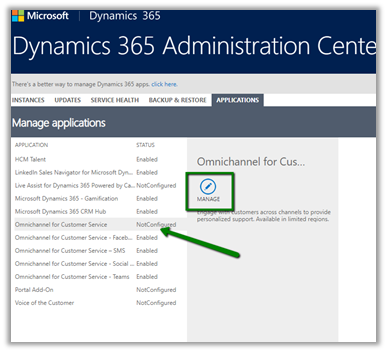
Login to Dynamics 365 Administration Center and navigate to Applications Tab and click on manage for Omnichannel for Customer Service.

https://admin.powerplatform.microsoft.com/environments
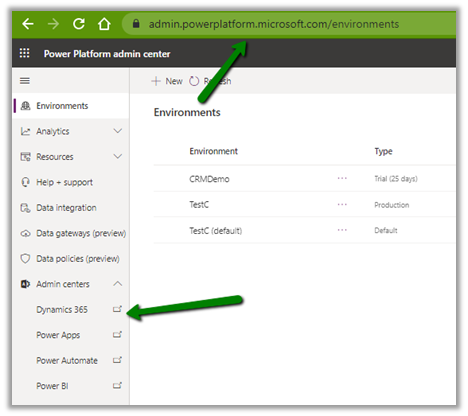
This opens the Manage environment page for Omnichannel.

Click on Add Environment to add the environment.

Here we can select the environment to which we want omnichannel solutions to be configured.

Click on next and we can then add chat as one of the channels.

Click on Next to similarly setup SMS, Social, and Microsoft Teams as the channels.
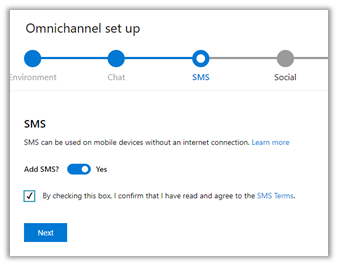
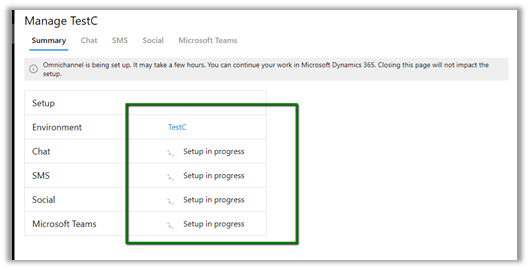
Click on Finish to start the installation.

It will show the status as Installed after some time. (took around 1 and half hour in our case)

To manage the channels or delete the omnichannel we can use the same Manage option for Omnichannel for Customer Service in the Applications tab within Dynamics 365 Admin Center.

We can use the Delete button to remove the Omnichannel configuration à

We’d also see the Omnichannel Administration and Omnichannel for Customer Service apps in the list of Dynamics 365 Apps.

Get all the details here

https://docs.microsoft.com/en-us/dynamics365/omnichannel/administrator/omnichannel-provision-license

Hope it helps..

Advertisements

Multi-Currency in Dynamics 365


Multi-currency was introduced in the product with version 4.0

Thought of just revisiting it as we were recently having certain requirements around it.

Below are few points for quick reference  (Nothing new, as most of the things remains the same with Multi-currency in the product) à

  • There can only be one Base currency that can be defined while setting up the organization or the instance. The base currency cannot be updated.
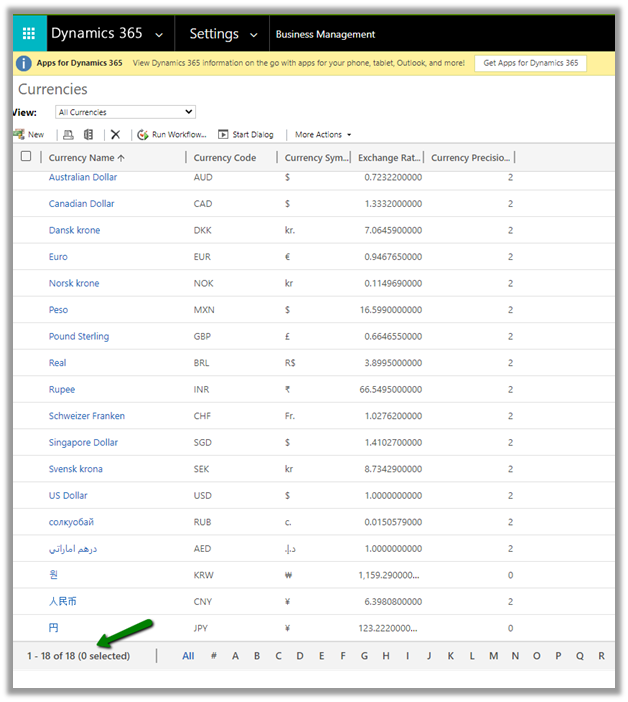
  • To define additional currency, navigate to Settings à Business Management

By default, we can see 18 currencies defined.

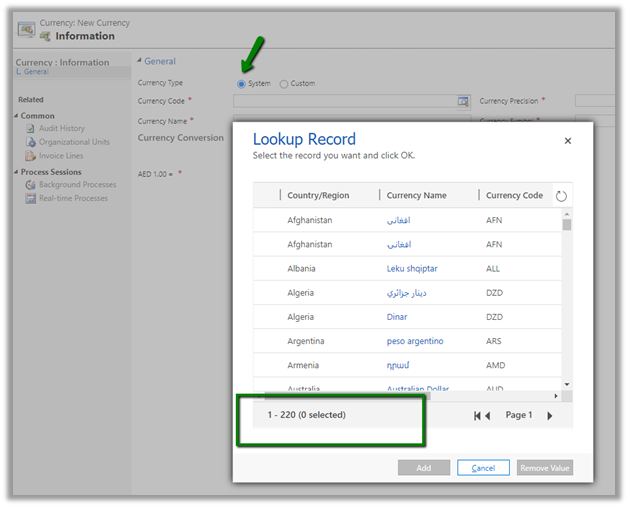
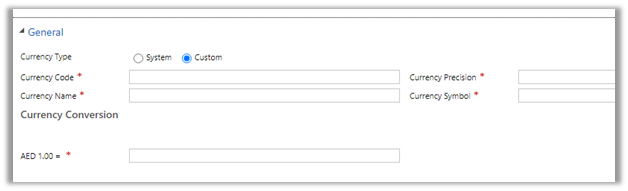
  • We can create additional currencies either system or custom.

For system currency, we can select any of the existing currency code.

If we do not find our currency in the system, we can define Custom Currency

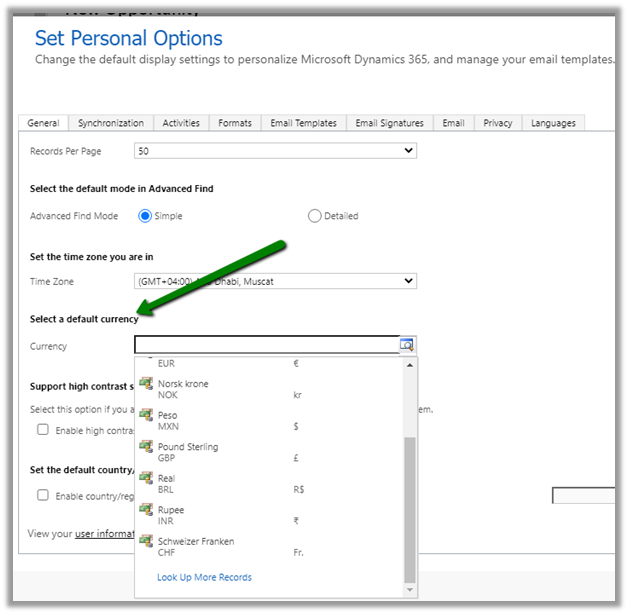
  • Through Set Personal Options, the user can specify default currency

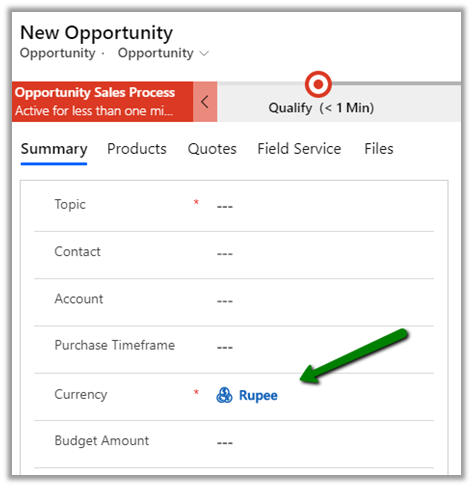
The default currency will be set as the currency for the user while creating a record as shown below.

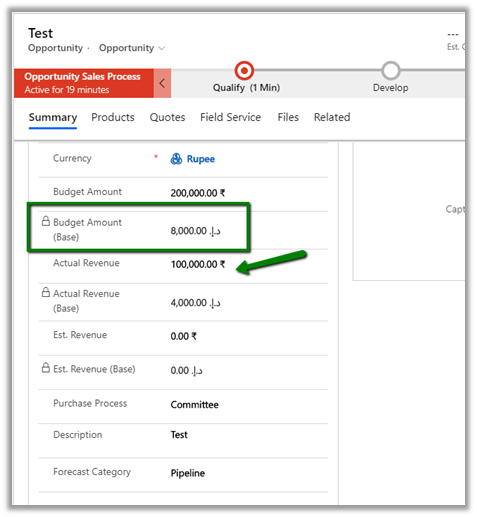
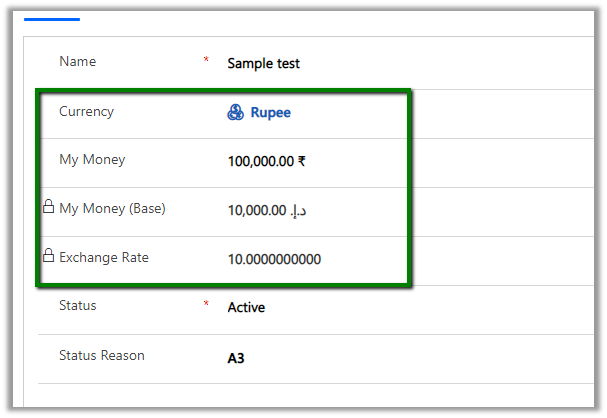
  • The base amount is calculated after the record is saved.

The calcuation considers the Exchange Rate defined in the Currency record.

  • Exchange Rates are not updated automatically. We should have some mechanism in place to update the exchange rate.
  • The base amount is re-calculated if the money field in the record is updated or state of the record is changed.

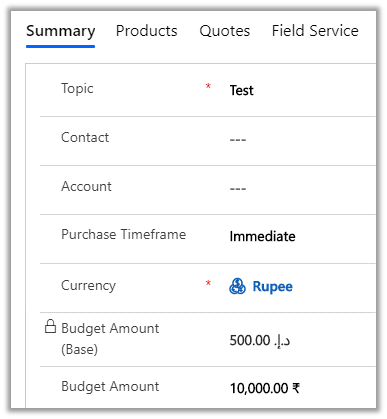
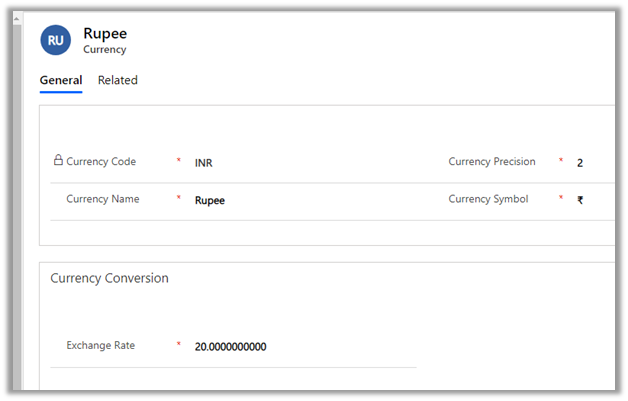
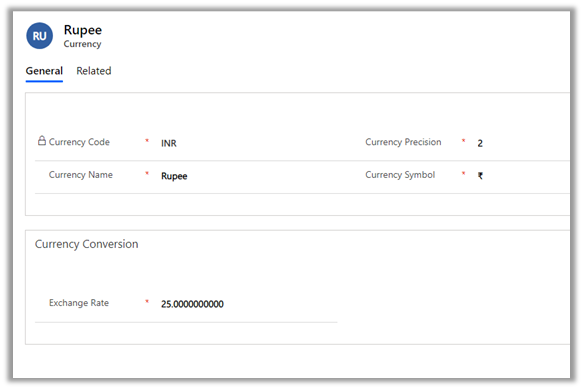
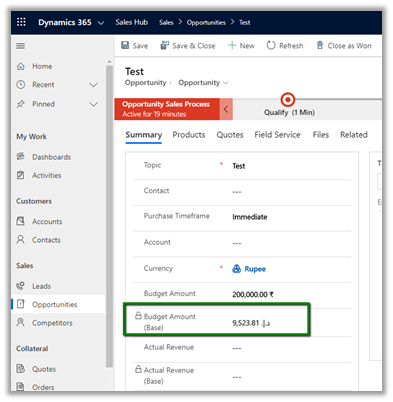
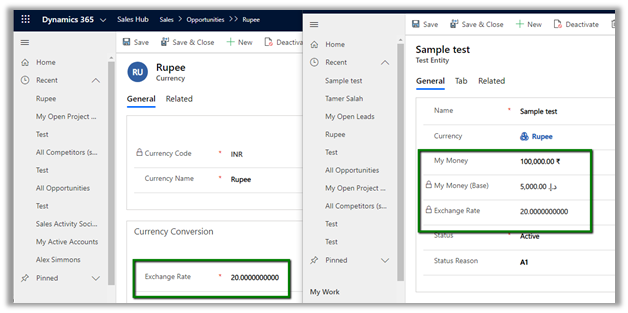
E.g. we have updated the exchange rate to 25.

The record still shows the old base value.

Here updating any of the currency fields will trigger the recalculation.

Below we have updated the value for the Actual Revenue field and saved the record which triggered the calculation for the base fields using the new exchange rate defined.

  • We can write a console application or SSIS packages that will update the money field of the existing records, whenever the exchange rate is updated to trigger the recalculation of the base currency field if needed.
  • Create a new currency field for an entity will create a corresponding base currency field. It will also create Currency and Exchange rate field if this is the first currency field created for the entity. Any subsequent new currency field created will not create the currency and exchange rate field.

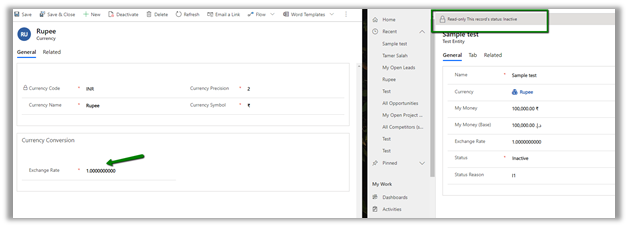
  • Updating the status of the record will also update the base currency as shown below.

Below are some of the helpful articles with regards to currency and exchange rate in Dynamics 365.

  • Using Power Automate to update the exchange rate

https://2die4it.com/2018/10/01/schedule-update-of-currency-exchange-rates-in-dynamics-365-ce-with-flow/

https://alphabold.com/dynamics-365-update-currency-exchange-rates-using-power-automate/

https://www.dxrms.com/blogs/d365blog/2019-11-07-schedule-dynamics-365-currency-rate-updates-using/

  • Exchange Rate Control in PCF Gallery

https://pcf.gallery/exchange-rate-control/

  • Update exchange rate through a Console app

https://blog.crgroup.com/keeping-the-exchange-rates-of-currencies-in-dynamics-crm-up-to-date/

  • Through XrmToolBox plugin

https://www.xrmtoolbox.com/plugins/CRMGG.ExchangeRates/

  • Using workflow and dialog (deprecated)

https://alphabold.com/update-opportunities-based-on-exchange-rate/

Hope it helps..
Advertisements

Few points to consider -Status Reason transitions in Dynamics 365


We can specify Status Reason Transitions for Case as well as custom entities. Using the status reason dialog box, we can define (filter) which values are available to be set as next status reason.

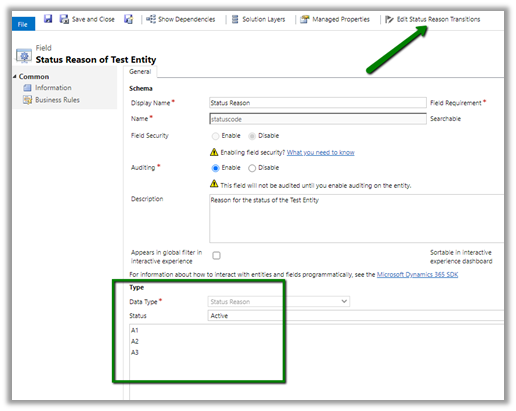
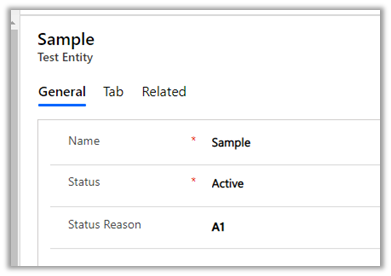
Let us take a scenario where we have the following values defined for Status Reason for Active State in a custom entity named Test Entity.

Just to keep it simple we have a just on transition defined i.e. from A1 we can only select A2.

So now when a user creates the Test entity record with A1, the only other option user can select is A2.

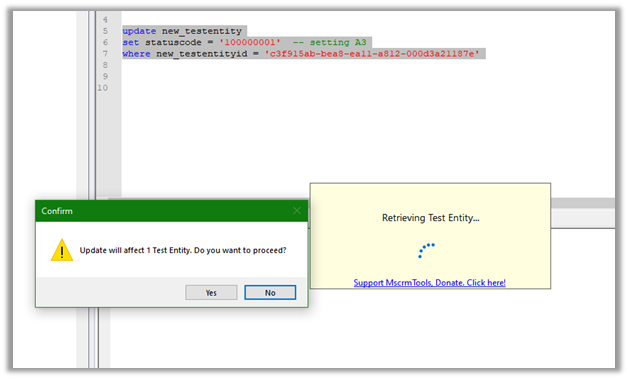
Now let us try updating it through backend and set value as A3 for the same record with value A1 as status reason. (Here we have used SQL 4 CDS plugin)

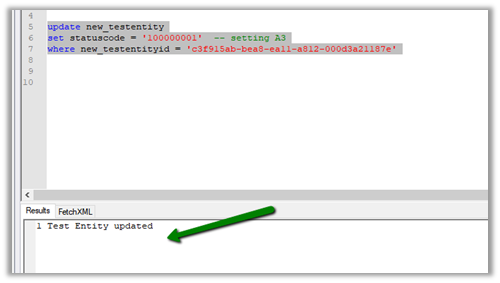
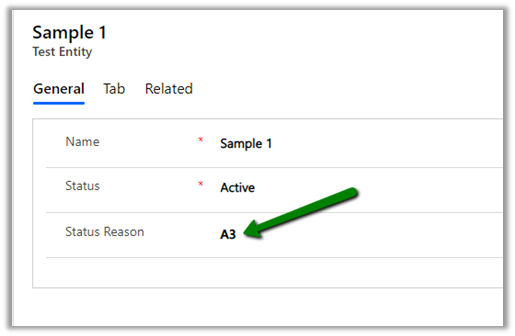
Well, it updates the record with value A3 and doesn’t throw any error.

This would make us think that it only works from the client side and will not work from the server side.

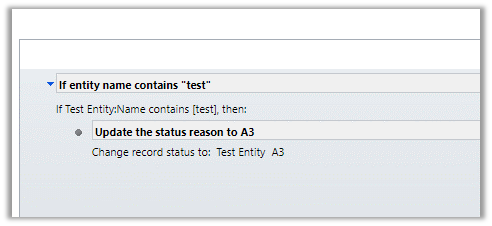
Let us now create a workflow to update the value to A3.

Let us update the subject of the record to trigger the workflow for the below record.


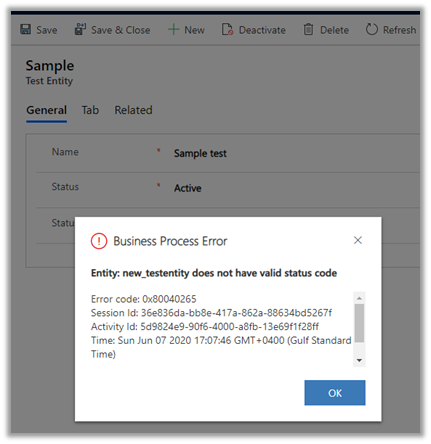
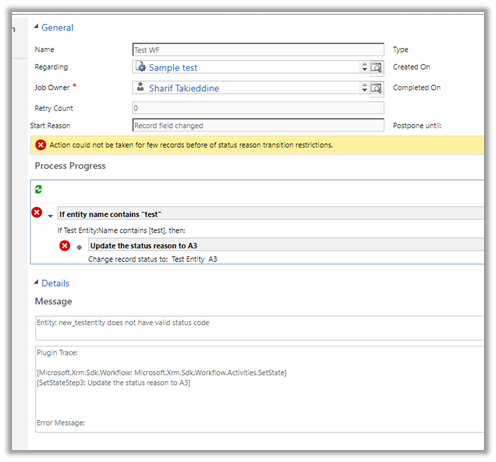
Interestingly we get the error and are not able to set it to A3 as expected.

That was with the real-time workflow, for the asynchronous workflow also we get the error.

Let us give it one more try and update it through service.

Through the service call, we can update it.

So basically, the State transition rules will work as expected from user interface and workflows, however, through service we are still able to override it, which we need to be aware of before using this feature.

Hope it helps..
Sample Decision Matrix Template for Single vs Multi Instance – Dynamics 365


Deciding on a single instance or multi instance is a difficult process, specially for an Enterprise Customer, as each has its own share of pros and cons.

Sharing a sample decision matrix that could help us to decide on single versus multi-instance.

Download it here –

https://drive.google.com/file/d/1uRRZHyPjEo8QoD-OGaJqmyc5QLBf8mNB/view?usp=sharing

Also check the below post for more details

Single vs Multi-instance – Points to consider

Hope it helps..
Differences between Subject and Category Entity in Dynamics 365


Subject entity \ feature has always been an integral part of Dynamics CRM at least since 3.0.

It gives a nice hierarchical way of organising and maintaining information.

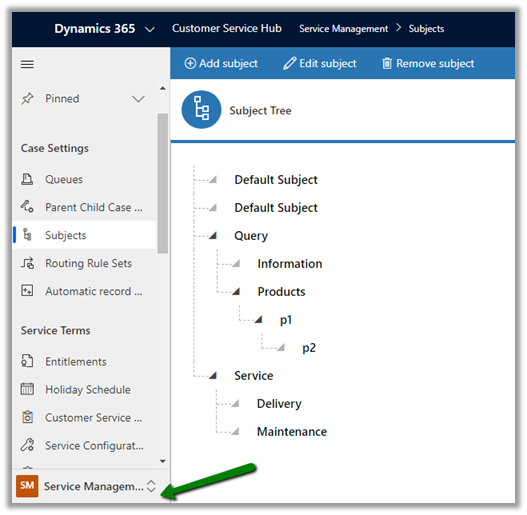
To create or update Subject, navigate to Service Management area.

Similar to Subject entity, Category entity was introduced in CRM 2016 Update 1 (Service Pack 1 – On-Premise).

Navigate to Service Management area, to work with Category entity.

  • Can we customize Subject or Category Entity?

We cannot customize Subject. It is available for Case, KB Articles, Product Catalog items and Sales Literature.

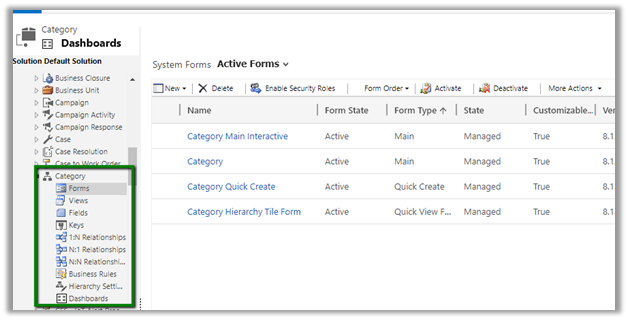
We can customize Category Entity.

We can create forms, add fields, views, business rules, dashboards etc.

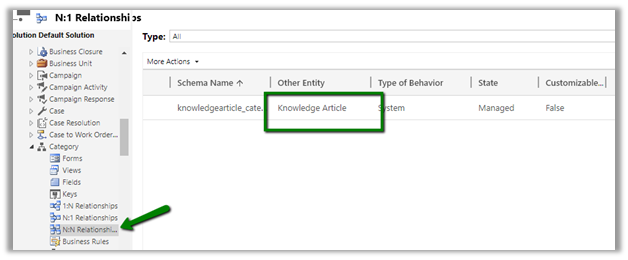
Can create 1 – N relationship from Category to other entities.

We cannot create N- 1 or N-N relationship.

It has N-N relationship with Knowledge Article entity

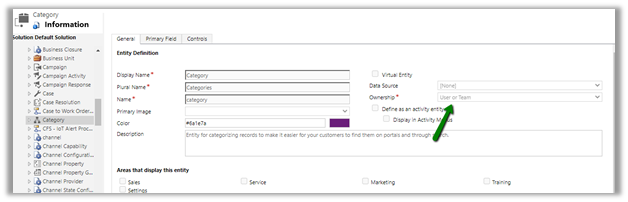
  • Is category User Owned or Organization Owned entity?

User Owned

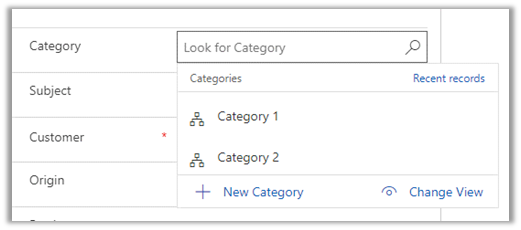
  • How are they rendered inside form?

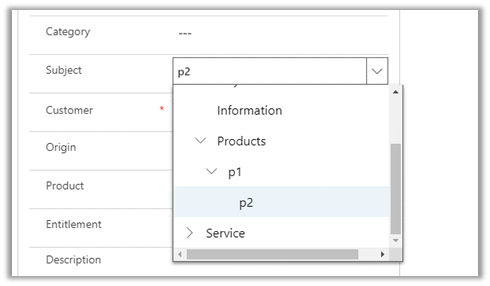
Subject are rendered as tree structure


Category are rendered as lookup

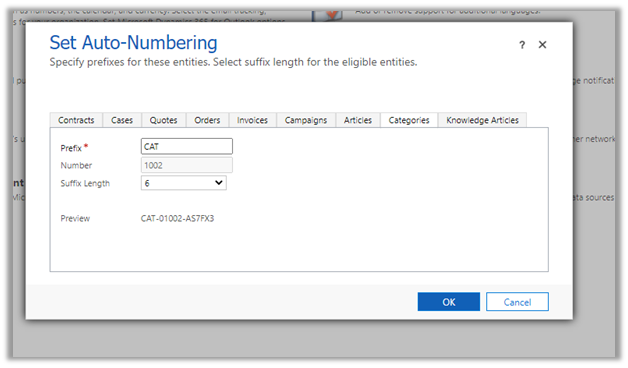
We can also specify Auto-numbering for Categories

  • What happens if a delete a Subject or category?

Deleting the subject will not delete its child record.

Deleting the category will delete its child record.

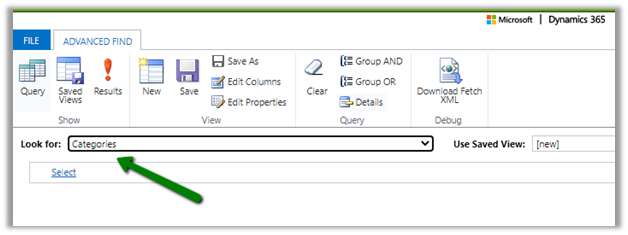
  • Can we run advanced find on Subject and Categories?

We can do it on Categories, not on Subject.

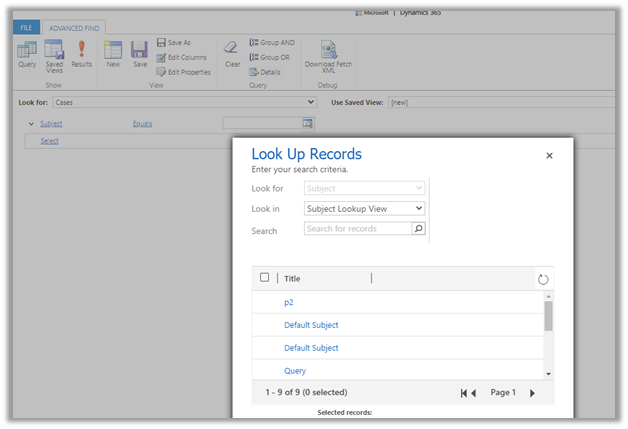
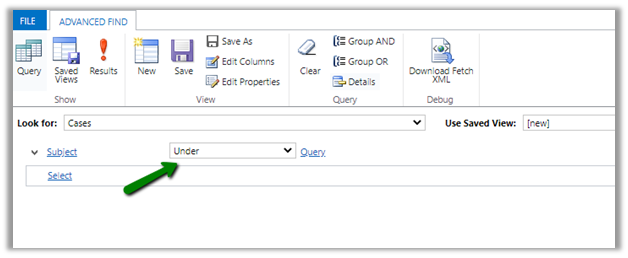
  • How does Subject render when used in advanced find filter condition? Tree view?

It renders like a lookup


Few considerations while migrating  Subject records

https://crmchap.co.uk/importing-exporting-subject-records-between-dynamics-365-customer-engagement-environments/

Hope it helps..
Advertisements

Check Dynamics 365 App and Power Platform features availability at different geography


Recently we had to find out what all Dynamics 365 Apps and Power Platform features are available in our UAE region.
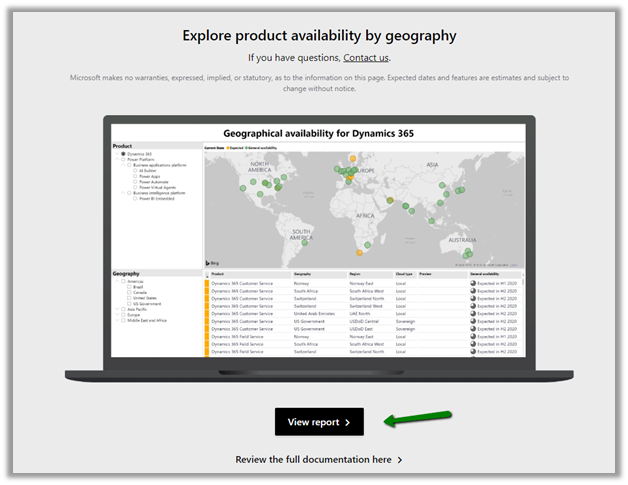
To get these details navigate to

https://dynamics.microsoft.com/en-cy/geographic-availability/

and open the report

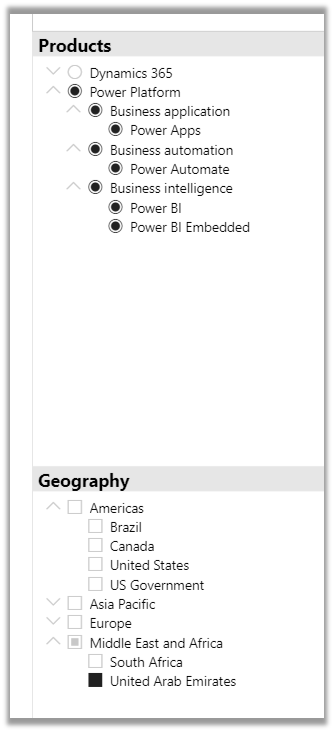
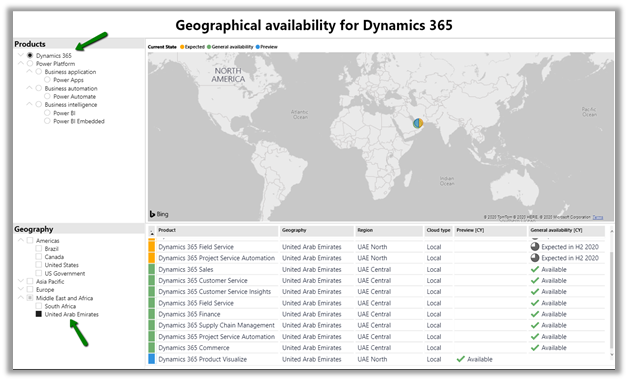
Below are the different Products and Geography available.

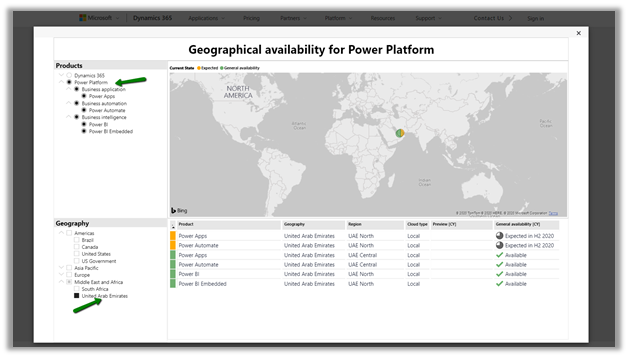
Below is the report filtered for UAE for Power Platform.

For Dynamics 365 App

Hope it helps..