Enhanced Active Conversation form in Omnichannel for Customer Service – Dynamics 365


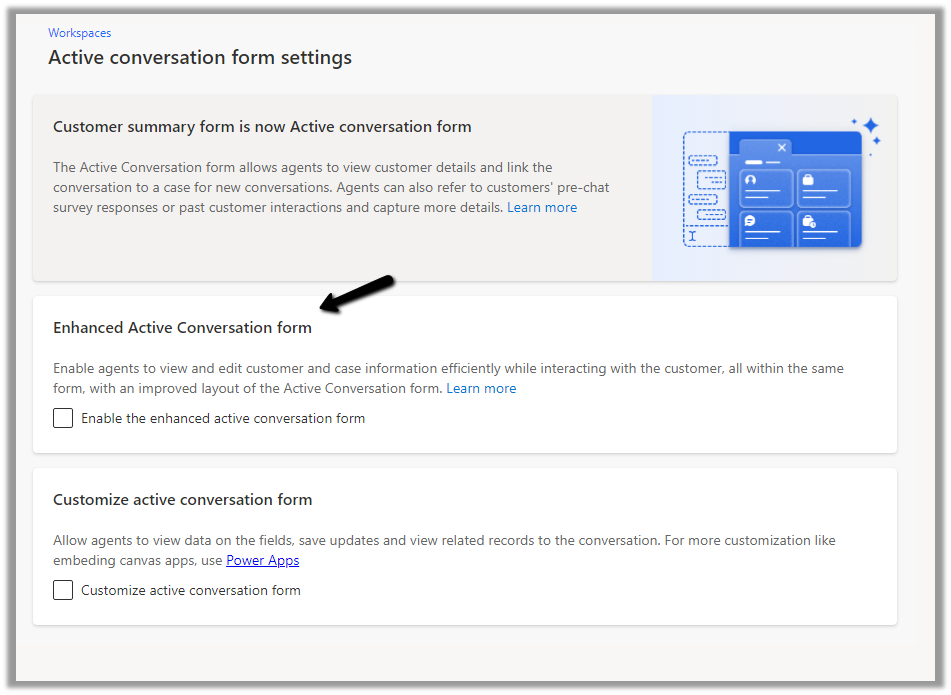
The conversation form in Omnichannel is now updated to allow agents to view and edit customer and case information more efficiently.

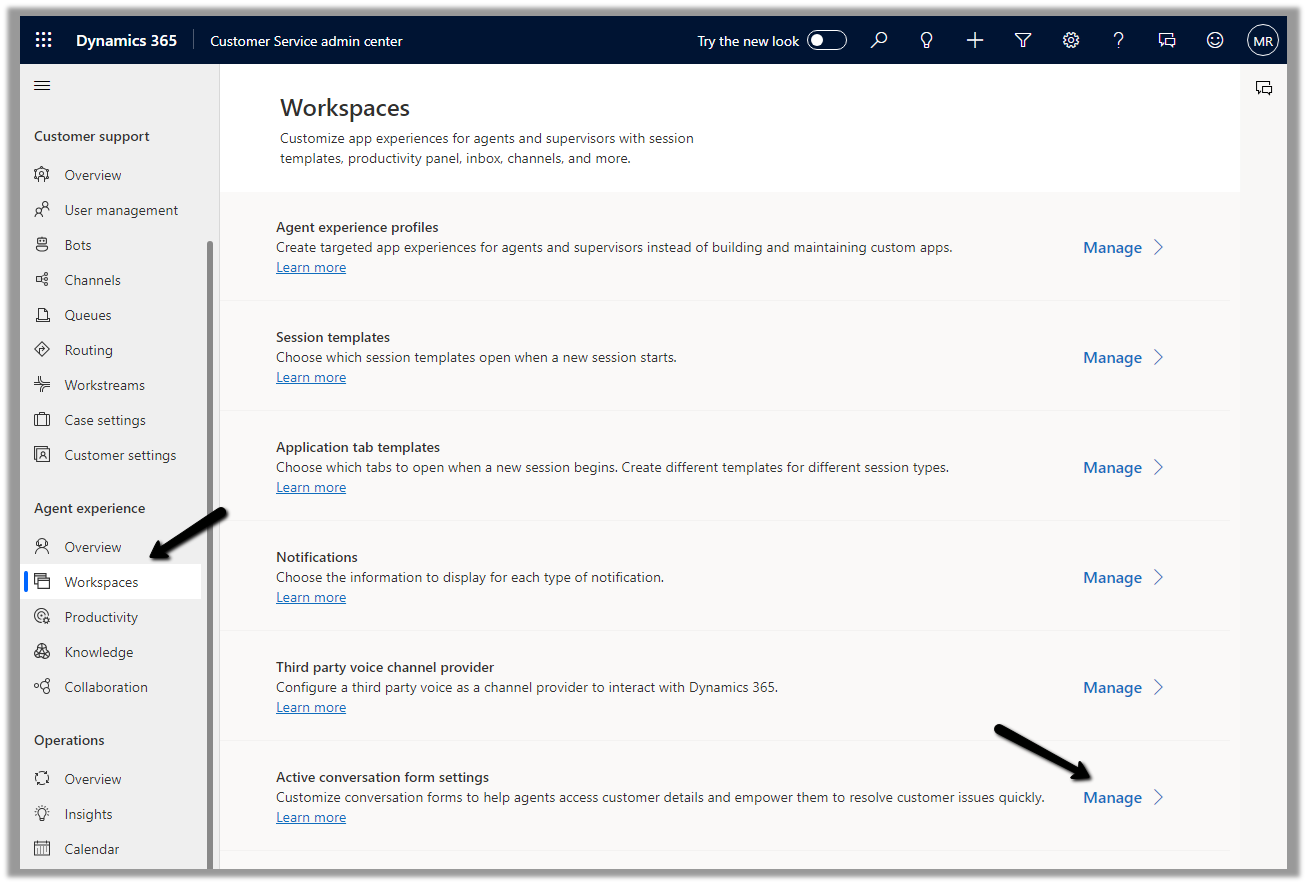
To enable it, Inside Customer Service Admin Center app – navigate to Workspaces >> Active Conversation form settings (Manage)

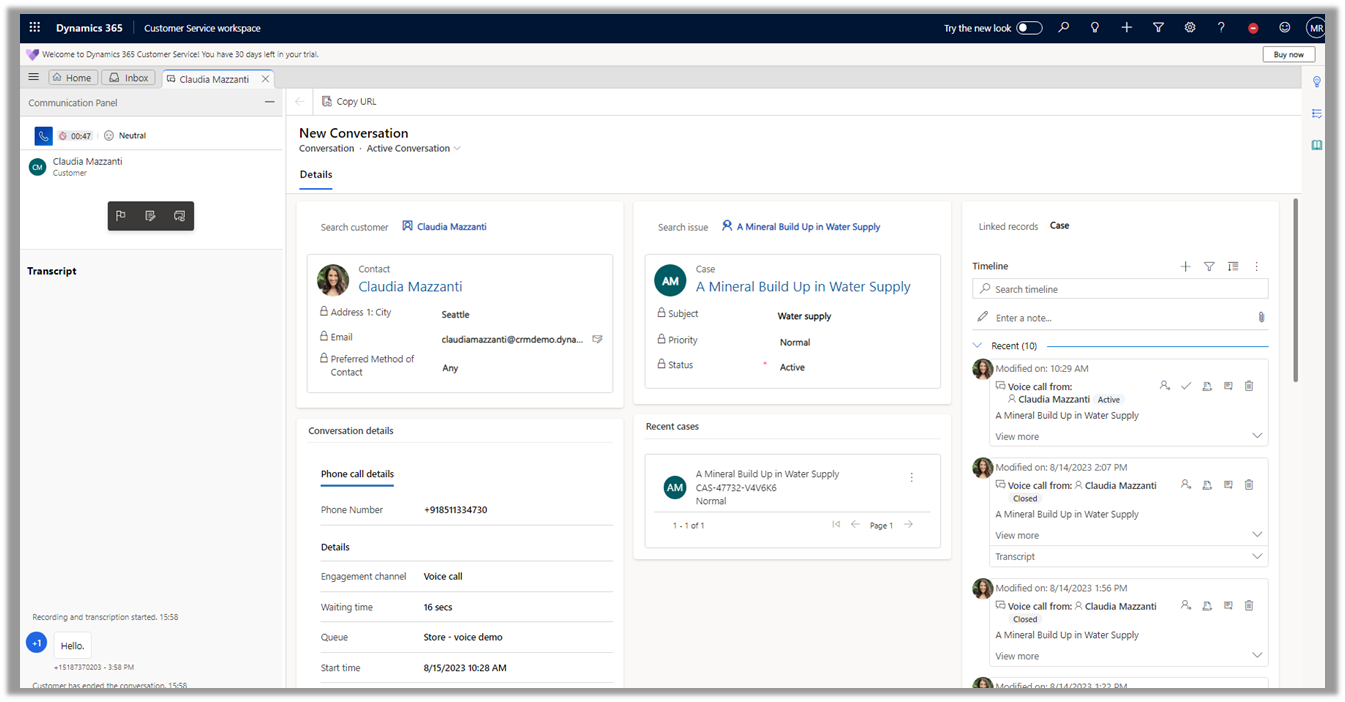
Before we enable it let us have a look at the exiting conversation form.

Now let us enable and compare it with the enhanced one.

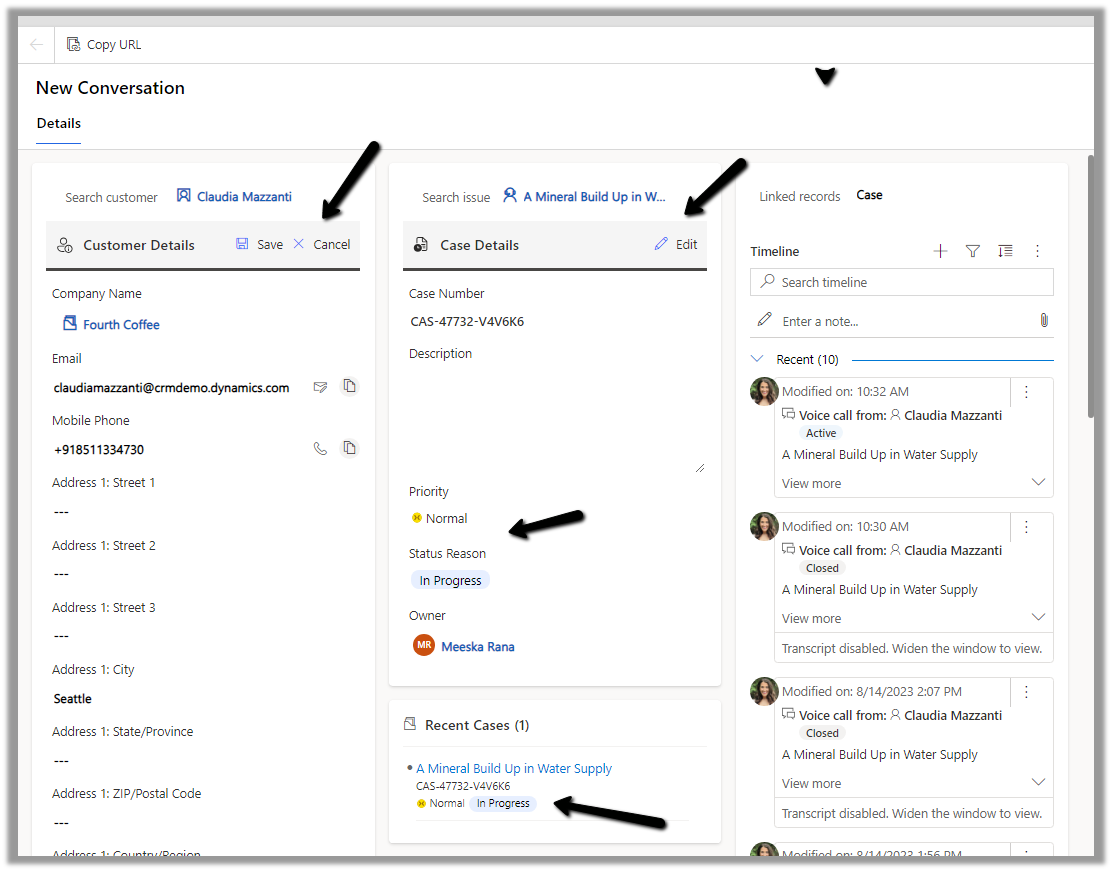
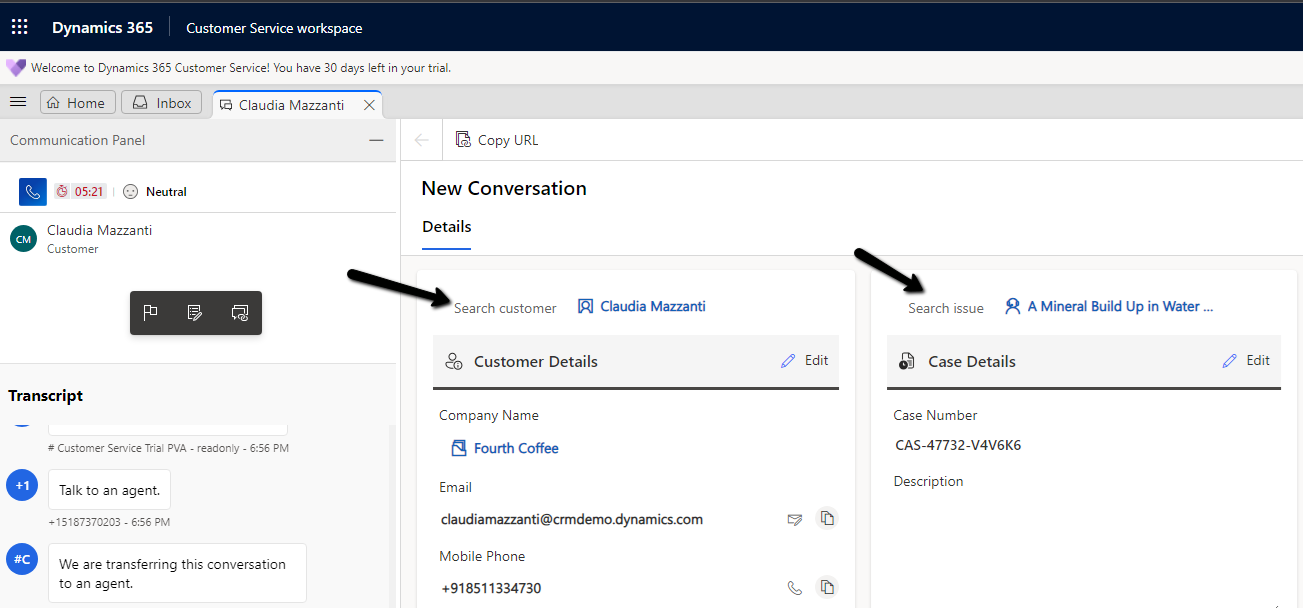
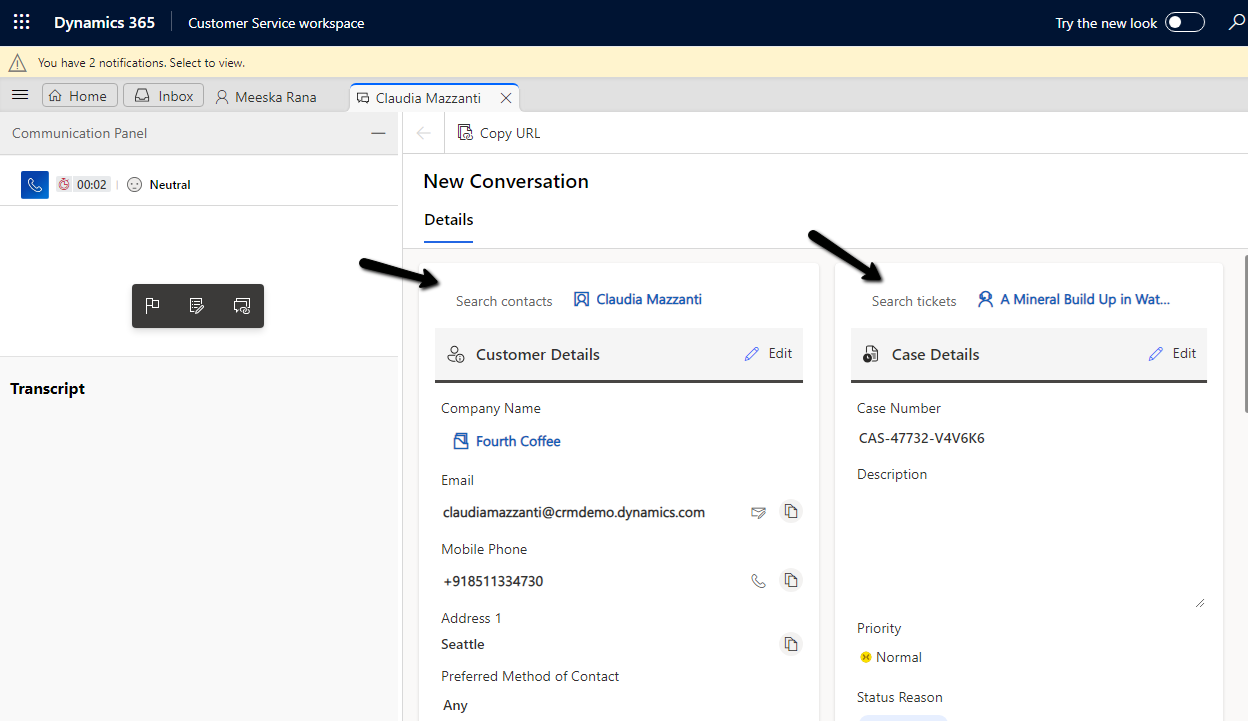
We can see the form displaying a Customer 360 Card for Customer (Contact or Account), which also allows for inline editing of details from within the Conversation form, and a similar card showing case details and allowing for inline editing. The fields that are displayed are configurable.

Another change is the color-coded priority and case status field for easy discoverability for the agents.

Hope it helps..

Advertisements

Blog Posts on Voice Channel – Dynamics 365 Omnichannel for Customer Service


Listing down the blog posts on Voice Channel setup and configuration for quick reference

Advertisements

Customize label – Search customer, Search Issue in Conversation form – Omnichannel for Customer Service


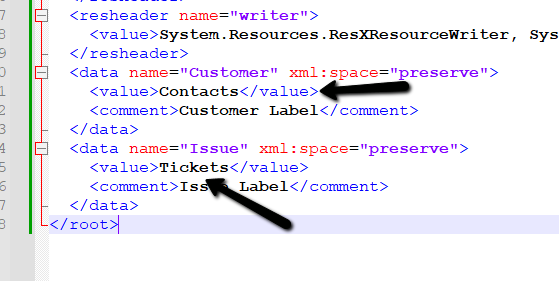
To rename the Search Customer and Search Issue labels in the conversation form,

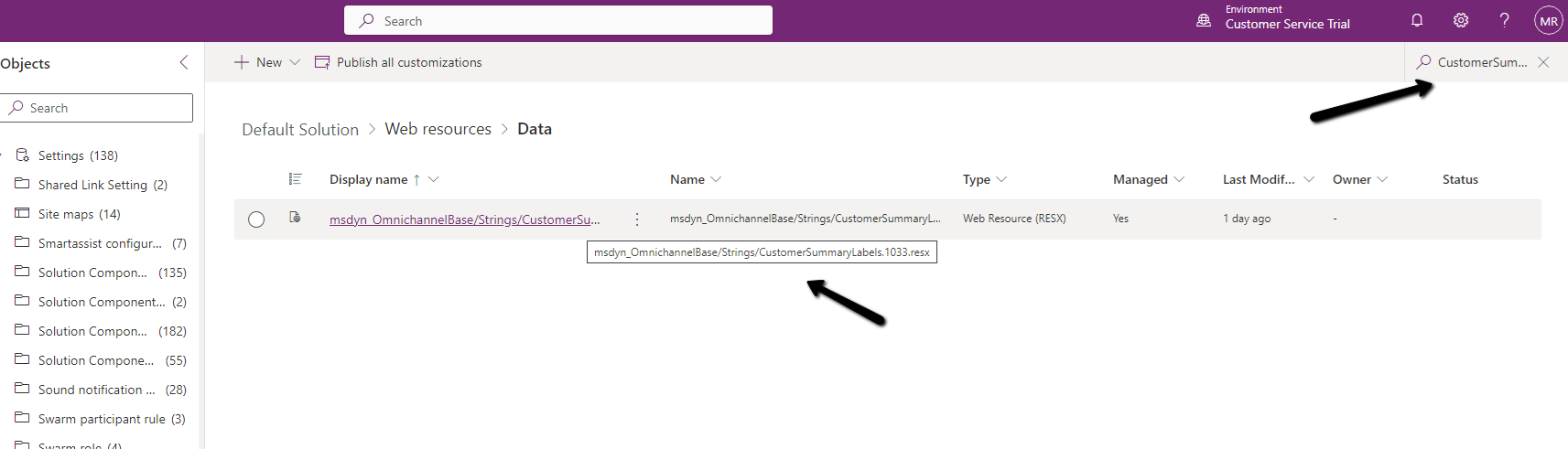
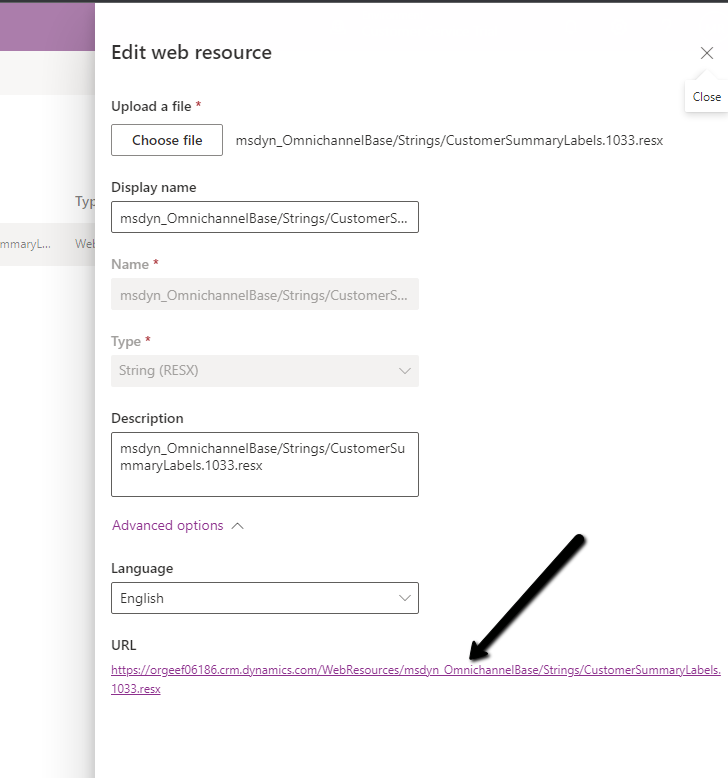
search and open the corresponding RESX Web Resource for customization.

The search term used – “CustomerSummaryLabels.1033”

Open and copy the content

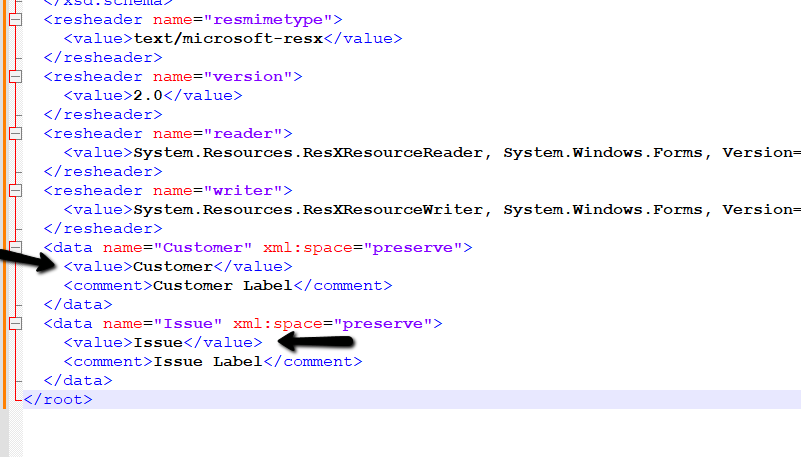
Update the value property accordingly

Before –

To –

Upload and publish the changes.

We can see the labels updated.

Hope it helps..

Advertisements

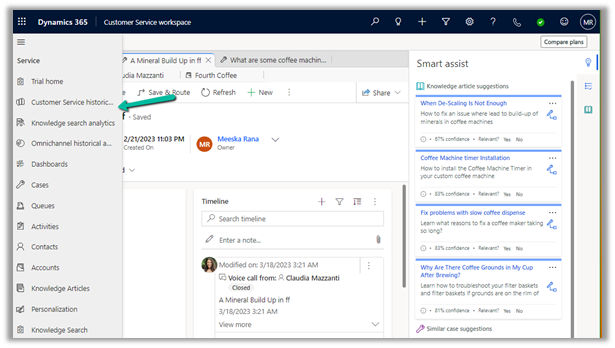
How to – switch between Enhanced and Legacy (Default) multisession workspace in Customer Service Workspace


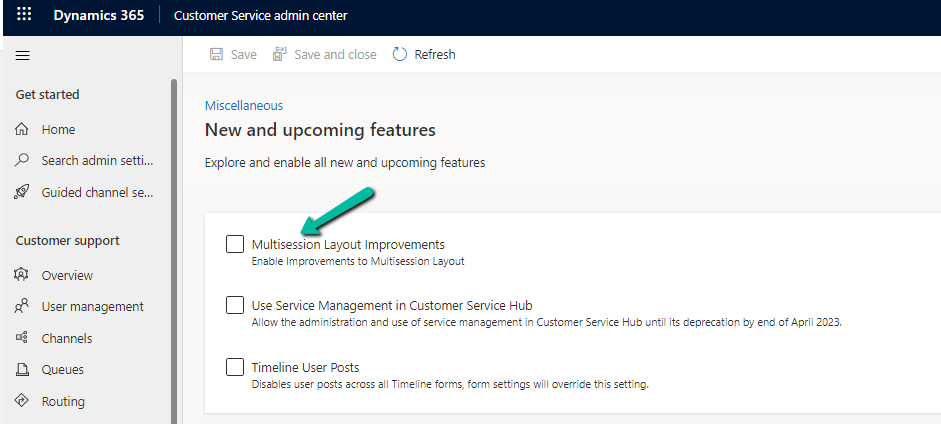
Update – We can use the below option – Customer Service Admin Center >> Operations >> Miscellaneous >> New and upcoming features – Multisession Layout ImprovementsEnhanced

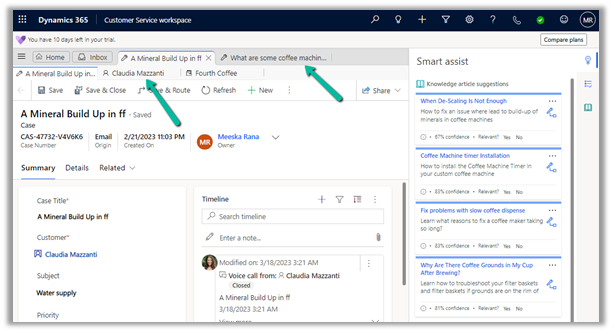
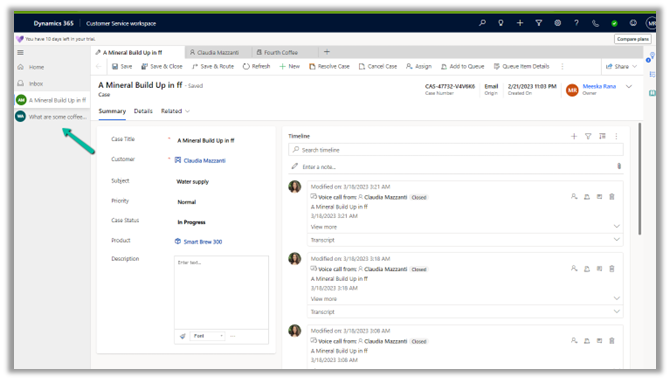
With the Enhanced multisession layout in Customer Service Workspace, we have different sessions open in different tabs at the top and different tabs inside each session, along with the Navigation on the left.

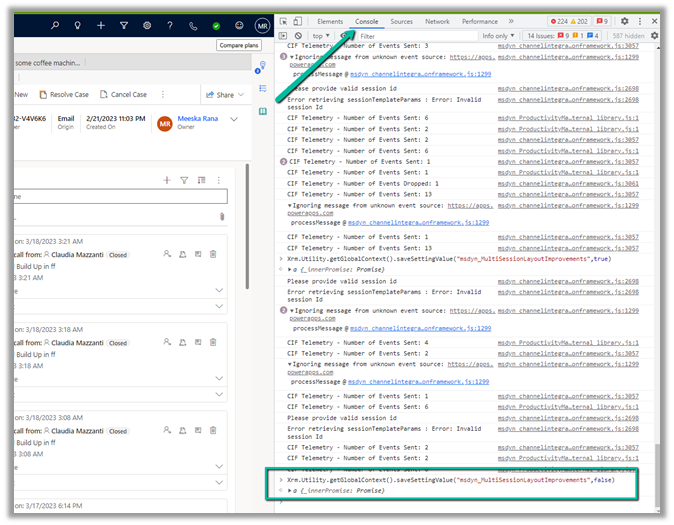
To revert to the old default workspace or legacy navigation (deprecated), open the developer tools in the browser.

And paste the following command in the Console tab.

Xrm.Utility.getGlobalContext().saveSettingValue(“msdyn_MultiSessionLayoutImprovements”,false)

Or

Xrm.Utility.getGlobalContext().saveSettingValue(“msdyn_MultisessionNavigationImprovements”,false)


We can see the layout changed to the legacy one–

To enable the new enhanced layout (recommended) back, in the console window of developers tools paste the below command.

Xrm.Utility.getGlobalContext().saveSettingValue(“msdyn_MultiSessionLayoutImprovements”,true)

Hope it helps..

Advertisements

Notification template in Omnichannel Voice (Dynamics 365 Customer Service)


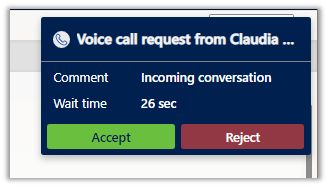
Below is the default notification the agent receives on incoming conversations/calls.
It is defined through the below out-of-the-box template.
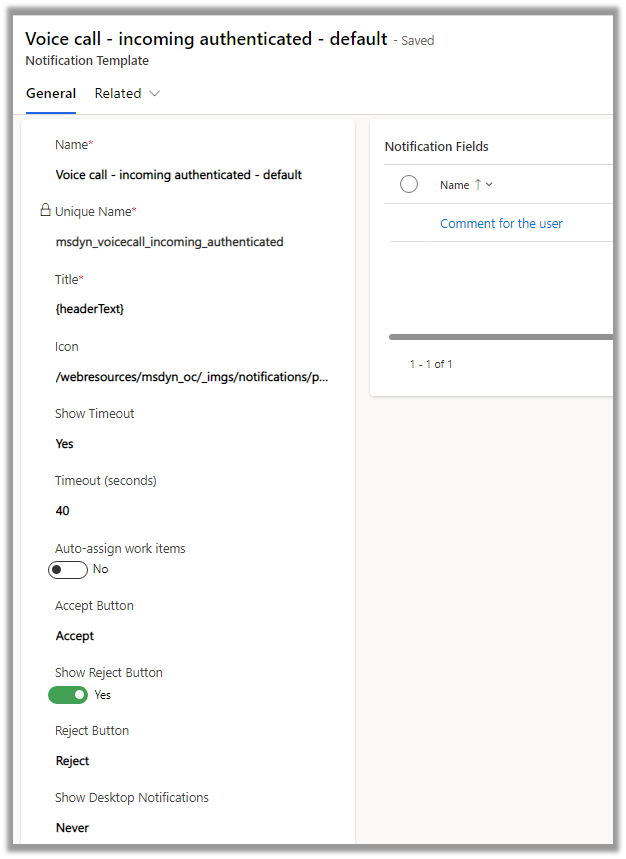
Property

Description

Title

To define the title.

Icon

To define the icon.

Show Timeout

Yes / No – to hide/show the timer (timer still runs in the background)

Time (seconds)

For the Phone Call / Voice workstream the maximum value = is 150 seconds.

Auto-assign work items

Auto-assign incoming work item

Accept Button

Specify the text of the Accept Button

Reject Button

To hide or show the button

Show desktop notification

Never / When the app is in the background

Notification Fields

Specify fields to be shown in the notification using Slugs.

To make changes in the notification, we need to create a new notification template as we cannot update the box notification template.

Navigate to Agent Experience >> Workspaces >> Notification Templates (Manage)
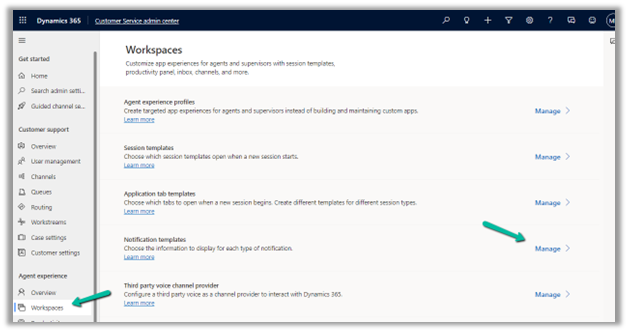

Here we will create a new notification template to be used in place of Voice call – incoming authenticated – default template
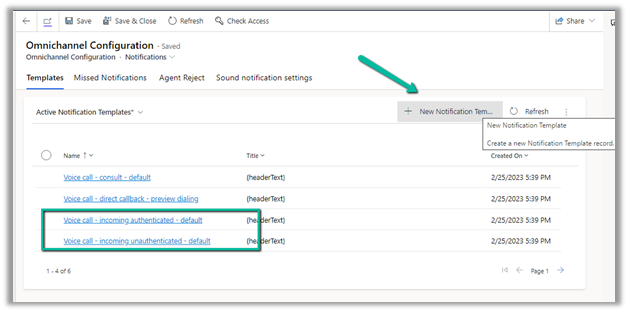
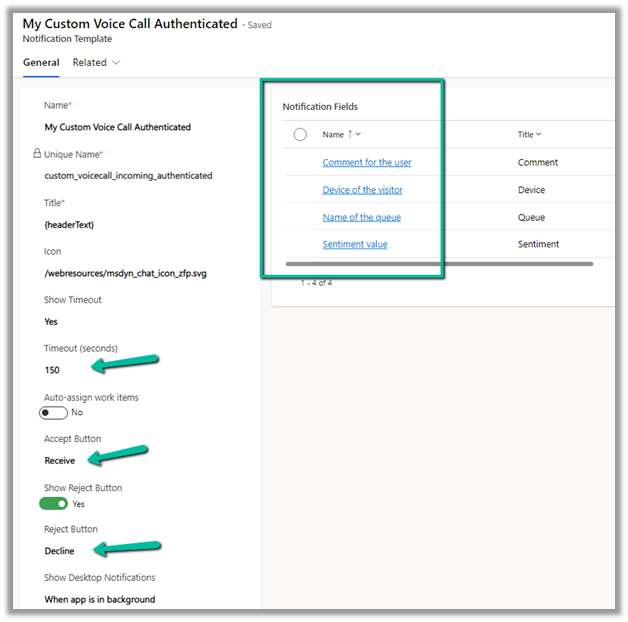
For our custom template, we have made the following changes –

Increased the timeout value, and changed the text for Accept and Reject buttons.

Added notification fields and enabled Desktop notification.
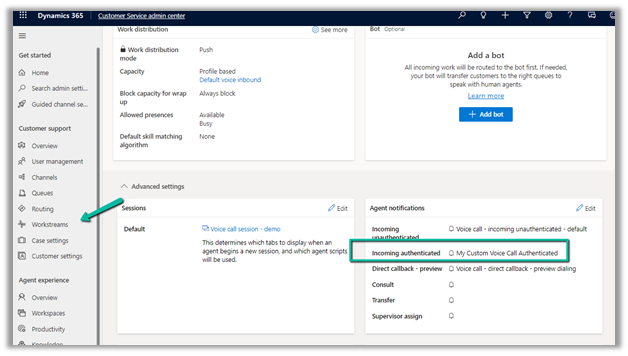
Let us update one of our workstreams to use this custom notification template.

Navigate to Customer Support >> Workstreams – Open the workstream and open the Advanced Settings and update the Incoming Authenticated template in the Agent notifications section.
We can see the changes reflected in the Notification.
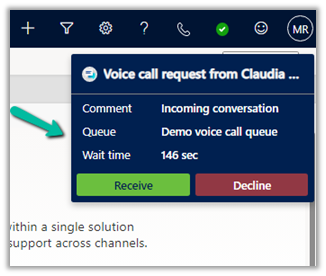
And also in the desktop notification –
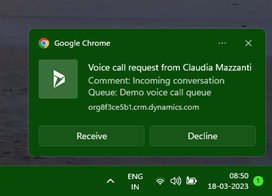


Get all the details here-

https://neilparkhurst.com/2020/06/29/omnichannel-for-customer-service-notifications/

Hope it helps..

Advertisements

Fixed – Power Virtual Agents bots for voice not working (Dynamics 365 Customer Service Omnichannel)


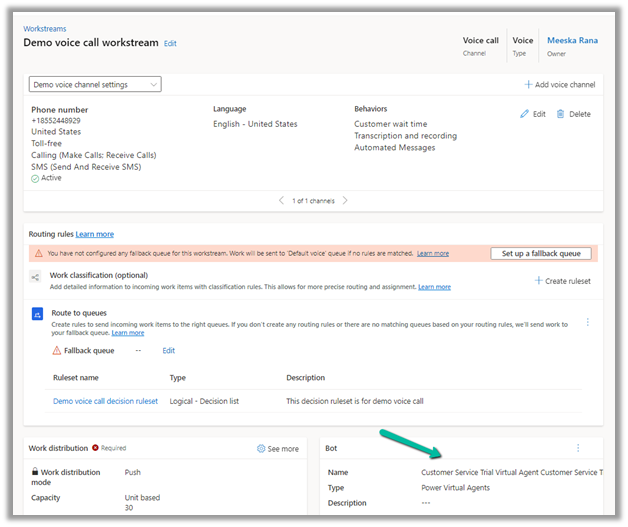
We can configure aa PVA Bot for workstreams and when we install the voice channel demo, we can see a bot already configured for the demo workstream.

Recently in our case, the bot configured was not working and we were getting the below message on calling the workstream/voice channel configured.

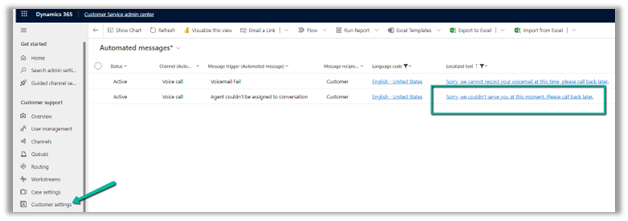
“Sorry, we couldn’t serve you at this moment. Please call back later”

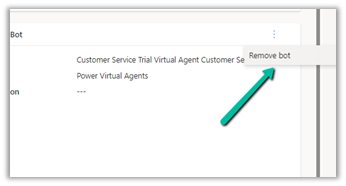
On removing the bot the workstream/channel was working properly.

We raised the Microsoft support ticket for the same and were suggested to create/configure a new bot instead of using the existing demo/trial one as it might give an issue because of being configured in a different environment.

On configuring a new bot the issue got fixed for us.

Hope it helps..
Advertisements