Fixed – Invalid data from the network error in the custom page – Power Apps / Dataverse


Recently in one of our custom pages, we were getting the below error

“Invalid data from the network”

We had this setting “Formula-level error management” as On, switching it off was hiding this error on the page.

To fix it we tried removing the fields one by one to figure out the issue. Eventually, we saw the error was going away if we remove one of the option set fields from the gallery or comment it’s formula. Later when we removed and added the field back in the gallery and the error got fixed for us.

The page loading properly without the error –

Hope it helps..

 

Advertisements

Using Sort, Distinct, Filter together for combo box Items– Canvas Apps (Dataverse)


Just sharing a simple example of applying a formula to the Combo box Items property, which includes Sort, Distinct, and Filter (If).

Below is our Combo Box bound to a lookup field of type Customer. If Contact is the option selected in the radio control, we want to show Contact’s Full Name sorted else Account’s Account Name field.

If( radioBtnCustomer.Selected.Value = "Contact",
    Sort(Distinct(Filter(Contacts,Status = 'Status (Contacts)'.Active),'Full Name'),
        Value,
        SortOrder.Ascending
    ),
    Sort(Distinct(Filter(Accounts,Status = 'Status (Accounts)'.Active),'Account Name'),
        Value,
        SortOrder.Ascending
    )
)

The result –

Also to clear the selection in the combo box when the user changes the option from contact to account and vice versa we can use the Reset function.

Check the below links to learn more about working with Customer lookup –

https://learn.microsoft.com/en-us/power-apps/maker/canvas-apps/working-with-references#show-the-columns-of-a-customer

Hope it helps..

Advertisements

Fixed – Global variables are not allowed in StartScreen (PowerApps / Custom Page)


Recently while working on a custom page we had a requirement to show different screens on the app start based on a choice field in the record. (The custom page was being opened from a button/command on the form)

For the custom page’s App OnStart we were first removing the curly brackets from the recordID parameter passed to set the ContractId variable followed by setting ContractRecord variable using that GUID in the LookUp function.

Below is the JavaScript used to pass the parameters to the custom page (from the command/ribbon button)

Now based on Contract Type optionset field in the Contract record we wanted to show a different screen as the start screen. However, trying to use the Global Variable in the StartScreen function gave us the error – “Global Variables are not allowed in StartScreen”

The solution here was to use the Param recordId to get the record and set the start screen accordingly in the StartScreen instead of ContractRecord global variable.

Also check  – https://debajmecrm.com/how-to-dynamically-show-the-start-screen-of-an-app-in-power-apps-canvas-apps/

Hope it helps..


Advertisements

Using addProperty to dynamically add a custom property to a JSON object – Power Automate


Recently while working on the integration of Facebook Lead Ads with CRM, through Webhooks / Power Automate we had to process the lead data and create lead and contact records.

Below is a sample format in which we’d get the lead data for the FB form having a first name, last name, date of birth, and email fields in it.

Now we want to create an object having name as proprety and value from values like below from the above response, which will make it easy for use to refer in add a new row / update a row Dataverse step.

For this we will be using addProperty function.

Below is our sample flow –

First we are initializing varJSON – string variable with the JSON response

Than intializing the another variable varFieldData as type Object

Parse JSON action using the sample response.

Here we are interested in field_data property

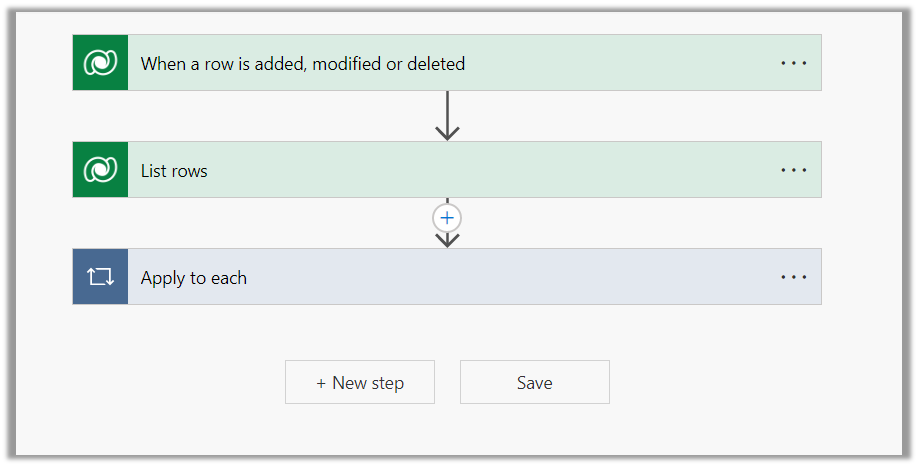
So in the next step, we loop through each field_data, than use addProperty function in Compose to add name and value to the varFieldData object, and use the outputs of compose to set the varFieldData variable.

addProperty function – addProperty(variables(‘myObject’), ‘newProperty’, ‘propertyValue’)

In the next step, we can see the varFieldData and the way we can access the property last_name added to it.

On running the flow we can see the result as expected –

Hope it helps..

Advertisements

List Rows, Select Columns, and Lookup field – Power Automate / Dataverse


Suppose we want to retrieve the value of the source campaign lookup of the lead records.

The schema name of Source Campaign is – campaignid

To get its GUID in the Select columns of list rows we can specify it as

_campaignid_value i.e. _lookupschemaname_value

The other option is if we specify the schema name in select columns then we need to use the expand property to get the GUID as well if we want any other attribute values e.g. text/label of the lookup field.


Hope it helps..

Advertisements

Using Coalesce Function to handle null value in Power Automate – Dataverse


Recently in one of our flows, we were getting the below error –

InvalidTemplate. Unable to process template language expressions in action ‘List_rows_:_Region’ inputs at line ‘0’ and column ‘0’: ‘The template language function ‘replace’ expects its first parameter ‘string’ to be a string. The provided value is of type ‘Null’. Please see https://aka.ms/logicexpressions#replace for usage details.’.

One or more fields provided is of type ‘Null’, a different type is expected.

This was because the replace function that we were using for the Filter rows property of List Rows (Dataverse) had the variable value as null.

Below was our dynamics expression where we replaced apostrophe with 2 single quotes – https://nishantrana.me/2023/02/27/how-to-handle-single-quote-apostrophe-in-filter-rows-in-power-automate-dataverse/

replace(replace(variables(‘varFieldData’)?[‘myVariable’],‘_’,’ ‘),””,”””)

The solution was to use coalesce function, to replace null with a blank string as shown below.

replace(replace(coalesce(variables(‘varFieldData’)?[‘myVariable’],”),‘_’,’ ‘),””,”””)

Similarly, we can use coalesce function to provide a default value.

The coalesce function will evaluate its arguments in order and will return the first non-blank or non-empty value. If all the arguments are blank or empty strings, the function will return blank.

After using the coalesce function, our flow was successful.

More on COALESCE

A similar example in SQL –

Hope it helps..
Advertisements