
https://gallery.technet.microsoft.com/scriptcenter/LCID-JavaScript-Helper-7cfb0829
Category: CRM

ERD Generator for Dynamics CRM 2011/2013

ERD Generator for Dynamics CRM 2011/2013 is a Windows Form application that is can be used for Dynamics CRM 2011 or Dynamics CRM 2013.
URL:
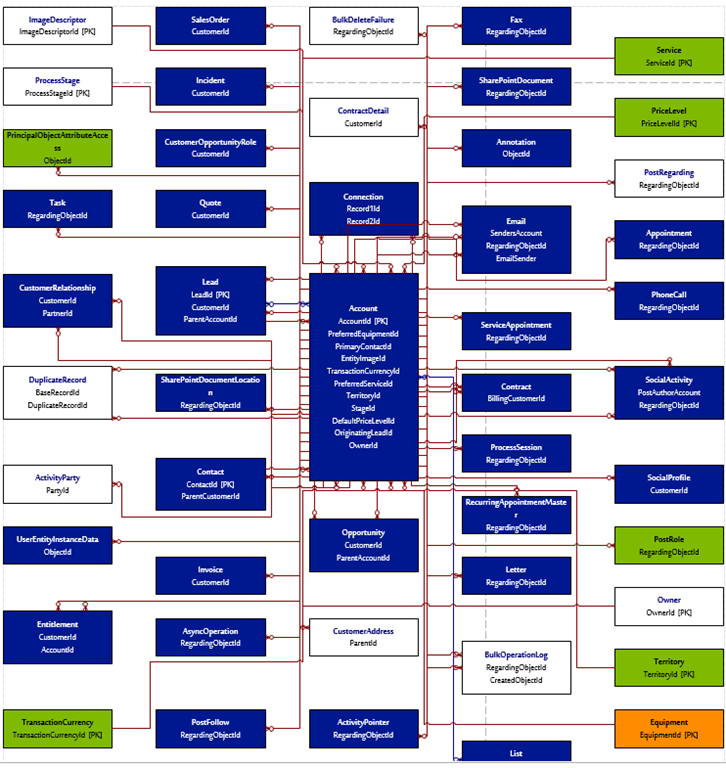
This tool allows you to build ERD (Entity relationship diagrams) that are dynamically updated based on the published CRM entities and Fields. You can pick a source entity and build ERD around it. It generate a VISIO output but also lets you pick CSV to document Entity relationships.
It generates a CSV having details like:

It generates ERD in VISIO:
Hope it helps!
Share It -

Hide Ribbon on SharePoint 2013 using CSS

Hi Guys,
I recently experienced the migration from SharePoint 2010 to 2013. I was earlier hiding Ribbon using the SPSecurityTrimmedControl and CSS. But in SP 2013 MS has divided whole ribbon in two section: s4-ribbonrow and suiteBar
Hiding the ribbon is as much as easier as it was in 2010 version. But here we just need to take care of above two mentioned sections. I have gone thorough some of the blogs where people are saying that we have change the html file(Seattle.html or oslo.html) and design manger will take care of creating master page for you (ref: Hide Ribbon).
But there is another traditional way of doing same, follow the given steps:
1) Open the master page file in the SharePoint designer.
2) Add the style tag to hide the ribbon for all the user:
#s4-ribbonrow, #suiteBar { display : none; }
3) Now we have to do…
View original post 59 more words
Share It -

SLA in CRM 2015 – Part 1
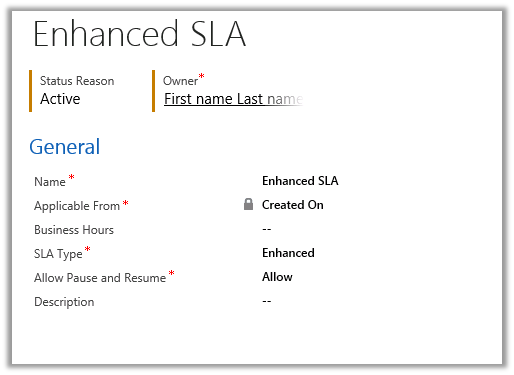
There are two types of SLA available now.
Standard which was introduced in Leo and other is Enhanced.

Pause and resume features has been added to Enhanced SLA.
To enable this we need to go to Settings à Service Management à Service Configuration Settings
The pause feature is based on Status value.
In System Settings we can specify the status values on which the SLA should pause.
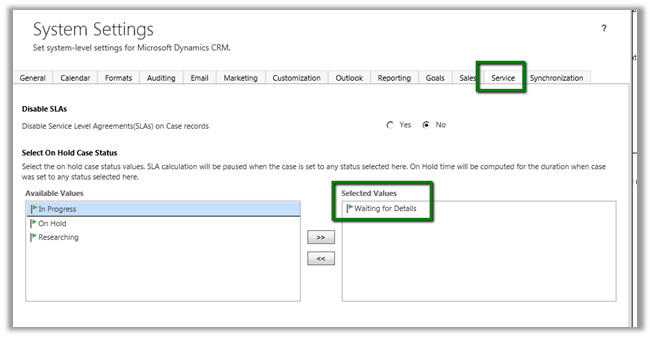
Let use create a new SLA
And the following SLA Item in it
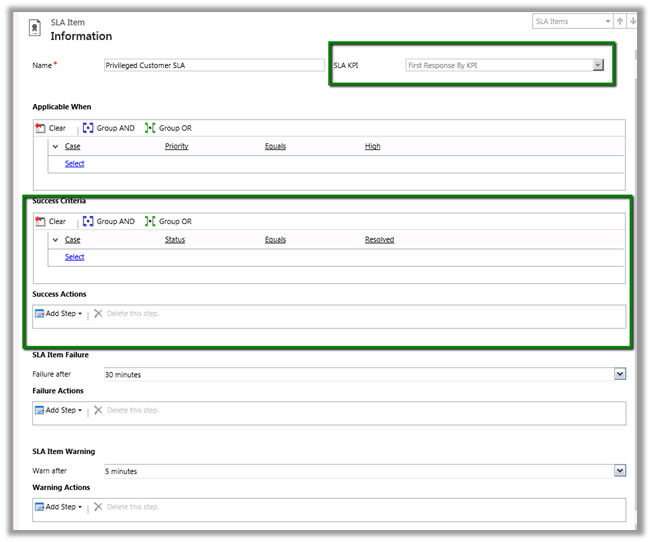
SLA Item is based on First Response by KPI.
Here we can also see new Success Criteria and Success Action added to SLA.
The SLA would run if the Case Priority equals High and will wait for 5 minutes before warning and will fail after 30 minutes.
Now I go and create a new case and set its Priority as High.
The following Timer control would start running in the Case Form.
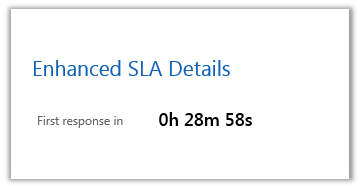
And now if I go and set the Status of Case as “Waiting for details” i.e. our pause condition.
The timer will be paused.
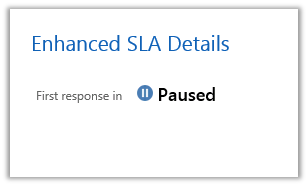
Now as soon as I change the Status of Case to something else
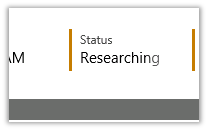
The time control will resume

Now I go and mark the case as Resolved which is our success criteria. The First response in will show Succeeded.

Share It -

Field Level Security in CRM 2015
Now supported for System (OOB) Attributes.
Contact’s “Job Title” attribute in CRM 2011
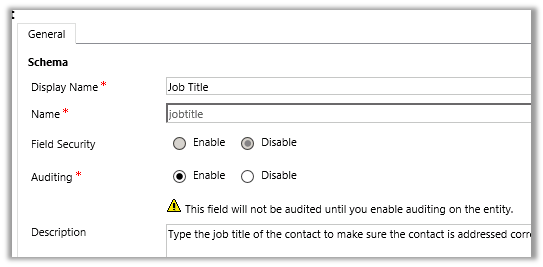
Contact’s “Job Title” attribute in CRM 2015

Can be enabled for email data type attribute
In CRM 2011
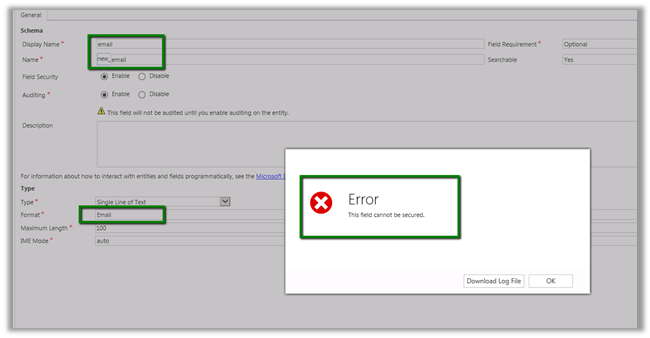
In CRM 2015
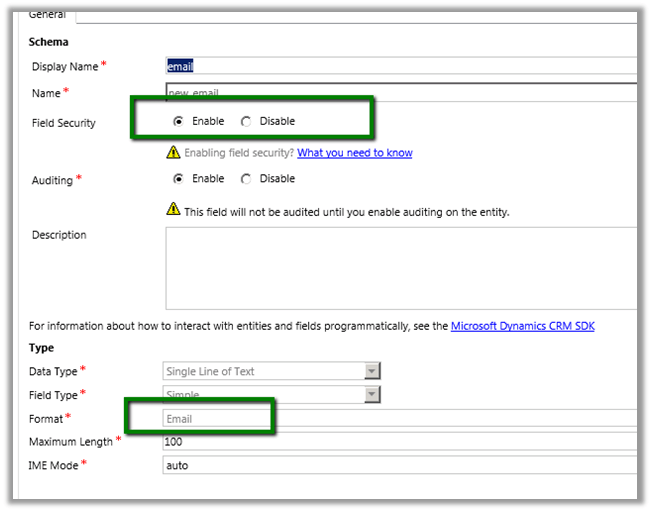
Address field are also supported.
https://www.youtube.com/watch?v=Czc9sKvWd9k
Share It -

Custom Position Hierarchy in CRM 2015
To achieve the same security model that was implemented using Manager Hierarchy earlier
(https://nishantrana.me/2014/10/04/hierarchical-security-modelling-manager-hierarchy-in-crm-2015/)
in Custom Position Hierarchy we need to follow these steps.
To create Custom Position Hierarchy
- Open Settings à Security à Hierarchy Security
- Select Custom Position Hierarchy à Configure (Set Hierarchy Depth as 2)
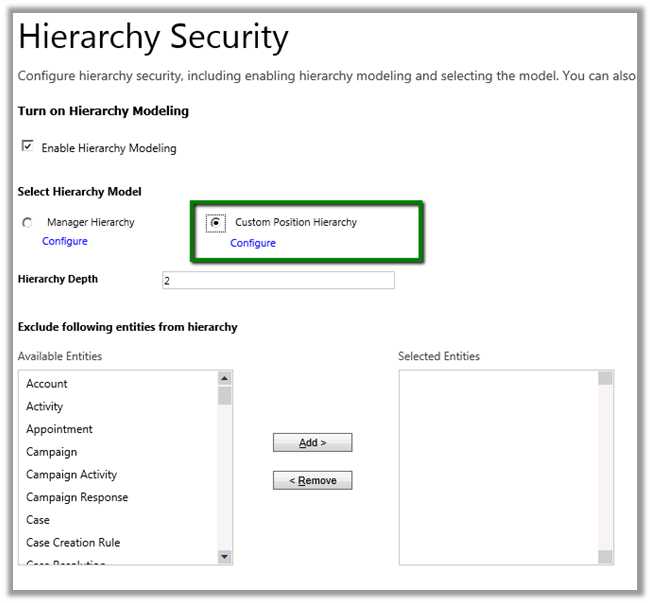
- Create a new position record “position 1” and add a user to it “Ceo”
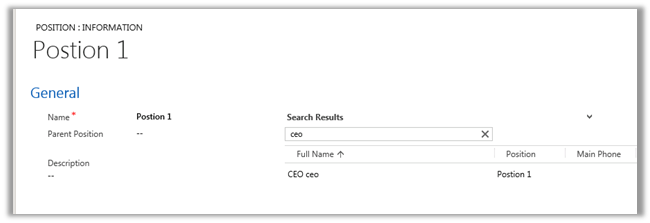
- Similarly create Position 2 and Position 3 record add “Manager A” and “First Name”

The Hierarchy à
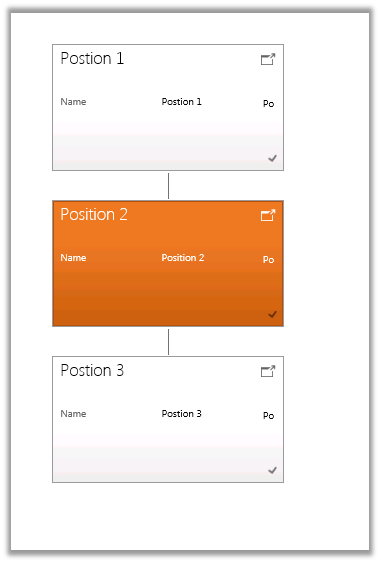
Record created by user at position 3 is read only for the CEO user at Position 1 and editable for Manager User in Position 2 as we have set the depth as 2.

 Nishant Rana's Weblog