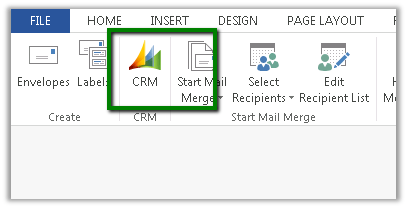
Fixed – CRM Mail Merge button missing in Word 2013.


Hi,

The way we got it working was to download the following template

CRMTemplate.dotm

From the following location

http://server:port/_static/Tools/MailMerge/CRMTemplate.dotm

And place it at the following location

C:\Users\[username]\AppData\Roaming\Microsoft\Templates

Followed by restarting Word.

The helpful post

http://www.experts-exchange.com/Software/Microsoft_Applications/Microsoft_Dynamics/Q_27749742.html

Nested Quick Create form in CRM 2015


Nested Quick Create form in CRM 2015

In CRM 2013,

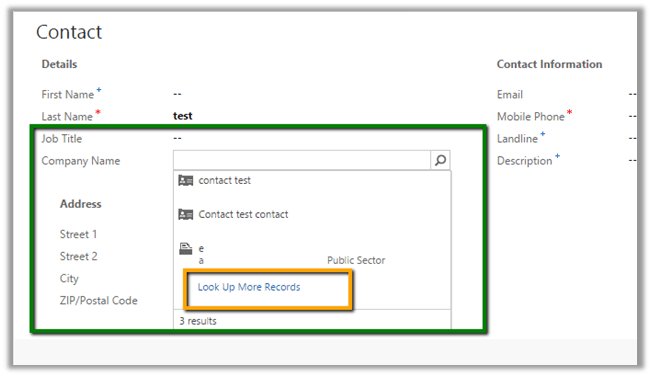
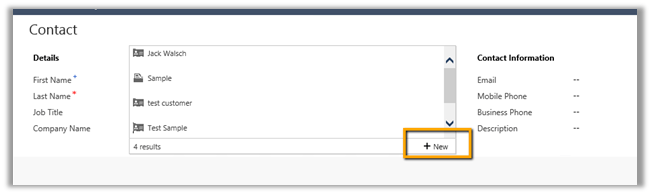
If we click on Create button for Quick Create a record

Say for e.g. Contact record

And want to create a new Account record to be associated to it

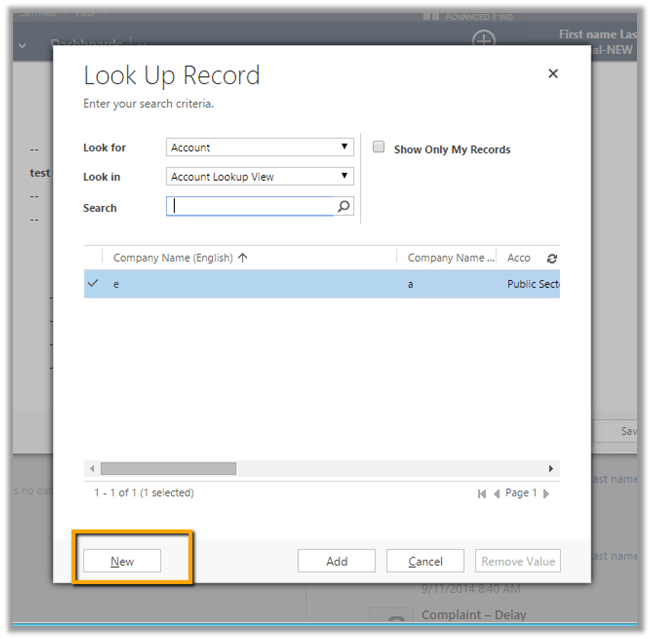
We need to click on “Look Up More Records” and then “New”

This opens up the default Contact form


However in CRM 2015,

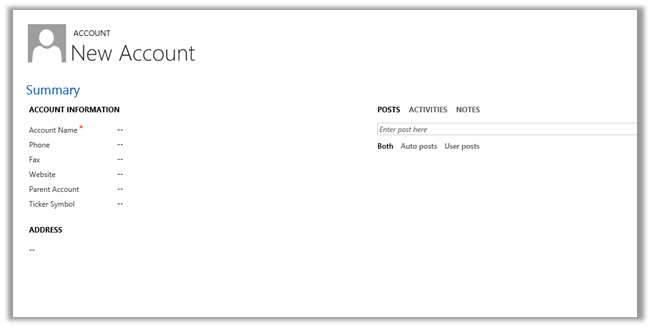
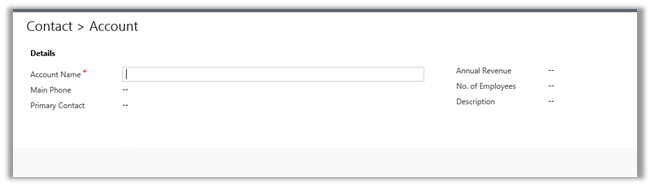
We have a New Button

It will open the Quick Create Form for the account record instead of the default form as in the case of CRM 2013.

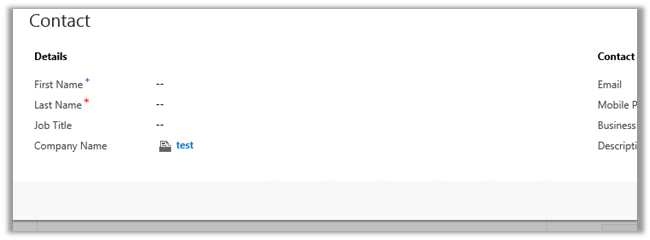
On creating and saving the account record, it will close the Account record and populate the lookup in Contact record

Hiding Navigation Tour in CRM 2015


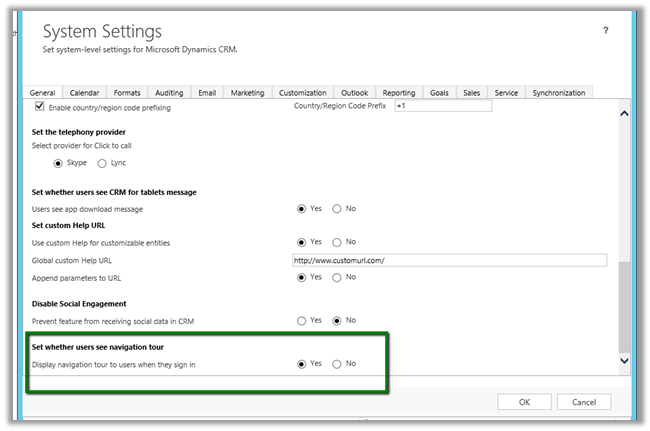
Navigation Tour dialog box opens up when user sign in to CRM.

If we want to disable this,

Go to Administration à System Setting à General Tab

Search Enhancements in CRM 2015


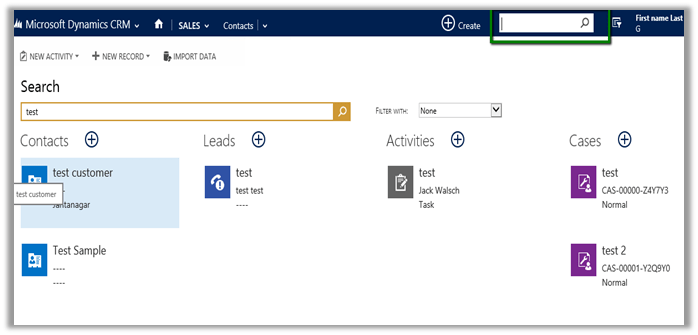
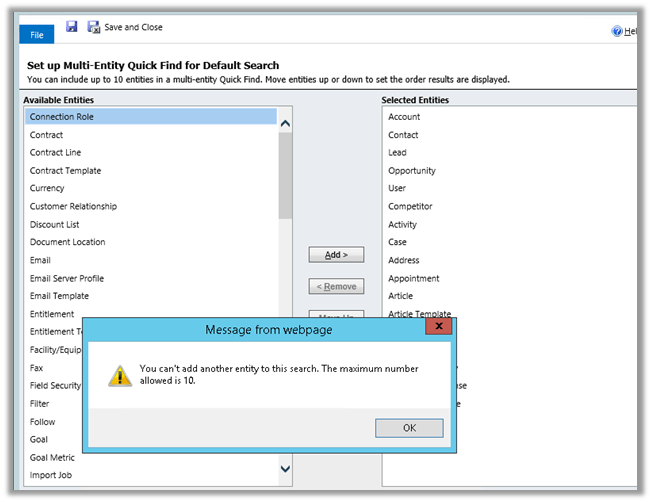
Multi Entity Search

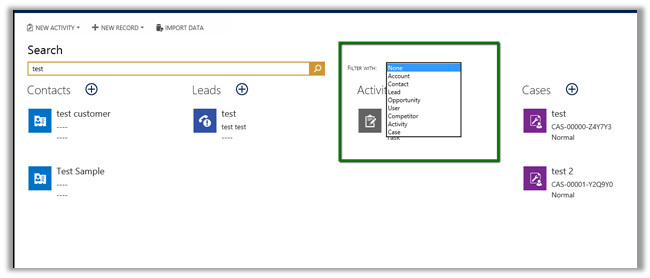
CRM 2015 have added option for multi entity

With Maximum 10 entities at a time (can also be used for filtering the result)

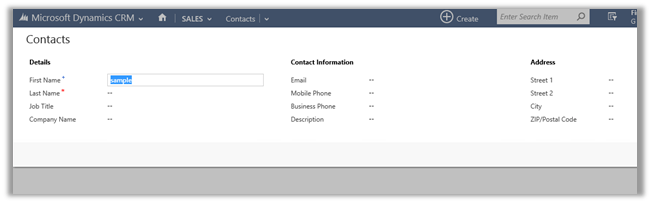
Clicking on “+” in the result opens the quick create form for that record

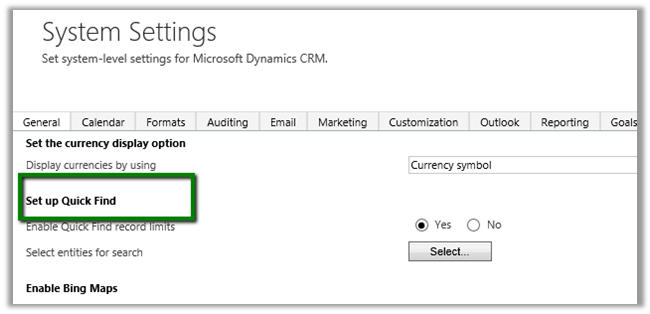
To set up Quick Find search, Go to à Adminsitration à System Settings

Click on Select to select the entity and specify the order for them.

Maximum of 10 entities can be added for search. (Supports custom entities)

The Search is based on Quick Find View of the respective entity. i.e. based on Find Columns defined in it.

The result displays first 4 column of the Quick Find View.

The pain of missing “Else If” condition in Business Rules in CRM 2013.


Let us take a simple example

There is a field say “Test Field” and 2 option set fields.

OptionSet1 è A1, A2, A3, A4

OptionSet2èB1, B2, B3, B4

Now the logic that we have to implement is

Show “Test Field” when

OptionSet1 = A1 and OptionSet2= B1

Or

OptionSet1 = A2 and OptionSet2= B2

Else

Field should be hidden

Logic in JavaScript

If (optionset1 == A1 && optionset2== B1)

Show field “Test Field”

Else if (optionset1 == A2 && optionset2== B2)

Show field “Test Field”

Else

Hide field “Test Field”

Logic in Business Rule

To implement the same in business we need write 6 business rules.

  1. If OptionSet1 = A1 and OptionSet2= B1 è Show “Test Field”
  2. If OptionSet1 = A2 and OptionSet2= B2 è Show “Test Field”
  3. If OptionSet1 != A1, A2 è Hide “Test Field”
  4. If OptionSet1 2= B1, B2 è Hide “Test Field”
  5. If OptionSet1 = A1 and OptionSet2= B2 è Show “Test Field”
  6. If OptionSet1 = A2 and OptionSet2= B1 è Show “Test Field”

Well the good news is that we now have “Else If” condition in CRM 2015.

https://nishantrana.me/2014/10/04/business-rules-in-crm-2015/


Read Option set Text/Value at one go CRM 2013


deepeshsomani2013's avatarMSDYNAMICSBLOG BY DEEPESH

Often we have requirement to read option set Text/Value quickly, I wrote a script to quickly read all option sets on a form

Go to Google chrome console(Press F12 in Chrome), select the option Console as per screen, Note that contentIframe0 is selected :

image

and run following script on your form :

var attributes = Xrm.Page.data.entity.attributes.get();

var optionSetAttributes = ”;
var optionSetValues = ”;
Xrm.Page.ui.controls.forEach(function (control, index) {
if (control.getControlType() == ‘optionset’) {
optionSetValues = ”;
var controlName = “#” + control.getName() + “_i”;
optionSetValues += control.getName() + ” option set values below: nn”;
$(controlName).find(‘option’).first().nextAll().each
(function () {
optionSetValues += ‘<div>’ + ‘Value: ‘ + $(this).attr(‘value’) + ‘,Title: ‘ + $(this).attr(‘title’) + ‘</div>’;
}
);
}
optionSetAttributes += ‘<div>’ + optionSetValues + ‘</div>’;
});

var htmlString = ‘<div style= “overflow:always”>’ + optionSetAttributes + ‘</div>’;
$(“#processControlCollapsibleArea”).after(htmlString);

var w = window.open(“Surprise”, “#”);
var d = w.document.open();
d.write(htmlString);
d.close();

You will get following…

View original post 13 more words