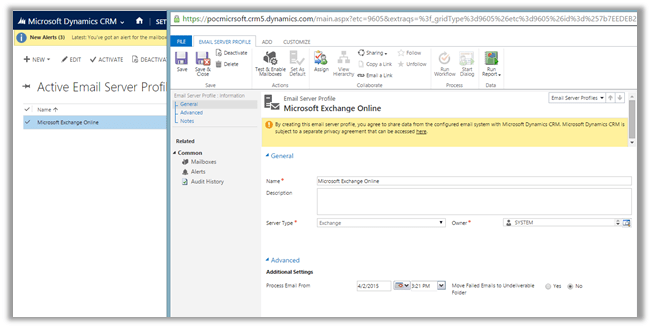
Step by Step – Configure CRM Plugin and Azure Service Bus in CRM 2015.


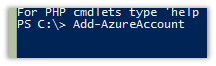
Run Microsoft Azure PowerShell

  • Add-AzureAccount


Sign in using your Azure Account.
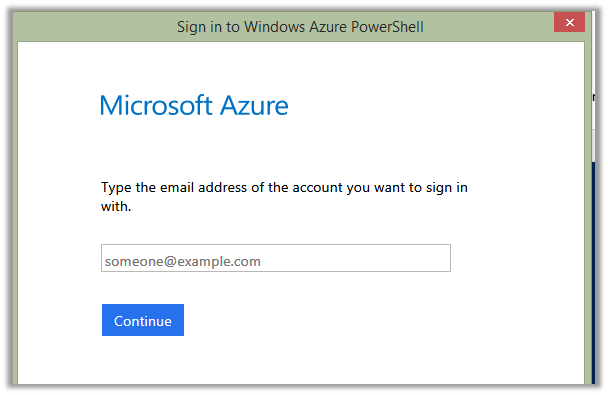
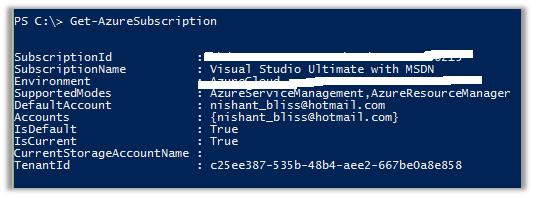
  • Get-AzureSubscription

  • Select-Azuresubscription <name of the subscription you need>
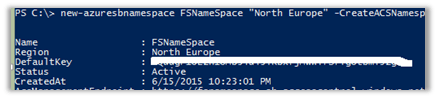
  • New-Azuresbnamespace <name for the service bus> “North Europe” -CreateACSNamespace $true -NamespaceType Messaging
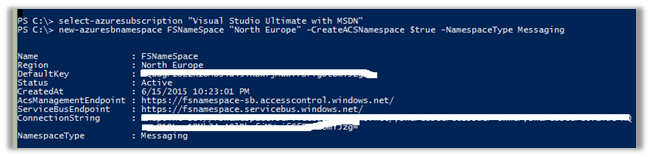

Open Azure Management Portal

https://manage.windowsazure.com/
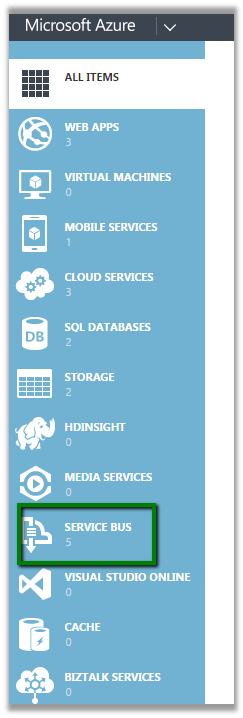
Click on the Service Bus à Queues and Create a Queue using Quick Create
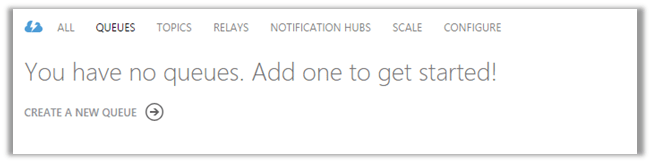
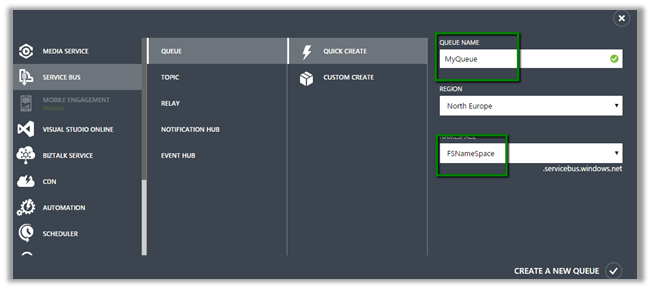


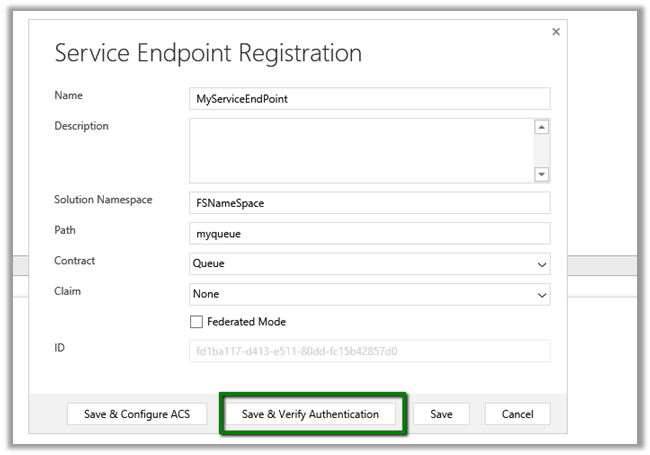
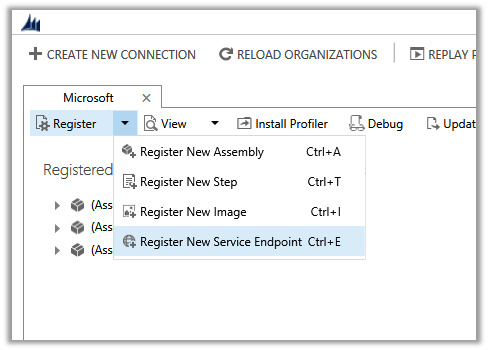
Now open Plugin Registration Tool.
Solution Namespace – Name Space we gave to our Service Bus.

Path – Name of the Queue.
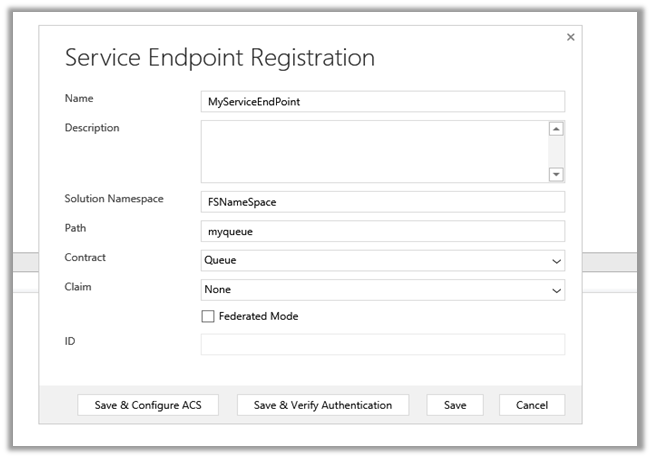
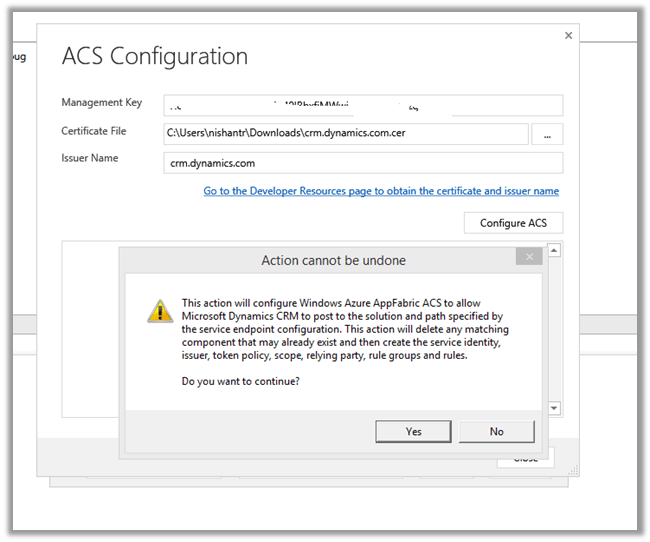
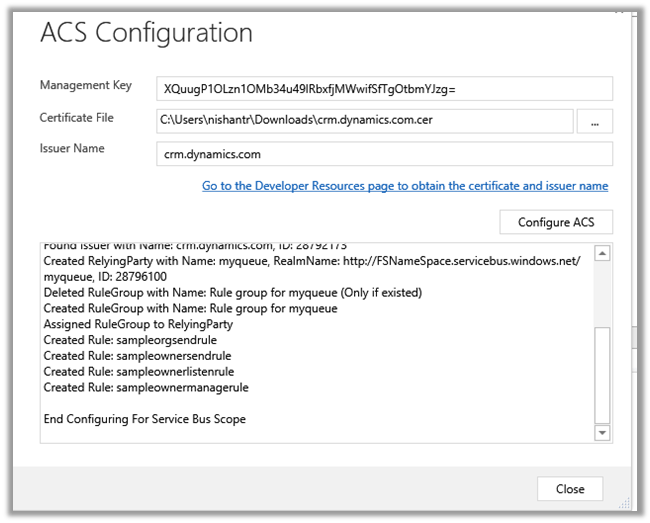
Cick Save & Configure ACS
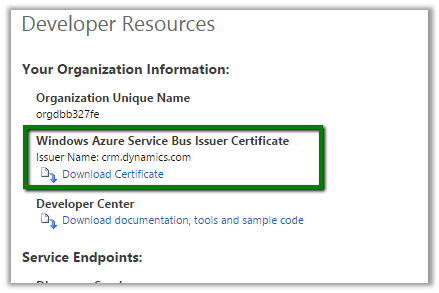
Management Key è Default Key


Click Save.

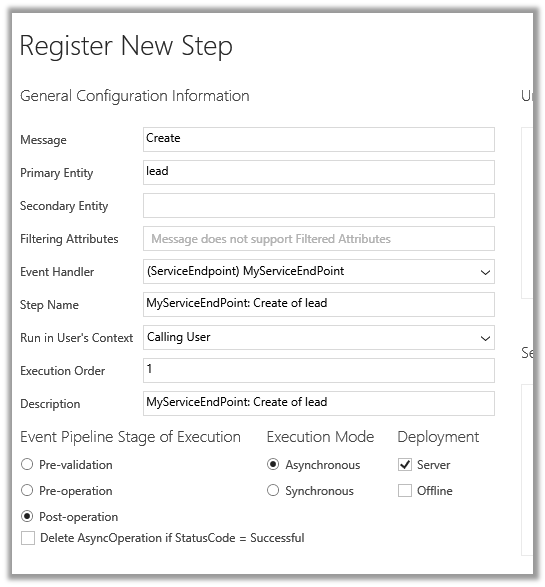
Now register a new Step. (Post Lead Create Asynchronous)
 

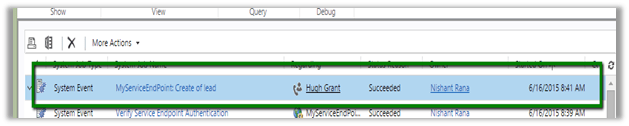
Create a new Lead record in CRM.

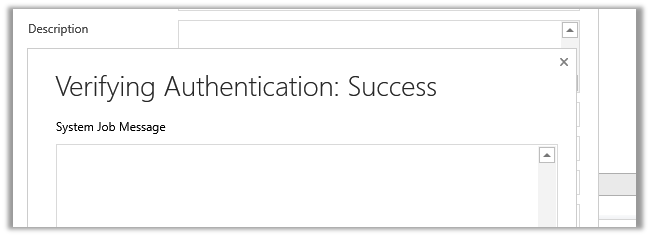
Check the System Job.
Hope it helps..

“Profiler AppDomain Unloaded” error while using Plugin Registration Tool for debugging CRM 2013 Online Plugin. (Plugin Profiler)


On clicking Start Execution button in Plugin Registration Tool for profiling I was getting the AppDomain Unloaded error.

On opening up the error detail the message was

“Could not load file or assembly Microsoft.Xrm.Sdk, Version=5.0.0.0″

Updating the Plugin Project to use the Version 6 assembly that was part of the SDK, from which I was using Plugin Registration tool fixed the issue.

To understand more check the below links

https://crmbusiness.wordpress.com/2015/03/24/crm-2015-understanding-the-plugin-profiler-and-puzzling-error/

https://social.microsoft.com/Forums/en-US/9709c5b3-a035-4c1a-bdd3-6d8054db31d0/profiler-plugin-type-does-not-exist-in-assembly-error?forum=crmdevelopment

http://blogs.msdn.com/b/devkeydet/archive/2015/02/17/debug-crm-online-plugins.aspx

Hope it helps..

“The formula is empty” exception while importing solution in CRM 2015


Got this error while trying to import a managed solution.

It was giving this error for Calculated fields.

On checking these fields in the source CRM realized that these fields were missing Action in them.

Adding appropriate action to them and then exporting and importing the same solution worked fine.

Hope it helps..

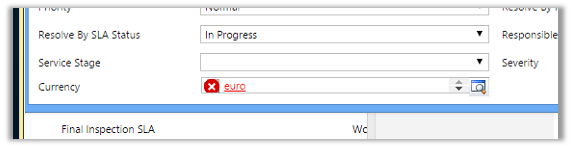
“The entity referenced by this process includes a currency value that does not exist in your organization. Select a different currency and try again.” Error in Workflow in CRM.


After importing one of the solution was getting the below error in one of the processes

The solution was to find out the Currency field and set it to the currency that existed in our organization.

Hope it helps..

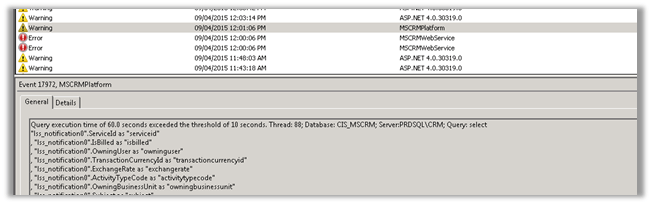
Query execution time of 60 seconds exceeded the threshold of 10 seconds warning in CRM 2013.


Query execution time of 60 seconds exceeded the threshold of 10 seconds warning in CRM 2013.

We were getting the below warning in one of our test environment

On analyzing figured out that one of the plugin was using retrieve with ColumnSet(true) option i.e. retrieving all the columns of the entity which was not required in this case.

Fetching only the required columns fixed the warning.

The other option could have been indexing or increate the value for LongQueryThersholdInSeconds column in ServerSetingProperties table of MSCRM_Config.

Helpful posts

http://blog.edgewater.com/2013/01/07/microsoft-dynamics-crm-querying-data-using-late-binding-versus-early-binding/

http://www.dynamicscrmpros.com/mscrmplatform-warning-in-event-viewer-in-microsoft-dynamics-cr-event-id-17972/

Hope it helps..


Configure Server Side Sync with Exchange Online for CRM Online


Open the System User and assign the license for Exchange Online


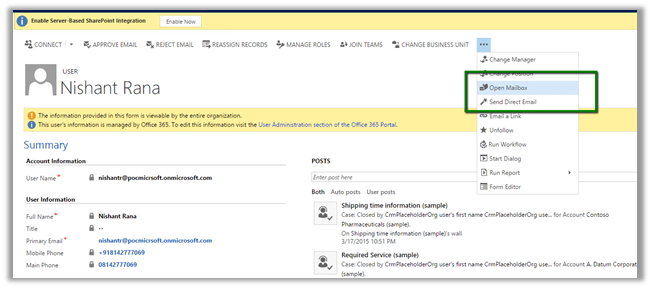
Open the system user record and click on Open Mailbox to open user’s mail box.


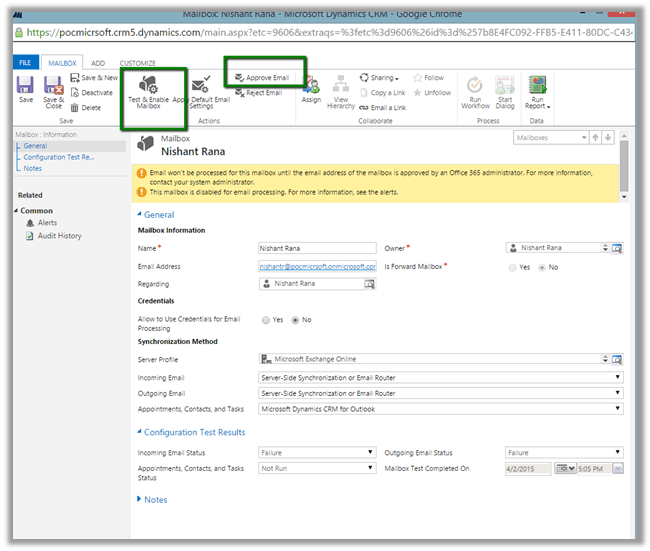
Set Server Profile as Microsoft Exchange Profile and Server Side Synchronization or Email Router option for Incoming and Outgoing email.


Followed by

Approve Email command.

Followed by

Test and Enable Mailbox command

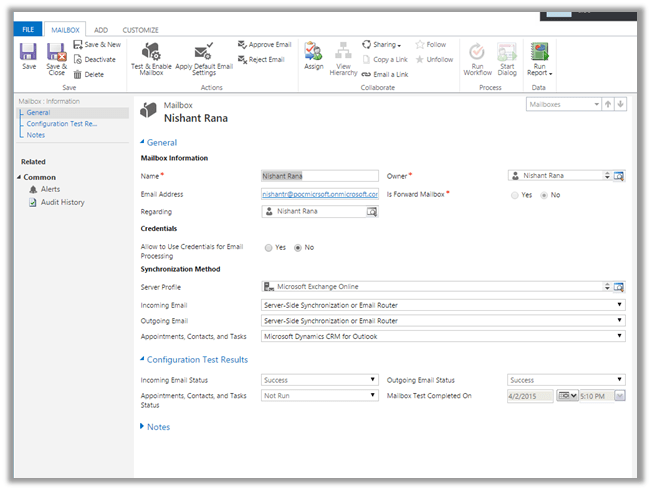
On successful configuration all the warnings will be gone


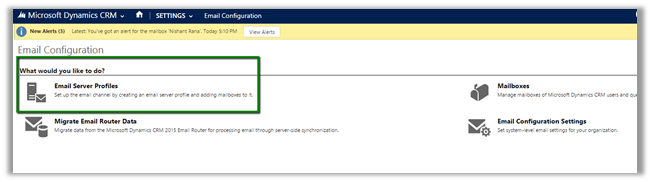
Go to Settings à Email Configuration

Click on Email Server Profiles

Select and open the already existing Email Server Profile i.e. Microsoft Exchange Profile.


Open Mailboxes and select Test and Enable Mailboxes to test the mail boxes of the user.


Create an email activity and send.

Open Outlook to verify.

Hope it helps..