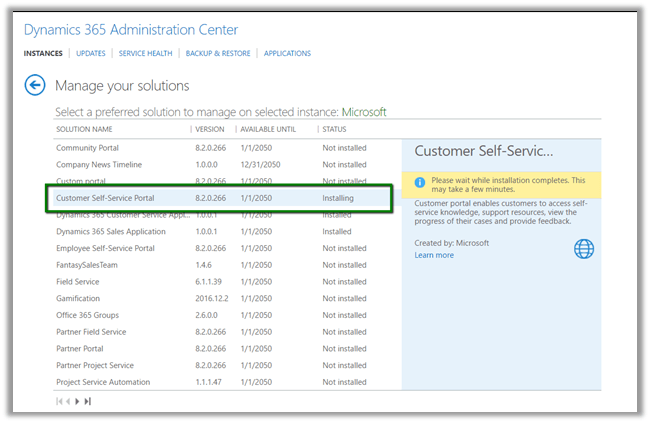
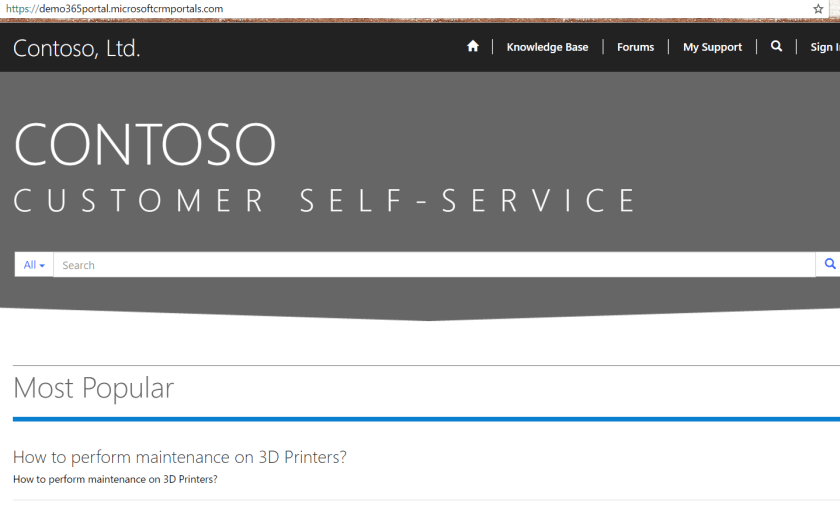
Managing Forum in Community Portals in Dynamics 365 – Part 1.


Suppose we have setup portals in Dynamics 365 and have used Community Portal template.

Community portal allows us to create Forums that lets the users discuss various topics.
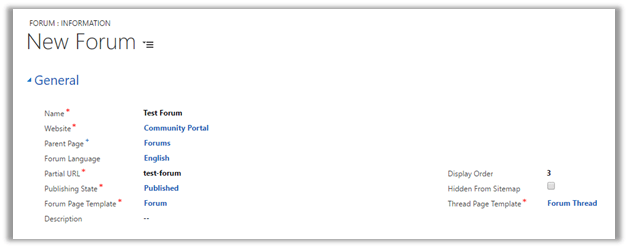
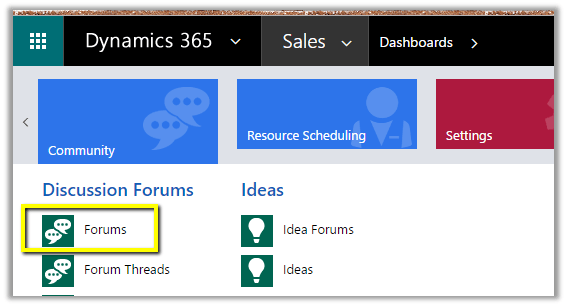
  • To create a new Forum, log in to CRM, go to Community – Forums.
  • Click on New to create a new Forum.

The important properties here are

  • WebSite – Community Portal. (the web site inside which we want to create the forum)
  • Parent Page – Page where we want the forum to appear. Forums in our case.
  • Partial URL – URL for the page.
  • Forum and Thread Page Template – Specify the existing template for them.
  • Display Order – Defines the order at which it should appear.

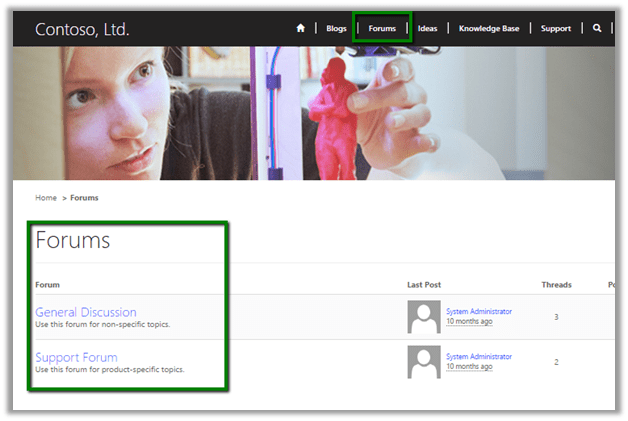
Creating the new forum record in published state (Publishing State) adds the Forum to the forum page in the portal.
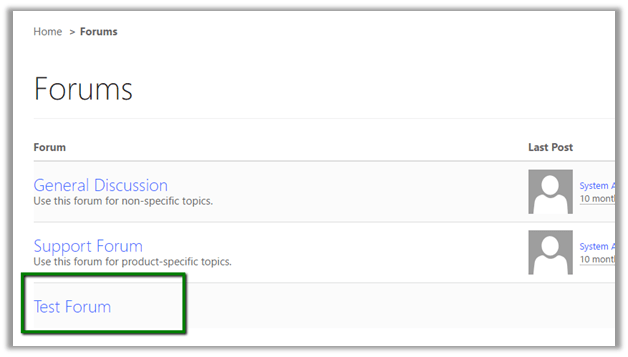
Forum will have an associated thread (s), which can be created by the Portal user in the portal or can be created by Admin user within CRM.
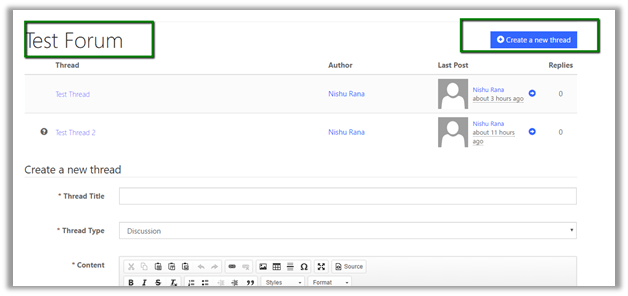
Test Forum with the associated thread :-
Inside CRM we’d see the thread associated to the forum.
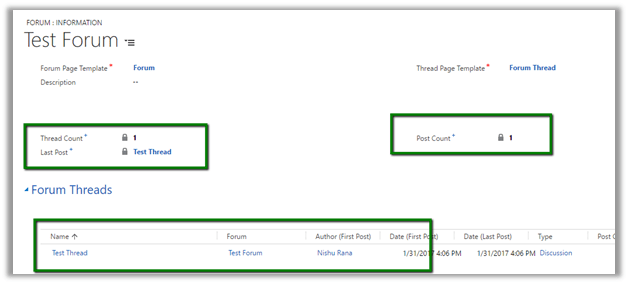
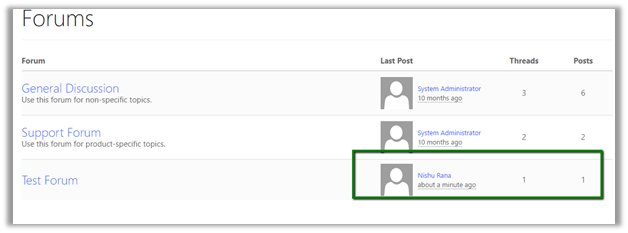
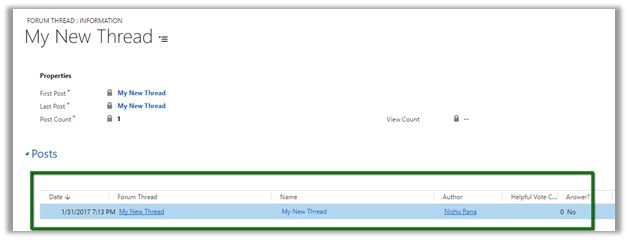
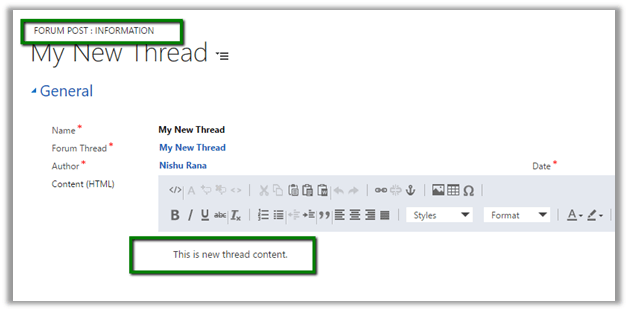
Thread will have associated Post(s) to it. Post are auto created when a thread is created in the portal.

Suppose we are creating a new thread with the below details in our test forum from within the portal.
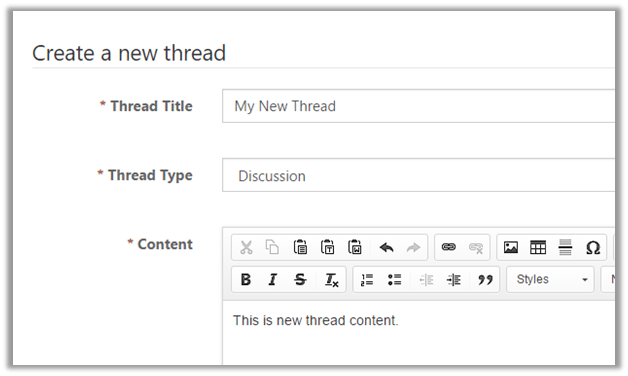
This will create a post associated to the thread.
In next blog post we’d explore other features of the community portal.

Hope it helps.

Inviting existing Contacts to Portal in Dynamics 365


For inviting existing contact records as user of the portal we can follow the below steps.

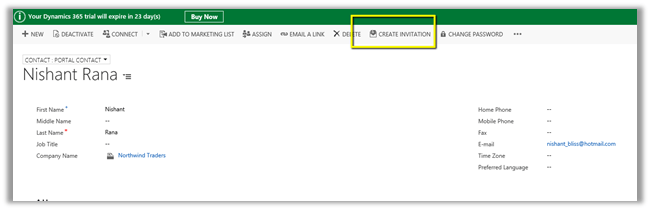
Open an existing contact record and click on Create Invitation button

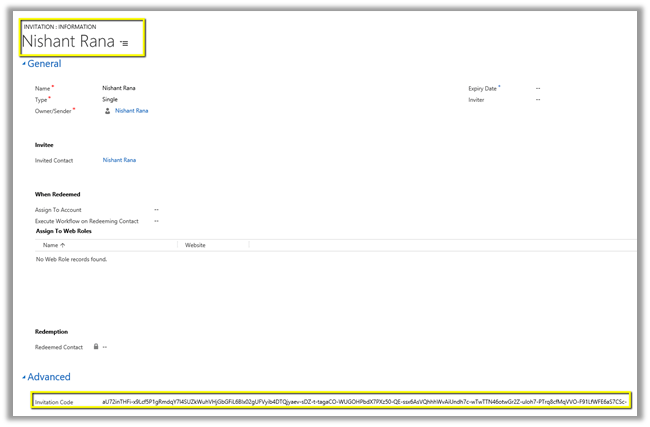
This creates the invitation record along with the invitation code.

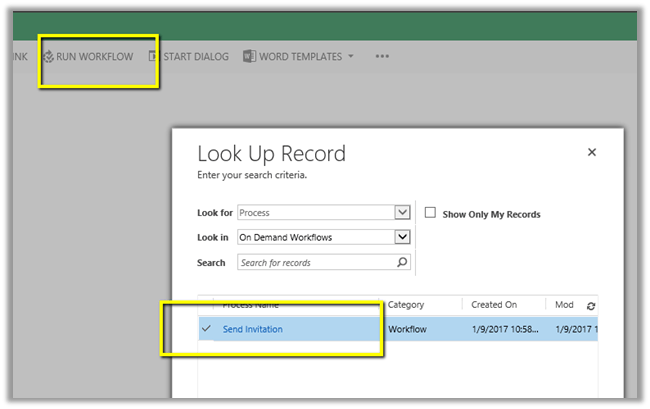
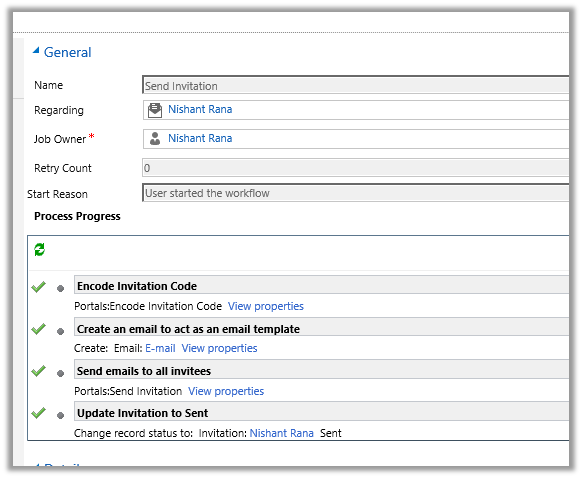
Select and run the Send Invitation workflow.

The steps for the workflow are as below.

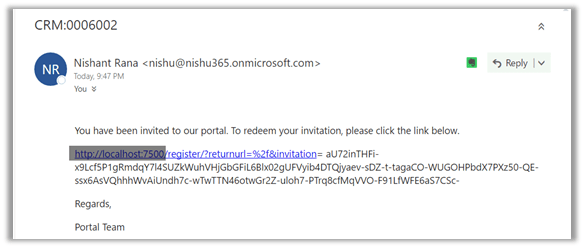
The contact\user receives the link for the confirmation

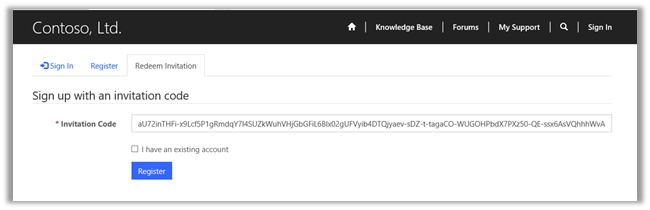
Clicking on the link opens the portal wherein user\contact can redeem the Invitation Code and Register.

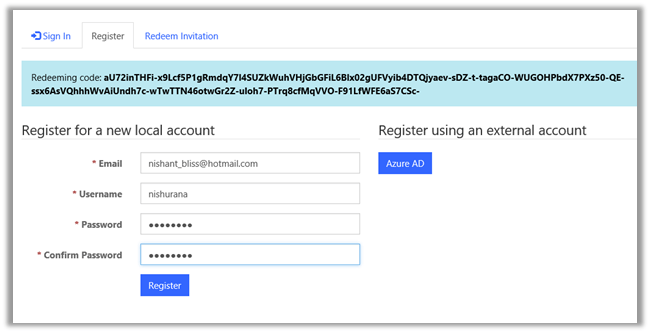
User can set up username and password during registration.

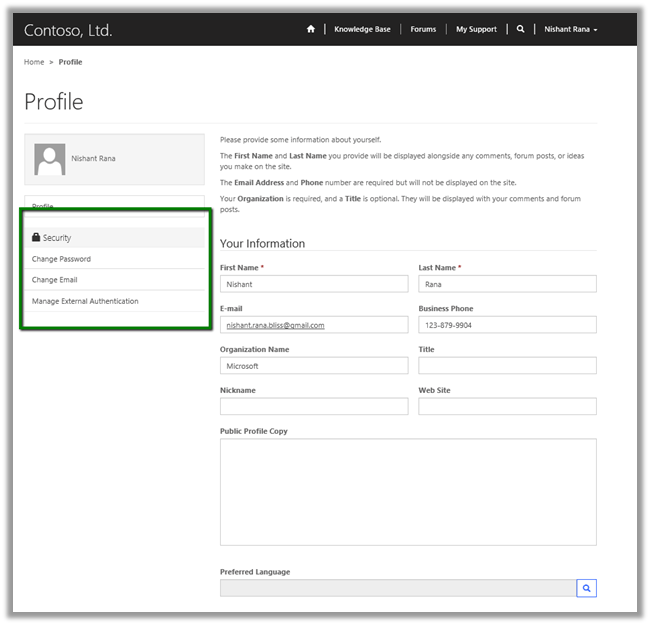
Once registered user can access the portal and update the profile further and can also change the password, email etc.

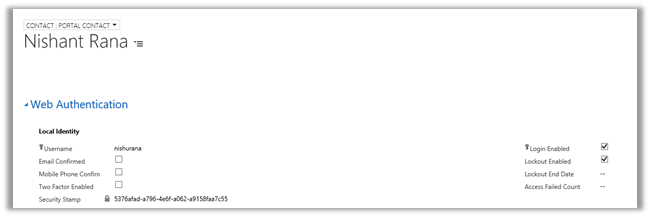
The Contact record in CRM gets updated accordingly.

Hope it helps..

Setting up Portal Trial in Dynamics 365


Create your dynamics 365 trial as a first step (if not already created)

https://signup.microsoft.com/Signup?OfferId=bd569279-37f5-4f5c-99d0-425873bb9a4b&dl=DYN365_ENTERPRISE_PLAN1&Culture=en-us&Country=us&ali=1

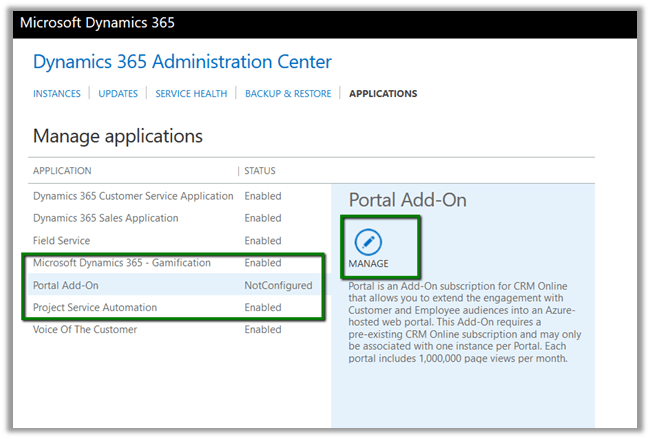
Once trial is set up successfully, open the admin center for Dynamics 365 and select Applications and click on Manage to configure the portal.

Provide details for the portal

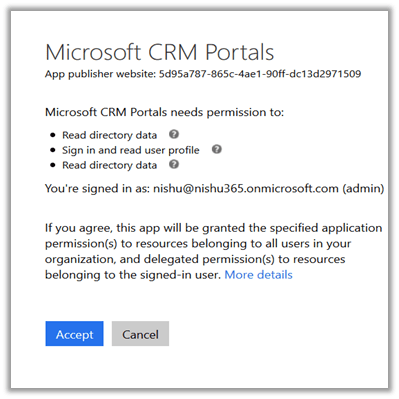
Click on Accept

Grant Permission to the Portal

We’d get the below message

After some time

Clicking on here takes us to the manage your solutions page

Once configured we’d see the following area\groups\sub groups added to site map specific to portals

Portal : 

myportal


Hope it helps..