Thirty two “Microsoft’s Very Passionate” professionals thanked with giant “WALL-OF-LOVE” at Microsoft Summit!!


Happy to see my pic there. Thanks to Peter Laker and Microsoft’s Face API .

https://www.linkedin.com/pulse/thirty-two-microsofts-very-passionate-professionals-thanked-laker/

(one more reason to smile often 🙂 )


Sharepoint Metadata Manager and Attachment Extractor–New version released!


Newer version of the tool”SharePoint Metadata Manager and Attachment Extractor” – the best tool for managing SharePoint Document(s) within Dynamics 365 by Debajit (MVP)

Debajit's avatarDebajit's Dynamic CRM Blog

We are delighted to announce the release of the next version of our tool – Sharepoint Attachment Extractor and Metadata Manager. For readers who are new to this tool, this tool enables you to upload documents to Sharepoint with multiple metadata as well as host of other features like

    • Allows you to create and edit Metadata related to files from CRM. This version allows up to five metadata fields per entity and also provides the option to restrict the metadata values to a specific set of values or free text.
    • Dynamic adding and removal of the SharePoint section on the form of an entity just through configuration page that comes with the tool. Also you can place the SharePoint section on multiple forms for the entity.
    • Upload up to five files at one go along with the option to enter metadata for each file. Also size limit of file not…

    View original post 216 more words

    Managing User’s Field level security profiles and Exporting the user’s Security report to CSV – New features added in User Security Manager – XrmToolBox Plugin


    Last week we released the first version of the User Security Manager, you can read about its features here.

    https://nishantrana.me/2018/07/16/user-security-manager-my-first-xrmtoolbox-plugin/

    With the newer version, we have added the following features to it

    Managing User’s Field Level Security

    Apart from managing the Teams and the Security Roles for the user, now the tool allows us to manage the field level security profile of the user.

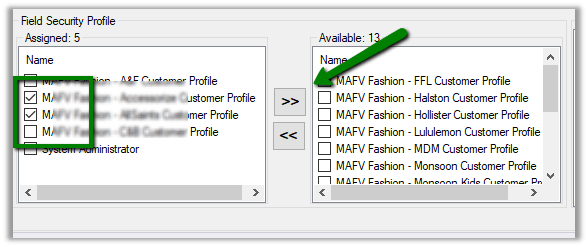
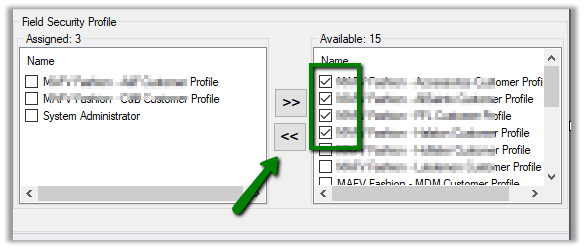
    • We can see all the Field Security Profile assigned to the user in the “Assigned” multi-select box.
    • The “Available” multi-select box lists all the Field Security Profile available in that instance.
    • The “All Assigned Field Level Security (Direct and Team)” list box lists down all the Field Level Security profile user is part of either directly or through the team.

    • Clicking on “>>” button, we can remove the user from the selected Field Security Profile that he is part of.

    • Clicking on the button labelled “<<“, adds a user to the selected Field Security Profile.

    • To remove all the Field Level Security profiles, we can click on “Remove All FSP” button.

    User Security Report

    User Security Report allows us to generate reports for security roles and field security profile assigned to the user directly or through team for all the system users or the selected system users.

    To navigate to User Security Report section, click on ‘User Security Report‘ button.

    To generate the report for all the users, click on Generate Report button without applying Report Filter or Selecting User.

    The generated report: –

    Using the tool, we can generate 3 types of reports –

    • User Role – Security Role directly assigned to the user.
    • User Team – Security Role assigned through the team.
    • User Profile – Field Security Profile assigned either directly or through the team.

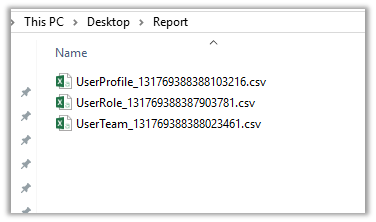
    To download or export the generated report in CSV, click on Generate Report button. Based on the report type selected, the report will be exported to the corresponding CSV files.
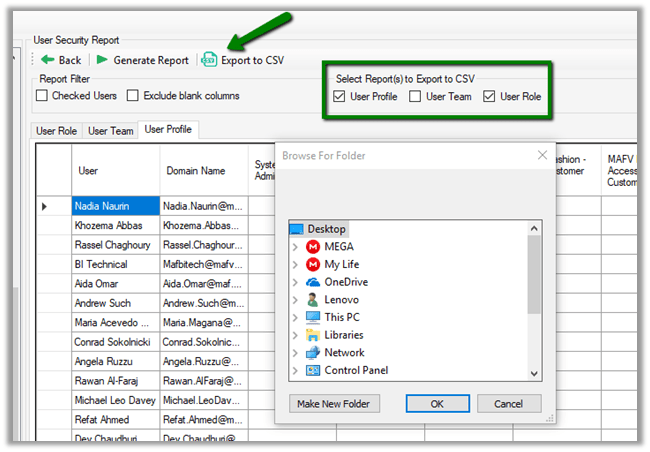
    To generate a report for a specific user or set of users :-
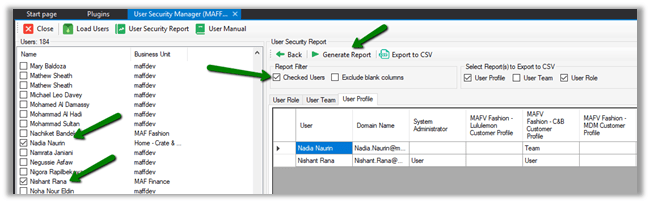
    • Select the user(s) in the left panel
    • Check the Checked Users filter in the Report Filter section
    • Click on Generate Report button as shown below.

    To exclude the column having blank values in it,

    • Check the “Exclude blank columns” option in Report Filter section
    • Click on Generate Report button.

    The generated report: –

    CSV Files: –
    Please download or update to the latest version of the tool and provide your valuable feedback.

    Hope it helps..

    My first XrmToolBox plugin for managing user’s security – User Security Manager


    Prashant Maurya's avatarPrashant Kumar Maurya

    For past few weeks I have been thinking to add my bit to XrmToolBox, the most loved tool by me and the entire Dynamics 365 Community.

    Here is my first plugin “User Security Manager”. Which I developed along with Nishant Rana.

    User Security Manager

    This tool will help in efficiently managing User’s security in Microsoft Dynamics 365 Customer Engagement. Below is the list of features it has

    • View all the security roles that assigned to the user either directly or through the team that the user is member of.
    • View all the Teams the selected user is part of.
    • With just a single click, remove all the security roles assigned to the user.
    • With just a single click, remove user from all the teams that user is part of.
    • Easily assign and unassign single or multiple security roles to the user.
    • Easily add or remove user from a single…

    View original post 43 more words

    User Security Manager – My first XrmToolBox Plugin


    Being one of the biggest fan and the most frequent daily user of XrmToolBox, always had this wish to write a plugin for it.

    Thanks to Prashant Maurya  (a dear friend and ex-Microsoft Employee) for making this wish come true. (Who played the major role in developing it).

    The tool is called – User Security Manager.
    The Plugin make it easy for the administrators to manage all the security related aspects of the system users. The tool also gives 360-degree information of the user in correspondence to business unit, security roles and teams.

    In our current project we had around 180 users using the system divided into more than 50 business units, which involved frequent update of their business unit, changes in the security roles assigned, update in team assignment and also during testing we had to assign the same BU and roles to the test users in the org, which wasn’t that easy to do from the user interface.

    So, the idea was to come up with a tool that will let an administrator to

    • View all the security roles that assigned to the user either directly or through the team that the user is member of.
    • View all the Teams the selected user is part of.
    • With just a single click, remove all the security roles assigned to the user.
    • With just a single click, remove user from all the teams that he is part of.
    • Easily assign and unassign single or multiple security role to the user.
    • Easily add or remove user from a single or multiple team.
    • Change the Business Unit of the user.

    User Guide: –

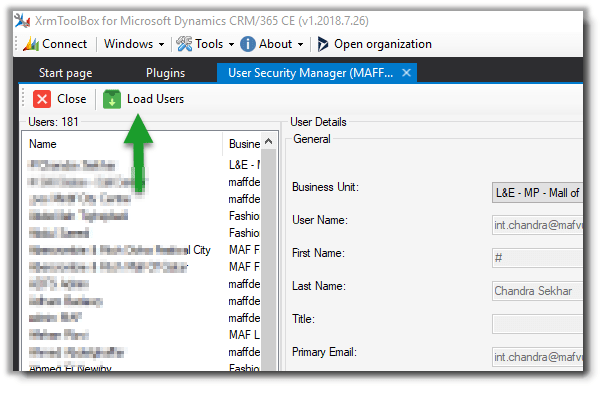
    Load all the users

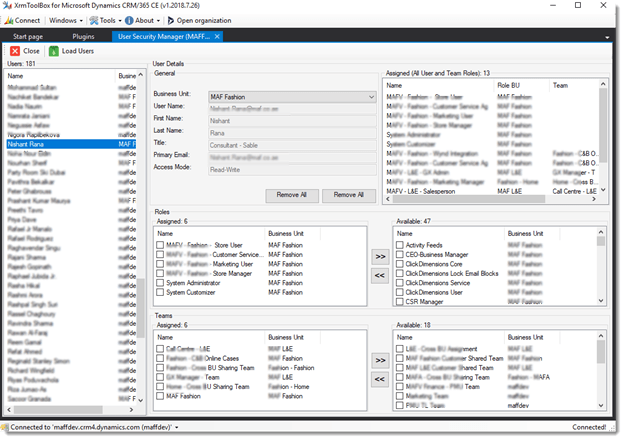
    After connecting to the organization, we can click on Load Users to load all the system users of the organization.
    List details of the user selected

    • For the selected user, in User Detail Tab’s General section, we can get the general information of the user like First Name, Last Name, Title, Primary Email and Access Mode.
    • Next to the General section, we can see all the security roles assigned to the user either directly or through the teams the user is member of.
    • The Roles tab shows all the Roles assigned to the user and also the roles that are available in the business unit to which user belongs in Assigned and Available section along with their counts.
    • The Teams tab shows all the teams user is member of and also the teams that are available in the organization in Assigned and Available section along with their counts.

    Remove all security roles of the user.

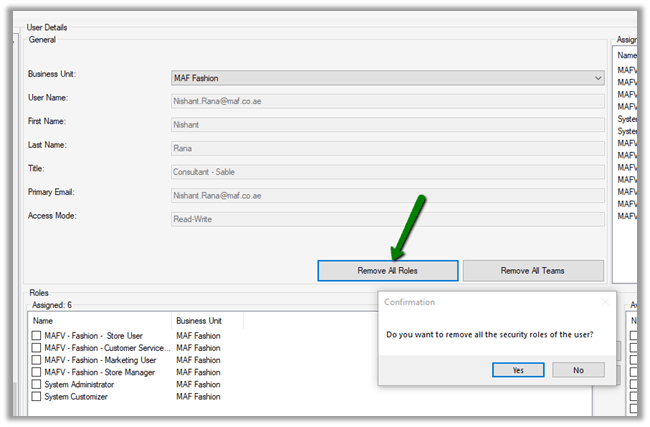
    To remove all the security roles of the user, click on Remove All Roles button.
    Remove user from all teams.

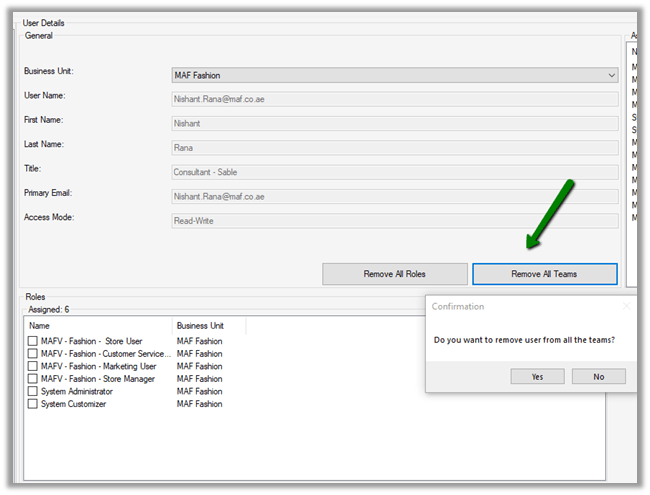
    To remove the user from all the teams, click on Remove All Teams button.
    Assign Security role to the user.

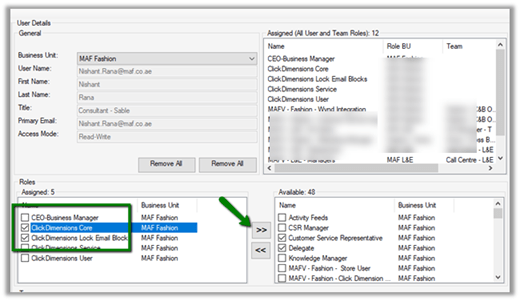
    To assign security role to the user, check the security roles from the available security roles section and click on “<<” button.

    To remove security role from the user.

    To remove security roles from the user, select the roles from the Assigned section and click on “>>” button.
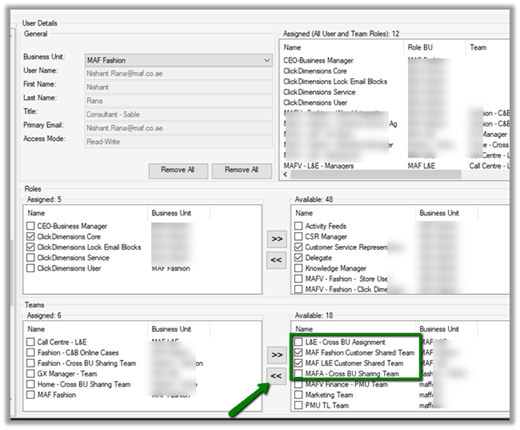
    Assign User to Team(s).

    To assign user to team(s), select the teams from the available section and click on “<<” button.
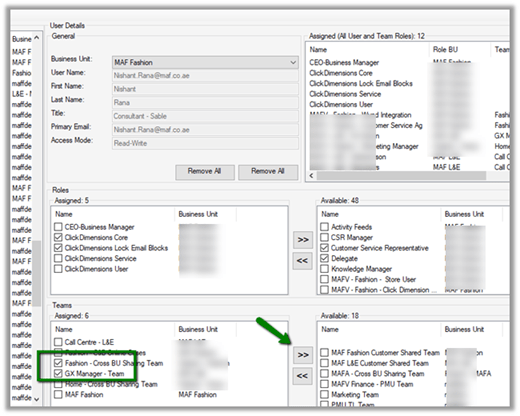
    Remove user from Team(s)

    To remove user from Team(s), select the team from the Assigned Section and click on “>>” button.
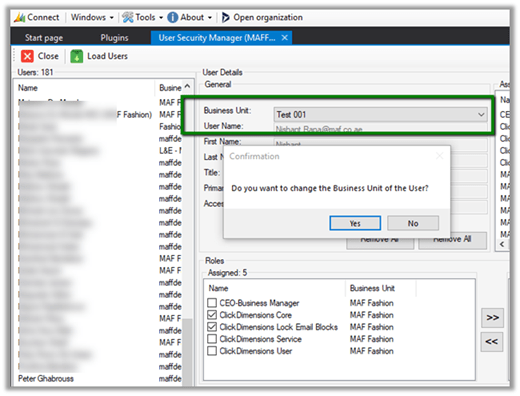
    Change the business unit of the user.

    To change the business unit of the user, select the Business Unit from the Business Unit drop down in General Section of User Details.
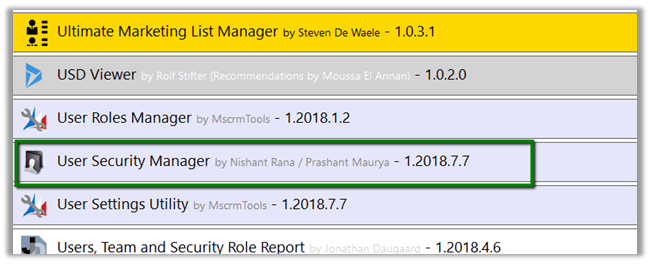
    Please install it, use it and share your feedback which would help us to improve it

    https://www.xrmtoolbox.com/releases/
    Hope it helps..


    When does the Plugin registered on SetState message fires in Dynamics 365?


    Hi,

    Recently we were writing a plugin that should fire when a record is activated.

    In this kind of scenario, it is suggested\recommended to register plugin in both SetState and SetStateDynamicEntity message.

    https://community.dynamics.com/crm/f/117/t/184070

    https://blogs.msdn.microsoft.com/crm/2008/03/07/developing-plug-ins-for-crm-4-0/

    Interestingly we had the following observations

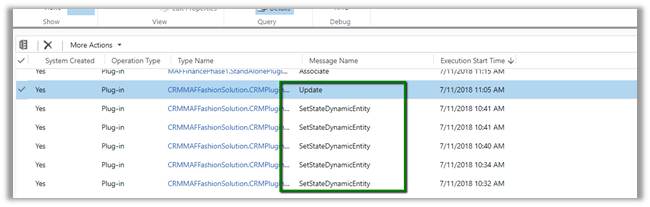
    • The Plugin fires only for SetStateDynamicEntity message.
    • The Plugin fires even if the SetState message step is disabled or not registered.
    • Only SetStateDynamicEntity message is fired when the record is Activated or Deactivated. For incident entity also, it was the only message fired on Reactivating the record. The plugin didn’t trigger in case of Resolve or Cancel Case.
    • Only SetStateDynamicEntity message is fired, even if we are updating the state of the record using SetStateRequest of SDK.
    • As SetStateRequest message is deprecated, if we use UpdateRequest to update the state of the record, the plugin that is registered on SetState and SetStateDynamicEntity will not fire. It will trigger only if registered for Update message.

    Plugin Trace log records :-

    We are yet to figure out when exactly the SetState will be fired. Please share your thoughts and experience around the same.

    Hope it helps..