Every PowerApps Formula You Ever Wanted To Know As A Functional Consultant


A very handy guide for #PowerAddicts

Prashant Shukla's avatarDIY D365

Hello Readers

This blog is to help fellow consultants to start their journey on PowerApps. We all know how easy it is to put together a screen on Canvas Apps but as and when we need a specific action on it or from it; we fall short of formulas/functions. That’s because we never required these formulas in Model Driven Apps.

But as Business/Functional Consultant, you want to deliver value to your client, make their life easier, Don’t you?

I am sure you do, so here I am providing you with 20 essential functions you must know as a functional consultant. This can be a starting point for you; well, Microsoft is trying hard for Business Users and Functional Consultants to get in the rink of Power Platform. Their learning path is specially designed for Business Users and Functional Consultants, check it out here Learn PowerApps.

All formulas below are…

View original post 504 more words

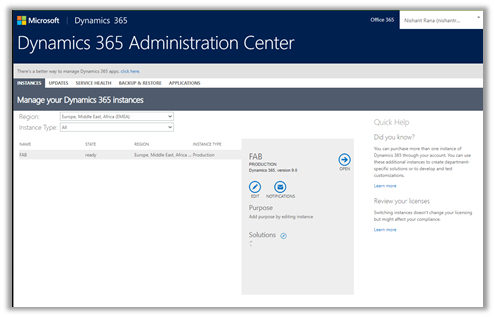
Admin Center URL(s) in Microsoft Dynamics 365 ( Power Platform)


Listing down Administration Center URL(s) for quick reference à

https://admin.microsoft.com/Adminportal/Home?source=applauncher#/alladmincenters

Admin Center URL
Microsoft 365 Admin Center
https://admin.microsoft.com/


Power Platform Admin Center

https://admin.powerplatform.microsoft.com/

PowerApps Admin Center https://admin.powerapps.com/


Dynamics 365 Admin Center
<a href=”https://port..dynamics.com/G/instances/instancePicker.aspx”>https://port.<region&gt;.dynamics.com/G/instances/instancePicker.aspx


for e.g.

EMEA
https://port.crm4.dynamics.com/G/instances/instancePicker.aspx

UAE
https://port.crm15.dynamics.com/G/instances/instancePicker.aspx

North America
https://port.crm.dynamics.com/G/instances/instancePicker.aspx

India
https://port.crm8.dynamics.com/G/instances/instancePicker.aspx

Replace <region> with

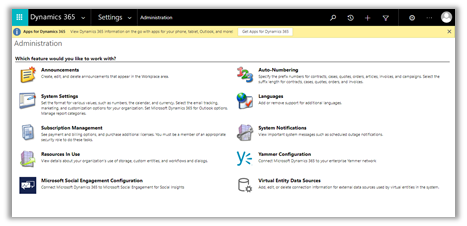
Dynamics 365 Advanced Settings https://[orgname].[region].dynamics.com/main.aspx?settingsonly=true


Dynamics 365 Home
https://home.dynamics.com/


Power Apps Maker Portal
https://make.powerapps.com


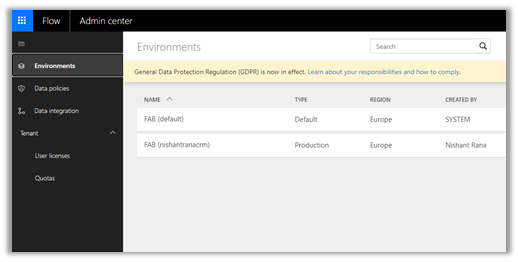
Power Automate Admin Center
https://admin.flow.microsoft.com/


Power BI Admin Portal
https://app.powerbi.com/admin-portal


Azure Active Directory https://aad.portal.azure.com/


Hope it helps..

Advertisements

Overcoming unprecedented business challenges with Microsoft Dynamics 365


In such unpredictable and challenging times, organizations must make sure they’re getting maximum value and efficiency from their Microsoft Dynamics 365 investment.

Through this blog and social media, I’m passionate about sharing my knowledge and helping other Dynamics users get the most out of the platform. That’s why I was excited to contribute to Nigel Frank International’s new white paper Overcoming your business challenges with Microsoft Dynamics.

To help Dynamics customers navigate these unprecedented waters, 16 Microsoft Dynamics 365 professionals and experts shared their thoughts on topics such as cutting costs, ensuring business continuity, data security in Dynamics, growing at scale, and how to make the most of remote working.

The result is over 65 pages of practical advice and actionable tips to help users of all Dynamics apps are fully utilizing their CRM or ERP and taking advantage of its functionality, scalability, and flexible nature to ensure the continued success of their operations.

With more people than ever working from home or on personal devices, I believe the advice on data security is particularly relevant today. In this section of the white paper, Dynamics 365 experts address the new and increased security risks that can arise as growing numbers of Dynamics users access the platform remotely. You’ll find many tips and tricks on how to safeguard your Dynamics data, tools to use to step up your security levels, and how to equip users to work safely in the face of this new normal. 


You can download the white paper here—I really hope you find it useful!

How to -Provision Omnichannel for Dynamics 365 Customer Service


For one of our projects we are exploring capabilities of Omnichannel.

Below are the steps for provisioning the Omnichannel for Dynamics 365 Customer Service for quick reference.

Posts on Omnichannel for Customer Service (Dynamics 365)

First, we need to make sure we have the Customer Service Hub already installed.

https://trials.dynamics.com/

Next, we need to have an active subscription of Chat for Dynamics 365 Customer Service or Dynamics 365 Digital Messaging

The other options

https://docs.microsoft.com/en-us/dynamics365/omnichannel/try-channels

Navigate to Microsoft 365 Admin Center

https://admin.microsoft.com/

Select Purchase services
à
Add-ons
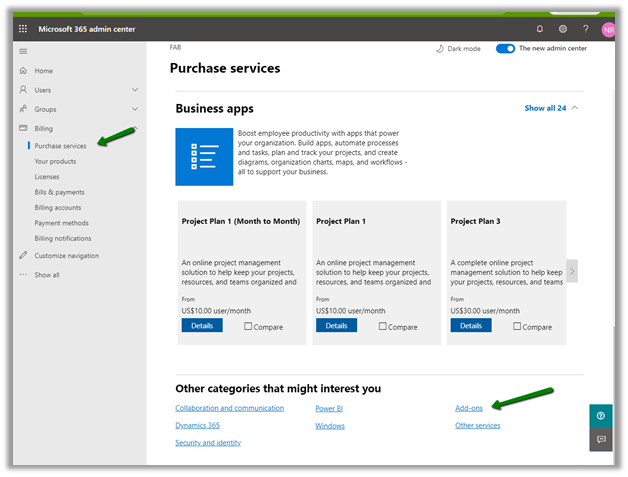
Select Dynamics 365 Customer Service Digital Messaging Add-on trial.

And also assign the add-on license to the users who need to work with Omnichannel Service.

Login to Data access consent URL using the Global Tenant Admin account and give the consent.

We’d be presented with the below message.

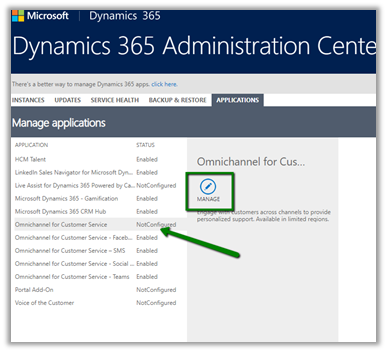
Login to Dynamics 365 Administration Center and navigate to Applications Tab and click on manage for Omnichannel for Customer Service.

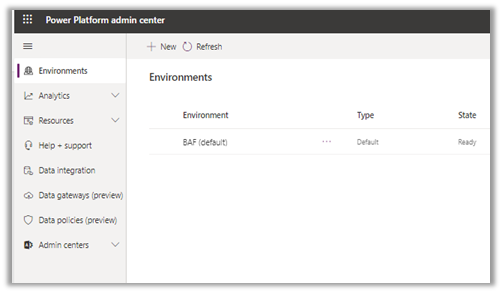
https://admin.powerplatform.microsoft.com/environments
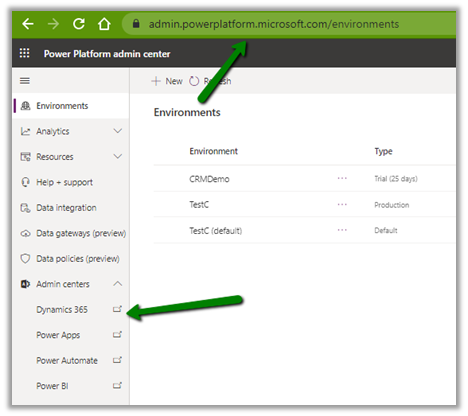
This opens the Manage environment page for Omnichannel.

Click on Add Environment to add the environment.

Here we can select the environment to which we want omnichannel solutions to be configured.

Click on next and we can then add chat as one of the channels.

Click on Next to similarly setup SMS, Social, and Microsoft Teams as the channels.
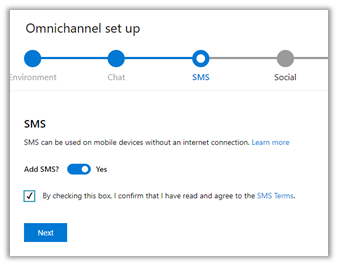
Click on Finish to start the installation.

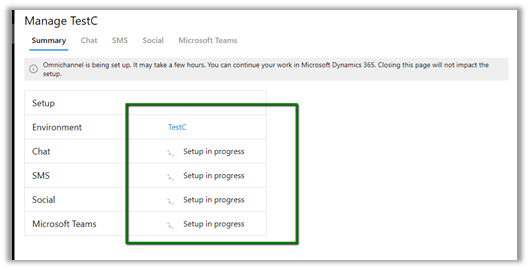
It will show the status as Installed after some time. (took around 1 and half hour in our case)

To manage the channels or delete the omnichannel we can use the same Manage option for Omnichannel for Customer Service in the Applications tab within Dynamics 365 Admin Center.

We can use the Delete button to remove the Omnichannel configuration à

We’d also see the Omnichannel Administration and Omnichannel for Customer Service apps in the list of Dynamics 365 Apps.

Get all the details here

https://docs.microsoft.com/en-us/dynamics365/omnichannel/administrator/omnichannel-provision-license

Hope it helps..

Advertisements

Setting up default authentication provider in PowerApps/ Dynamics 365 Portals using identity provider configuration UI


Debajit's avatarDebajit's Dynamic CRM Blog

In this blog, I will set-up the default portal authentication provider using the new PowerApps/ Dynamics 365 Portal identity provider configuration UI. If you are not aware of the preview feature, please visit the previous blog to know more about this new preview feature.

So below is the identity provider screen.

image_thumb[5]

And by default, Azure Active directory and Local sign in is enabled. Say we want to enable Azure Active Directory as the default authentication. Before this UI, came into effect we needed to create some site setting configurations to do the same. But now it’s quite easy. All we need to do is click the three dots in Azure Active Directory and mark it as default

image

You will get a confirmation box. Just click OK.

Once done, you will see a tick in pink with the associated provider which basically means it is the default provider.

image

What exactly happened…

View original post 136 more words

Multi-Currency in Dynamics 365


Multi-currency was introduced in the product with version 4.0

Thought of just revisiting it as we were recently having certain requirements around it.

Below are few points for quick reference  (Nothing new, as most of the things remains the same with Multi-currency in the product) à

  • There can only be one Base currency that can be defined while setting up the organization or the instance. The base currency cannot be updated.
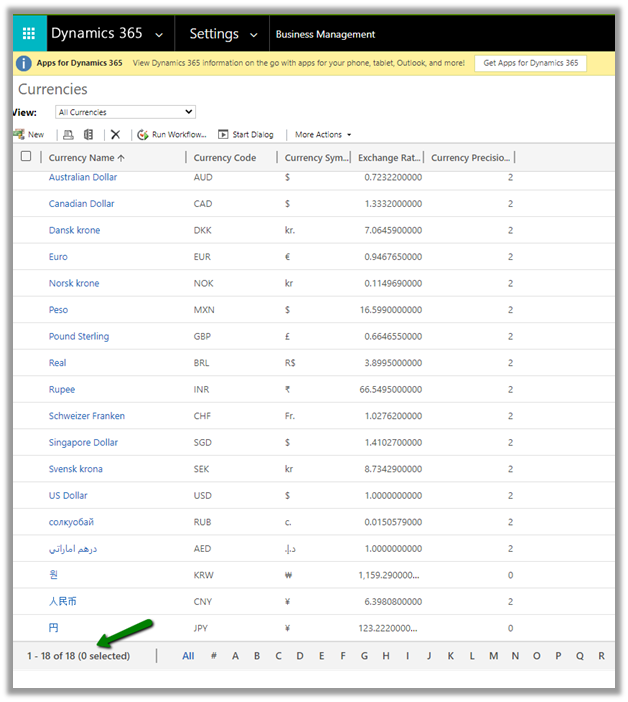
  • To define additional currency, navigate to Settings à Business Management

By default, we can see 18 currencies defined.

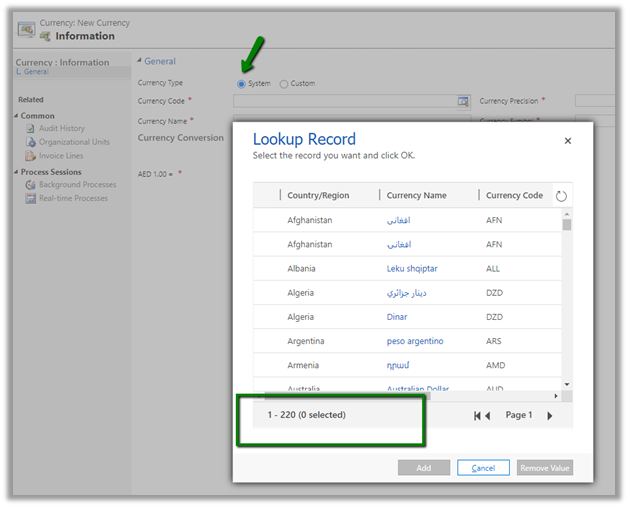
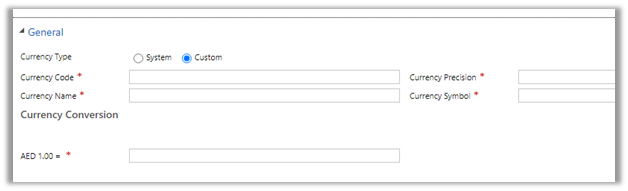
  • We can create additional currencies either system or custom.

For system currency, we can select any of the existing currency code.

If we do not find our currency in the system, we can define Custom Currency

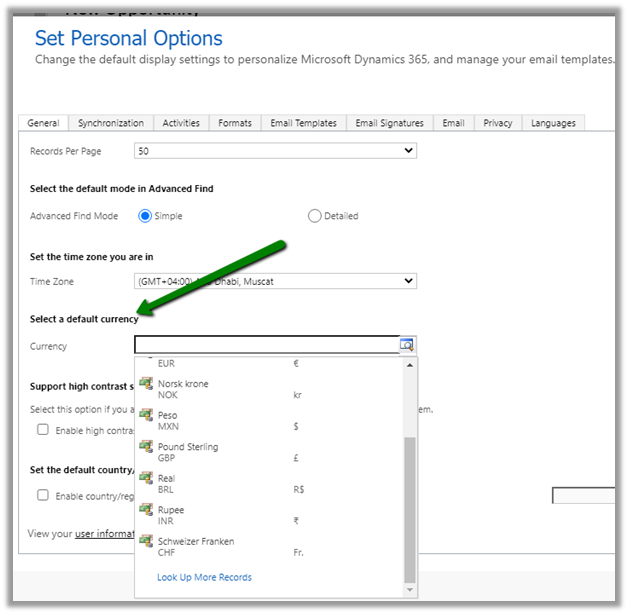
  • Through Set Personal Options, the user can specify default currency

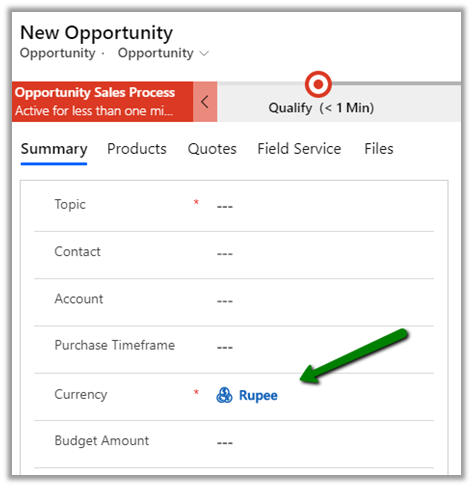
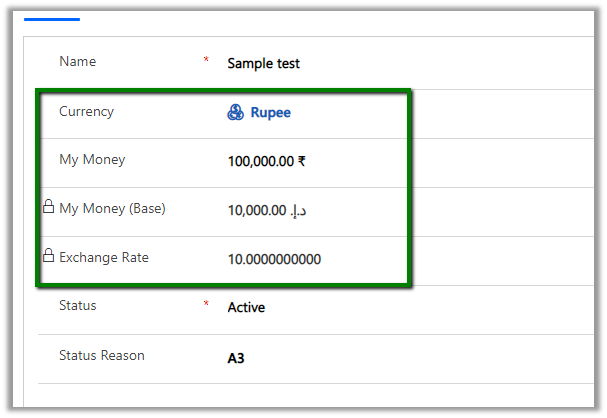
The default currency will be set as the currency for the user while creating a record as shown below.

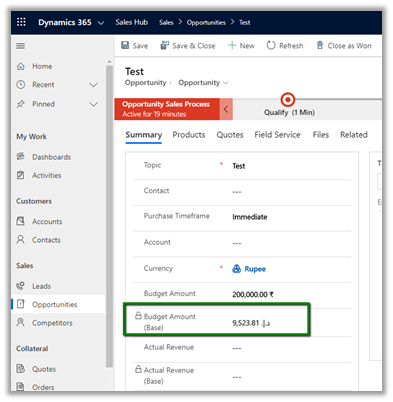
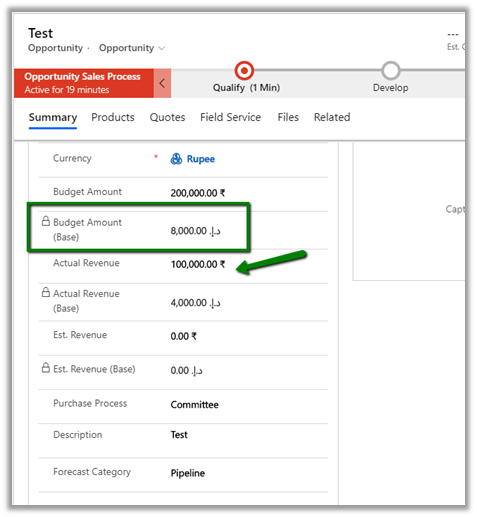
  • The base amount is calculated after the record is saved.

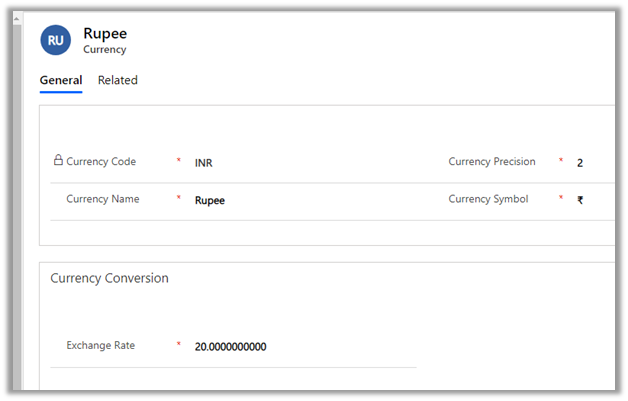
The calcuation considers the Exchange Rate defined in the Currency record.

  • Exchange Rates are not updated automatically. We should have some mechanism in place to update the exchange rate.
  • The base amount is re-calculated if the money field in the record is updated or state of the record is changed.

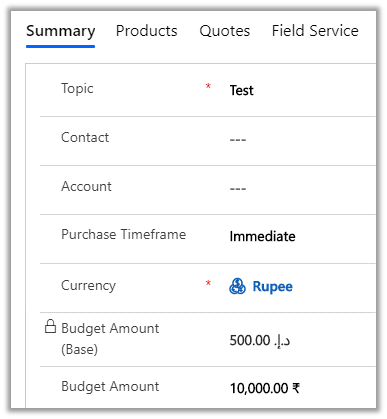
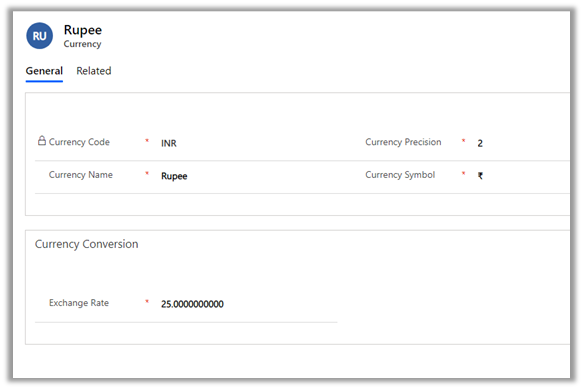
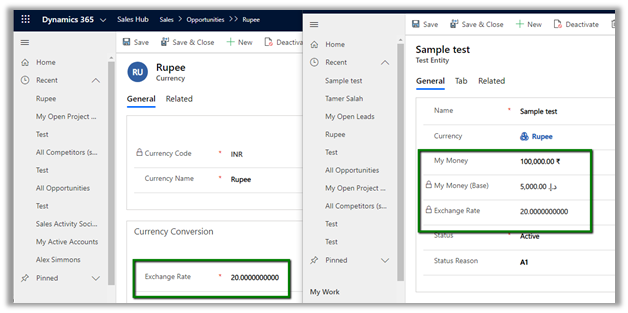
E.g. we have updated the exchange rate to 25.

The record still shows the old base value.

Here updating any of the currency fields will trigger the recalculation.

Below we have updated the value for the Actual Revenue field and saved the record which triggered the calculation for the base fields using the new exchange rate defined.

  • We can write a console application or SSIS packages that will update the money field of the existing records, whenever the exchange rate is updated to trigger the recalculation of the base currency field if needed.
  • Create a new currency field for an entity will create a corresponding base currency field. It will also create Currency and Exchange rate field if this is the first currency field created for the entity. Any subsequent new currency field created will not create the currency and exchange rate field.

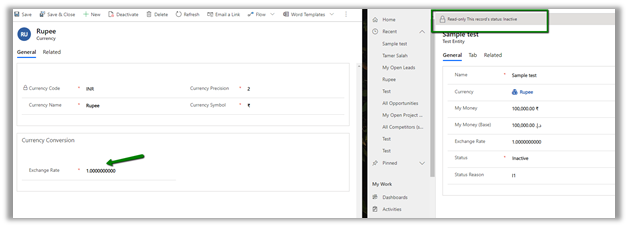
  • Updating the status of the record will also update the base currency as shown below.

Below are some of the helpful articles with regards to currency and exchange rate in Dynamics 365.

  • Using Power Automate to update the exchange rate

https://2die4it.com/2018/10/01/schedule-update-of-currency-exchange-rates-in-dynamics-365-ce-with-flow/

https://alphabold.com/dynamics-365-update-currency-exchange-rates-using-power-automate/

https://www.dxrms.com/blogs/d365blog/2019-11-07-schedule-dynamics-365-currency-rate-updates-using/

  • Exchange Rate Control in PCF Gallery

https://pcf.gallery/exchange-rate-control/

  • Update exchange rate through a Console app

https://blog.crgroup.com/keeping-the-exchange-rates-of-currencies-in-dynamics-crm-up-to-date/

  • Through XrmToolBox plugin

https://www.xrmtoolbox.com/plugins/CRMGG.ExchangeRates/

  • Using workflow and dialog (deprecated)

https://alphabold.com/update-opportunities-based-on-exchange-rate/

Hope it helps..

Advertisements