How to – Use SetWordTemplate action to automate document generation and attaching it to note in Dynamics 365


Continuing our previous post,

https://nishantrana.me/2020/03/31/using-word-template-to-combine-multiple-images-attached-to-notes-in-a-single-document-in-dynamics-365/

wherein we used word template to generate a document having all the note’s attachments (picture) to it.

To enhance it further, we can write a custom workflow that calls the SetWordTemplate in Perform Action step.

SetWordTemplate action will generate the document, based on the word template defined, and will attach the document to the note of that particular record.

For this

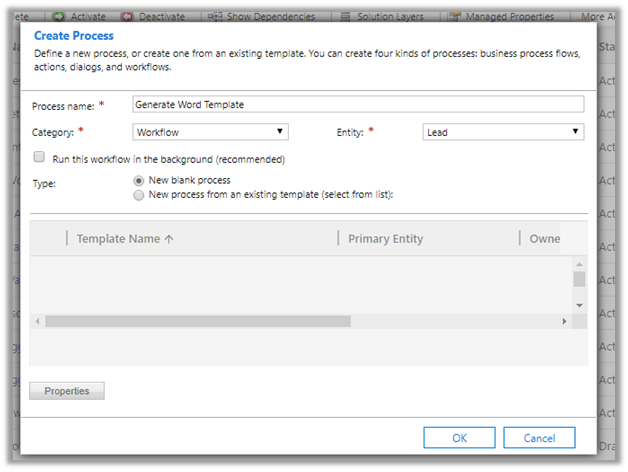
  • Create a process of type workflow.

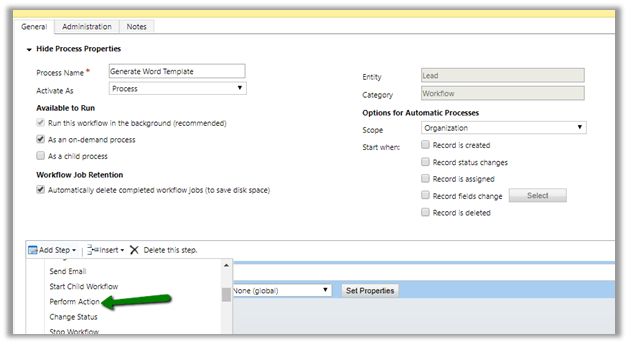
  • Select step Perform Action

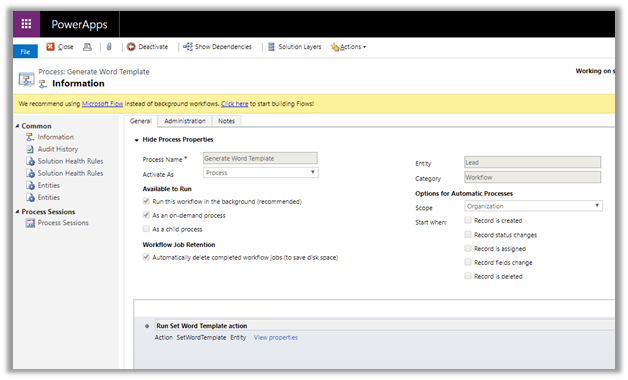
  • Specify the Document Template and the associated entity (e.g. lead) for its input properties.
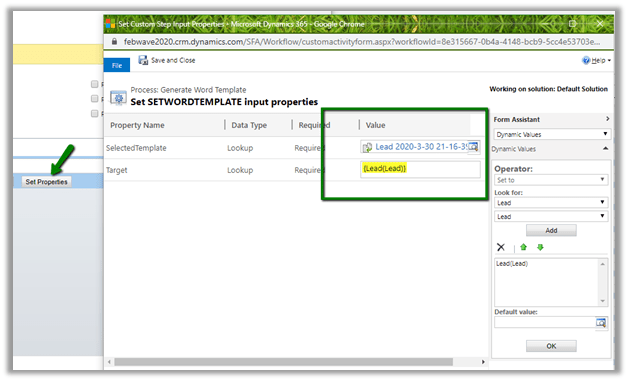
*if you do not see the entity listed, enable BPF on it
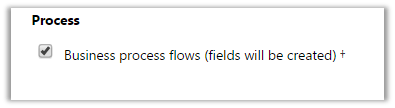
*also make sure you have notes enabled for the entity.

  • Activate the workflow.

  • Run the workflow Generate Word
    Template.
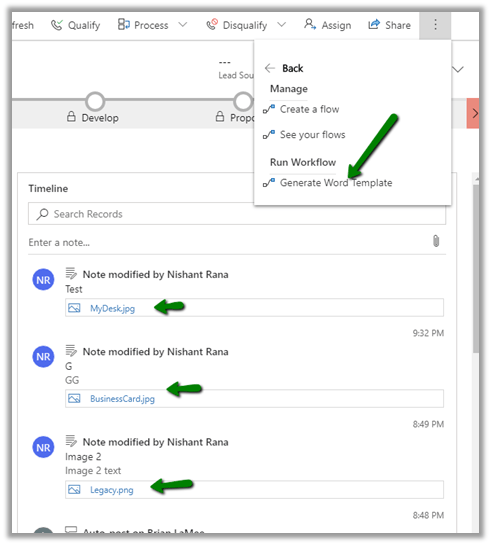
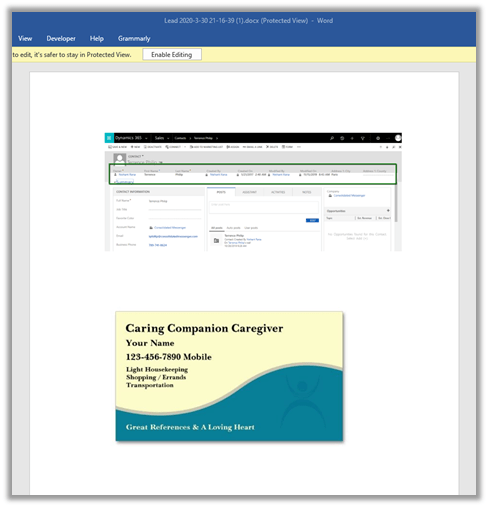
  • After refreshing the timeline, we can see the new note record created with the document as attachment to it.
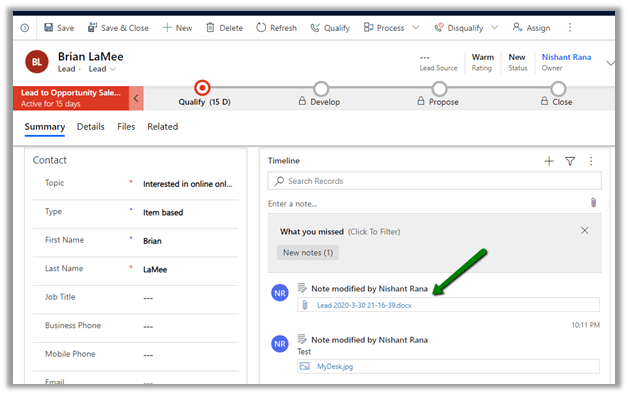
The generated document à
Now as we do not have option of running On Demand Workflow from Dynamics 365 Mobile / Tablet app.

It seems like April 2020 Release Wave 1 has added this feature to the mobile app
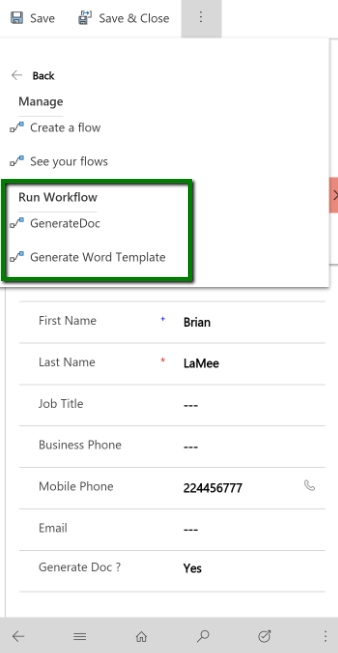
OnDemandWorkflow

So here instead of on demand workflow, we can have a custom workflow to run on change of a specific field.

For e.g. we can add a custom field named when it is updated to Yes, we perform the same action
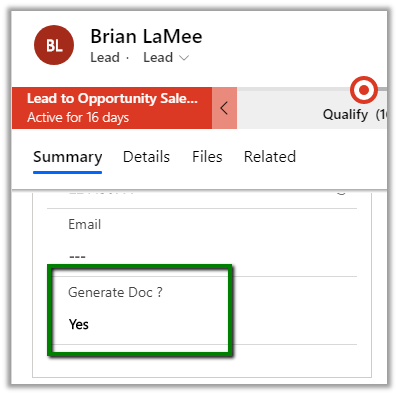
The workflow
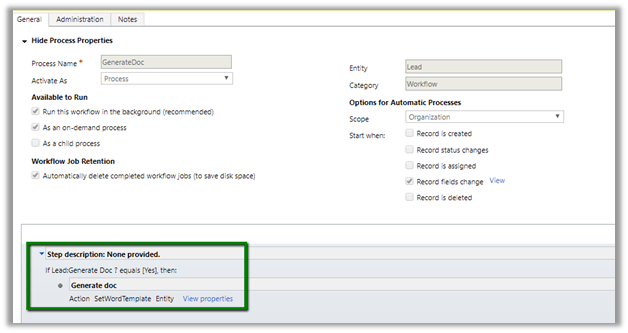
This way we will be able to perform the same function within Dynamics 365 Mobile and Tablet App

Hope it helps..

How to – Use Word Template to combine multiple images attached to notes in a single document in Dynamics 365


Recently in one of our projects, we had proposed Dynamics 365 for Phone / Tablet as the device for our sales user. The user will be capturing the image of the customer’s document and will be attaching it in notes, which will then later be moved to the document management system.

Here, one of the requirements was to merge / combine all the images that are attached to the notes for a particular record into a single document.

Here we can make use of Word Template to achieve the same.

Open the entity’s (e.g. lead) record for which we want to create the word template.

  • Click on Download Template to design the word template.

  • Select Note as the related entity.

  • In the word document, go to Developer Tab and click on XML Mapping Pane ribbon button.

  • Insert a table and select its row.

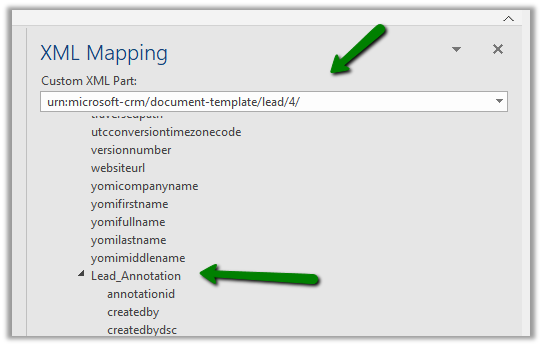
  • Select the appropriate XML part from the drop down and navigate to Lead_Annotation child node in the XML Mapping section.

  • And map it to the row selected as shown below.

  • This is how the table would appear

  • Next add the documentbody à Insert Content Control à Picture to one of its columns to display the images.

  • This is how it would appear
  • We can also add additional fields of notes if needed.

  • Save the template.
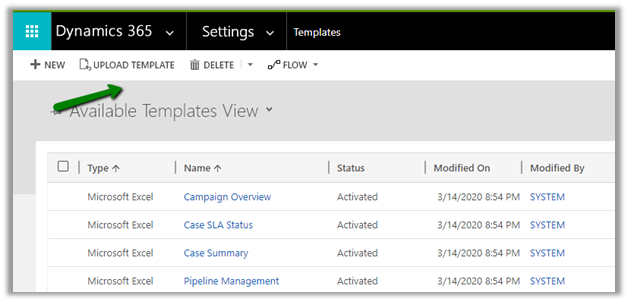
  • Go to Settings à Template and upload the template.

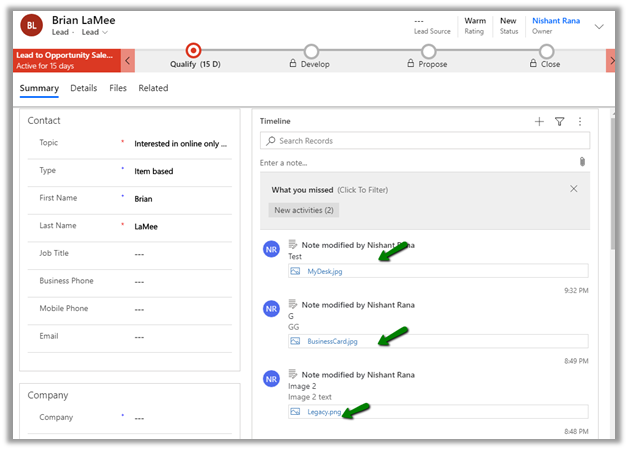
  • To test it, let us go open the lead record which has 3 different notes with image attached as shown below.

  • Now let us generate the document based on the template uploaded.

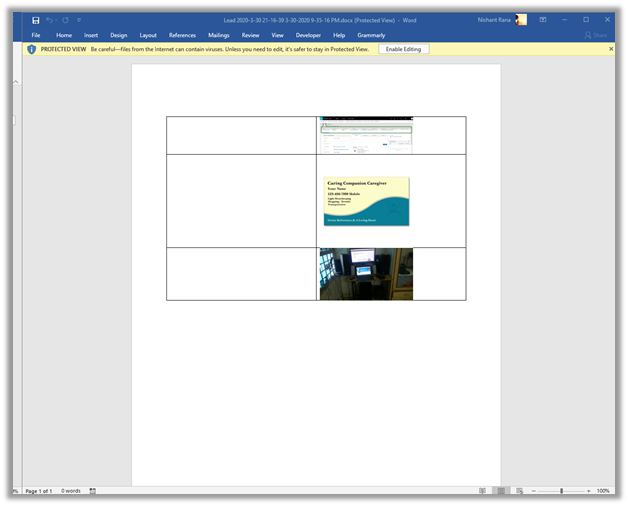
  • The document will show all the images attached to the notes.

  • We can increase the size of the picture and remove the border from the table to make it appear better.

From Mobile –

This slideshow requires JavaScript.

Get more detail on attachments here à

https://nishantrana.me/2020/03/30/attachments-to-notes-in-dynamics-365-for-phone-and-tablet-app/

Generate PDFà

https://nishantrana.me/2020/02/13/save-and-email-pdf-options-added-to-dynamics-365-sales-2020-release-wave-1-plan/

Hope it helps..

Advertisements

Attachments to Notes in Dynamics 365 for phone and tablet app


Check the other articles of this series

In one of our recent projects we were analysing the Dynamics 365 for phone and tablet app, for one of the requirements where the user will be uploading the documents through phone or tablet app as an attachment to notes.

Below were some of our findings à

  • For mobile app à

We are limited to attaching images on both iOS and Android. (Windows Phone are no longer supported)

  • For the tablet app à

For iOS and Android, it is the same case where we are limited to attaching images.

iPad à

Samsung Tab S4 à

For windows tablet, here Surface Go for e.g., user can still access files in the local storage.

Earlier users had the same experience for the Android tablets.

https://crmtipoftheday.com/259/upload-files-from-dropbox-or-google-drive-to-crm/

Also, iPad allowed attaching files from the web storage like iCloud, OneDrive etc.

https://crmtipoftheday.com/925/tip-925-mobile-attachments-revisited/

which has changed with in the newer version.

Hope it helps..

Scratching your head over why your custom ribbon buttons are not visible or not working as expected–The wonderful Command checker tool from Microsoft might just save your day.


Command checker – another awesome tool in Dynamics 365.

Debajit's avatarDebajit's Dynamic CRM Blog

If you have ever worked in Dynamics 365 implementation then it is almost certain that you must have played around with ribbons. And more often than not you must have faced scenario where you have multiple enable and display rules on the form and not sure why the ribbon button is showing up on the form when it is supposed not to show up or vice versa.

And what we do to resolve it. Well, we play around with the ribbon customizations which takes much more time than other customizations in Dynamics 365. And if it is some custom rule, we would attach debuggers to our custom code and debug and find what is going wrong.

What if I tell you that Microsoft just released something which shall help you identify which of your ribbon rule is evaluating to what in a matter of few mins so that you can…

View original post 441 more words

How to – add an existing project to GitHub through command line


Sharing for quick reference !

  • Create a new repository in GitHub and copy its URL.

https://github.com/new

  • Go to the project folder and run git init command to initialize the local directory as Git repository. Download Git for Windows

git init

  • Add the files to this new local repository

git add .


  • Commit the files to the local repository


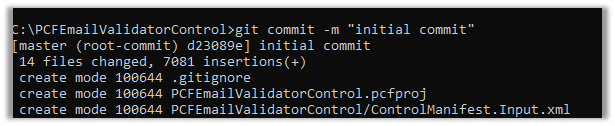
    git commit -m “my first commit”

  • Specify the URL of the remote repository and set the new remote

git remote add origin URL

git remote -v

  • Push the changes to GitHub

git push origin master

Get all the details here

https://git-scm.com/videos

https://git-scm.com/book/en/v2

Hope it helps..

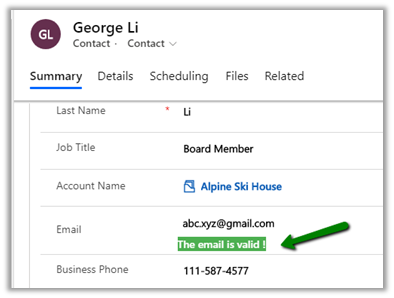
PCF Control for Email Validation using Email Validator API


The control uses the Email Validator API that checks for fake DNS and regex functions to check email for length and accepted characters.

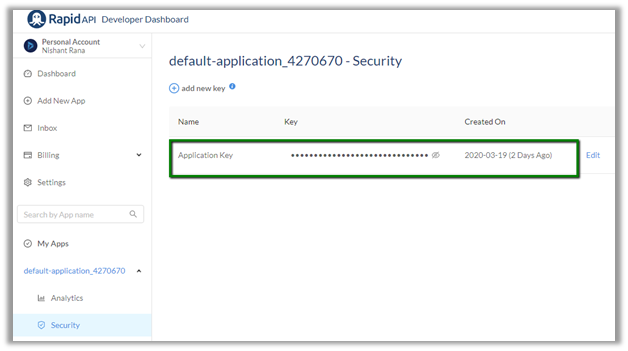
To use the API, Login to RapidAPI and get the API Key.

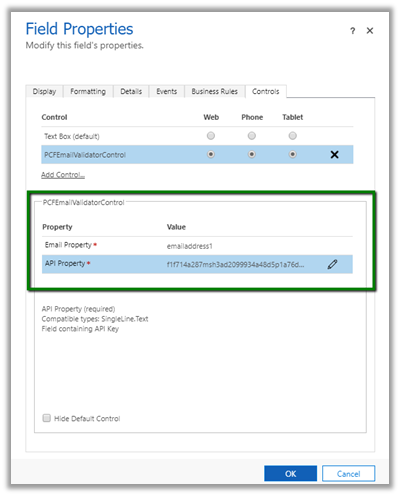
Use this key for the API property required by the PCF Control to call the API.

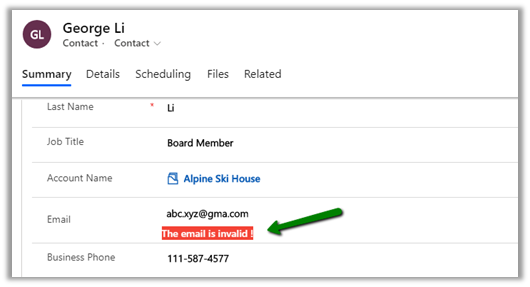
The control will check pass on the email address and based on the response received i.e. isValid true or false, will display the appropriate message just below the field.

The Email Validator API needs to be updated as at times it will show valid domains as invalid. So will not suggest to use this in the production environment.

This control is more of an example of how we can call the APIs, get the response and show the result.

Get the source code here

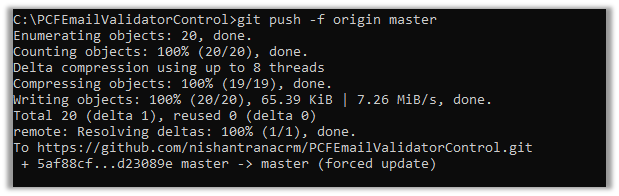
https://github.com/nishantranacrm/PCFEmailValidatorControl

Hope it helps..