Insert Formula in Cell using C# (OpenXML and EPPlus Library)


Sharing the sample code, we can use to insert forumala in a particular cell in Excel Spreadsheet.

First using Open XML SDK

</p>
<p>public static void UpdateExcelUsingOpenXMLSDK(string fileName)<br />
{<br />
// Open the document for editing.<br />
using (SpreadsheetDocument spreadSheet = SpreadsheetDocument.Open(fileName, true))<br />
{<br />
// Access the main Workbook part, which contains all references.<br />
WorkbookPart workbookPart = spreadSheet.WorkbookPart;<br />
// get sheet by name<br />
Sheet sheet = workbookPart.Workbook.Descendants&lt;Sheet&gt;().Where(s =&gt; s.Name == "Sheet1").FirstOrDefault();</p>
<p>// get worksheetpart by sheet id<br />
WorksheetPart worksheetPart = workbookPart.GetPartById(sheet.Id.Value) as WorksheetPart;</p>
<p>// The SheetData object will contain all the data.<br />
SheetData sheetData = worksheetPart.Worksheet.GetFirstChild();</p>
<p>Cell formulaCell = InsertCellInWorksheet("B", 10, worksheetPart);<br />
formulaCell.DataType = new EnumValue&lt;CellValues&gt;(CellValues.Number);<br />
formulaCell.CellFormula = new CellFormula("SUM(B2:B7)");</p>
<p>// Save the worksheet.<br />
worksheetPart.Worksheet.Save();</p>
<p>// for recacluation of formula<br />
spreadSheet.WorkbookPart.Workbook.CalculationProperties.ForceFullCalculation = true;<br />
spreadSheet.WorkbookPart.Workbook.CalculationProperties.FullCalculationOnLoad = true;</p>
<p>}<br />
}</p>
<p>private static Cell InsertCellInWorksheet(string columnName, uint rowIndex, WorksheetPart worksheetPart)<br />
{<br />
Worksheet worksheet = worksheetPart.Worksheet;<br />
SheetData sheetData = worksheet.GetFirstChild&lt;SheetData&gt;();<br />
string cellReference = columnName + rowIndex;</p>
<p>// If the worksheet does not contain a row with the specified row index, insert one.<br />
Row row;<br />
if (sheetData.Elements&lt;Row&gt;().Where(r =&gt; r.RowIndex == rowIndex).Count() != 0)<br />
{<br />
row = sheetData.Elements&lt;Row&gt;().Where(r =&gt; r.RowIndex == rowIndex).First();<br />
}<br />
else<br />
{<br />
row = new Row() { RowIndex = rowIndex };<br />
sheetData.Append(row);<br />
}</p>
<p>// If there is not a cell with the specified column name, insert one.<br />
if (row.Elements&lt;Cell&gt;().Where(c =&gt; c.CellReference.Value == columnName + rowIndex).Count() &gt; 0)<br />
{<br />
return row.Elements&lt;Cell&gt;().Where(c =&gt; c.CellReference.Value == cellReference).First();<br />
}<br />
else<br />
{<br />
// Cells must be in sequential order according to CellReference. Determine where to insert the new cell.<br />
Cell refCell = null;<br />
foreach (Cell cell in row.Elements&lt;Cell&gt;())<br />
{<br />
if (cell.CellReference.Value.Length == cellReference.Length)<br />
{<br />
if (string.Compare(cell.CellReference.Value, cellReference, true) &gt; 0)<br />
{<br />
refCell = cell;<br />
break;<br />
}<br />
}<br />
}</p>
<p>Cell newCell = new Cell() { CellReference = cellReference };<br />
row.InsertBefore(newCell, refCell);</p>
<p>worksheet.Save();<br />
return newCell;<br />
}<br />
}</p>
<p>

Using EPPlus

https://www.nuget.org/packages/EPPlus/

</p>
<p>public void UpdateExcelUsingEPPlus(string fileName)<br />
{<br />
FileInfo fileInfo = new FileInfo(fileName);<br />
ExcelPackage p = new ExcelPackage(fileInfo);<br />
ExcelWorksheet myWorksheet = p.Workbook.Worksheets["Sheet1"];</p>
<p>myWorksheet.Cells["B15"].Formula = "SUM(B2:B7)";</p>
<p>p.Save();</p>
<p>}</p>
<p>

Hope it helps..

Advertisements

Configuring Live Assist (Preview) for Dynamics 365.


Let us see how we can configure Live Assist step by step.

First, go to Applications tab of the Dynamics 365 Administration Center.

Select Live Assist for Dynamics 365 and click on Manage.

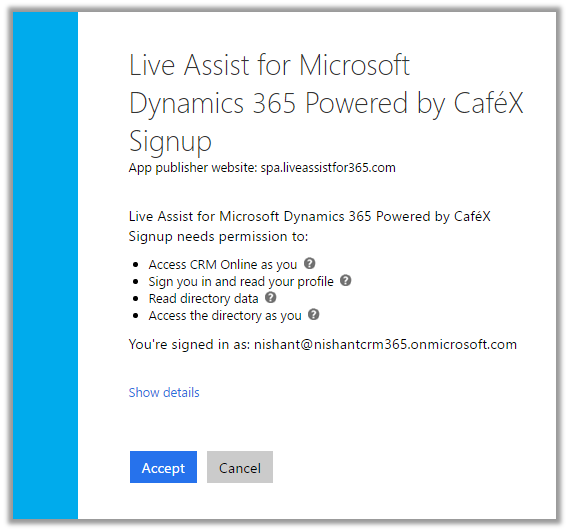
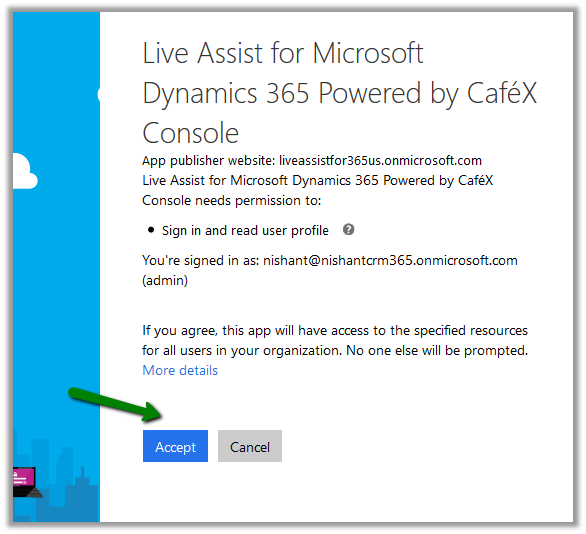
Click on Accept to give permission to the app.

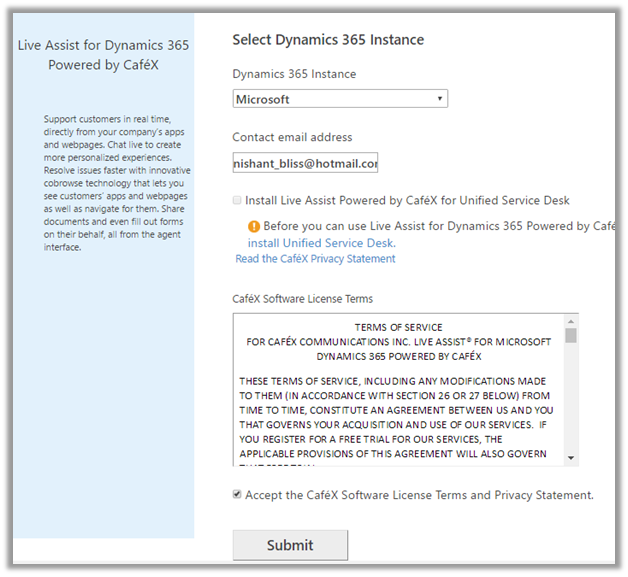
Select the Dynamics 365 Instance and provide your email id, accept the terms and conditions and click on Submit.

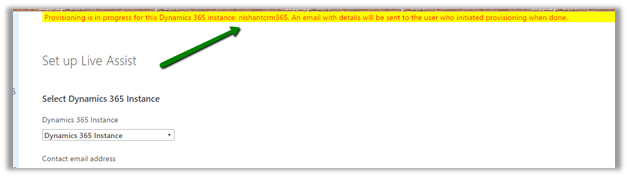
This configures the Live Assist on the specified Dynamics 365 Instance and also sends the email to the email id specified.

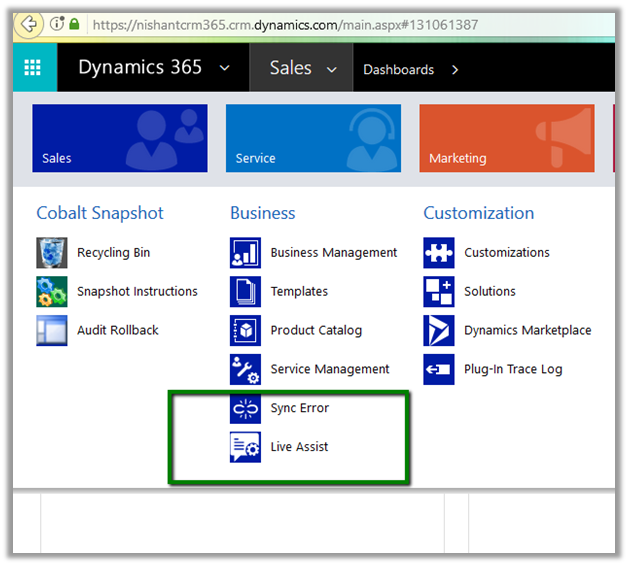
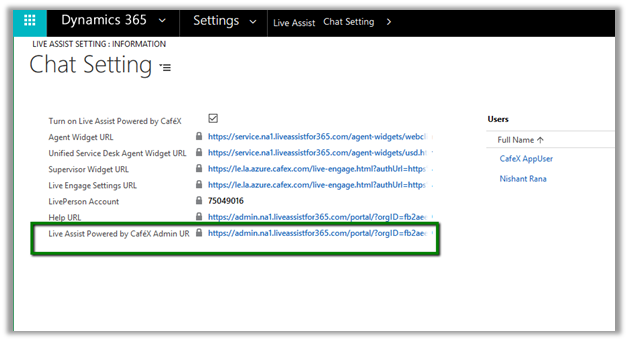
Once the configuration is done, we can see the new Live Assist section added in our Settings area.

There we can click on Admin URL of Live Assist for further configuration.

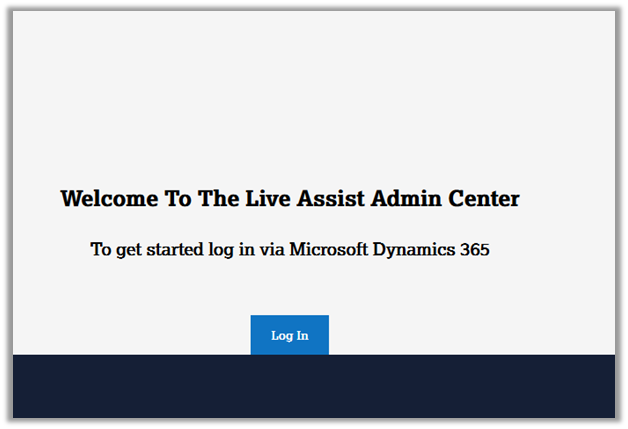
Clicking on it opens the Admin Center.

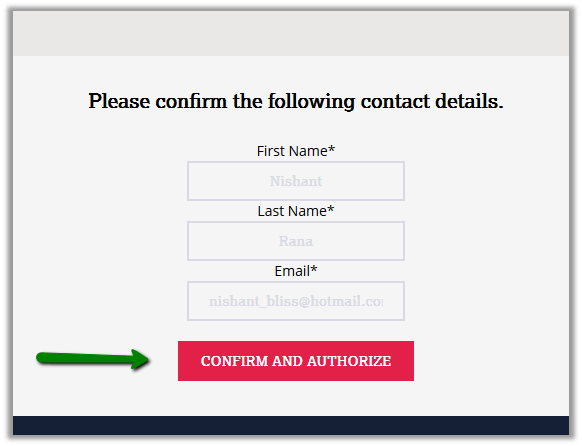
Click on Confirm and Authorize.

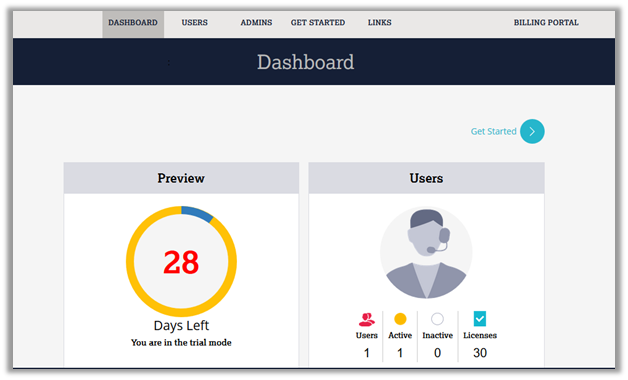
The Dashboard of the admin center.

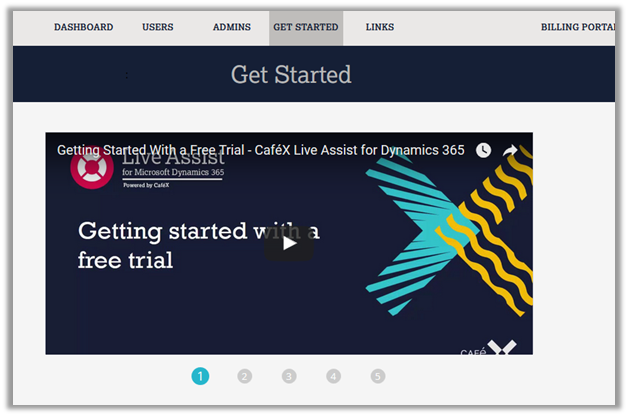
The Get Started page.

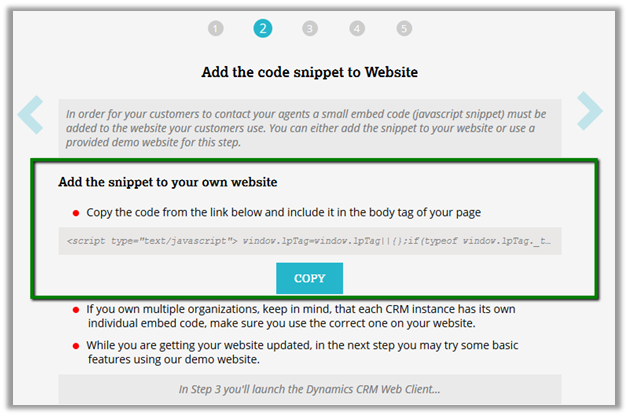
Code Snippet that we can use to enable Live Assist in web site.

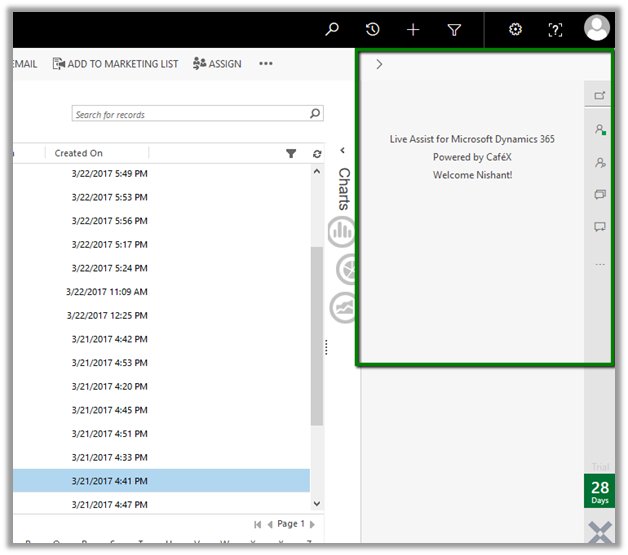
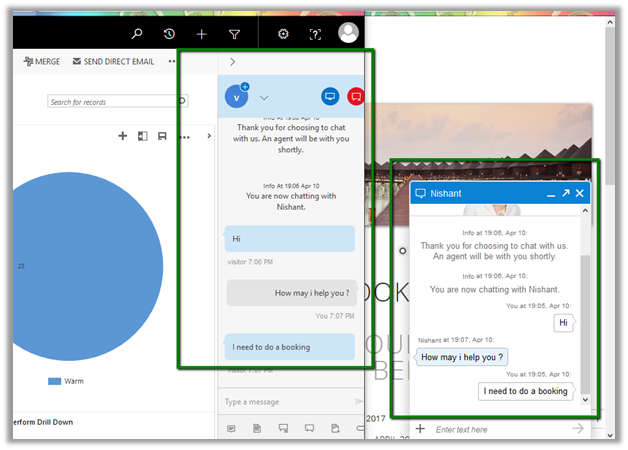
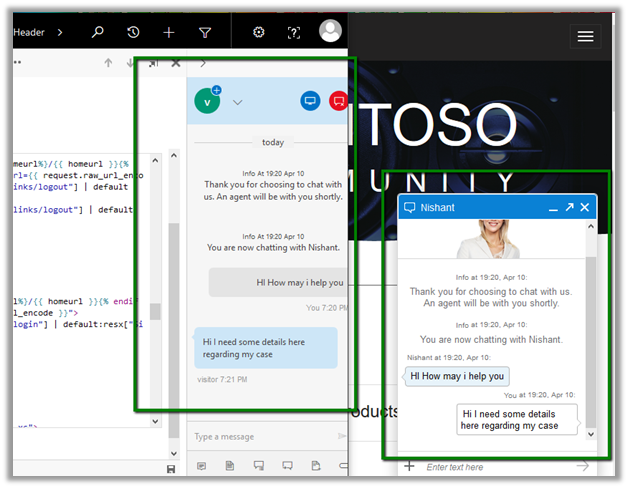
Live Assist adds a new panel on the right inside CRM.

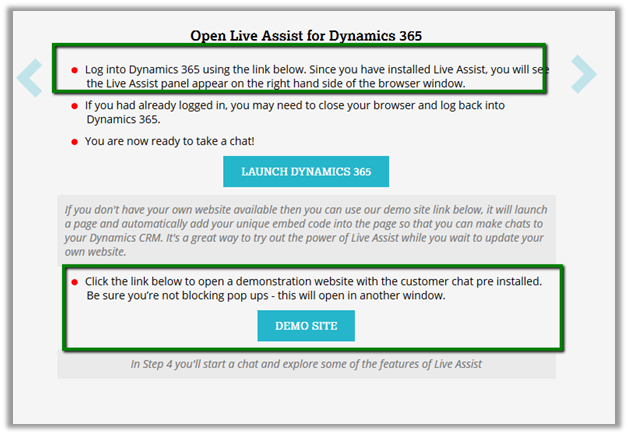
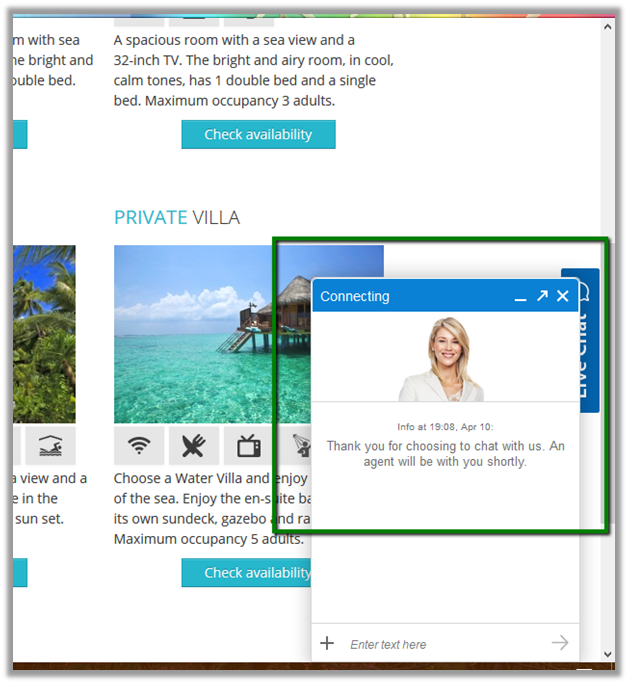
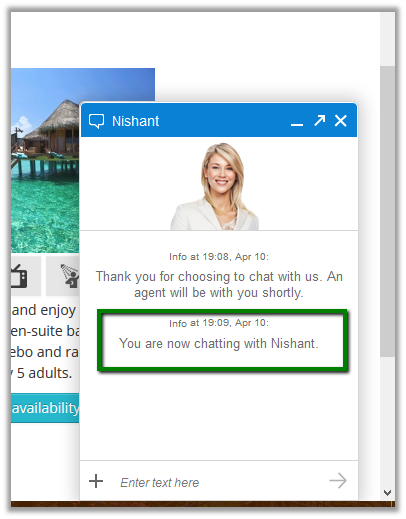
To test it we can make use of Demo Site provided along with Live Assist.

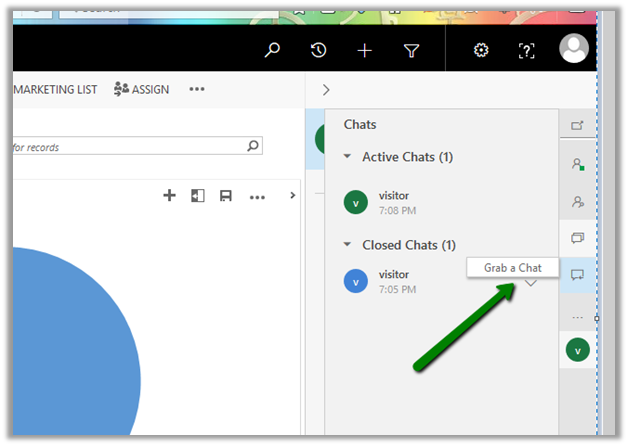
The agent within CRM can click on Conversation Icon and “Grab a chat” to start conversation.

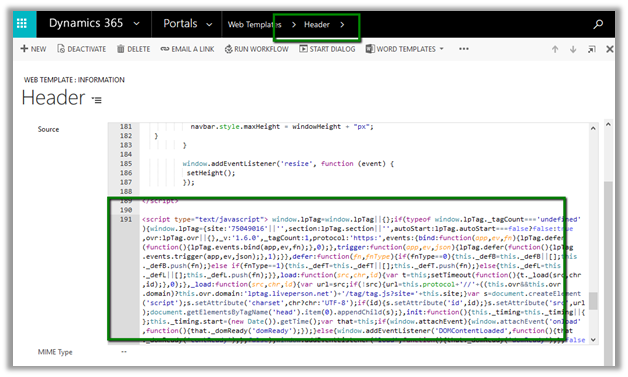
Now suppose we want to configure our CRM Portal to use it. For this we need to copy the code snippet provided earlier. Go to the Header web template of our Web Site and paste the JavaScript code to our Header’s source code.

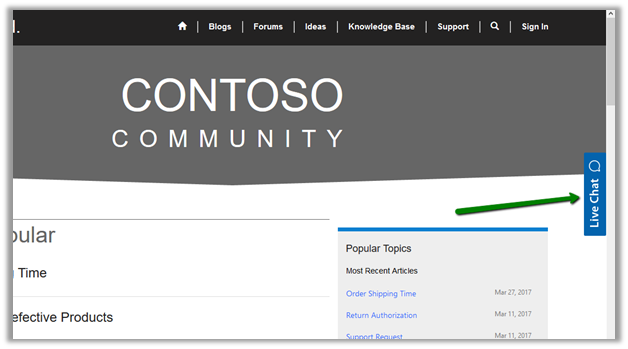
This enables Live Assist in the portal.

Communication between the CRM user and the Portal user.

The helpful links and video

https://neilparkhurst.com/2017/04/09/cafex-live-assist-my-initial-install-with-usd/

https://blogs.technet.microsoft.com/lystavlen/2017/03/16/live-assist-for-dynamics-365-first-look/

Hope it helps..

How to – Update Cell value in Excel Spreadsheet using C# (Open XML and EPPlus library)


Sharing a sample code that updates a particular cell’s value in Excel Spreadsheet.

Here we are updating cell B4

First using Open XML SDK

</p>
<p>public static void UpdateExcelUsingOpenXMLSDK(string fileName)<br />
{<br />
// Open the document for editing.<br />
using (SpreadsheetDocument spreadSheet = SpreadsheetDocument.Open(fileName, true))<br />
{<br />
// Access the main Workbook part, which contains all references.<br />
WorkbookPart workbookPart = spreadSheet.WorkbookPart;<br />
// get sheet by name<br />
Sheet sheet = workbookPart.Workbook.Descendants&lt;Sheet&gt;().Where(s =&gt; s.Name == "Sheet1").FirstOrDefault();</p>
<p>// get worksheetpart by sheet id<br />
WorksheetPart worksheetPart = workbookPart.GetPartById(sheet.Id.Value) as WorksheetPart;</p>
<p>// The SheetData object will contain all the data.<br />
SheetData sheetData = worksheetPart.Worksheet.GetFirstChild();</p>
<p>Cell cell = GetCell(worksheetPart.Worksheet, "B", 4);</p>
<p>cell.CellValue = new CellValue("10");<br />
cell.DataType = new EnumValue&lt;CellValues&gt;(CellValues.Number);</p>
<p>// Save the worksheet.<br />
worksheetPart.Worksheet.Save();</p>
<p>// for recacluation of formula<br />
spreadSheet.WorkbookPart.Workbook.CalculationProperties.ForceFullCalculation = true;<br />
spreadSheet.WorkbookPart.Workbook.CalculationProperties.FullCalculationOnLoad = true;</p>
<p>}<br />
}</p>
<p>private static Cell GetCell(Worksheet worksheet,<br />
string columnName, uint rowIndex)<br />
{<br />
Row row = GetRow(worksheet, rowIndex);</p>
<p>if (row == null) return null;</p>
<p>var FirstRow = row.Elements&lt;Cell&gt;().Where(c =&gt; string.Compare<br />
(c.CellReference.Value, columnName +<br />
rowIndex, true) == 0).FirstOrDefault();</p>
<p>if (FirstRow == null) return null;</p>
<p>return FirstRow;<br />
}</p>
<p>private static Row GetRow(Worksheet worksheet , uint rowIndex)<br />
{<br />
Row row = worksheet.GetFirstChild&lt;SheetData&gt;().<br />
Elements&lt;Row&gt;().FirstOrDefault(r =&gt; r.RowIndex == rowIndex);<br />
if (row == null)<br />
{<br />
throw new ArgumentException(String.Format("No row with index {0} found in spreadsheet", rowIndex));<br />
}<br />
return row;<br />
}</p>
<p>

Now the same code using EPPlus

https://www.nuget.org/packages/EPPlus/

</p>
<p>public void UpdateExcelUsingEPPlus(string fileName)<br />
{<br />
FileInfo fileInfo = new FileInfo(fileName);<br />
ExcelPackage p = new ExcelPackage(fileInfo);<br />
ExcelWorksheet myWorksheet = p.Workbook.Worksheets["Sheet1"];<br />
myWorksheet.Cells[4, 2].Value = 10;<br />
p.Save();</p>
<p>}</p>
<p>

Hope it helps..

Advertisements
Setting Regarding of a record in Automatic Record Creation and Update Rules in Dynamics 365


Hi,

While implementing a scenario i.e. automatic case creation on phone call create using Automatic Record Creation and Updating Rules, we found that whenever we were setting the Regarding Object in the Phone Call activity, the case record was not getting created.

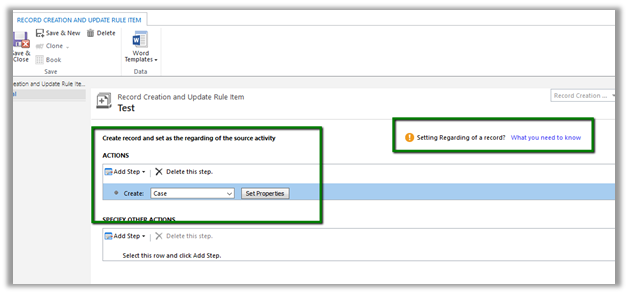
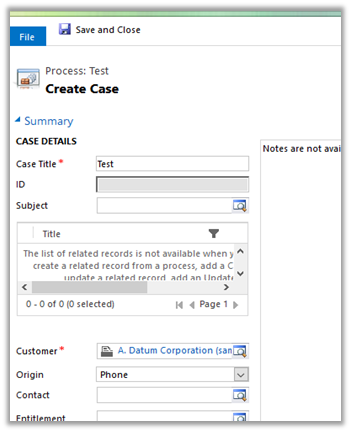
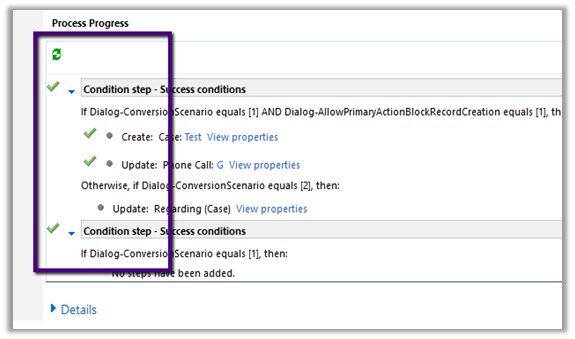
Create Case Rule Item –

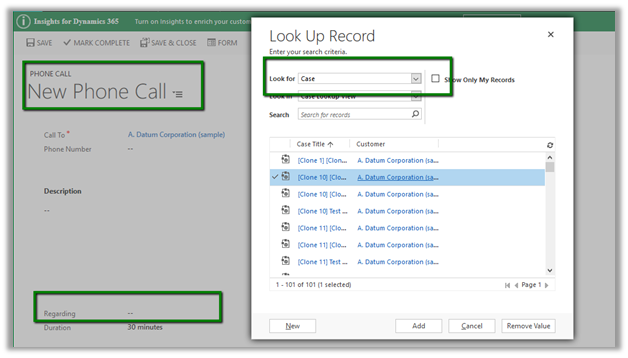
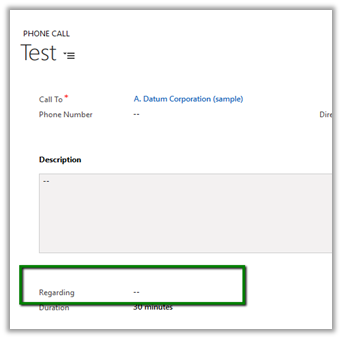
Creating a Phone Call record using Case as Regarding object.

Workflow ran but the case record was not created.
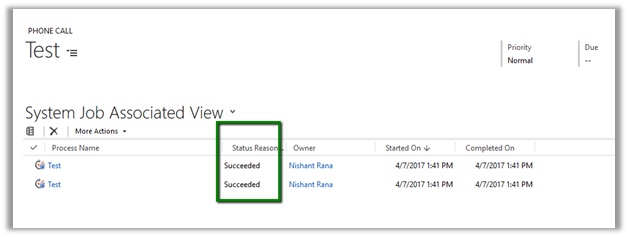
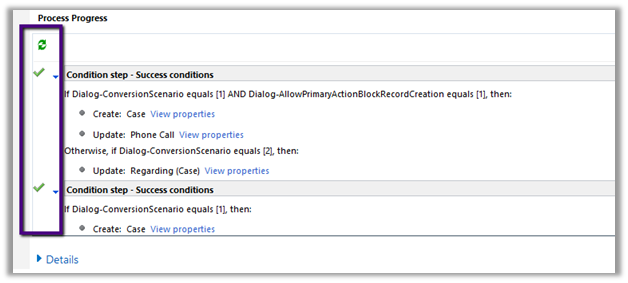
Then we created phone call activity record without setting the regarding object. This time workflow ran and created the case record.

Basically, the workflow creates the case record and updates the Regarding Object in the Phone call record with this newly created case record.

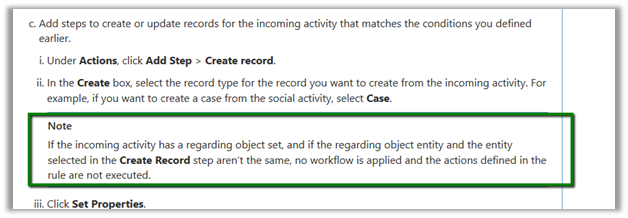
However, if we check the Official documentation

https://www.microsoft.com/en-us/dynamics/crm-customer-center/set-up-rules-to-automatically-create-or-update-records-in-dynamics-365-customer-service.aspx#bkmk_RuleAndQueues

we have this mentioned

However, in our case we created a phone call record with case as regarding object and had case as the entity selected in the Create Record step, in this case also the Action were not executed.

Hope it helps..

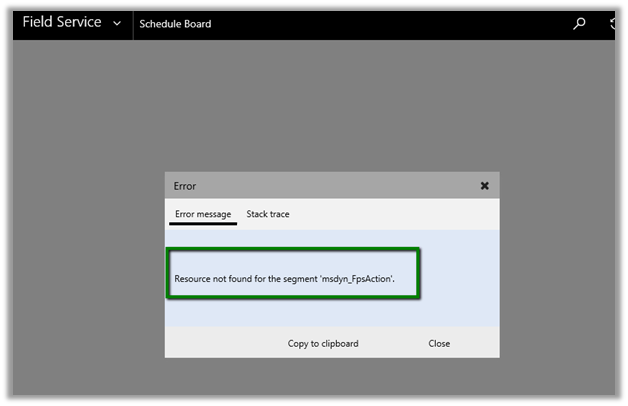
Unknown Error or Resource not found for the segment ‘msdyn_FpsAction’ in Schedule Board in Field Service in Dynamics 365.


Hi,

Recently we configured the portal trial instance and installed Partner Field Service portal in it .

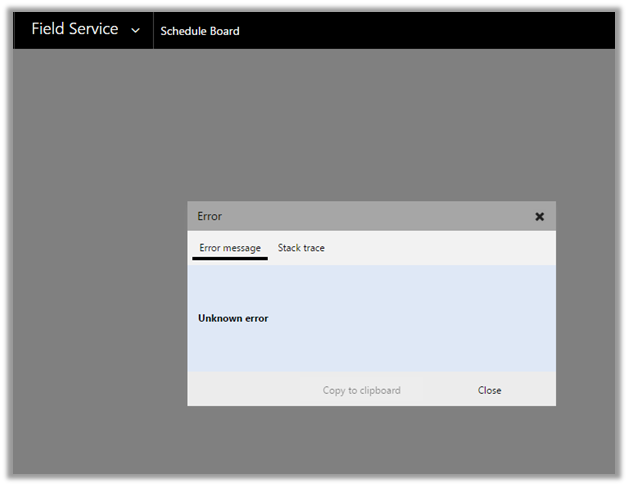
However, while trying to access Field Service à Schedule Board, we were getting the below errors

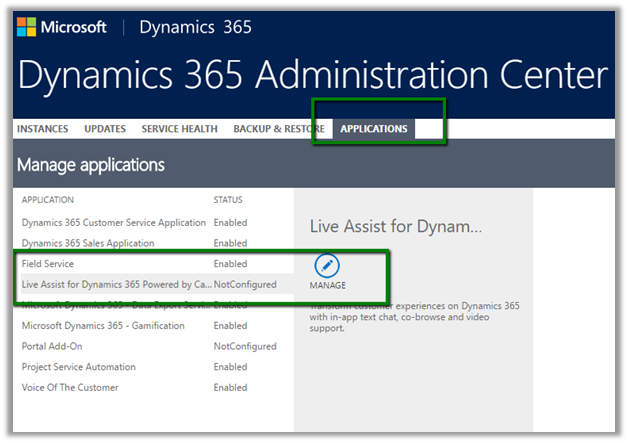
Eventually it turned out that the issue was caused because of the certain processes being in draft state.

The post which helped in fixing this issue

https://glinks.co.uk/2017/01/06/field-services-schedule-board-unknown-error/

Hope it helps..

Liquid Part 3 – Displaying a List of Dynamics 365 Records


Liquid Markup and Entity Lists in Portal in Dynamics 365

Nick Doelman's avatarThe ReadyXRM Blog by Nick Doelman

Just a heads up that I will be presenting a webinar for the XRM Virtual User Group on March 28, 2017 called “Portal Developer Primer”.  This session is focused for the Dynamics 365/CRM developer who needs to start getting ramped up on Portal development.  It is an evolution from my session at ExtremeCRM in Newport Beach.  Click here to Check it out!

Liquid Part 3

In Liquid Part 2 I demostrated how you can surface data from Dynamics 365 record on the portal.  The great thing about using Liquid is that you can format and modify the layout any way you like.

In today’s post I will be show how to display a bunch of Dynamics 365 records using a custom Liquid Web Template.

If you have done any Dynamics 365 Portal configuration, you know you can surface Dynamics 365 records by using Entity Lists.  Entity Lists surface Dynamics 365…

View original post 593 more words