How to – Extract attachment from Notes in Dynamics 365 / CE / CDS – SSIS (KingswaySoft)


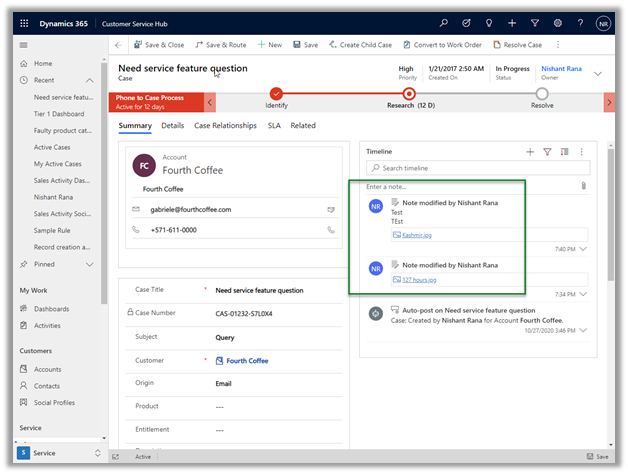
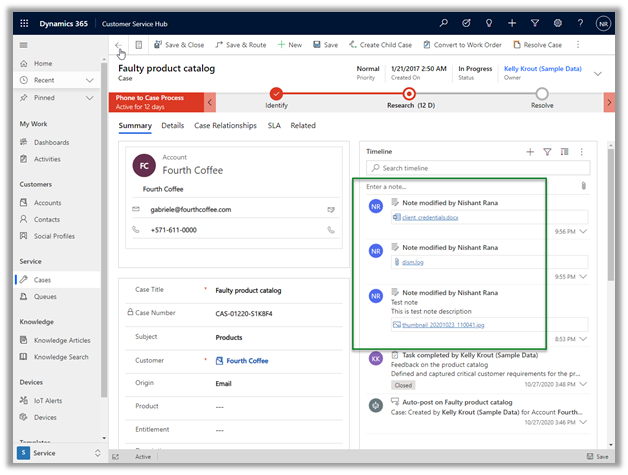
Recently we were exploring ways of extracting attachment from notes to a local drive for our case entity. We also wanted to organize it based on Case Number.

For this, we used KingswaySoft’s SSIS components.

Other posts on SSIS and Dynamics 365 –

https://nishantrana.me/2018/11/26/ssis-and-microsoft-dynamics-365/

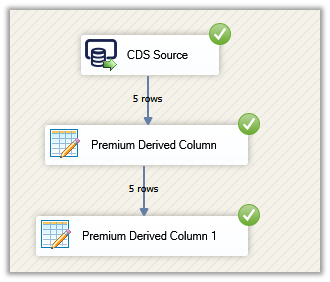
This is how our final package looked like
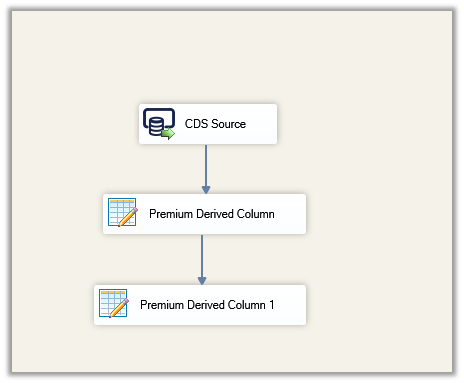
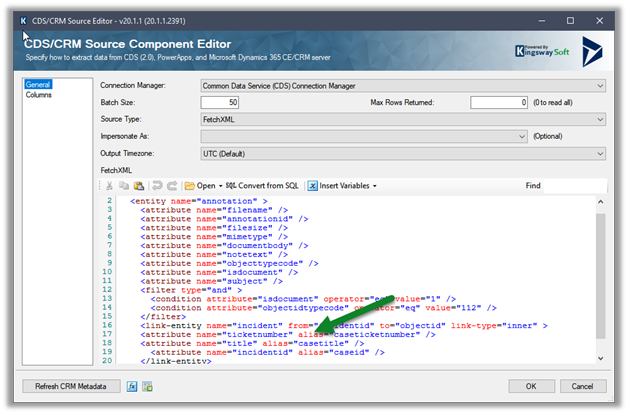
For CDS Source, we used Source Type as Fetch XML.

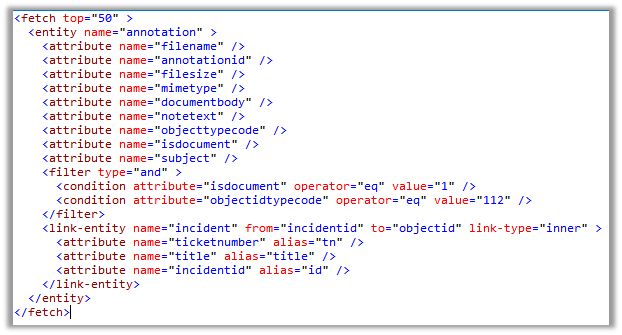
And the below Fetch XML to fetch notes details where objecttypecode is incident and isdocument property are true (i.e. has an attachment) and case as the linked entity to get the case ticket number.
Result View –

CDS / CRM Source Component

Make sure to use the alias for the attributes of the linked entity.

Next drag the Premium Derived Column, here we will use the DecodeBase64 encoding function to decode the file content stored in the documentbody field using as base-64 encoded string.

DT_Image output column will have the binary content of the attachment
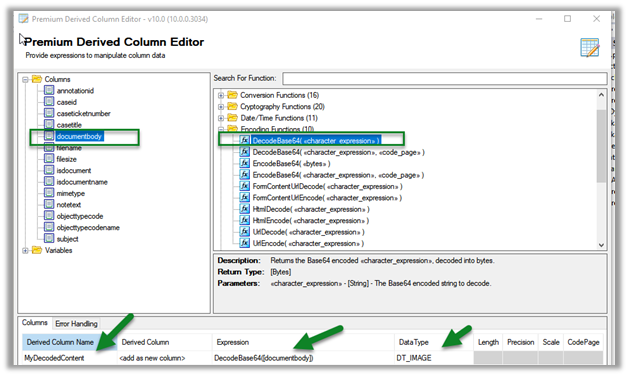
Next, we have added another Premium Derived Column, this time to write the binary content to the local drive, using the WriteBinaryContent function.
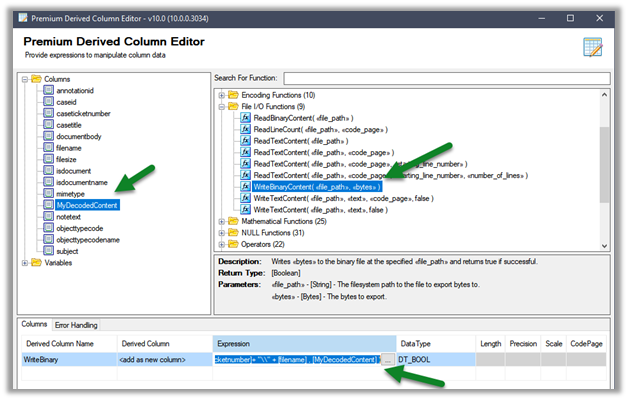
Click on the ellipsis to specify the expression.
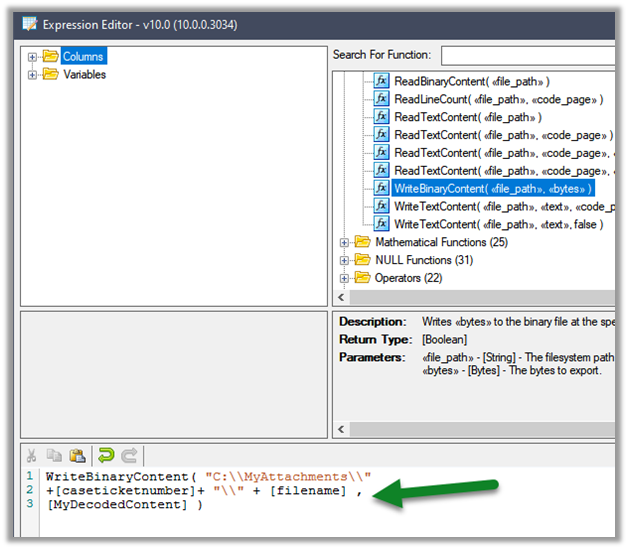
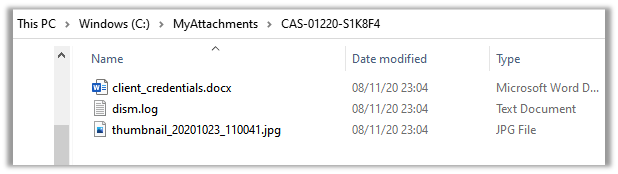
Here we are creating a folder based on the case ticket number and storing the corresponding attachments inside it.

Let us run the package
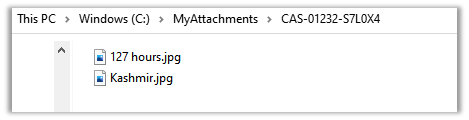
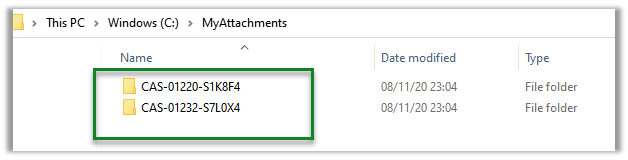
On successful execution, we can see the folders created with case ticket number and attachments added to it.
Get all the details here

http://www.kingswaysoft.com/blog/2017/03/21/Extracting-CRM-Attachments-with-Ease

Hope it helps..

Advertisements

Replicate / Export Dynamics 365 (CDS) data – different options


The most common use case to export Dynamics 365 or Common Data Service data to an external database/datastore is to have more control over the data (without going through API route) with the ability to run analytics such as Power BI Reporting, Machine Learning, Data Warehousing, Integration, etc.

For analytics, we can also use our Microsoft Dynamics 365 AI apps that use Dynamics 365 data as a source

https://docs.microsoft.com/en-us/dynamics365/ai/

Below listing down few of the options –

Data Export Service – Configuration

It is a free Add on-service provided by Microsoft for exporting Dynamics 365 or CDS Data to Microsoft Azure SQL Database or Microsoft Azure SQL Server on Microsoft Azure Virtual Machine.

Microsoft recommends Azure SQL Database Premium P1 or a better plan for Data Export Service

https://docs.microsoft.com/en-us/power-platform/admin/replicate-data-microsoft-azure-sql-database

Notes on Data Export Service –

https://nishantrana.me/2018/10/04/my-notes-on-dynamics-365-data-export-service/ 

Export to Data Lake Service – Configuration

The service enables continuous replication of CDS Data to Azure Data Lake Gen 2.

https://docs.microsoft.com/en-us/powerapps/maker/common-data-service/export-to-data-lake

Few posts on Azure Data Lake

https://nishantrana.me/category/azure-data-lake/

Azure Data Factory – GUI based integration tool

Cloud-based integration service.

https://docs.microsoft.com/en-us/azure/data-factory/connector-dynamics-crm-office-365

Check out the informative posts on Azure Data Factory –https://dynamicscrmgirl.wordpress.com/tag/azure-data-factory/

We can also run SSIS Packages on Azure Data Factory

https://nishantrana.me/2020/10/21/posts-on-azure-data-factory/

Scribe Online Replication Services – GUI based integration tool

Cloud-based integration service.

https://nishantrana.me/2019/01/09/using-scribe-online-replication-services-rs-to-replicate-dynamics-ce-data/

Another option is to use Scribe Insight

https://trellispoint.com/quickly-copy-dynamics-365-online-data-to-sql-server-using-scribe-insight/

Skyvia’s Data Integration service

Informatica

Cloud-based integration service.

https://nishantrana.me/2019/11/13/easily-set-up-dynamics-365-ce-crm-replication-incremental-to-azure-sql-sql-on-premise-using-skyvias-data-integration-services/

Another GUI based integration tool that can be considered is Informatica

https://network.informatica.com/cloud/index.htm#page/cloud-microsoft-dynamics-365-for-sales-connector-guide/Introduction_to_Microsoft_Dynamics_365_for_Sales_Connector.html

KingswaySoft Integration Components – SSIS

Leading data integration software – provide SSIS components to integrate applications/databases.

http://www.kingswaysoft.com/blog/2017/04/04/How-to-Retrieve-Incremental-Changes-from-CRM-in-your-ETL-Process

Another SSIS based option is CozyRoc

https://www.cozyroc.com/ssis/dynamics-crm

Or we can use Script Component instead of using 3rd party components/ tool

https://nishantrana.me/2020/10/19/connect-to-dynamics-365-through-script-component-ssis/

More on SSIS and Dynamics 365

https://nishantrana.me/2020/10/16/ssis-kingswaysoft-and-dynamics-365/

Use SQL to query CDS data (Preview)

The capability to query CDS Data.

https://docs.microsoft.com/en-us/powerapps/developer/common-data-service/cds-sql-query

Check out all the articles on CDS T-SQL

https://markcarrington.dev/category/msdyn365/t-sql/

https://nishantrana.me/2020/05/21/setting-up-using-sql-to-query-data-in-dynamics-365-preview/

Query CDS data using Web API / Organization Service – Development

Write a custom tool using Dynamics 365 APIs

https://docs.microsoft.com/en-us/powerapps/developer/common-data-service/webapi/query-data-web-api

https://docs.microsoft.com/en-us/powerapps/developer/common-data-service/org-service/entity-operations

Hope it helps..
Advertisements

Using KingswaySoft Azure Blob Storage component with Dynamics 365


KingswaySoft provides 3 components specific to Azure Blog Storage

  • Azure Blob Connection Manager
  • Azure Blob Storage Source
  • Azure Blob Storage Destination

Check other blog posts on SSIS

https://nishantrana.me/2020/10/16/ssis-kingswaysoft-and-dynamics-365/

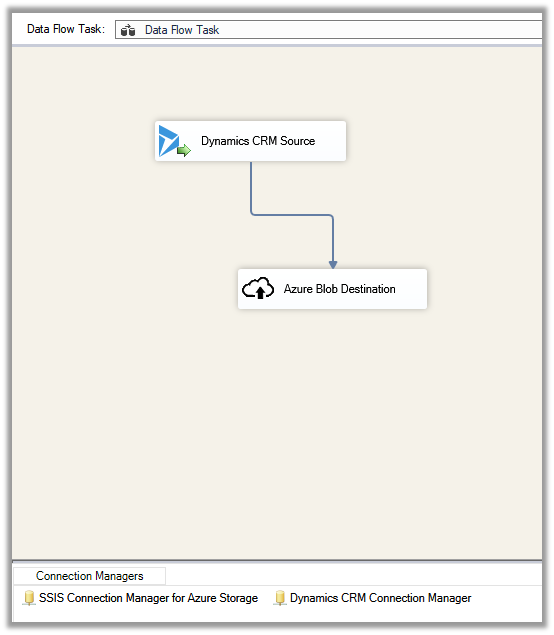
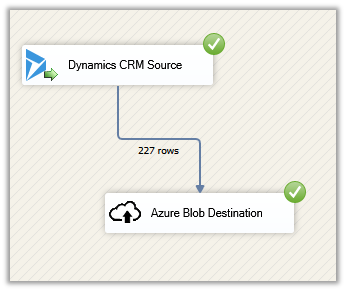
Let us take a simple example where we are extracting \ reading contact data from Dynamics 365 \ CDS and saving it as a text file in Azure Blob Storage.

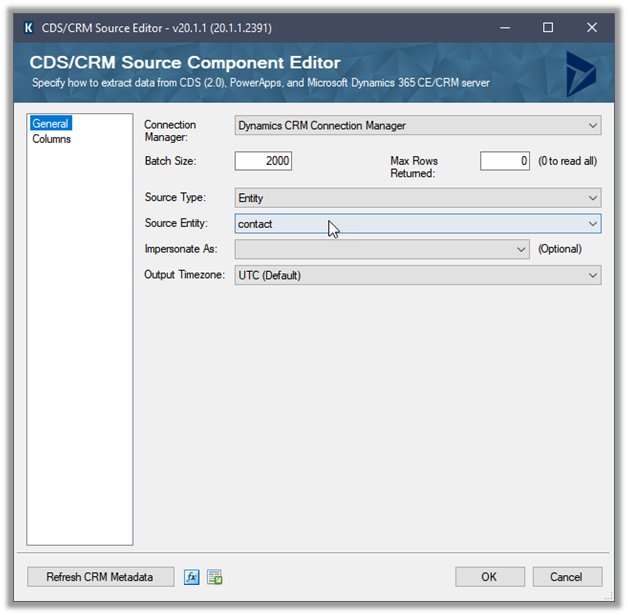
Create a new SSIS Package, and drag the Dynamics CRM Source component to it.

(Define the connection to Dynamics CRM instance using Dynamics CRM Connection Manager)

We have selected emailaddress1, first name, and the last name attributes.

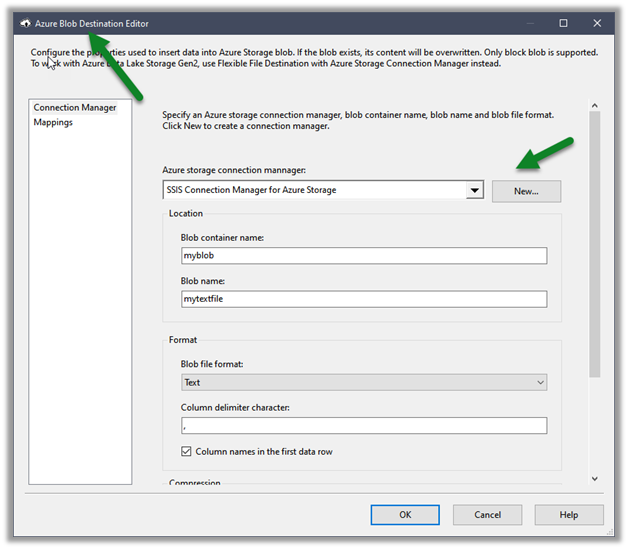
Next drag an Azure Blob Destination Component, we will first define the connection to Azure Storage first

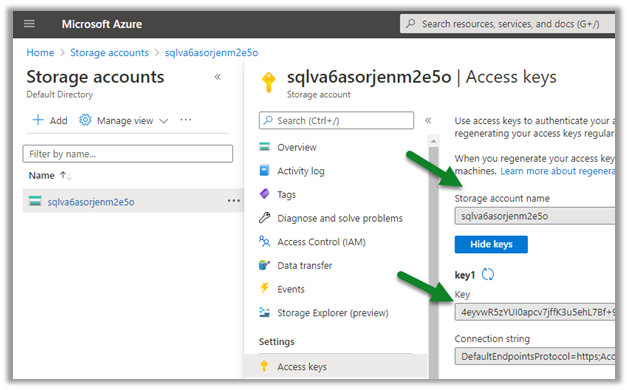
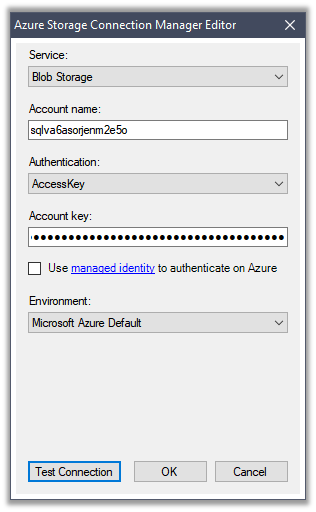
Navigate to the Access keys in the existing Storage account to get the account name and the key (or create a new Storage account)

Paste the values and test the connection.

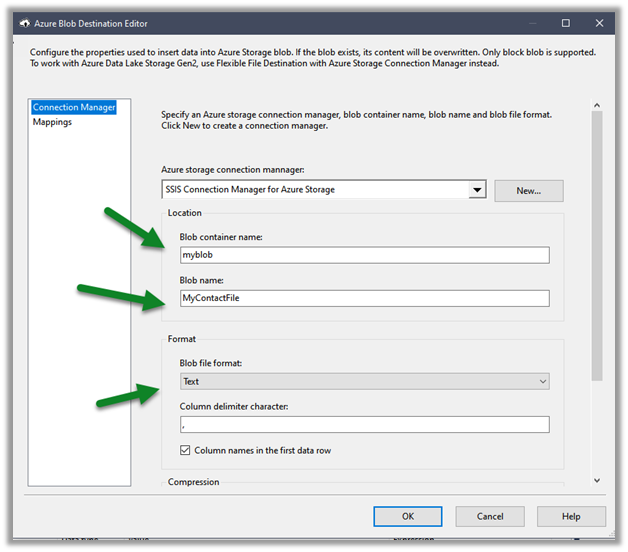
Below we have specified the name of the existing Blob Container, the name of the file to be created there along with the format.

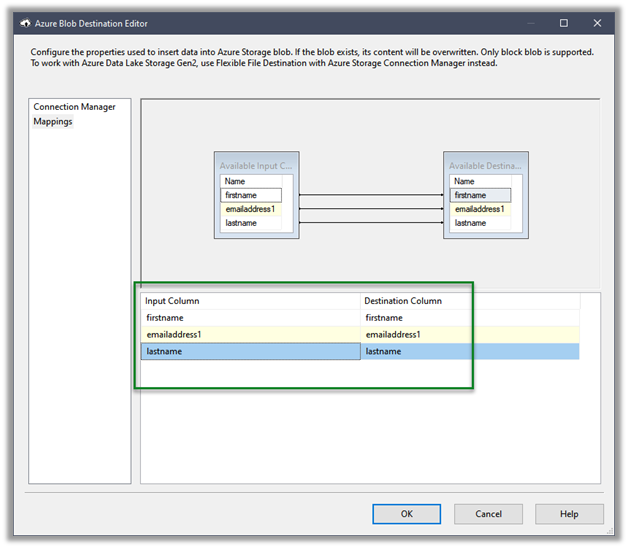
The mapping column will have the mappings defined

Let us execute the package

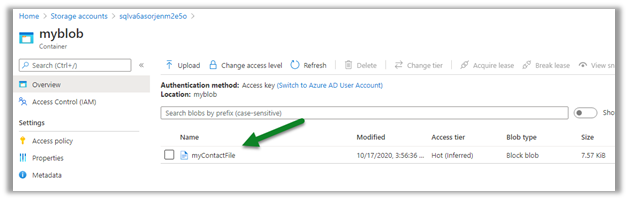
We can see the file created in the Blob storage

We can see it populated with the source columns specified in CRM Source component.

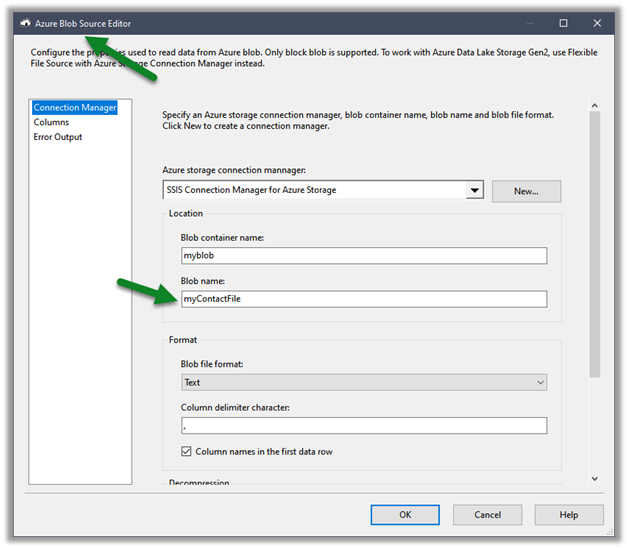
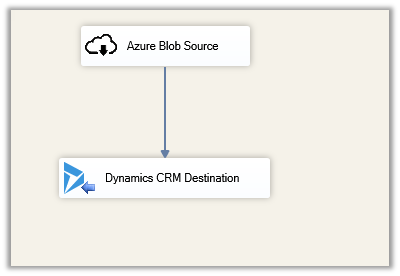
Similarly using the Azure Blog Source component, we can read the files and can use it for any destination component including Dynamics 365 Destination.

Hope it helps..
Connect to Dynamics 365 through Script Component – SSIS


For complex data migration requirements, usually we’d be using 3rd party tools like KingswaySoft or Scribe, or Informatica as they already have components (connection, transformation, source, destination etc.) built for Dynamics 365 instead of building our own.

Check other posts on data migration https://nishantrana.me/2020/10/16/ssis-kingswaysoft-and-dynamics-365/

https://nishantrana.me/2020/05/19/data-migration-in-dynamics-365-key-considerations/

For some simple / basic requirements instead of using 3rd party tools, we can write our own packages – script components that consumes Dynamics 365 service.

In this post, we’d see how can we consume Organization Service inside the Script Component.

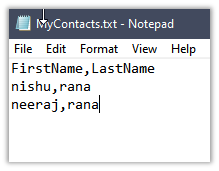
We are taking a very simple example, where our source is a text file having contact records with just 2 columns’ first name and last name.

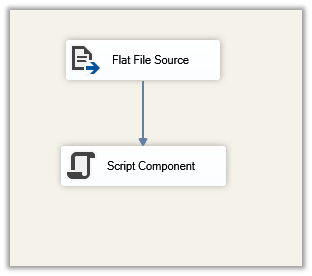
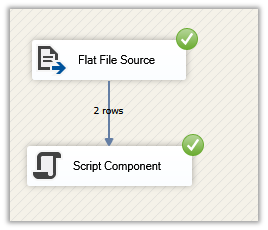
Let us create a new package, add a data flow task and drag Flat File Source and Script Component to it.

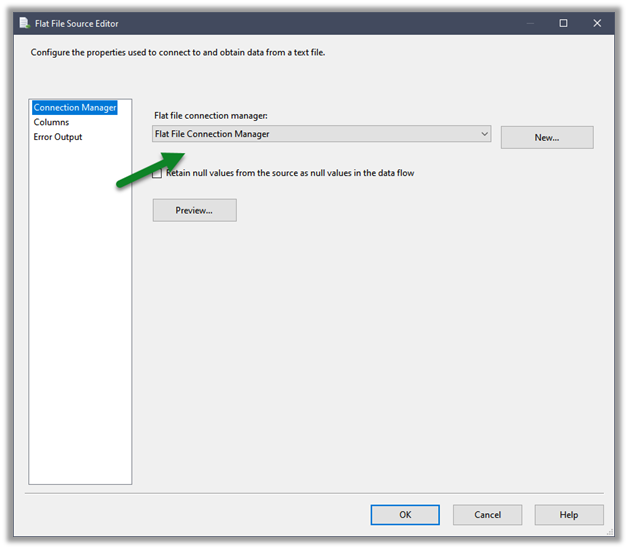
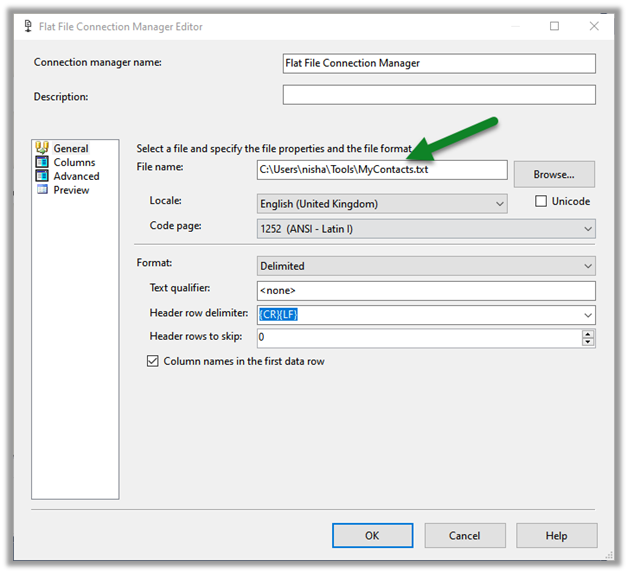
Specify the connection for the Flat File that points to the Contact.txt file.

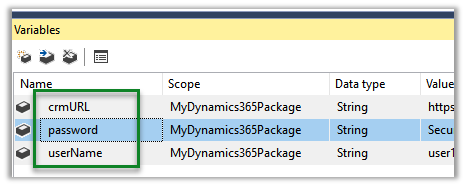
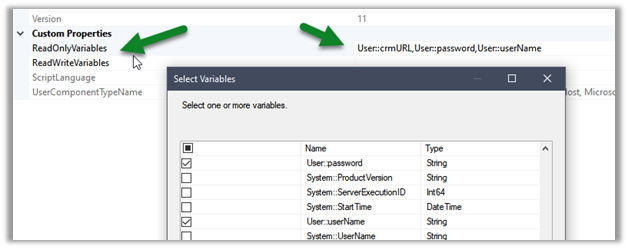
Specify 3 Variables that we would be using inside the Script Component.

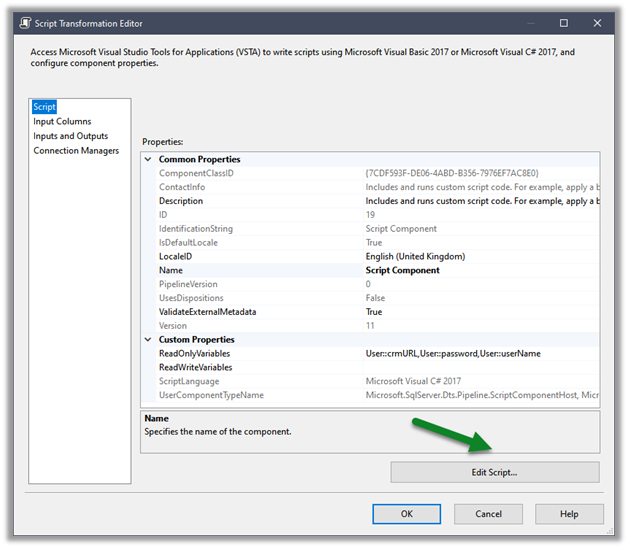
Double click the Script Component, and select the variables defined

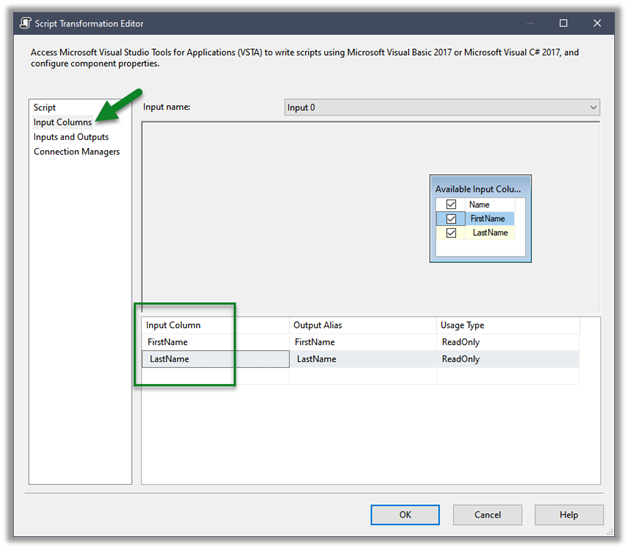
Select the input columns that we are getting from the source text files

Click on Edit Script which opens the Visual Studio

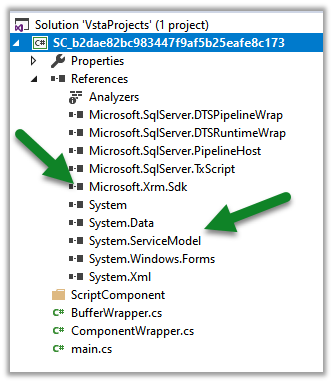
Add references to

  • Microsoft.Xrm.Sdk
  • System.ServiceModel

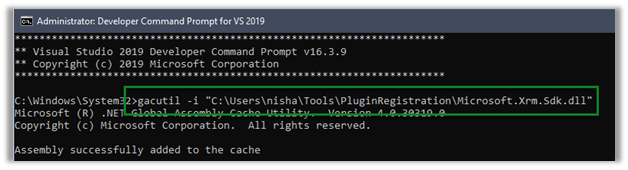
Also, add the Microsoft.Xrm.Sdk.dll to the GAC.

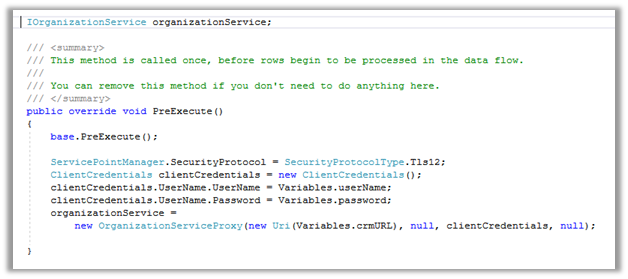
Specify the connection using the variable as shown below in the PreExecute method

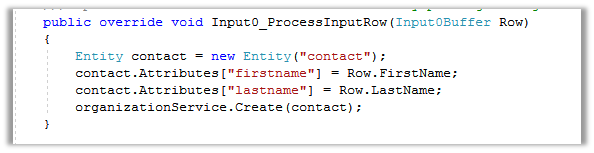
Process each row in the ProcessInputRow method and create the contact record.

Build and close the VSTA (Visuals Studio Tools for Application) project and run the package.

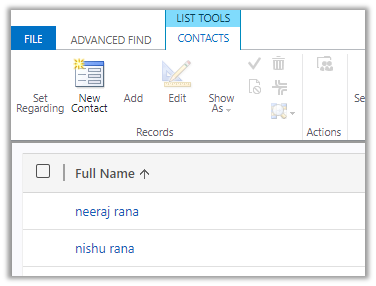
After successful execution, we can see the records created inside Dynamics 365

Hope it helps..
SSIS (KingswaySoft) and Dynamics 365


Fixed – CRM service call returned an error: An error has occurred when retrieving metadata for CRM entity ‘table’: The source argument contains duplicate keys – Dataverse/ Dynamics 365 / SSIS

Recently while trying to retrieve OptionSet Metadata using our favorite KingswaySoft SSIS Toolkit we got the below error. Same error for prod also – [CDS Source [2]] Error: An error occurred with the following error message: “KingswaySoft.IntegrationToolkit.DynamicsCrm.CrmServiceException: CRM service call returned an error: An error has occurred when retrieving metadata for CRM entity ‘copilotexamplequestion’: The…
Using xMultiple along with User Multiplexing for improved performance – KingswaySoft SSIS Integration Toolkit (Dataverse / Dynamics 365)

Let us continue our previous post, where we observed performance improvements by using User Multiplexing Now let us try making use of the xMultiple feature (CreateMultiple, UpdateMultiple, and CreateMultiple messages) of the CRM / CDS Destination Component. We have updated the Batch Size to 100 to trigger the xMultiple However this time we got the…

How to –Upload files to File Column / Attribute in SSIS from Azure Blog Storage – KingswaySoft (Dynamics 365 / CRM)

Below are a few ways we can upload files to the File Column type field using KingswaySoft’ s Integration Toolkit and Premium Flat File Source and Premium Derived column which are part of the SSIS Productivity Pack of KingswaySoft https://nishantrana.me/2022/03/17/how-to-upload-files-from-file-column-attribute-using-ssis-kingswaysoft-dynamics-365-crm/ Using the Import column – https://nishantrana.me/2022/08/10/how-to-upload-files-to-file-column-attribute-using-ssis-kingswaysoft-and-import-column-dynamics-365-crm/ Using the Script Component – https://nishantrana.me/2022/08/09/how-to-use-script-component-to-upload-files-to-file-column-attribute-in-ssis-kingswaysoft-dynamics-365-crm/ Here instead of…

How to – Use Import Column to Upload files to File Column / Attribute in SSIS KingswaySoft(Dynamics 365 / CRM)

A few weeks back had posted on how to upload files to the File Column type field using KingswaySoft’ s Integration Toolkit and Premium Flat File Source and Premium Derived column which are part of the SSIS Productivity Pack of KingswaySoft https://nishantrana.me/2022/03/17/how-to-upload-files-from-file-column-attribute-using-ssis-kingswaysoft-dynamics-365-crm/ Here we will see an example of achieving the same without using the…

How to – Use Script Component to Upload files to File Column / Attribute in SSIS – KingswaySoft (Dynamics 365 / CRM)

A few weeks back had posted on how to upload files to the File Column type field using KingswaySoft’ s Integration Toolkit and Premium Flat File Source and Premium Derived column which are part of the SSIS Productivity Pack of KingswaySoft https://nishantrana.me/2022/03/17/how-to-upload-files-from-file-column-attribute-using-ssis-kingswaysoft-dynamics-365-crm/ Here we will see an example of achieving the same without using the…

Something went wrong. Please refresh the page and/or try again.

Using SQL Server Management Studio to deploy and run SSIS package in Azure Data Factory


In our previous post, we created the SSIS Catalog (SSISDB) in Azure and deployed the SSIS package using SSDT.

Supported version for SSDT – SQL Server Data Tools to deploy SSIS package to Azure.

  • For Visual Studio 2017, version 15.3 or later.
  • For Visual Studio 2015, version 17.2 or later.

In this post, we’d use SSMS to deploy the packages in Azure.

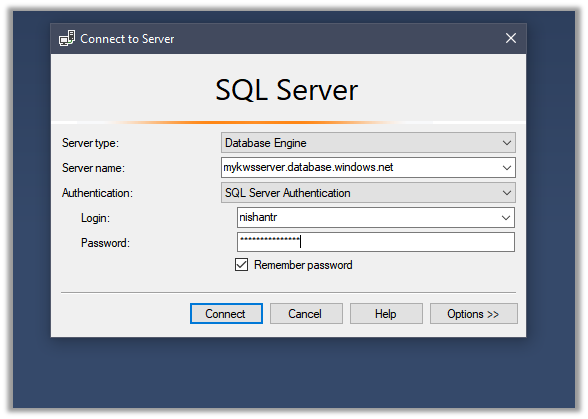
Connect to the Azure SQL Server

Expand the Integration Services Catalog, right-click the Projects folder, and select the Deploy Project option.

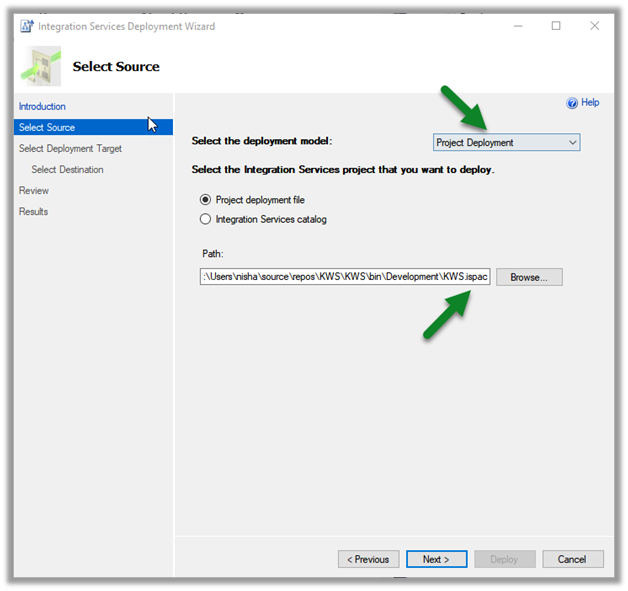
Enter the source details in the deployment wizard

Select the option SSIS in Azure Data Factory

Select the existing or create a new folder for the project

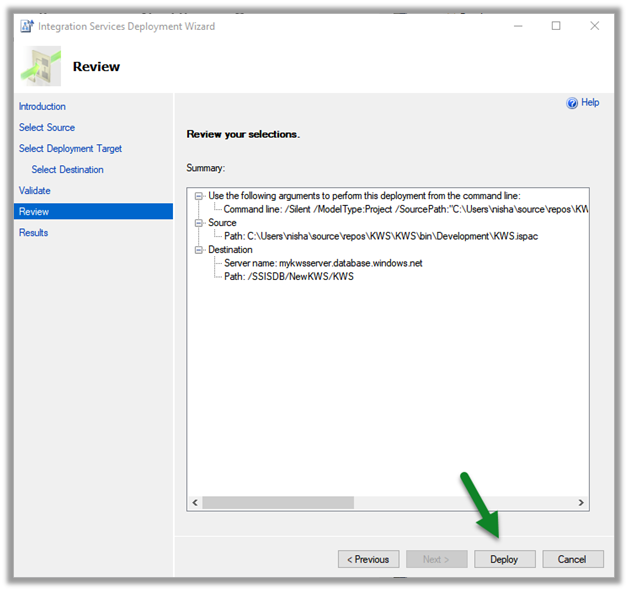
Click on Deploy after successful validation and review.

Here in our case, it failed with the below message

There is no available node. Please check node status on the monitoring page of the ADF portal and ensure that at least one node is in running 1 and try again. (Microsoft SQL Server, Error: 50000)

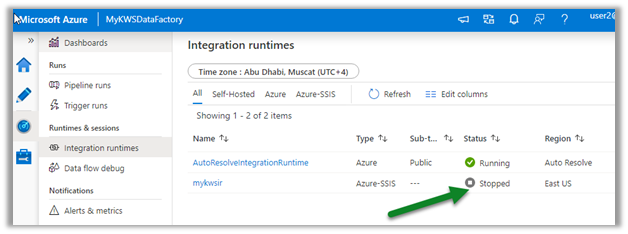
The error is because the Azure-SSIS Integration runtime is in the status Stopped.

navigate to your Azure Data Factory instance, and start the runtime.

After around 10 minutes or so the service would be up and running.

This time deployment is successful.

We can see the packages available within the pipeline.

Hope it helps..