

One of our recent requirements was to ensure that users could no longer register for event sessions once the session had already ended. The goal was to improve the user experience by hiding expired sessions from the Event Registration form, rather than displaying sessions that were no longer available. Once a session’s end date and time had passed, it should be hidden from the UI so that new registrations could not be made through the form.
We used the standard ‘Default registration form with Sessions’ provided by Microsoft and added a small JavaScript customization. The script executes after the form loads by subscribing to the d365mkt-afterformload event. It reads the rendered session date and end time, creates a JavaScript Date object, compares it with the current browser time (all users are in the New Zealand time zone), and hides any expired sessions. If every session has expired, the entire Sessions section is also hidden.
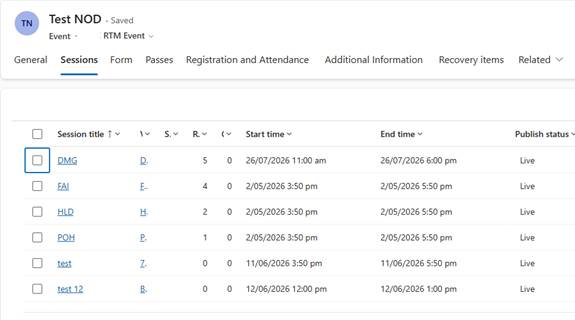
We can see the following sessions configured for the event.
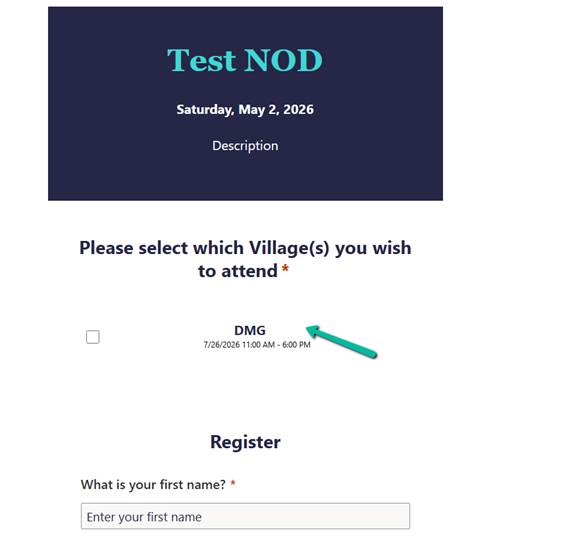
Below we can see the Event Registration form showing all the sessions before it is rendered for the end users.

And after our JavaScript that is registered on d365mkt-afterformload runs, it hides all the expired sessions except the active one.
JavaScript
 document.addEventListener("d365mkt-afterformload", function () {

    document.querySelectorAll(".eventSession").forEach(function (session) {
        debugger;
        const values = Array.from(
            session.querySelectorAll(".msdynmkt_personalization")
        ).map(x => x.textContent.trim());

        // [0] Session Title
        // [1] Session Date (M/D/YYYY)
        // [2] Start Time
        // [3] End Time
        // [4] Location/Room (optional)

        if (values.length < 4) {
            return;
        }

        const dateText = values[1];
        const endTimeText = values[3];

        const dateParts = dateText.split('/');

        if (dateParts.length !== 3) {
            return;
        }

        const month = parseInt(dateParts[0], 10) - 1;
        const day = parseInt(dateParts[1], 10);
        const year = parseInt(dateParts[2], 10);

        const timeMatch = endTimeText.match(/(\d+):(\d+)\s*(AM|PM)/i);

        if (!timeMatch) {
            return;
        }

        let hours = parseInt(timeMatch[1], 10);
        const minutes = parseInt(timeMatch[2], 10);
        const meridian = timeMatch[3].toUpperCase();

        if (meridian === "PM" && hours !== 12) {
            hours += 12;
        }

        if (meridian === "AM" && hours === 12) {
            hours = 0;
        }

        const sessionEndDateTime = new Date(
            year,
            month,
            day,
            hours,
            minutes,
            0
        );

        if (sessionEndDateTime <= new Date()) {
            session.style.display = "none";
        }
    });

    // Hide the entire Sessions block if all sessions are hidden
    const visibleSessions = Array.from(
        document.querySelectorAll(".eventSession")
    ).filter(s => s.style.display !== "none");

    if (visibleSessions.length === 0) {

        const sessionBlock =
            document.querySelector('[data-editorblocktype="Sessions"]') ||
            document.querySelector("fieldset.eventSessions")?.closest("div");

        if (sessionBlock) {
            sessionBlock.style.display = "none";
        }
    }
});
Things to Note
- All users were in the New Zealand time zone, so browser time could be safely used for comparison.
- The solution targets the standard out-of-the-box Event Registration form with Sessions.
- The requirement was to hide expired sessions from the UI, not to implement server-side validation – check for server side form submission validation https://nishantrana.me/2026/07/22/custom-form-submission-validation-in-dynamics-365-customer-insights-journeys-inside-the-validation-pipeline-and-the-ms_captcha_solution-error/
Reference
Set up sessions in Dynamics 365 Customer Insights.
Extend Customer Insights – Journeys marketing forms using code.
Hope it helps..


