How to – Use Azure Synapse Link – Export data from Common Data Service to Azure Data Lake Storage Gen2


Azure Data lake store gen 2 can be described as a large repository of data, structured or unstructured built on top of Azure Blob storage, that is secure (encryption – data at rest), manageable, scalable, cost-effective, easy to integrate with.

Also check out – setup Azure Synapse with Dataverse – https://nishantrana.me/2021/06/16/how-to-setup-azure-synapse-link-microsoft-dataverse/

  • Export to Data Lake allows for continuous replication of CDS entities to Data Lake Storage Gen2, which involves initial write followed by incremental writes, which can be consumed by Power BI, Azure Data Factory, Azure Data Bricks, and Azure Machine Learning.
  • Replication of standard and custom entities having change tracking enabled and create, update, and delete operations.
  • Any changes in data and metadata are pushed automatically without the need of setting any refresh intervals.

Let us first create a general-purpose V2 storage account to access all of the Azure storage services like blobs, files, etc.

The storage account must be in the same Azure AD tenant.

Login to Azure Portal (with admin account)

https://portal.azure.com/

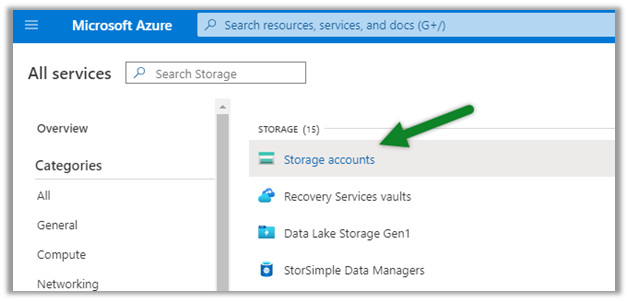
Search for Storage Accounts.

Here we have used a trial to create the storage account.
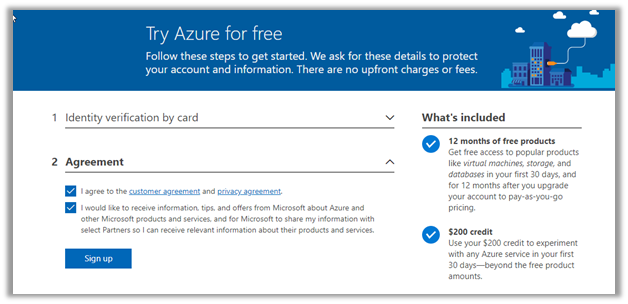
Leave the Account kind, Replication, and Blog Access as the default values while creating the storage account.

Before selecting Review + Create, navigate to the Advanced tab and enable the Hierarchical Namespace.

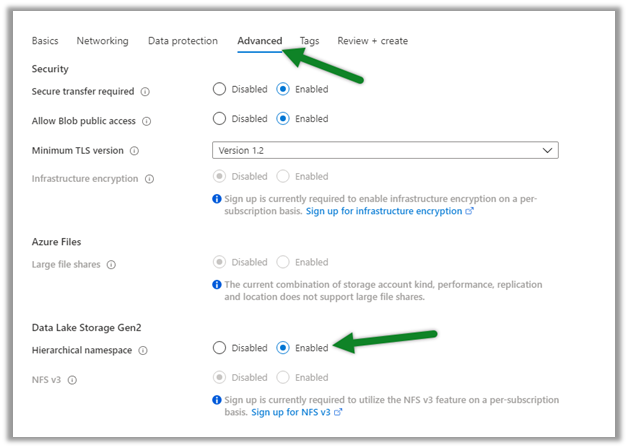
After validation is done and is successful, click on Create to create the storage account.


With the storage account created successfully, navigate to PowerApps select the option Export to data lake.
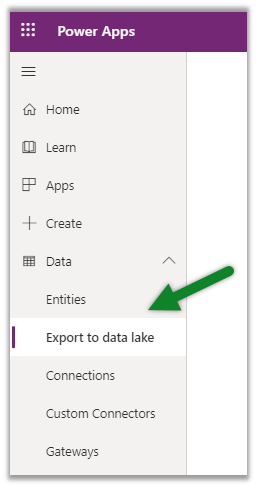
Select New link to data lake

Specify the storage account created earlier.
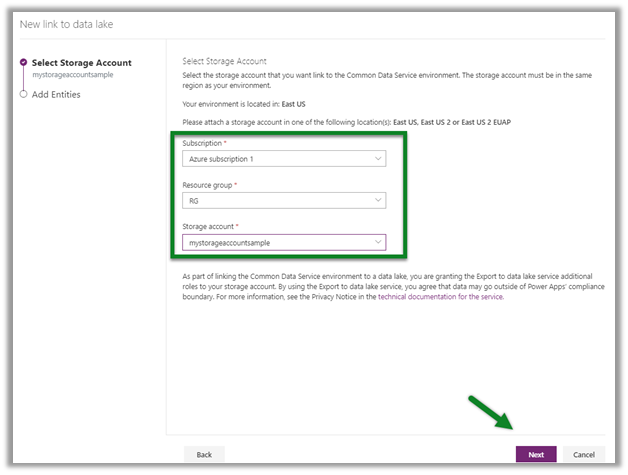
Select the entities to be exported to the data lake. Enable change tracking for the entities, as only these entities will be exported.
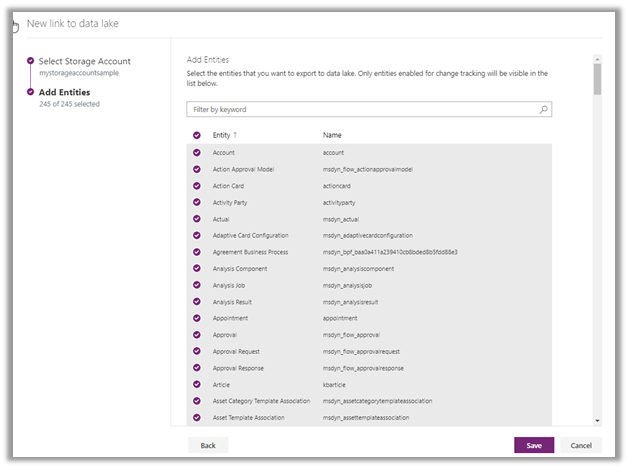
Clicking on save will link the CDS environment with Azure data lake storage.

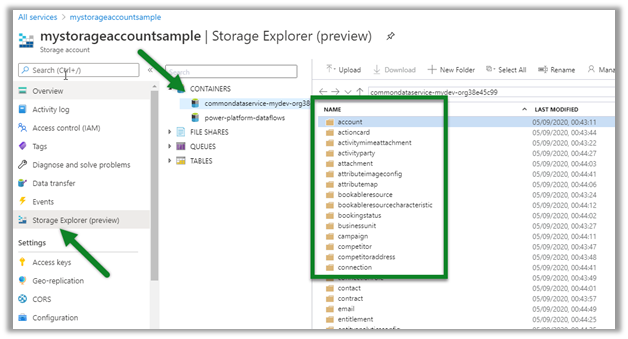
It will create the file system in the Azure storage account having a folder for each entity selected.
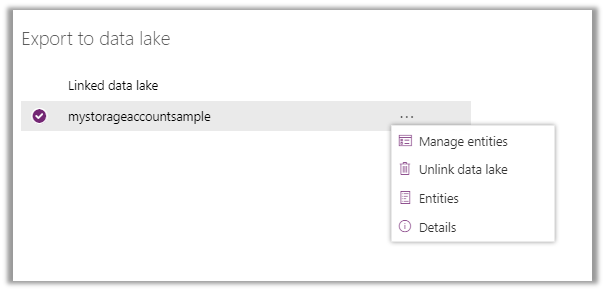
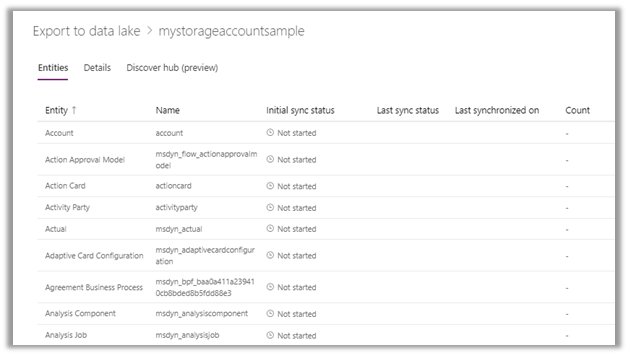
and will start the initial sync.
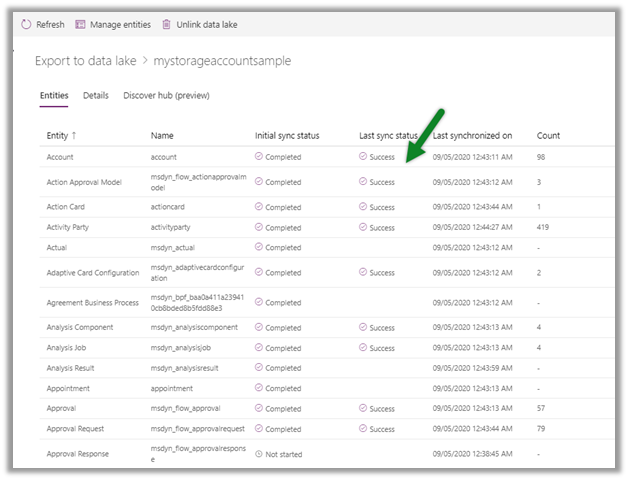
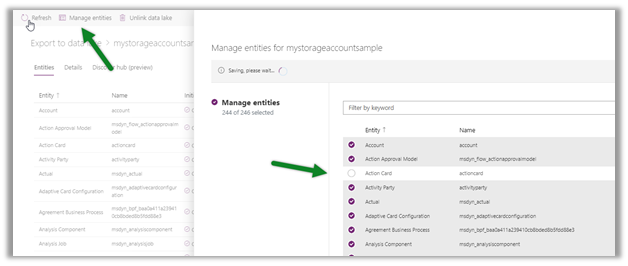
we can use the Manage entities option for adding or removing the linked entities.
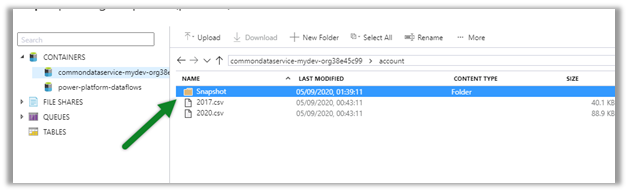
Inside Azure Portal, we can navigate to the storage account and select the Storage Explorer.

Expand commondataservice-environmentName-org-Id
container to view the details.
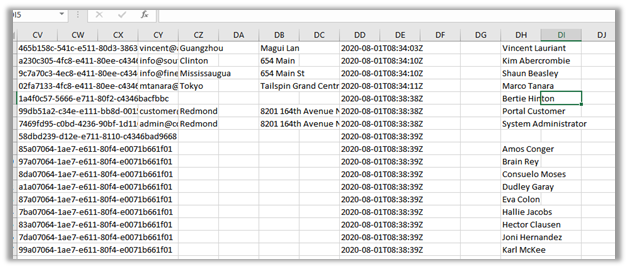
The CSV file will contain the data
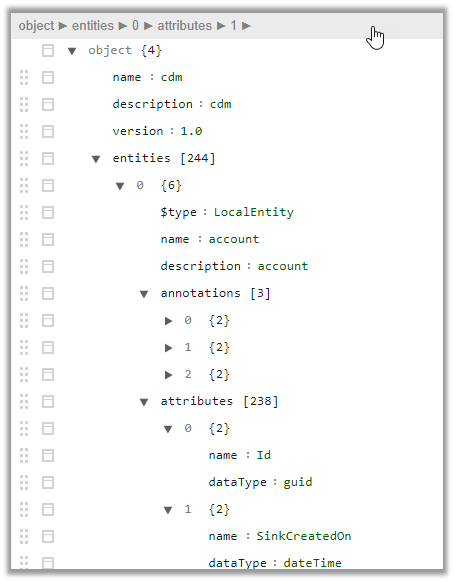
Here Model.json is the metadata file in the CDM folder
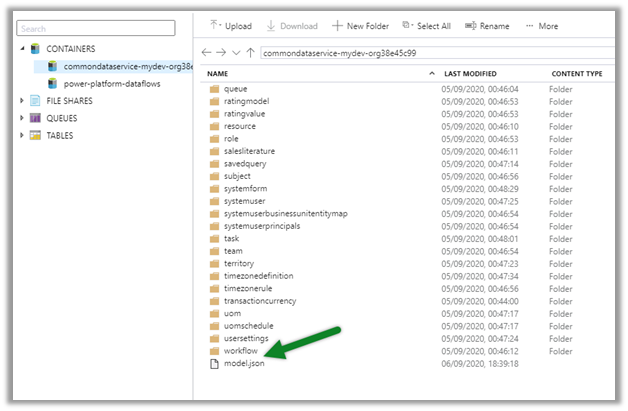
that describes the data in the folders, metadata, and location.
More details-

https://www.bluegranite.com/blog/10-things-to-know-about-azure-data-lake-storage-gen2

Posts on Azure Data Lake

Hope it helps.

Advertisements

Column Comparison using FetchXML Builder and SQL 4 CDS


Check it out, the column comparison feature is now added in our favorite XrmToolBox plugins (make sure to update to the latest version)

  • FetchXML Builder

https://jonasr.app/2020/07/fxb-july-2020/#more-4374

  • SQL 4 CDS

https://markcarrington.dev/2020/07/15/column-comparisons-in-fetchxml/

Thanks, @Jonas, and @Mark for incorporating it.

Also, refer –

https://www.itaintboring.com/dynamics-crm/we-can-now-do-column-comparison-with-fetchweb-api/

https://prashantmayur.wordpress.com/2020/07/20/use-column-comparison-in-d365-ce-power-apps-cds-queries/

https://debajmecrm.com/2020/07/16/compare-two-columns-in-queryexpression-in-dynamics-365-cds-sdk/

https://nishantrana.me/2020/07/16/the-new-column-comparison-in-queries-in-dynamics-365-powerapps/

Hope it helps..

New Admin Trial (subscription-based) experience – Dynamics 365


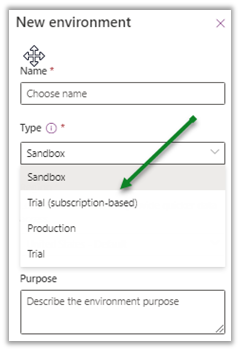
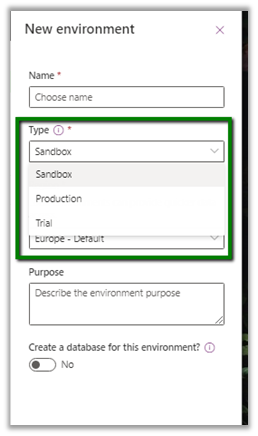
Recently a new Trial (subscription-based) environment option added to the tenants in the Power Platform Admin Center

Earlier we were limited to below options –

These new trial types are created and controlled by tenant administrators, as a result of signing up for a trial subscription and can be added to the existing tenant.

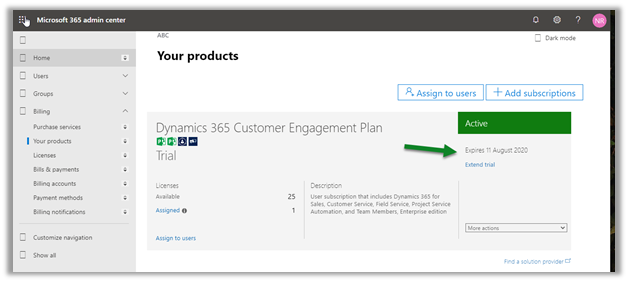
This new environment follows the trial subscription lifecycle (which is typically 30 days) and can be extended from the admin center.

https://admin.microsoft.com/Adminportal/Home#/subscriptions

  • A total of 3 trial environments can be created.
  • Trying to create 4th will give us the below error

Get more details here

https://docs.microsoft.com/en-us/power-platform/admin/trial-environments

Hope it helps..

The new Column comparison in queries in Dynamics 365 / PowerApps


Column Comparison is one of the best features that has been recently added to the product.

Column comparison allows us to compare values of 2 different columns in our query be it Fetch XML, Web API, or through SDK API.

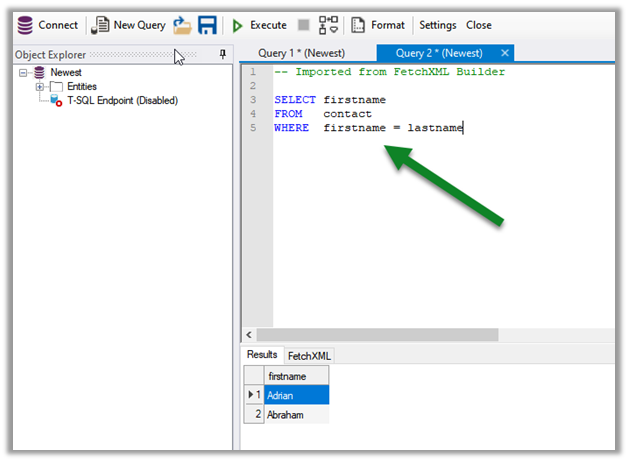
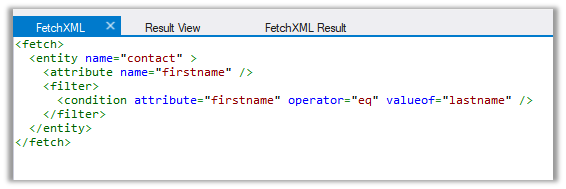
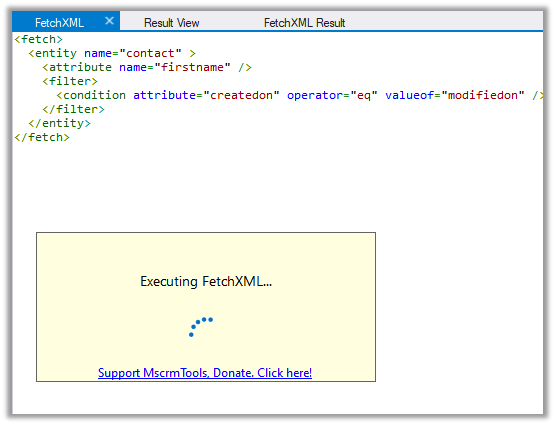
Sharing some of the basic examples that we tried using our favorite  FetchXML Builder

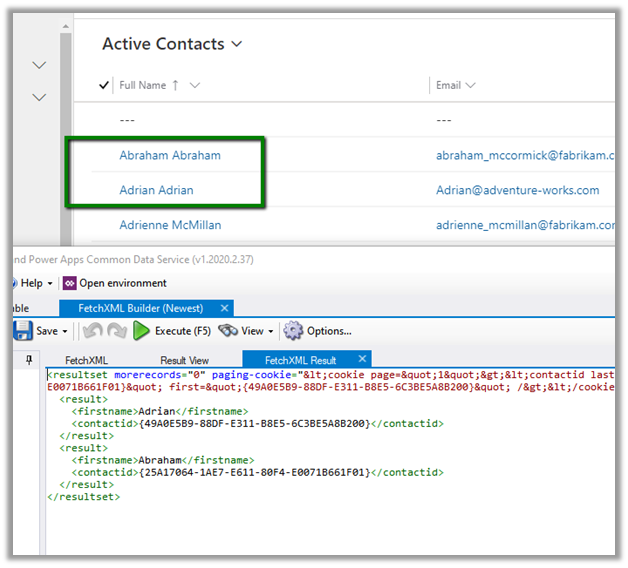
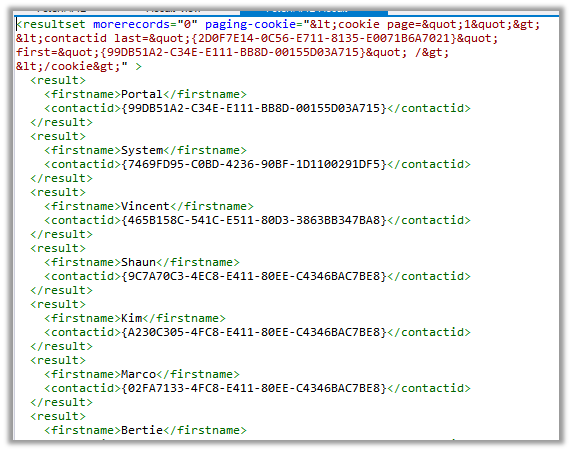
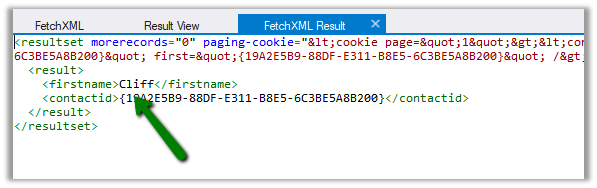
  • If we run the following query “Find all contact which has the first name equal to the last name”

The result –

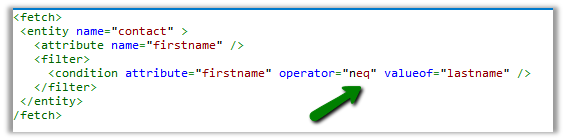
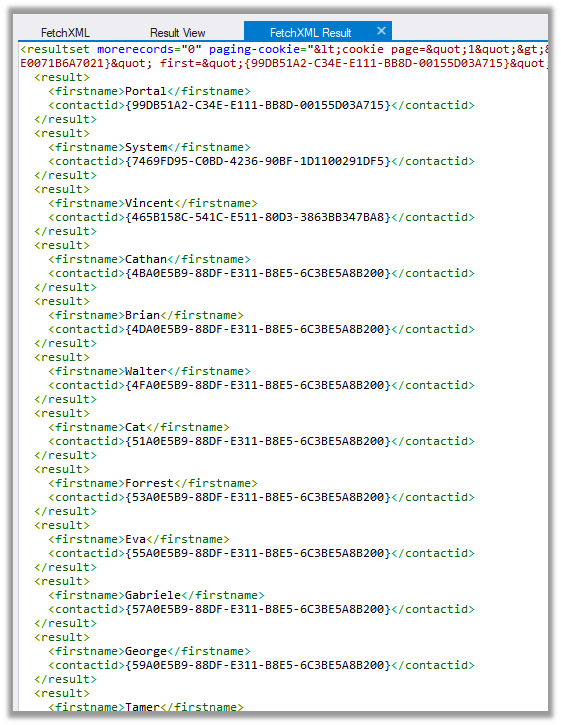
  • Find all contact where the first name is not equal to last name

The result –

The operators supported are –

Equal LessEqual GreaterEqual
Not Equal LessThan GreaterThan
  • Only 2 columns can be compared.
  • Only compatible attribute types can be compared.
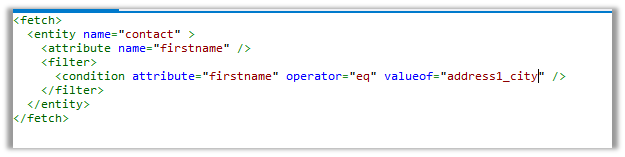
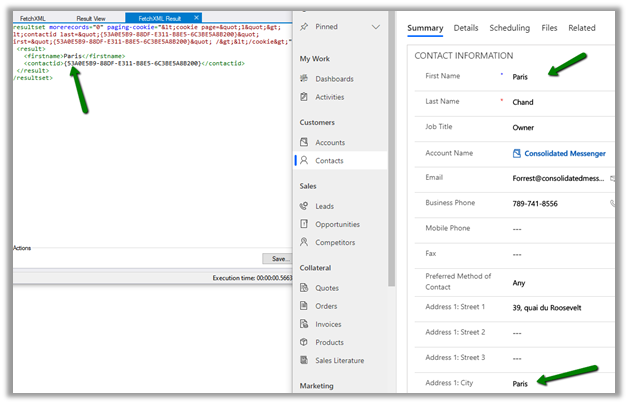
  • E.g. “Find all contact where the first name is equal to address 1 city”

The result

It works as both are string attributes.

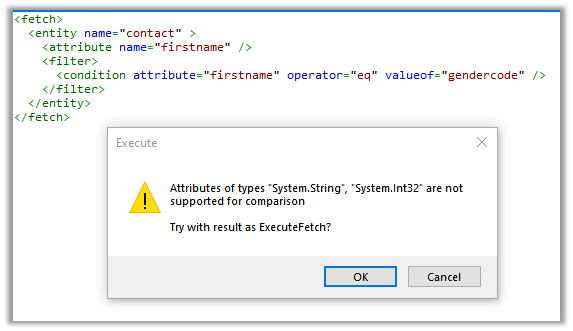
  • If we try comparing text field with options set, we will get below error message

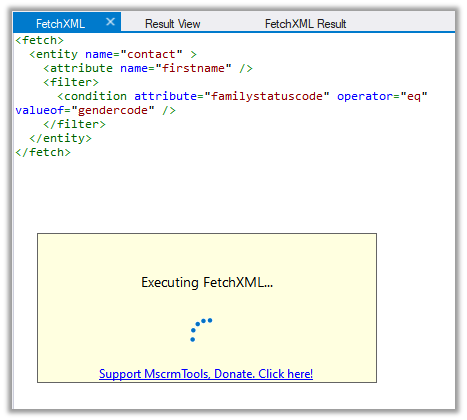
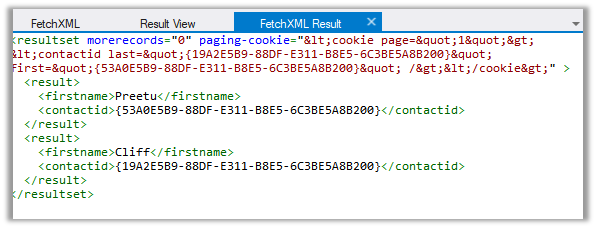
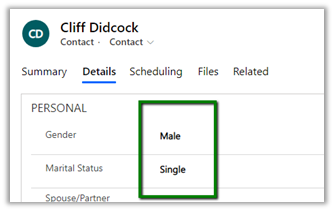
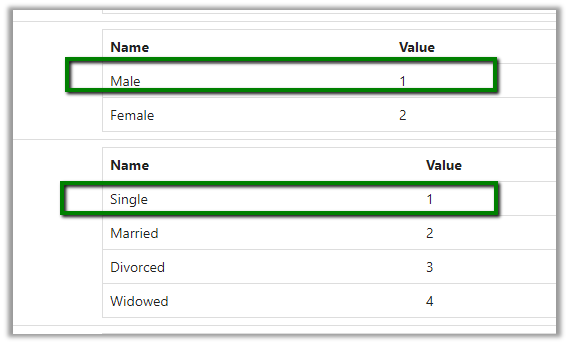
  • Two option set can be compared as they represent the same type integer

Both having value 1

  • Comparing date fields

  • We are getting the result

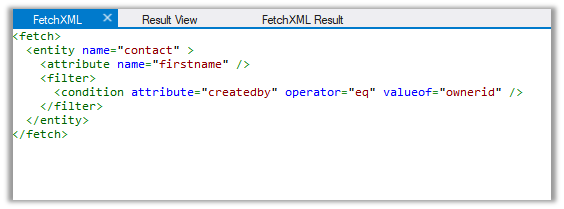
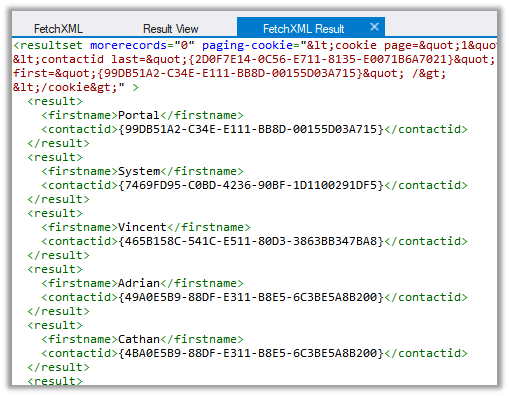
  • For the lookups, comparing created by and owner id

works as expected.
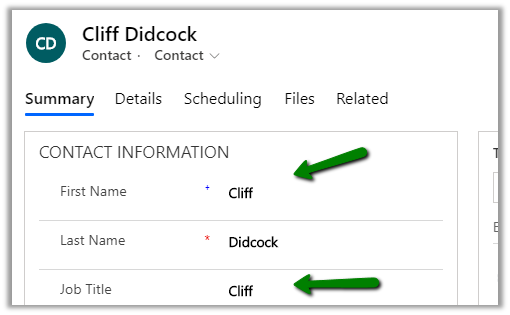
  • For the below record we have the First name and job title as null

And here for below record, we have the same value for First Name and Job title.

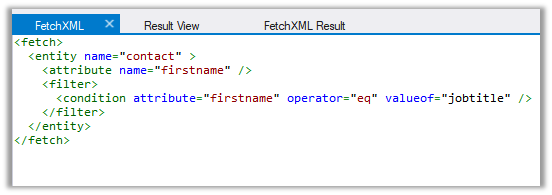
On running the below query – find all contact where the first name is equal to the job title.

We get only one result. It ignored the blank (null) record.

Get all the details here

https://docs.microsoft.com/en-us/powerapps/developer/common-data-service/column-comparison

Hope it helps..

Installation Failed – UI flows setup (Setup.Microsoft.PowerAutomate.UIFlow.exe)


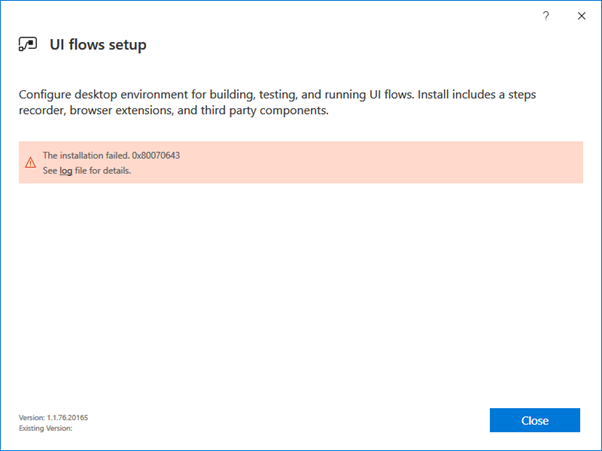
While trying to run the UI flows setup we got the below error

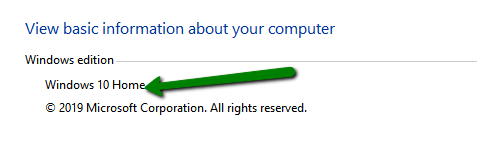
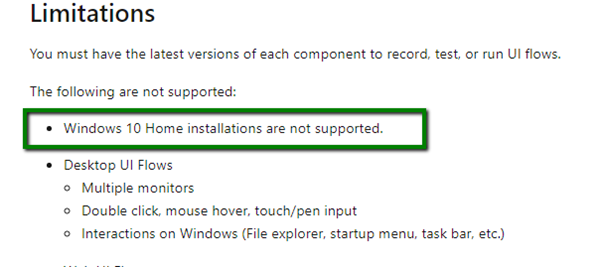
It was because we were trying to install it on Windows 10 Home

https://docs.microsoft.com/en-us/power-automate/ui-flows/setup#limitations

Hope it helps..

How to – Use Append and Merge to combine data from multiple data source in Power Platform dataflows


Let us continue with our previous post where we loaded the data from on-prem SQL DB to CDS using dataflows.

https://nishantrana.me/2020/07/07/load-data-from-sql-on-premise-to-cds-common-data-service-using-power-platform-dataflows-in-power-apps/

Now suppose we have another table (or any other data source) having the contact details, which we would like to append/merge along with our previous data source.

For simplicity, here we have created a copy of the existing table and added a new record with different values.

Edit the existing data flow created earlier.

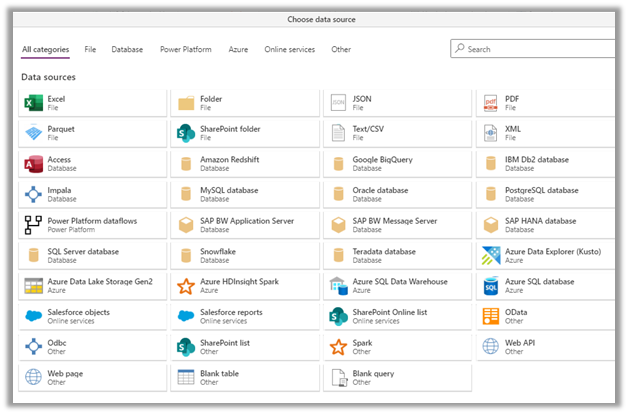
Click on Get data and select the SQL Server database.

*The other data sources that are available.

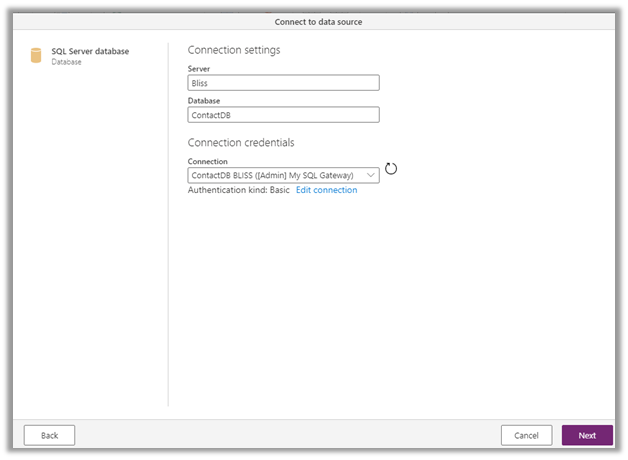
Specify the connection details to connect to the database.

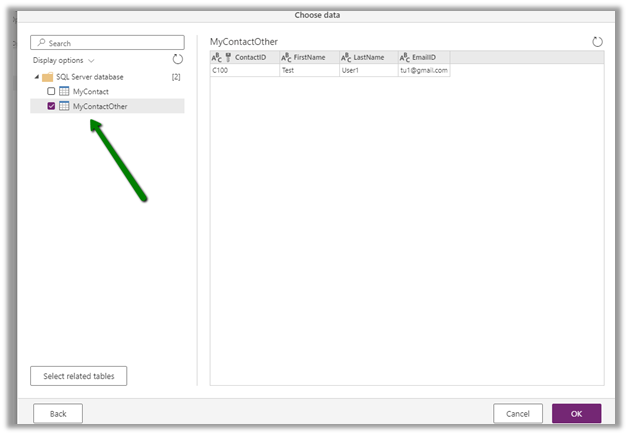
Select the new table that we had created.

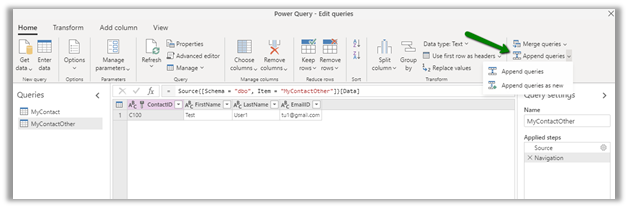
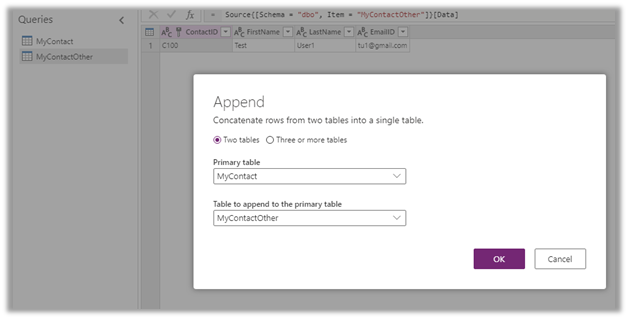
Next click on Append queries, select Append queries as new, to create a new query.

Specify the primary table and table to append.

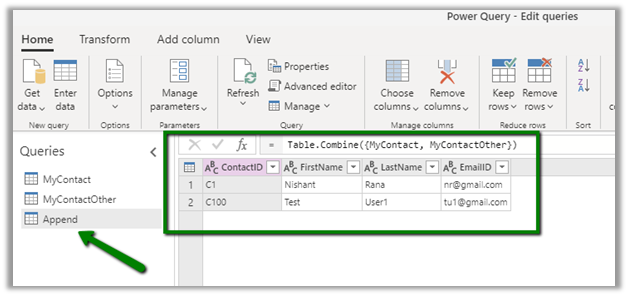
The new Query by default named Append will have the data from both the tables combined i.e. appended, which can then be used to load data to the existing contact entity or load to a new entity.

Specify the mapping in the data flow that completes the configuration of the dataflow.

That was about Append queries, now let us take another simple example to see Merge queries in action.

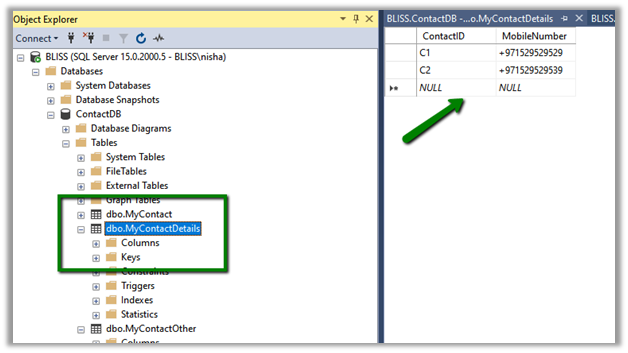
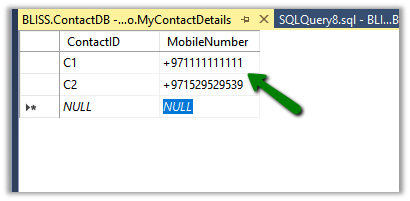
Again let us create one more table that has additional detail (e.g. Mobile Number) for the contact records. Just for simplicity, we are creating a table else it could be any of the supported data sources.

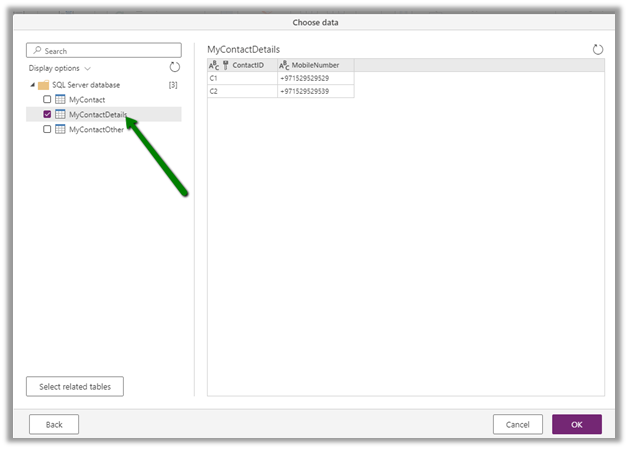
Let us edit the dataflow created earlier, and select Get data to get the data from the SQL Server database.

Here we have selected the new table Contact Details.

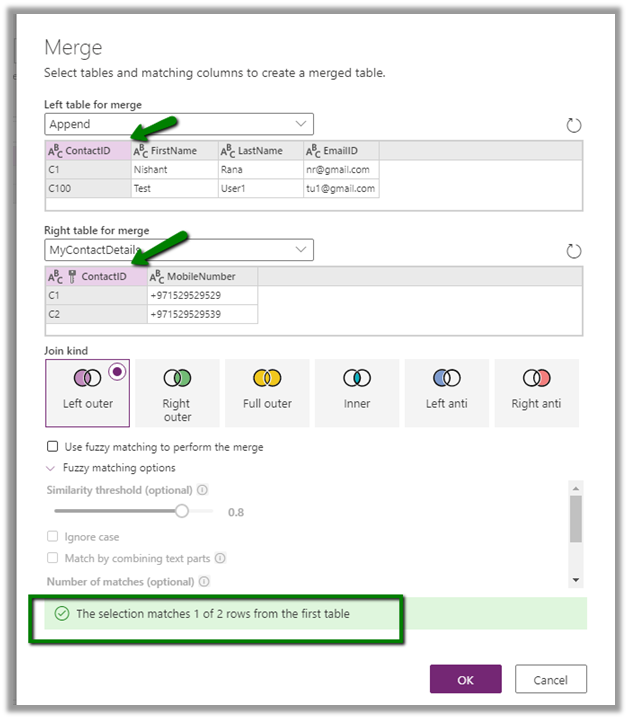
This time select Merge queries.

Specify the left table and right table for merge and the join type.

Select the join keys column.

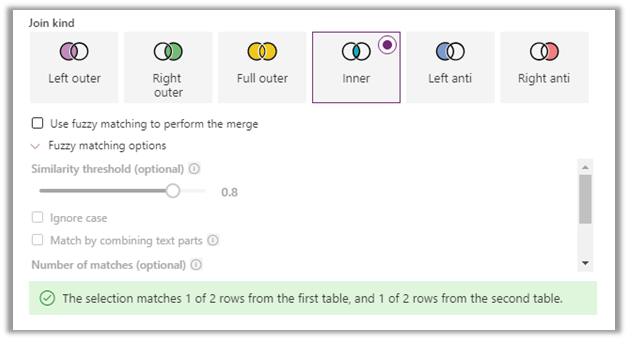
Here we have opted for Inner Join.

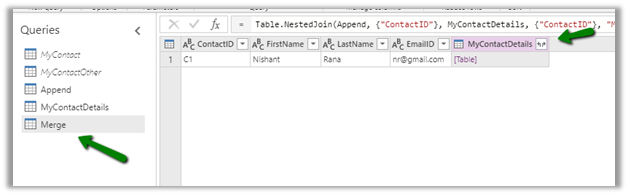
The result includes the 1 matching row.

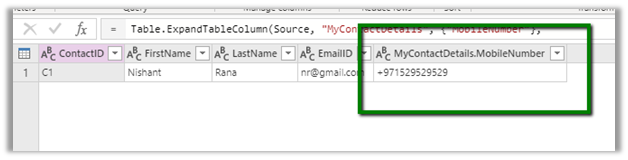
Expand the MyContactDetails column to populate the MobileNumber data.

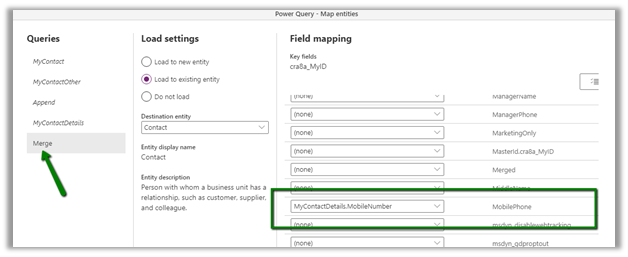
Now with the data transformed, click on Next and define the mapping using the new merged query.

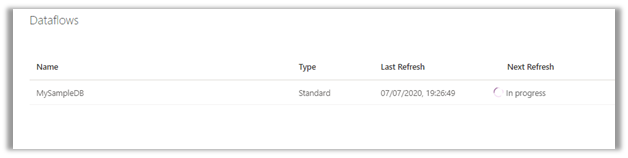
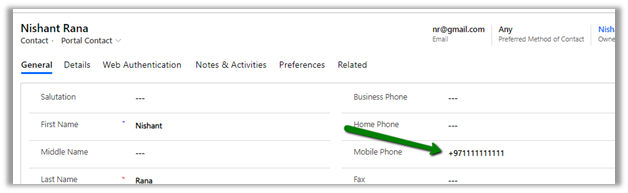
After a successful refresh, we can see the mobile phone field updated.

Let us update the value again for the mobile number field and run the refresh.

We can see the value updated for the CDS contact entity.

If the tables are already related using foreign key relationship for e.g. Contact and Contact Details, the Get data will load the related table, without any need of merge queries.

PkFk

Refer below articles for more details on Append and Merge in Power Query.

https://radacad.com/append-vs-merge-in-power-bi-and-power-query

https://carinaclaesson.com/2020/03/19/combining-information-from-multiple-data-sources-with-power-platform-dataflows/

Hope it helps..

Advertisements