Using Parent Context in Dynamics 365 Plugins — Detecting System-Triggered Operations (Dataverse / Dynamics 365)


In this post, we’ll look at how we used the ParentContext property in Dynamics 365 plugins to determine if a plugin execution was triggered by another plugin and perform logic conditionally. This came up in two real-world cases — one where we needed to prevent duplicate Sales Leads created automatically through Event Management, and another where we wanted to match the correct Campaign when a Lead was updated through a Marketing Form submission.

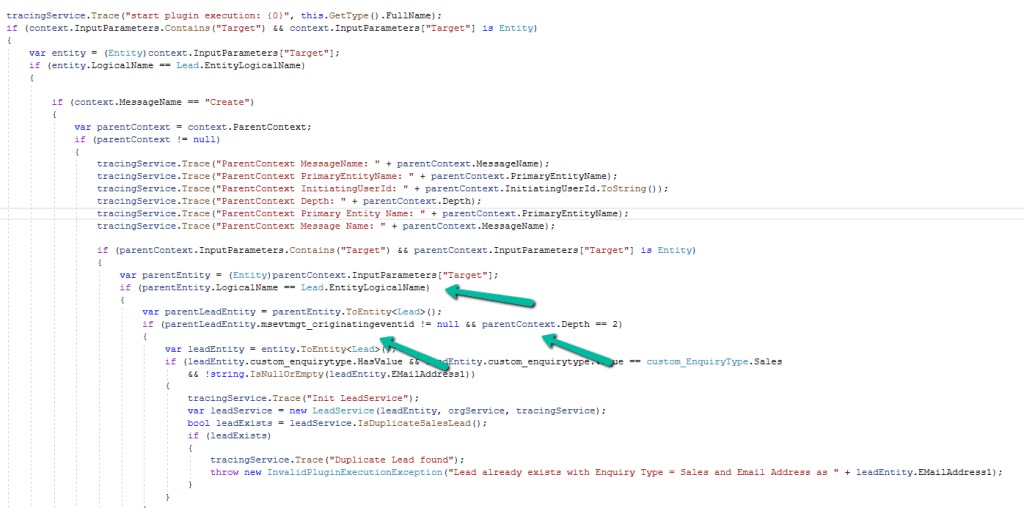
In the first scenario, we had a plugin registered on the Pre-Create of Lead. We wanted to block duplicate Sales Leads only when they were created via CRM’s Event Plugin, not during manual Lead creation. To achieve this, we checked if the plugin execution had a ParentContext. When present, it meant the Lead creation was triggered by another process, not a user. We confirmed it was the system’s Event Plugin by checking the msevtmgt_originatingeventid field (this field will be auto-populated for a lead created by event) and depth. If the Lead was of Enquiry Type “Sales” and had an email address, we checked for duplicates and stopped the creation if one existed. This ensured duplicates were blocked only for system-triggered Leads.

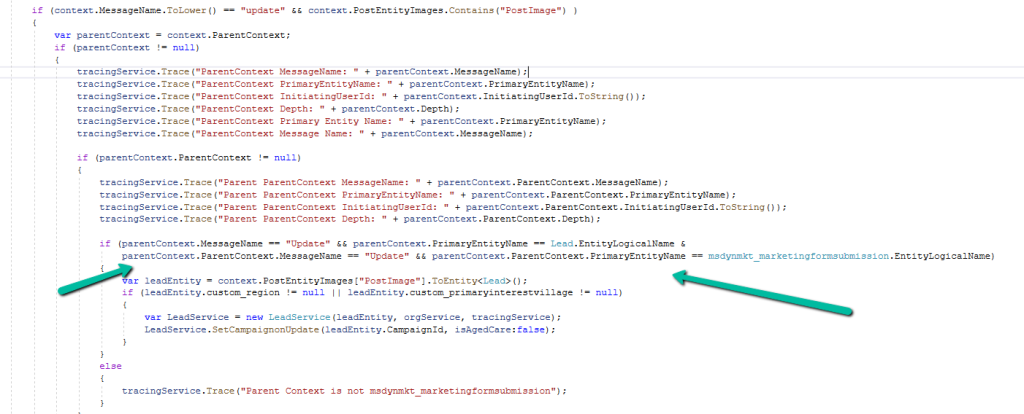
The second case involved the plugin, registered on the Update of Lead. Here, we needed to identify if a Lead update was triggered by a Marketing Form submission (from the msdynmkt_marketingformsubmission table) and only then run our Campaign mapping logic. We used ParentContext to walk up the plugin chain and confirm the origin. Once verified, we called our logic to assign the correct Campaign based on the Region or Village. This made sure the Campaign logic only ran for Leads updated by Marketing automation, not for regular user edits.

In both cases, using ParentContext gave us precise control over when the plugin logic should run. It allowed us to differentiate between user actions and system-triggered updates, avoiding redundant execution and maintaining a cleaner automation flow.

Hope it helps..

Advertisements

Fixed – “Action cannot be performed. This quote is not owned by Dynamics 365 Sales” in Dataverse / Dynamics 365


Recently, while working with Quotes in Dynamics 365 Sales integrated with Supply Chain Management (SCM) through Dual-write, we encountered an interesting error while trying to activate an existing quote.

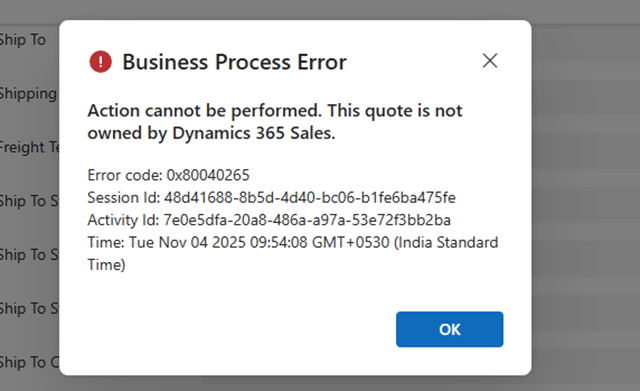
When attempting to activate Quote, the system threw the following error message:

Checking the Plugin Trace Log, we found the following details:

Entered Microsoft.Dynamics.SCMExtended.Plugins.QuotePreUpdate.Execute(), Correlation Id: 97636eb7-a10c-4503-918f-6dd7b8c1a671, Initiating User: 2953f4a9-ffca-ea11-a812-000d3a6aa8ae

QuoteService: PreUpdate.

Validate calling user $2953f4a9-ffca-ea11-a812-000d3a6aa8ae.

Calling user not DataIntegrator

Feature: Dynamics. AX.Application.SalesQuotationD365SalesFeature; Enabled: True

QuoteService: update from CE.

Validate calling user $2953f4a9-ffca-ea11-a812-000d3a6aa8ae.

Calling user not Dual-write.

SCM plugin exception: Action cannot be performed. This quote is not owned by Dynamics 365 Sales., at Microsoft.Dynamics.SCMExtended.Plugins.Services.QuoteService.ValidateIntegrationOwnerOnStateCodeChange(LocalPluginContext localContext, Guid quoteId)

Interestingly, this issue occurred only for old quote records — the ones created before Dual-write was enabled.

All newly created quotes after enabling Dual-write worked perfectly fine and could be activated without any error.

When comparing both sets of records, we noticed one key difference:

The msdyn_quotationownership (Ownership) field was blank for old quotes, while it was populated for the new ones.

This field plays an important role once Dual-write is enabled. The Microsoft.Dynamics.SCMExtended.Plugins.QuotePreUpdate plugin checks the Ownership field during operations like quote activation to validate the integration source.

If this field is empty, the plugin assumes the quote doesn’t belong to Dynamics 365 Sales and blocks the action, resulting in the error we saw.

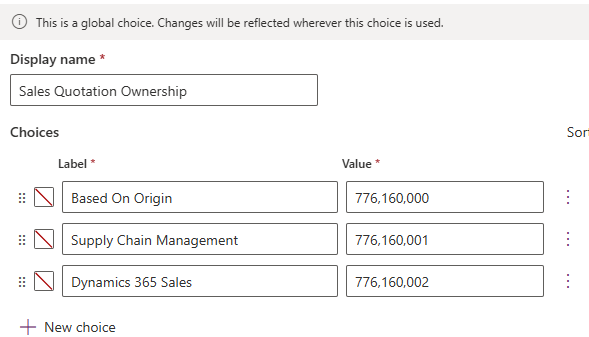
Here we simply needed to set the missing ownership field.

A screenshot of a computer

AI-generated content may be incorrect.

To resolve the issue, we bulk updated all old quotes to set the missing Ownership (msdyn_quotationownership) field to Dynamics 365 Sales.

Once updated, the system immediately allowed us to activate quotes successfully — no more errors.

Hope it helps..

Advertisements

Handling Unexpected Lookup Auto-Population in Quick Create Forms (Dynamics 365)


Recently, we had a requirement to track the Current and Previous contracts for a Contact in our Dataverse environment. To achieve this, we created two separate N:1 relationships between the Contact and Contract tables

  • custom_currentcontractid → Contact’s Current Contract
  • custom_previouscontractid → Contact’s Previous Contract

So far, so good.

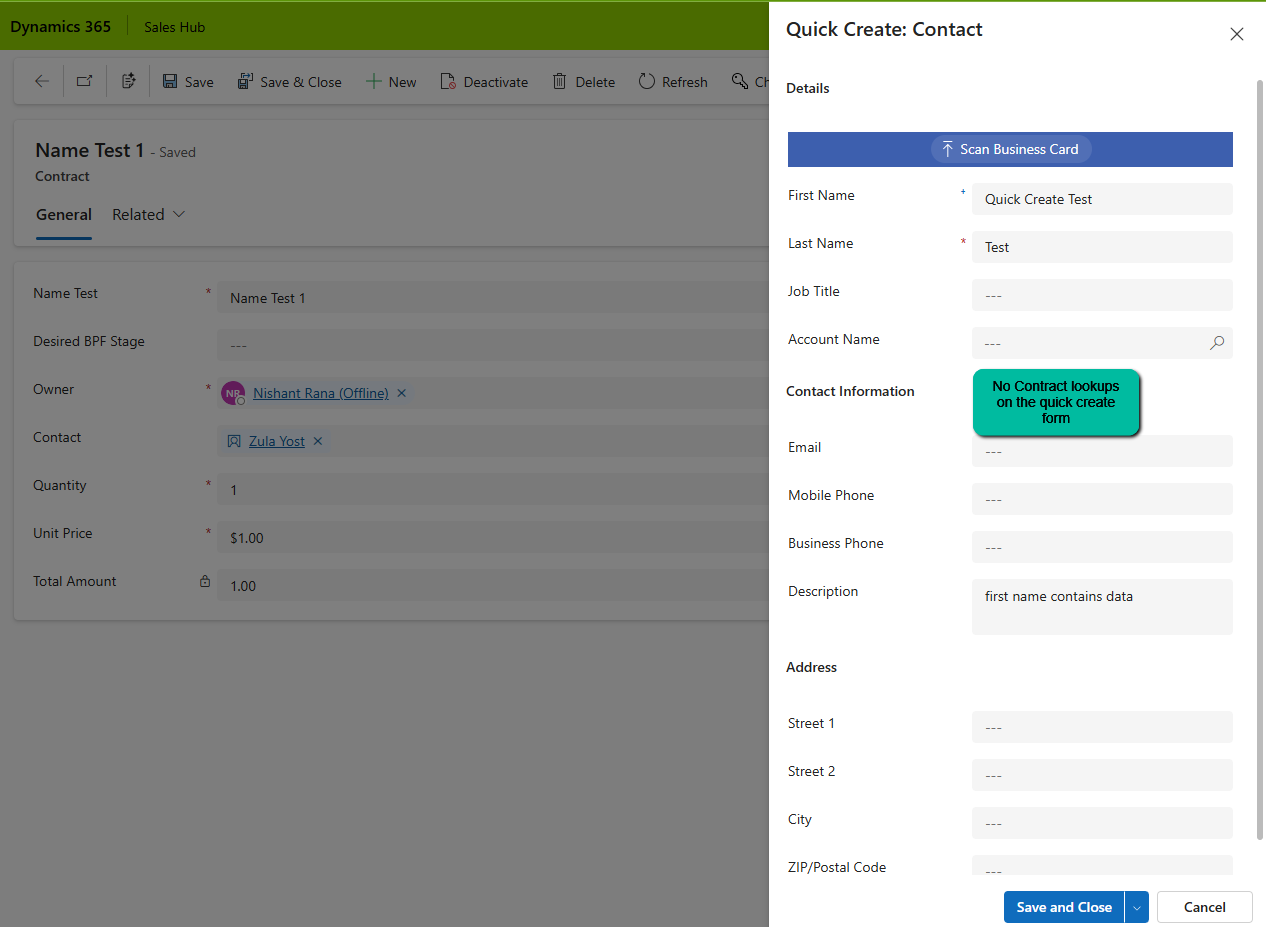
Soon after, we noticed a strange issue: “When creating a Contact from a Contract record (via the Quick Create form), both Current Contract and Previous Contract fields were being automatically populated — with the same Contract record”. This was unexpected, especially since neither field was present on the Quick Create form!

A screenshot of a computer

AI-generated content may be incorrect.

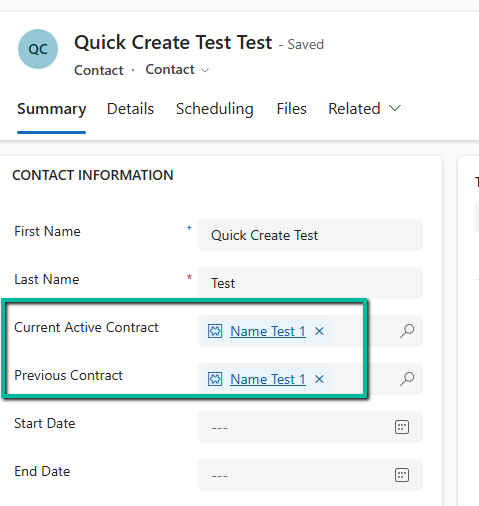
After saving and closing, when we open the record, we can see both the lookup auto-populated with the contract record in context.

A screenshot of a test

AI-generated content may be incorrect.

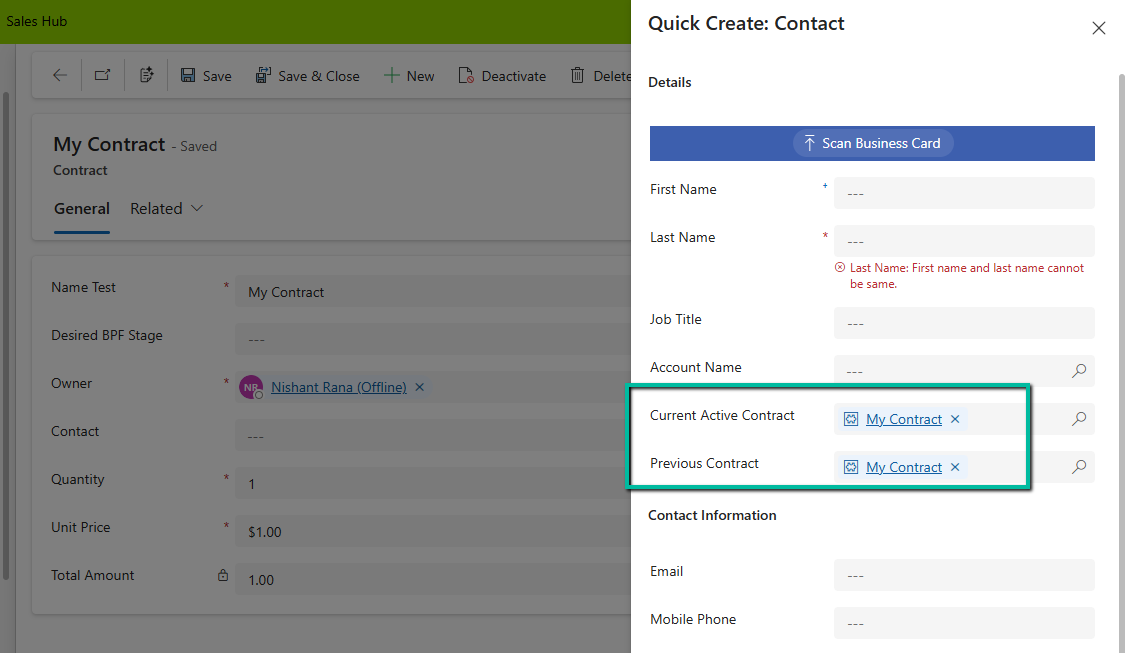
On adding these lookups in the Quick Create form, we can see that Dataverse is auto-populating it with the contract in context.

A screenshot of a contact page

AI-generated content may be incorrect.

When we open a Quick Create form from a record (in our case, from a Contract), Dataverse passes the entity reference context to the Quick Create form. And here’s the catch, If the target entity (Contact) has multiple lookups to the source entity (Contract), Dataverse tries to populate them all.

This behavior is based on relationship metadata, not on what’s visible on the form. So even though we didn’t include the Current Active Contract or Previous Contract on the Quick Create form, Dataverse filled both with the same value.

If we have the fields on the quick create form we can make use of JavaScript on the onload to clear the values.

function clearBothContractLookups(executionContext) {
    var formContext = executionContext.getFormContext();
    
    // Check if in Quick Create mode (formType = 1)
    if (formContext.ui.getFormType() === 1) { 
        var parentRecord = formContext.data.entity.getEntityReference();
        
        // If opened from a Contact, clear BOTH lookups
        if (parentRecord && parentRecord.entityType === "contact") {
            // Clear Current Contract
            if (formContext.getAttribute("new_currentcontract")) {
                formContext.getAttribute("new_currentcontract").setValue(null);
            }
            
            // Clear Previous Contract
            if (formContext.getAttribute("new_previouscontract")) {
                formContext.getAttribute("new_previouscontract").setValue(null);
            }
        }
    }
}

However, like in our case as we did not have these fields on the quick create form, and we didn’t want to have these populated during the creation of the Contract, as these fields were supposed to be populated later, we wrote a Pre-Create Plugin on Pre Operation for it.

public class ClearBothContractLookups : IPlugin
{
    public void Execute(IServiceProvider serviceProvider)
    {
        IPluginExecutionContext context = (IPluginExecutionContext)serviceProvider.GetService(typeof(IPluginExecutionContext));
        
        if (context.InputParameters.Contains("Target") && context.InputParameters["Target"] is Entity)
        {
            Entity contact = (Entity)context.InputParameters["Target"];
            
               // Clear BOTH fields if they exist
                if (contact.Contains("new_currentcontract"))
                    contact["new_currentcontract"] = null;
                
                if (contact.Contains("new_previouscontract"))
                    contact["new_previouscontract"] = null;

              // or remove them from the input parameters 
                  contact.Attributes.Remove("new_currentcontract");
                  contact.Attributes.Remove("new_previouscontract");

            }
        }
    }
}

Hope it helps..

Advertisements

Fixed – Could not find an implementation of the query pattern for source type. ‘Where’ not found (LINQ, Dataverse)


While working on a LINQ query using early-bound classes in a Dynamics 365 plugin, we encountered a familiar error.

“Could not find an implementation of the query pattern for source type. ‘Where’ not found”

At a glance, everything looked fine. The query was syntactically correct, and the early-bound class was generated properly.

After spending some time, we realized that the error message wasn’t due to the query or the early-bound class itself. It was because we forgot to include the following directive:

using System.Linq;

Without this, C# doesn’t recognize LINQ query methods like Where, Select, or ToList.

Adding this single line at the top of the file resolved the issue immediately, the LINQ query compiled and executed as expected.

Hope it helps..

Advertisements

Updating Records Without Triggering Plugins – Bypassing Plugin Execution in Dynamics 365 / Dataverse using C#


Recently, we had to write a small utility—a console application—that would go and update a bunch of existing records in our Dynamics 365 environment. However, we didn’t want any of my custom plugins to trigger during this update. Because the updates were internal, more like data correction / cleanup, and had nothing to do with business rules or processes enforced via plugins. Triggering them would’ve not only been unnecessary but could also lead to unwanted side effects like auto-assignments, email sends, or data syncing. Thankfully, the Dataverse platform provides us with two powerful properties that allow us to selectively bypass plugin execution logic.

BypassCustomPluginExecution – This allows us to bypass all the plugin steps for an operation – create, update, delete, etc.

BypassBusinessLogicExecutionStepIds – If we do not want to skip all the plugin steps, but just a few specific ones, we can use this property.

We have the below sample plugin registered that throws InvalidPluginExecutionException on the update of the lead record.

A screenshot of a computer

AI-generated content may be incorrect.

On updating the record through the console app, we will get the same exception.

To bypass all the plugins that are registered on Update, we can use the BypassCustomPluginExecution property as shown below.

A screenshot of a computer program

AI-generated content may be incorrect.

To bypass only the specific plugin steps that are registered on Update, we can use the BypassBusinessLogicExecutionStepIds property as shown below.

A computer screen shot of a computer code

AI-generated content may be incorrect.
A screenshot of a computer

AI-generated content may be incorrect.

One point to remember is these flags do not bypass system plugins or platform logic—only custom plugin steps we’ve registered.

This was a really handy trick in our recent utility and helped us to safely update the records without triggering the plugin. The other options could have been to either temporarily deactivate the plugin step, add certain conditions to the plugin based on calling user, flag/fields on the record etc.

Also check – https://nishantrana.me/2023/11/08/use-tag-parameter-to-add-a-shared-variable-to-the-plugin-dataverse-dynamics-365/comment-page-1/

Hope it helps..

Fixed – “Input String Was Not in a Correct Format / The specified domain does not exist or cannot be contacted” in Dataverse Plugin (Dynamics 365)


In one of our plugins, we encountered “The specified domain does not exist or cannot be contactedSystem.FormatException: Input string was not in a correct format” error. Basically this issue can arise due to incorrect string formatting, unexpected data types, or missing values.

Our initial thought was that it could be because one of the GUID data type fields was null and being used in the Retrieve method.

However, it turned out to be because of the following trace statement.

Sample code –

A screen shot of a computer

AI-generated content may be incorrect.

Extra space inside { 1}. The correct syntax is {1} instead of { 1}. We removed the extra space.

A computer code with a green arrow pointing to it

AI-generated content may be incorrect.

This fixed the issue for us.

Hope it helps..

Advertisements