Manage Custom Presence – Dynamics 365 Customer Service (Omnichannel)


To manage presences, navigate to Customer Service Admin Center >> Agent Experience >> Productivity >> Custom Presence

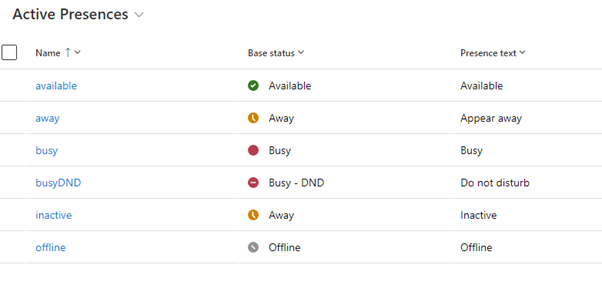
Out of the box we have the following presences.

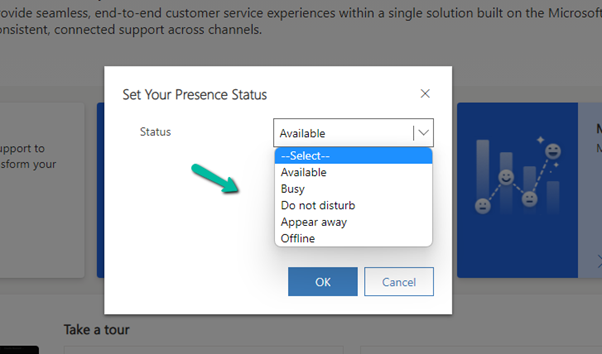
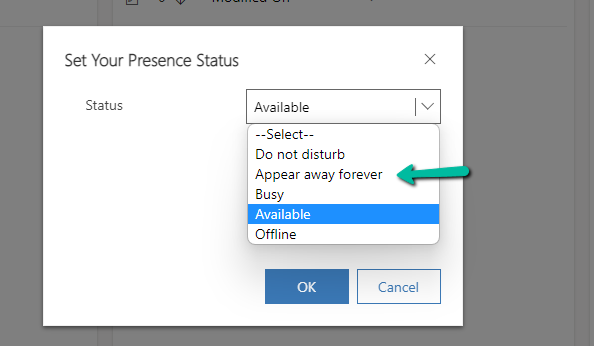
Only the below presences will be available for the agents to select.

The inactive and offline statuses will be automatically set by the system.

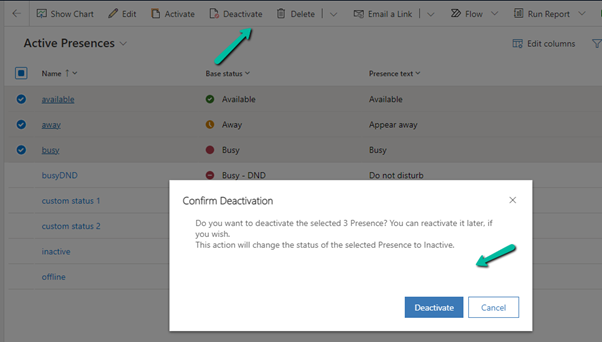
Although we can deactivate the presence, that doesn’t remove it for the agents.

The agents can still see all the presence statuses.

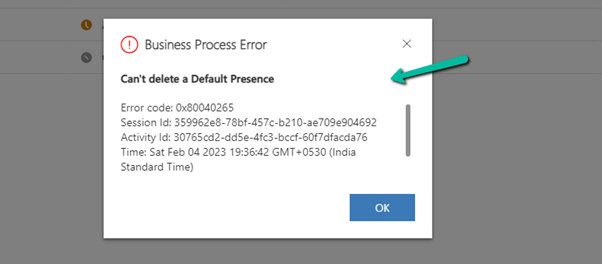
We cannot delete the default presence; we will get the below error if we try to delete them.

We can edit the Presence text for the default presence.

For the agent –

We can create custom presences that are based on the existing base status.

For the agents –


Unlike default presence, we can delete the custom presence status.

Hope it helps..

Advertisements

Solved – Presence not loading in Omnichannel for Customer Service / Customer Service workspace


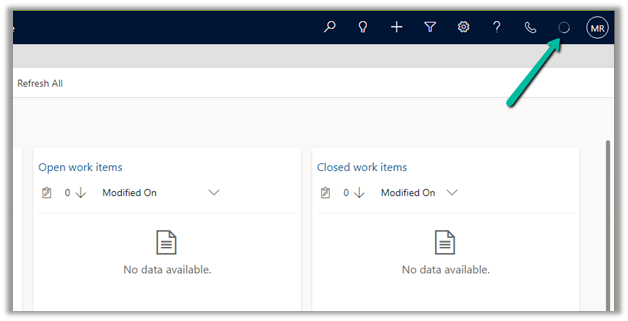
Recently in one of the environments, the presence was not loading for the agents.

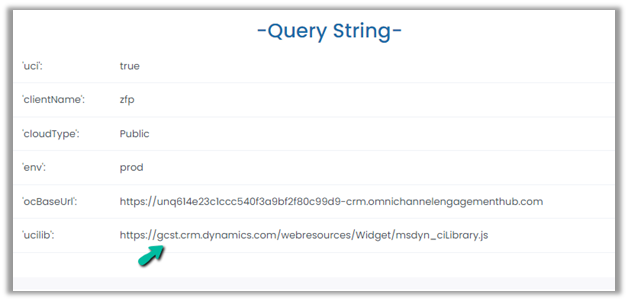
To fix it, we had to update the Channel URL to point to the correct organization name.

Before –

https://oc-cdn-ocprod.azureedge.net/convcontrol/ChatControl.htm?uci=true&clientName=zfp&cloudType=Public&env=prod&ocBaseUrl=https://unq614e23c1ccc540f3a9bf2f80c99d9-crm.omnichannelengagementhub.com&ucilib=https://orged4e3d70.crm.dynamics.com/webresources/Widget/msdyn_ciLibrary.js

After –

https://oc-cdn-ocprod.azureedge.net/convcontrol/ChatControl.htm?uci=true&clientName=zfp&cloudType=Public&env=prod&ocBaseUrl=https://unq614e23c1ccc540f3a9bf2f80c99d9-crm.omnichannelengagementhub.com&ucilib=https://gcst.crm.dynamics.com/webresources/Widget/msdyn_ciLibrary.js

Verify the Unique Name used in ocBaseUrl and Orgname from Settings >> Customizations >> Developer Resources

On correcting the URL in the Omnichannel record (Channel Integration framework 2.0 Providers)– we can see the presence loading.

The cause for the issue was we had recently updated the environment’s URL from the Power Platform Admin Center.

Check for more details –

https://tinyurl.com/3488m6p2

The presence not loading.

Hope it helps..

Advertisements

Install Voice Channel in Omnichannel – Dynamics 365 Customer Service


Make sure all the prerequisites are in place –

https://learn.microsoft.com/en-us/dynamics365/customer-service/omnichannel-provision-license#prerequisites

Login to Power Platform Admin Center >> Environments

https://admin.powerplatform.microsoft.com/environments

Select Resources >> Dynamics 365 apps

Select Manage for Omnichannel for Customer Service – Telephony


It will open Dynamics 365 Administration Center | Omnichannel page

Click on Add environment

Select the required environment and click on Next.

If we do not have the required subscription for a particular channel we will get the below error
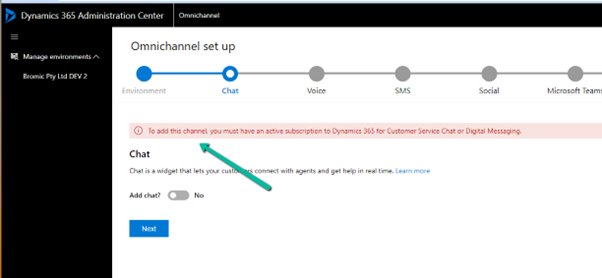
Next for Voice, select Add Voice along with Voice and Messaging preview terms.

Keep clicking on Next till confirmation (add other channels if required)

The confirmation page will show all the selections and details.
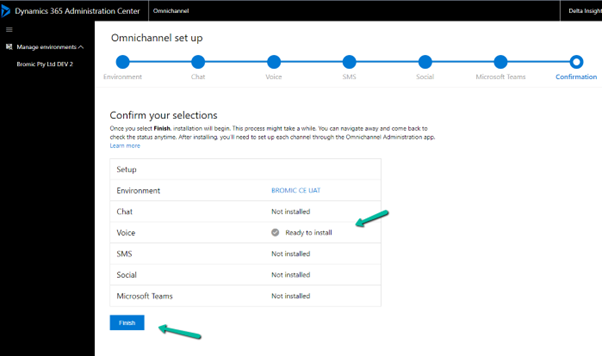
Clicking on Finish starts the installation process.

After around 1.5 -2 hours or so we could see the installation being successful.

If we want to add another channel e.g. SMS, select the SMS tab and save to start the process.

This starts the update
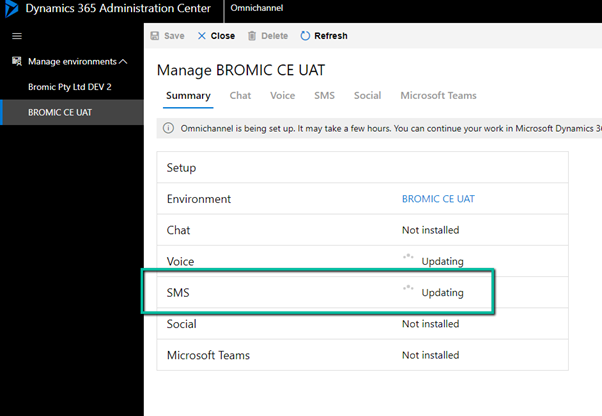
After an hour or so we see the status as installed for both Voice and SMS.

On opening the Customer Service Admin Center app, we can see the option of getting started with a voice demo.

Assign the account you are using the Omnichannel Agent and Omnichannel Admin role (even if you are a system administrator you need this role to start with the voice demo, admin to configure and agent to test)
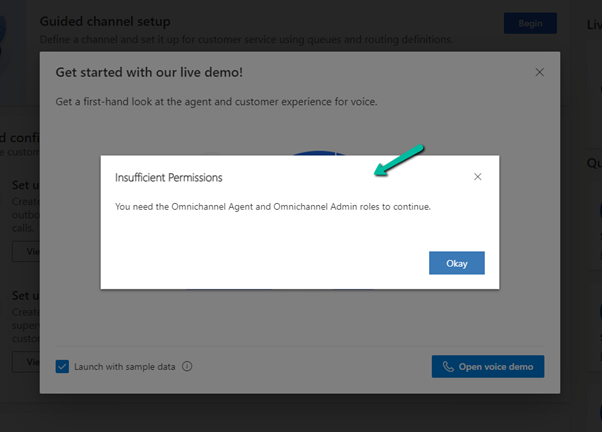
It will create the workstreams, acquire a phone number, create a voice channel, power virtual agent, etc. for the demo

After around 2 minutes or so, we will have our voice demo setup done.

We can open the agent app which is either Omnichannel for Customer Service or Customer Service Workspace App and can call the phone number configured to test the application.

We can see the following workstreams created for Voice and Voicemail channels.

The demo telephony workstream 1 

The agent receiving the notification
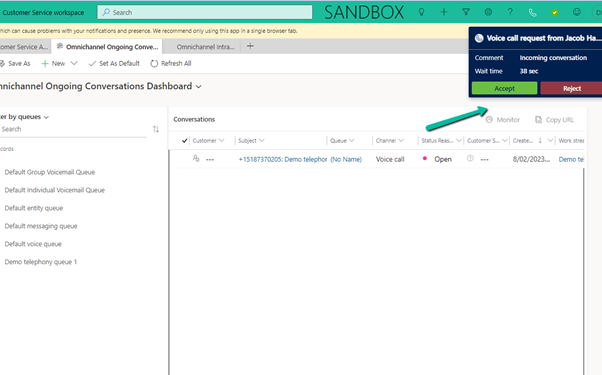
*At times we have faced an issue when there is a bot configured, so in case you are facing any issues, try removing the bot from the workstream

Hope it helps..

Advertisements

Omnichannel Real-time analytics reports (Preview) – Dynamics 365 Customer Service


The Real-time dashboard consists Summary, Ongoing conversation, Agent, and Voice report.

To enable it – Login into Customer Service Admin Center >> Operations >> Insights >> Report Settings >> Real-time Analytics (preview)


Enable it –


After a couple of minutes, we can see the Dashboard added to the Customer Service Workspace app.

Within the Summary, we can get the details of any ongoing conversation, KPIs, etc.

The ongoing conversation report shows the details of all the ongoing conversations

The agent shows all the real-time details about the agents

We can select an agent from Agent List and click on Details to show additional details about the agent.

Finally, the Voice report shows details specific to Voice Channel / Queues.

Get all the details here – Real-time analytics dashboards (preview)

Hope it helps..

Advertisements

How duplicate phone numbers for customers (contact/account) are handled in Voice Channel (Dynamics 365 Omnichannel for Customer Service)


Before we delve into different scenarios, few key points, we need to be aware of about Phone Numbers in Voice Channels.

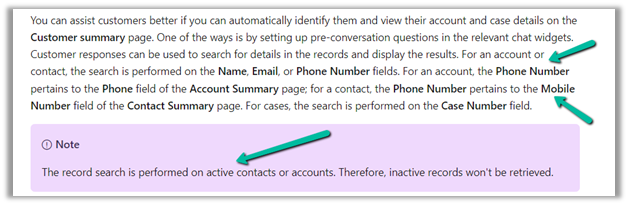
  • Voice Channel considers Contact’s Mobile Phone (mobilephone) and Account’s Phone (telephone1) fields.

https://learn.microsoft.com/en-us/dynamics365/customer-service/record-identification-rule

  • The phone number should be in E.164 format inside Dynamics 365.

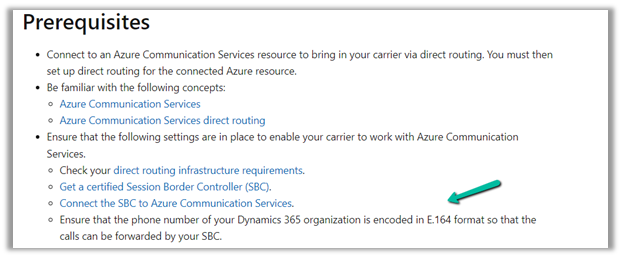
https://learn.microsoft.com/en-us/dynamics365/customer-service/voice-channel-bring-your-own-number?tabs=customerserviceadmincenter#prerequisites

https://developers.omnisend.com/guides/e164-phone-number-formatting

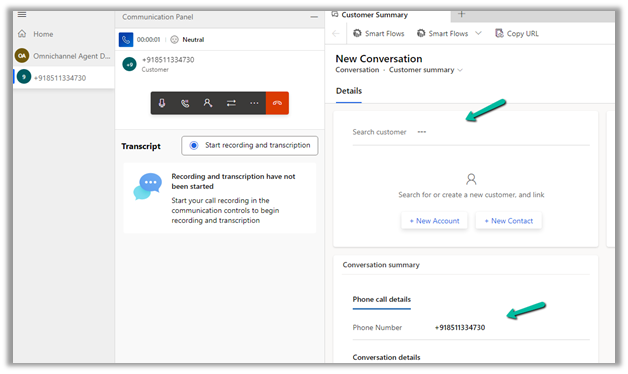
  • If no matching customer (contact or account) is found, the conversation record will not have any customer prepopulated.

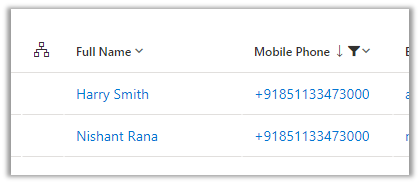
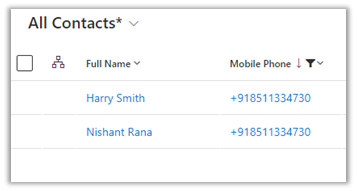
  • If 2 contacts are having the same Phone Number (E.164) format, i.e. multiple matches found

In that case, also, no customer is tagged in the conversation record, the agent would have to search for the customer.

  • If 2 contacts and 1 account have the same Phone Number

The Conversation records get associated with the Account record.

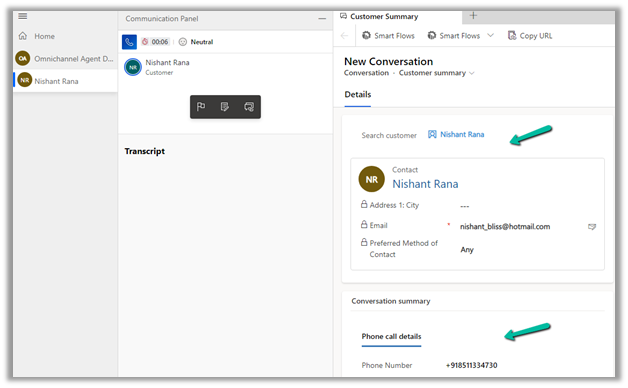
  • If 1 contact and 1 account have the same Phone Number

The conversation record gets tagged against the Contact

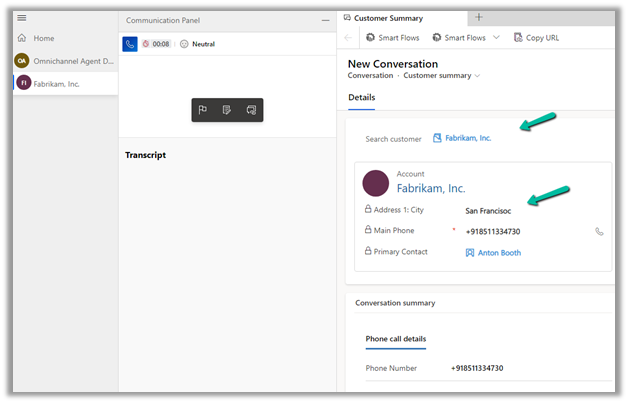
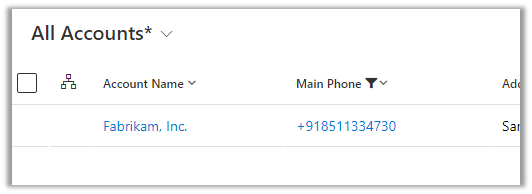
  • If there is only 1 account record with that phone number and no contact records

The conversation record has an Account tagged to it.

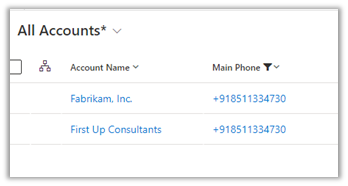
  • In case multiple accounts are found with the same phone number and no matching contact

No customer is tagged in the conversation record

  • If there are multiple contacts and multiple accounts with the same phone number

No customer is tagged in the conversation record.

In short –

Matching Contact

Matching Account

Result

0

0

NA

1

0

Contact

1

1

Contact

2

0

NA

0

1

Account

0

2

NA

2

2

1

2

Account

NA

Hope it helps..


Advertisements

Fixed – Omnichannel authentication failed. Contact your administrator in Omnichannel Ongoing Conversations Dashboard


Recently we were getting the below error on the Omnichannel Ongoing Conversations Dashboard.

As the user was having an Omnichannel Administrator role, we expected it to work for the user. We raised a support ticket for the same and got to know that we need to assign the Omnichannel supervisor role for it to work for the user.

After assigning the Omnichannel supervisor role, the report started working for the user. Try it in incognito mode or clear the cache after assigning the role.

Get more details –  Omnichannel Ongoing Conversations dashboard

Hope it helps..


Advertisements