Clearing Dirty Fields in Forms to Avoid Unnecessary Save Prompts (Dynamics 365 / Dataverse)


In Dynamics 365 forms, we often run into situations where a record looks unsaved even though the user hasn’t made any manual changes. This usually happens when fields are updated in the background by scripts. When that happens, those attributes are flagged as dirty and the form behaves as if the user made edits. The result is that whenever users try to navigate away, they are interrupted by the familiar “You have unsaved changes” popup.

Also Check – https://nishantrana.me/2025/09/09/finding-dirty-unsaved-fields-on-the-form-using-javascript-browser-console-dynamics-365-dataverse/

In our case, we were getting this issue for fields which were already hidden from the form. Also here as the record was on a particular stage, where we were setting all the fields in the form read-only, and also cancelling the save event. Because of which user was also not able to save the form.

A computer screen shot of a computer program

AI-generated content may be incorrect.

The way we fixed this issue was to scan all the attributes on the form in onload, detect which ones are dirty and reset their submit behaviours. By setting their submit mode to “never“, these fields were not included in the save operation, and the form was now showing the saved state, thus no unsaved changes prompts.

clearAllDirtyFields: function (executionContext) {
    var formContext = executionContext.getFormContext();

    // Delay to allow system updates (rollups/calculated fields) to complete
    setTimeout(function () {
        formContext.data.entity.attributes.forEach(function (attr) {
            if (attr.getIsDirty()) {
                attr.setSubmitMode("never");
                console.log("Dirty flag cleared for: " + attr.getName());
            }
        });
        console.log("All dirty fields cleared from the form.");
    }, 3000); // adjust delay as needed
}

This approach should still be used with some caution. The best practice is to first understand why certain fields are showing as dirty and, if possible, fix the underlying cause. The script should only be used in specific situations where we are confident that the dirty fields are not needed for saving the record. It’s also important to add the right checks or conditions so that it doesn’t run everywhere unnecessarily.

For example, in our case we only applied it when the form was in a particular status where it was expected to be read-only for the user. The fields were already hidden, so letting them stay dirty served no purpose.

Hope it helps..

Advertisements

Finding Dirty / Unsaved Fields on the Form Using JavaScript / Browser Console (Dynamics 365 / Dataverse)


Sometimes while debugging forms in Dynamics 365, we need to know which fields have been modified but not yet saved. These are called dirty fields, and they can be quickly identified by running a small JavaScript snippet directly from the browser console.

We can open the form, press F12 to bring up the developer tools, go to the Console tab, and paste the following code

(function () {
    var dirtyFields = [];
    var attributes = Xrm.Page.data.entity.attributes.get();

    attributes.forEach(function (attribute) {
        if (attribute.getIsDirty()) {
            dirtyFields.push(attribute.getName());
        }
    });

    if (dirtyFields.length) {
        alert("Dirty fields: " + dirtyFields.join(", "));
    } else {
        alert("No dirty fields found.");
    }
})();

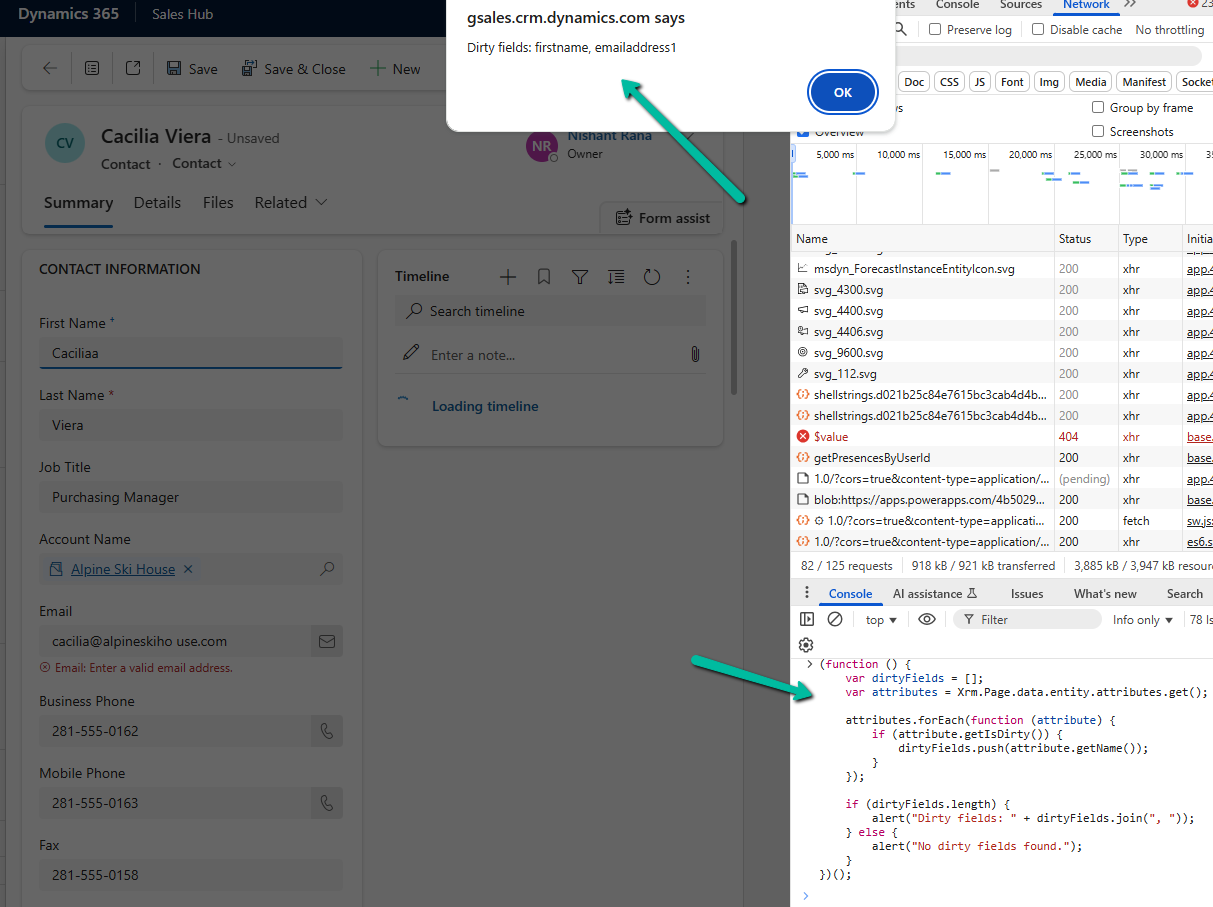
This script loops through all the attributes on the form and checks if they are dirty using getIsDirty(). If it finds any, it shows their names in an alert, otherwise it shows a message saying no dirty fields are found.

For example, if we modify First Name and Email on the Contact form without saving, it will pop up an alert showing:

A screenshot of a computer

AI-generated content may be incorrect.

Here we are using Xrm.Page even though it is deprecated, because it is still the quickest way to test such snippets directly from the console for debugging purposes. In actual form scripts, we should always use formContext.

Hope it helps..
Advertisements

Recent and Pinned options are available now for multi-session app’s sitemap (e.g. Customer Service Workspace)


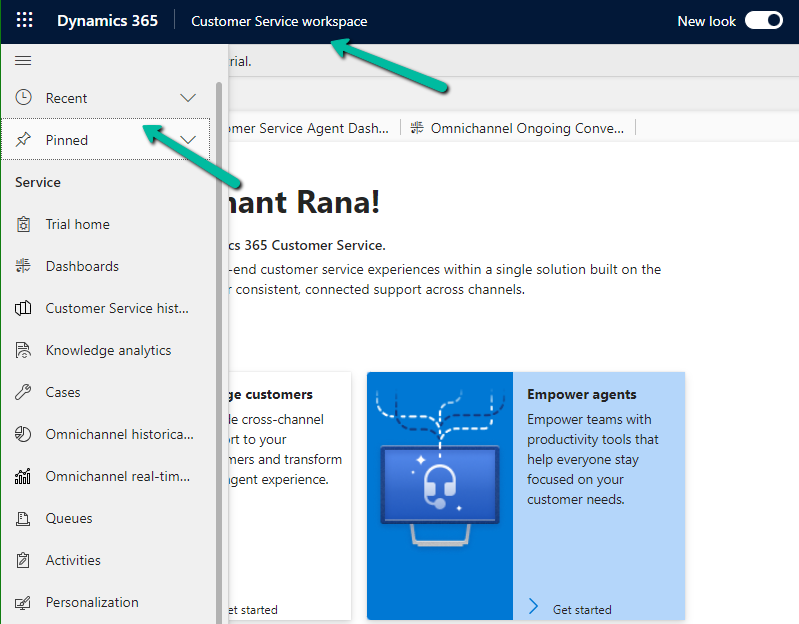
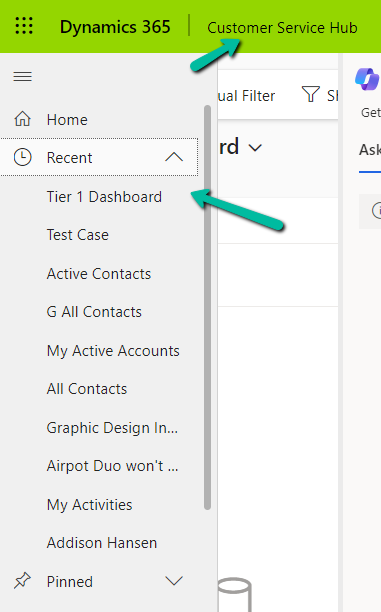
As we would have observed now we have the Recent and and Pinned records option available for the Customer Service workspace app.

A screenshot of a computer

Description automatically generated

The users can see the same Recent and Pinned records while moving between the Customer Service workspace and Customer Service Hub app, giving a consistent experience.

Recent :

Pinned :

Get all the details.

Hope it helps..

Advertisements

Select record quickly inside Lookup control – Model-driven app /Dynamics 365


There is a small enhancement added to the Lookup Control as part of Release Wave 2.

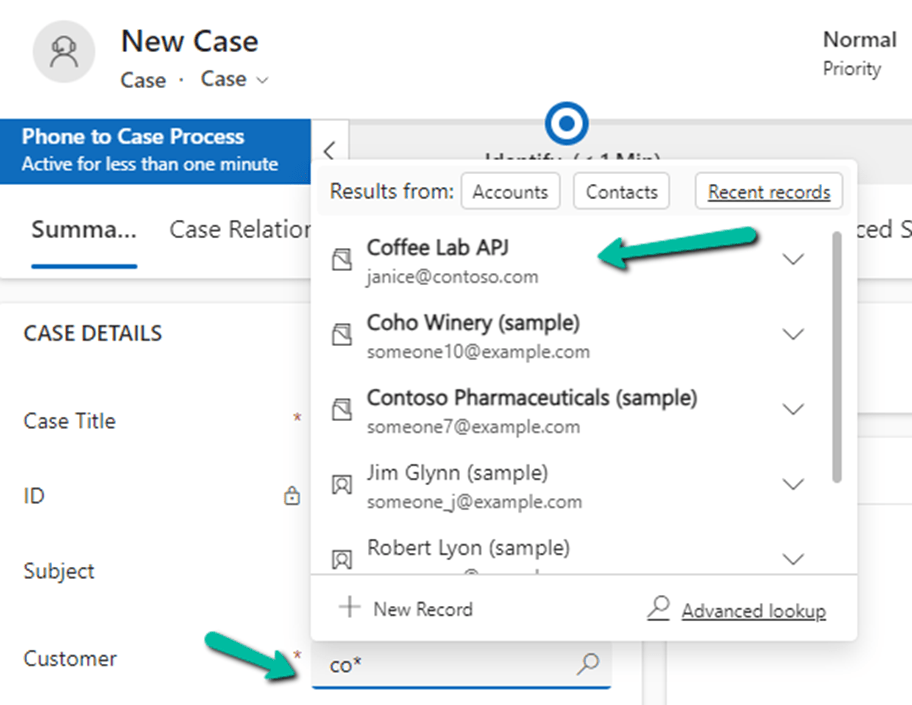
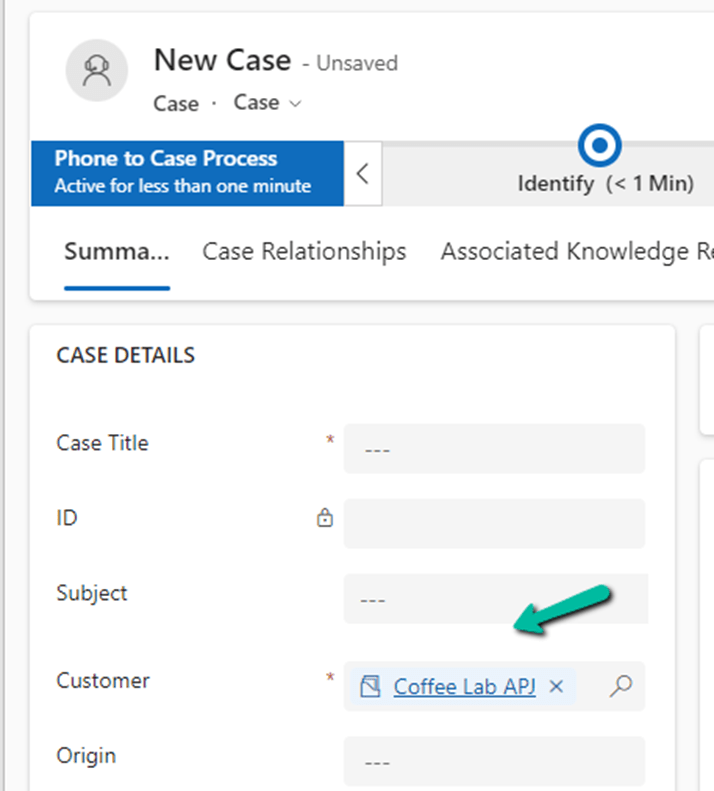
After performing a search for a specific record inside the Lookup Control dropdown menu, e.g. we have performed a search on “co*” on the Customer Lookup for Case.

We can press Enter to have the first item in the list selected.

Get more details

Hope it helps..

Advertisements

New features added in Grid– Dataverse / Dynamics 365


With Release Wave 2, we can see the below features added to Grid.

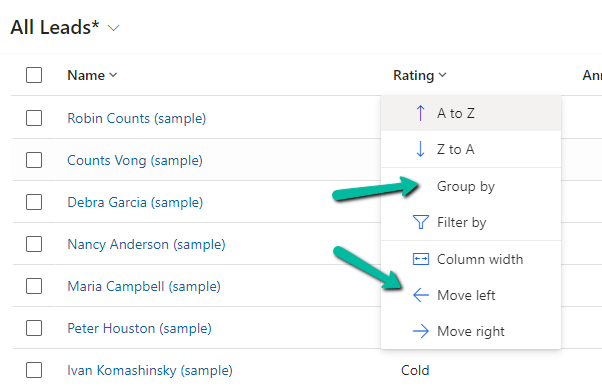
The option to Group By, Column Width, Move Left and Move Right.

A screenshot of a computer

Description automatically generated

Group By (Rating) –

A screenshot of a computer

Description automatically generated

Move Left and Move Right as expected will move the selected column accordingly. Not only that we can also Drag and Drop the columns, here we have dragged the Rating column as the 1st column.

A screenshot of a computer

Description automatically generated

Column Width – allows us to specify the preferred width of the column.

A screenshot of a computer

Description automatically generated

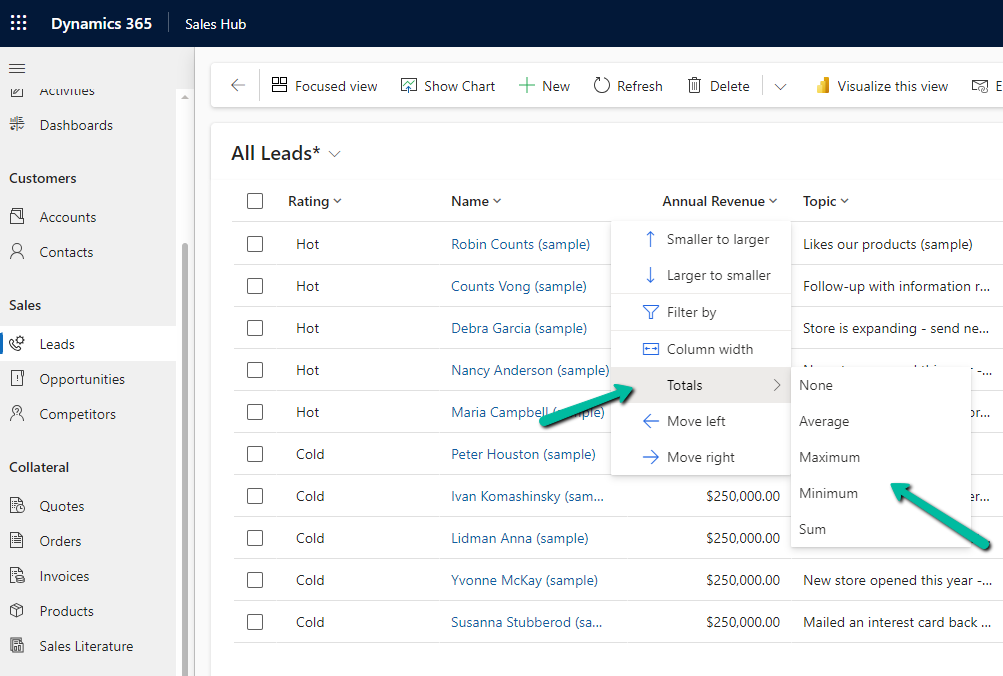
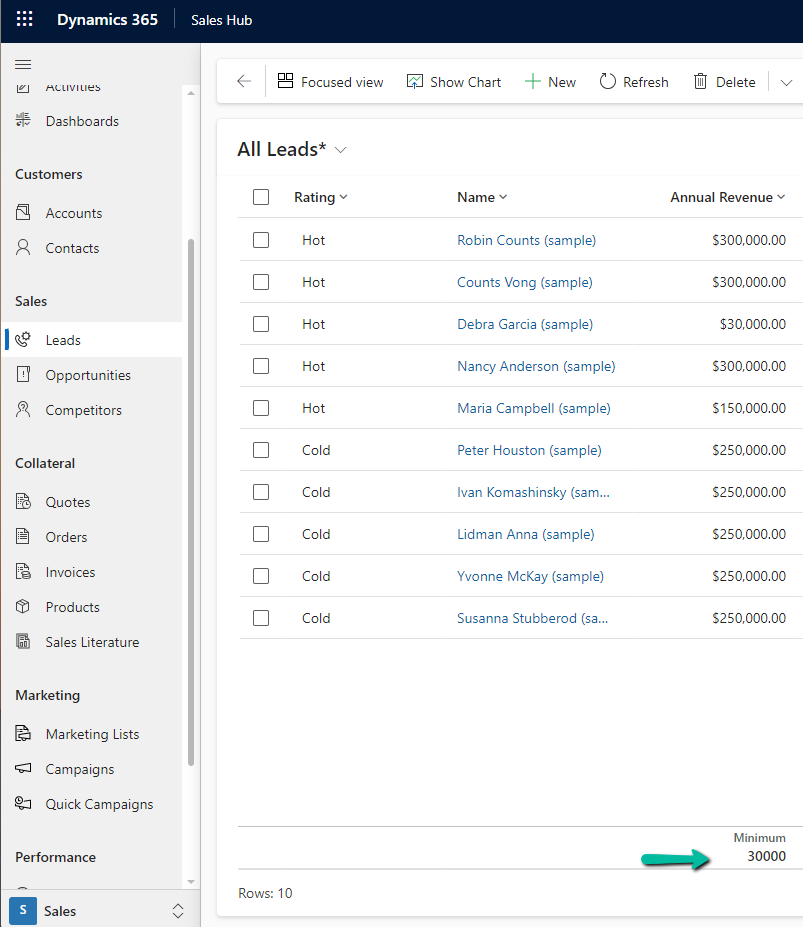
Totals > None, Average, Maximum, Minimum, Sum.

For the numerical column, Annual Revenue in this case we get the option to calculate the total

A screenshot of a computer

Description automatically generated

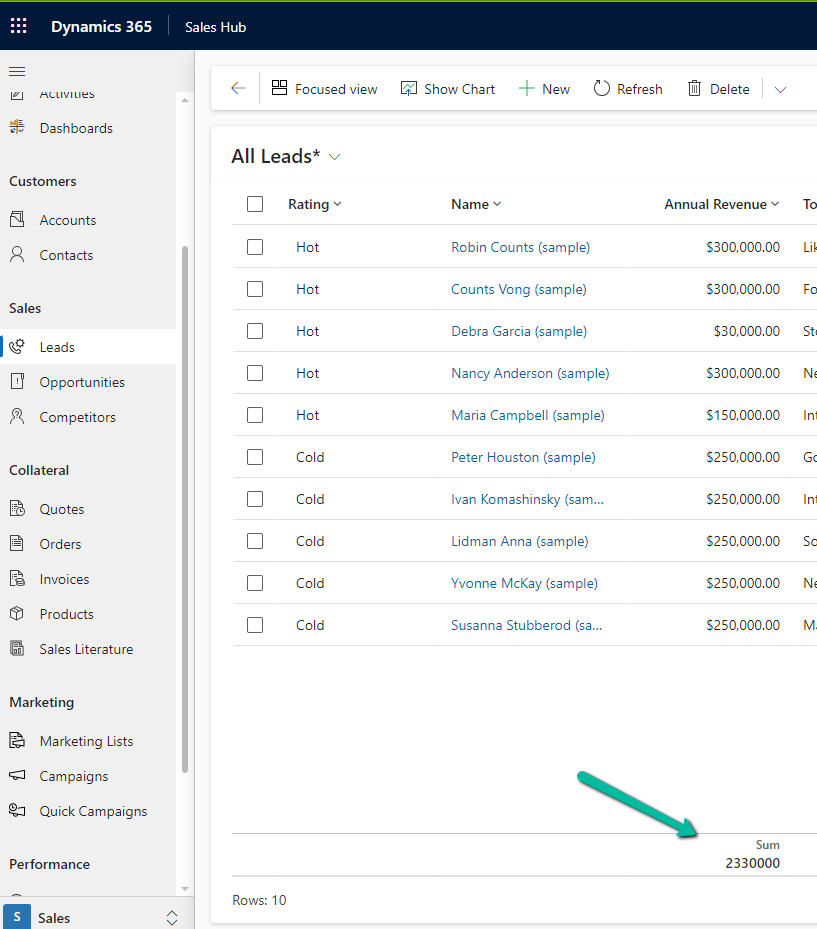
Selecting Total > Sum, adds a row at the bottom, showing the total sum

A screenshot of a computer

Description automatically generated

Similarly selecting minimum shows the minimum value.

A screenshot of a computer

Description automatically generated

Hope it helps..

Advertisements

How to – enable/disable the timeline highlights generated by generative AI – Dataverse / Model-drive Apps


With the Timeline highlights (Generative AI) feature, agents can quickly view the critical information (summary) about the different activities in the timelines, without the need for clicking/reading through each of the activities.

We can enable and disable it at both the form level, app level and environment level.

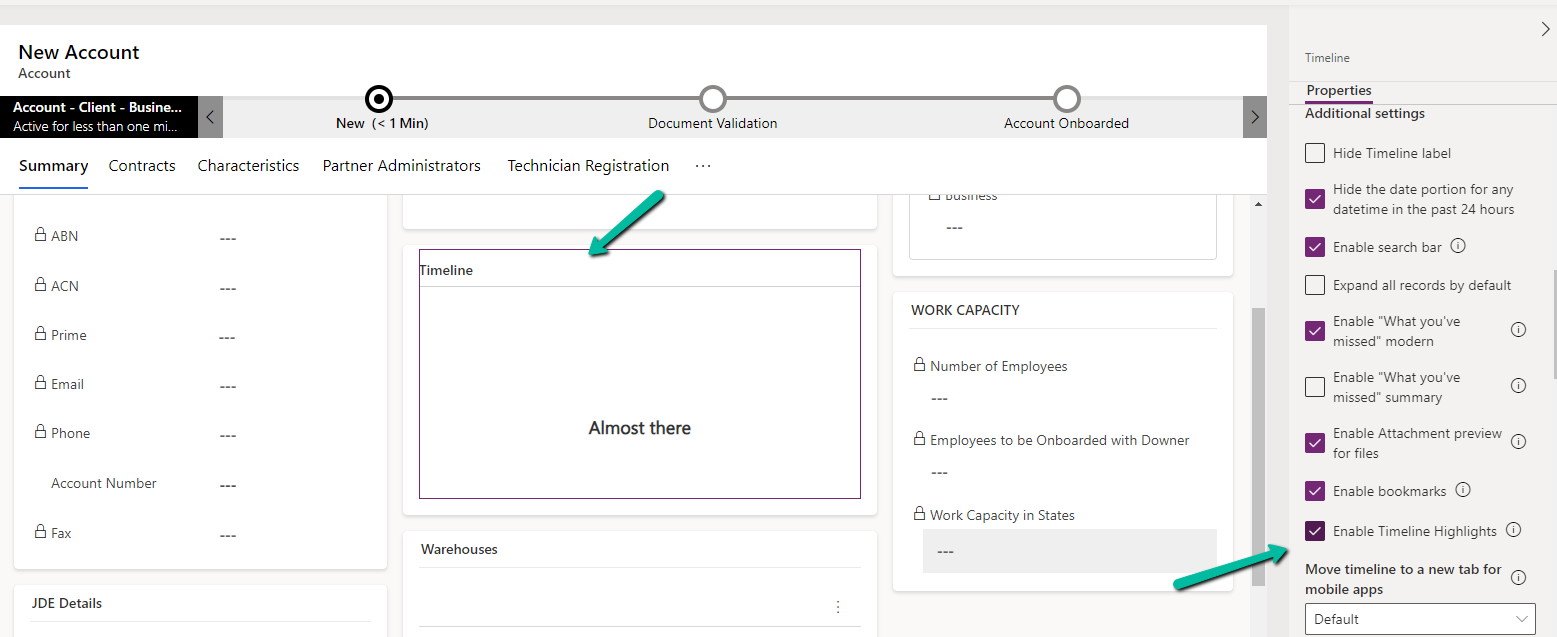
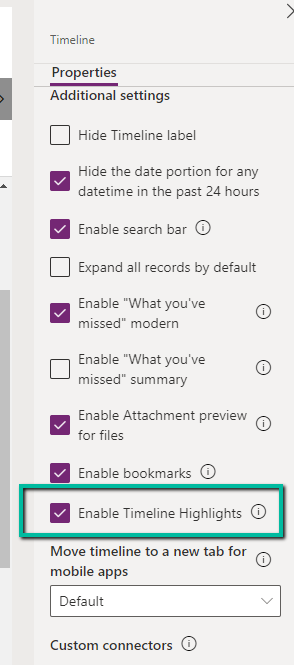
At the form level, we can check/uncheck the Enable Timeline Highlights checkbox for the timeline component.

A screenshot of a computer

Description automatically generated
A screenshot of a computer screen

Description automatically generated

At the App level, open the Settings >> Features for the corresponding App.

A screenshot of a computer

Description automatically generated

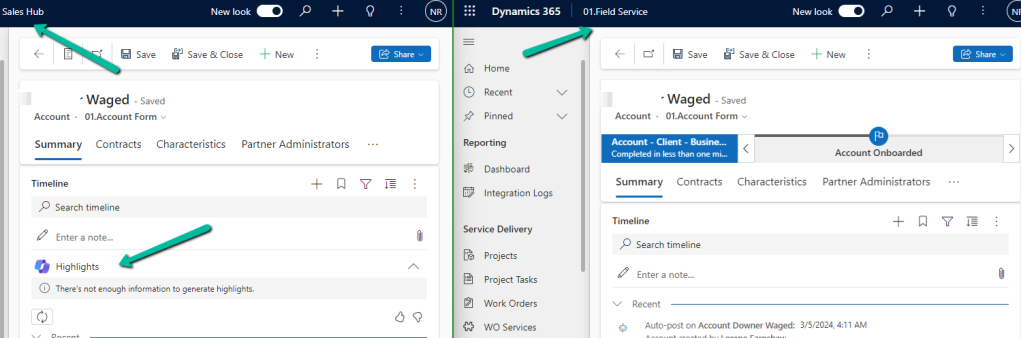
Here if we disable it at the App-level it won’t show up even if it is enabled for that particular form for that particular app.

For e.g. we see timeline highlights in the Sales Hub App but not in the Field Service app in which we had it disabled for the account form.

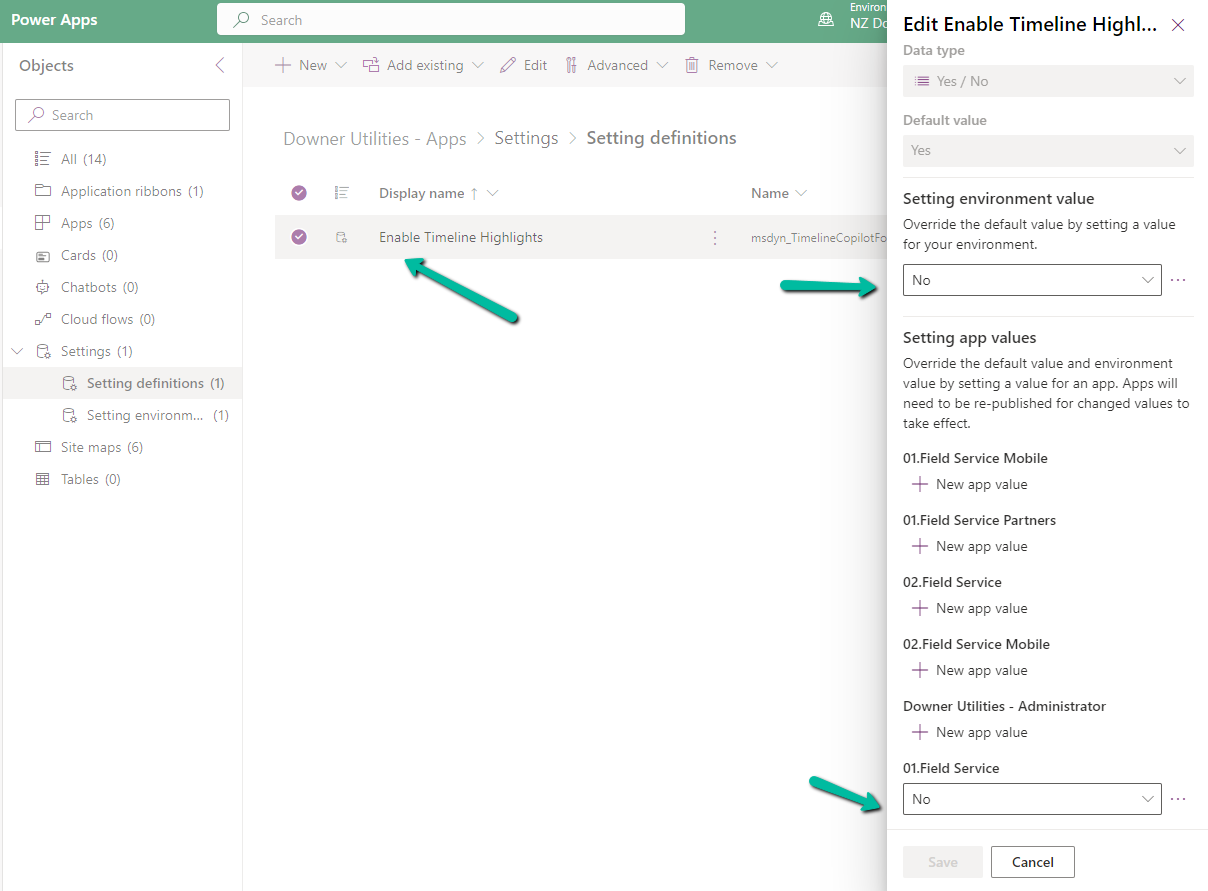
We can also specify it using the Setting Definitions and Environment values as shown below.

A screenshot of a computer

Description automatically generated

More details –

Use timeline highlights powered by generative AI

Timeline highlights help users quickly access actionable record updates

Hope it helps..