Using the “Sales Copilot” we can get the list of leads and opportunities assigned to us in the last 15 days.
For this, we can use the “What’s newly assigned to me” prompt
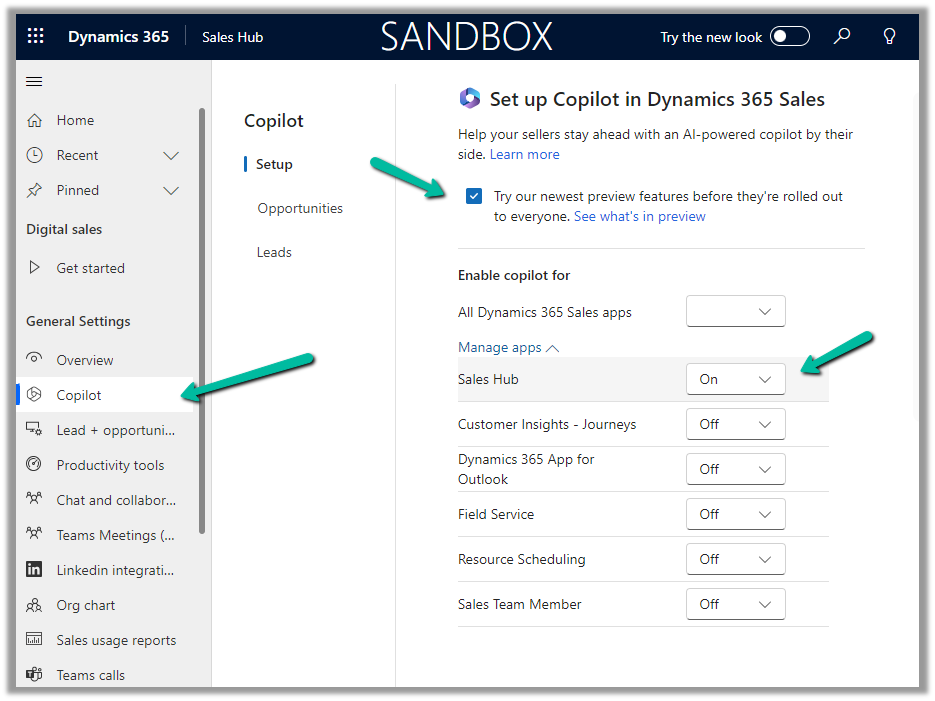
To enable Sales Copilot, Inside Sales Hub, navigate to App Settings >> Copilot (General Settings) and specify the Sales Apps in which we want the Sales Copilot to be enabled.
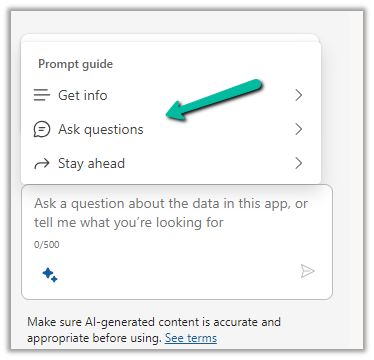
To see it in action, open the Sales Copilot Help Pane, select the Sparke Icon to open the Prompt Guide, then Ask questions >> What’s newly assigned to me
The result shows the list of leads and opportunities assigned to you in the last 15 days.
We can than select the record and click on Summarize to get the summary or can open the record to see the details.
Using the “Sales Copilot” we can get the list of opportunities assigned to us.
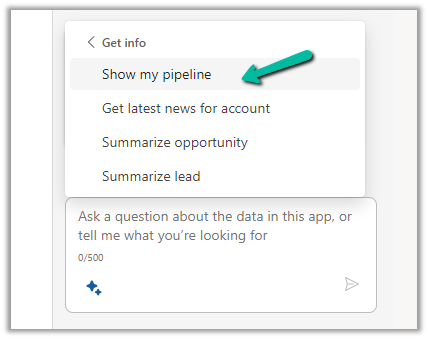
For this, we can use the “Show my pipeline” prompt
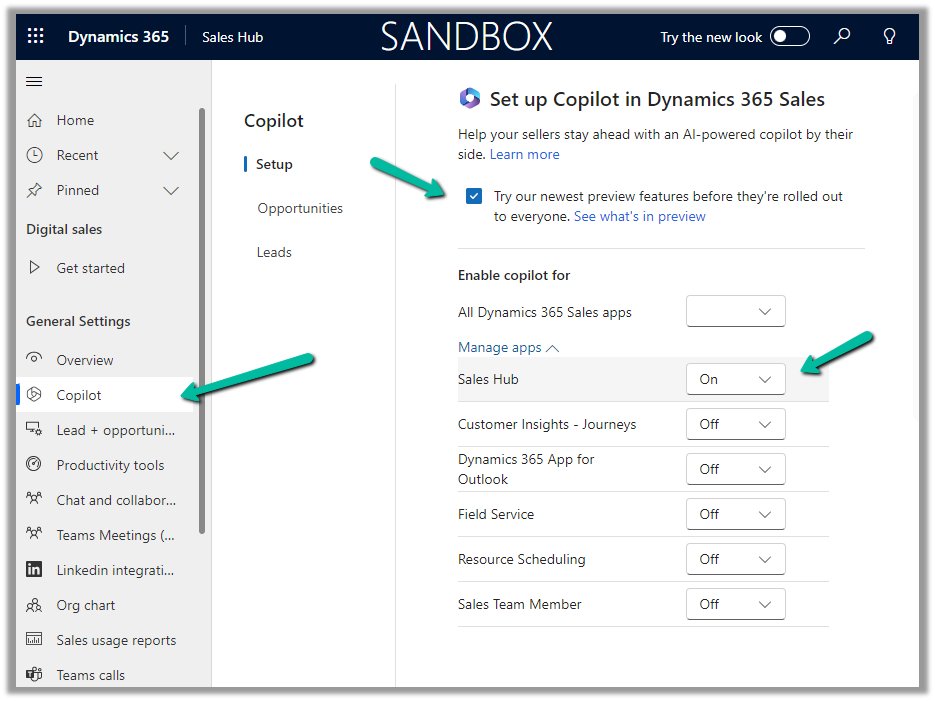
To enable Sales Copilot, Inside Sales Hub, navigate to App Settings >> Copilot (General Settings) and specify the Sales Apps in which we want the Sales Copilot to be enabled.
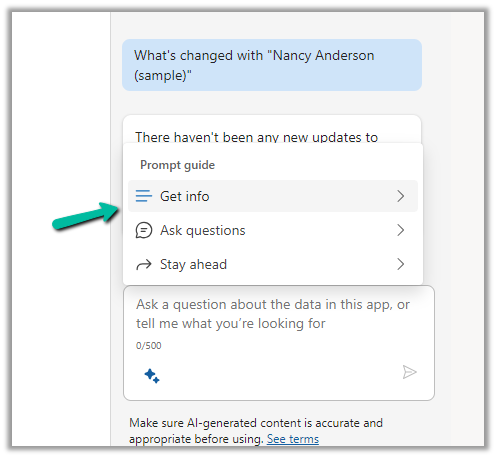
To see it in action, open the Sales Copilot Help Pane, select the Sparke Icon to open the Prompt Guide, then Get Info >> Show my pipeline
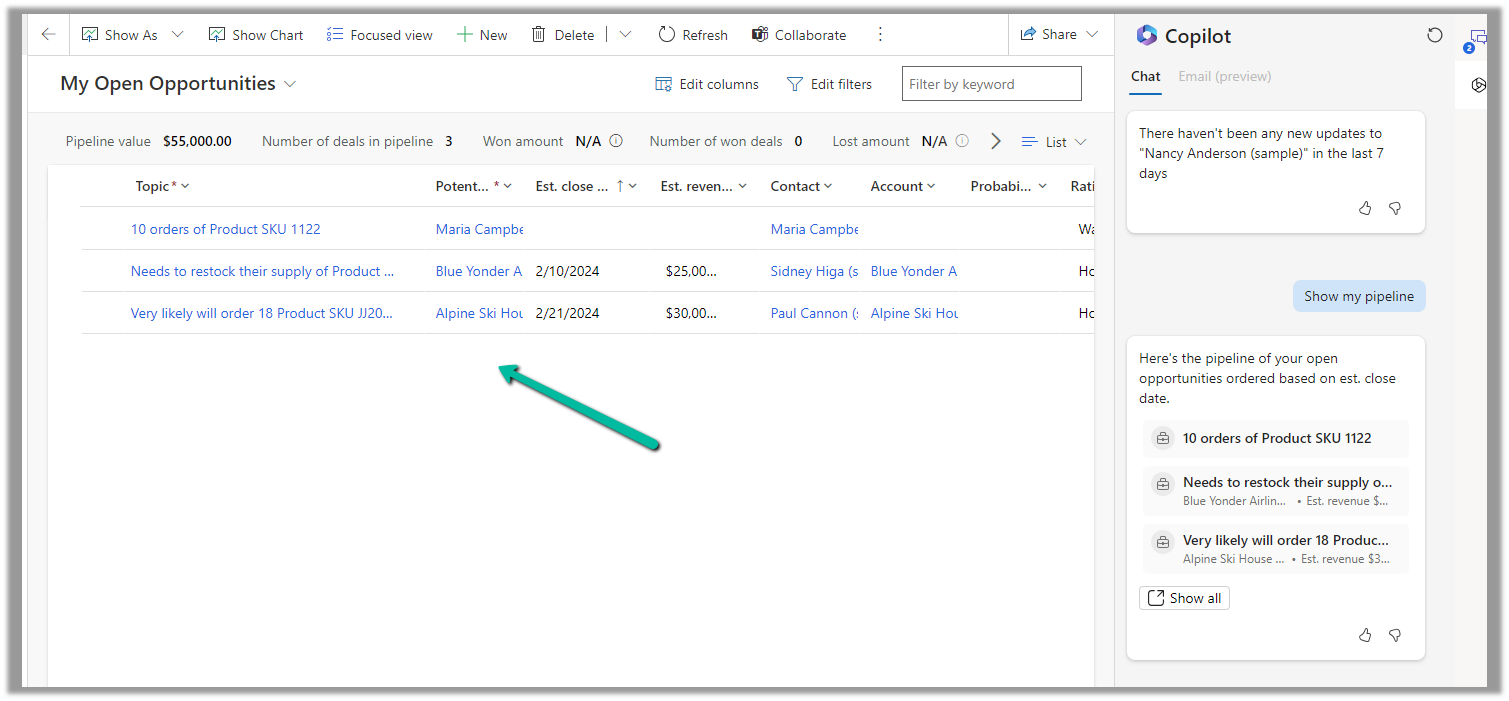
The result shows the opportunities sorted based on the estimated close date.
Clicking on “Show all” opens the corresponding opportunity view.
Using Solution Health Hub we can validate the environment’s configuration, which might get modified over time, to get an idea about the state of that environment and detect and resolve any issues. Solution Health Hub enables rules-based validations, which we can run periodically or manually if we encounter any issues. The rules also get triggered automatically when solutions are installed or updated by Microsoft. The rules check if some of the required processes are disabled or owned by a disabled user, if some of the required web resources are missing, if certain plugin steps are not active etc.
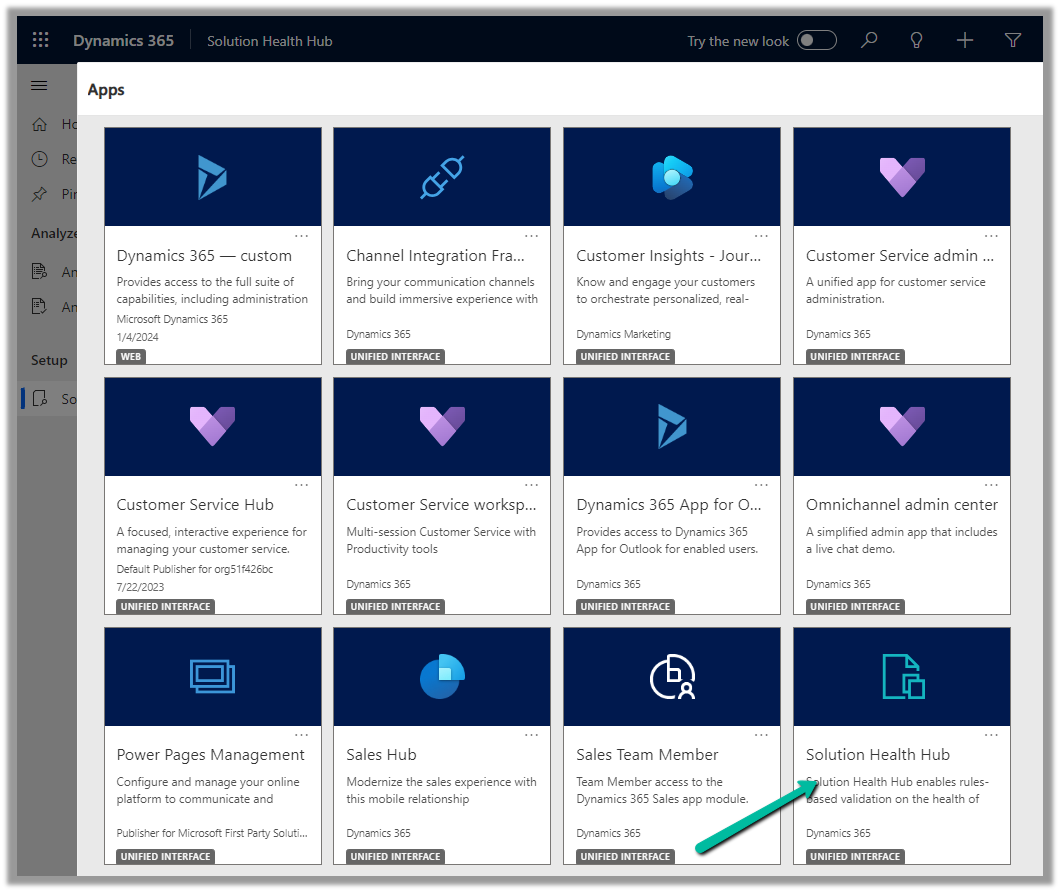
Let us open the Solution Health Hub app and see it in action.
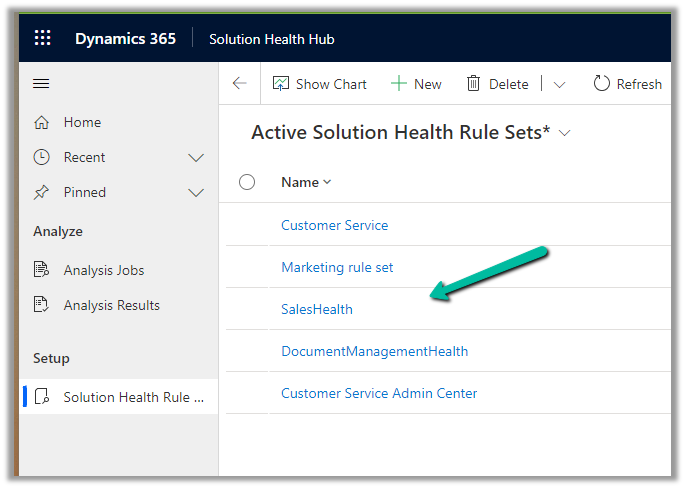
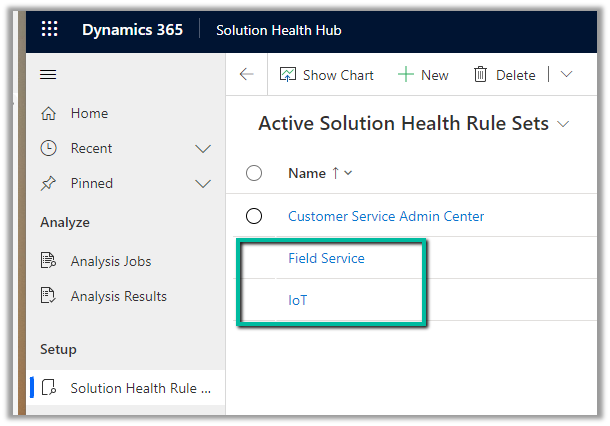
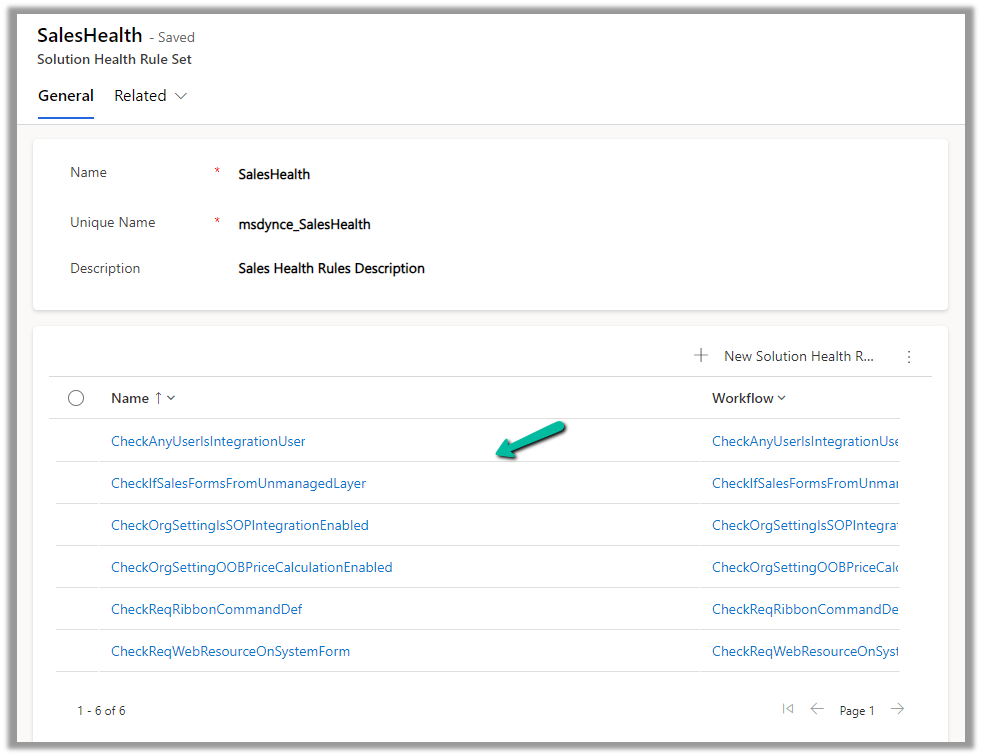
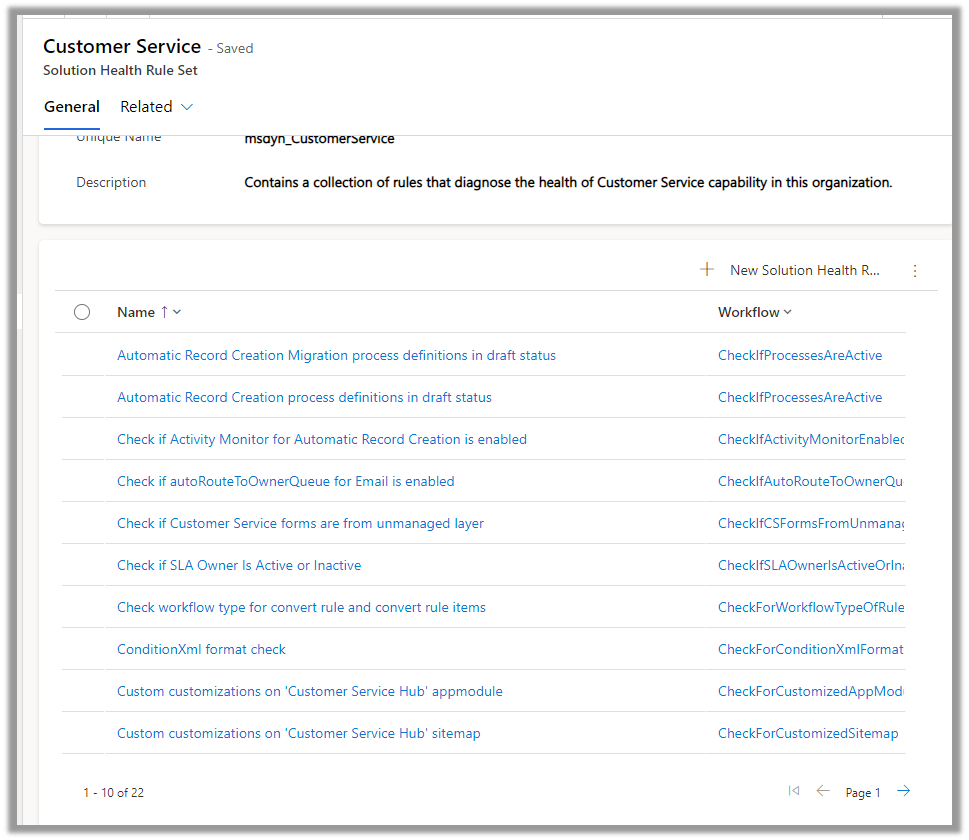
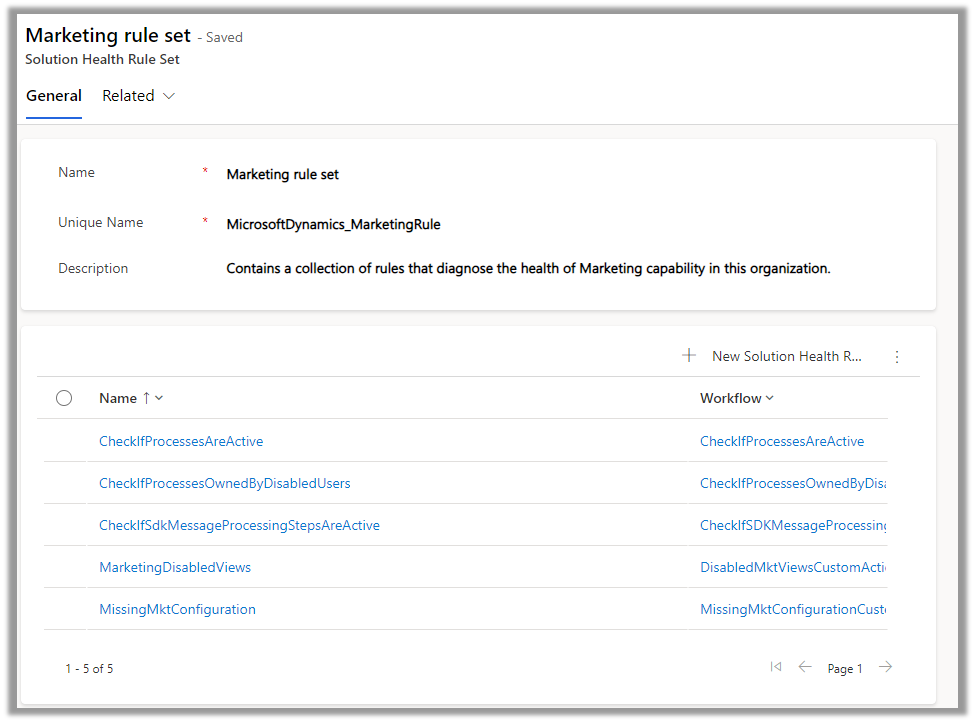
We can see the Rule Sets created specific to different areas (app) like Sales, Marketing, Customer Service, etc.
For an environment where Field Service is configured, we can see the following rule sets.
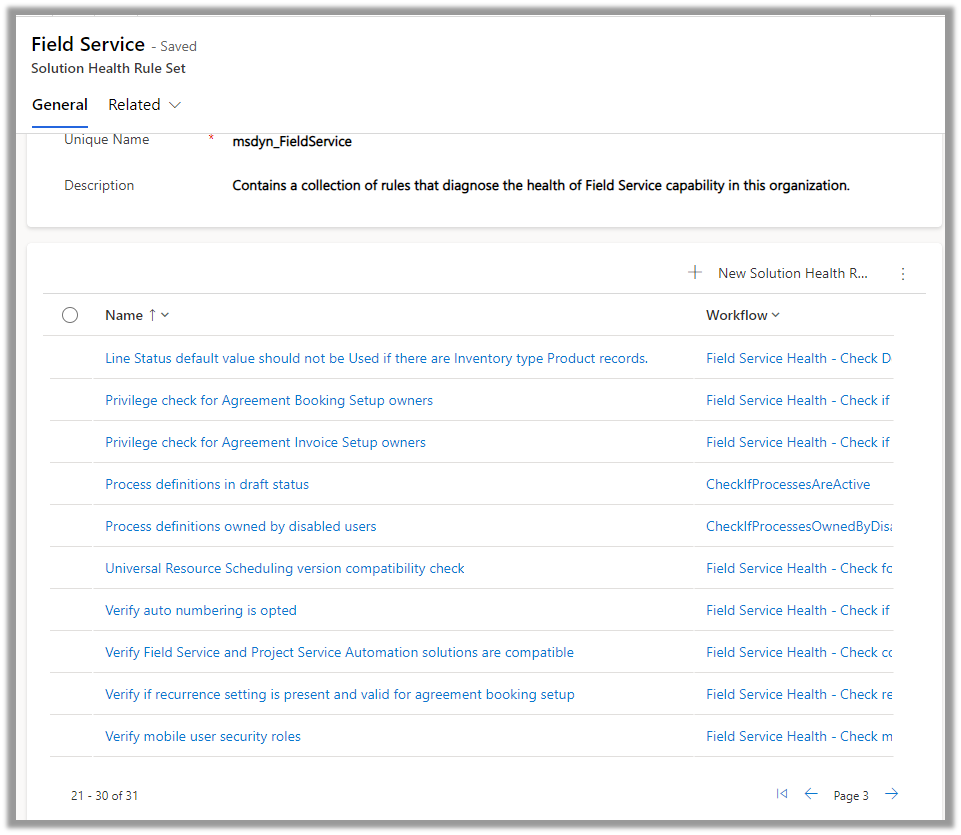
Let us open the Field Service Rule Set and see the rules defined for it.
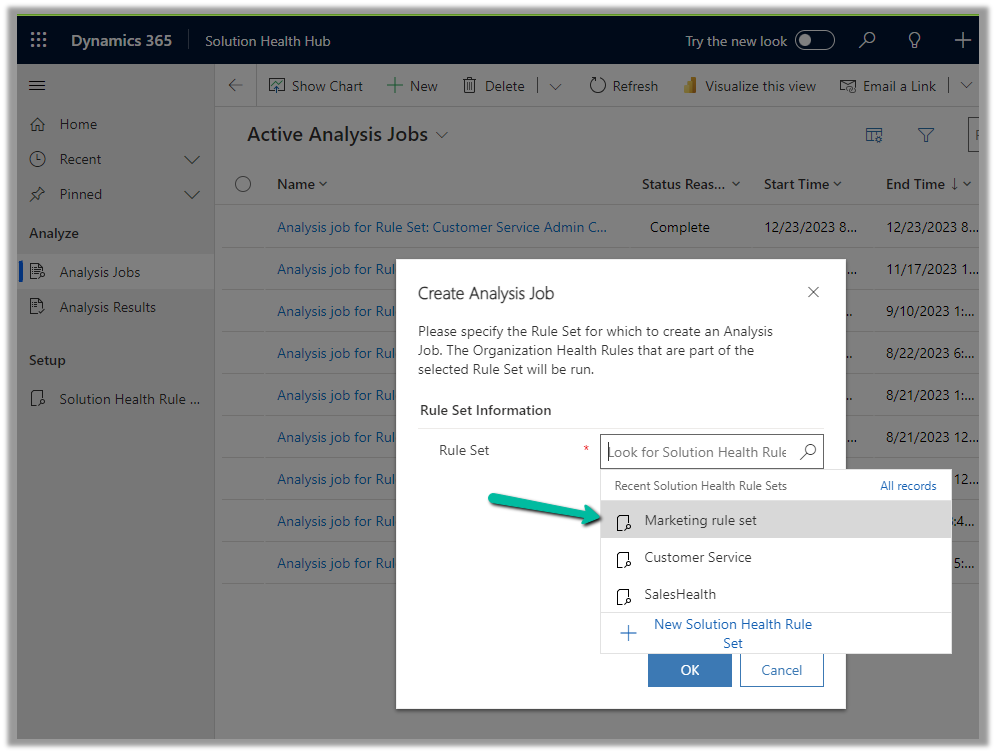
To run the Rules, we need to create a new Analysis Job record and select the corresponding Rule Set.
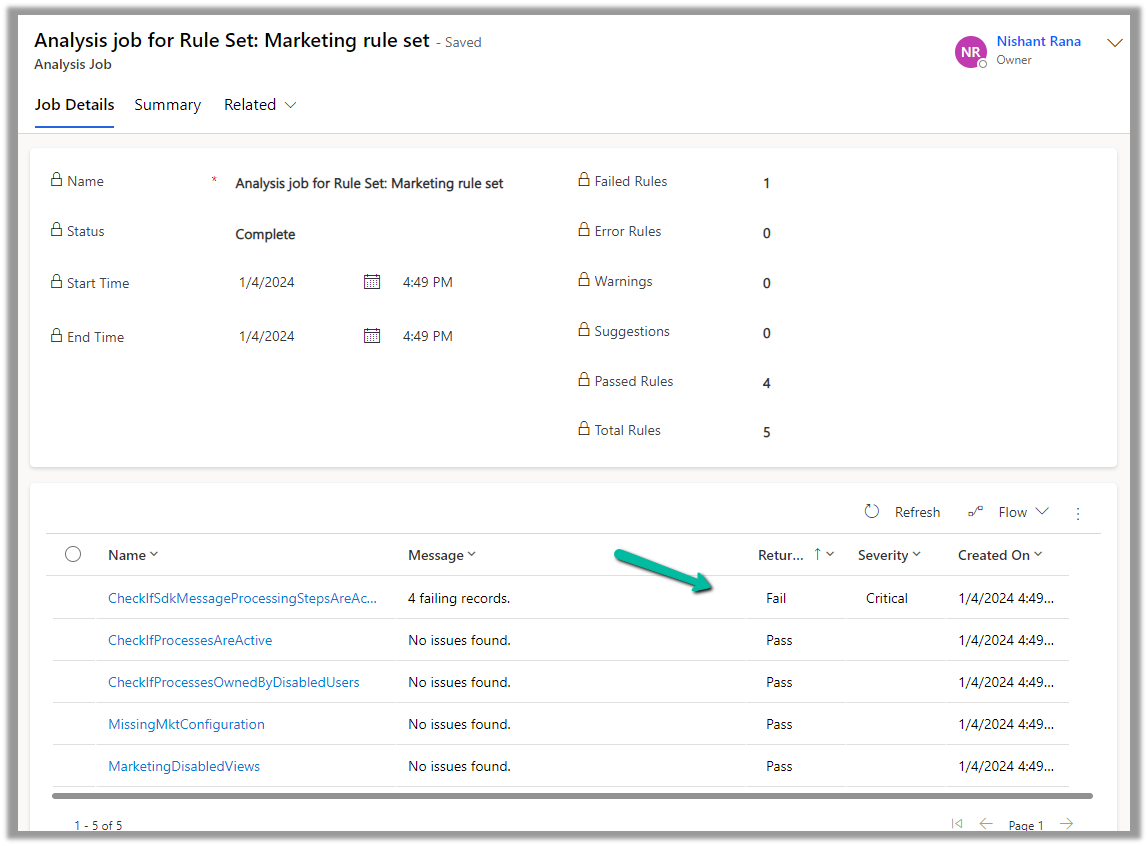
A summary of rule-set executions will be shown in a few seconds. (runs asynchronously)
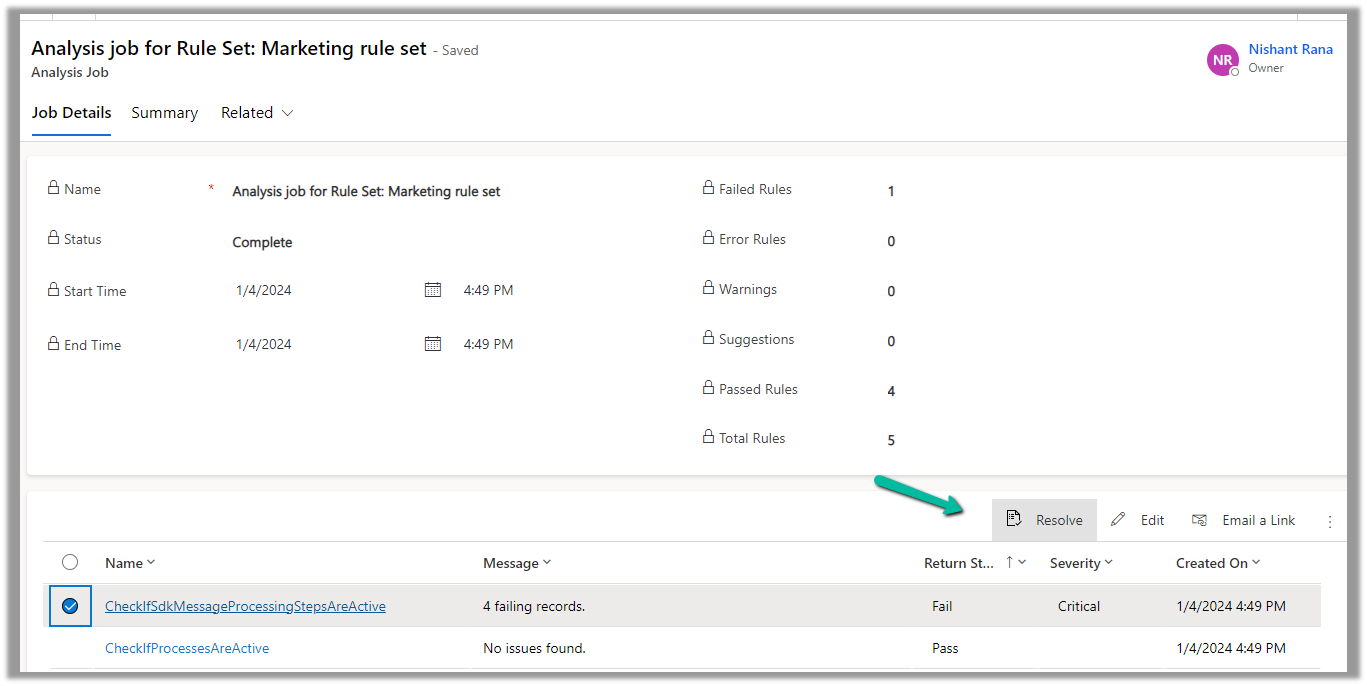
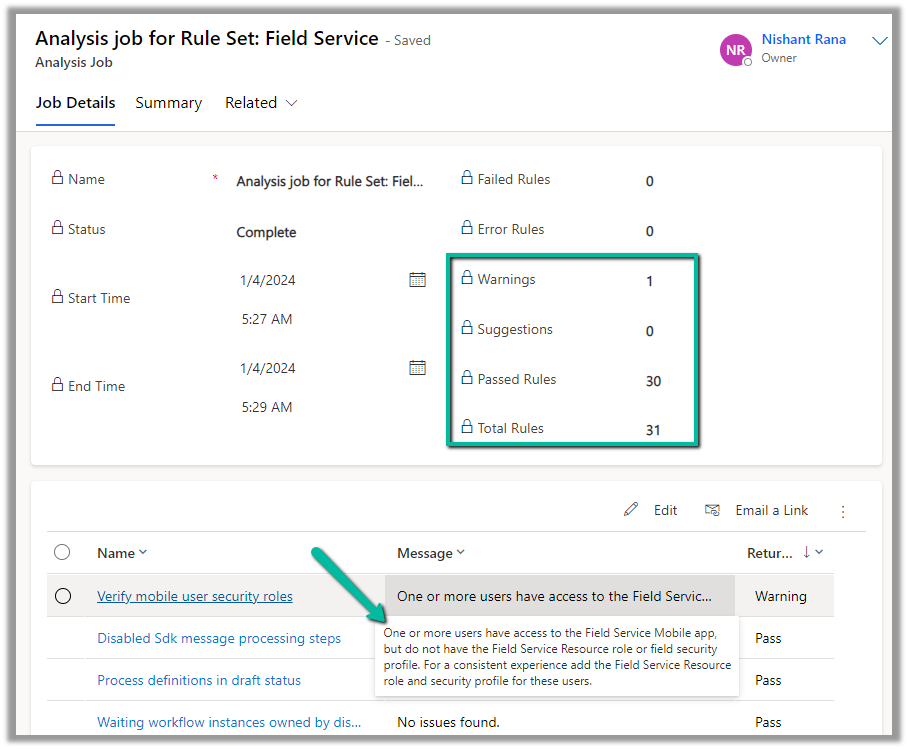
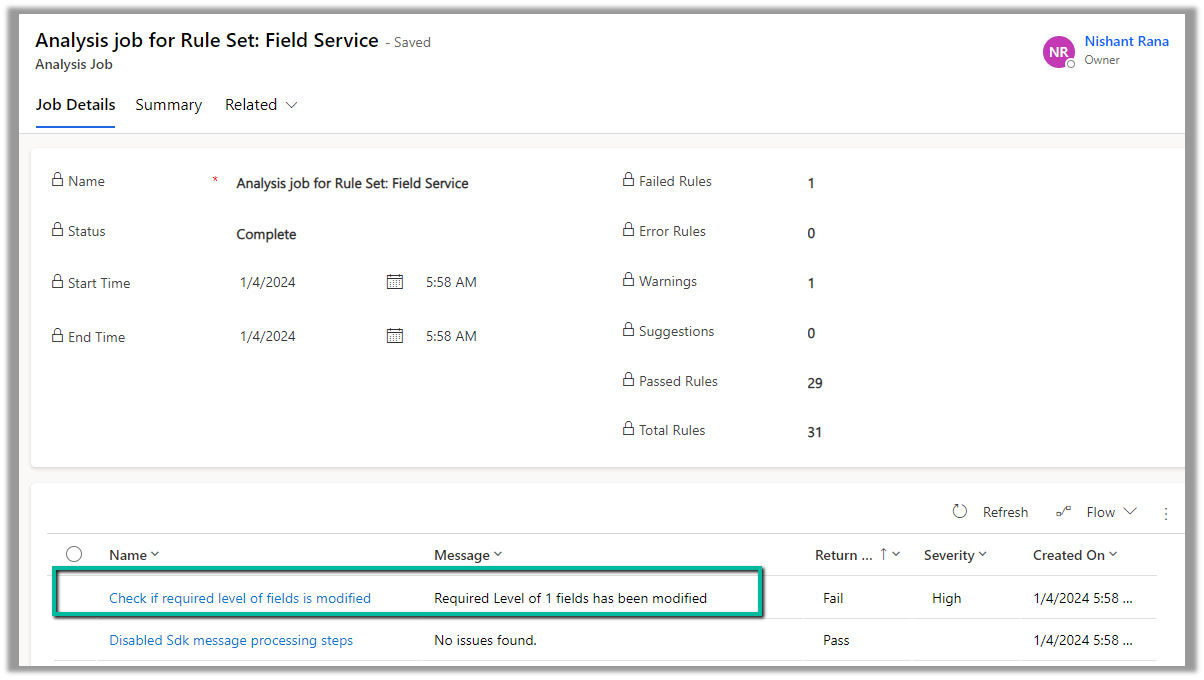
We can see one of the rules failed.
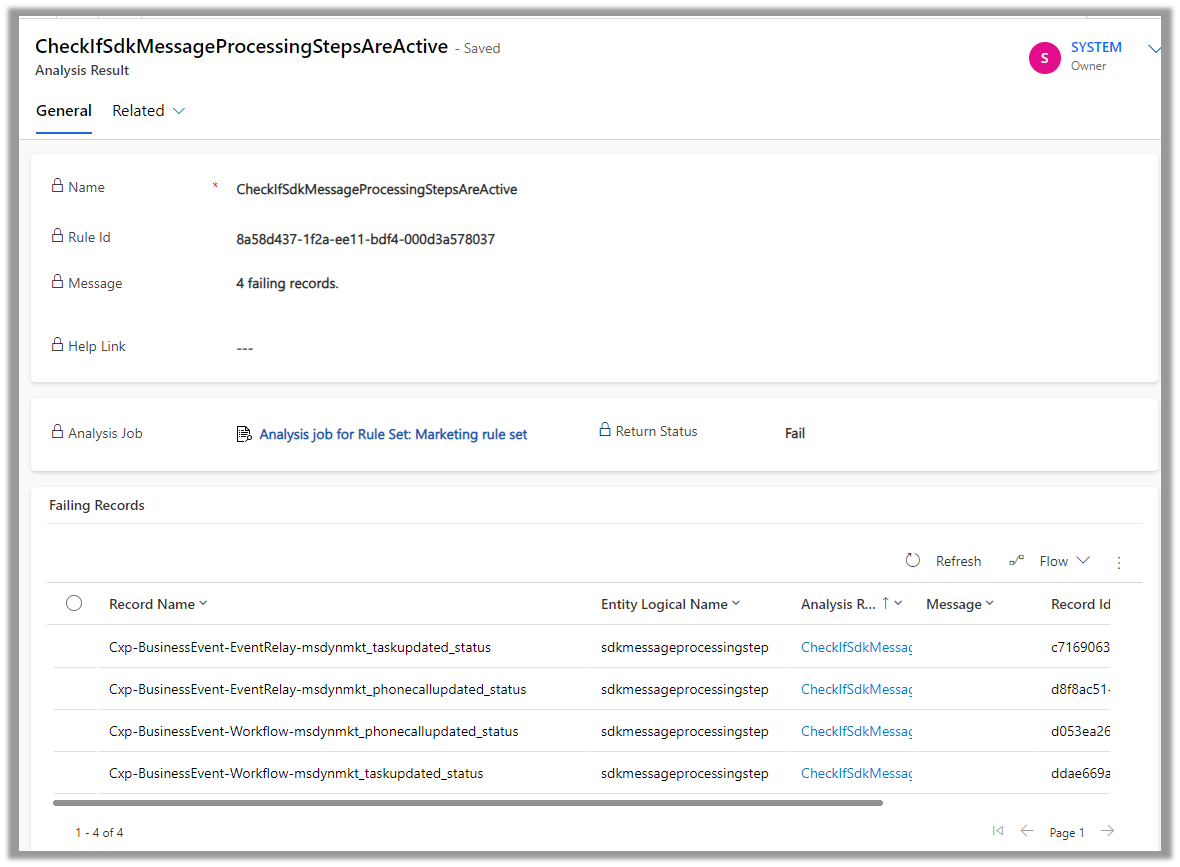
Opening the record, we can see the details.
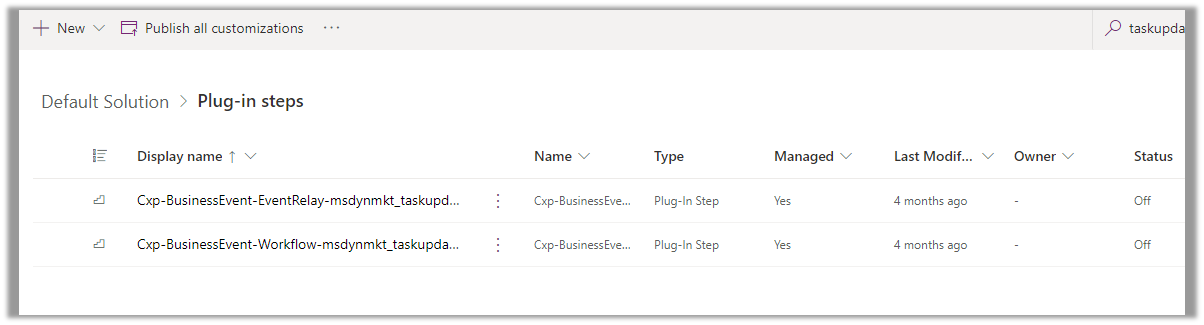
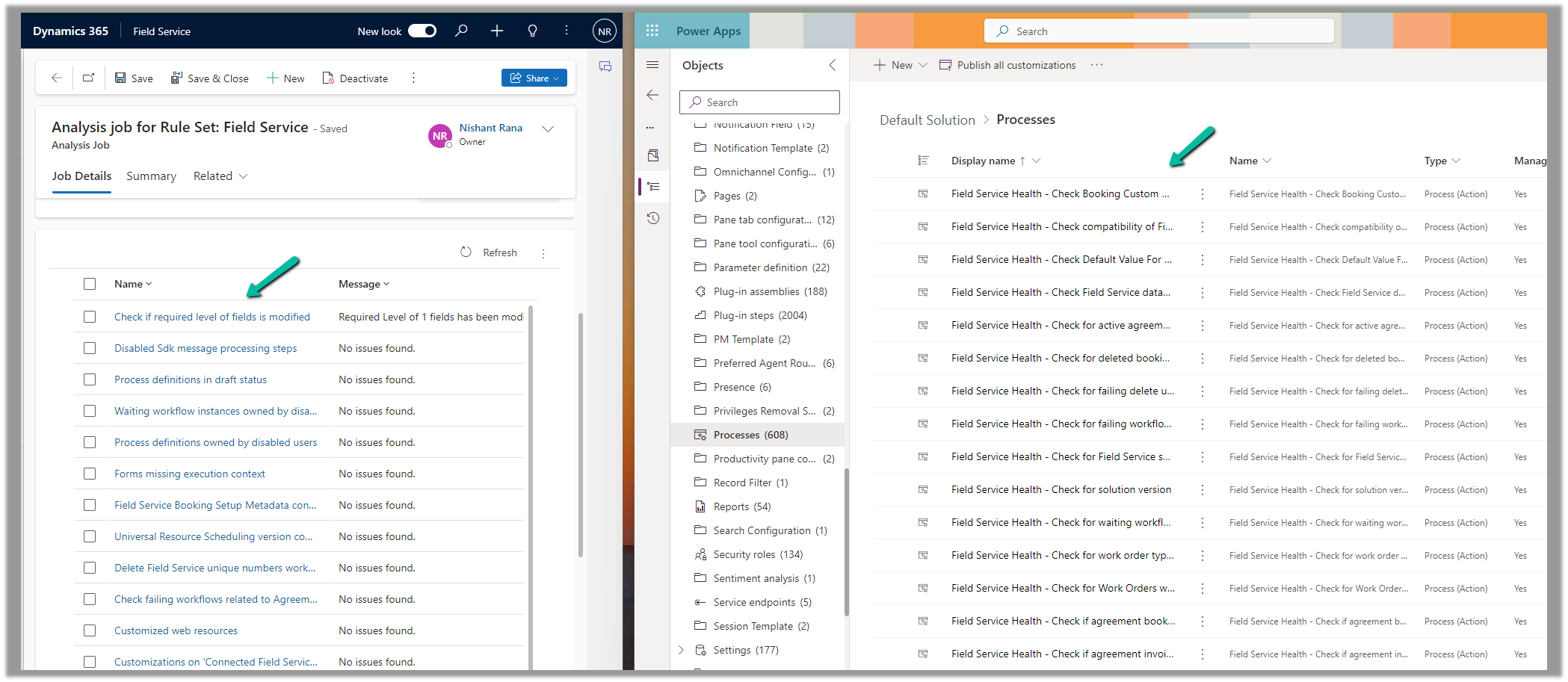
Back in our solution, we can see the steps in the disabled state.
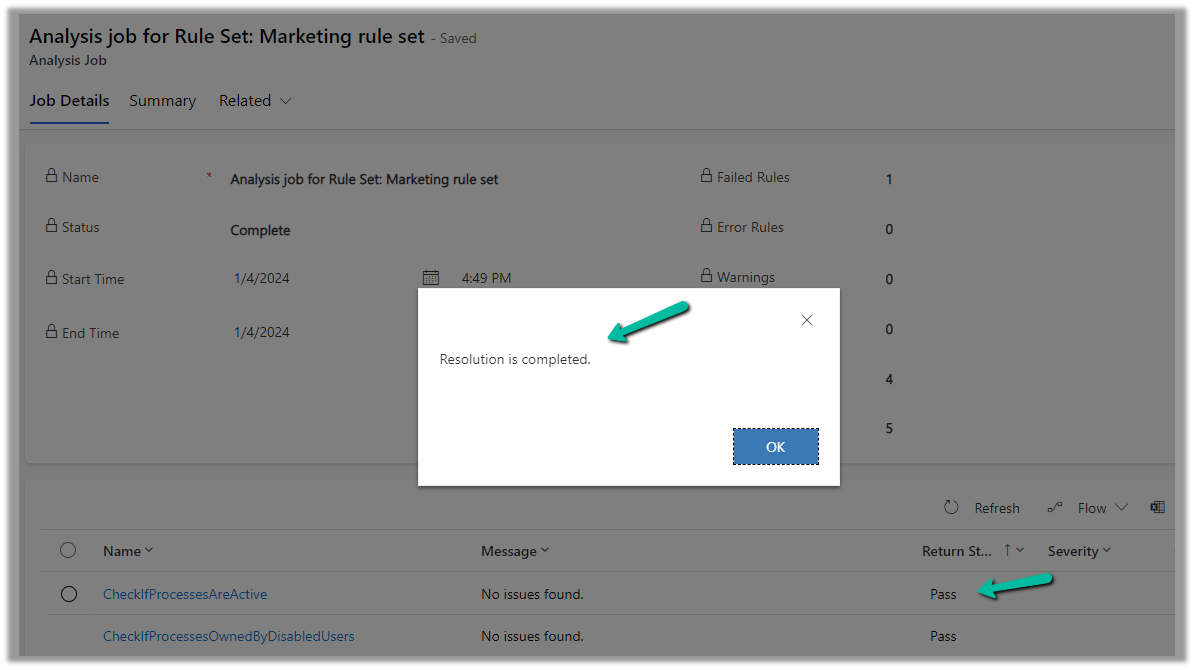
Back in our Analysis Job, let us select the failed rule and click on Resolve.
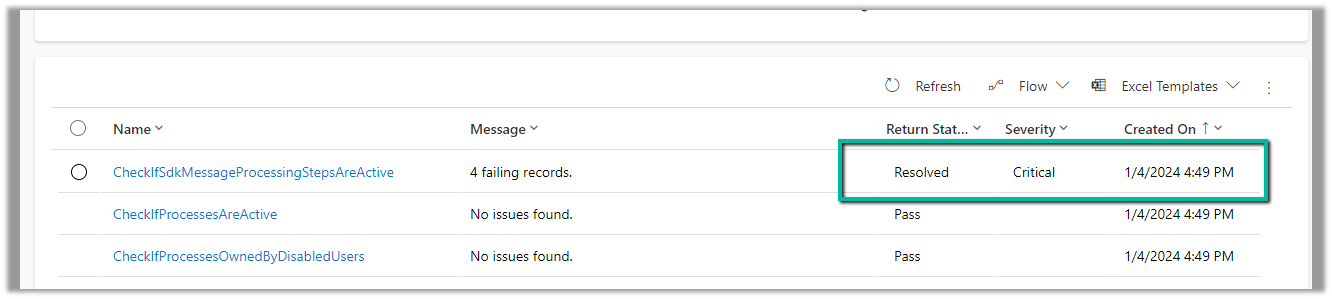
We can see the message “Resolution is completed.” and the rule passed.
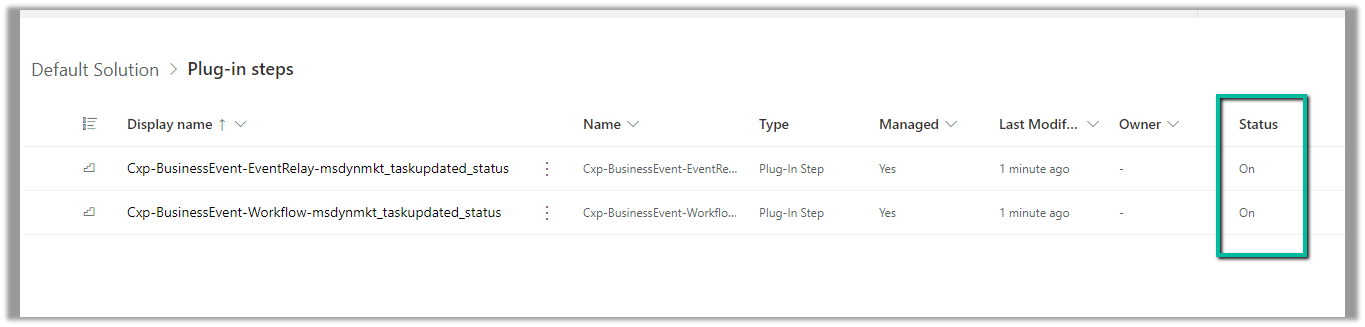
Back inside our solution, we can also see the status as On for those steps.
Now let us run an analysis job for Field Service
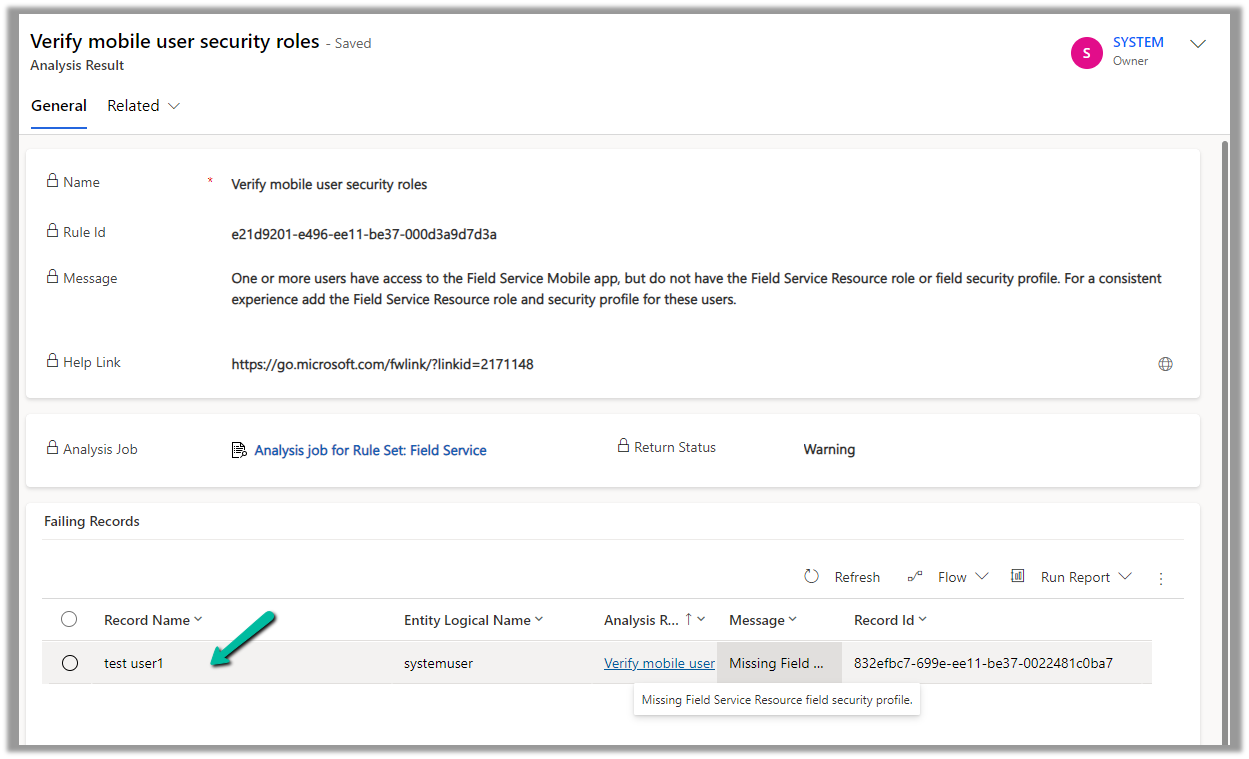
On opening the record, we can see the user for which the roles are missing.
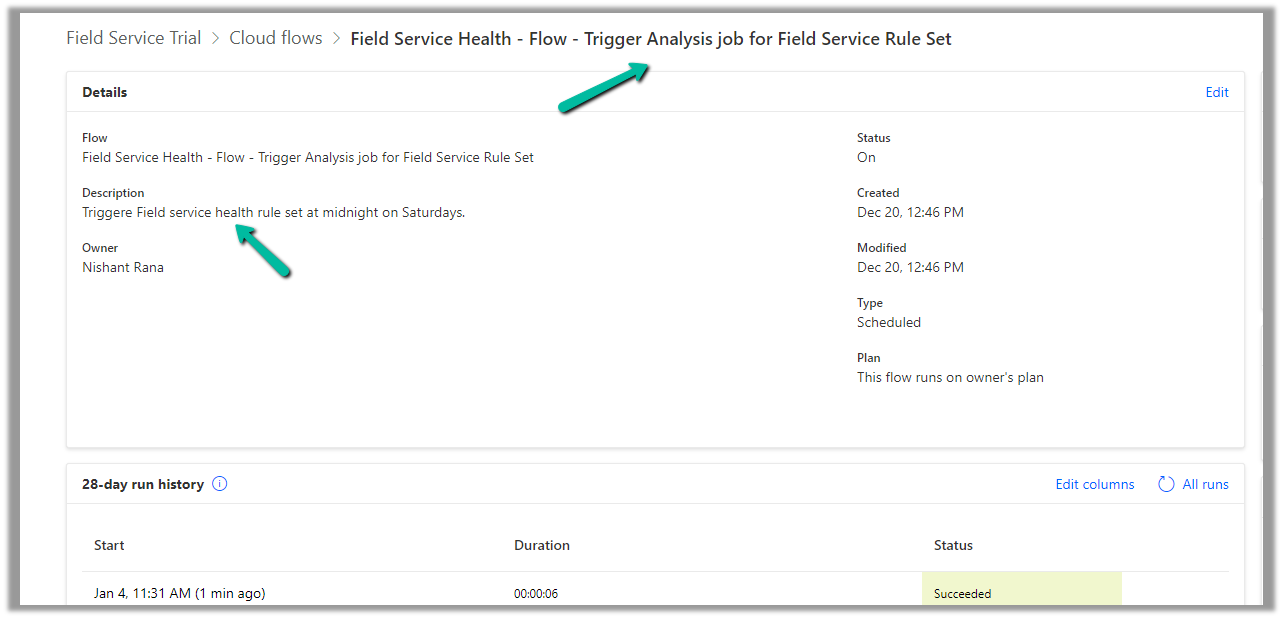
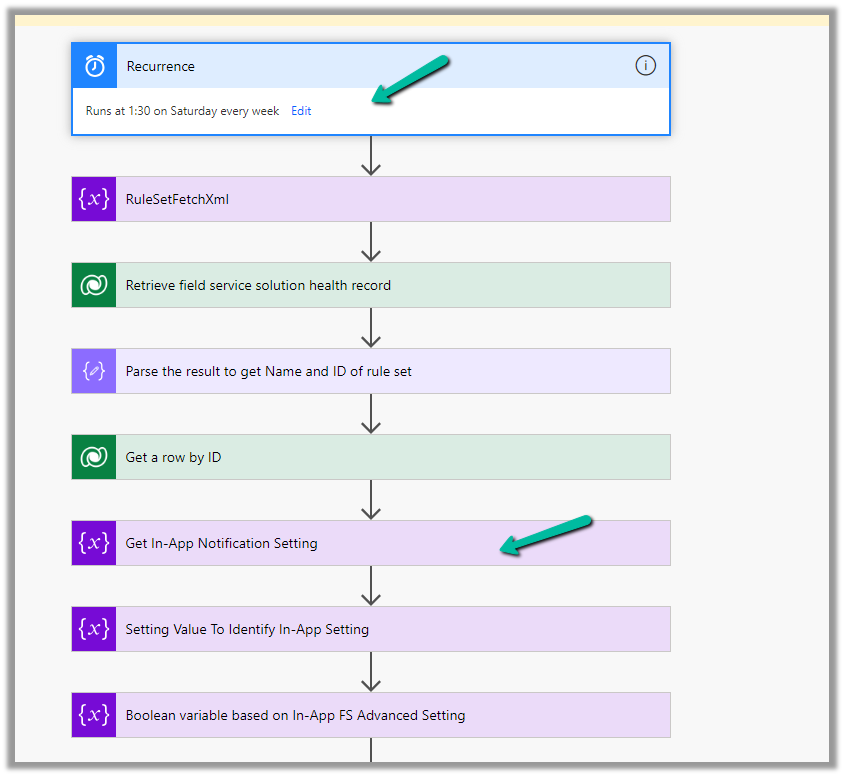
For Field Service, we can see an out-of-the-box cloud flow that runs at midnight on Saturdays to trigger the analysis job for the Field Service Rule Set.
And sends the In-app notifications.
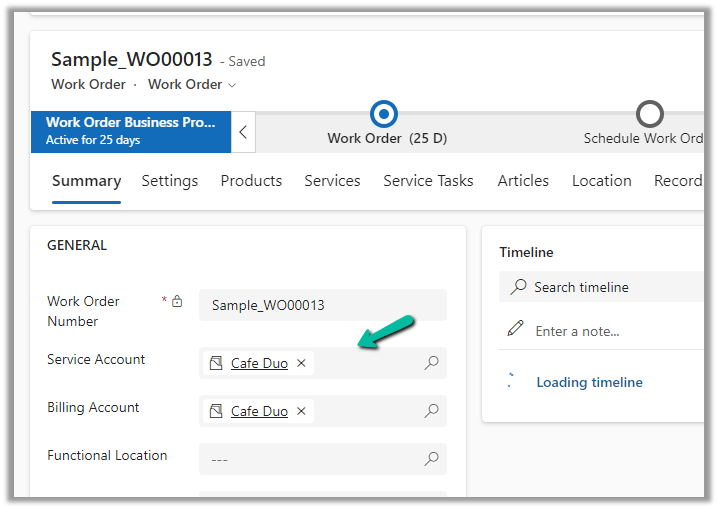
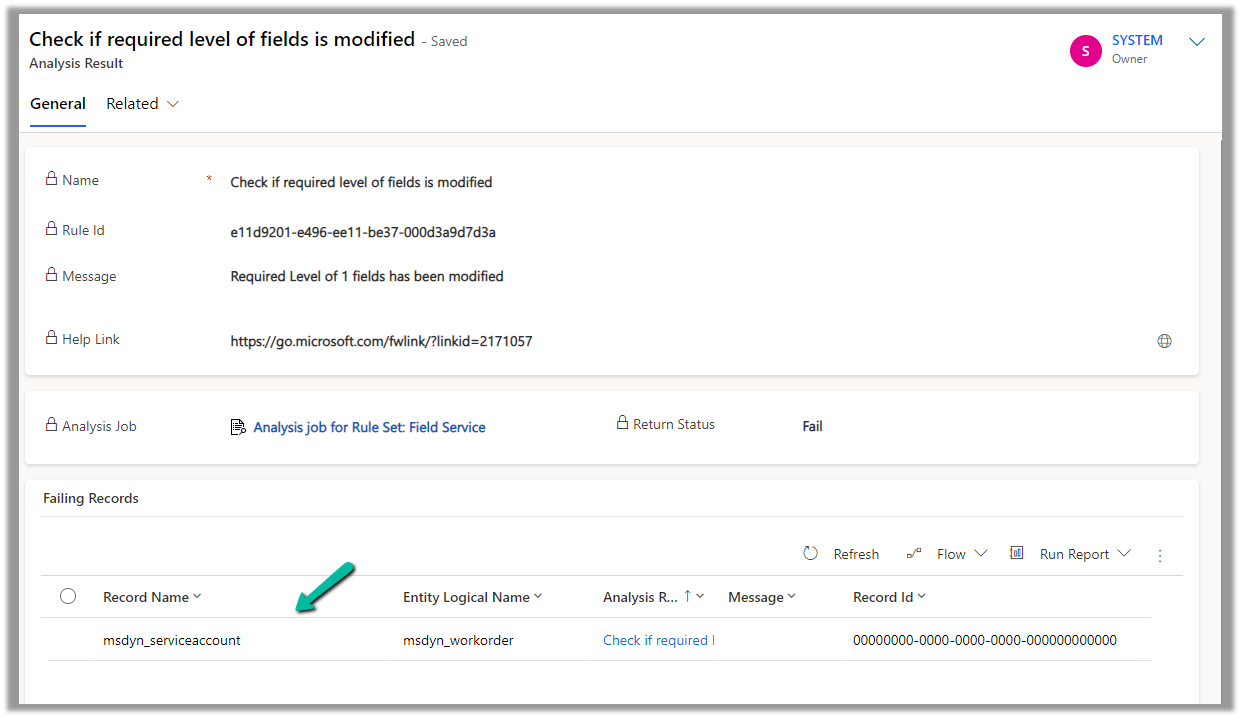
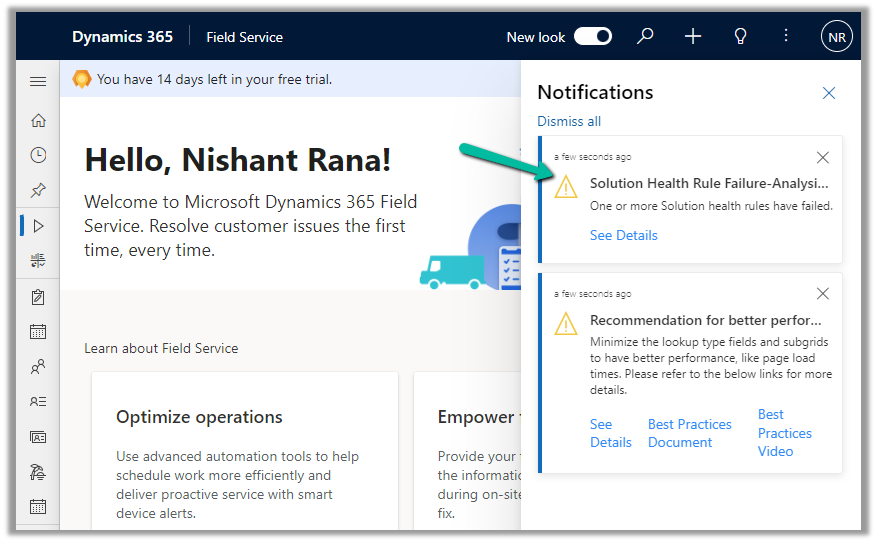
Now if a rule fails, we can get the in-app notifications, e.g. we had set the Service Account field as optional on the Work Order form.
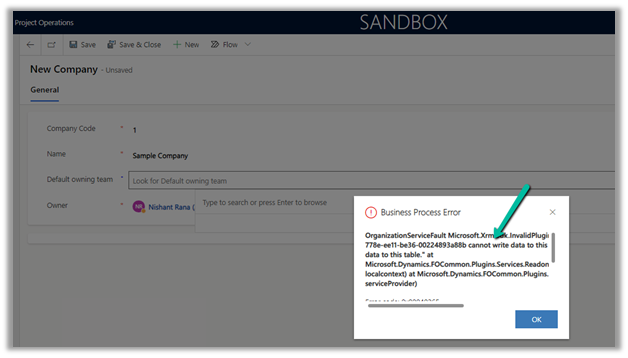
We configured the Project Operations app in one of our Dataverse Environments, and while creating a Company record we got the below error.
Exception Message: OrganizationServiceFault Microsoft.Xrm.Sdk.InvalidPluginExecutionException: “The user be60d0fd-778e-ee11-be36-00224893a88b cannot write data to this table, only the integration users may write data to this table.” At Mcrosoft.Dynamics.FOCommon.Plugins.Services.ReadonlyEntityService.PreModify(LocalPluginContext localcontext) at Microsoft.Dynamics.FOCommon.Plugins.PluginBase.Execute(IServiceProvider serviceProvider)
The error is because the system doesn’t allow creating a Company in the Dataverse / Dynamics 365 Project Operations App. Ideally, it has to be created at the F&O end and integrated with the Dataverse Environment.
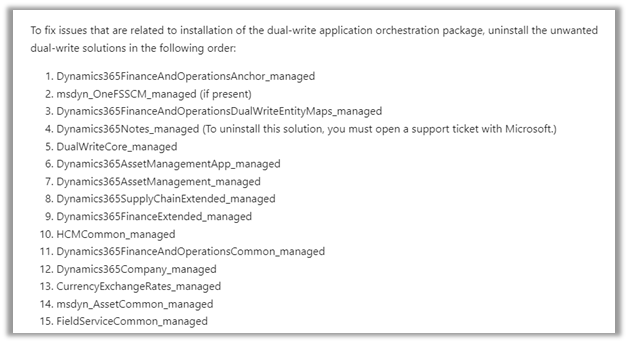
This was because we had unintentionally installed the dual-write application orchestration package that installs multiple solutions in their Microsoft Dataverse environment, which added the company table.
As mentioned, for Dynamics 365 Notes we got the below error, for which we need to raise a Support Ticket.
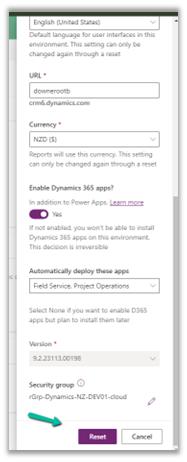
Luckily in our case, we had just created the environment a few days back, so had the option to Reset it. So we eventually took the path of resetting the environment with the Project Operations app selected.
Using the Write an email functionality of Copilot in Dynamics 365 Customer Service, the agents can quickly create responses, which they can use for their email.
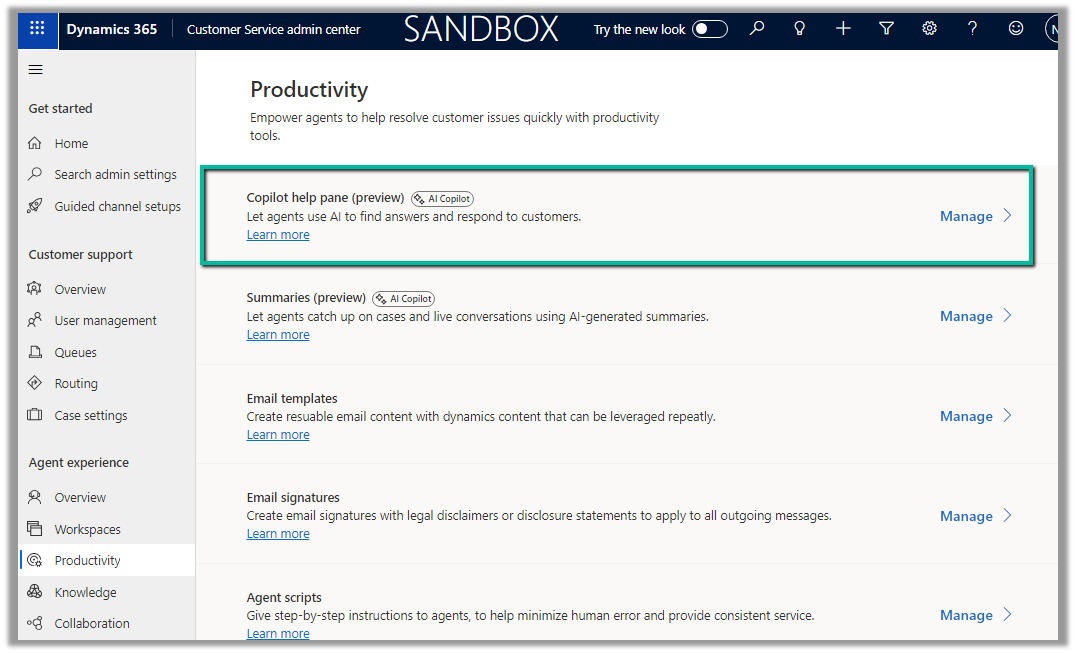
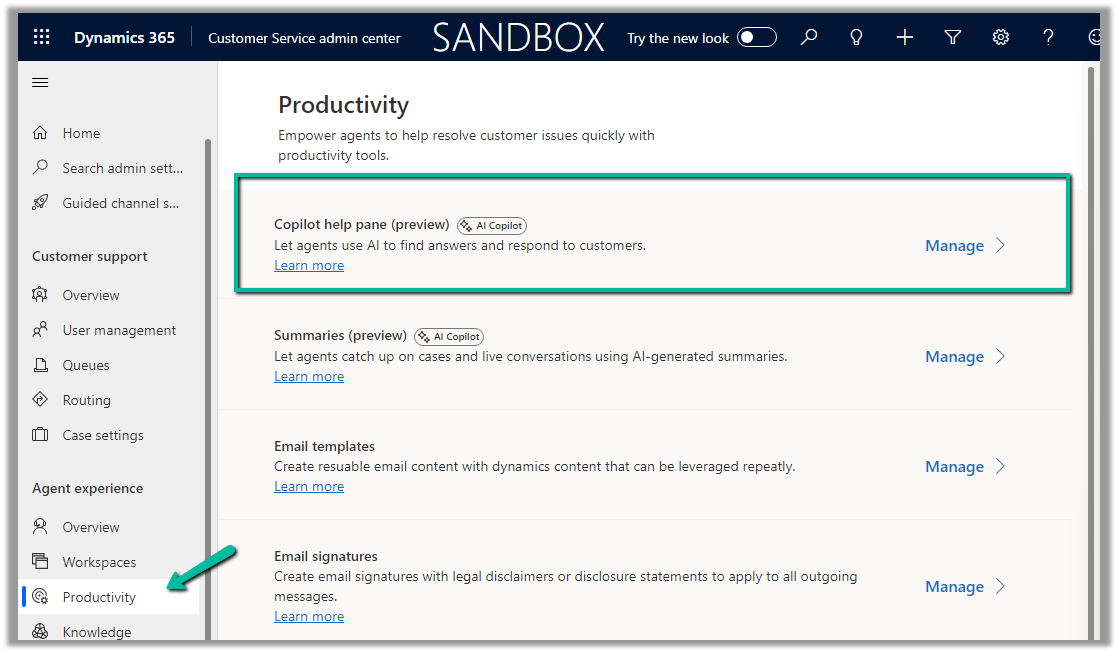
To enable it navigate to Customer Service admin center >> Agent experience >> Productivity >> Copilot help pane (Manage)
Check the For email option and save.
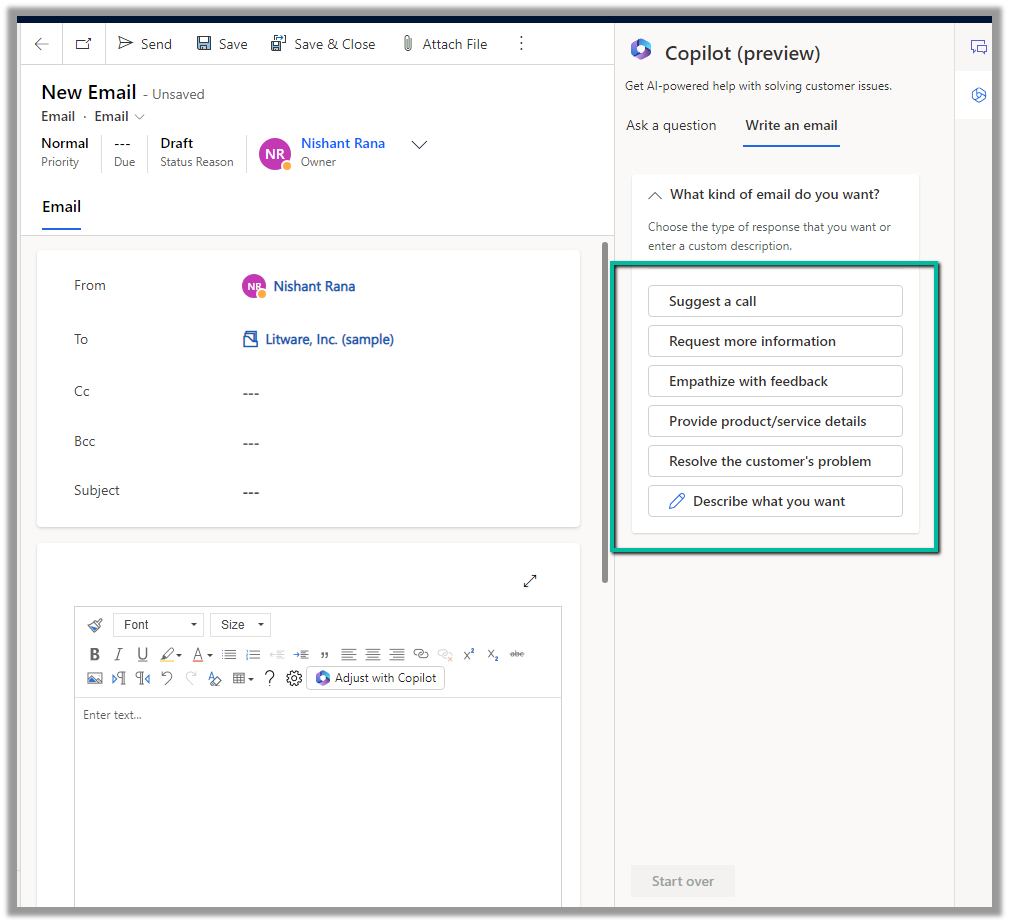
We can see the Write an email tab added to the Copilot help pane. It gets enabled in the context of an email record.
As soon as we open an email, we get predefined prompts like Suggest a call, Request more information along with the option to describe what exactly we are looking for.
Here we have selected Resolve the customer’s problem prompt.
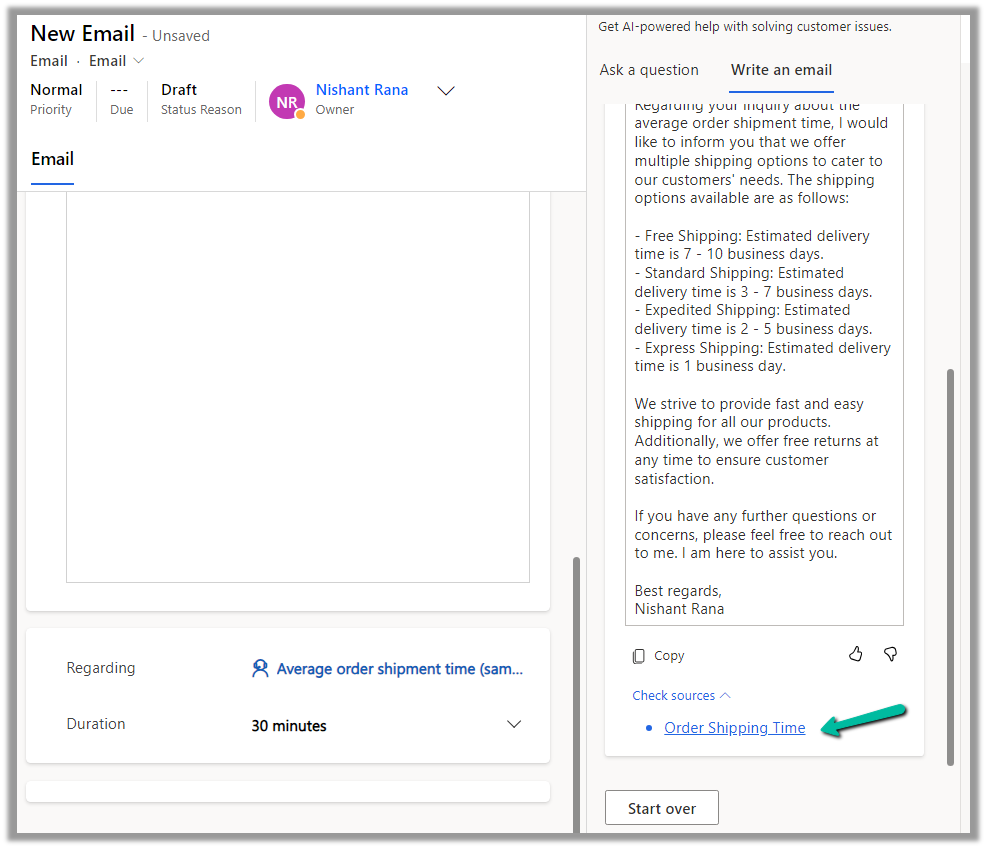
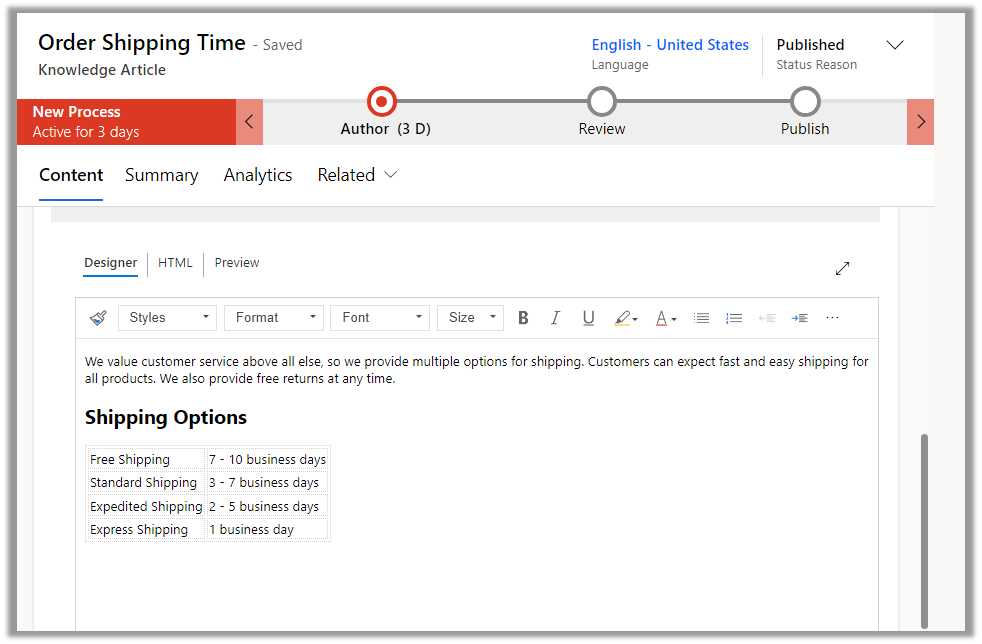
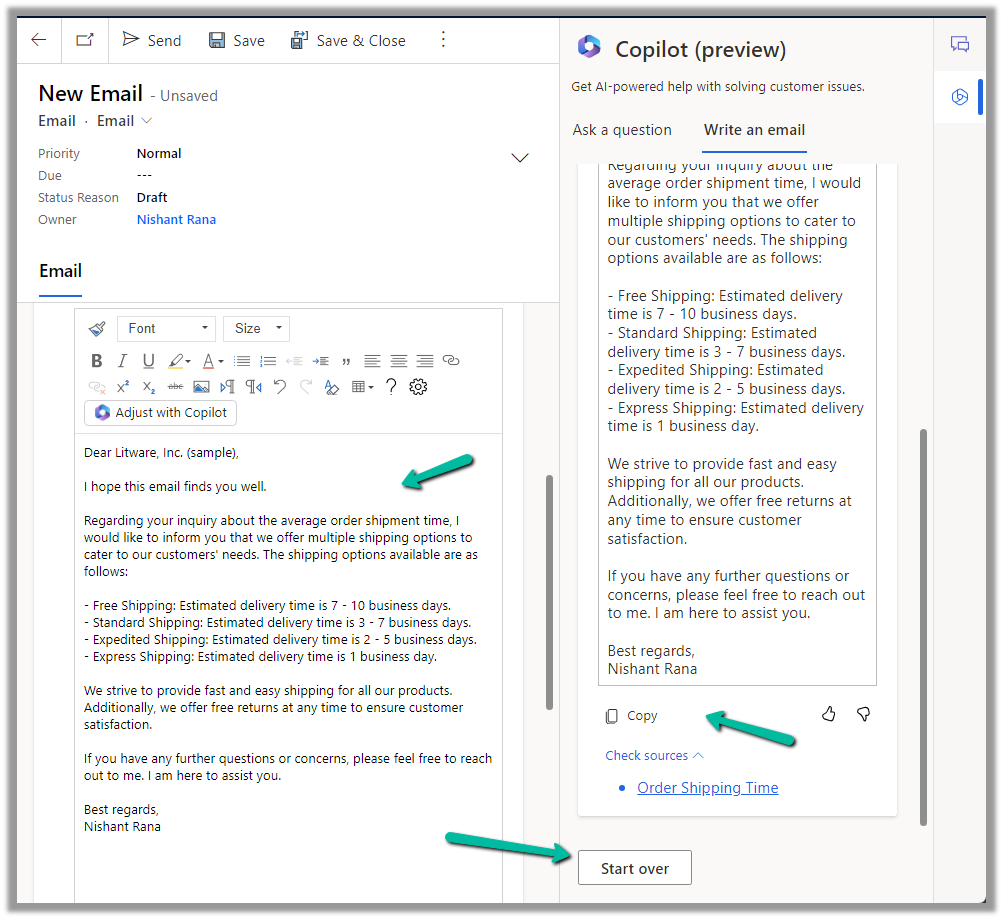
As we have an Average order shipment time case record associated with the email, the copilot refers to the existing published Knowledge base articles specific to shipment to generate the appropriate response.
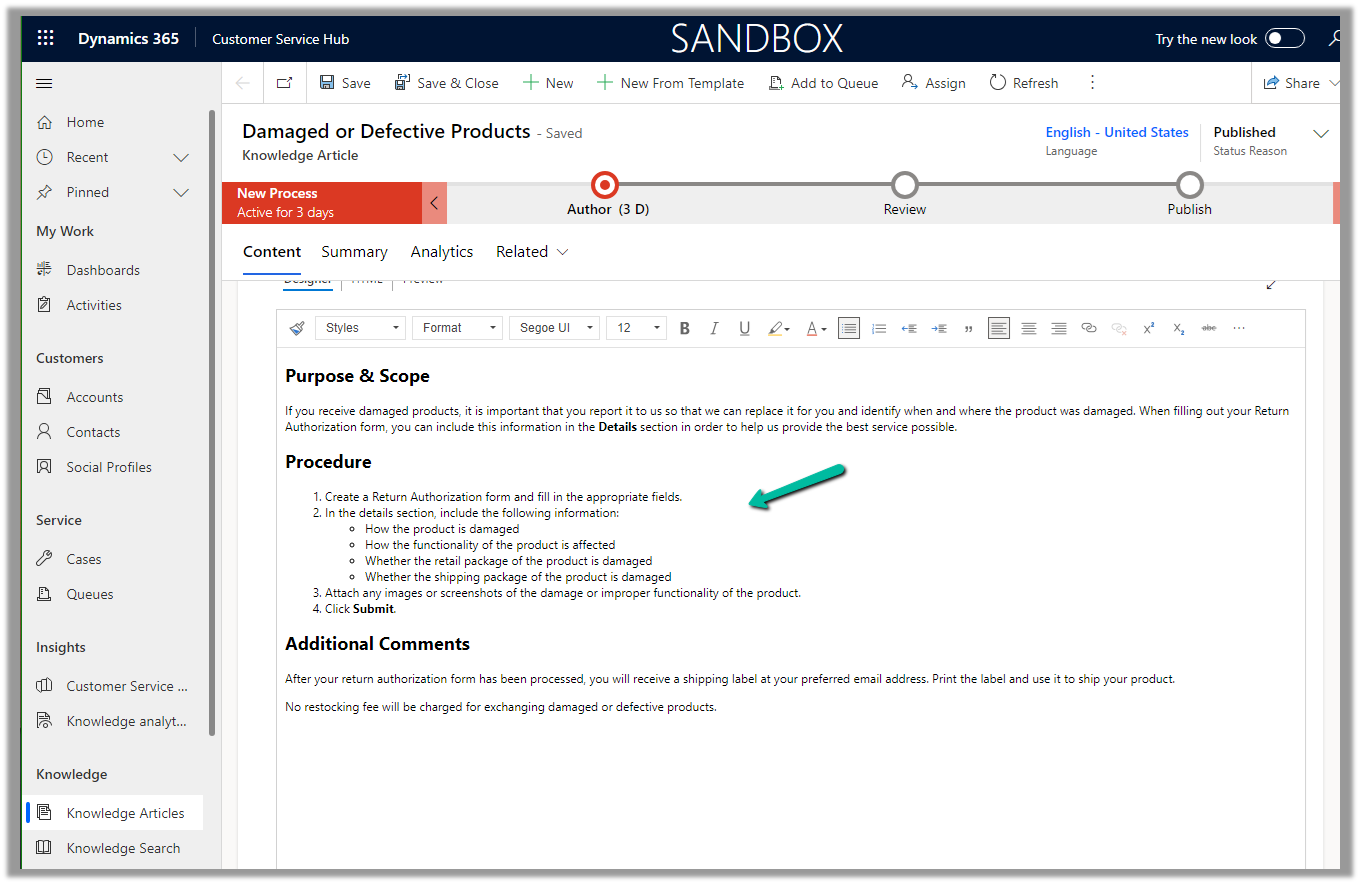
The corresponding knowledge article.
The agent can click on Copy to copy the response to an email, can review and edit it further (if required), or can start over and can select a different prompt to generate a different response.
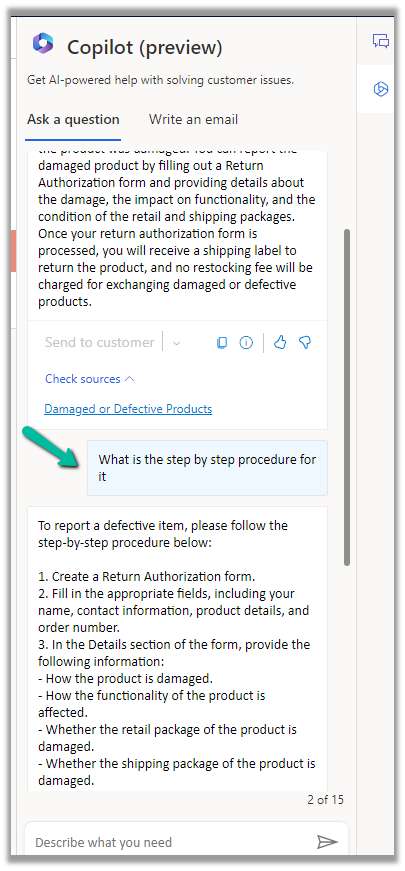
Agents can use the “Ask a question” functionality from within the Copilot help pane, to ask questions for quick resolution of the case.
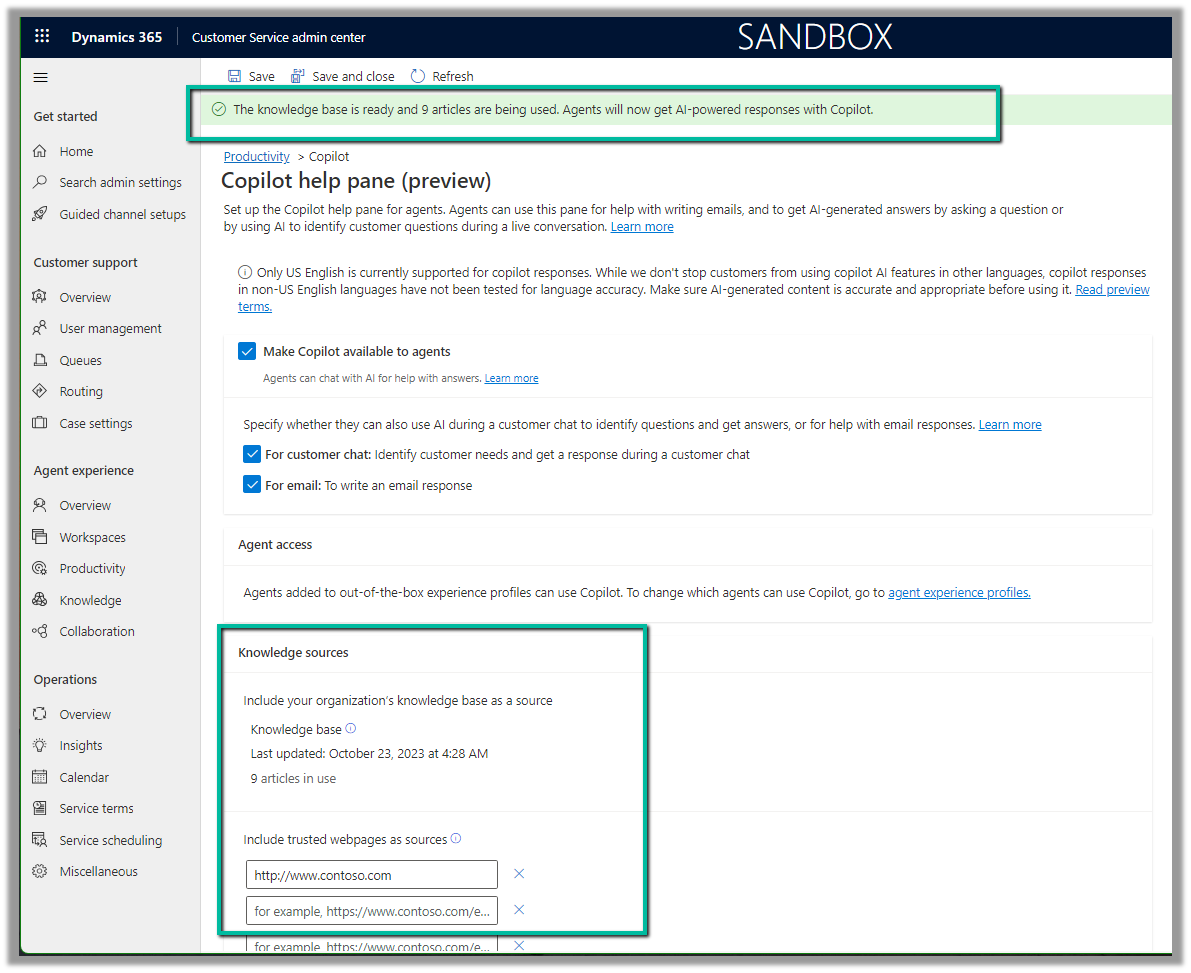
To enable it navigate to Customer Service admin center >> Agent Experience >> Productivity >> Copilot help pane (preview) (Manage)
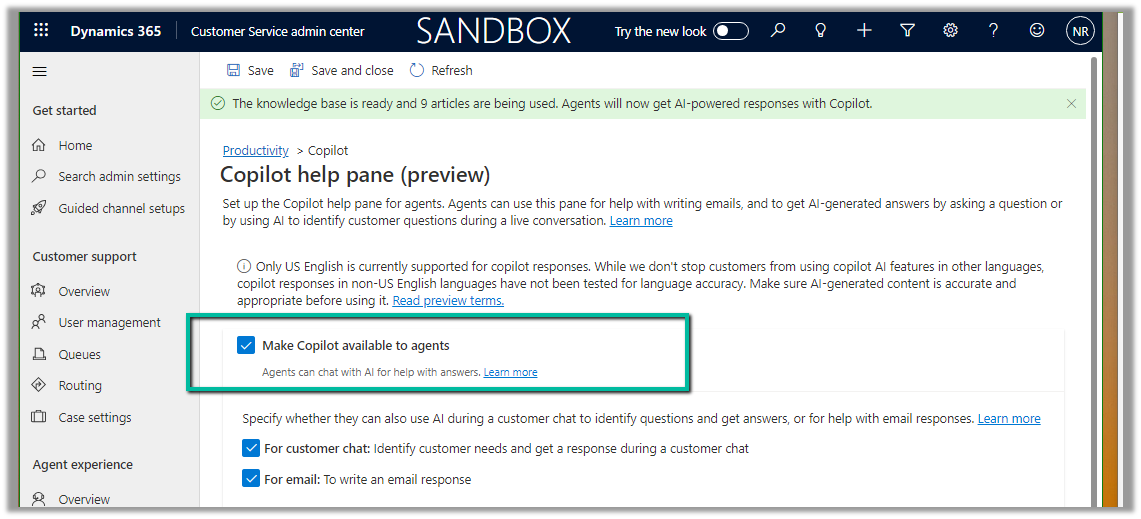
Check Make Copilot available to agents option and save the settings.
Back in Customer Service Hub (or any other apps where we have Copilot enabled), we can see the Ask a Question tab in the Copilot help pane.
We can then post our questions, specific to the case in hand.
Below we can see we have asked for any policy about defective items and the response we received.
It also mentions the source from which it got the response.
The copilot uses the internal (Published) Knowledge Articles to generate the responses.
If we go back to the setting where we enabled the Copilot help pane, we can see the message at the top about the knowledge base articles being used. Apart from the internal Knowledge base, a maximum of 5 trusted domains can be configured and can be used to produce the result.




















 Nishant Rana's Weblog