Creating Patches – Solution Management in CRM 2016


Hi,

Just sharing a simple scenario to understanding the working of Patches with Managed solution,

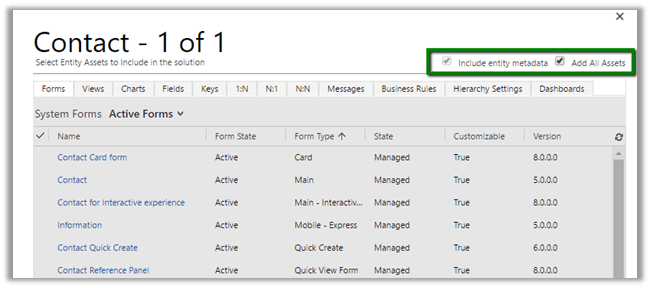
Create a solution named Test Solution with Contact entity in it. (with Add All Assets option)

  • Imported it in another Target Org as Managed.
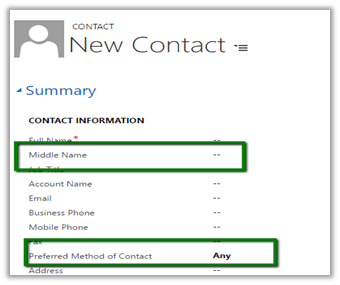
  • Now I want to change the width of the section so that label is clearly visible for Preferred Method of Contact field.
  • And we also add a new custom field named Middle Name in the form.

  • Instead of deploying the complete solution again, we can create a Patch which includes these changes.
  • In our Dev let us do the changes

  • Now click Clone a Patch button for the Test Solution.

  • In the solution add only the 2 components Main Form and the newly created Middle Name field in the patch solution.

  • Export this Patch Solution as Managed and import it in the target org.

  • In target Org after import of Patch we can see our changes.

  • Now suppose we make few other changes like removing the Fax field from the form (below mobile phone field) and want to deploy the entire solution and don’t need the patch anymore.
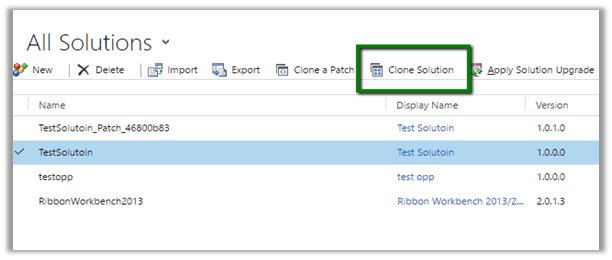
  • For this select Clone Solution button

  • This will make all the patches rolled up to the newer version of the solution.

  • This will auto-remove the patch solution created.

  • Now let us import this to our Target org. Target org. will auto detect the upgrade to the solution.

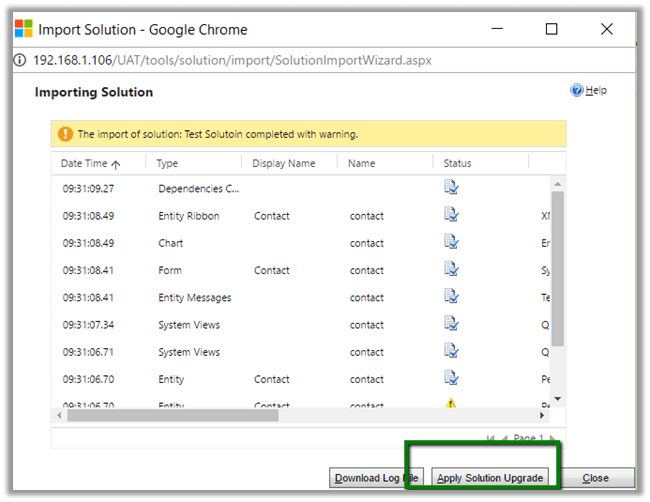
  • After import, select Apply Solution Upgrade

  • This will auto remove the TestSolution_Upgrade and TestSolution_Patch and merge all the changes into one newer version of TestSoluiton.

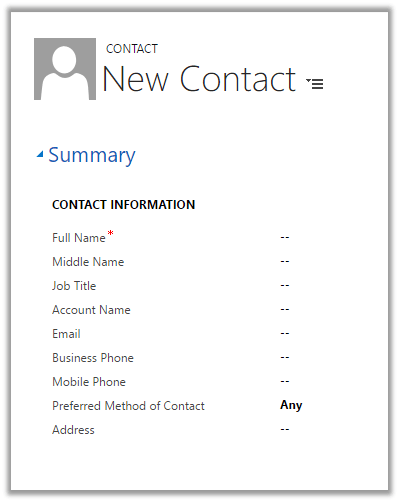
  • And as expected Fax field removed.

Hope it helps.

Administration Mode Enabled. Only system administrators and system customizers can sign in at this time in CRM 2015 Online.


Hi,

After we copied our Dev instance to another Sandbox instance we got this message on opening CRM.

To disable it.

Go to Office 365 Administration Section

Select your sandbox instance.

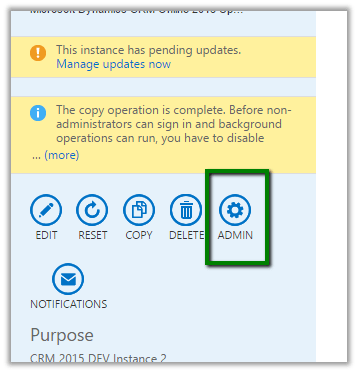
Select Admin

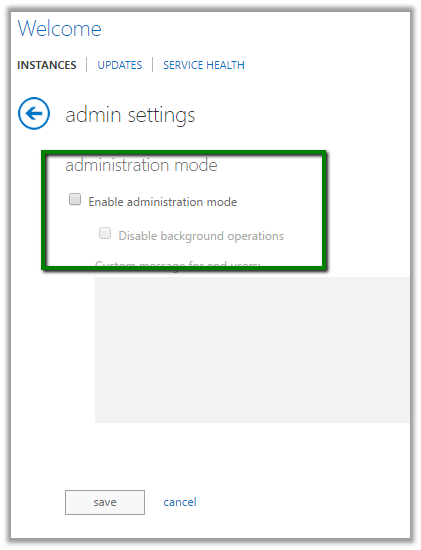
Uncheck Enable Administration Mode

Hope it helps.

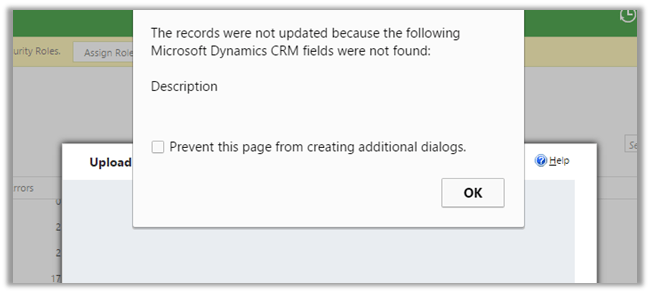
The records were not updated because the following Microsoft Dynamics CRM fields were not found during Import in CRM 2015.


Hi,
Was getting the below error while trying to import few records

The reason being there were two field in the entity having same Display Name. Renaming one of the fields fixed the issue and import ran successfully.

Hope it helps ..

Add Find Columns to Lookup View in CRM.


Hi,

Recently we had a requirement to search based on a particular attribute within the lookup view. The initial thought was to add a Find Columns to the lookup view. But then realized we do not have option of adding Find Columns to the lookup view.

The next thought was if I add that particular field to the list of Find Columns in Quick Find view will it work in Lookup View also? And it worked, basically adding any fields in the Find Column will make it Searchable.

The search works properly in the Lookup View as well as Lookup Inline View.

Hope it helps..
Sample Fetch XML Report using Multivalued Parameter (in Operator) in CRM


Hi,

Sharing a sample report which shows the usage of Multi Value parameter in filter.

Replace the Condition generated in the Fetch xml query using Advanced Find

As following

Create another DataSet to provide value for @gendercodevalue parameter.

Set @gendercodevalue parameter as following ( internal – if we do not want user to select or specify value for it in report)

Preview:

Hope it helps..

Advertisements

Missing New button in Quote Line entity for creating new views in CRM 2015.


Hi,

We found the New button was missing in Quote Line when we tried to creating the new views.

The work around is to use “Save As” and crate new view.

Hope it helps..