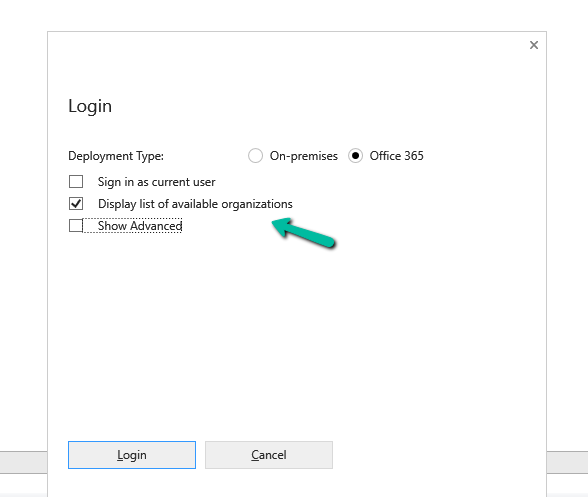
If we’re logging into the Plugin Registration Tool using an account protected with Multi-Factor Authentication (MFA), there’s one small setting that can cause login failures — Show Advanced.
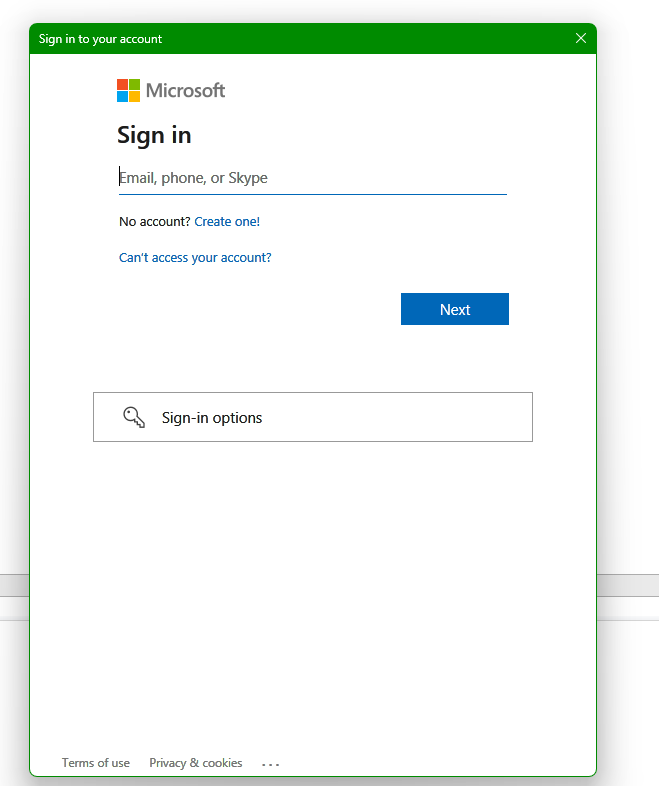
We need to make sure “Show Advanced” is unchecked before clicking Login. When this option is selected, the tool exposes legacy Username and Password fields, which do not support modern Azure AD MFA authentication. Leaving it unchecked forces the tool to open the modern Microsoft login prompt, where we can complete your MFA challenge successfully.
Clicking on Login.
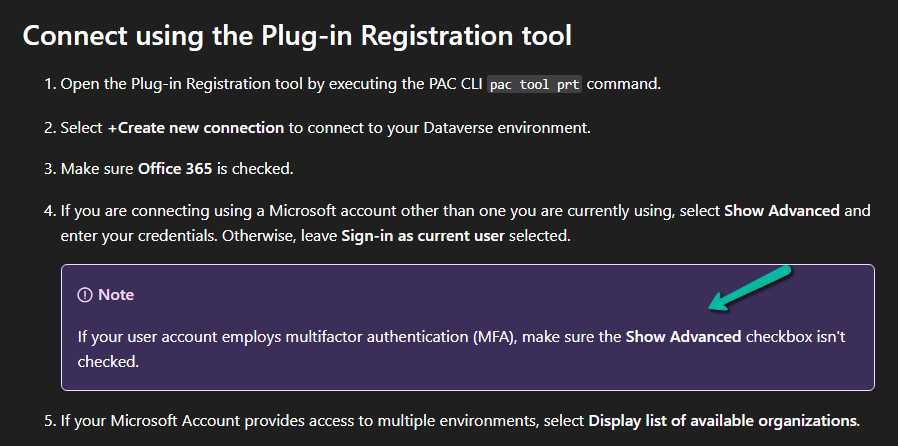
Microsoft also mentions this behavior in the official documentation under the plugin registration tutorial.
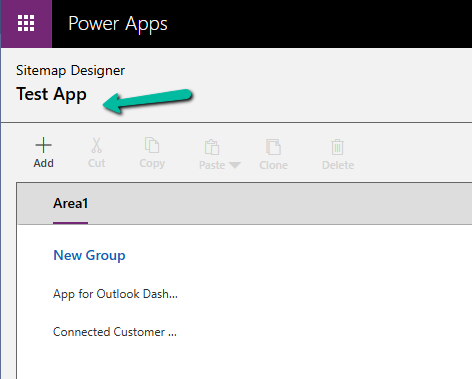
While working with a model-driven app in Dataverse, we needed to change the display name of the sitemap. What made this interesting was that there is no option in the UI to rename the sitemap display name directly.
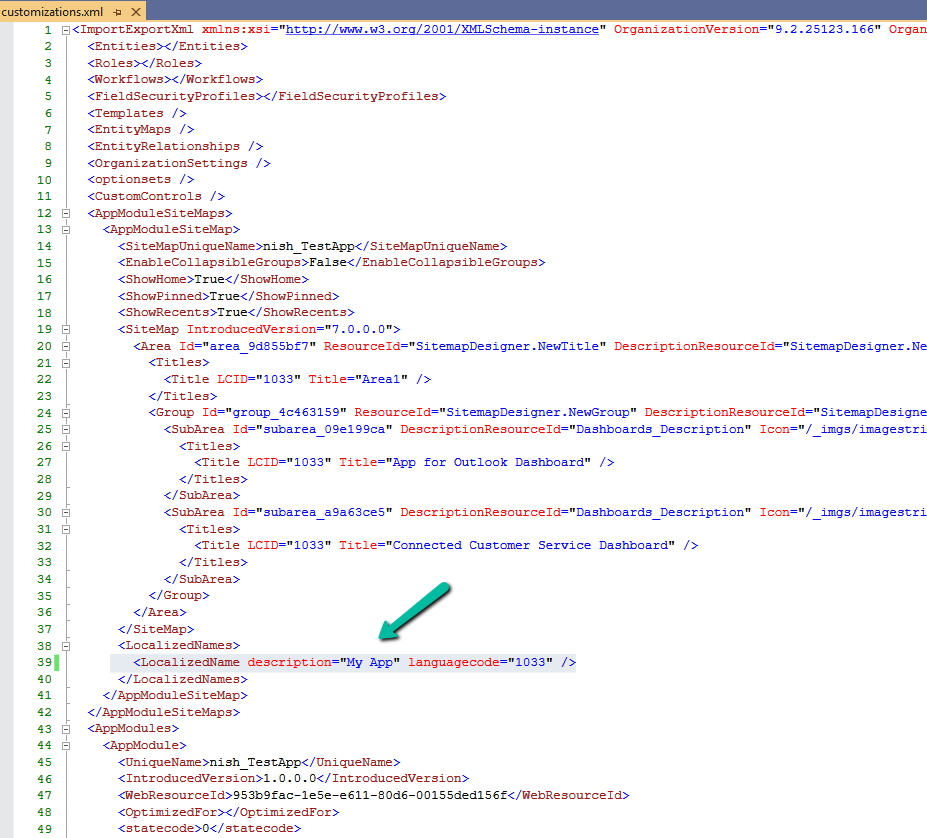
After exploring the UI options and confirming that the sitemap display name cannot be updated there, the only approach that worked was a solution-level change. The solution was to export the solution that contained the sitemap, update the sitemap display name in customizations.xml, and then import and publish the solution again. We exported the solution as unmanaged and extracted the ZIP file. Inside the extracted files, we opened customizations.xml. This file contains the full definition of the app’s sitemap, including its localized display name. Within the XML, the sitemap definition appears under the AppModuleSiteMaps section. A simplified version of the relevant structure looks like this:
The key part here is the LocalizedNames node. This is where the sitemap display name is defined. To rename the sitemap, we updated the value of the description attribute for the required language code.
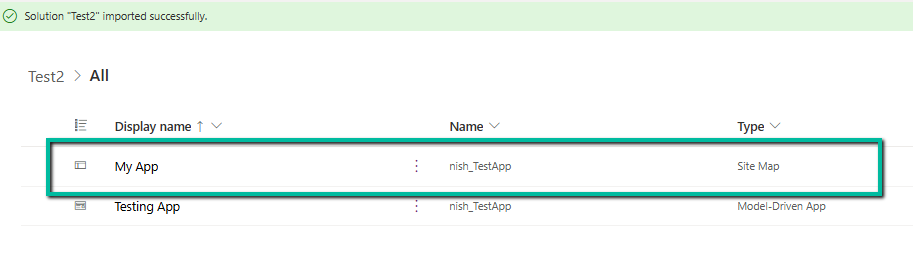
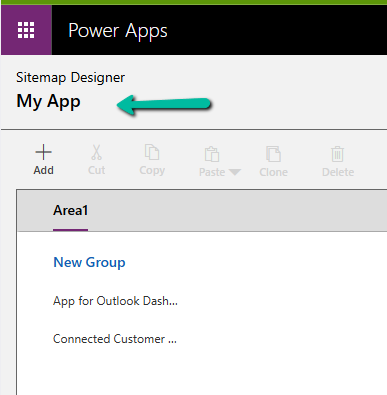
After making this change, we repackaged the solution, imported it back into the environment, and published the customizations. Once the import was completed / published, the sitemap display name reflected the new value everywhere and, importantly, the change persisted.
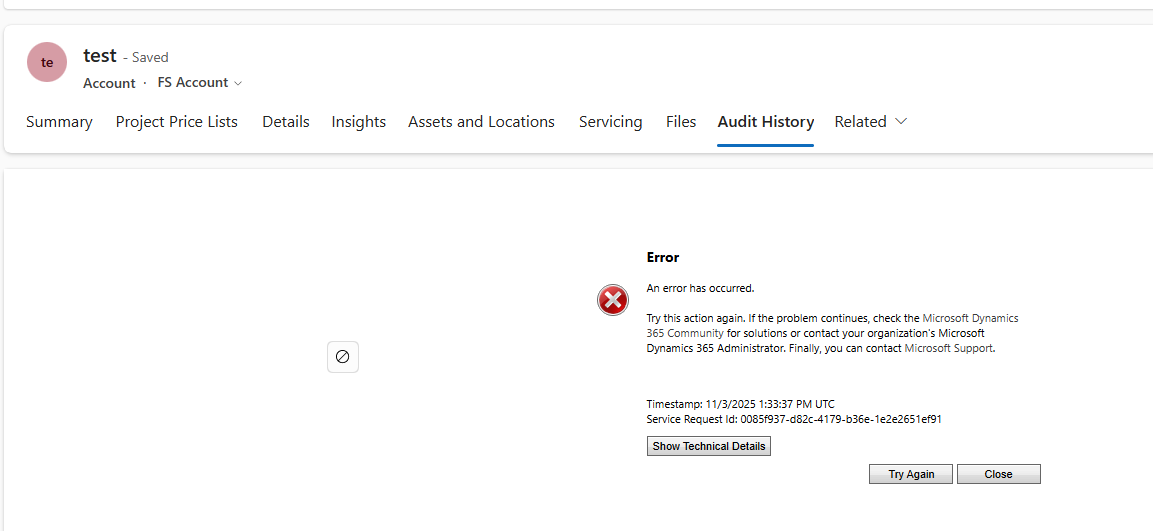
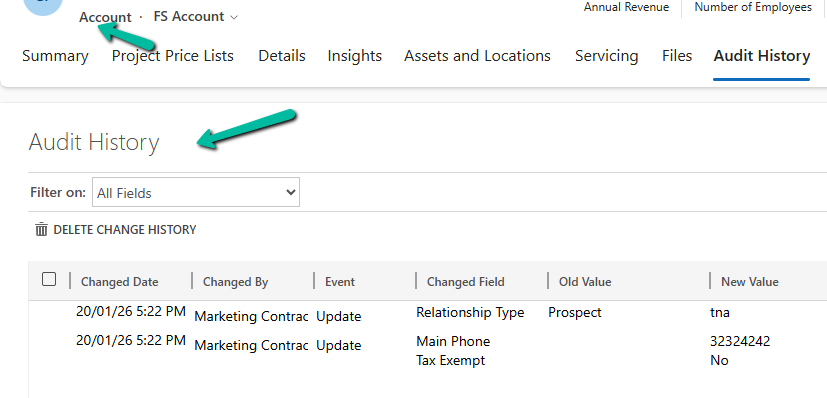
Recently, we ran into an issue where the Audit History page stopped loading on the form. Interestingly, the problem was limited only to the Account forms.
Whenever we tried to open Audit History, we received the generic error below:
An error has occurred.
Try this action again. If the problem continues, check the Microsoft Dynamics 365 Community for solutions or contact your organization’s Microsoft Dynamics 365 Administrator. Finally, you can contact Microsoft Support.
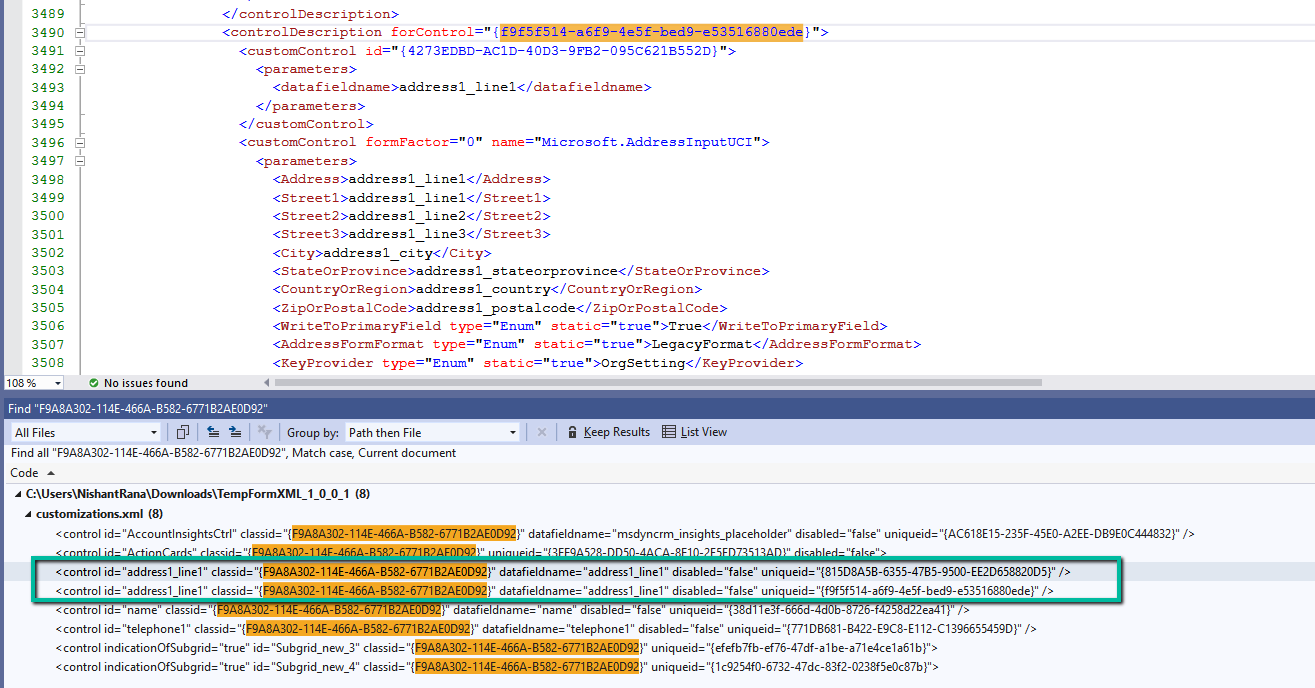
To investigate further, we raised a Microsoft Support ticket. After reviewing the issue, Microsoft informed us that the problem was likely related to a custom control used on the Account form. They shared the Form ID (GUID) along with the control classidF9A8A302-114E-466A-B582-6771B2AE0D92, which corresponds to that custom control.
Microsoft asked us to inspect the Form XML of the affected Account form. Specifically, they advised searching for all controls that use the given classid and carefully reviewing the uniqueid property of each control. We were also asked to verify that there were no case mismatches in the GUIDs and that every uniqueid had a matching entry in the controldescription section of the Form XML.
To identify the correct form, we used a SQL4CDS query to retrieve the Form Name and Form ID.
For easier analysis, we created a temporary solution, added the affected Account form to it, exported the solution, and opened the Form XML.
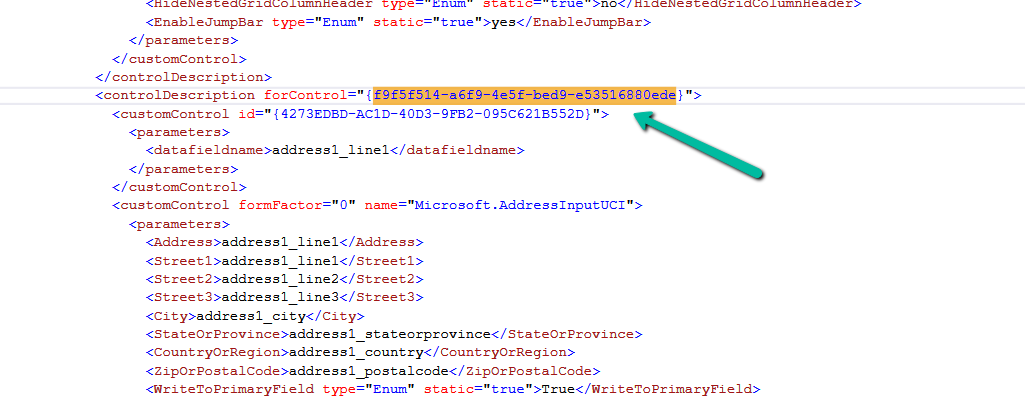
While reviewing the Form XML, we found six instances of the control using the specified classid. For five of these controls, the uniqueid had a corresponding entry in the controldescription section. However, one control was missing this mapping. The problematic uniqueid was 815D8A5B-6355-47B5-9500-EE2D658820D5.
To resolve the issue, we updated this uniqueid to match an existing and valid one already present for the address1_line1 control, which was f9f5f514-a6f9-4e5f-bed9-e53516880ede. After making the change, we zipped the solution, imported it back into the environment, and published the updates.
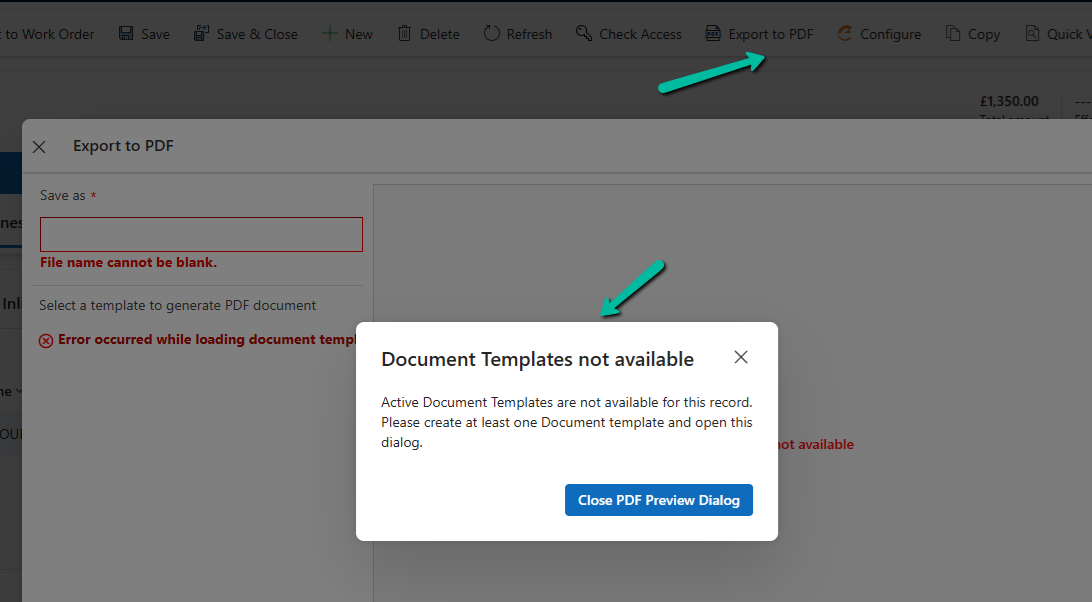
Recently, one of the users reported the following error while trying to generate a PDF for a Quote record in Dynamics 365:
Initially, the Export to PDF option was showing a blank list of templates.
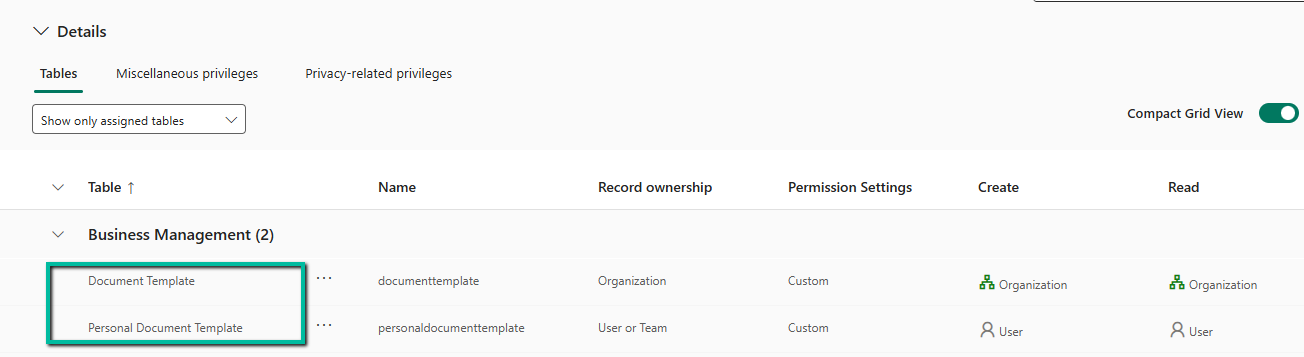
This happened because the user was missing a few essential privileges on the Document Template tables.
To fix the blank template list, we updated the user’s custom security role with the appropriate privileges on the following tables:
Document Template
Personal Document Template
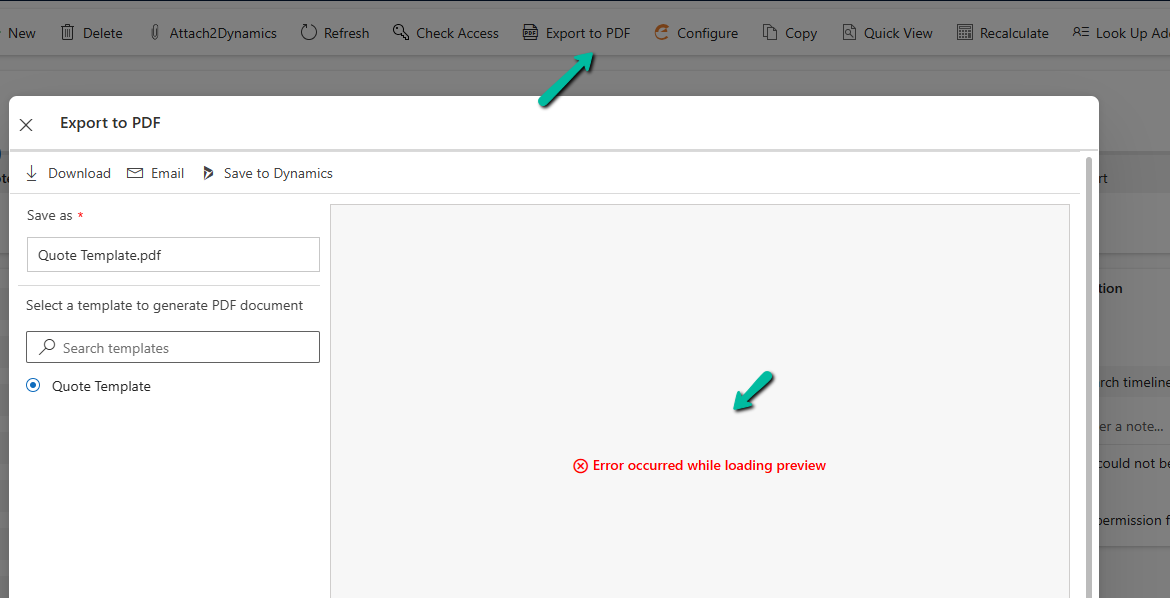
After adding these, the templates started appearing in the “Export to PDF” dialog.
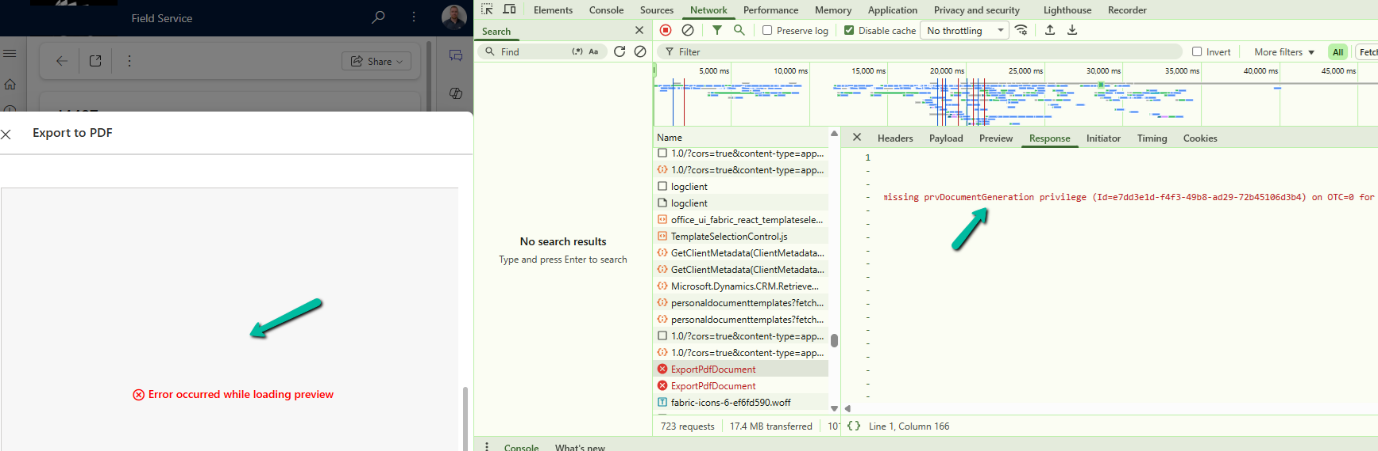
Even though the templates were now visible, the user still got the following error while trying to preview or export:
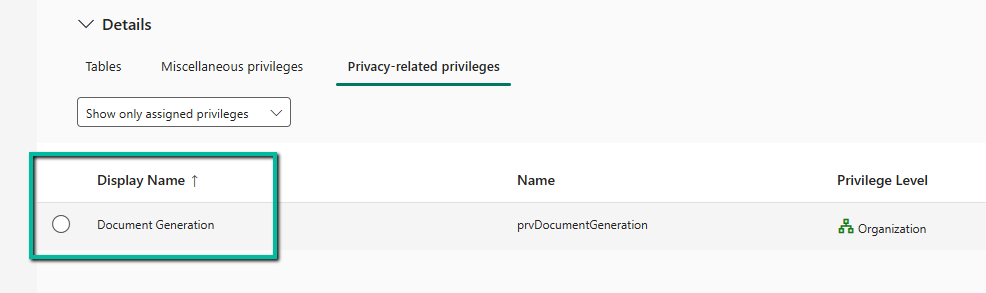
This was due to one missing privilege in the Customization area of the security role.
We added: DocumentGeneration privilege
Once this privilege was granted, the preview and PDF generation started working as expected.
If we are unsure which privilege might be missing in similar situations, a quick way to find out is by using Developer Tools (F12) and monitoring the Network tab while reproducing the error. The failed request, such as ExportPdfDocument, usually reveals the missing privilege directly in its Response section (for example, missing prvDocumentGeneration privilege). This saves time and avoids trial and error when troubleshooting permission issues.
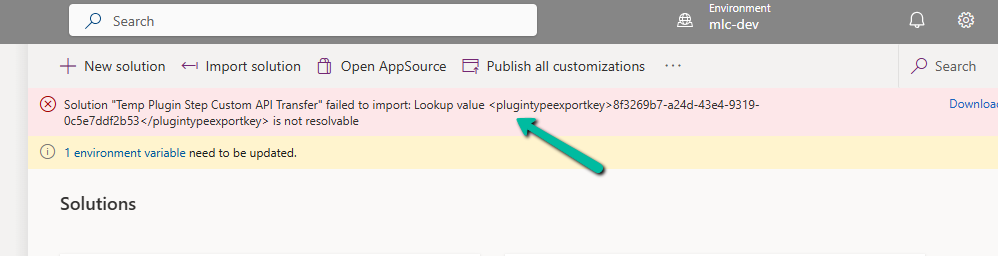
Recently, we faced an interesting import failure while moving a solution containing a Custom API.
Solution “Temp Plugin Step Custom API Transfer” failed to import: Lookup value 8f3269b7-a24d-43e4-9319-0c5e7ddf2b53 is not resolvable.
This clearly pointed to a lookup resolution issue — the solution import process was trying to bind the Custom API to a Plugin Type (class), but couldn’t find the referenced plugin in the target environment.
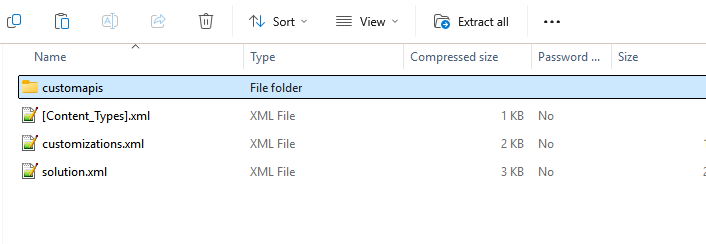
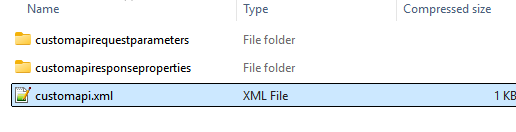
Each Custom API will have its own folder inside the Solution.
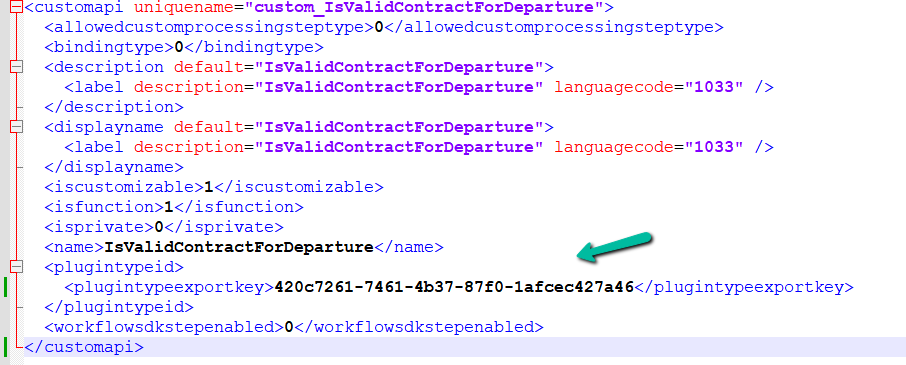
Looking into the solution files (specifically the customapi.xml) of that particular Custom API, we found this section:
Notice the <plugintypeexportkey> tag. This is where the Custom API references the Plugin Type (the actual C# class implementing the logic).
When a Plugin class is created in Dynamics 365, it gets assigned a unique Plugin Type Id (GUID).
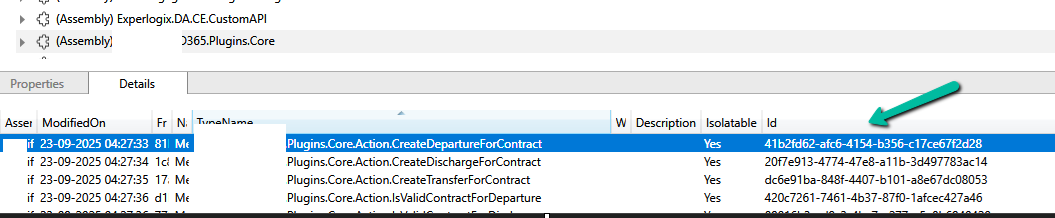
In the source environment, the Custom API was tied to a plugin with ID 420c7261-7461-4b37-87f0-1afcec427a46. However, in the destination environment, which was another development environment, a different plugin class was already created for that custom api. So during solution import, Dataverse tried to match the GUID 420c7261… but couldn’t find it in the target environment. Hence, the lookup resolution failed, and the solution import was blocked.
To resolve this, we manually updated the GUID in the customapi.xml to match the Plugin Type Id of the destination environment. Below, we are getting the ID from the Plugin Registration tool. The other option to fix would have been to remove the Plugin reference from the source, export, and then import.
After making this change, we re-imported the solution, and it worked successfully.
Sometimes when we are writing JavaScript in Dynamics 365, we need the exact schema name of a field’s control so that we can hide, show, or manipulate it properly. While the attribute’s schema name is straightforward, controls may have numbered names like gendercode1, gendercode2, etc., depending on how many times the field is placed on the form.
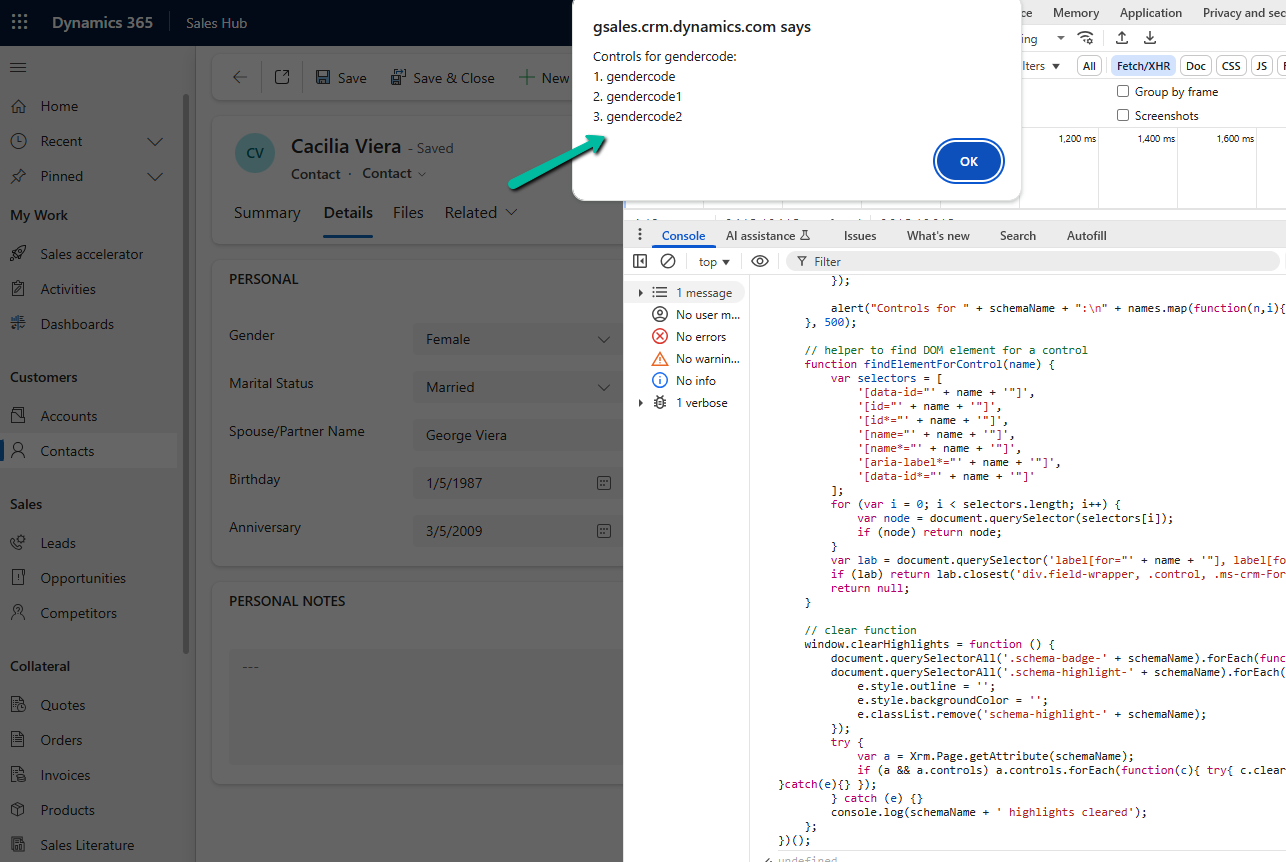
To quickly figure this out, we can run a small helper script directly in the browser console. This script highlights all instances of the field on the form, expands tabs/sections if they are collapsed, and shows the schema names against each control.
Here’s the script for the field gendercode: – specify the schema name and run it in console.
(function () {
    // configurable schema name
    var schemaName = "gendercode"; // change this as needed

    var formContext = Xrm.Page;
    var attr = formContext.getAttribute(schemaName);
    if (!attr) { alert(schemaName + " not found"); return; }

    // clear old highlights/badges
    document.querySelectorAll('.schema-badge-' + schemaName).forEach(function(b){ b.remove(); });
    document.querySelectorAll('.schema-highlight-' + schemaName).forEach(function(e){
        e.style.outline = '';
        e.style.backgroundColor = '';
        e.classList.remove('schema-highlight-' + schemaName);
    });

    var names = [];
    var tabsExpanded = {};

    // expand tabs/sections containing the control
    attr.controls.forEach(function (ctrl) {
        var name = ctrl.getName();
        names.push(name);

        try {
            var section = ctrl.getParent && ctrl.getParent();
            var tab = section && section.getParent && section.getParent();
            if (tab && typeof tab.setDisplayState === 'function') {
                var tabName = tab.getName ? tab.getName() : null;
                if (!tabsExpanded[tabName]) {
                    try { tab.setDisplayState('expanded'); } catch (e) {}
                    tabsExpanded[tabName] = true;
                }
            }
            if (section && typeof section.setVisible === 'function') {
                try { section.setVisible(true); } catch (e) {}
            }
        } catch (e) {}
    });

    // highlight after expansion
    setTimeout(function () {
        attr.controls.forEach(function (ctrl, index) {
            var name = ctrl.getName();
            var el = findElementForControl(name);

            if (el) {
                el.classList.add('schema-highlight-' + schemaName);
                el.style.outline = "2px solid orange";
                el.style.backgroundColor = "#fff8e1";

                var badge = document.createElement("div");
                badge.className = "schema-badge-" + schemaName;
                badge.textContent = schemaName + " " + (index + 1);
                badge.style.cssText = "font-size:11px;color:white;background:orange;padding:1px 6px;margin-top:4px;border-radius:3px;display:inline-block";
                (el.parentElement || el).appendChild(badge);
            } else {
                console.warn("Could not find DOM element for control:", name);
            }
        });

        alert("Controls for " + schemaName + ":\n" + names.map(function(n,i){ return (i+1)+". "+n; }).join("\n"));
    }, 500);

    // helper to find DOM element for a control
    function findElementForControl(name) {
        var selectors = [
            '[data-id="' + name + '"]',
            '[id="' + name + '"]',
            '[id*="' + name + '"]',
            '[name="' + name + '"]',
            '[name*="' + name + '"]',
            '[aria-label*="' + name + '"]',
            '[data-id*="' + name + '"]'
        ];
        for (var i = 0; i < selectors.length; i++) {
            var node = document.querySelector(selectors[i]);
            if (node) return node;
        }
        var lab = document.querySelector('label[for="' + name + '"], label[for*="' + name + '"]');
        if (lab) return lab.closest('div.field-wrapper, .control, .ms-crm-Form-Field-Container') || lab.parentElement;
        return null;
    }

    // clear function
    window.clearHighlights = function () {
        document.querySelectorAll('.schema-badge-' + schemaName).forEach(function(b){ b.remove(); });
        document.querySelectorAll('.schema-highlight-' + schemaName).forEach(function(e){
            e.style.outline = '';
            e.style.backgroundColor = '';
            e.classList.remove('schema-highlight-' + schemaName);
        });
        try {
            var a = Xrm.Page.getAttribute(schemaName);
            if (a && a.controls) a.controls.forEach(function(c){ try{ c.clearNotification && c.clearNotification(); }catch(e){} });
        } catch (e) {}
        console.log(schemaName + ' highlights cleared');
    };
})();
When we run this in the console, it: Highlights all instances of the field with an orange outline and light background. Adds a small badge like gendercode 1, gendercode 2 next to each control. Alerts and logs the schema names so we can directly use them in our scripts.
This makes it very easy for us to identify which control name we should be using in our JavaScript.








![Fixed –Lookup value plugintypeexportkey [Guid] is not resolvable – Solution Import error (Dynamics 365 / Dataverse)](https://nishantrana.me/wp-content/uploads/2025/09/pexels-photo-4482033.jpeg?w=1200)




 Nishant Rana's Weblog