When working with historical or test data in Dynamics 365 Field Service, we often come across the need to clean up old Work Orders and their related records. While it might seem straightforward to just delete the Work Order, there are quite a few interdependent entities and plugin validations that can make this task tricky.
We wanted to delete all msdyn_workorder records created before a certain date along with their related child records such as:
- Work Order Products
- Work Order Services
- Work Order Incidents
- Bookable Resource Bookings
- Time Entries, Service Tasks, Resolutions, etc.
The Field Service solution has many plugins that enforce business rules during deletion.
If a Work Order is in a Posted state (msdyn_systemstatus = 690970004), attempting to delete any of its child records will throw errors like:
- Failed to delete msdyn_workorderproduct {GUID}: A record can’t be deleted if the work order has been posted.
So to delete the Posted work order, we had to update its status to Cancelled.
If the Work Order has any associated Bookable Resource Booking records, deletion is blocked:
- Work order can’t be deleted because there are associated Resource Booking records. Please delete these records first.
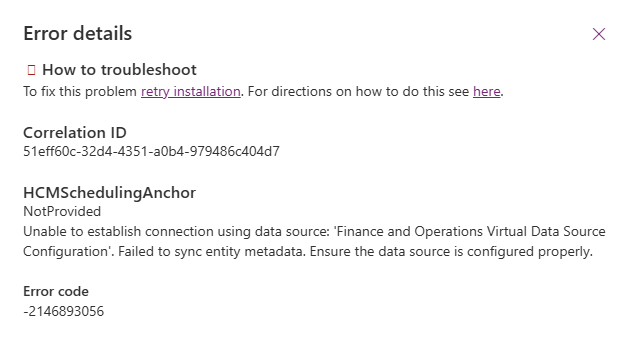
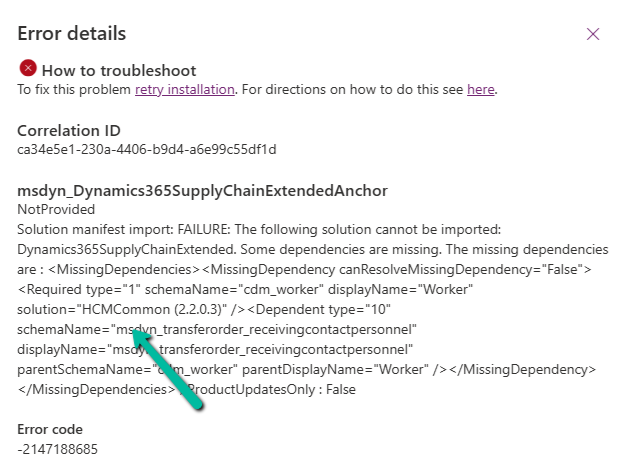
And while deleting Bookings, we might hit even deeper integration issues, like this one from a virtual entity plugin
This error originates from the FnO Virtual Entity plugin and usually appears if the user linked to the Booking doesn’t exist in the FnO system — a hard blocker for environments with dual-write enabled.
Also, we had to temporarily change the Delete action to Remove Link from Restrict for the relationship between msdyn_workorder and msdyn_actual_workorder.


Here’s a high-level overview of what we did:
Fetched work orders based on our criteria. Loop through each work order:
- Revert the status if it is Posted (so it becomes deletable)
- Delete all child records in a proper order
- Delete the Work Order itself
Below is the sample code we used for deleting the work orders and its associated records successfully.
public void DeleteAllWorkOrders()
{
QueryExpression query = new QueryExpression("msdyn_workorder");
query.ColumnSet = new ColumnSet("msdyn_workorderid", "msdyn_name", "createdon", "msdyn_systemstatus");
query.Criteria = new FilterExpression();
query.Criteria.Conditions.Add(
new ConditionExpression("createdon", ConditionOperator.LessThan, new DateTime(2025, 1, 1))
);
query.Orders.Add(new OrderExpression("createdon", OrderType.Descending));
var workOrders = _service.RetrieveMultiple(query).Entities;
Console.WriteLine($"Found {workOrders.Count} work orders.");
try
{
foreach (var wo in workOrders)
{
var woId = wo.Id;
var systemStatusCode = wo.Contains("msdyn_systemstatus") ? ((OptionSetValue)wo["msdyn_systemstatus"]).Value : 0;
try
{
//// 1. If Posted revert status
if (systemStatusCode == 690970004) // Posted
{
var revert = new Entity("msdyn_workorder", woId)
{
["msdyn_systemstatus"] = new OptionSetValue(690970005) // Canceled
};
_service.Update(revert);
Console.WriteLine("Reverted system status to Cancelled.");
}
// 2. Delete dependencies
DeleteRelatedRecords("msdyn_workorderservice", "msdyn_workorder", woId);
DeleteRelatedRecords("msdyn_workorderproduct", "msdyn_workorder", woId);
DeleteRelatedRecords("msdyn_workorderservicetask", "msdyn_workorder", woId);
DeleteRelatedRecords("msdyn_workorderincident", "msdyn_workorder", woId);
DeleteRelatedRecords("msdyn_workorderresolution", "msdyn_workorder", woId);
DeleteRelatedRecords("bookableresourcebooking", "msdyn_workorder", woId);
DeleteRelatedRecords("msdyn_timeentry", "msdyn_workorder", woId);
// 3. Delete the Work Order
_service.Delete("msdyn_workorder", woId);
Console.WriteLine($"Deleted Work Order: {woId}\n");
}
catch (Exception ex)
{
Console.WriteLine($"Error processing Work Order {woId}: {ex.Message}");
Console.WriteLine("Continuing with the next Work Order...\n");
}
}
}
catch(Exception ex)
{
Console.WriteLine(ex.Message);
}
Console.WriteLine("All Work Orders cleaned up.");
Console.WriteLine("Press any key to continue !");
}
private void DeleteRelatedRecords(string entityName, string lookupField, Guid workOrderId)
{
var query = new QueryExpression(entityName)
{
ColumnSet = new ColumnSet(false),
Criteria =
{
Conditions =
{
new ConditionExpression(lookupField, ConditionOperator.Equal, workOrderId)
}
}
};
var records = _service.RetrieveMultiple(query).Entities;
foreach (var record in records)
{
try
{
_service.Delete(entityName, record.Id);
Console.WriteLine($"Deleted {entityName}: {record.Id}");
}
catch (Exception ex)
{
Console.WriteLine($"Failed to delete {entityName} {record.Id}: {ex.Message}");
}
}
}
Hope it helps..