ReferenceError: SetTextIframe is not defined in Email Sends Form in Click Dimensions


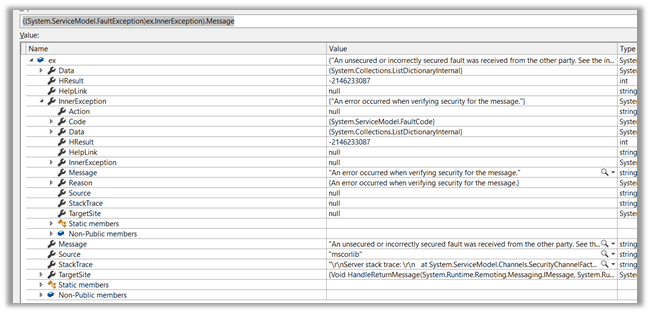
Recently after upgrading to the newer version (8.7.1 to 9.2.5) of Click Dimensions, we started getting below error in one of the tabs in it. (during expand)

We were getting this error on the old forms that we had copied and created from the existing OOB Email Sends form.

The issue was because the name of the function had been modified in the newer JavaScript file provided by Click Dimension

Earlier the name of the function was SetTextIframe which was renamed to SetTxtIframe which caused that issue.

Hope it helps..

JavaScript error in customized Email Sends form in ClickDimensions after Upgrade


Recently while testing upgrade from ClickDimensions version 8.7.1 to 9.2.5 we ran into few JavaScript issues in Email Sends form. We had multiple Email Sends form for different business units.

To fix them we had to take the below steps

Add the following JavaScript in OnLoad on the form.

Add following fields on the form.

Hope it helps..

Using Conditional Split Transformation in SSIS


Recently we had a requirement to Upsert Customer’s Spend related information from SQL DB to our CRM Online.

We had the spend captured per brand wise in the DB as shown below.

And in our CRM, we had one custom entity that had fields corresponding to each of these Brand as shown below

i.e. one section for each Brand and inside that section 5 fields corresponding to the columns in the SQL Table.

The GCR column of the table was the Alternate Key column in our custom entity which we used for Upsert.

Now to make sure we update only the corresponding Brand fields in CRM, we can make use of Conditional Split Transformation component.

Just after OLE DB source, add a Conditional Split component

Create one output per brand i.e. (select distinct Brand from the source table records) as shown below

Now add a CRM Destination Component and bind it to the corresponding output

And inside Columns section, map only the corresponding field of the selected Brand.

The finished package à

Hope it helps..

Optimum Batch Size while using SSIS Integration toolkit for Microsoft Dynamics 365


Hi,

https://nishantrana.me/2018/12/19/optimum-batch-size-and-thread-while-deleting-records-using-ssis-integration-toolkit-for-microsoft-dynamics-365/

Recently while working in a data integration task, we were evaluating the performance of using KingswaySoft’s Dynamics 365 Toolkit from within Visual Studio by trying out different possible combinations of batch size and threads.

The environment was CRM Online and had concurrent ExecuteMultiple max limit set to 20.

By default, it is set as 2 for online, but we can raise support ticket with Microsoft to get this limit increased. However, we need be very careful while using them as large number of ExecuteMultiple running in parallel might degrade the performance.

https://msdn.microsoft.com/en-us/library/microsoft.xrm.sdk.deployment.throttlesettings.executemultipleperorgmaxconnectionsperserver.aspx

Below are the 2 settings that we played around in the CRM Destination Component


These are the results we got with different batch size and thread.

  • Message Used– Upsert.
  • Total Number of Records – 20000.


It clearly shows that having batch size as 100 gives the best result.

And this is what is recommended by KingswaySoft as well.


https://www.kingswaysoft.com/products/ssis-integration-toolkit-for-microsoft-dynamics-365/faq

Hope it helps..

Advertisements

Fixed – CRM service call returned an error: The server is busy and the request was not completed. Try again later while inserting records using CRM Destination Component of KingswaySoft’s SSIS Integration Toolkit for Dynamics 365


While running one of our package we got the below error in few of the records

“CRM service call returned an error: CRM service call returned an error: The server is busy and the request was not completed. Try again later. (Error Code: -2147180543, Detail Message: The server is busy and the request was not completed. Try again later.)”

“CRM service call returned an error: CRM service call returned an error: The request channel timed out while waiting for a reply after 00:01:59.7991956. Increase the timeout value passed to the call to Request or increase the SendTimeout value on the Binding. The time allotted to this operation may have been a portion of a longer timeout. (Error Type / Reason: Timeout)”

One way to get around this error is to increase the Timeout (secs) in the Service Timeout Setting of CRM Connection Manager.

We updated it to 600 seconds and the number of records that failed got drastically reduced.

Also make sure that following option is checked

Hope it helps..

Advertisements

Lookup not getting set while using CRM Destination Component of KingswaySoft’s SSIS Integration Toolkit for Dynamics 365


Recently while inserting a custom entity (Transaction) records using the CRM Destination Component we realized that Contact’s lookup was not being set.

We were using Alternate Key to set the lookup as shown below

To get it working we had to uncheck the Remove Unresolvable References option from the Optional Settings of CRM Destination Component. It seemed that it ignored it, even though values were there for the GCR (alternate key field) in the input source.

https://www.kingswaysoft.com/products/ssis-integration-toolkit-for-microsoft-dynamics-365/help-manual/crm/destination

I think it might not be working as expected in case if lookup is done using Alternate Key.

BTW, I would strongly recommend using KingswaySoft’s SSIS Integration Toolkit for any or all data integration tasks. It is definitely the best tool out there.

Give it a try à

https://www.kingswaysoft.com/products/ssis-integration-toolkit-for-microsoft-dynamics-365/download

Hope it helps..