Using CDS/CRM Connection Manager of KingswaySoft’s SSIS Dynamics 365 Integration toolkit in Script Component (SSIS)


Recently for one of our requirements we had to use the CDS/CRM Connection of KingswaySoft’s SSIS Integration Toolkit for Dynamics 365

Below are the steps to be followed –

Drag the Script Transformation component, specify any input columns and inputs / outputs as required.

In the Connection Managers add the connection to Dynamics 365
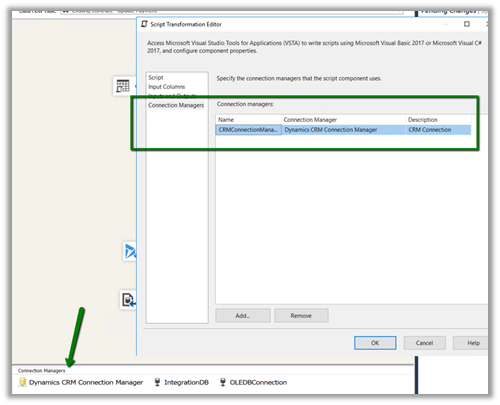
Click on Edit Script to open the Visual Studio.

Add references to below 3 assemblies. We need to search for the 2 KingswaySoft assemblies in the machine and then add them.

The sample code –


public override void Input0_ProcessInputRow(Input0Buffer Row)
{
var connMgr = this.Connections.CRMConnectionManager;
var connectionString = (string)connMgr.AcquireConnection(null);
var conn = new CrmConnection(connectionString);

var orgService = (IOrganizationService)conn.GetCrmService();

RetrieveRequest retRequest = new RetrieveRequest();
retRequest.ColumnSet = new ColumnSet();
retRequest.ColumnSet.AddColumn("statuscode");
retRequest.Target = new EntityReference("dxc_contract", "dxc_contractnumberinternal", Row.dxccontractnumberinternal);
var response = (RetrieveResponse)orgService.Execute(retRequest);

if (response.Entity != null)
{
// status is closed
if (((OptionSetValue)response.Entity.Attributes["statuscode"]).Value == 282210002)
{
Row.IsApprovedContract = "N";
}
else
{
Row.IsApprovedContract = "Y";
}
}
}

Get all the details here

http://www.kingswaysoft.com/blog/2013/06/24/Writing-Script-Component-or-Script-Task-using-CRM-Connection-Manager

Hope it helps..
Optimum batch size and thread while deleting records using SSIS Integration Toolkit for Microsoft Dynamics 365


Recently we had to delete few records for one of our entities. It was a user owned entity with 1 custom 1 – n relationship with contact having around 190 fields.

It was Dynamics 365 CE Online on version 9.1 and had ExecuteMultiple max limit set to 20. (by raising support ticket with Microsoft)

https://msdn.microsoft.com/en-us/library/microsoft.xrm.sdk.deployment.throttlesettings.executemultipleperorgmaxconnectionsperserver.aspx

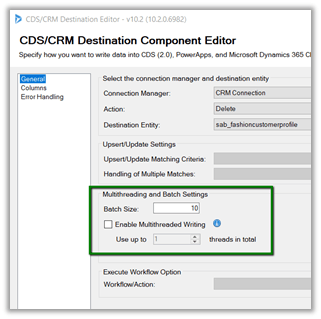
Batch Size and the Thread settings were used

Message – Delete

Sample Batch Size – 10000

The result: –

It seems that total thread between 10 – 15 with batch size 50, 100, 250, 500 gives similar results. Batch size of 50 with 15 threads could result into time out issue

https://nishantrana.me/2018/12/18/system-aggregateexception-one-or-more-errors-occurred-ssis-integration-toolkit-for-microsoft-dynamics-365-error-in-kingswaysofts-ssis-integration-toolkit/

So the optimum would be around 100 batch size with thread between 10 to 15.

Check out the below post as well while using UPSERT

https://nishantrana.me/2018/06/04/optimum-batch-size-while-using-ssis-integration-toolkit-for-microsoft-dynamics-365/

Hope it helps..
System.AggregateException: One or more errors occurred. (SSIS Integration Toolkit for Microsoft Dynamics 365) error in KingswaySoft’s SSIS Integration Toolkit


Occasionally we might get the below error in our SSIS Package.

[Dynamics CRM Destination [2]] Error: An error occurred with the following error message: “System.AggregateException: One or more errors occurred. (SSIS Integration Toolkit for Microsoft Dynamics 365, v10.2.0.6982 – DtsDebugHost, v14.0.3002.113)KingswaySoft.IntegrationToolkit.DynamicsCRM.CrmServiceException

: CRM service call returned an error: CRM service call returned an error: The request channel timed out while waiting for a reply after 00:01:59.6189794. Increase the timeout value passed to the call to Request or increase the SendTimeout value on the Binding. The time allotted to this operation may have been a portion of a longer timeout. (Error Type / Reason: Timeout)KingswaySoft.IntegrationToolkit.DynamicsCRM.CrmServiceException

(Status Reason: Timeout): The operation has timed out”.

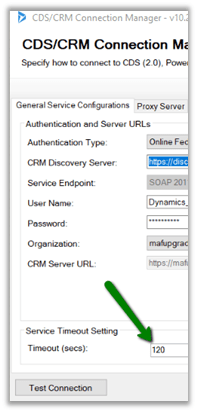
The way we can fix is either increase the time out in the CDS/CRM Connection Manager as suggested.

However the better solution is to keep the batch size low around 100 or so in the CDS/CRM Destination Component. We have observed that decreasing the batch size helps here in case of this error.

Hope it helps..
CrmRecordId and IsNew Output in CRM/CDS Destination Component


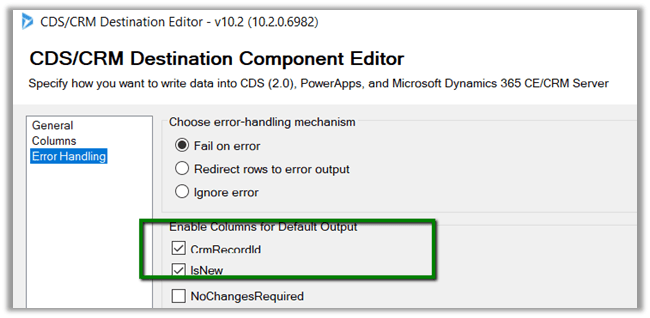
In CRM/CDS Destination Component of SSIS Integration toolkit we can found 2 output column as part of error handling

In case of Create

  • CrmRecordId will have the GUID of the newly created record, which could be used for any further processing
  • IsNew will list whether this is a new record or not.

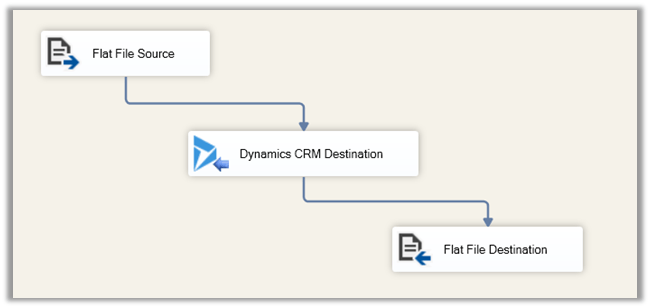
Our package: –

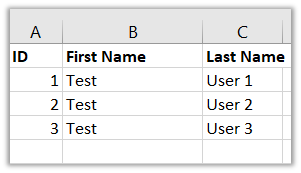
Suppose we have the following record in our source (here ID is the alternate key column used for Upsert)

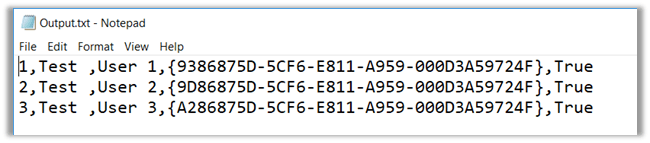
If all the records are new and are created we will get the following output.

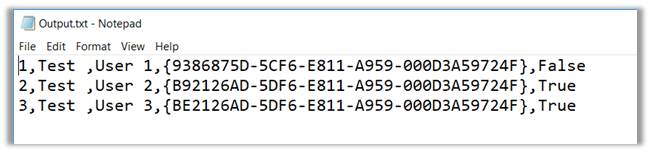
Now if we delete the Test User 2 and Test User 3 record and run the package again, which should now create 2 records and update one record i.e. Test User 1 during Upsert.

The output would be as below

It will return the GUID of the record irrespective of Update or Create and IsNew will specify whether the record is newly created or updated.

Hope it helps..
How to – Use Lookup Transformation and Cache Transformation in SSIS for Dynamics 365 (using Kingswaysoft)


Recently while working in data migration project, we had a requirement to insert a record in CRM from SQL Database and assign it to the team insert.

For e.g.

We had a Transaction Record that had a Brand lookup in it i.e. n – 1 relationship.

And the Brand record had a lookup of Team in it again n – 1. So basically, while inserting the transaction record we wanted to assign the record to the team of the corresponding brand in it.

So, for this, we had to set the owner id and owner id type field while inserting the record.

And for owner id i.e. team GUID we had to do a lookup on the Brand entity.

To achieve so, we did the following step

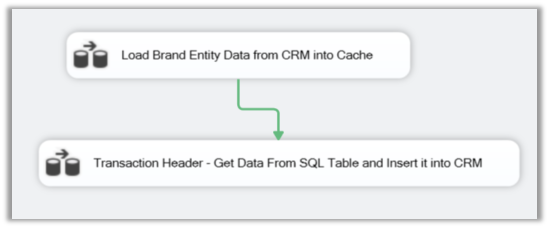
Added 2 Data flow task in the Control Flow, one for Caching the Brand entity’s detail and other for using the fetching data from SQL DB, Lookup Transformation task and inserting the data into CRM.

For the first data flow task,

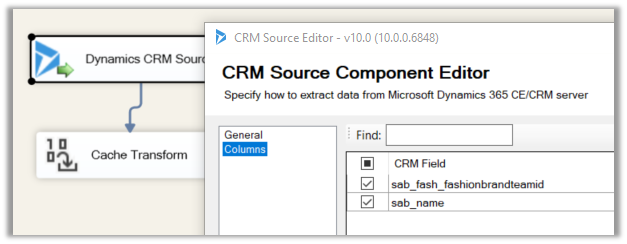
We added the Dynamics CRM Source and fetched the Brand Name and Team Lookup’ GUID field.

name field which will be used for mapping and teamid field whose value we need from it.

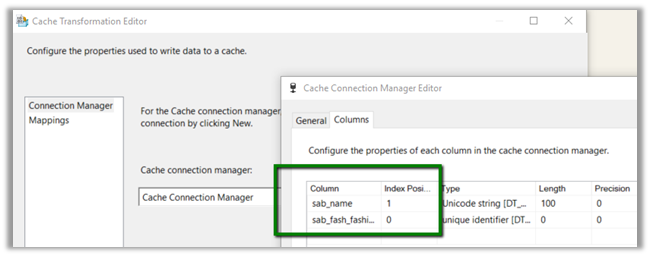
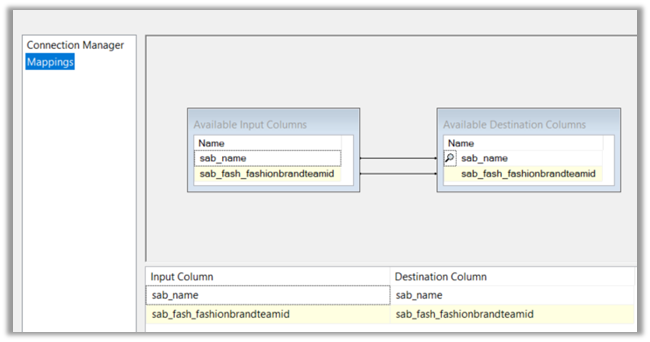
Then we added a Cache Transform task with following details,

Now for our second data task flow,

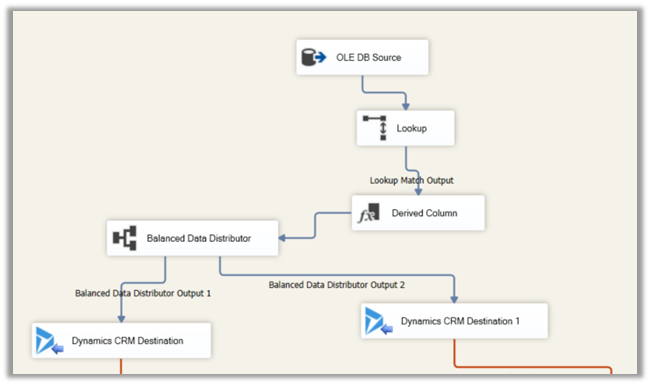
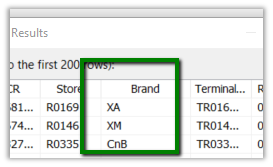
First, we added the OLE DB Source to fetch data from the source SQL View, having Brand (string) column in it.

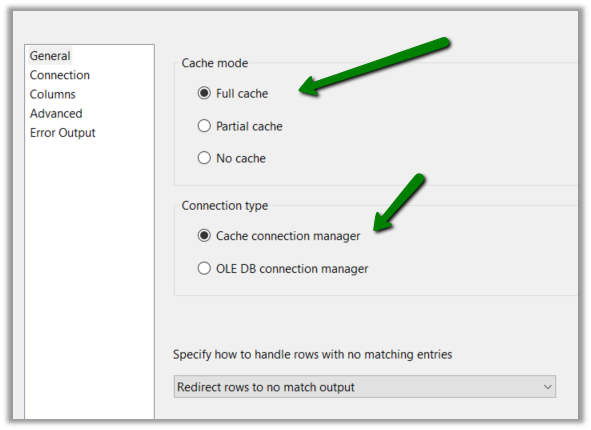
Then we added the Lookup Transformation task with following properties,

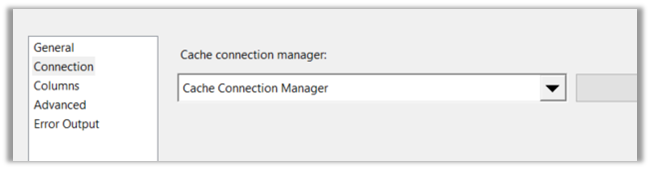
Setting Connection to Cache Connection Manager defined earlier.

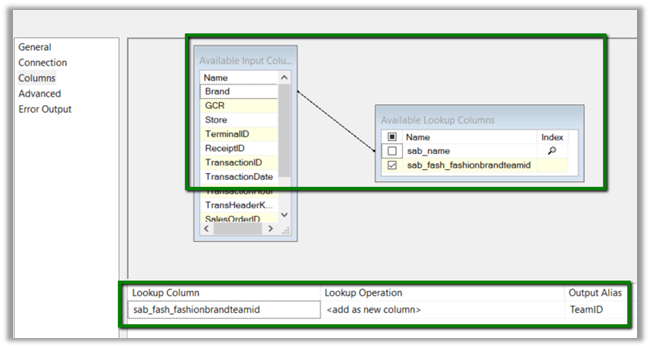
Now the most important part, the columns properties. Here we defined the mapping between the Brand field of the SQL View and name field of the Brand Entity of CRM and selected the teamid field as the lookup column whose value we would like to fetch as shown below.

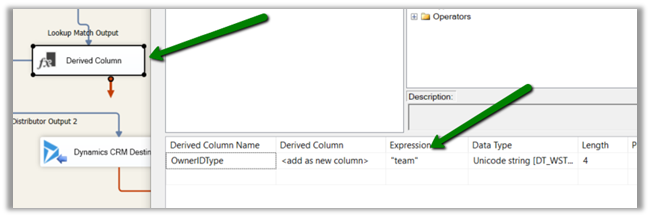
Then we added Derived Column task to add one more column for specifying ownerid type field to be used in CRM Destination Component while mapping. We defined the field type as string and hardcoded the value as “team”.

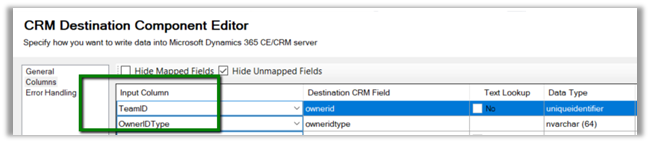
And as the final step mapped the above fields to the corresponding ownerid and owneridtype field in CRM Destination Component for Create operation.

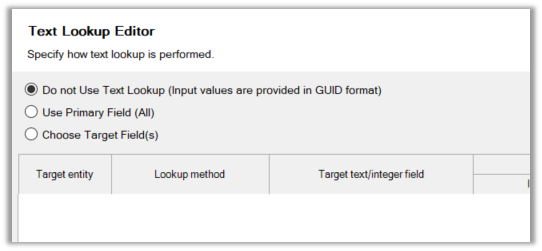
For ownerid, we selected the below option as we were setting the GUID of the team.

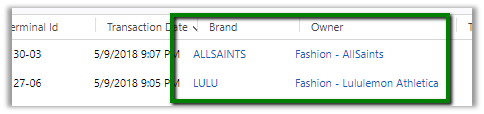
On running the package, we can see the transaction records getting created and properly assigned to the corresponding team of the brand.

The transaction record with Team set as Owner.

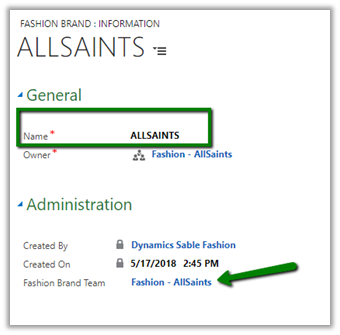
Brand record with Team lookup in it.

Hope it helps..
Advertisements