Using Data Spawner component (SSIS) to generate sample data in Dynamics 365


At times we need to generate sample data for our entities in Dynamics 365 for various reasons, performance testing is one of them.

Data Spawner component which is part of KingswaySoft’s
SSIS Productivity Pack provides us the most efficient way of doing so.

Download the component here –

https://www.kingswaysoft.com/solutions/ssis-data-generation-anonymization-components/data-spawner-component

Let us generate the sample data for Contact Entity.

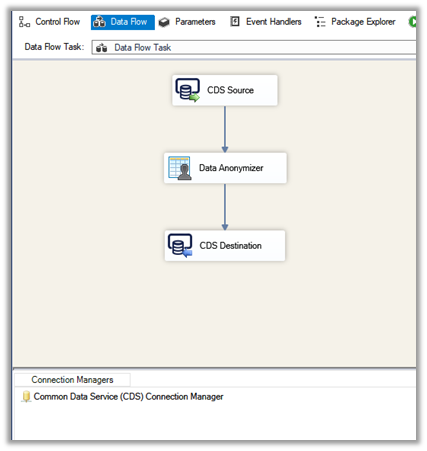
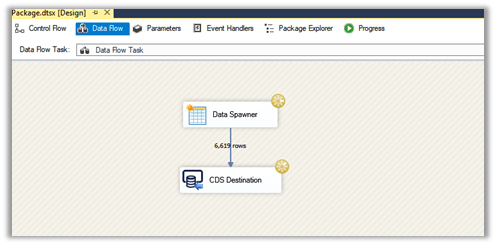
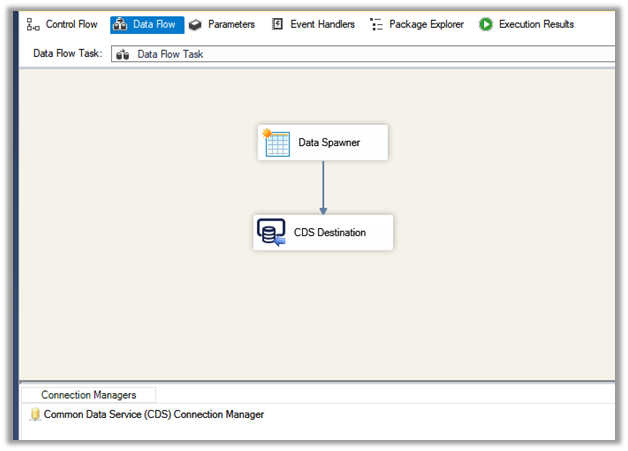
Add the Data Spawner component to the Data Flow along with the CDS Destination component in the integration service project.

Double click the Data Spawner to open the editor.

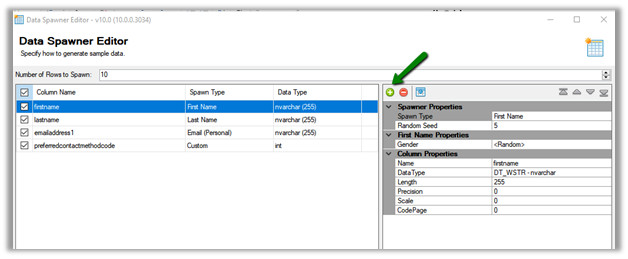
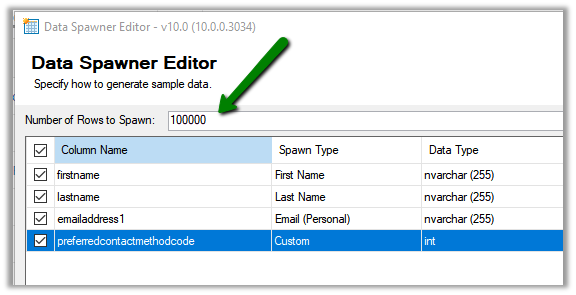
Click on Add + button to specify the columns, here we have specified four different columns.

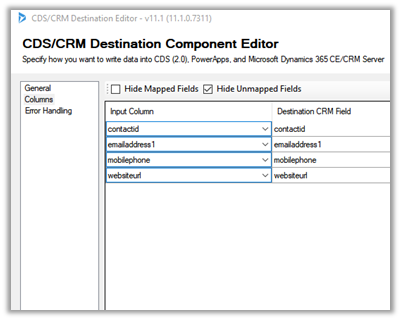
We have kept the name for each of the columns, same as the schema name so that it is easy to map them in CDS Destination.

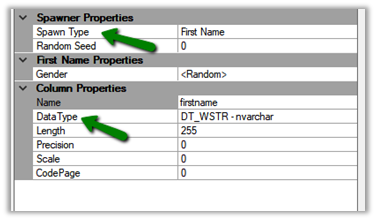
For the First Name column, we have specified Data Type as nvarchar and Spawn Type as the First Name, which will generate the string similar to first name value.

In Gender property for the First Name column, we can specify either to generate Male or Female first name.

Random will generate both Male and Female first name.

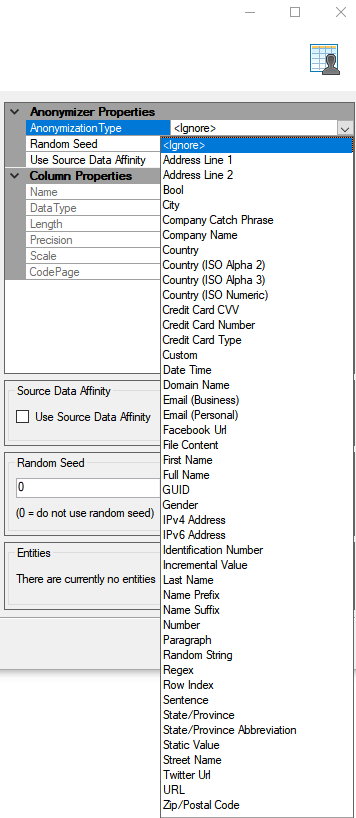
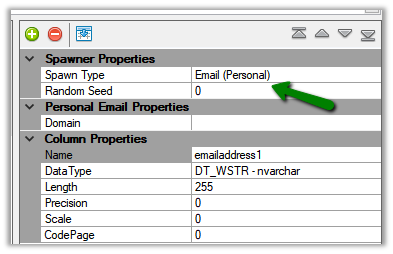
For the email address field, we have selected Spawn Type as email (personal), the other option is email (business).

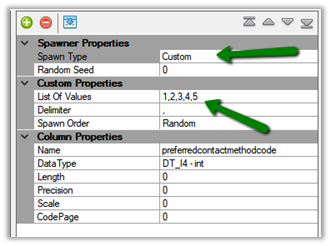
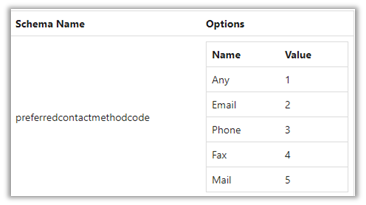
For our option set field preferred contact method, we have selected data type as an integer and Spawn Type as Custom, which will allow us to specify the list of available values, which is 1 to 5 in our case.

We have specified the total number of records to be generated as 100000.

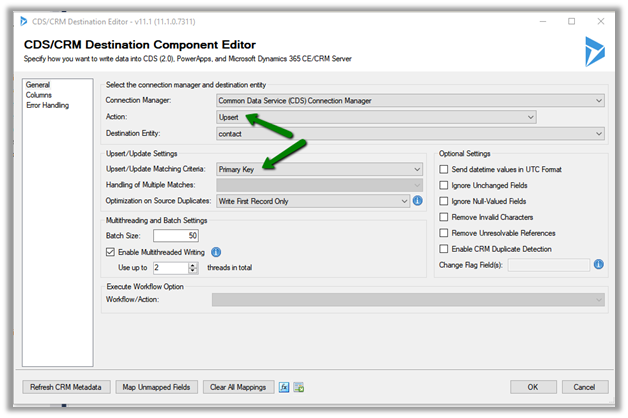
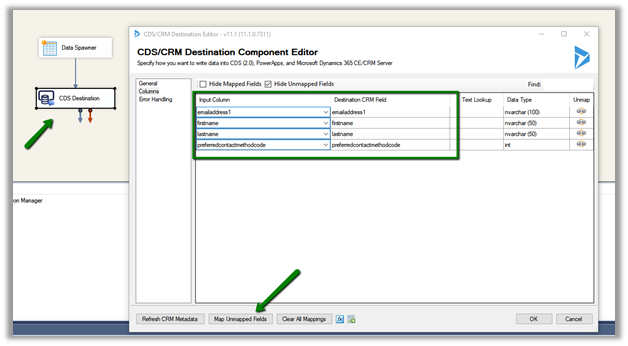
Lastly, we have set the output of Data Spawner to the CDS Destination component. (use the Map Unmapped fields to auto map the fields as we have set the column name same as the schema name of the attributes)

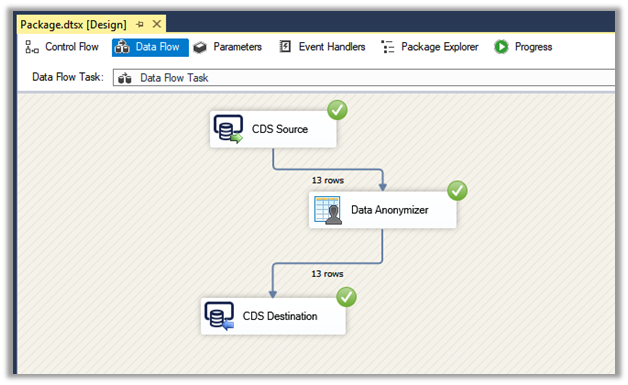
Execute the package

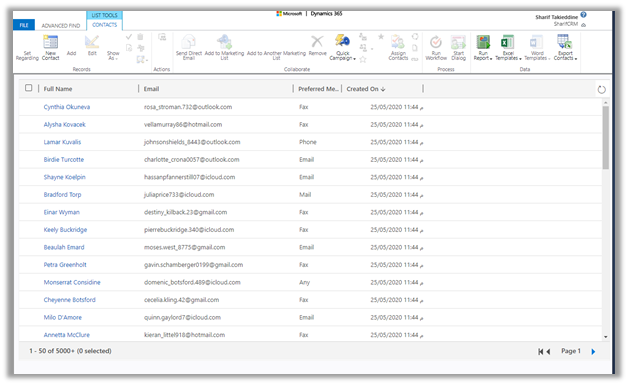
We can see our sample contact records start getting created.

Read more about Data
Spawner

https://www.kingswaysoft.com/products/ssis-productivity-pack/help-manual/data-generation-and-anonymization/data-spawner

Here are few other articles on SSIS (KingswaySoft)

https://nishantrana.me/2018/11/26/ssis-and-microsoft-dynamics-365/

Hope it helps..

How to – Get User’s last logon time in Dynamics 365


We can get the different metrics about the usage of the platform like active user usage, the operation performed, the entity used, plugins and API statics, etc. through Command Data Service Analytics (formerly Organization Insights).

https://admin.powerplatform.microsoft.com/analytics/d365ce

These reports can also be downloaded.

Some of these details can also be captured by enabling Audit user access.

And navigating to Audit Summary View

This view can be filtered to show only the User Access via Web event to get the last logon details for the users.

We can use below FetchXML query to get the same details

<fetch mapping=’logical’ aggregate=’true’ version=’1.0′ >
<entity name=’audit’ >
<attribute name=’createdon’ alias=’LastLoginDate’ aggregate=’max’ />
<filter>
<condition attribute=’operation’ operator=’eq’ value=’4′ />
</filter>
<link-entity name=’systemuser’ from=’systemuserid’ to=’objectid’ alias=’su’ link-type=’inner’ >
<attribute name=’fullname’ alias=’fn’ groupby=’true’ />
<attribute name=’domainname’ alias=’dn’ groupby=’true’ />
<attribute name=’userlicensetype’ alias=’ult’ groupby=’true’ />
<attribute name=’accessmode’ alias=’am’ groupby=’true’ />
<attribute name=’isdisabled’ alias=’id’ groupby=’true’ />
</link-entity>
</entity>
</fetch>

We can also run the following SQL Query (in case of on-premise) to get the details


SELECT su.fullname,
su.domainname,
su.userlicensetype,
su.accessmode,
su.isdisabled,
max(a.createdon) AS LastLoginDate
FROM audit AS a
INNER JOIN
systemuser AS su
ON su.systemuserid = a.objectid
WHERE a.operation = 4
GROUP BY su.fullname, su.domainname, su.userlicensetype, su.accessmode, su.isdisabled;

Now there could be some users who have never accessed the application, to get details of those user we can use the below query


SELECT su.fullname,
su.domainname,
su.userlicensetype,
su.accessmode
FROM systemuser AS su
WHERE su.systemuserid IN (SELECT systemuserid
FROM systemuser
EXCEPT
SELECT DISTINCT objectid
FROM audit
WHERE operation = 4);

We can also use the wonderful User Audit Viewer XrmToolBox Plugin for getting the user audit details.

Update – 8 Jun 2021- Just checked it- Audi Table is available in SQL 4 CDS so ignore the below details 

Can we use the new SQL Data Connection for CDS (preview) to query Audit information ?

We cannot as the Audit Table is not available

Audit

Hope it helps..

Advertisements

Setting up – Using SQL to query data in Dynamics 365 (Preview)


Recently we were trying out the preview feature of using SQL to query CDS data.

Below are the steps à

To get started,

Download or open SQL Server Management Studio (18.4 or later)

Use Azure Active Directory authentication to connect.

Specify the organization address URL followed by port 5558 in the server name.

If you get the error “TDS protocol endpoint is disabled for this organization”, follow the below steps to enable the TDS i.e. Tabular Data Stream.

Enable the TDS endpoint (preview)

https://docs.microsoft.com/en-us/power-platform/admin/settings-features

enableTDS

enableTDS

or

Download the OrgDBOrgSettingsTool i.e. CRM2016-Tools-KB4046795-ENU-amd64

https://www.microsoft.com/en-us/download/details.aspx?id=56131

Make the following changes in the configuration file of the tool

Highlighted in green

Run the below command (& enter the password for the admin account specified)

Microsoft.Crm.SE.OrgDBOrgSettingsTool Update /u <org-unique-name> EnableTDSEndpoint true

Get the organization unique name from Customization à Developer Resources

After making the above changes, we were able to connect successfully.

This is a definitely one of the most pleasing additions to the product !

Also check out the wonderful XrmToolBox plugin SQL 4 CDS

and

Skyvia Query 

for running SQL query against Dynamics 365.

Hope it helps..

Advertisements

Data Migration in Dynamics 365 – Key considerations


I was recently watching the FastTrack TechTalks on Data Migration.

https://community.dynamics.com/365/b/techtalks/posts/data-migration-january-16-2018

Below are some of the key points from the session à

Customer 360 View is more often than not, the starting point of the data migration discussions. Storing all the data in Dynamics 365 might not be a good idea as it could impact the performance and more importantly, the storage has a cost associated with it.

Learn more about the storage in Power Platform here

https://docs.microsoft.com/en-us/power-platform/admin/whats-new-storage

Important Considerations as part of the Data Migration Strategy

Data Source

  • What is the source of the migration? Is it a single system or multiple systems from which the data needs to be consolidated.
  • The appropriate connectors or technology needed to fetch or extract the data from the source system(s). (SQL, File-based, Web Service, etc.)
  • Need for a staging database for transformation and cleansing of data before migrating it to Dynamics 365.
  • Having a well-defined Dynamics 365 data dictionary and model.

Data Cleansing

  • Removal of the old data.
  • De-duplicate of the data.
  • Checking for null, missing required fields and references.
  • Identify and define the uniqueness of the record.
  • Need for defining Alternate keys

Data Transformation (mapping with Dynamics 365 entities and fields)

  • Transform the data to adapt to the target Dynamics 365 Data model.
  • Format and Range of the fields.
  • Calculate or combination of different fields.
  • Filtering and Enriching of the fields

Mapping OptionSet in KingswaySoft SSIS Integration Toolkit for Dynamics 365

Mapping OptionSet in Scribe Online

Lookup and Cache Transformation component in KingswaySoft SSIS Integration Toolkitfor Dynamics 365

Data Loading

  • Is it one-time migration (plus delta load daily) or n times migration
  • Based on the time it takes, the batch can run over the weekend or after office hours daily.
  • Order of data load – Master \ Configuration Data à Parent records àChild records.
  • Use Create or Update whenever possible instead of Upsert.
  • For Inactive records, first, we need to create those records as active, associate any child records to it if any, before updating the status of the record.
  • Use multithreading and execute multiple requests.
  • Figure out the optimum batch size and thread.

Optimum batch size

For Upsert in KingswaySoft SSIS Integration Toolkit for Dynamics 365

For Delete in KingswaySoft SSIS Integration Toolkit for Dynamics 365

Volume

How many records are to be migrated and how much time will it take.

Storage / Scalability

Do we need all the data to be stored in Dynamics 365, or for Customer 365, can we leverage Power BI reports which could pull data from different data sources?

Do we need all the data for all the entities or last x months?

Compliance and regulations

We need to consider what information is allowed to be stored/accessed by the users in Dynamics 365.

Other key points

  • Use WebAPI for migration.
  • Use Execute Multiple for batch operations.
  • Leverage Application User that provides Server to Server authentication.
  • To update CreatedOn field use OverriddenCreatedOn field.
  • Use Create OnBehalfOf / CallerID for Created By field.
  • Map ModifiedBy and ModifiedOn to custom fields for the historical purpose.
  • Check for the sequence of the auto-number fields in the entities.
  • If possible for improved performance – during migration disable duplicate detection, workflows, plugins, audit, activity feeds, etc.
  • Leverage the same location/region for running the package as the Dynamics 365.
  • For faster date-time conversions set regional settings to UTC for the service account being used.

Check out the below articles

https://kunaltripathy.com/2019/06/04/dynamics-365-data-migration-demystified-part-i/

Hope it helps..
Dynamics CRM On-Premise to Online Migration Program – Microsoft FastTrack


Customers planning to migrate to the cloud should check out the below session, as part of FastTrack TechTalks, on Dynamics CRM On-Premise migration to Online.

https://community.dynamics.com/365/b/techtalks/posts/onpremises-to-online-migration-program-january-17-2020

Highlighting some of the main points

  • FastTrack Service is only available for eligible customers. Check the eligibility requirements below

https://docs.microsoft.com/en-IN/fasttrack/M365-eligible-services-and-plans

  • The customer \ partner will be guided and assisted by FastTrack Solution Architect as part of the FastTrack Program.
  • Supported SQL Server version – 2008, 2012, 2014, 2016.
  • Supported CRM On-Premise – 2011, 2013, 2015, 2016, 9.0.

High-level steps of the program include

  • Setting up the migration project in Microsoft Lifecycle Services, which uses the wizard-based hosted tool for the migration.
  • Setting up Azure subscription and storage account (for which customer needs to pay along with the Dynamics 365 Subscriptions) and provision staging sandbox environment.
  • Taking the backup of the CRM On-Premise database and uploading it to Azure Blob Container.

    The backup is restored in the same version in Azure Hosted Virtual Machine i.e. CRM 2015 database will be restored in CRM 2015 VM.

  • PowerApps Checker service runs as part of the next phase, to validate the solution.
  • Finally, the Upgrade process starts, which upgrades the restored CRM Database to CRM 9.0 Database. E.g. CRM 2015 Backup will be restored in CRM 2015 VM, which will be then upgraded to CRM 2016 VM, and then finally to CRM 9.0 VM.
  • This is followed by user-mapping and the migration to the online as the last step.

Here, the customer/partner needs to make sure to transform all SQL Based report to Fetch XML, update the plugin to run in sandbox mode, update JavaScript to the new client object model, check for any 3rd part tools and reconfiguration of integration, make users familiar with new Unified Client interface, cleaning of the database (for audit data), etc to make the solution online compatible. This can be done before restoring to the Azure Storage or during the staging phase (This is customer/ partner responsibility and will be assisted by FastTrack Architect and Microsoft Technical Support team for any upgrade issues).

Hope it helps..
Notes on Dynamics 365 for Phones and Tablets app – Part 12 (Mobile Offline Capabilities and Limitations)


Check the other articles of this series.
In this post, we’d cover some of the limitations and capabilities of Dynamics 365 Mobile App (in offline mode)

  • Add Existing (n-n relationship) is not supported in mobile offline
Mobile App – Online Mobile App – Offline
  • Only System Views are available in offline mode.

“My Custom View” is public view which is available in online mode, but not in offline mode.

Mobile App – Online Mobile App – Offline
  • BPF is not available in offline mode.
Mobile App – Online Mobile App – Offline
  • Custom Ribbon Button are note available in offline mode
Mobile App – Online Mobile App – Offline
  • The mobile offline is only available in iOS and Android phone and tablet app. Below is the screenshot of Tablet App on Windows 10. There is no option for going offline.

  • The offline option in Phones App for Android

  • Business Rules work in Offline mode.
  • Plugins and workflows are not supported in Offline mode.
  • Use Xrm.WebApi.offline to perform CRUD operation offline.


Mobile App – Online Mobile App – Offline
  • Downloading offline updates can take a few minutes to an hour. (The user can still work online while the data is getting synced in the background)


  • Web Resource can be made available offline


Mobile App – Online Mobile App – Offline

The same web resource when defined within the sitemap gives a “No data available” message.


Mobile App – Online Mobile App – Offline

Thus, while designing a solution for Mobile Offline, we need to consider the above behavior of the mobile app.

Hope it helps..