Using Homogenous Batch / Bulk operation messages for improved performance – Data Migration / Dataverse


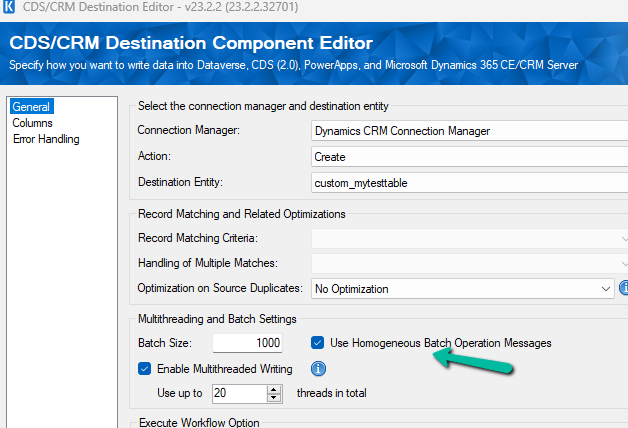
As we all are aware Microsoft has introduced Bulk Operation messages in the platform. Now we could use the same in our SSIS Package that uses KingswaySoft’s SSIS Integration Toolkit for Microsoft Dynamics 365 by using the Homengeneous Batch Operation Messages option in the CDS / CRM Destination Component Editor.

Let us first use the data spawner component to generate sample data for a custom table for which we just have 2 new custom first name and last name fields created as well as mapped with 100 K records.

A screenshot of a computer

Description automatically generated

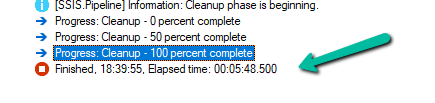
Let us first run the Package with batch size = 1000, threads as 20, multiplexing user = 5, and homogeneous batch operation disabled.

Below is the User Multiplexing option in the Connection Manger.

A screenshot of a computer

Description automatically generated

Here we have defined 5 different application users.

A screenshot of a computer

Description automatically generated
A screenshot of a computer

Description automatically generated
A computer screen shot of a number

Description automatically generated

Now let us run the same with the Homogenous Batch Operation option checked.

A screenshot of a computer

Description automatically generated
A computer screen shot of a computer screen

Description automatically generated

Below are the findings with different variations of Batch Size, Threads, Multiplexing Users, Homogenous Batch Operation for the – 100K records – Custom table

Batch Size

Threads

Multiplexing Users

Homogenous Batch Operation

Duration (minutes)

1000

20

5

N

5:48

1000

20

5

Y

1:54

500

20

5

N

4:16

500

20

5

Y

1:29

250

20

5

N

3:58

250

20

5

Y

1:38

100

20

5

N

4:47

100

20

5

Y

1:58

500

50

5

N

4:00

500

50

5

Y

1:24

We can see huge performance improvements while using Bulk Operations (Homogenous batch option) for our custom table, with threads around 20 and multiplexing users as 5. Increasing the number of multiplexing users will provide further performance improvement here.

Now let us run it against the Contact table and this time we take 10K as a sample instead of 100K as a sample.

10K records Contact table

Batch Size

Threads

Multiplexing Users

Homogenous Batch Operation

Duration (minutes)

500

1

1

N

25:26

500

1

1

Y

42:14

100

1

1

N

24:34

100

1

1

Y

36:06

100

5

1

N

21:56

100

5

1

Y

16:45

100

10

1

N

6:59

100

10

1

Y

12:54

100

10

2

N

6:14

100

10

2

Y

11:28

100

10

5

N

3:26

100

10

5

Y

9:36

100

15

5

N

2:56

100

15

5

Y

9:57

100

20

5

N

2:34

100

20

5

Y

10:17(Ran into a server-side throttling error.)

1000

20

5

N

5:30 (Ran into a server-side throttling error.)

1000

20

5

Y

5:02 (Ran into a server-side throttling error.)

500

20

5

N

4:20(Ran into a server-side throttling error.)

500

20

5

Y

2:36 (Ran into a server-side throttling error.)

100

20

1

N

18:00

(Ran into a server-side throttling error.)

100

20

1

Y

11:20

(Ran into a server-side throttling error.)

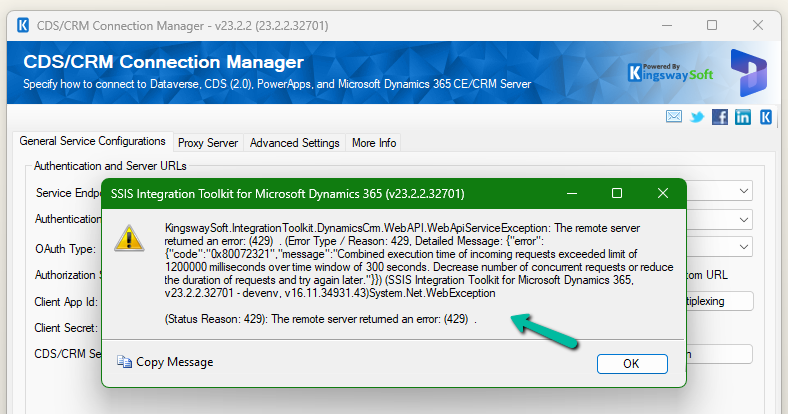
With the higher Batch size along Threads + Multiplexing users + Homogenous Batch Operation message option, we could get a good performance improvement, however, we can see that we ran into server-side throttling errors on increasing the batch size. So with tables having a higher number of fields/relationships, we need to be more careful than a custom/table with fewer relationships and fields

[CDS Destination] Warning: An exception has occurred while processing the service request, the same request will be attempted again immediately. KingswaySoft.IntegrationToolkit.DynamicsCrm.WebAPI.WebApiServiceException: The underlying connection was closed: A connection that was expected to be kept alive was closed by the server. (Error Type / Reason: KeepAliveFailure, Detailed Message: The underlying connection was closed: A connection that was expected to be kept alive was closed by the server.)

[CDS Destination] Warning: A server side throttling is encountered, the same request will be retried after 5 minutes (as instructed by the returned throttling error message from the server). KingswaySoft.IntegrationToolkit.DynamicsCrm.WebAPI.WebApiServiceException: The remote server returned an error: (429) . (Error Type / Reason: 429, Detailed Message: {“error”:{“code”:”0x80072321″,”message”:”Combined execution time of incoming requests exceeded limit of 1200000 milliseconds over time window of 300 seconds. Decrease number of concurrent requests or reduce the duration of requests and try again later.”}})

A screenshot of a computer

Description automatically generated

More on the Homogenous Batch Operation option – https://www.kingswaysoft.com/blog/2023/11/29/Use-Homogeneous-Batch-Operation-Messages-for-Greater-DataverseCRM-Writing-Performance

Hope it helps..

Customize the Schedule Board to show bookable resource attribute – Dynamics 365 Field Service


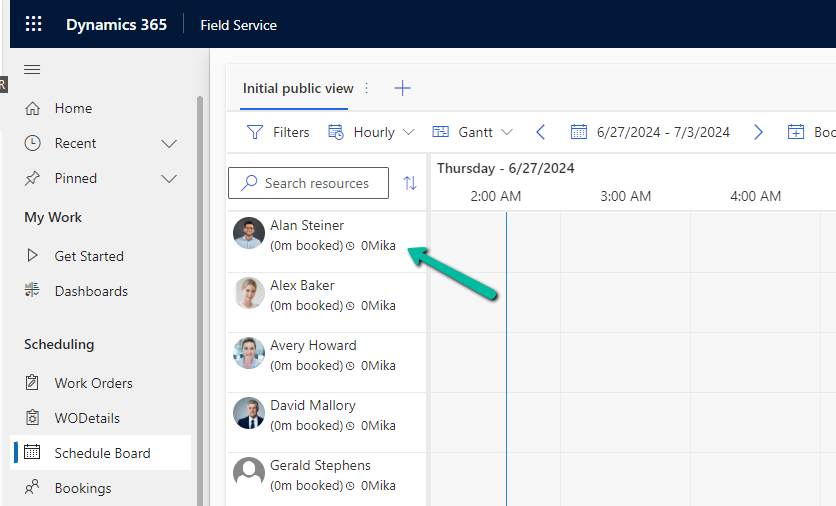
Below we can see the resource cell template (or view) applied that defines the images, values, and fields displayed for the resource in the Schedule Board.

A screenshot of a computer

Description automatically generated

Now suppose we want to show the Account (custom field) value also, that would make it easy for the Dispatcher to schedule them from within the Schedule board.

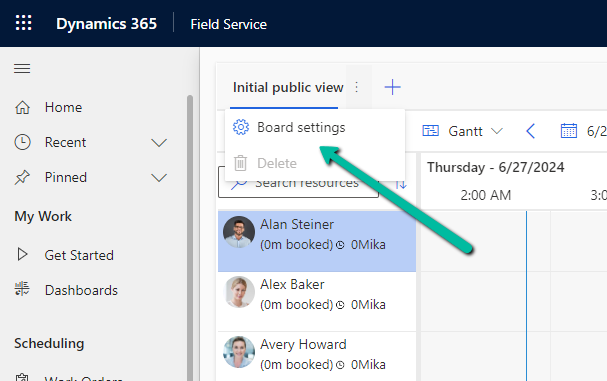
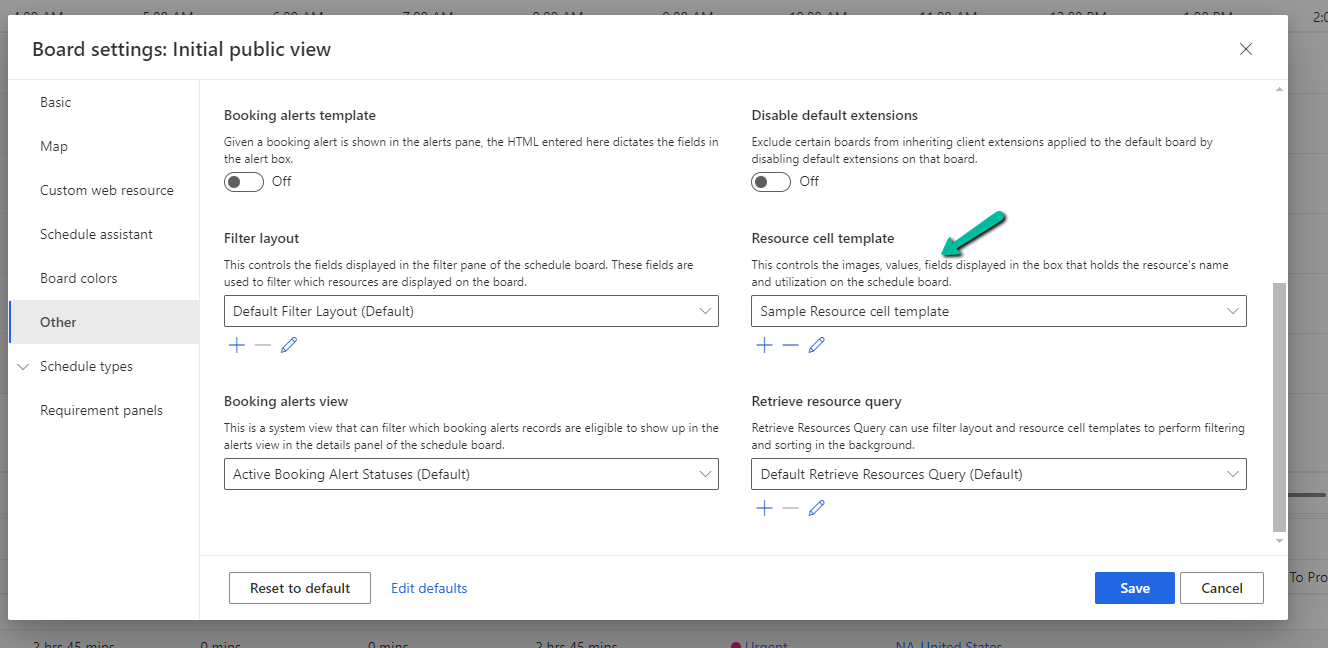
For this, we need to select Board Settings for the Schedule Board.

A screenshot of a computer

Description automatically generated

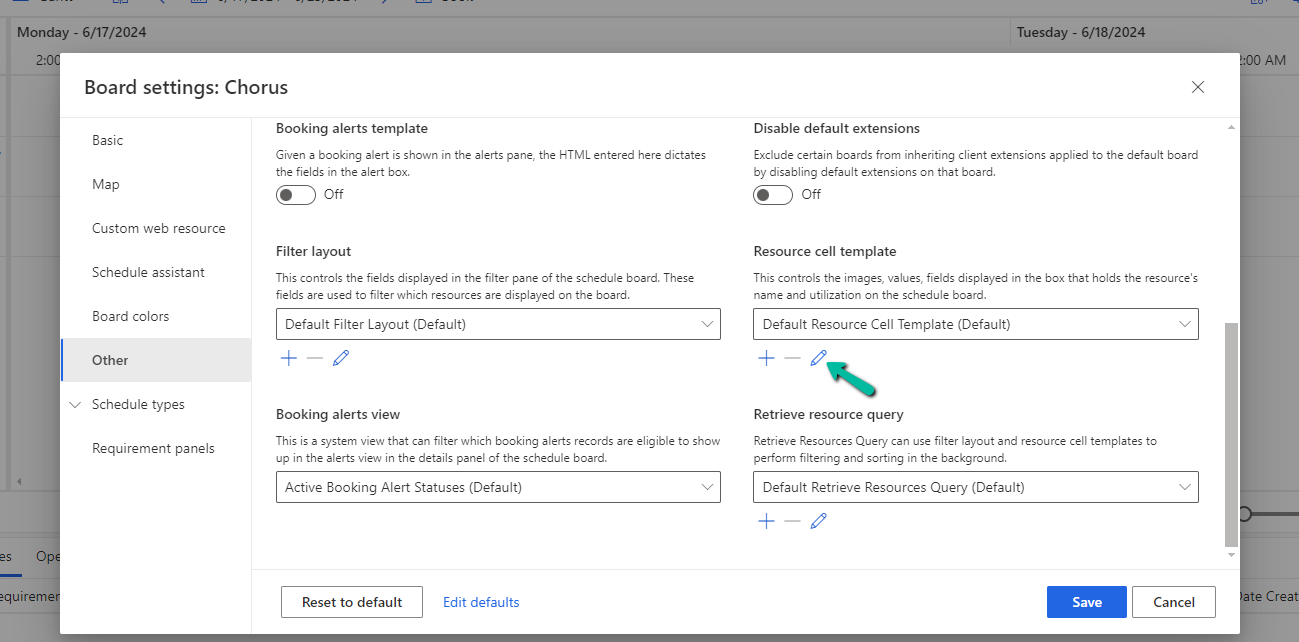
Navigate to the Other section within the Board Settings.

We’d first start by adding/defining a new Resource Cell Template and a new Retrieve resource query template.

A screenshot of a computer

Description automatically generated

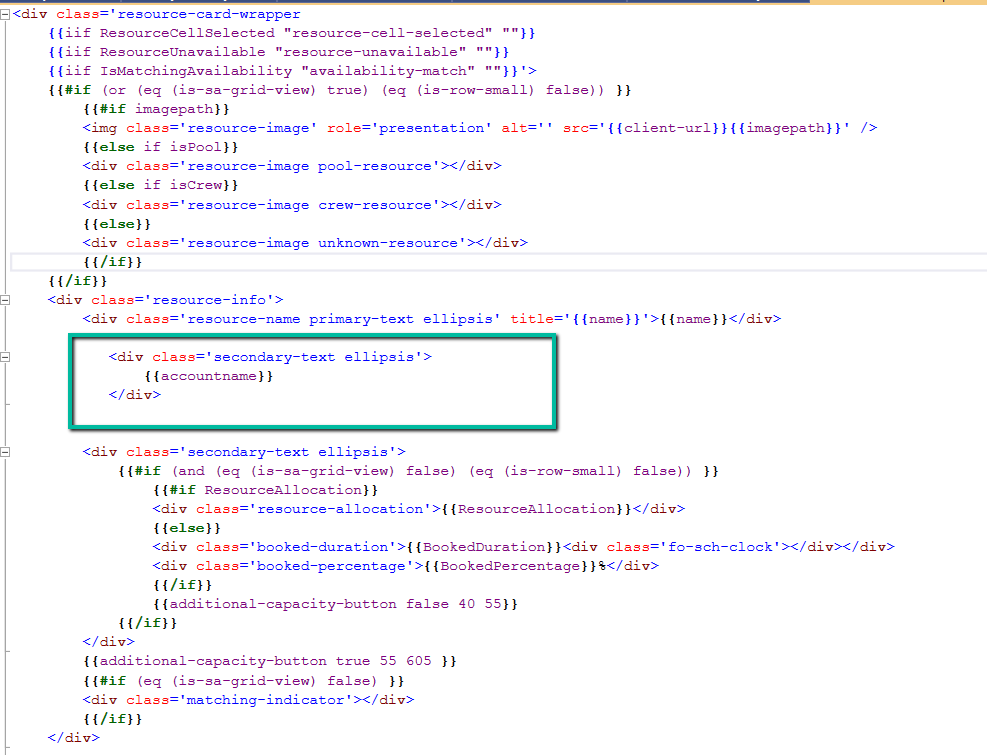
We have added below Div tag below to show the account name.

Save this new template

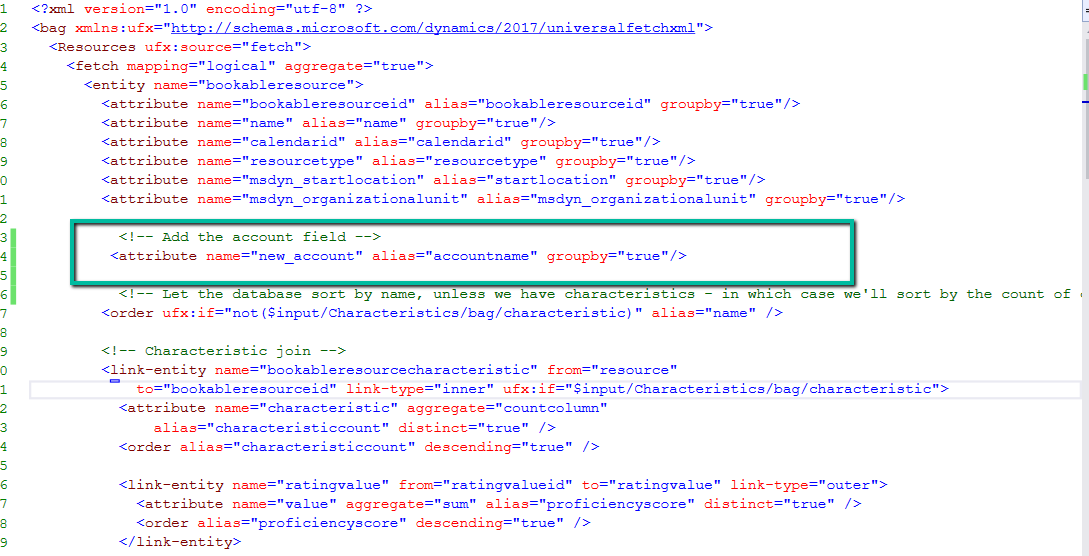
Next, add the below attribute tag for the account field in the Fetch XML for it to retrieve the value of the account, here name property holds the schema name of the field.

Select Save as new to add the new template.

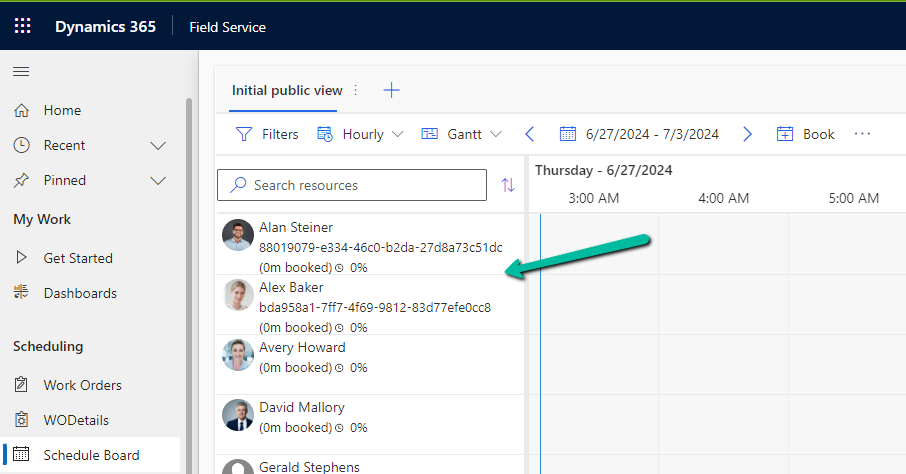
On refreshing the Schedule Board we can see the Account value added to the view, however, it shows the Guid of the account record.

To get the label /name, edit the Resource Cell Template and add the below UFX Bag (UFX directives for querying the data) to fetch the name of the account.

Update the Sample Resource Query, Save the changes, and refresh the schedule board.

We can see the Guid replaced by the Account name there.

Resource Cell Template –

<?xml version="1.0" encoding="utf-8" ?>
<bag xmlns:ufx="http://schemas.microsoft.com/dynamics/2017/universalfetchxml">
  <Resources ufx:source="fetch">
    <fetch mapping="logical" aggregate="true">
      <entity name="bookableresource">
        <attribute name="bookableresourceid" alias="bookableresourceid" groupby="true"/>
        <attribute name="name" alias="name" groupby="true"/>
        <attribute name="calendarid" alias="calendarid" groupby="true"/>
        <attribute name="resourcetype" alias="resourcetype" groupby="true"/>
        <attribute name="msdyn_startlocation" alias="startlocation" groupby="true"/>
        <attribute name="msdyn_organizationalunit" alias="msdyn_organizationalunit" groupby="true"/>

          <!-- Add the account field -->
         <attribute name="new_account" alias="accountname" groupby="true"/>
        
          <!-- Let the database sort by name, unless we have characteristics - in which case we'll sort by the count of characteristics -->
        <order ufx:if="not($input/Characteristics/bag/characteristic)" alias="name" />

        <!-- Characteristic join -->
        <link-entity name="bookableresourcecharacteristic" from="resource"
            to="bookableresourceid" link-type="inner" ufx:if="$input/Characteristics/bag/characteristic">
          <attribute name="characteristic" aggregate="countcolumn" 
              alias="characteristiccount" distinct="true" />
          <order alias="characteristiccount" descending="true" />

          <link-entity name="ratingvalue" from="ratingvalueid" to="ratingvalue" link-type="outer">
            <attribute name="value" aggregate="sum" alias="proficiencyscore" distinct="true" />
            <order alias="proficiencyscore" descending="true" />
          </link-entity>

          <filter>
            <condition attribute="statecode" operator="eq" value="0" />
          </filter>
        </link-entity>

        <!-- Characteristic filter -->
        <filter type="or" ufx:if="$input/Characteristics/bag/characteristic">
          <ufx:apply select="$input/Characteristics/bag">
            <filter type="and">
              <condition entityname="bookableresourcecharacteristic" attribute="characteristic" operator="eq">
                <ufx:value select="characteristic" attribute="value" />
              </condition>
              <condition entityname="ratingvalue" attribute="value" operator="ge" ufx:if="ratingvalue">
                <ufx:value select="ratingvalue" attribute="value" />
              </condition>
            </filter>
          </ufx:apply>
        </filter>

        <!-- Category join -->
        <link-entity name="bookableresourcecategoryassn" from="resource" to="bookableresourceid" link-type="inner" ufx:if="$input/Roles/bag">
          <attribute name="resourcecategory" aggregate="countcolumn" alias="rolecount" distinct="true" />

          <filter>
            <condition attribute="statecode" operator="eq" value="0" />
            <condition operator="in" attribute="resourcecategory">
              <ufx:apply select="$input/Roles/bag">
                <value>
                  <ufx:value select="@ufx-id" />
                </value>
              </ufx:apply>
            </condition>
          </filter>
        </link-entity>

        <!-- Territory join -->
        <link-entity ufx:if="$input/Territories/bag | $input/UnspecifiedTerritory[. = 'true']" name="msdyn_resourceterritory" from="msdyn_resource" to="bookableresourceid" alias="territory" link-type="outer">
          <filter>
            <condition attribute="statecode" operator="eq" value="0" />
            <condition attribute="msdyn_territory" operator="not-null" />
          </filter>
        </link-entity>

        <!-- Territory filter -->
        <filter type="or">
          <condition ufx:if="$input/UnspecifiedTerritory[. = 'true']" entityname="territory" attribute="msdyn_territory" operator="null" />

          <condition ufx:if="$input/Territories/bag" entityname="territory" attribute="msdyn_territory" operator="in">
            <ufx:apply select="$input/Territories/bag">
              <value>
                <ufx:value select="@ufx-id" />
              </value>
            </ufx:apply>
          </condition>
        </filter>

        <filter type="and">
          <condition attribute="statecode" operator="eq" value="0" />

          <!-- Must choose from resource filter -->
          <condition ufx:if="$input/MustChooseFromResources/bag" attribute="bookableresourceid" operator="in">
            <ufx:apply select="$input/MustChooseFromResources/bag">
              <value>
                <ufx:value select="@ufx-id" />
              </value>
            </ufx:apply>
          </condition>

          <!-- Restricted resource filter -->
          <condition ufx:if="$input/RestrictedResources/bag" attribute="bookableresourceid" operator="not-in">
            <ufx:apply select="$input/RestrictedResources/bag">
              <value>
                <ufx:value select="@ufx-id" />
              </value>
            </ufx:apply>
          </condition>

          <!-- DisplayOnScheduleBoard and DisplayOnScheduleAssistant filter -->
          <condition attribute="msdyn_displayonscheduleboard" operator="eq" value="1" ufx:if="$input/DisplayOnScheduleBoard[. = 'true']" />
          <condition attribute="msdyn_displayonscheduleassistant" operator="eq" value="1" ufx:if="$input/DisplayOnScheduleAssistant[. = 'true']" />

          <!-- Organizational unit filter -->
          <condition operator="in" attribute="msdyn_organizationalunit" ufx:if="$input/OrganizationalUnits/bag">
            <ufx:apply select="$input/OrganizationalUnits/bag">
              <value>
                <ufx:value select="@ufx-id" />
              </value>
            </ufx:apply>
          </condition>

          <!-- Resource & Pool type filter -->
          <condition attribute="resourcetype" operator="in" ufx:if="$input/ResourceTypes/bag/option">
            <ufx:apply select="$input/ResourceTypes/bag/option">
              <value>
                <ufx:value select="." />
              </value>
            </ufx:apply>
          </condition>
          <filter type="or" ufx:if="$input/PoolTypes/bag/option">
            <condition attribute="msdyn_pooltype" operator="null" />
            <condition attribute="msdyn_pooltype" operator="contain-values">
              <ufx:apply select="$input/PoolTypes/bag/option">
                <value>
                  <ufx:value select="." />
                </value>
              </ufx:apply>
            </condition>
          </filter>
        </filter>

        <link-entity name="systemuser" from="systemuserid" to="userid" link-type="outer">
          <!-- If Business Units or Teams are supplied, assume only users are to be returned -->
          <ufx:value ufx:if="$input/BusinessUnits/bag | $input/Teams/bag" select="'inner'" attribute="link-type" />

          <attribute name="systemuserid" alias="systemuserid" groupby="true" />
          <attribute name="entityimage_url" alias="userimagepath" groupby="true"/>

          <!-- User and Teams filter -->
          <link-entity name="teammembership" from="systemuserid" to="systemuserid" link-type="inner" ufx:if="$input/Teams/bag">
            <filter type="and" >
              <condition operator="in" attribute="teamid">
                <ufx:apply select="$input/Teams/bag">
                  <value>
                    <ufx:value select="@ufx-id" />
                  </value>
                </ufx:apply>
              </condition>
            </filter>
          </link-entity>

          <!-- User Businessunits filter -->
          <filter type="and" ufx:if="$input/BusinessUnits/bag">
            <condition operator="in" attribute="businessunitid">
              <ufx:apply select="$input/BusinessUnits/bag">
                <value>
                  <ufx:value select="@ufx-id" />
                </value>
              </ufx:apply>
            </condition>
          </filter>
        </link-entity>

        <link-entity name="contact" from="contactid" to="contactid" link-type="outer">
          <attribute name="contactid" alias="contactid" groupby="true"/>
          <attribute name="entityimage_url" alias="contactimagepath" groupby="true"/>
        </link-entity>

        <link-entity name="account" from="accountid" to="accountid" link-type="outer">
          <attribute name="accountid" alias="accountid" groupby="true"/>
          <attribute name="entityimage_url" alias="accountimagepath" groupby="true"/>
        </link-entity>
      </entity>
    </fetch>    

     <!-- Add the account field, to show Lookup' Name / Label and not the Guid -->
    <bag>
        <accountname ufx:select="accountname/@ufx-formatvalue"></accountname>      
    </bag>
     
    
    <bag>
      <imagepath ufx:select="accountimagepath | contactimagepath | userimagepath" />
      <accountimagepath ufx:select="$null" />
      <contactimagepath ufx:select="$null" />
      <userimagepath ufx:select="$null" />   
               
    </bag>   


  </Resources>

  <Resources ufx:if="$input/Characteristics/bag/characteristic" ufx:select="list(Resources/bag[characteristiccount = count($input/Characteristics/bag/characteristic)])" />
  <Resources ufx:select="order(Resources, iif($input/Orders/bag, $input/Orders, 'name'))" />
</bag>

Resource Query –

<?xml version="1.0" encoding="utf-8" ?>
<bag xmlns:ufx="http://schemas.microsoft.com/dynamics/2017/universalfetchxml">
  <Resources ufx:source="fetch">
    <fetch mapping="logical" aggregate="true">
      <entity name="bookableresource">
        <attribute name="bookableresourceid" alias="bookableresourceid" groupby="true"/>
        <attribute name="name" alias="name" groupby="true"/>
        <attribute name="calendarid" alias="calendarid" groupby="true"/>
        <attribute name="resourcetype" alias="resourcetype" groupby="true"/>
        <attribute name="msdyn_startlocation" alias="startlocation" groupby="true"/>
        <attribute name="msdyn_organizationalunit" alias="msdyn_organizationalunit" groupby="true"/>

          <!-- Add the account field -->
         <attribute name="new_account" alias="accountname" groupby="true"/>
        
          <!-- Let the database sort by name, unless we have characteristics - in which case we'll sort by the count of characteristics -->
        <order ufx:if="not($input/Characteristics/bag/characteristic)" alias="name" />

        <!-- Characteristic join -->
        <link-entity name="bookableresourcecharacteristic" from="resource"
            to="bookableresourceid" link-type="inner" ufx:if="$input/Characteristics/bag/characteristic">
          <attribute name="characteristic" aggregate="countcolumn" 
              alias="characteristiccount" distinct="true" />
          <order alias="characteristiccount" descending="true" />

          <link-entity name="ratingvalue" from="ratingvalueid" to="ratingvalue" link-type="outer">
            <attribute name="value" aggregate="sum" alias="proficiencyscore" distinct="true" />
            <order alias="proficiencyscore" descending="true" />
          </link-entity>

          <filter>
            <condition attribute="statecode" operator="eq" value="0" />
          </filter>
        </link-entity>

        <!-- Characteristic filter -->
        <filter type="or" ufx:if="$input/Characteristics/bag/characteristic">
          <ufx:apply select="$input/Characteristics/bag">
            <filter type="and">
              <condition entityname="bookableresourcecharacteristic" attribute="characteristic" operator="eq">
                <ufx:value select="characteristic" attribute="value" />
              </condition>
              <condition entityname="ratingvalue" attribute="value" operator="ge" ufx:if="ratingvalue">
                <ufx:value select="ratingvalue" attribute="value" />
              </condition>
            </filter>
          </ufx:apply>
        </filter>

        <!-- Category join -->
        <link-entity name="bookableresourcecategoryassn" from="resource" to="bookableresourceid" link-type="inner" ufx:if="$input/Roles/bag">
          <attribute name="resourcecategory" aggregate="countcolumn" alias="rolecount" distinct="true" />

          <filter>
            <condition attribute="statecode" operator="eq" value="0" />
            <condition operator="in" attribute="resourcecategory">
              <ufx:apply select="$input/Roles/bag">
                <value>
                  <ufx:value select="@ufx-id" />
                </value>
              </ufx:apply>
            </condition>
          </filter>
        </link-entity>

        <!-- Territory join -->
        <link-entity ufx:if="$input/Territories/bag | $input/UnspecifiedTerritory[. = 'true']" name="msdyn_resourceterritory" from="msdyn_resource" to="bookableresourceid" alias="territory" link-type="outer">
          <filter>
            <condition attribute="statecode" operator="eq" value="0" />
            <condition attribute="msdyn_territory" operator="not-null" />
          </filter>
        </link-entity>

        <!-- Territory filter -->
        <filter type="or">
          <condition ufx:if="$input/UnspecifiedTerritory[. = 'true']" entityname="territory" attribute="msdyn_territory" operator="null" />

          <condition ufx:if="$input/Territories/bag" entityname="territory" attribute="msdyn_territory" operator="in">
            <ufx:apply select="$input/Territories/bag">
              <value>
                <ufx:value select="@ufx-id" />
              </value>
            </ufx:apply>
          </condition>
        </filter>

        <filter type="and">
          <condition attribute="statecode" operator="eq" value="0" />

          <!-- Must choose from resource filter -->
          <condition ufx:if="$input/MustChooseFromResources/bag" attribute="bookableresourceid" operator="in">
            <ufx:apply select="$input/MustChooseFromResources/bag">
              <value>
                <ufx:value select="@ufx-id" />
              </value>
            </ufx:apply>
          </condition>

          <!-- Restricted resource filter -->
          <condition ufx:if="$input/RestrictedResources/bag" attribute="bookableresourceid" operator="not-in">
            <ufx:apply select="$input/RestrictedResources/bag">
              <value>
                <ufx:value select="@ufx-id" />
              </value>
            </ufx:apply>
          </condition>

          <!-- DisplayOnScheduleBoard and DisplayOnScheduleAssistant filter -->
          <condition attribute="msdyn_displayonscheduleboard" operator="eq" value="1" ufx:if="$input/DisplayOnScheduleBoard[. = 'true']" />
          <condition attribute="msdyn_displayonscheduleassistant" operator="eq" value="1" ufx:if="$input/DisplayOnScheduleAssistant[. = 'true']" />

          <!-- Organizational unit filter -->
          <condition operator="in" attribute="msdyn_organizationalunit" ufx:if="$input/OrganizationalUnits/bag">
            <ufx:apply select="$input/OrganizationalUnits/bag">
              <value>
                <ufx:value select="@ufx-id" />
              </value>
            </ufx:apply>
          </condition>

          <!-- Resource & Pool type filter -->
          <condition attribute="resourcetype" operator="in" ufx:if="$input/ResourceTypes/bag/option">
            <ufx:apply select="$input/ResourceTypes/bag/option">
              <value>
                <ufx:value select="." />
              </value>
            </ufx:apply>
          </condition>
          <filter type="or" ufx:if="$input/PoolTypes/bag/option">
            <condition attribute="msdyn_pooltype" operator="null" />
            <condition attribute="msdyn_pooltype" operator="contain-values">
              <ufx:apply select="$input/PoolTypes/bag/option">
                <value>
                  <ufx:value select="." />
                </value>
              </ufx:apply>
            </condition>
          </filter>
        </filter>

        <link-entity name="systemuser" from="systemuserid" to="userid" link-type="outer">
          <!-- If Business Units or Teams are supplied, assume only users are to be returned -->
          <ufx:value ufx:if="$input/BusinessUnits/bag | $input/Teams/bag" select="'inner'" attribute="link-type" />

          <attribute name="systemuserid" alias="systemuserid" groupby="true" />
          <attribute name="entityimage_url" alias="userimagepath" groupby="true"/>

          <!-- User and Teams filter -->
          <link-entity name="teammembership" from="systemuserid" to="systemuserid" link-type="inner" ufx:if="$input/Teams/bag">
            <filter type="and" >
              <condition operator="in" attribute="teamid">
                <ufx:apply select="$input/Teams/bag">
                  <value>
                    <ufx:value select="@ufx-id" />
                  </value>
                </ufx:apply>
              </condition>
            </filter>
          </link-entity>

          <!-- User Businessunits filter -->
          <filter type="and" ufx:if="$input/BusinessUnits/bag">
            <condition operator="in" attribute="businessunitid">
              <ufx:apply select="$input/BusinessUnits/bag">
                <value>
                  <ufx:value select="@ufx-id" />
                </value>
              </ufx:apply>
            </condition>
          </filter>
        </link-entity>

        <link-entity name="contact" from="contactid" to="contactid" link-type="outer">
          <attribute name="contactid" alias="contactid" groupby="true"/>
          <attribute name="entityimage_url" alias="contactimagepath" groupby="true"/>
        </link-entity>

        <link-entity name="account" from="accountid" to="accountid" link-type="outer">
          <attribute name="accountid" alias="accountid" groupby="true"/>
          <attribute name="entityimage_url" alias="accountimagepath" groupby="true"/>
        </link-entity>
      </entity>
    </fetch>    

     <!-- Add the account field, to show Lookup' Name / Label and not the Guid -->
    <bag>
        <accountname ufx:select="accountname/@ufx-formatvalue"></accountname>      
    </bag>
     
    
    <bag>
      <imagepath ufx:select="accountimagepath | contactimagepath | userimagepath" />
      <accountimagepath ufx:select="$null" />
      <contactimagepath ufx:select="$null" />
      <userimagepath ufx:select="$null" />   
               
    </bag>   


  </Resources>

  <Resources ufx:if="$input/Characteristics/bag/characteristic" ufx:select="list(Resources/bag[characteristiccount = count($input/Characteristics/bag/characteristic)])" />
  <Resources ufx:select="order(Resources, iif($input/Orders/bag, $input/Orders, 'name'))" />
</bag>

Get more details –

https://www.avanade.com/en/blogs/techs-and-specs/dynamics-365/how-to-customize-dynamics365-field-service-schedule-board

Universal FetchXML

https://www.linkedin.com/pulse/extending-schedule-boardif-i-can-do-you-too-scott-lefante/

Customize the schedule board with a custom resource attribute

Schedule Board Extensibility in Microsoft Dynamics 365 Field Service

Hope it helps..

Project and Resources in different Time zones within Project – Dynamics 365 Project Operations


Came across below insightful post, while looking for details on Calendar Template / Work Template.
Advertisements

The selected system job could not be deleted. Only completed system jobs can be deleted – Delete Recurring Bulk Deletion Jobs (Dynamics 365 / Dataverse)


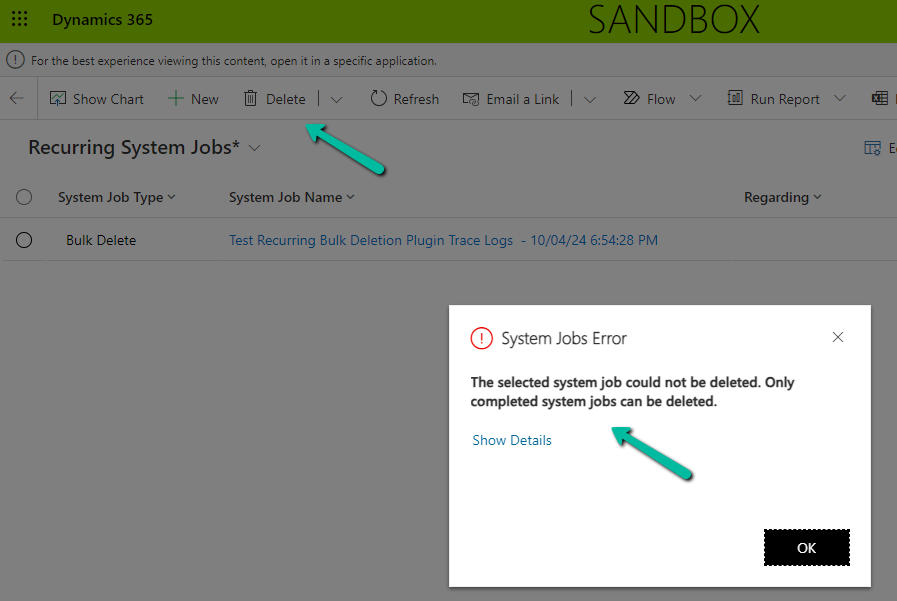
While trying to delete a Recurring Bulk Deletion Job we would get the below error.

“The selected system job could not be deleted. Only completed system jobs can be deleted”

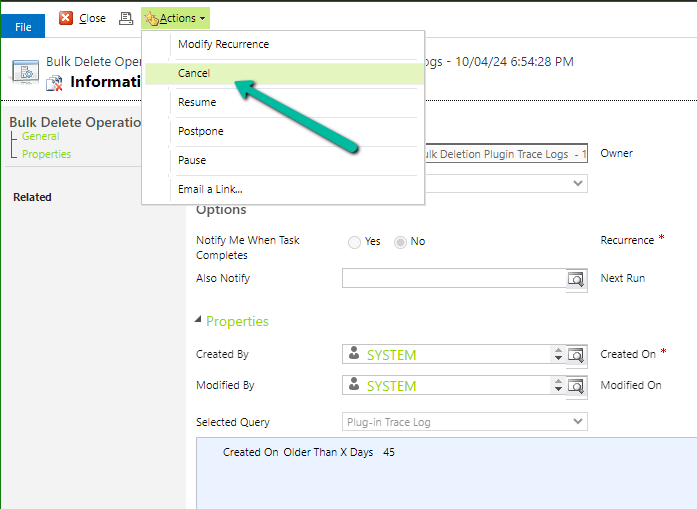
The way we can delete them is first to Cancel them.

A screenshot of a computer

Description automatically generated
A screenshot of a computer

Description automatically generated

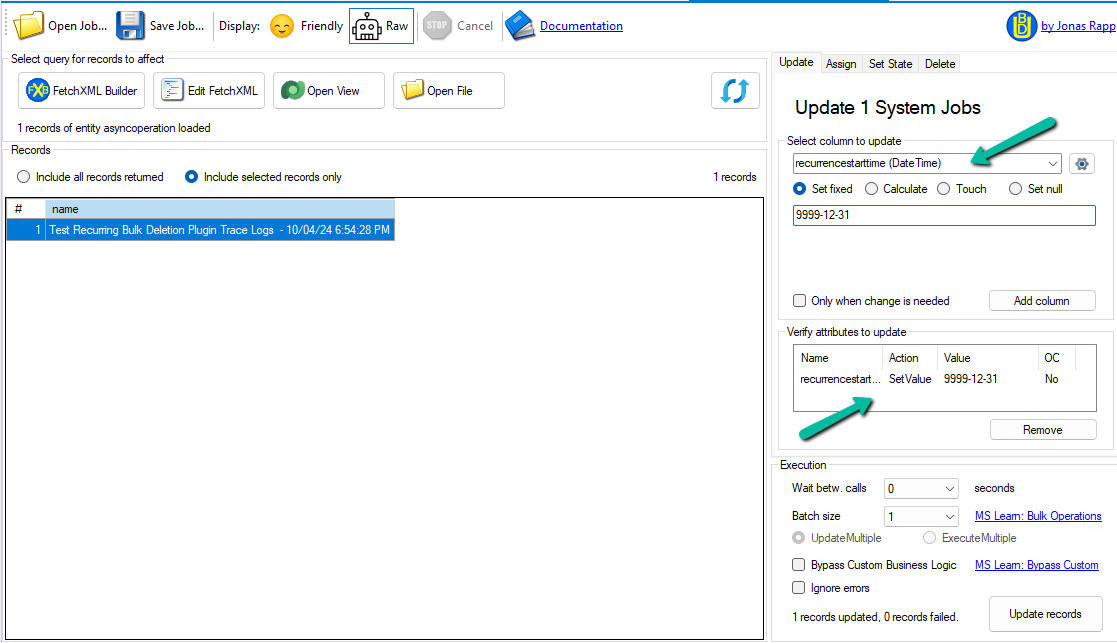
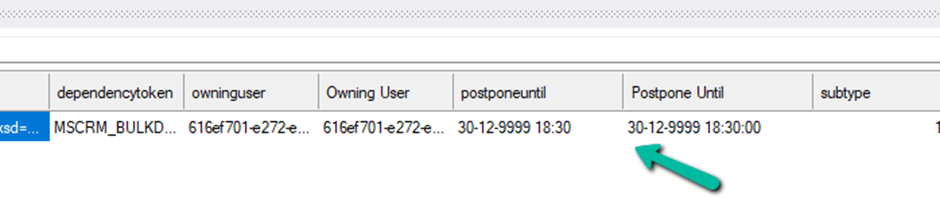
Next is to update the recurrencestarttime column value to 9999-12-31 for it.

We can use our wonderful XrmToolBox Plugin – Bulk Data Updater for it.

A screenshot of a computer

Description automatically generated

This updates the Postponse Until value in the background.

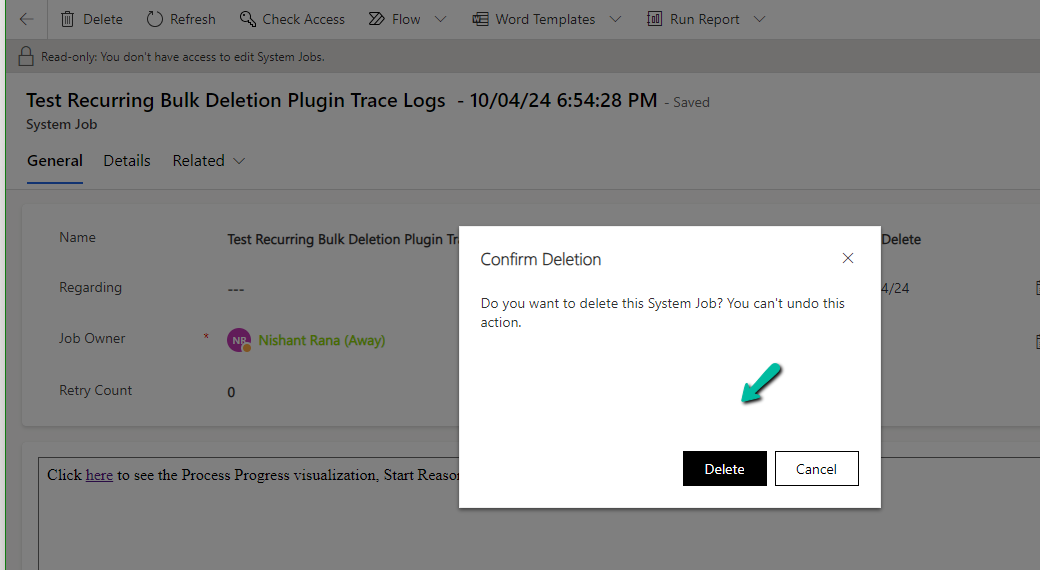
Now if we try deleting it, we will be able to delete it successfully.

A screenshot of a computer

Description automatically generated

Check for more details – https://community.dynamics.com/forums/thread/details/?threadid=b5bb6278-971c-440c-be08-d669df8c5787

Hope it helps..

Advertisements

Date Window Start and Date Window End fields missing on the Work Order form – Dynamics 365 Field Service


Recently we found that in one of the environments, the Date Window Start / End Dates was not showing up on the Work Order Forms, unlike the other environments.

Check the forms below

Well, the show and hide of the Date Window Start / End Date is controlled from Field Service Settings >> Fields Service >> Agreement

Setting Pre/Post Booking Flexibility Date Field Population to Populate Date Window Start / Date Window End will unhide the fields on the form.

Below is the corresponding out-of-the-box script that shows/hides the fields.

A screenshot of a computer

Description automatically generated

Also worth noting is that these fields are deprecated, as Microsoft recommends using Time From Promised and Time To Promised fields instead to define the date window in which a job is performed.

When setting up an agreement, you can control how work order scheduling works with pre-booking and post-booking flexibility. These fields define a window of time for scheduling each work order.

There are two options for how this window is used:

  • Date Window Start/End: The agreement populates these fields with the scheduling window. This makes the “Date Window Start/End” section visible on the work order itself.
  • Time From/To Promised: The agreement doesn’t directly affect these fields, but the scheduling window is considered during the scheduling process. “Date Window Start/End” will be hidden in this case.

This setting essentially determines where the scheduling window information is stored and displayed for work orders generated from this agreement.

Get the details

Hope it helps..

Advertisements

Fixed- Flow not getting triggered (Callback Registration)– Power Automate / Dataverse


Recently in one of our test environments, the out the box flow – “Deserialization of Inspection Definition” wasn’t getting triggered even when it was in the On state.

This was because the “CallbackRegistrationExpanderFilter” operation was failing with the below error.

Unexpected failure during ValidateUserAccessCached. Ex: System.ServiceModel.FaultException`1[Microsoft.Xrm.Sdk.OrganizationServiceFault]: The specified user(Id) is disabled. Consider enabling this user. Additional Details: User IsDisabled=True, IsLicensed=True. ImpersonatingSystemUserId. (Fault Detail is equal to Exception details:

ErrorCode: 0x80040225

Message: The specified user(Id = xxxx-xxxx-xxxx-xxx-xxxxxx) is disabled. Consider enabling this user. Additional Details: User IsDisabled=True, IsLicensed=True. ImpersonatingSystemUserId=xxxx-xxxx-xxxx-xxx-xxxxxx)

TimeStamp: 2024-05-20T21:50:42.6724270Z

More on Callback Registration Expander Job – https://rajeevpentyala.com/2021/01/30/callback-registration-expander-system-jobs-waiting-for-resources/

This was because the flow’s corresponding Callback Registration record’s Owner was a user whose account was now disabled in CRM.

So the option to fix was to Turn off and Turn On the flow, which will delete the old callback registration record and will create a new one with the user who is turning off / on the flow. Updating the owner of the flow will not work here, as it won’t update the existing callback registration record.

Also we had another observation, if a callback registration is owned by a user who is a proper / enabled user in CRM, simply turning off and on the flow using a different user account will not delete the existing callback registration record and create a new one with that particular user as the owner. In this case we will have to explicitly delete the existing callback registration record.

Hope it helps..

Advertisements