Fixed – Global variables are not allowed in StartScreen (PowerApps / Custom Page)


Recently while working on a custom page we had a requirement to show different screens on the app start based on a choice field in the record. (The custom page was being opened from a button/command on the form)

For the custom page’s App OnStart we were first removing the curly brackets from the recordID parameter passed to set the ContractId variable followed by setting ContractRecord variable using that GUID in the LookUp function.

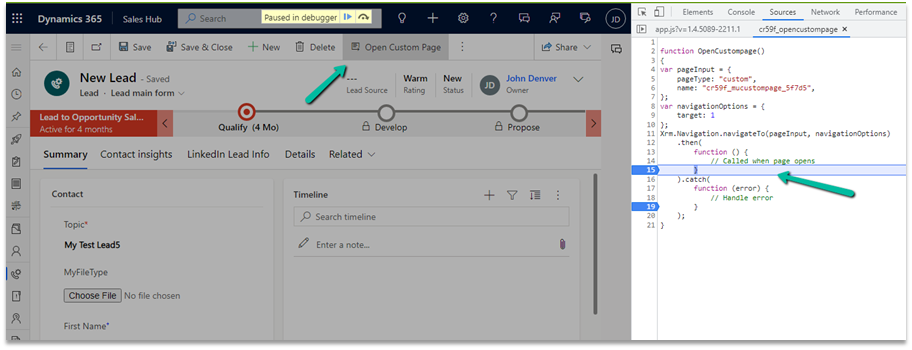
Below is the JavaScript used to pass the parameters to the custom page (from the command/ribbon button)

Now based on Contract Type optionset field in the Contract record we wanted to show a different screen as the start screen. However, trying to use the Global Variable in the StartScreen function gave us the error – “Global Variables are not allowed in StartScreen”

The solution here was to use the Param recordId to get the record and set the start screen accordingly in the StartScreen instead of ContractRecord global variable.

Also check  – https://debajmecrm.com/how-to-dynamically-show-the-start-screen-of-an-app-in-power-apps-canvas-apps/

Hope it helps..


Advertisements

Fixed – Custom Page not opening or Page doesn’t exist in this app error in the model-driven app (PowerApps)


Recently we created a custom page to be opened from the Ribbon / Command bar, however, the page was not opening for us, even though the function was running properly.

https://learn.microsoft.com/en-us/power-apps/developer/model-driven-apps/clientapi/navigate-to-custom-page-examples

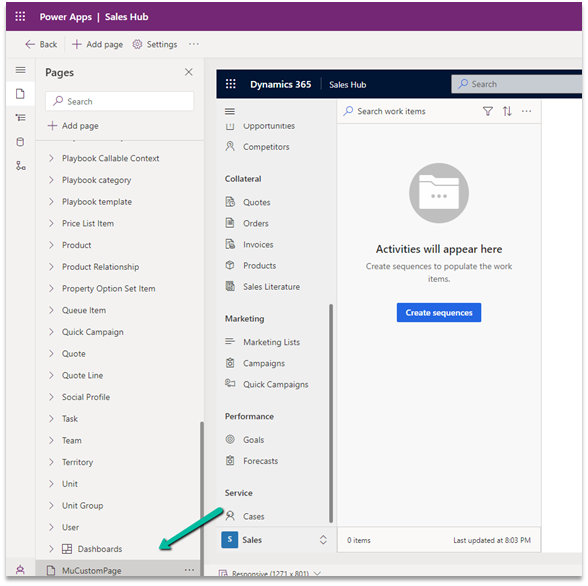
Here we had created the custom page from within the solution area, so we need to add this custom page to our model-driven app. (The other option is to create the page from the Modern App Designer.)

https://learn.microsoft.com/en-us/power-apps/maker/model-driven-apps/add-page-to-model-app#create-or-edit-a-custom-page

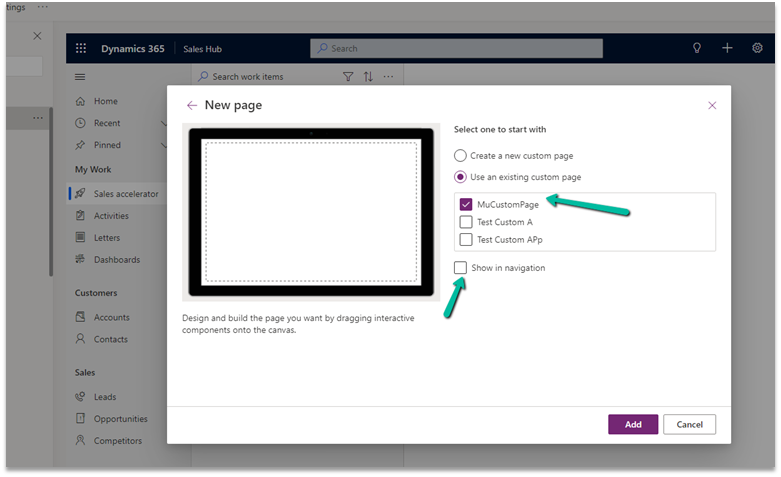
Open the app in the Modern App Designer and click on Add Page

Select Use an exiting custom page, select the page and uncheck the Show in navigation option as we are opening this page from the form.

Publish the app.

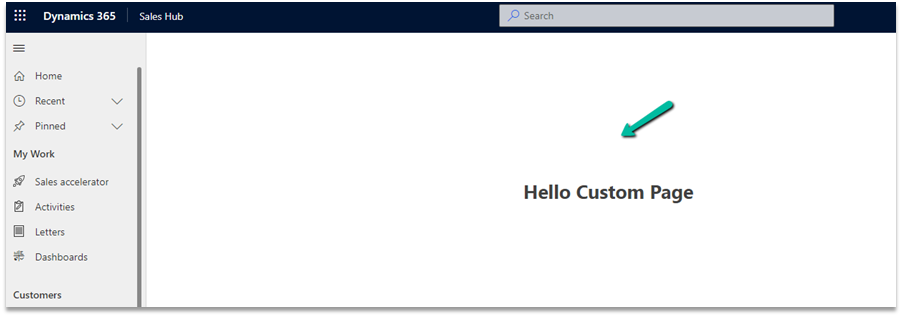
This time clicking on Open Custom page command/button on the form successfully opened the custom page for us.

Thanks to Andrew (https://butenko.pro/) for the solution.

Hope it helps..


Advertisements