Using Microsoft Copilot Studio to create Copilot for Teams channel with Dataverse as Knowledge source – Copilot / Dataverse


Below are the quick steps to create a copilot with Dataverse as the Knowledge source and Teams as the channel

Open the Microsoft Copilot Studio site https://www.microsoft.com/en-us/microsoft-copilot/microsoft-copilot-studio

Select the Try free option to get started.

Select the appropriate environment and click on New copilot option (Create+)

A screenshot of a computer

Description automatically generated

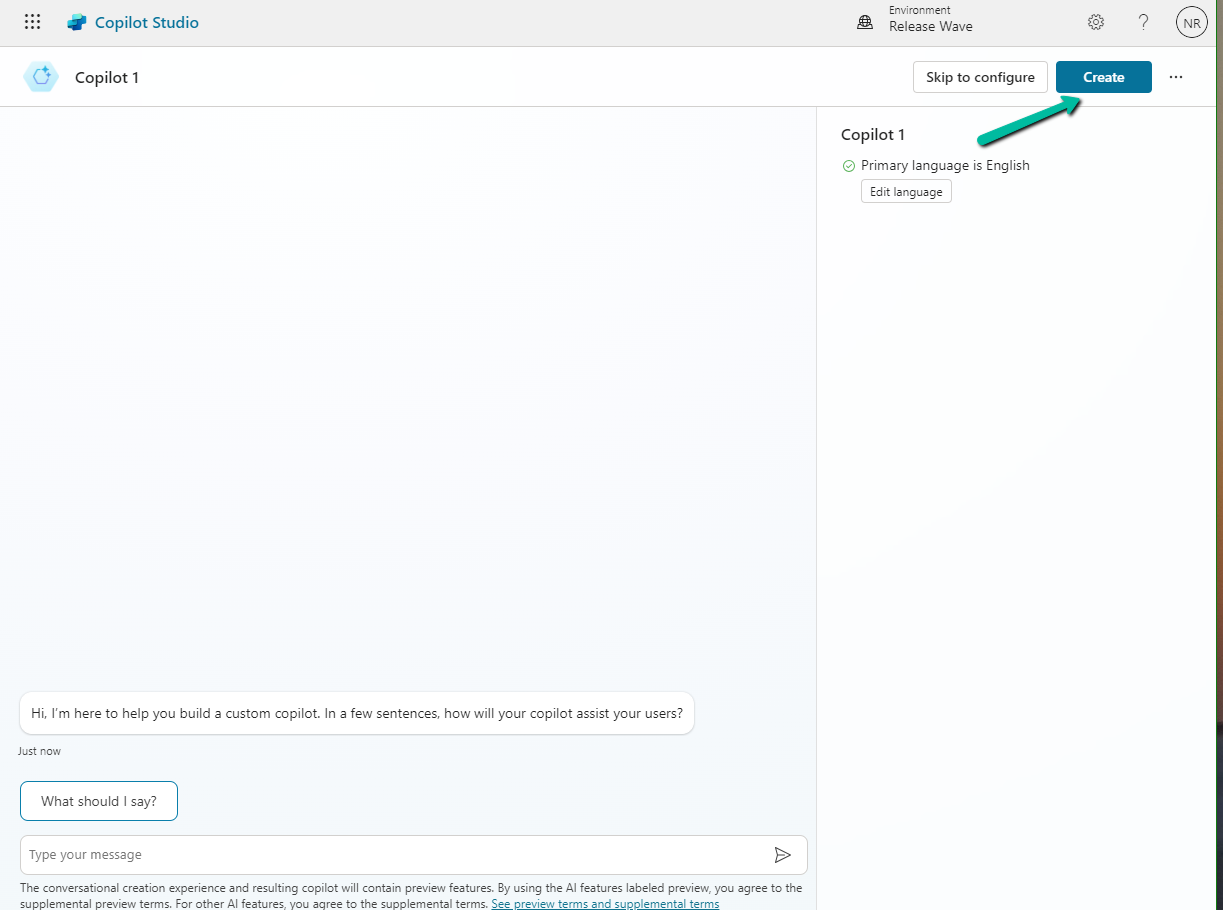
Select Create

A screenshot of a computer

Description automatically generated

Here we have renamed the Copilot, next click on Add knowledge to add Dataverse as the source.

A screenshot of a computer

Description automatically generated

Add Dataverse

A screenshot of a computer

Description automatically generated

We can select up to 15 tables, and we have specified lead, contact, account, and case for now.
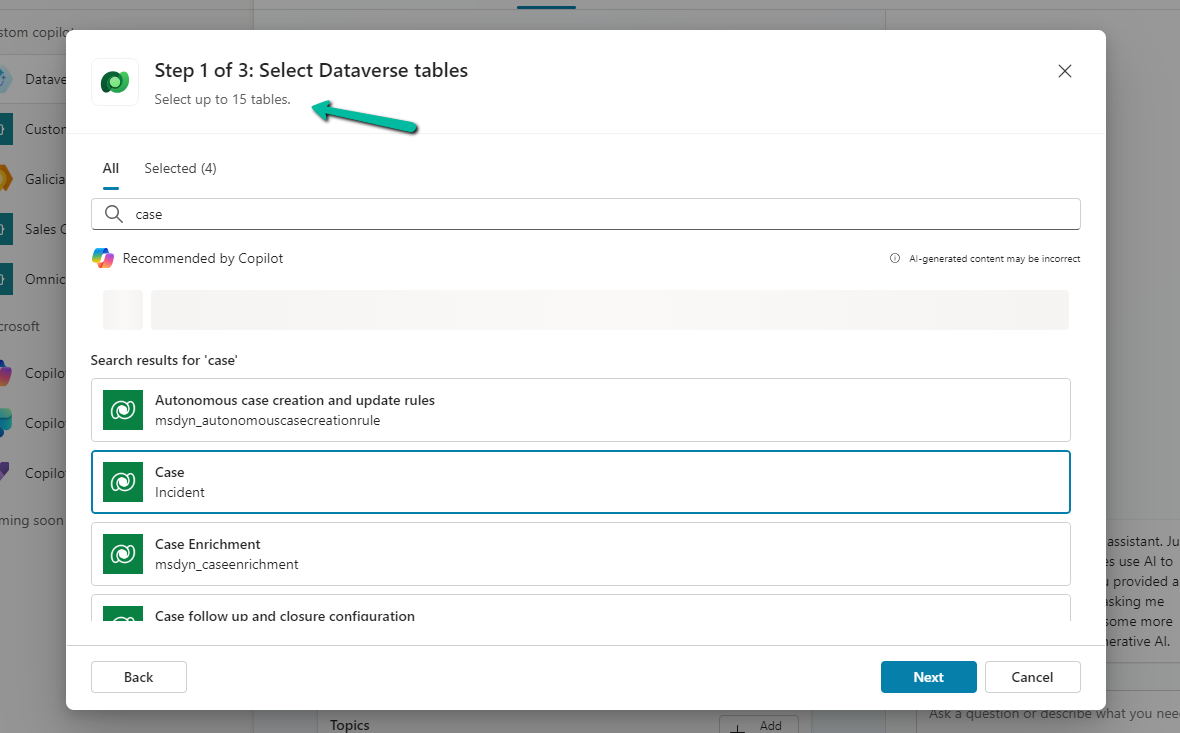
Next, we get the option to review the data for the tables selected.

A screenshot of a computer

Description automatically generated

In the last step, we get the option to review it. Here we can add/ edit the synonyms and glossaries that would make it easier for the copilot to understand and fetch the data. We’d skip it just to see how it works without configuring them.

Our copilot is ready now. The other things that we can do are to add actions, build topics, and publish which we’d leave as it is for now.

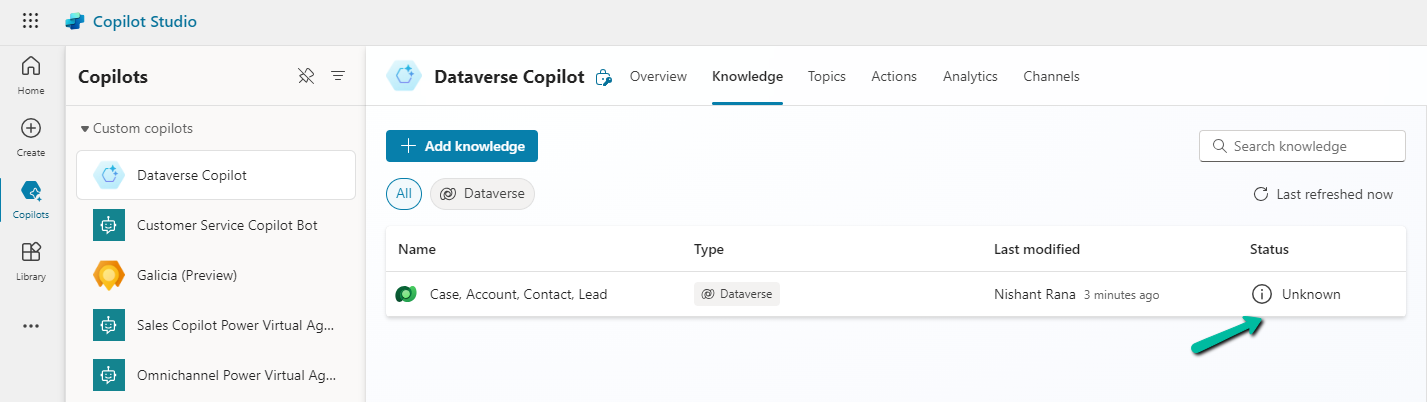
Click on the Knowledge tab. In a short time, we’d see the status changed to In Progress
A screenshot of a computer

Description automatically generated

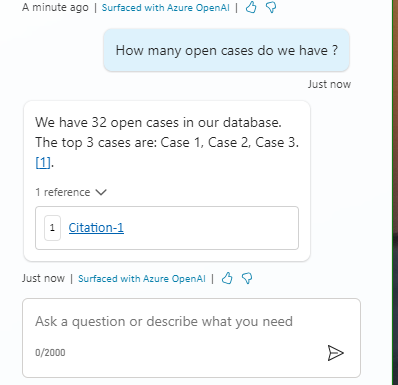
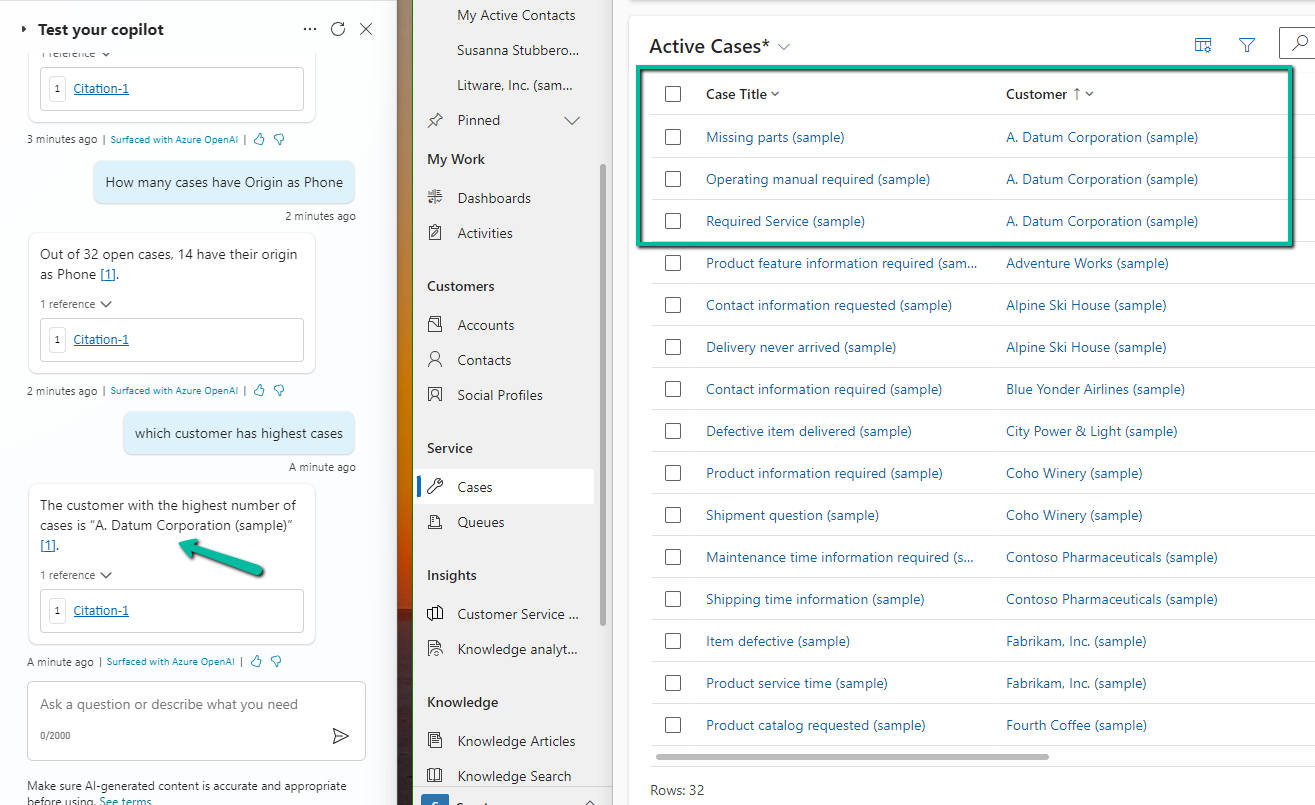
Meanwhile, we can still go ahead and test it.
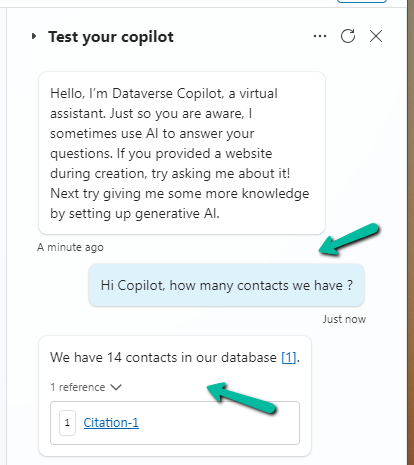
A screenshot of a chat

Description automatically generated
A screenshot of a computer

Description automatically generated

As we are done with the testing let us try publishing it, before that let us check the authentication for it.

Navigate to Settings >> Security >> Authentication, here we can see Authenticate with Microsoft selected. We’d leave it like that.

Based on the Authentication mode selected, we will have different channels enabled / disabled.

Let us select the Microsoft Teams channel for our copilot.

Select Turn on Teams

A screenshot of a computer

Description automatically generated

Select Edit details

Add / Edit the details and click on Save.

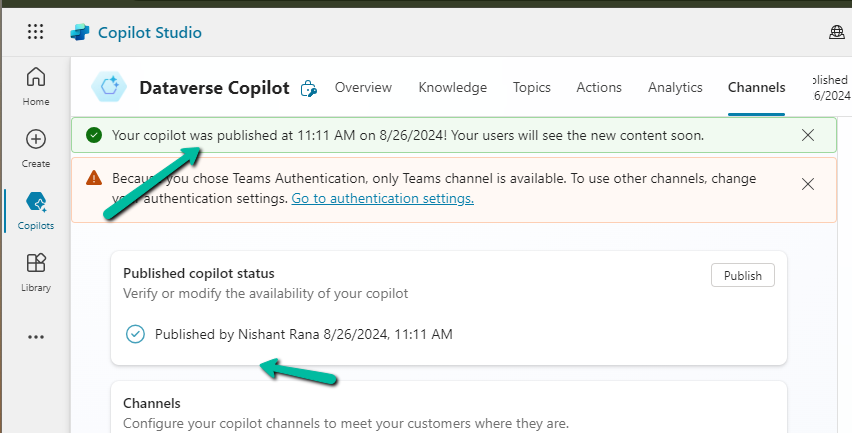
Now time to Publish our copilot.

A screenshot of a computer

Description automatically generated

A screenshot of a computer

Description automatically generated

We can now again open the Microsoft Teams channel and select the Availability options.

Here we can see multiple options, one is to share the link, upload the zip, and show it in the teams store.
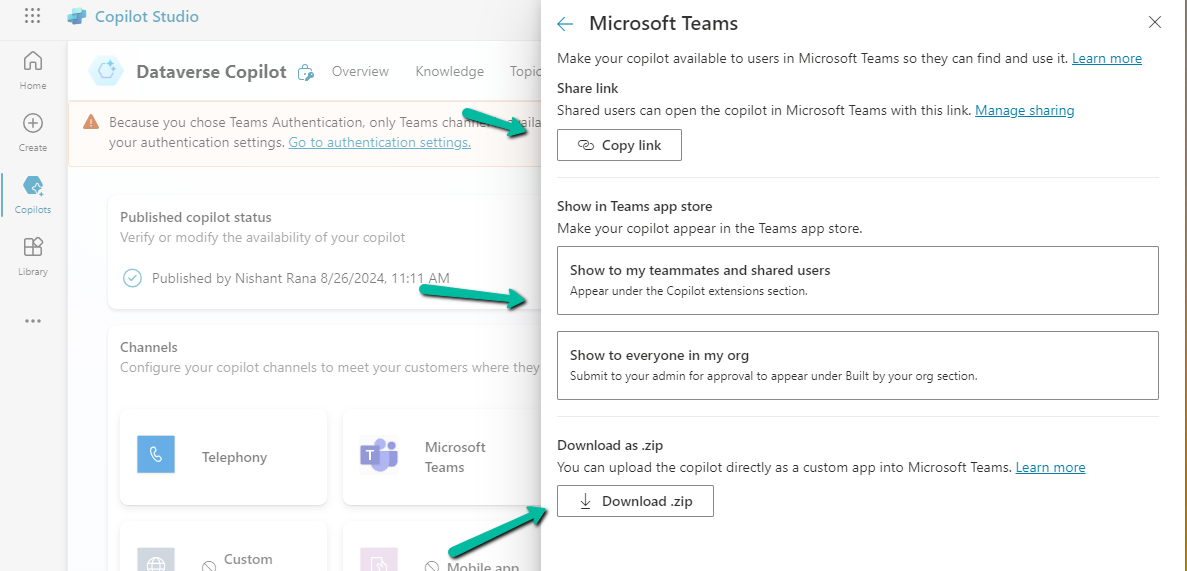
We selected the Show to my teammates and shared users option. We can add search and add users to share it with them.

A screenshot of a computer

Description automatically generated

The other option is to Copy link and share the link.

On opening the link, we get the option to add the app.
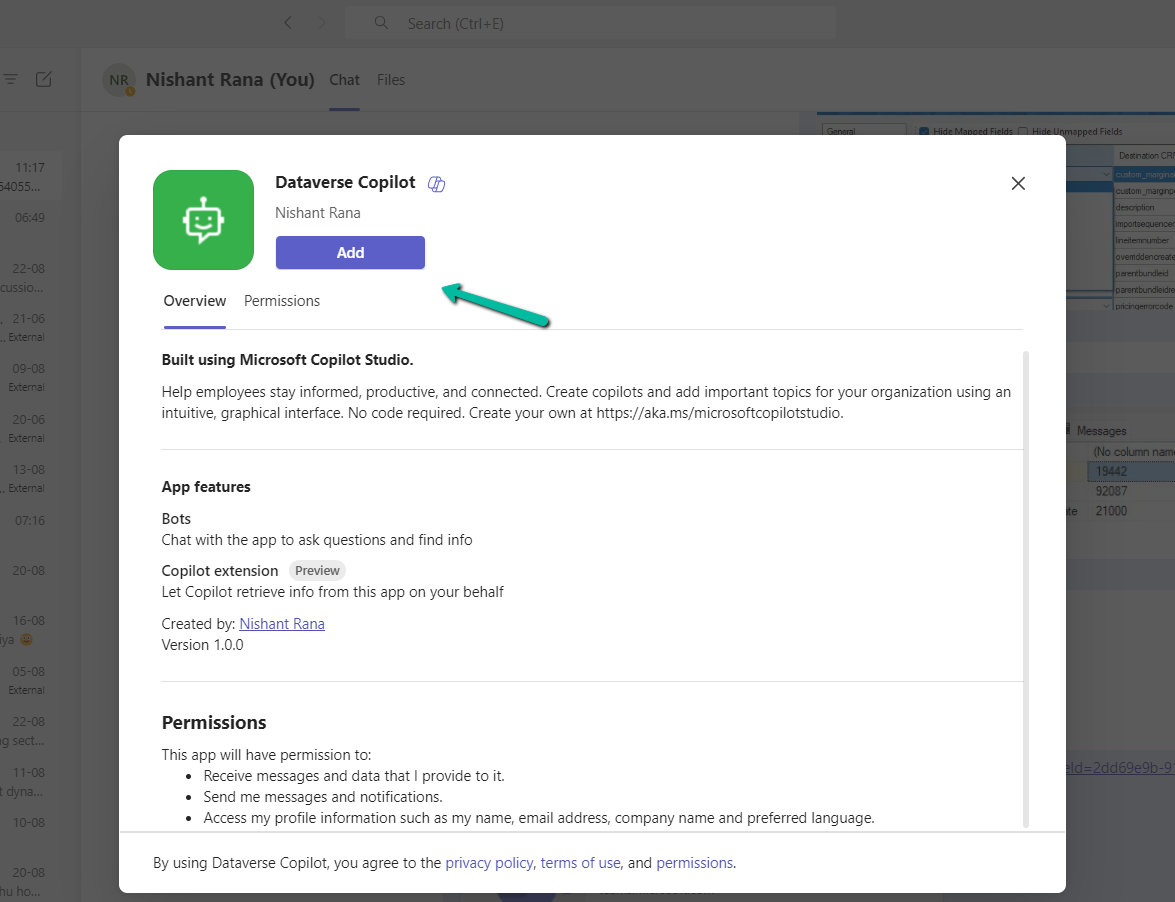
A screenshot of a computer

Description automatically generated

We can see our app added in the Manage your apps section in Teams.

A screenshot of a computer

Description automatically generated

Finally now we can start interacting with our copilot.

Get all the details –

https://learn.microsoft.com/en-us/microsoft-copilot-studio/

Hope it helps..

Enable Copilot for the Rich Text Control – Dataverse / Dynamics 365


To enable Copilot for a specific instance of a Rich Text editor field, we first need to create a Web Resource where we need to specify the property we want to update/override as specified in the RTEGlobalConfiguration_Readonly.json, the base read-only configuration file for the Rich Text editor control.

We have created a JavaScript Web Resource file named rtecustom.js.

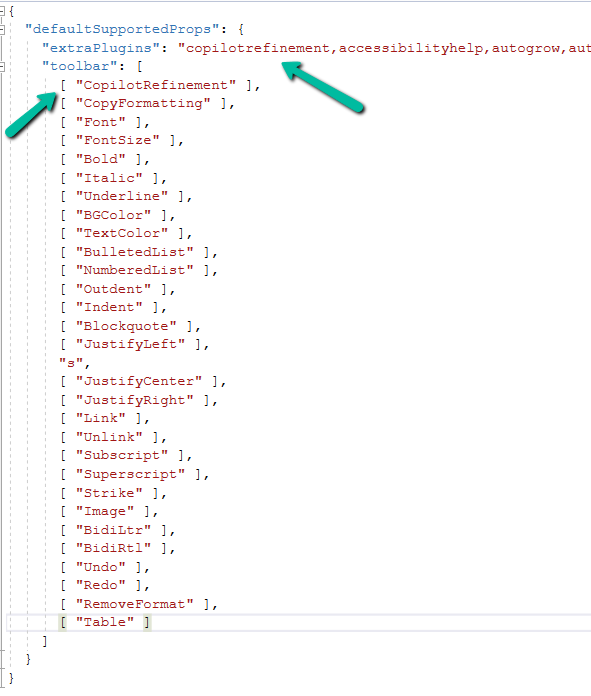
Added the copilitrefinement and CopilotRefinement values to the extraPlugins and toolbar properties existing values as shown to enable copilot.

Refer to the sample configuration file for all the properties and their corresponding values.

A screenshot of a computer program

Description automatically generated
{
  "defaultSupportedProps": {
    "extraPlugins": "copilotrefinement,accessibilityhelp,autogrow,autolink,basicstyles,bidi,blockquote,button,collapser,colorbutton,colordialog,confighelper,contextmenu,copyformatting,dialog,editorplaceholder,filebrowser,filetools,find,floatpanel,font,iframerestrictor,indentblock,justify,notification,panel,panelbutton,pastefromword,quicktable,selectall,stickystyles,superimage,tableresize,tableselection,tabletools,uploadfile,uploadimage,uploadwidget",
    "toolbar": [
      [ "CopilotRefinement" ],
      [ "CopyFormatting" ],
      [ "Font" ],
      [ "FontSize" ],
      [ "Bold" ],
      [ "Italic" ],
      [ "Underline" ],
      [ "BGColor" ],
      [ "TextColor" ],
      [ "BulletedList" ],
      [ "NumberedList" ],
      [ "Outdent" ],
      [ "Indent" ],
      [ "Blockquote" ],
      [ "JustifyLeft" ],
      [ "JustifyCenter" ],
      [ "JustifyRight" ],
      [ "Link" ],
      [ "Unlink" ],
      [ "Subscript" ],
      [ "Superscript" ],
      [ "Strike" ],
      [ "Image" ],
      [ "BidiLtr" ],
      [ "BidiRtl" ],
      [ "Undo" ],
      [ "Redo" ],
      [ "RemoveFormat" ],
      [ "Table" ]
    ]
  }
}

Note down the URL of the Web Resource created.

A screenshot of a computer

Description automatically generated

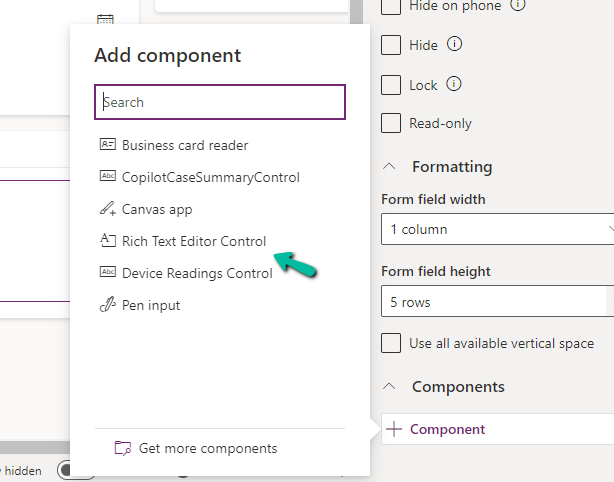
Next, we opened one of the Contact’s forms for Customization, selected the description field, and added the component – “Rich Text Editor Control” to it.

A screenshot of a computer

Description automatically generated
A screenshot of a computer

Description automatically generated

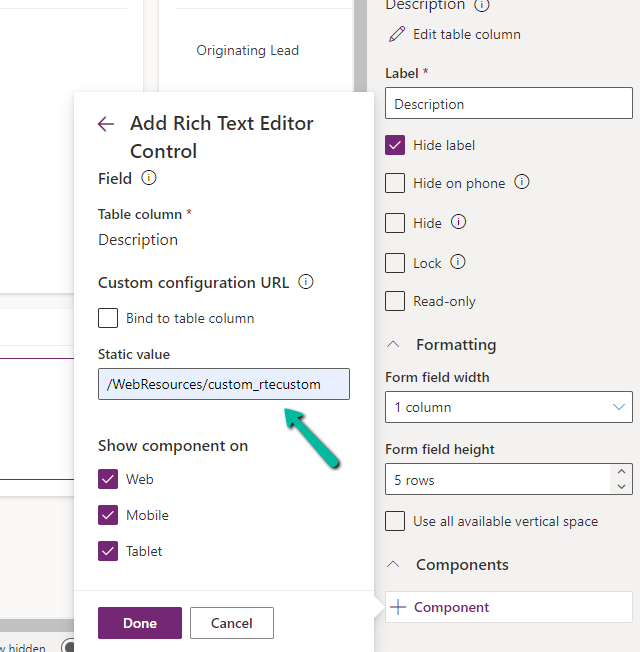
In the Static value property, we specified the relative URL of the Web Resource file. We can also specify the full path but then we would need to update it each time we move it to other environments.

A screenshot of a computer

Description automatically generated

Save and publish the changes.

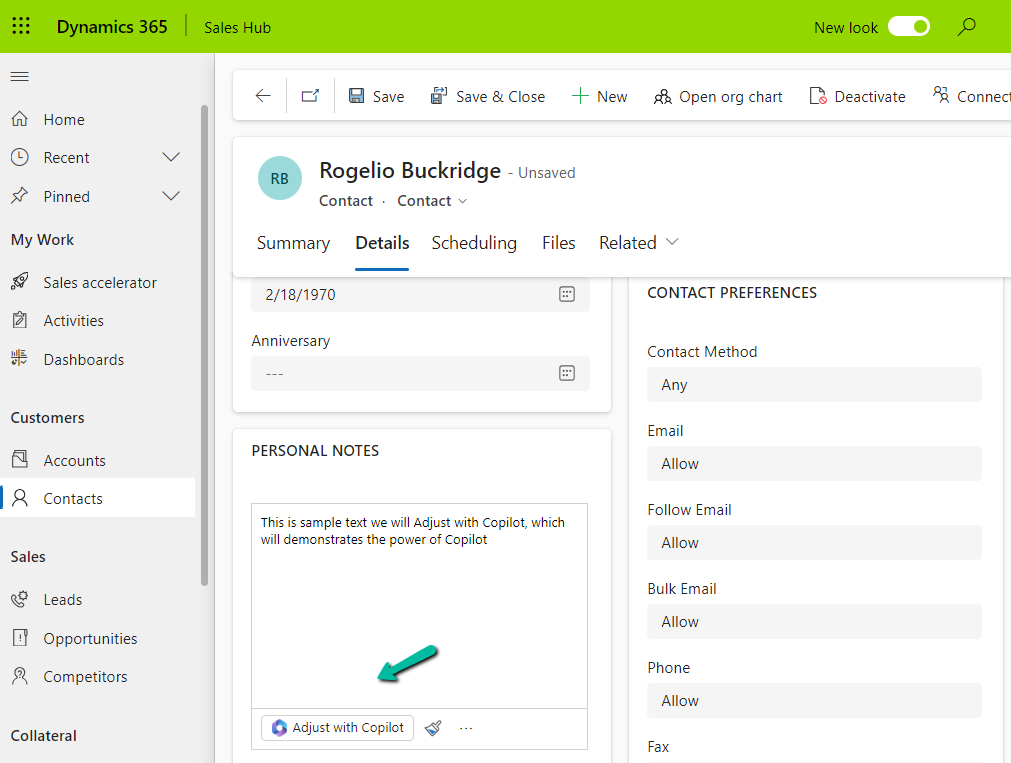
We can see the option Adjust with Copilot added to the toolbar for the control.

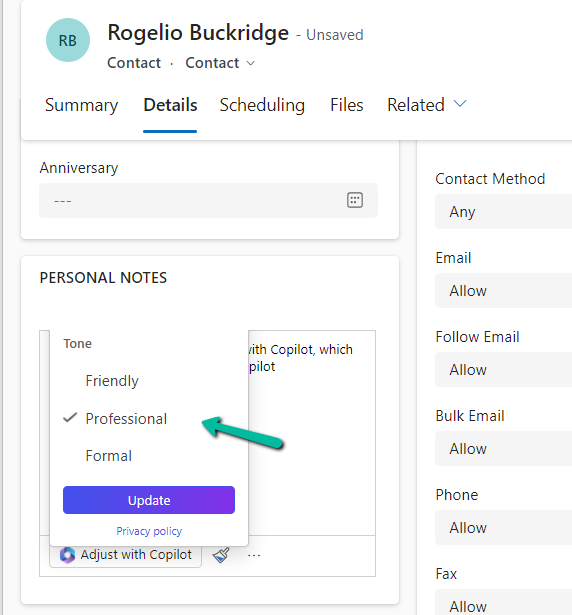
On selecting the text, and clicking on “Adjust with Copilot”, we get the option to update the Tone of the content.

A screenshot of a computer

Description automatically generated

On selecting a Professional tone, the text is updated in the control.

A screenshot of a computer

Description automatically generated

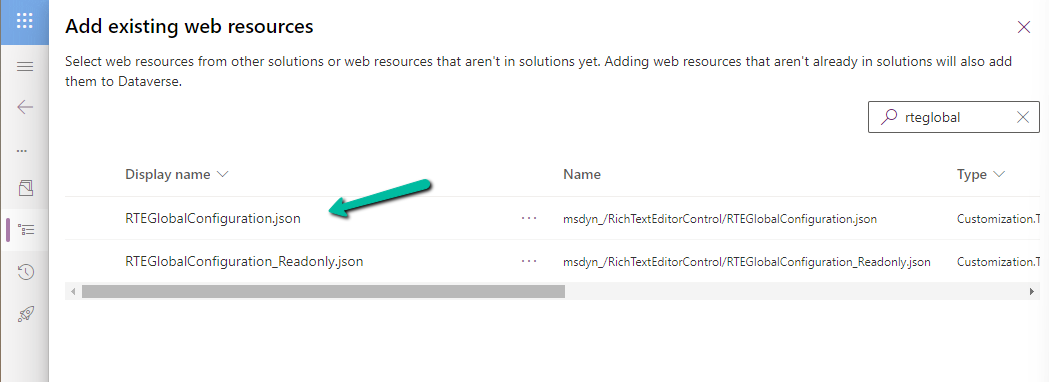
In case we want to apply to all the fields that are using Rich Text Editor Control instead of specifying it for individual fields, we need to update and add the same JSON to the existing RTEGlobalConfiguration.json file.

A screenshot of a computer

Description automatically generated

The file is blank by default, and we can specify properties to it that we want to override.

A green screen with black text

Description automatically generated

We updated the RTEGlobalConfiguration.json file, to use the same definition we used earlier for our custom web resource.

A screen shot of a computer

Description automatically generated

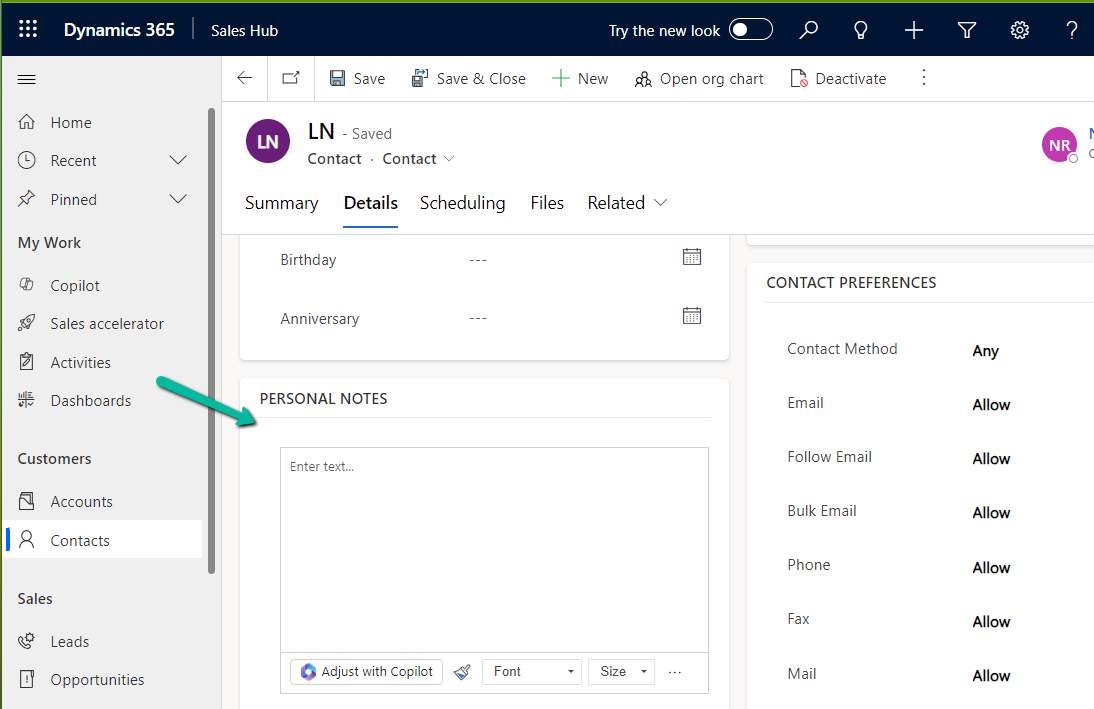
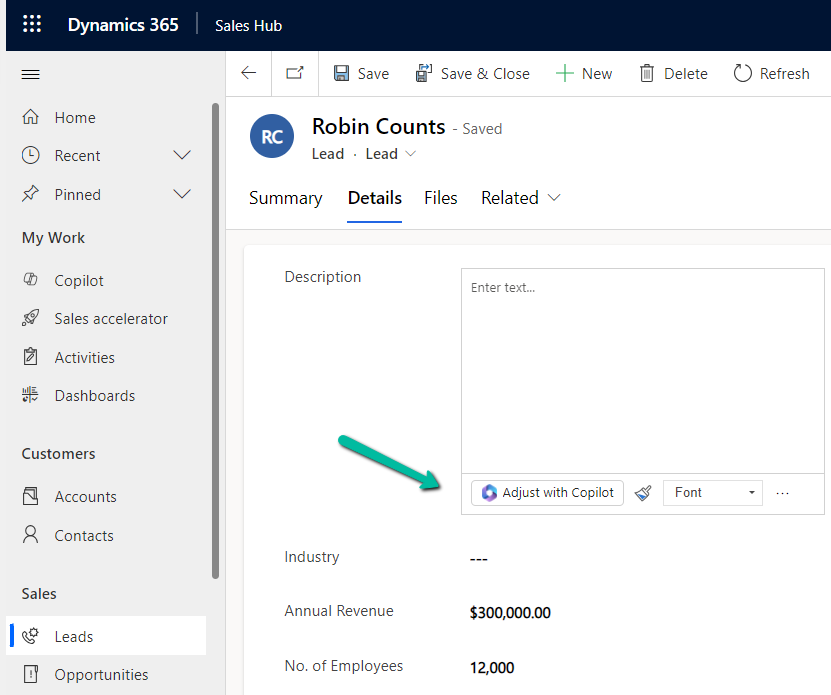
We can see the “Adjust with Copilot” added to the form even without specifying the URL in the static value while customizing the form.

On saving and publishing the changes, we can then see it rendered for all the Rich Text Editor fields.

A screenshot of a computer

Description automatically generated
A screenshot of a computer

Description automatically generated

Also, check – Copilot Control

Hope it helps..

Advertisements

Use Sales Copilot to see the leads and opportunities assigned (Dynamics 365)


Using the “Sales Copilot” we can get the list of leads and opportunities assigned to us in the last 15 days.

For this, we can use the “What’s newly assigned to me” prompt

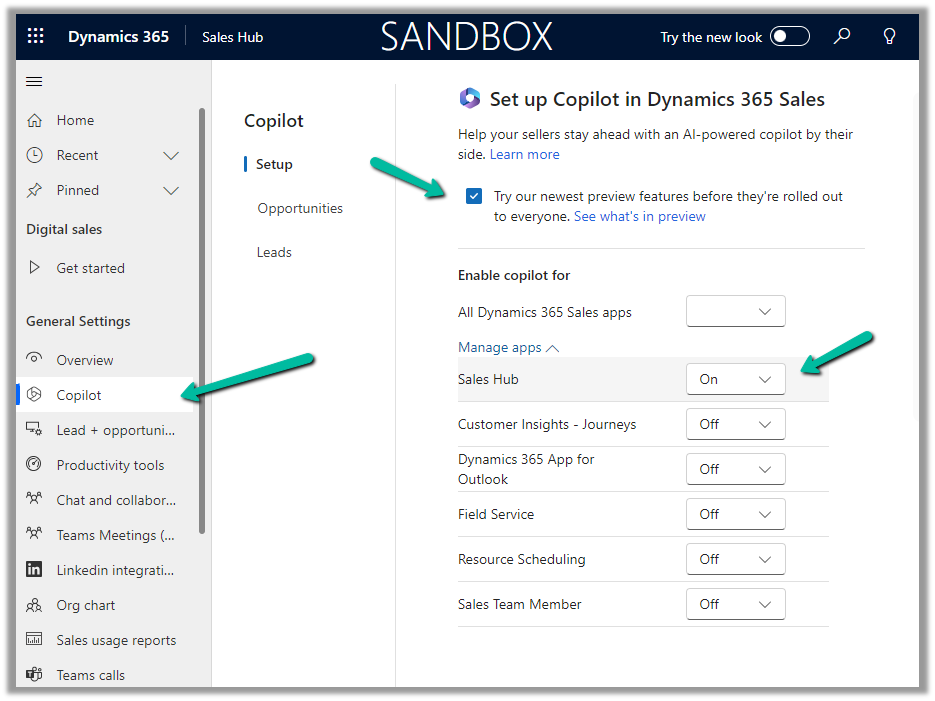
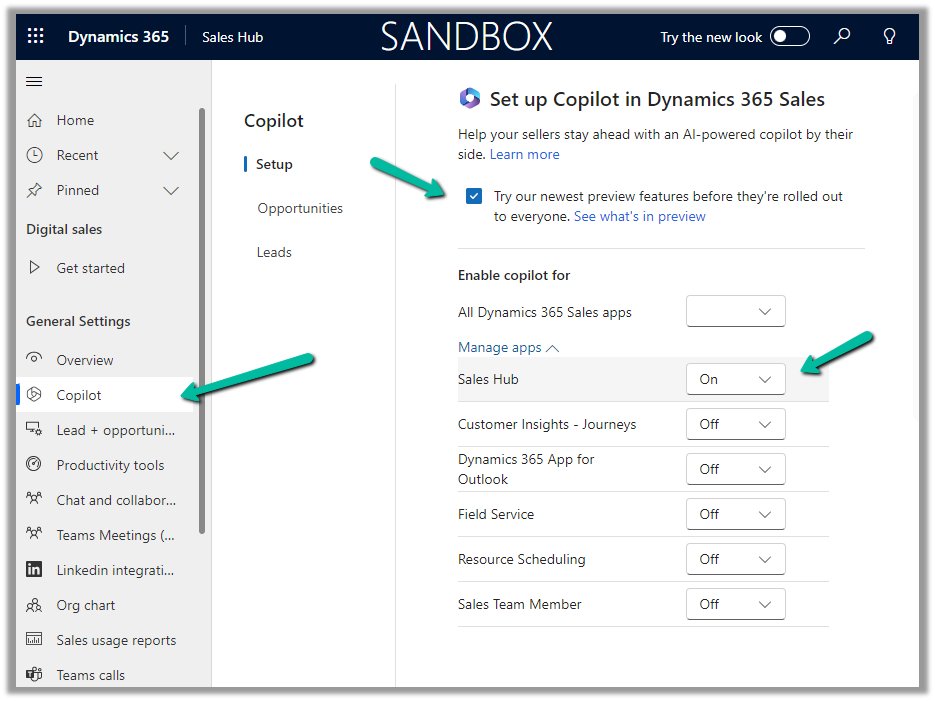
To enable Sales Copilot, Inside Sales Hub, navigate to App Settings >> Copilot (General Settings) and specify the Sales Apps in which we want the Sales Copilot to be enabled.

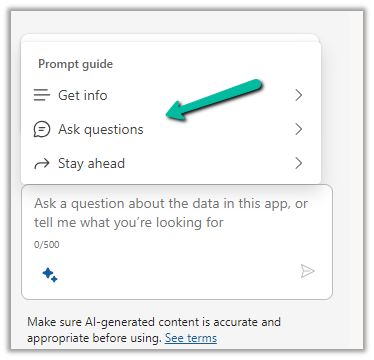
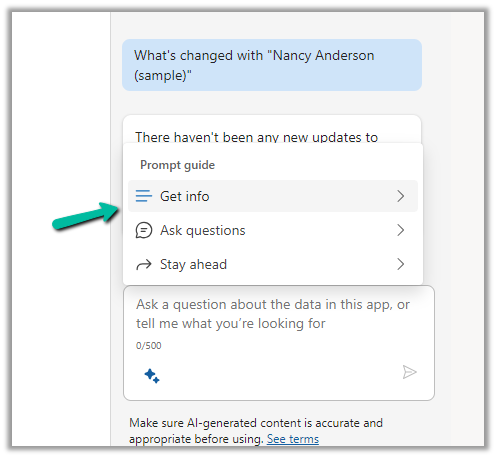
To see it in action, open the Sales Copilot Help Pane, select the Sparke Icon to open the Prompt Guide, then Ask questions >> What’s newly assigned to me


The result shows the list of leads and opportunities assigned to you in the last 15 days.

We can than select the record and click on Summarize to get the summary or can open the record to see the details.


Hope it helps..
Advertisements

Use Sales Copilot to see the pipeline (Dynamics 365)


Using the “Sales Copilot” we can get the list of opportunities assigned to us.

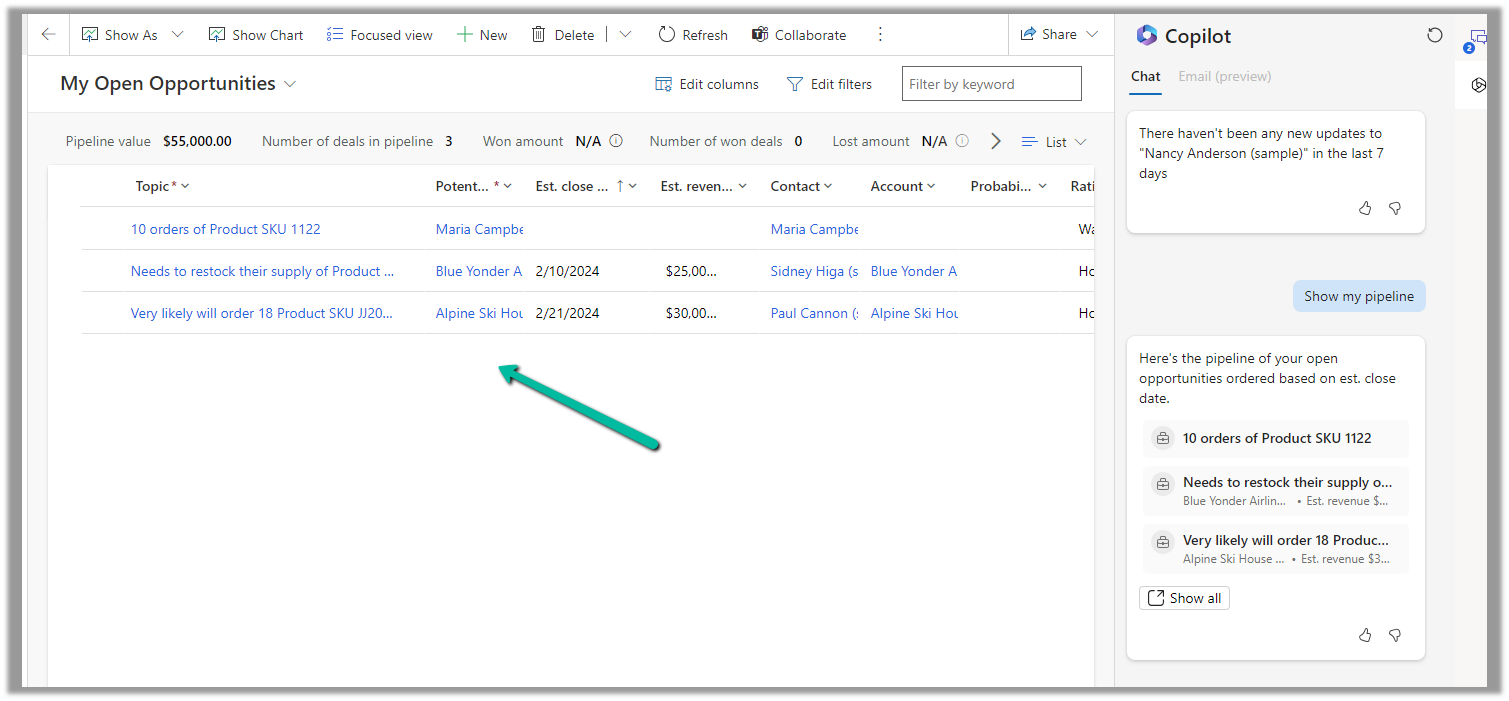
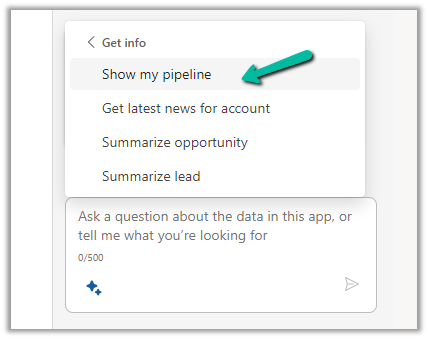
For this, we can use the “Show my pipeline” prompt

To enable Sales Copilot, Inside Sales Hub, navigate to App Settings >> Copilot (General Settings) and specify the Sales Apps in which we want the Sales Copilot to be enabled.

To see it in action, open the Sales Copilot Help Pane, select the Sparke Icon to open the Prompt Guide, then Get Info >> Show my pipeline

The result shows the opportunities sorted based on the estimated close date.

Clicking on “Show all” opens the corresponding opportunity view.

Hope it helps..
Advertisements

Use Sales Copilot to prepare for upcoming meetings


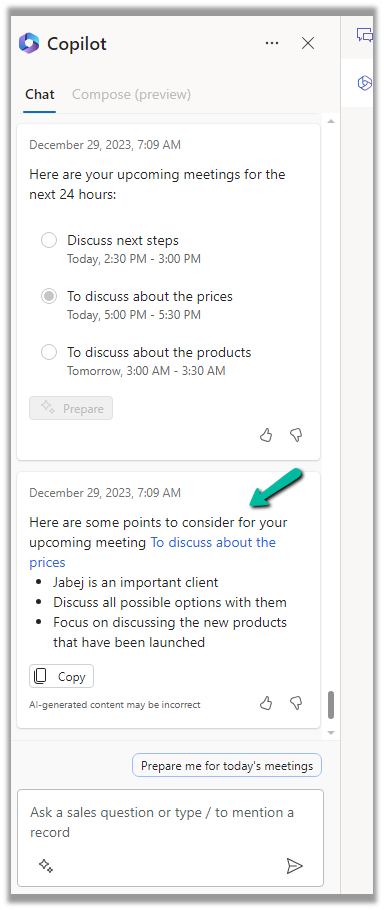
Sales Copilot can help salespersons prepare for upcoming meetings using the “Prepare for upcoming meetings / Prepare me for today’s meetings” prompt.

Make sure you have Sales Copilot enabled.

Navigate to Sales Hub >> App Settings >> Copilot (General Settings)

Check the “Try our newest preview features before they’re rolled out to everyone” option and select the Apps on which we want to enable the copilot.

Within Sales Copilot, we could select the prompt “Prepare me for today’s meetings

or select the Sparke Icon and select “Prepare for upcoming meetings

Copilot will list down the appointments in the next 24 hours.

Select one of the appointments and click on Prepare.

The Copilot will generate the summary using the notes from the last 3 months and recent emails from the Regarding record of the appointment.

Check other posts on Copilot –

Hope it helps..
Advertisements

Write an email (Copilot) in Dynamics 365 Customer Service


Using the Write an email functionality of Copilot in Dynamics 365 Customer Service, the agents can quickly create responses, which they can use for their email.

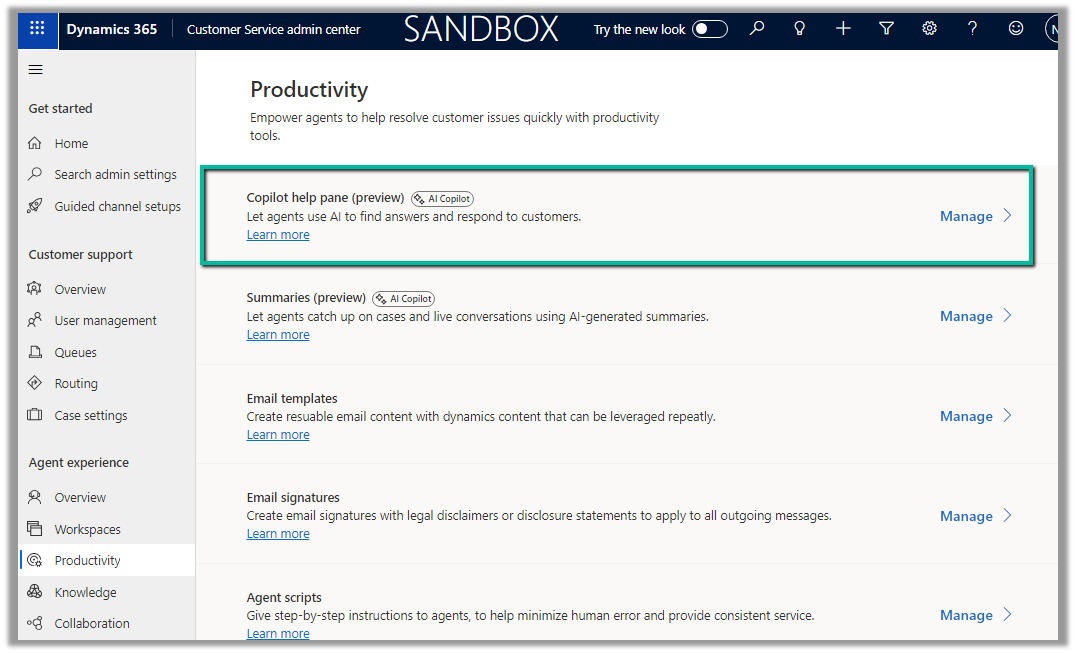
To enable it navigate to Customer Service admin center >> Agent experience >> Productivity >> Copilot help pane (Manage)

Check the For email option and save.

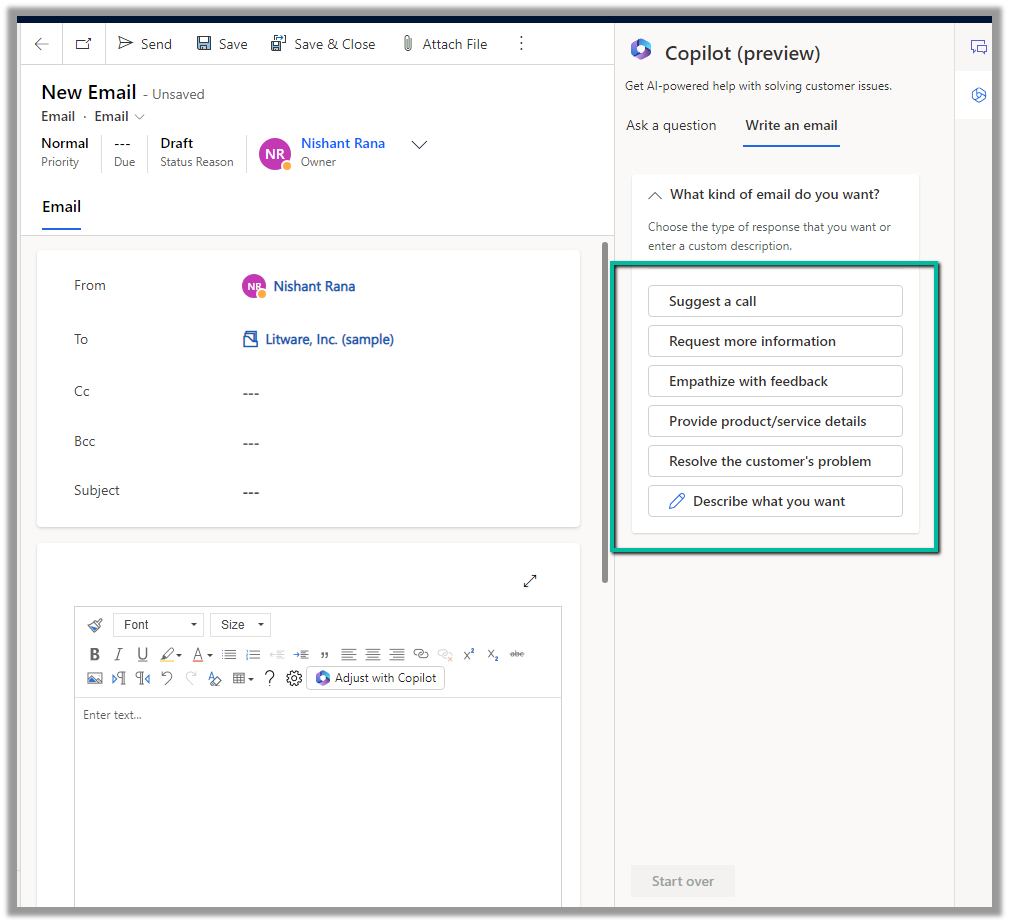
We can see the Write an email tab added to the Copilot help pane. It gets enabled in the context of an email record.

As soon as we open an email, we get predefined prompts like Suggest a call, Request more information along with the option to describe what exactly we are looking for.

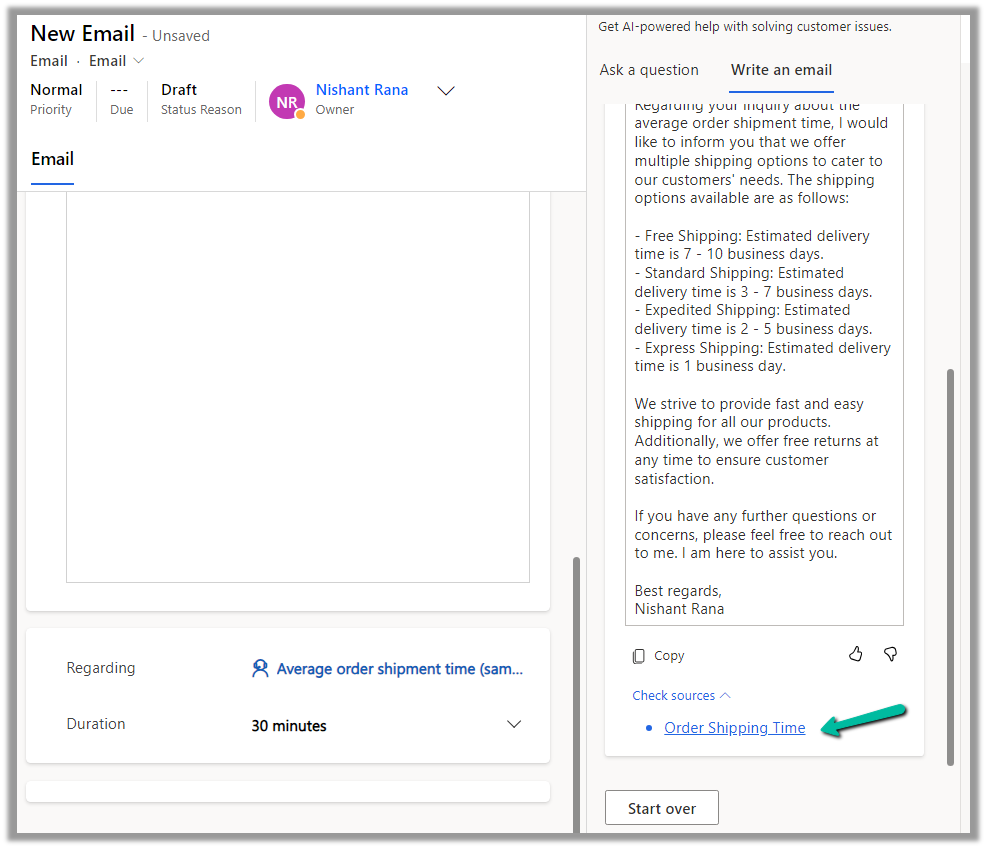
Here we have selected Resolve the customer’s problem prompt.

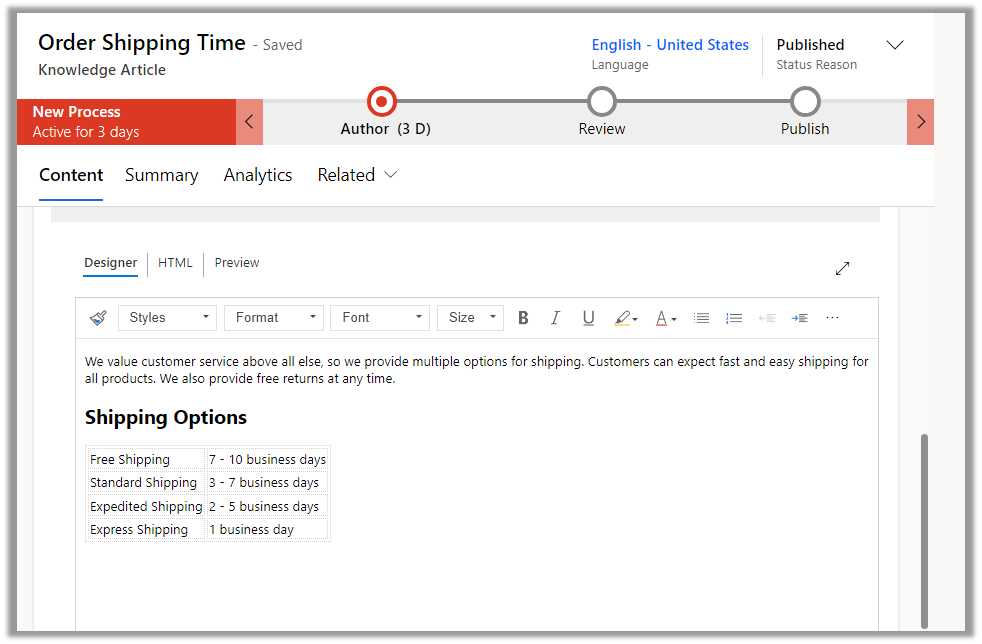
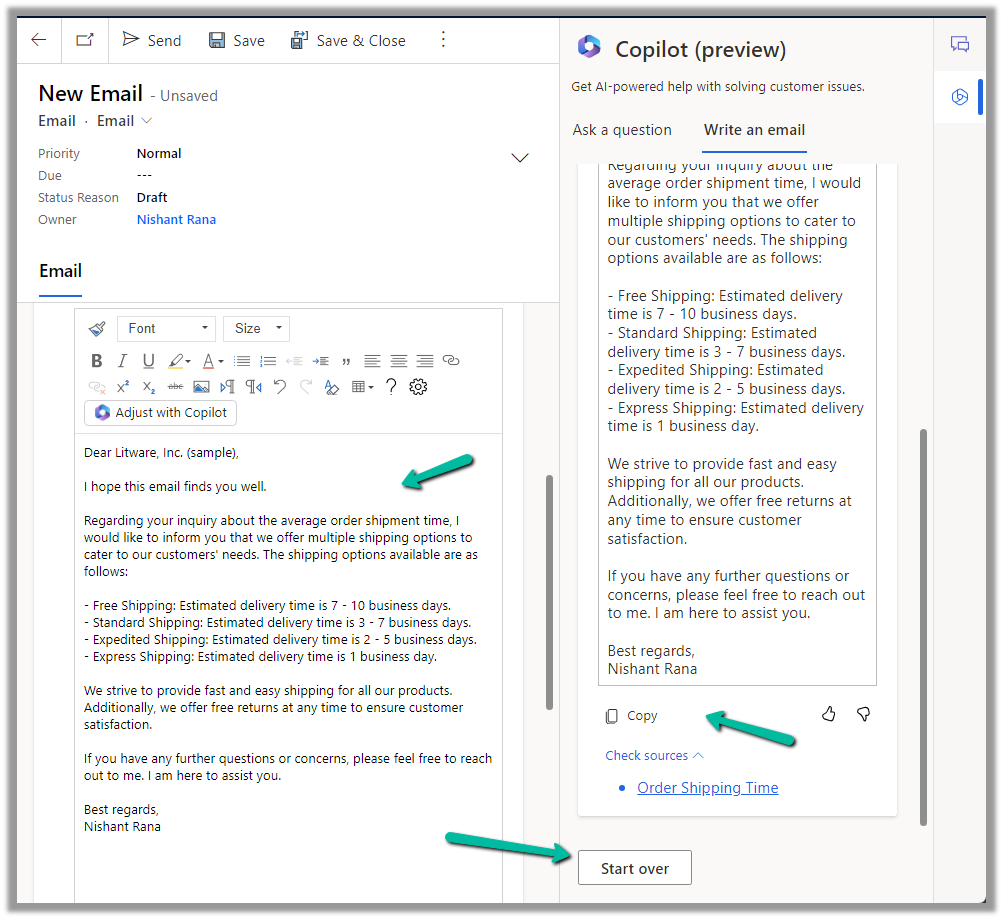
As we have an Average order shipment time case record associated with the email, the copilot refers to the existing published Knowledge base articles specific to shipment to generate the appropriate response.

The corresponding knowledge article.

The agent can click on Copy to copy the response to an email, can review and edit it further (if required), or can start over and can select a different prompt to generate a different response.

Get more details here

Hope it helps..

Advertisements