How to – use booking rules for validation checks in Dynamics 365 Field Service


Through booking rules, we can specify custom JavaScript methods, that can be used to run validation checks, before creation or update of a bookable resource booking record. Based on the result of the validation checks we can either warn the user or cancel the booking create or update event.

Booking rules are triggered when a resource is booked or a bookable resource booking record is either created or updated using the schedule board, schedule assistant, or booking form.

The booking rules are not triggered if the booking form has business process flow enabled. We can also disable the booking rule to be triggered on the save of the booking form by enabling the setting – msdyn_DisableProcessBookingRulesOnSaveBookingForm

Let us see it in action.

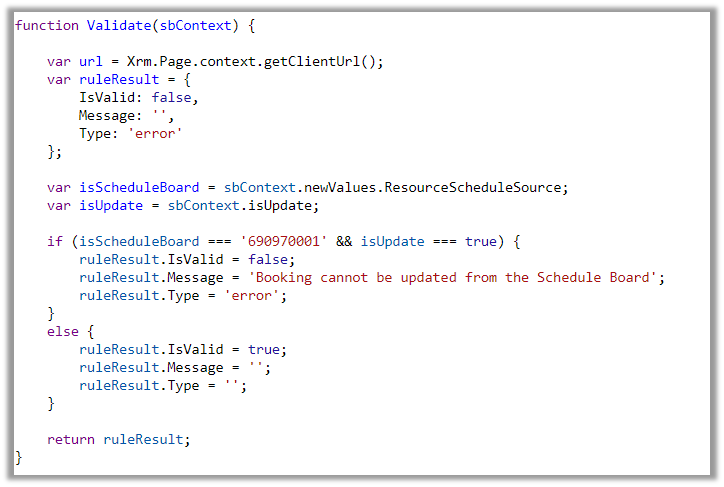
Below is our JavaScript method to be used as a Booking Rule.
function Validate(sbContext) {
  
    var url = Xrm.Page.context.getClientUrl();
    var ruleResult = {
        IsValid: false,
        Message: '',
        Type: 'error'
    };
  
    var isScheduleBoard = sbContext.newValues.ResourceScheduleSource;
    var isUpdate = sbContext.isUpdate;

    if (isScheduleBoard === '690970001' && isUpdate === true) {
        ruleResult.IsValid = false;
        ruleResult.Message = 'Booking cannot be updated from the Schedule Board';
        ruleResult.Type = 'error';
    }
    else {
        ruleResult.IsValid = true;
        ruleResult.Message = '';
        ruleResult.Type = '';
    }     

    return ruleResult;
}

To create a Booking Rule, navigate to Resources >> Booking Settings >> Booking Rules inside the Dynamics 365 Field Service app and create a new booking rule, specifying the web resource and the method inside it.

Let us try to update a booking from the schedule board.
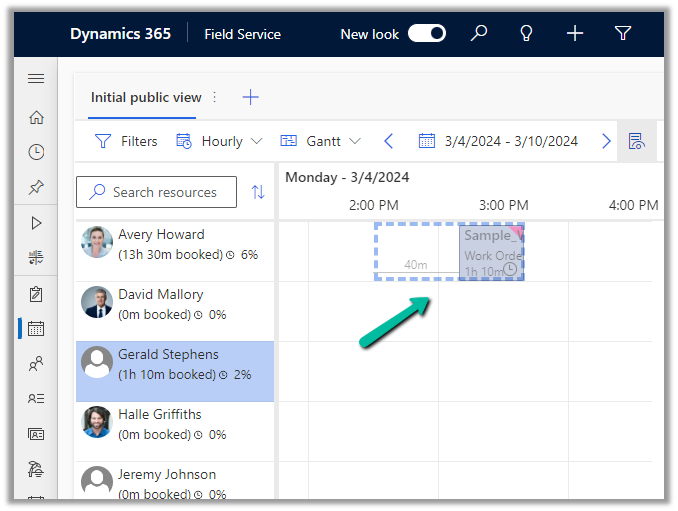
This will trigger our booking rule and will pass the context object, which contains details like whether it is a create or update event, and details around old values and new values for start time, end time, resource details, etc. for that booking.
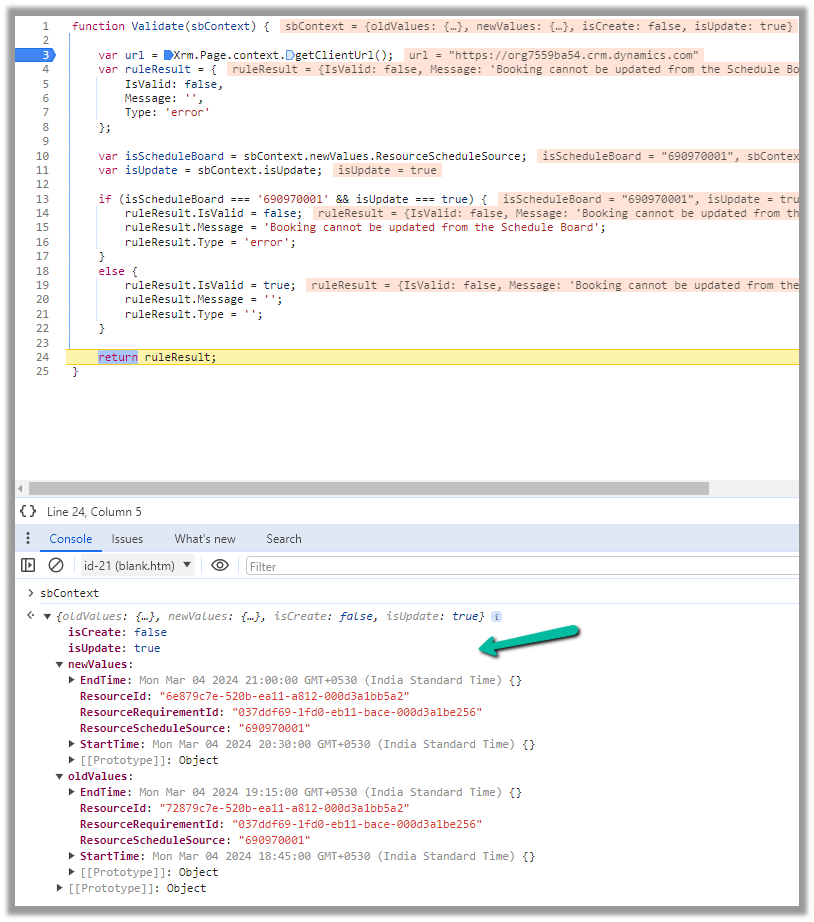
We can use these values passed in the context, fetch more details about the corresponding resource or work order, have our validation logic defined there, and finally pass the ruleResult object.

If we want to cancel the event, we can set IsValid as false, specify the error message, and set Type as an error in the ruleResult object. Similarly, if it passes the validation, we can set IsValid as true.

This is how the error message shows up, and the event is canceled inside the schedule board.

Below we can see the same booking rule being triggered from the Booking Resource Booking form.

We can deactivate the booking rule record created if we do not want it to trigger.

Get all the details here – Booking Rule

Hope it helps..

Advertisements

The user cannot write data to this table, only the integration users may write data to this table – Dynamics 365 Project Operations


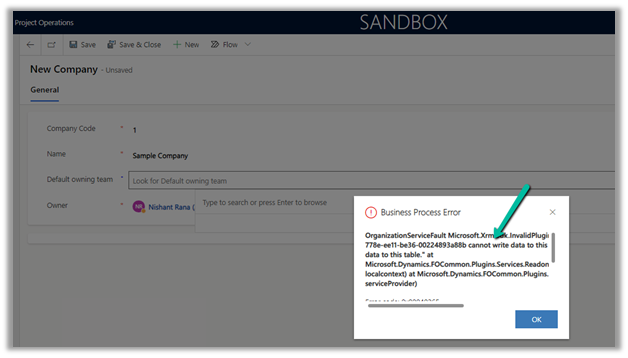
We configured the Project Operations app in one of our Dataverse Environments, and while creating a Company record we got the below error.

Exception Message: OrganizationServiceFault Microsoft.Xrm.Sdk.InvalidPluginExecutionException: “The user be60d0fd-778e-ee11-be36-00224893a88b cannot write data to this table, only the integration users may write data to this table.” At Mcrosoft.Dynamics.FOCommon.Plugins.Services.ReadonlyEntityService.PreModify(LocalPluginContext localcontext) at Microsoft.Dynamics.FOCommon.Plugins.PluginBase.Execute(IServiceProvider serviceProvider)

Plugin: ExceptionFromPluginExecute: Microsoft.Dynamics.FOCommon.Plugins.ReadonlyEntityPreModify


The error is because the system doesn’t allow creating a Company in the Dataverse / Dynamics 365 Project Operations App. Ideally, it has to be created at the F&O end and integrated with the Dataverse Environment.

Company Concept in Dataverse

The steps to setup / initialize the company data

https://learn.microsoft.com/en-us/dynamics365/fin-ops-core/dev-itpro/data-entities/dual-write/bootstrap-company-data

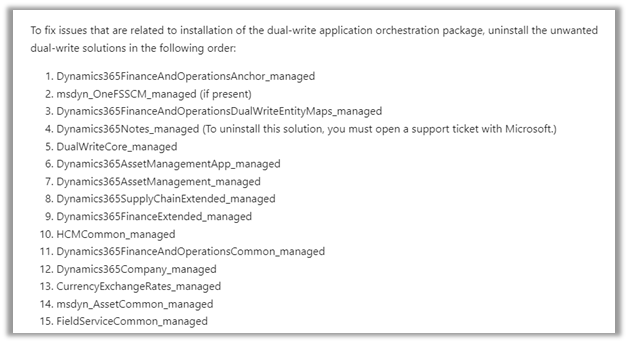
This was because we had unintentionally installed the dual-write application orchestration package that installs multiple solutions in their Microsoft Dataverse environment, which added the company table.

https://learn.microsoft.com/en-us/dynamics365/project-operations/environment/resource-manual-deploy-dataverse-dualwrite

So one option is to remove the Dual Write solutions installed in that environment.

https://learn.microsoft.com/en-us/dynamics365/fin-ops-core/dev-itpro/data-entities/dual-write/uninstall-solutions

As mentioned, for Dynamics 365 Notes we got the below error, for which we need to raise a Support Ticket.

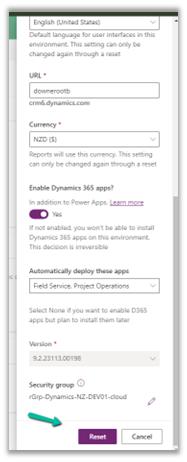
Luckily in our case, we had just created the environment a few days back, so had the option to Reset it. So we eventually took the path of resetting the environment with the Project Operations app selected.

Hope it helps..

Advertisements

Enable Copilot in Customer Service and Custom Apps (Dynamics 365)


Copilot (preview) for Dynamics 365 Customer Service provides the following features –

  • Case Summary
  • Conversation Summary
  • Ask a question
  • Write an email
  • Draft a chat response.

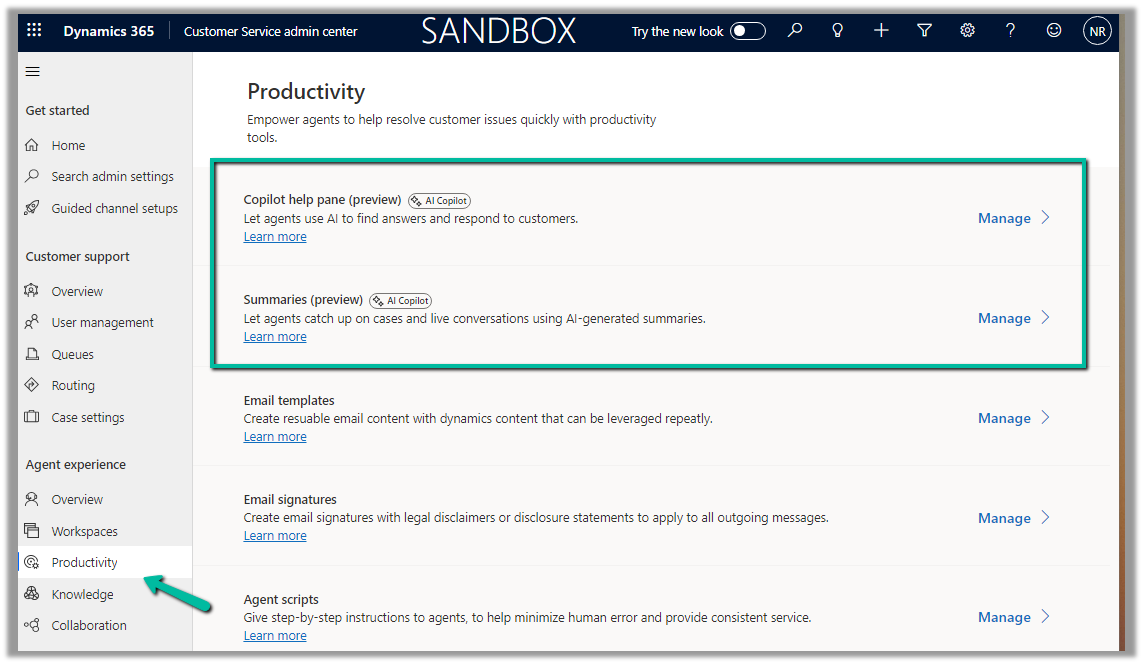
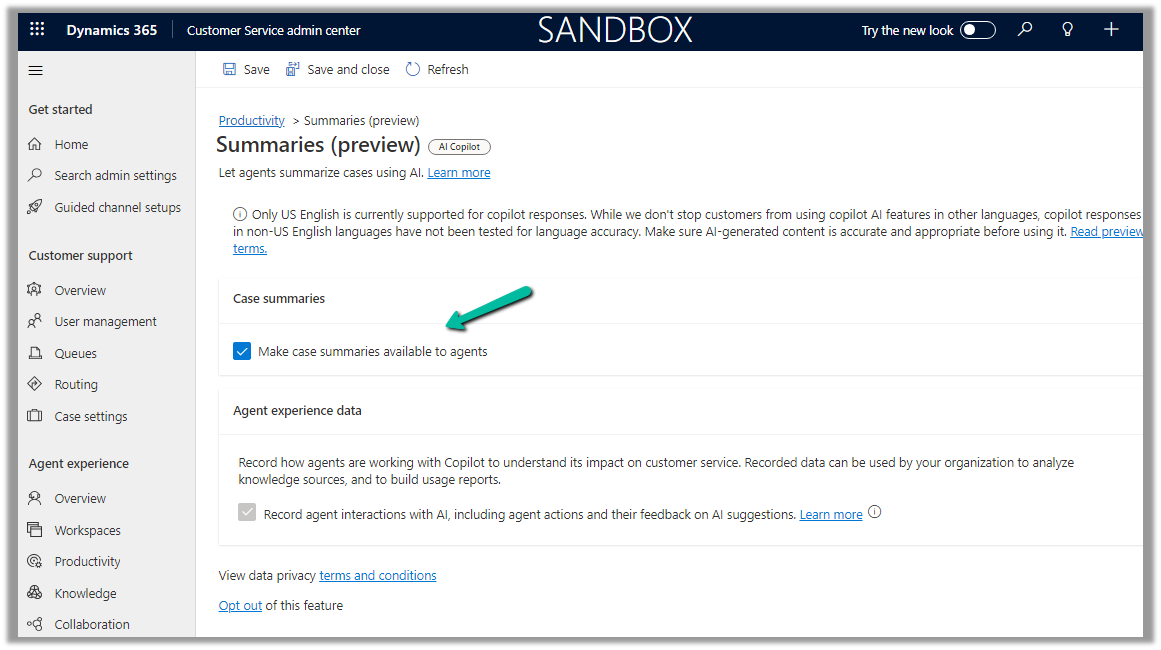
To enable it, navgiate to Customer Service Admin Center >> Agent Experience >> Productivity >> Manage (Copilot help pane and Summaries)

Check the required Copilot help pane settings and save.

Similarly for Summaries

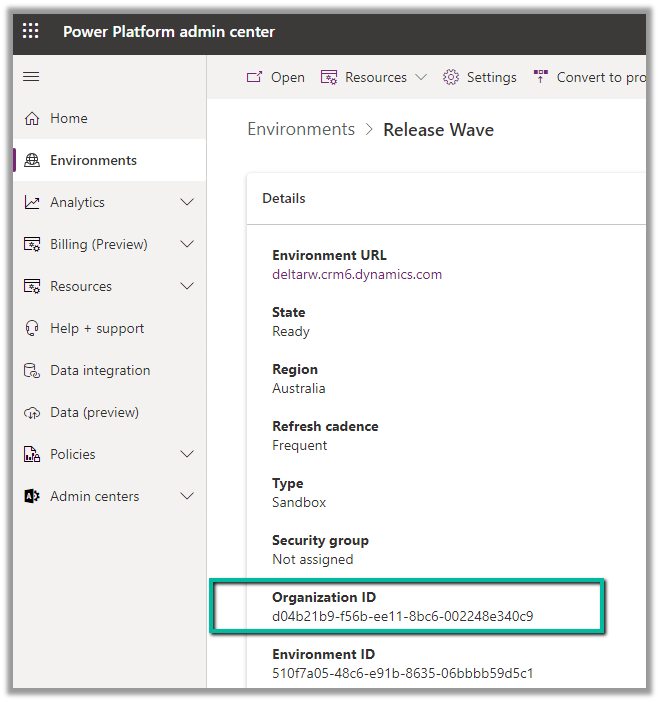
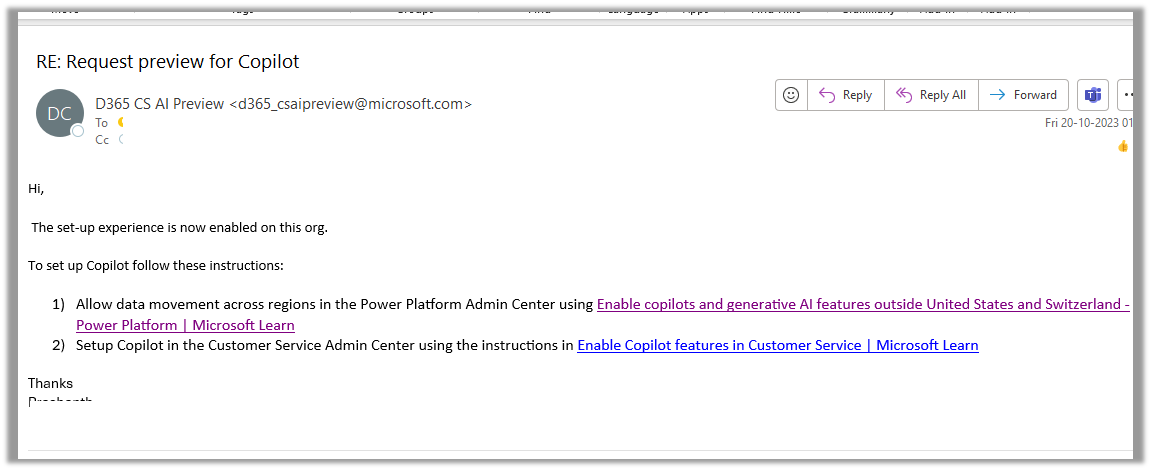
For geographies outside the United States, to enable the Copilot features for Customer Service, we need to send an email to d365_csaipreview@microsoft.com with the Organization ID to enable the preview.

We can get the Organization ID from the Power Platform admin center for the environment.

As our environment was in the Australia region, we followed the same and within the next day, we got a response from Microsoft that it had been enabled in our Environment.

https://learn.microsoft.com/en-us/dynamics365/customer-service/administer/configure-copilot-features?WT.mc_id=DX-MVP-5002876#enable-public-preview-for-geographies-outside-of-united-states

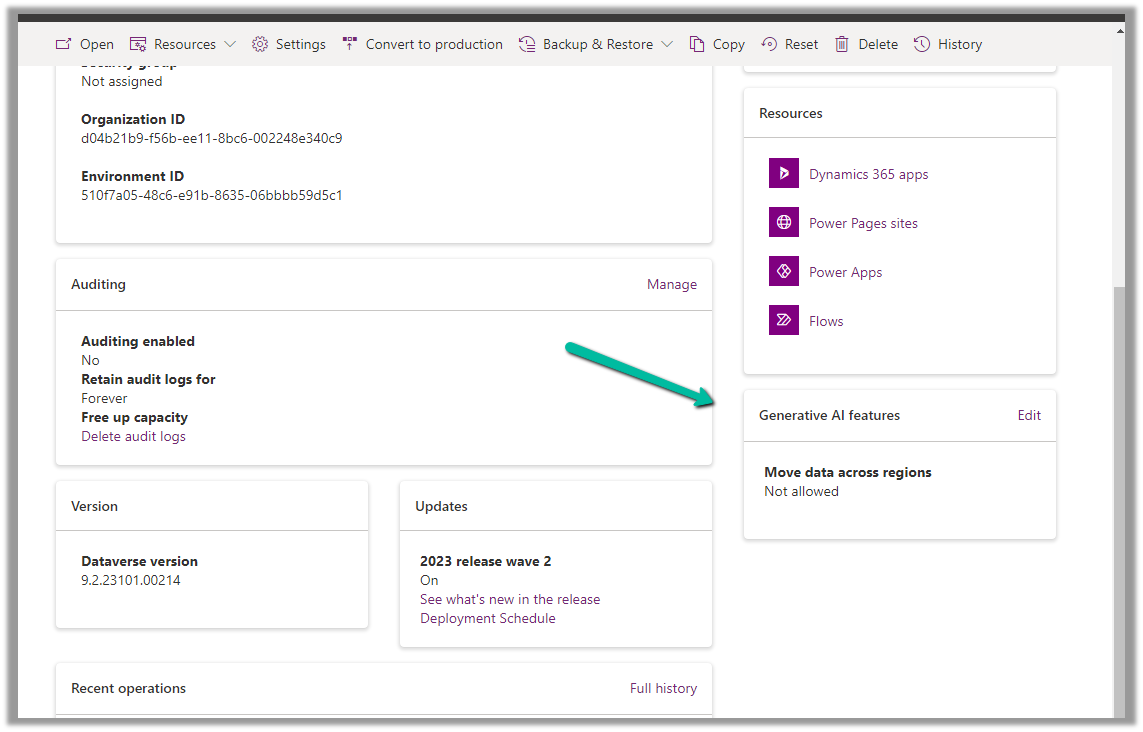
As per the email, the next step is to Enable copilots and generative AI features outside the US and Switzerland, for this again open the environment in the Power Platform admin center, and select Edit for Generative AI Features.

Check the Move data across regions option and enable it. (We need Global Admin or Power Platform admin role to enable it)

Once we have followed the above steps it adds the Copilot help pane in the Customer Service Hub app.

Similarly, for the Customer Service Workspace app, we can manage it in the corresponding Agent Experience profile.

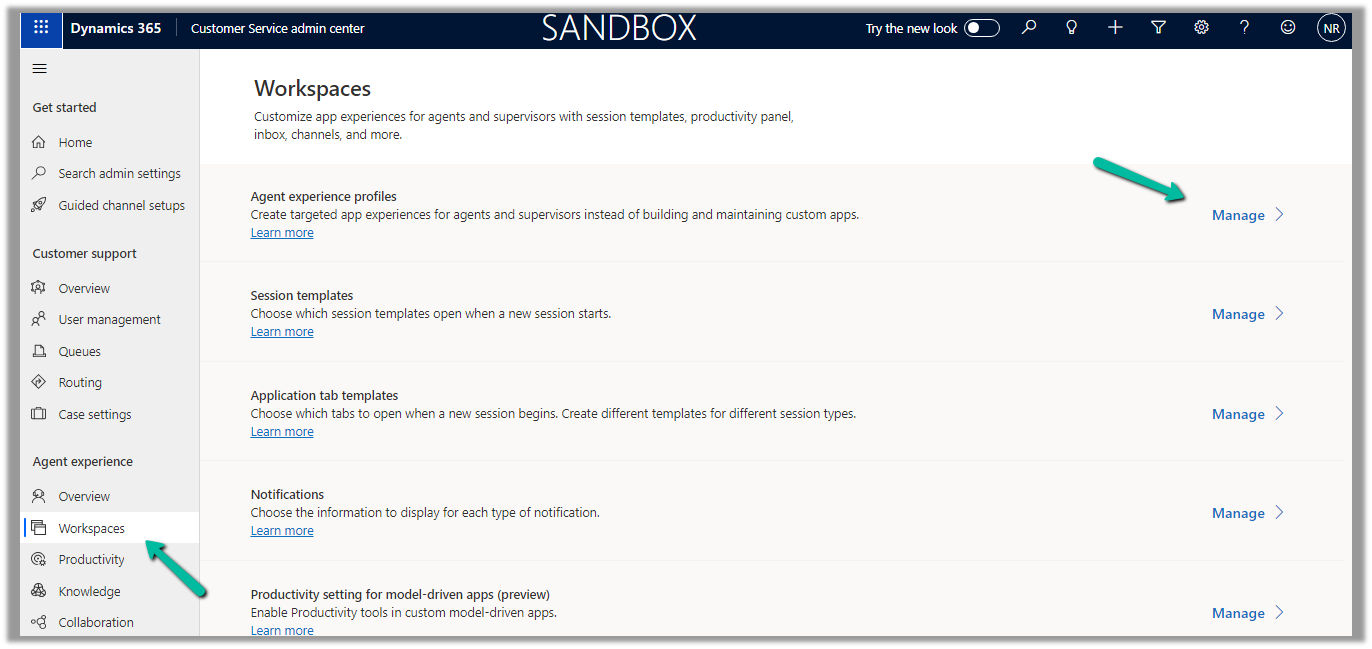
Navigate to the Agent Experience >> Workspaces >> Manage (Agent Experience profiles)

We can see the Copilot AI features section (below is the out-the-box Customer Service workspace – default profile), we can accordingly update the corresponding agent experience profile(s) records configured/used for the agents.

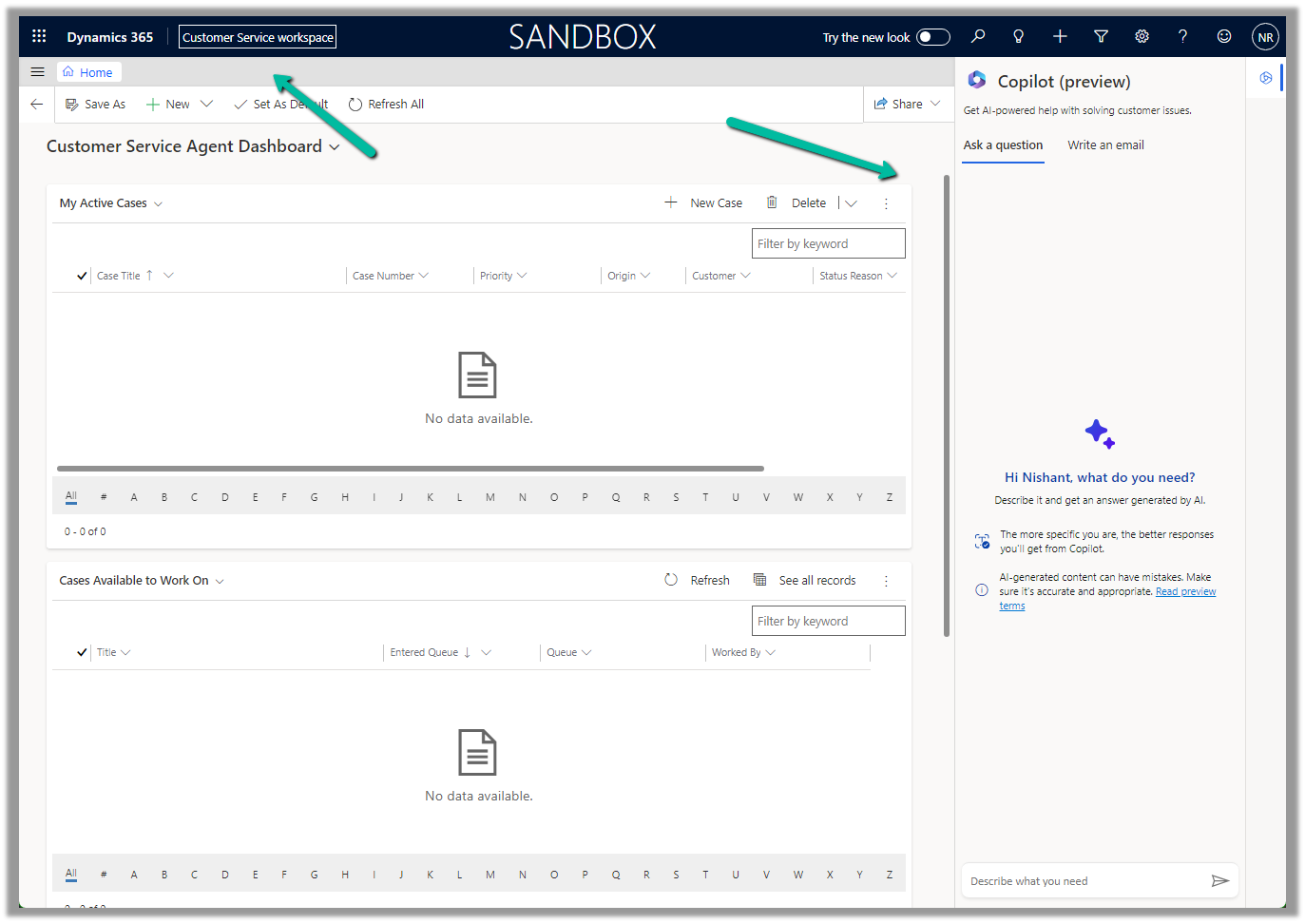
Below we can see the Copilot help pane in the Customer Service workspace app.

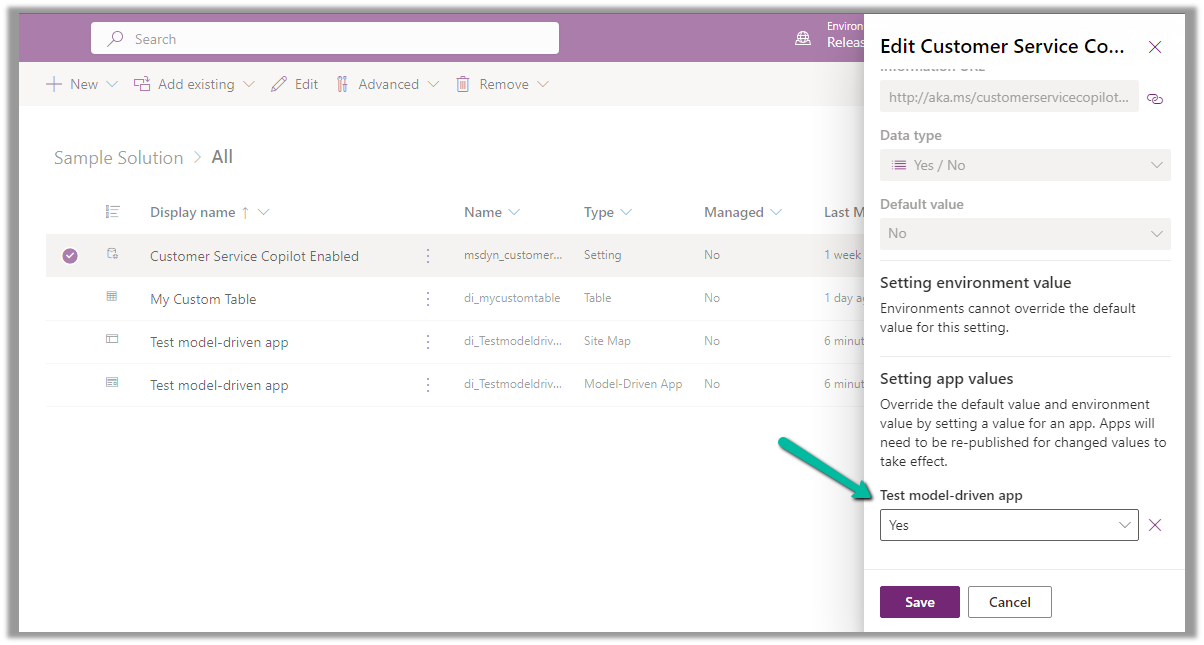
Similarly to enable Copliot for custom model-driven app.

Add the Settings >> Customer Service Copilot Enabled

Set the value as Yes for the corresponding App and save the changes.

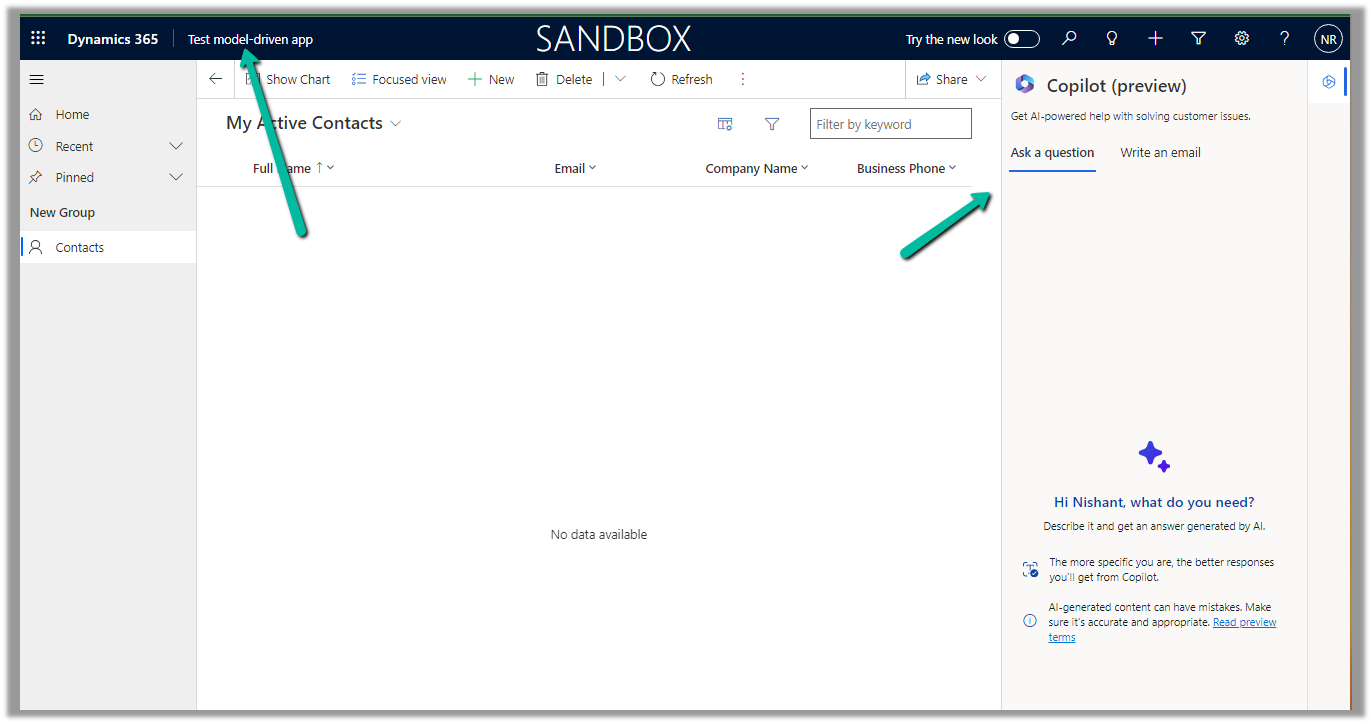
Below we can see copilot enabled for our custom Test model-driven app app

Get all the details here

Hope it helps.

Advertisements