How to – Embed a canvas app on a model-driven app in Dynamics 365


Let us start with some of the key points about the embedded canvas app

  • The embedded canvas app is now generally available. During preview.
  • The embedded canvas app supported sub grid control in preview, which is now no longer available.
  • The canvas app custom control is only supported for the Unified Interface Web client type. It doesn’t support Phone and Tablet client types.
  • We can only have 1 canvas app on the form. We can have multiple embedded canvas app but only 1 of them could be enabled.
  • It is recommended to have an embedded canvas app on a required field else it will not refresh on any change in the data on the host model-driven form.
  • The embedded app can only be created from the host model-driven form.
  • The existing canvas app cannot be used as an embedded canvas app.

To create the canvas app custom control, select the controls tab in the Field Properties dialog, and click on Add Control.

Select Canvas app in App Control dialog.

  • The Canvas app will have Web client selected as default and Phone and Tablet option will be greyed out.
  • Entity Name shows the name of the field that is associated with it.
  • App ID will be populated when the app is created.

Clicking on Customize opens the PowerApps Studio.

We can see the canvas app form control added to the canvas app.

We can see the fields for city, name, and phone already added to it.

ModelDrivenFormIntegration is a special control that is responsible for bringing the contextual data from the form to the embedded canvas app.

Using Edit Fields option, we can add, remove, edit, reorder the fields of the data source.

Just for the simplicity let us keep the app as it is.

Click on File à Save à The cloud (Save to PowerApps)

On a successful save, we can see the App ID generated.

Uncheck Display label on the form, save and publish the customization.

Changing the value in the Phone field in the form and saving the form changes the value inside the canvas app form control.

To Edit the canvas form control, we need to follow the same steps, open the field properties, controls tab and click on Customize

After making the changes inside PowerApps studio, save and publish the changes.

The other Dynamics CRM User say poweruser2 will get the below error message when they open the same form if the app is not shared with them.

The app can be shared with specific users, security groups or everyone within the organization. The users should have appropriate security roles to access the entities and also appropriate permissions on the cloud services that are being used as part of the canvas app.

There are no privileges specific to the canvas app within Dynamics 365 CE

To share the app, Navigate to File and select Share option

Here we searched for the user, made him Co-owner and assigned security roles which will give him access to Accounts entity.

We can see the embedded canvas app rendered properly in this case for the poweruser2

In this post, we covered some of the key points about the embedded canvas app along with steps to create, update and share it (although we just used the OOB generated app here),  I would recommend to check out the videos by Shane Young to learn about PowerApps and different scenarios that we could implement.

Hope it helps..
Advertisements

Step by Step – Calling Flow from PowerApps (Dynamics 365 CE/CRM)


Let us take a simple example of creating lead to understand how we can call Flow from PowerApps.

Log in to PowerApps Studio and create the form as below.

  • TextInput for entering the Last Name, First Name and Email ID.
  • Button to call Flow.
  • The label named GUID which will display the GUID of the created lead record.

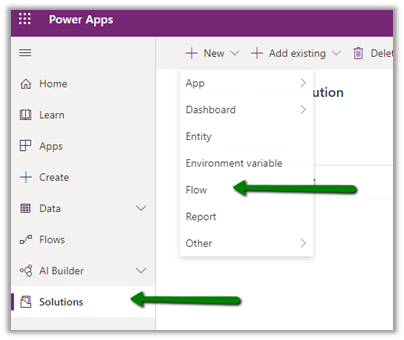
Now select the button, go to Action menu and click on Flows to create a new flow.

Click on create a new flow.

Select Instant – from blank option

Select PowerApps as the trigger.

Add a new Step – Create a new Record (Dynamics 365)

To create a new record step, specify the Dynamics 365 Organization Name, select Leads as the entity name.

For the Last Name field, click Ask in PowerApps that will generate the parameter to which we will pass the value from our PowerApps.

The generated parameter.

Repeat the above step for the First Name and Email field.

*for Topic field we have passed a hardcoded value.

Save the create step and add a new step “Respond to a PowerApp or flow

Here we have selected output of type Text

We have added the output parameter as varLeadId and selected leadid as the unique identifier.

Save the Flow and navigate back to PowerApp and select the flow created for our button.

After adding the Flow, the next step is to update the formula to send the field’s value to the flow and also to receive the output from it.

Below will be our formula to pass the text to the flow.

But as we are expecting the GUID in return, we need to update it.

We are using the Set function to set the variable varResponseFromFlow with varleadid output.

Also, we have updated the label field for GUID with the variable

Now let us save the changes and run the PowerApp.

On clicking the button, we can see the GUID updated on the label on the form.

Back in our Dynamics 365 CE, we can see the lead created.

Thus we saw how easy it is to write a PowerApp which interacts with Dynamic 365 CE using Flow. We took a very basic example to understand how things glue, but we can clearly see the potential here to implement complex real-world scenarios with ease.

Hope it helps..
Advertisements

Execute SQL Select, Insert, Update and Delete command on Dynamics 365 Customer Engagement Data using Skyvia Query


Recently came across the wonderful product called Skyvia Query

It is one of the most advanced Visual Query Builders out there, that let us write complex SQL queries with simple drag and drip and configuration. The most interesting part is that it works with both Cloud as well as On-Premise databases.

To try it out we can create a free trial account.

https://app.skyvia.com/register

In this post, we will see how we can quickly use it to connect to our Dynamics 365 CE Database and perform select, insert, update and delete queries.

Navigate to connections and create a new Dynamics CRM Connection

Provide the connection details and test and save the connection.

Navigate to the Query section and select New Builder option to use SQL Builder tool to create the query

Specify the connection and search for the Entity (table)

Here we have searched for and selected the Opportunity Entity. Now simply drag and drop the fields to the designer surface.

Results Fields:

Filters:

Sort Fields:

Click on Execute (F9) to get the result.

Let us drag and drop opportunity rating field in the result fields section and Execute it

The results can be exported to PDF, CSV and can also be used for creating a chart that can be exported as an image.

PDF:

Chart:

Going back to our designer screen, now let us work with the actual SQL query that was being generated by the query builder for us.

For this, click on the SQL tab.

Below is the generated query.

We can work with the query in the SQL query window itself and can also drag and drop fields from the Table on the left.

For e.g. we have dragged Records count on the SQL query window, which generated the count query for us.

Now let us see the Insert query in action

We can see our contact record created

Now let us perform Update.

Here it asks for the confirmation before performing the update. Selecting Apply All performs the update.

Now let us look at the DELETE query in action.

Similar to Update it asks for the confirmation before deleting the records.

Thus Skyvia Query tool makes it so easy and intuitive to work with Dynamics 365 CE data, as we are using SQL statement instead of Fetch XML.

I would highly recommend giving this product a try.

https://skyvia.com/pricing/

Hope it helps..

Advertisements

How to – Use PCF Custom Control Builder (XrmToolBox Plugin) to update existing control in Dynamics 365 / PowerApps


A couple of months back I had written my first PCF Control to display GUID of the record, it was more of a hello world kind of thing.

https://pcf.gallery/guid-control/

Well, the code was using Xrm.Page client API which as we know is deprecated.

So, it was time to update it to use context instead.

More on context

So, thought of using the wonderful PCF Custom Control Builder tool to do that by Danish (which got a new update today – 22- Oct-2019)

Connect to the organization, select Edit existing PCF Control option

Specify the Control Location and VS Command Prompt Location (VsDevCmd.bat)

And click on Reload Details which will list down the details of the component and the solution as shown above.

Click on Open in VS Code to open the project in Visual Studio Code and start making the required update.

It opens the project in Visual Studio Code.

i.e.

Here let us update the index.ts file to use context to fetch the GUID.

Save the changes. And click on Build

i.e.

Now click on Test to see it in action or to debug.

We can see it populating the GUID

To debug it à we can use the developer tools (F12) and put the breakpoint in the index.ts file.

Now let us deploy it to our organization

Deployment in action

After successful deployment, we can see the solution added to our organization

Now let us use it for the single line of the text control.

Publish the changes.

Create the new lead record and we can see the GUID of the record created in the control

Thus, the wonderful PCF Custom Control Builder plugin of XrmToolBox makes it so easy to update the existing PCF Control and also to create new PCF Control.

Hope it helps..
Advertisements

How to – Work with Git Branches in Visual Studio 2019


Continuing our previous posts, let us now see how we can work with branches within Visual Studio 2019.

Branches give the option to isolate the work from the original code base, this way we could have a developer(s) working on bug fixes, new features etc. which then can be merged back to the master branch later.

Open the Branches page in Team Explorer and click on the New Branch option.

Here we have created a new branch name MyFirstBranch from the master branch, and have also selected the option Checkout branch to work with that branch.

Create Branch creates the new branch as shown below.

To navigate to the branches page of Team Explorer, we can also use the Status bar of Visual Studio

Now let us make some changes in the program.cs file in the new branch created.

Do Commit and Push
All

From the team explorer, Branches page, we can see that the new branch has been added in the remote repository after commit.

To merge changes back from this new branch to the master branch, click on the master branch and select Merge option in the Branches page

  • Merge from Branch: MyFirstBranch
  • Into current branch: master.

As we have selected the option Commit changes after merging click on Merge pushes and sync the changes in the master branch in the remote repository as shown below.

We also have the options of deleting the branches as shown below, if they are not required anymore.

In this post, we saw how to work with Branches and how to merge it back to the base code.

Hope it helps..
Advertisements
Advertisements

How to – Perform basic Git operations with Visual Studio 2019


In the previous post,

https://nishantrana.me/2019/10/21/getting-started-with-git-repository-in-visual-studio-2019/

we learned how to setup and  get started with Git Repository in Visual Studio 2019.

In this post, we will learn how to perform some of the basic operations like commit, push, fetch, pull, etc. and how to merge the conflicts.

Let us open the solution created in the last post and make some changes

Here we have updated Program.cs and added a new class file Helper.cs


To commit these changes, we can either go to Team Explorer – Home – Changes page or click on the edit icon in the status bar of the Visual Studio.

After we have added our commit comments, we are presented with 3 different options

Commit All Commit will make a record of the changes in the local repository.
Commit All and Push Commit the changes locally and push the changes to the remote repository.
Commit All and Sync Commit the changes locally, fetch the changes from the remote repository and finally push the changes to the remote repository

We can also use the Stage option to break the commit into smaller stages

We will be presented with similar options for Commit Staged as in the case of Commit.

Perform Commit Staged and Push for both the changes.

We can see both the updates in our remote git repository

Other developers or team members who need to work in the project can Clone the project in Visual Studio 2019.

Provide the Repository location URL along with the local path.

Now suppose the developer 1 makes the below changes to the program.cs and does commit all and push.

The other developer 2, can click on Fetch in the Synchronization page to see any incoming commits.

Clicking on the commit shows the details of the changes as shown below.

Developer 2 can click on Pull to merge commits to the local master branch.

fetch Download the changes from remote repository
merge Applies the changes fetched to a branch in the local repository
pull fetch + merge

Now suppose developer 1 has changed the message and commit + push the changes to the remote repository.

And also, in parallel developer 2 has also updated the same message and has clicked on Commit and Push.

As both have made changes and referencing to the same line of code, the developer 2 gets the failure message when he tries to push his changes to the remote repository.

Message in the output window à

Developer 2 here can click on Fetch to see the changes

Developer 2 clicks on Pull to merge the changes and can see the conflict.

Clicking on Conflicts gives Developer 2 the option to Merge, Take Remote or Keep Local the changes.

Selecting the Merge option allows developer 2 the option to specify the merge.

Clicking on Commit Merge to merge the changes, followed by appropriate Commit operation to push the changes to the repository.


This resolves the conflict.

Thus, in this post, we learned how to perform basic operations like Push, Pull, Fetch, etc. and how to merge and resolve the conflicts using Visual Studio 2019.

Hope it helps..
Advertisements

Nishant Rana's Weblog

Everything related to Microsoft .NET Technology

Skip to content ↓