Woohoo - You can query Dynamics 365 (CDS) with SQL….again


Hosk's avatarHosk's Dynamic Blog

When was the last time you heard anyone getting excited about SQL? #HoskWisdom

It’s a crazy world when Microsoft announces NEW functionality of being able to Use SQL to query data in CDS and the Dynamics/Power Platform community get excited about it.

Some things go together to make something beautiful,

  • Strawberries and cream
  • Chaz and Dave
  • Nerds and computers

Now after a lengthy absence we have SQL and Dynamics 365, back together

I was trying to think back when I wrote my last SQL statement, I’m guessing it was with on-premise Dynamics project in 2013. Before then I remember spending 2 days trying to format an SSRS report.

This made me realise there was more to life than SSRS reports

What is SQL back?

Microsoft announced that there is an SQL data connection available to the Common Data Service. This connection provides read only access to entities.

Be aware is a…

View original post 472 more words

Dynamics CRM On-Premise to Online Migration Program – Microsoft FastTrack


Customers planning to migrate to the cloud should check out the below session, as part of FastTrack TechTalks, on Dynamics CRM On-Premise migration to Online.

https://community.dynamics.com/365/b/techtalks/posts/onpremises-to-online-migration-program-january-17-2020

Highlighting some of the main points

  • FastTrack Service is only available for eligible customers. Check the eligibility requirements below

https://docs.microsoft.com/en-IN/fasttrack/M365-eligible-services-and-plans

  • The customer \ partner will be guided and assisted by FastTrack Solution Architect as part of the FastTrack Program.
  • Supported SQL Server version – 2008, 2012, 2014, 2016.
  • Supported CRM On-Premise – 2011, 2013, 2015, 2016, 9.0.

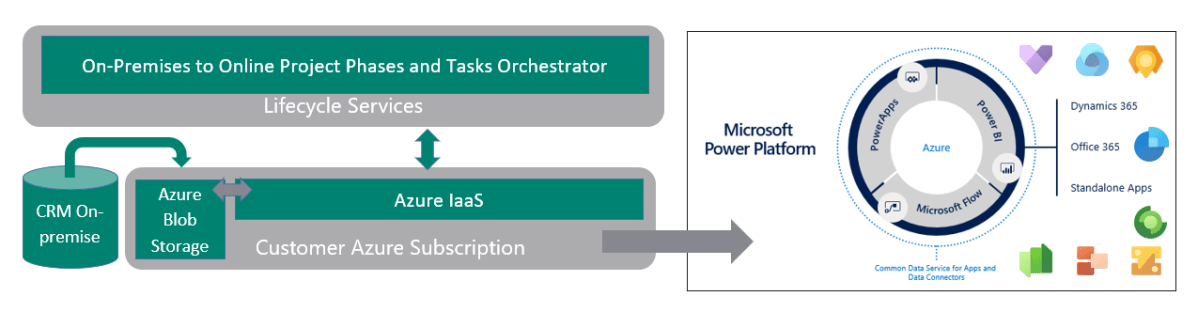
High-level steps of the program include

  • Setting up the migration project in Microsoft Lifecycle Services, which uses the wizard-based hosted tool for the migration.
  • Setting up Azure subscription and storage account (for which customer needs to pay along with the Dynamics 365 Subscriptions) and provision staging sandbox environment.
  • Taking the backup of the CRM On-Premise database and uploading it to Azure Blob Container.

    The backup is restored in the same version in Azure Hosted Virtual Machine i.e. CRM 2015 database will be restored in CRM 2015 VM.

  • PowerApps Checker service runs as part of the next phase, to validate the solution.
  • Finally, the Upgrade process starts, which upgrades the restored CRM Database to CRM 9.0 Database. E.g. CRM 2015 Backup will be restored in CRM 2015 VM, which will be then upgraded to CRM 2016 VM, and then finally to CRM 9.0 VM.
  • This is followed by user-mapping and the migration to the online as the last step.

Here, the customer/partner needs to make sure to transform all SQL Based report to Fetch XML, update the plugin to run in sandbox mode, update JavaScript to the new client object model, check for any 3rd part tools and reconfiguration of integration, make users familiar with new Unified Client interface, cleaning of the database (for audit data), etc to make the solution online compatible. This can be done before restoring to the Azure Storage or during the staging phase (This is customer/ partner responsibility and will be assisted by FastTrack Architect and Microsoft Technical Support team for any upgrade issues).

Hope it helps..

Notes on Dynamics 365 for Phones and Tablets app – Part 12 (Mobile Offline Capabilities and Limitations)


Check the other articles of this series.

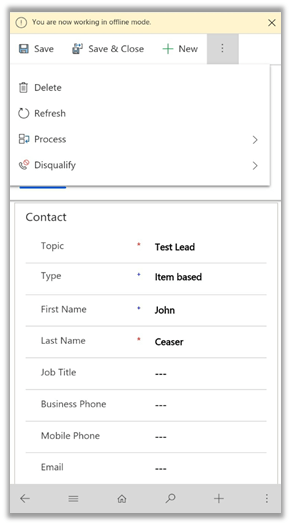
In this post, we’d cover some of the limitations and capabilities of Dynamics 365 Mobile App (in offline mode)

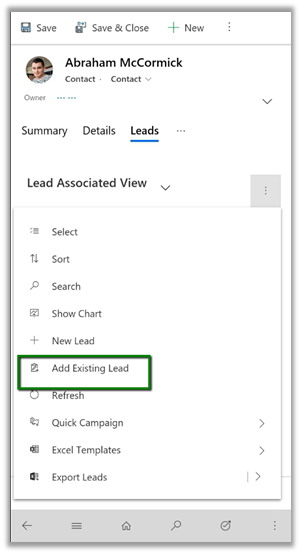
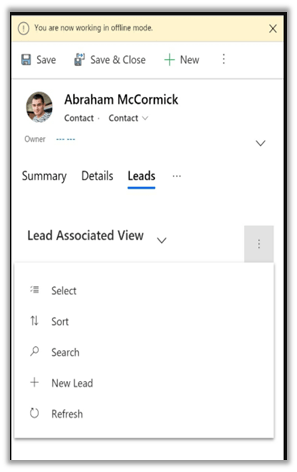
  • Add Existing (n-n relationship) is not supported in mobile offline
Mobile App – Online Mobile App – Offline
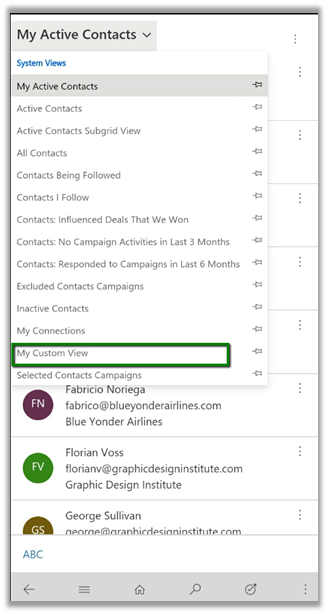
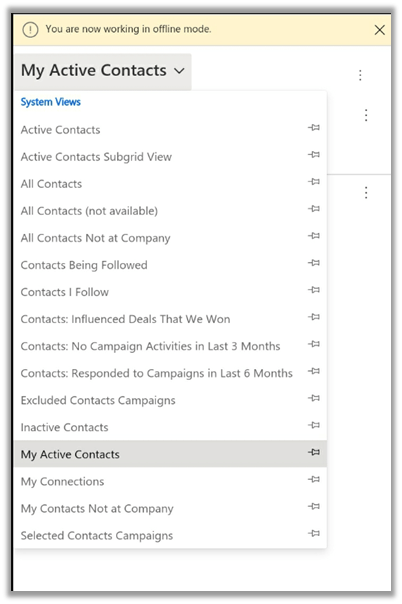
  • Only System Views are available in offline mode.

“My Custom View” is public view which is available in online mode, but not in offline mode.

Mobile App – Online Mobile App – Offline
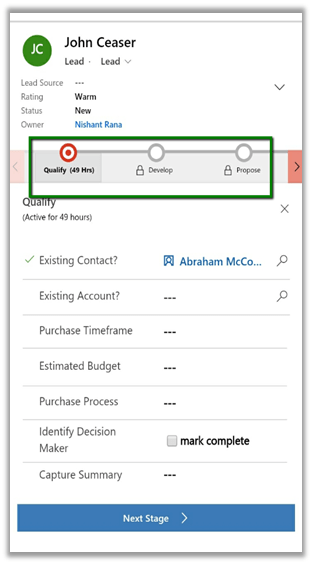
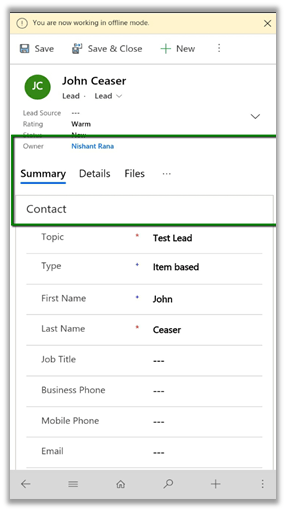
  • BPF is not available in offline mode.
Mobile App – Online Mobile App – Offline
  • Custom Ribbon Button are note available in offline mode
Mobile App – Online Mobile App – Offline
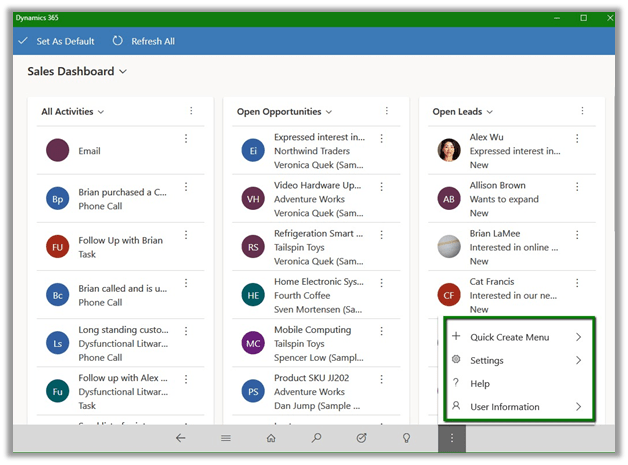
  • The mobile offline is only available in iOS and Android phone and tablet app. Below is the screenshot of Tablet App on Windows 10. There is no option for going offline.

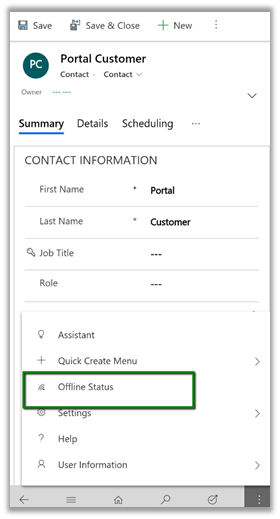
  • The offline option in Phones App for Android

  • Business Rules work in Offline mode.
  • Plugins and workflows are not supported in Offline mode.
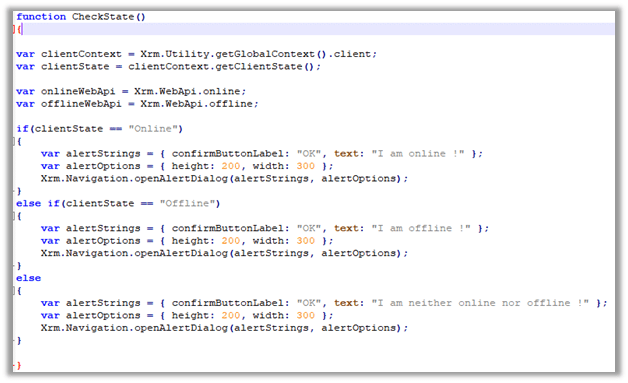
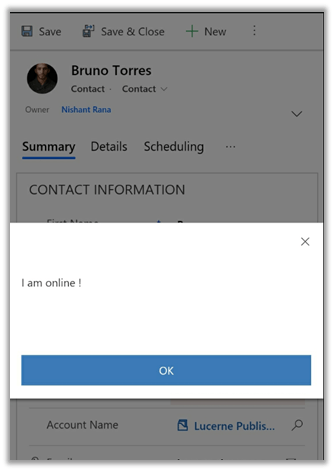
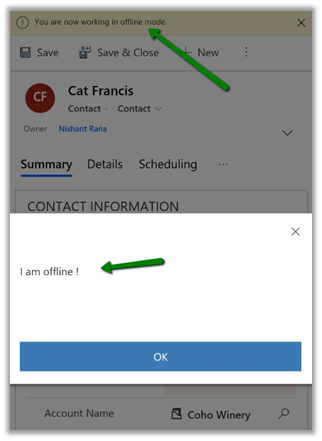
  • Use Xrm.WebApi.offline to perform CRUD operation offline.


Mobile App – Online Mobile App – Offline
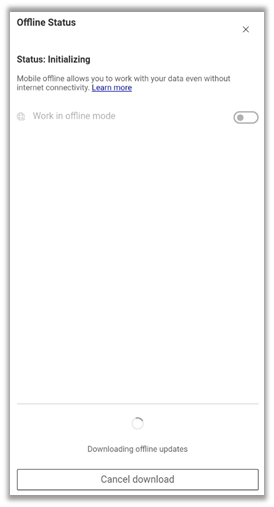
  • Downloading offline updates can take a few minutes to an hour. (The user can still work online while the data is getting synced in the background)


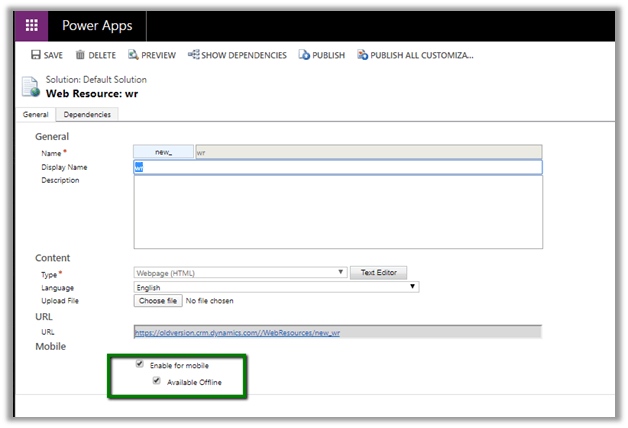
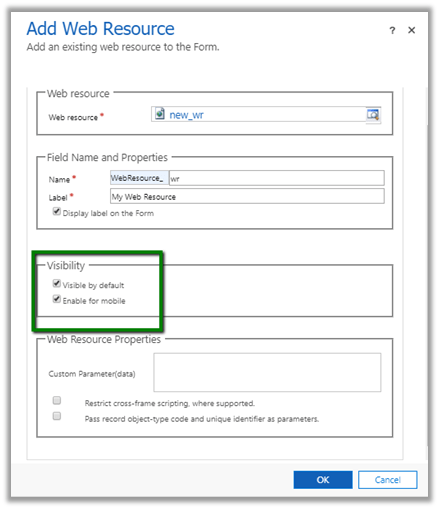
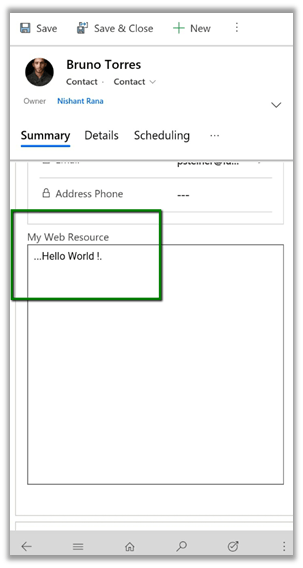
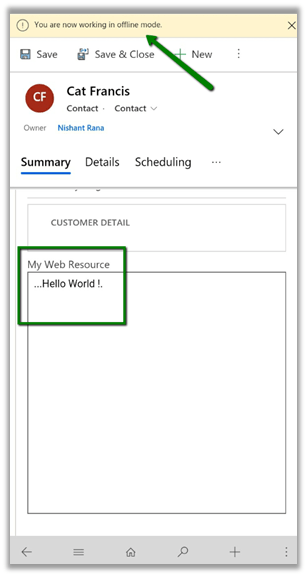
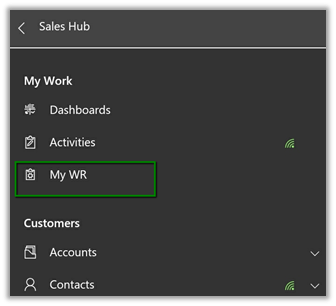
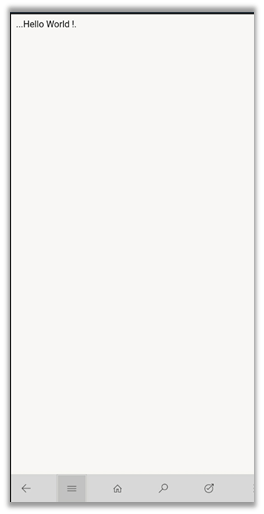
  • Web Resource can be made available offline


Mobile App – Online Mobile App – Offline

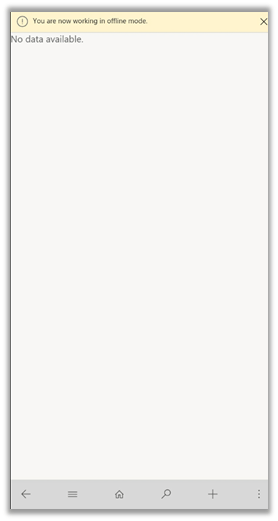
The same web resource when defined within the sitemap gives a “No data available” message.


Mobile App – Online Mobile App – Offline

Thus, while designing a solution for Mobile Offline, we need to consider the above behavior of the mobile app.

Hope it helps..

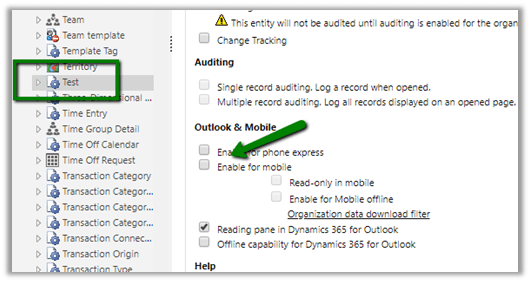
“Enable for mobile” is now “Enable for Unified client”


Just sharing my quick observation –

Enable for mobile”  option for an Entity

EnableForMobile

is renamed to “Enable for Unified Client

EnableForUnified

Notes on Dynamics 365 for Phones and Tablets app – Part 11 (Mobile Settings)


Check the other articles of this series

In this post, we’d look at the different settings specific to the mobile app and their effect.

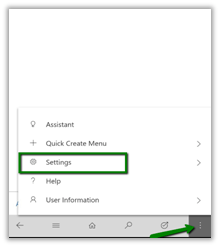
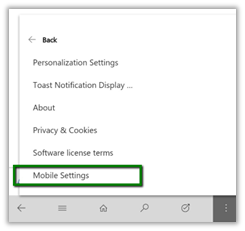
In the mobile app, navigate to Settings – Mobile Settings in Dynamics 365 for Phones app.

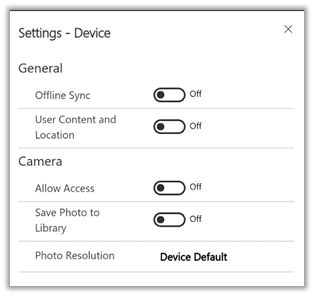
Below are the different settings available inside the mobile app.

Let us look at the behavior of each of these properties.

  • Offline Sync

Offline Sync option is only available for iOS and Android Devices

Enabling the offline sync option will start the sync process in the background and will download the data offline for the user. While sync is happening, users can keep working online.

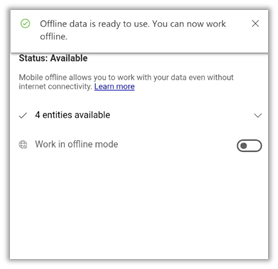
After the offline data is downloaded users can enable the option “Work in offline mode” to work offline.

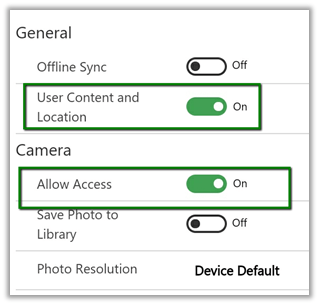
  • User content and location

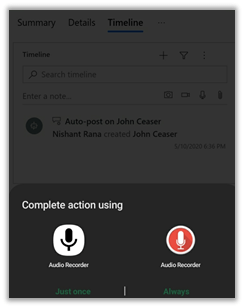
This option allows users to take voice notes and attach it as an attachment to notes.

The location details can be used in the getCurrentPosition method of Xrm.Device

https://docs.microsoft.com/en-us/powerapps/developer/model-driven-apps/clientapi/reference/xrm-device/getcurrentposition

  • Camera – Allow Access

It allows the user to take a picture through the camera and attach it to notes as an attachment.

To take Video and attach it to notes, both the below permissions are required

  • User Content and Location
  • Allow Access

  • Camera – Save photo to the library

This will save the picture taken through Camera in the Gallery. (doesn’t need User Content and Location permission)

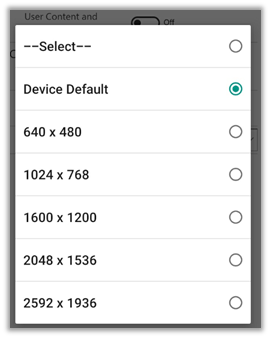
  • Camera – Photo Resolution

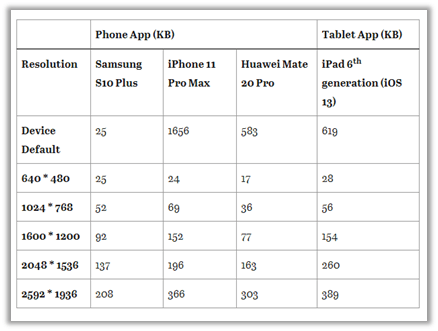
It allows the user to specify the resolution of the picture taken through the camera.

Below were the findings of the size of the picture for different resolutions with different devices.

You can read more about the file size of the pics in mobile apps here

Thus we saw the different mobile settings available in the mobile app and their consequence.

Hope it helps..

Dynamics 365 for Phones and Tablets App posts


Notes on Dynamics 365 for Phones and Tablets app

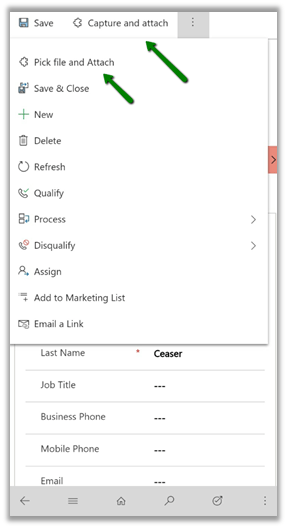
Using Xrm.Device captureImage method to take a picture and attach it to notes.

Using Xrm.Device pickFile to attach files to notes

Fixed – You do not have any apps in this view error.

Upload files using SharePoint integration in mobile app

Calling SetWordTemplate from the custom ribbon button

Attachment to Notes in the mobile app

Nishant Rana's Weblog

Everything related to Microsoft .NET Technology

Skip to content ↓