Fixed – ID3242: The security token could not be authenticated or authorized in Dynamics 365


We recently got this error in our web application while trying to fetch some records from one for CRM On-premise organization.

This error was because we had recently configured IFD for that CRM Server.

We had around 6 organizations in that particular deployment and because of security reasons, we didn’t use the wildcard SSL certificate and had a single certificate with multiple subject alternative names (SAN Certificate), and this organization was not part in it.

Fortunately, it wasn’t the case in our production environment and we had this organization part of the SAN Certificate used for IFD configuration there.

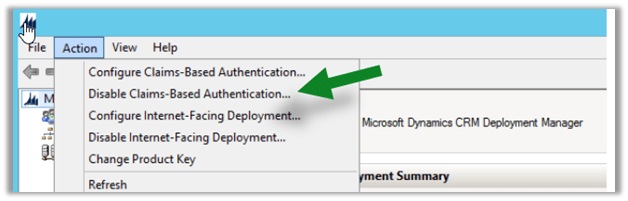
So as a quick and temporary fix, as we just wanted to test a couple of methods, we disabled the Claims Based Authentication / IFD from the deployment manager for that short period.
Hope it helps..

Notes on Adobe Campaign v6 – Running a campaign


Continuing our previous posts, where we looked at Campaign planning, segmentation, deliveries.

In this post, we’d look at Flow Control tab and various steps in it, for running the campaign.

  • We can use the Start step inside the Flow Control tab, to specify the starting point within the workflow.

  • We can use the End step which cleans up the temporary data and free up resources.

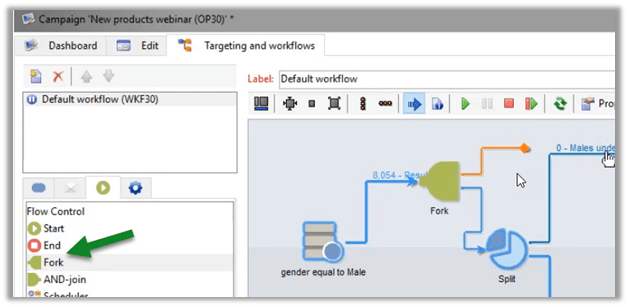
  • We can use the Fork step to have the same result of the query flowing to a different path

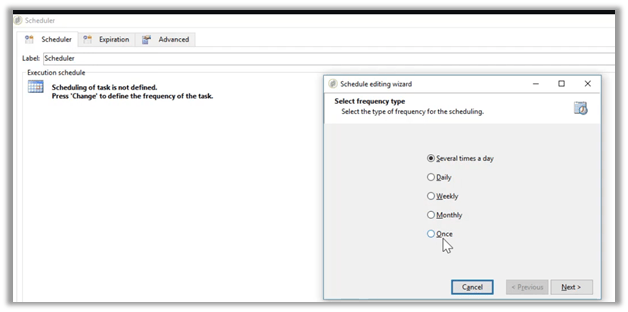
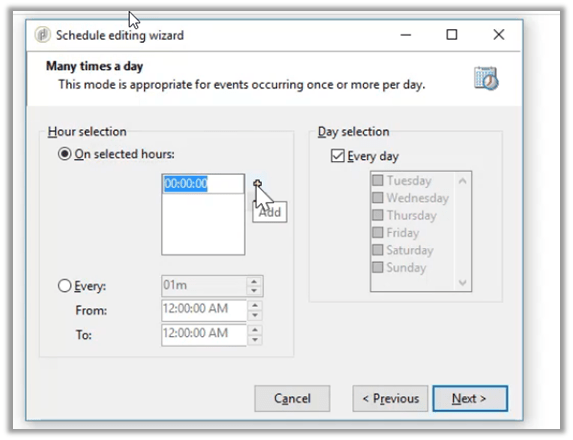
  • We can use the scheduler step for specifying the schedule on which the campaign should run. Daily, Weekly, Monthly, Once or several times a day.

  • We can also define a recurring schedule along with any specific future date for the campaign to run on.

  • We can use the Test step to evaluate a condition and define the flow accordingly based on the result either true or false.

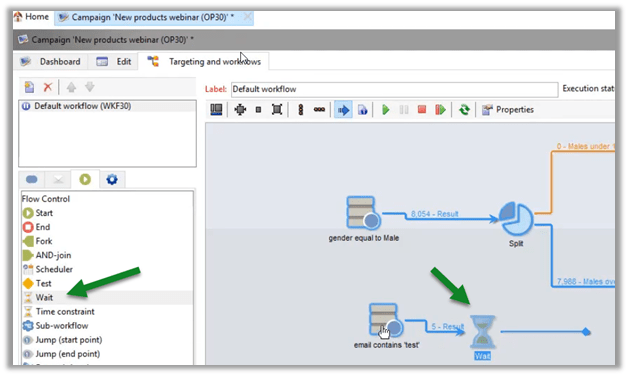
  • We can use the Wait step for specifying wait duration (seconds, minutes, hours, days)

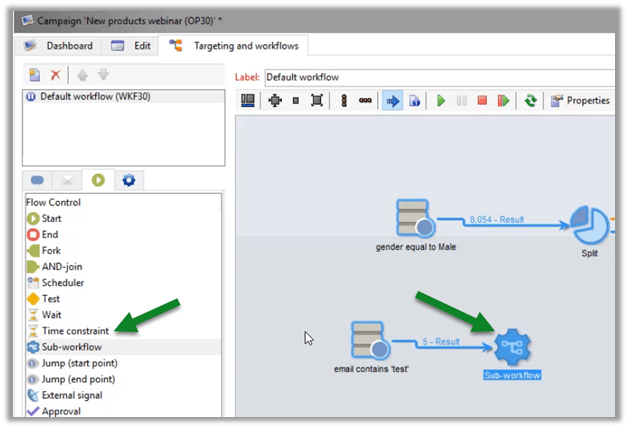
  • We can use the Time constraint step, through which we can specify start and end time.

  • We can use the Sub-workflow step to start a child workflow.

  • We can use Jump (start point) and Jump (end point) step, to make it easy to view and design the workflow that could have many steps and complex flows in it.

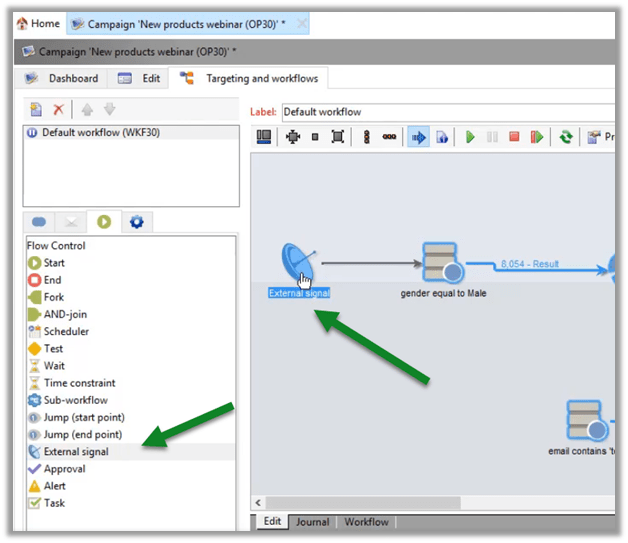
  • We can use the External signal step, as a trigger for an event outside Adobe Campaign.

  • We can use the Approval
    step for defining the approval step, before moving to the next action.

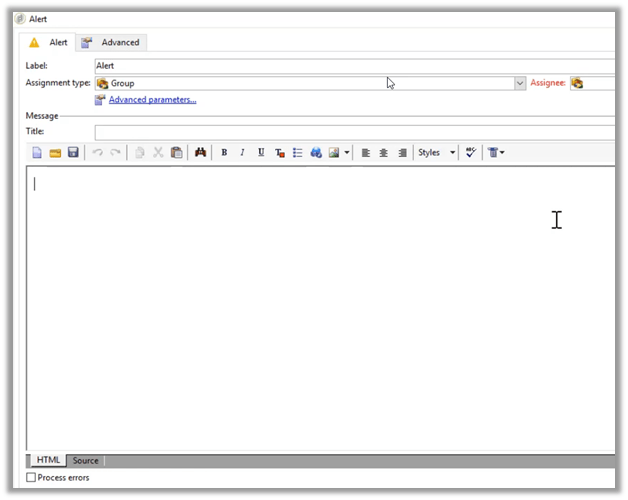
  • We can use the Alert step for sending the message to adobe campaign users.

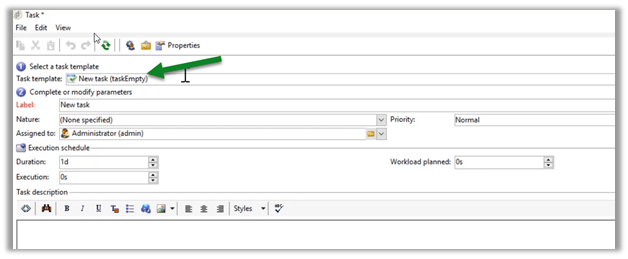
  • We can use the Task status step, for assigning the task to the users, as part of the workflow.

  • We can use the start button to run the campaign, similarly, we can use pause, stop, restart options in the menu bar for controlling the execution of the workflow

  • We can pause a workflow, disable a particular step in the workflow, and can also check the interim result

  • We can use the Journal tab to get all the details of the workflow execution.

  • We can also check logs of any individual step. Right click and select Display Logs in the menu.

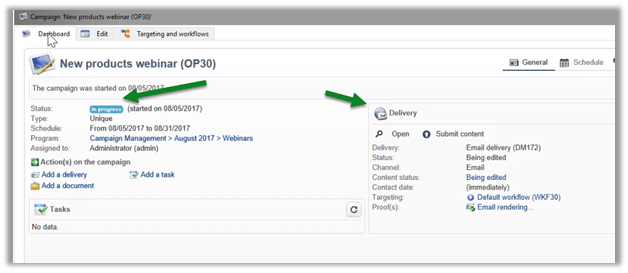
  • The Dashboard for the campaign will show the status and the delivery information for the Campaign once we run the campaign.

Do check out the Pluralsight course for understanding in depth.

Getting started with Adobe Campaign V6

Hope it helps..

Column Comparison using FetchXML Builder and SQL 4 CDS


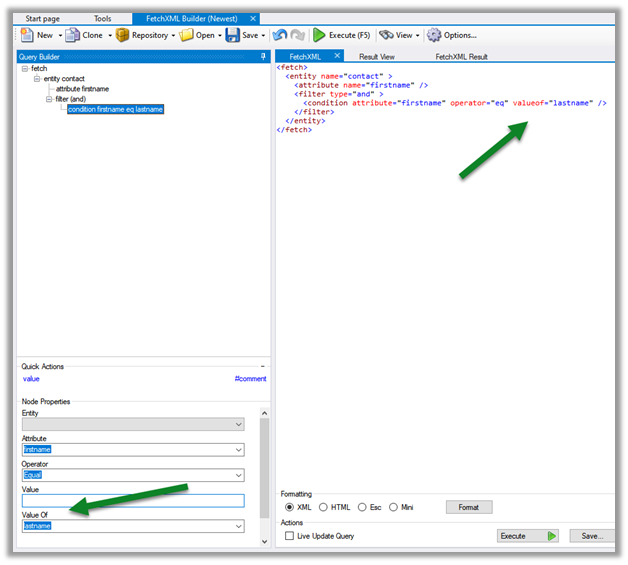
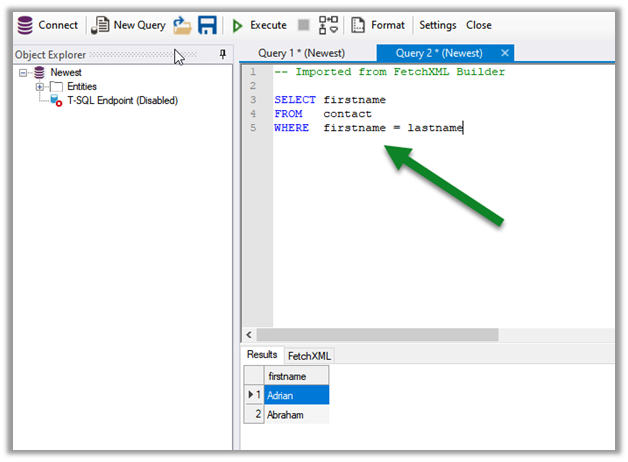
Check it out, the column comparison feature is now added in our favorite XrmToolBox plugins (make sure to update to the latest version)

  • FetchXML Builder

https://jonasr.app/2020/07/fxb-july-2020/#more-4374

  • SQL 4 CDS

https://markcarrington.dev/2020/07/15/column-comparisons-in-fetchxml/

Thanks, @Jonas, and @Mark for incorporating it.

Also, refer –

https://www.itaintboring.com/dynamics-crm/we-can-now-do-column-comparison-with-fetchweb-api/

https://prashantmayur.wordpress.com/2020/07/20/use-column-comparison-in-d365-ce-power-apps-cds-queries/

https://debajmecrm.com/2020/07/16/compare-two-columns-in-queryexpression-in-dynamics-365-cds-sdk/

https://nishantrana.me/2020/07/16/the-new-column-comparison-in-queries-in-dynamics-365-powerapps/

Hope it helps..

New Admin Trial (subscription-based) experience – Dynamics 365


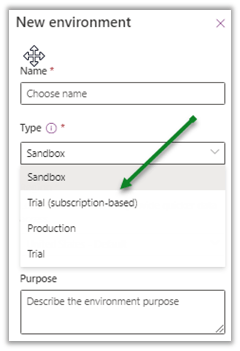
Recently a new Trial (subscription-based) environment option added to the tenants in the Power Platform Admin Center

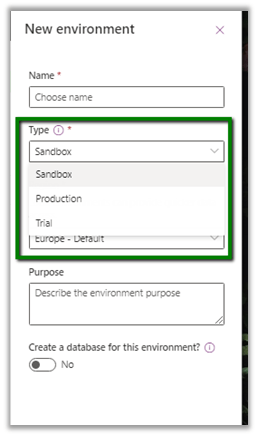
Earlier we were limited to below options –

These new trial types are created and controlled by tenant administrators, as a result of signing up for a trial subscription and can be added to the existing tenant.

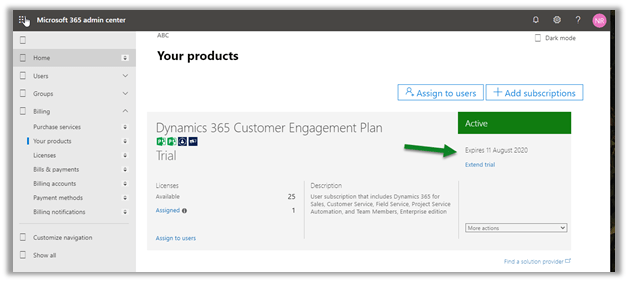
This new environment follows the trial subscription lifecycle (which is typically 30 days) and can be extended from the admin center.

https://admin.microsoft.com/Adminportal/Home#/subscriptions

  • A total of 3 trial environments can be created.
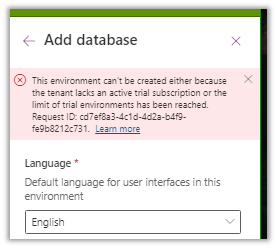
  • Trying to create 4th will give us the below error

Get more details here

https://docs.microsoft.com/en-us/power-platform/admin/trial-environments

Hope it helps..

Notes on Adobe Campaign Classic V6 – Delivery


Continuing the previous post on Planning and Segmentation, here we have some of the important points with regards to delivery in Adobe Campaign Classic.

Kindly refer to the PluralSight course –Getting started with Adobe Campaign V6 to learn in-depth.

  • Different delivery channels supported are Email, SMS, Mobile App Pushes, Social Media, etc.
  • All the interaction with recipients is tracked as activities.
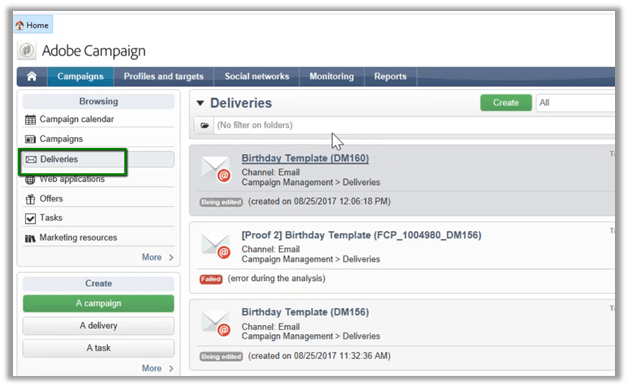
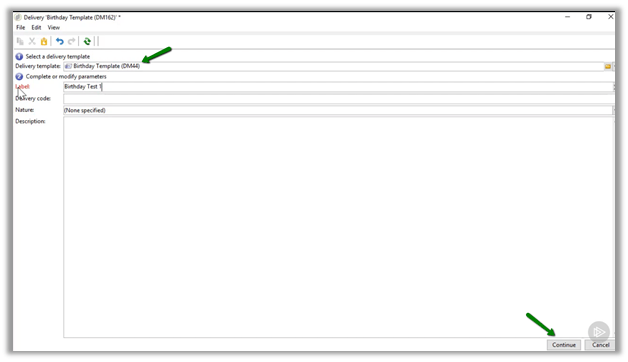
  • To create the delivery, navigate to Deliveries inside the Campaigns tab, and click on create.

  • For delivery, we can select an existing delivery template for the Delivery template field. Below we have Birthday Template selected.

  • Clicking on continue will open the edit screen.
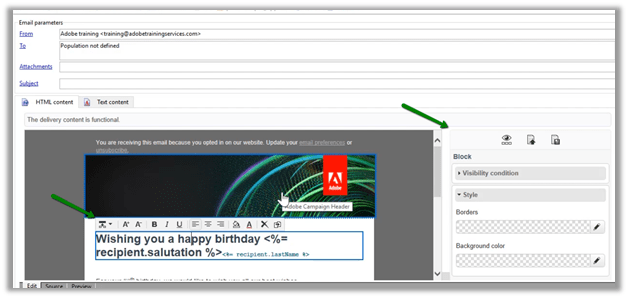
  • Below is how the default content editor looks like.

  • Content editing mode can be changed to another mode inside the Advanced tab. Here DCE stands for Digital Content Editor.

  • Switching to Digital Content Editor adds a new pane on the right side, which makes it easy to specify the properties of the elements selected in the template and a few more controls/options added on the top of the selected control.

  • Once done with the editing we can save the template. The next step will be to use the step in the Campaign’s Workflow.
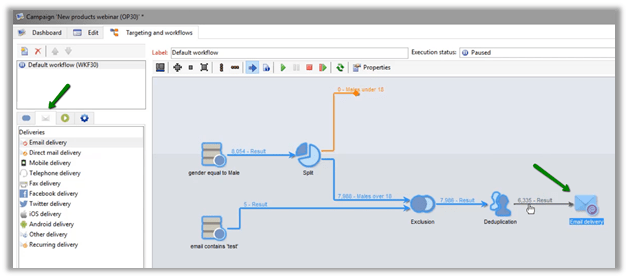
  • Navigate to the Deliveries tab, and drag the Email delivery step in the workflow after the deduplication step.

  • Next double click the Email delivery step to edit it, which allows us to select and add the template we created earlier to it.

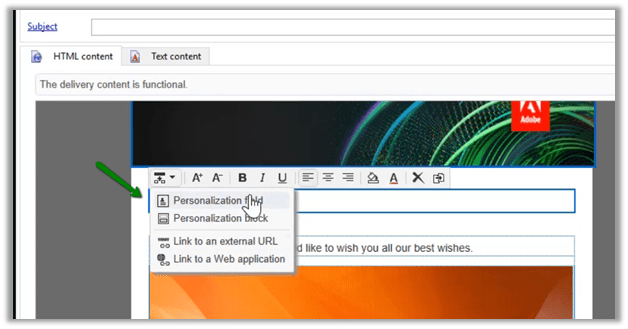
  • We can edit the email content. In the below screen we have selected the personalization field, the value for which will be picked from the recipient record targeted in the delivery.

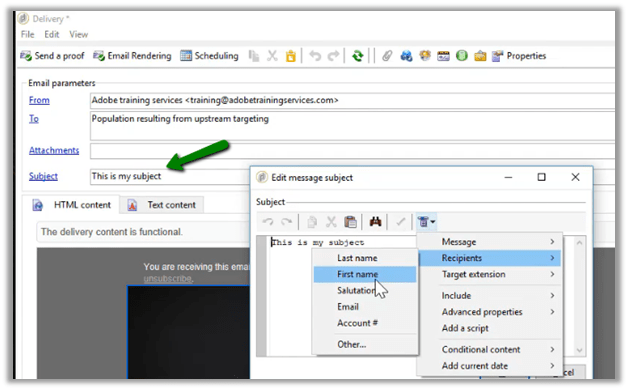
  • It allows us to select the fields in Recipient (personalization)

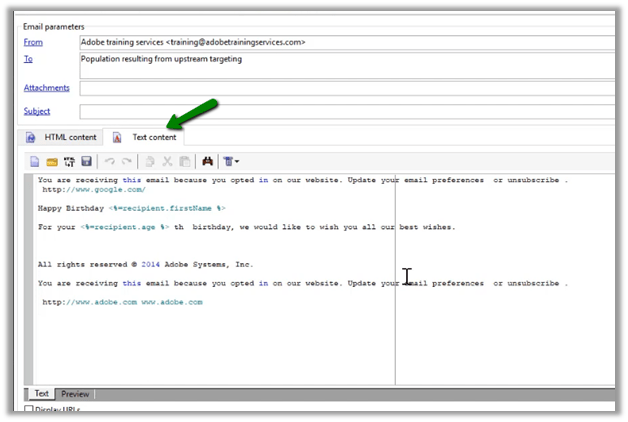
  • Along with HTML Content, Text content can be defined for the scenario where HTML is restricted.

  • We can also add personalization for email parameters – Sender Address, From, Reply Address and Reply Address Text as shown below.

  • Personalization can also be added to the Subject line

  • The To field of the email i.e. Target comes from the result of the targeting steps specified in the workflow

  • It can also be further modified in the Select Target window when needed.

  • We can use the Preview tab to test the email message by using the Test personalization option.
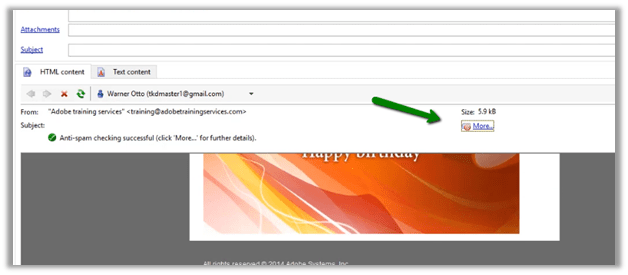
  • Preview option also provide additional details like anti-spam details

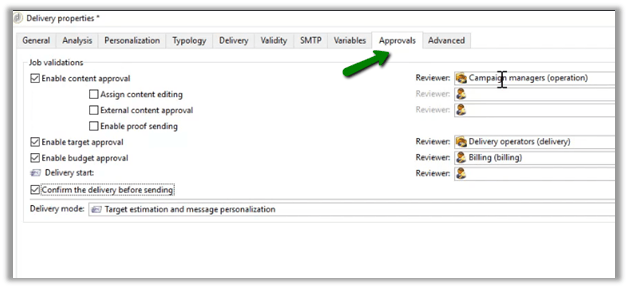
  • We can also specify approvals for the email before they are sent. Select the Properties option.

  • Select the Approvals Tab, to specify the type of approval and the reviewers’ details

Thus we saw how to create and use email templates in the workflow, configure email and its properties, etc. Next, we’d explore running this campaign.

Hope it helps..

Use column comparison in D365 CE/Power Apps/CDS queries


Observations on new column comparison feature in Dynamics 365

Prashant Maurya's avatarPrashant Kumar Maurya

Microsoft has finally given option to compare two columns while querying data from D365 CE/Power Apps/CDS. Here I am sharing my experiences and examples of how it can be used from various channels

  1. Power Apps UI
  2. Web API
  3. Fetch XML
  4. SDK API (.net)

Power Apps UI: This feature is not yet available in PowerApps UI (Advance Find), hope It will be available soon

Web API: This is a sample example of how you can compare columns of various data types in web API

  1. String field to String field: here is the sample where I compared “firstname” column with “lastname” and “mobilephone” with “telephone1″ and it worked like a charm <a rel=”noreferrer noopener” href=”https://<https://<<YourOrganization>>/api/data/v9.1/contacts?$filter=firstname eq lastname and mobilephone eq telephone1&$select=firstname,lastname
  2. Other data types: I tried other data type field comparisons as mentioned below
    • DateTime – ex. createdon – modifiedon
    • Whole Number (Integer)
    • Option Set (Picklist)
    • Two Options (Boolean)
    • Floating…

View original post 434 more words

Nishant Rana's Weblog

Everything related to Microsoft .NET Technology

Skip to content ↓