How to – Enable Desktop notifications when the app is in the background – Dynamics 365 Customer Service (Omnichannel – Voice)


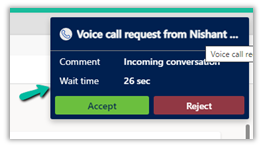
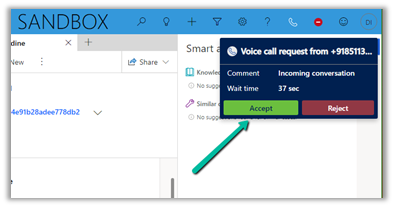
Below is how the notification appears to the agents for the incoming conversation. In case the app is in the background the agent might miss the notification. To avoid this scenario we can enable Desktop notifications.


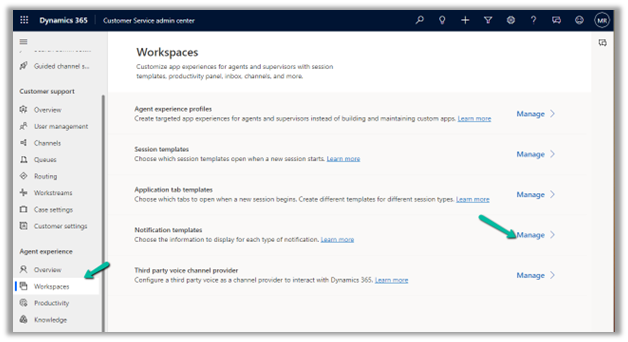
Navigate to Agent Experience >> Workspaces >> Notification Templates (Manage) in the Customer Service Admin center


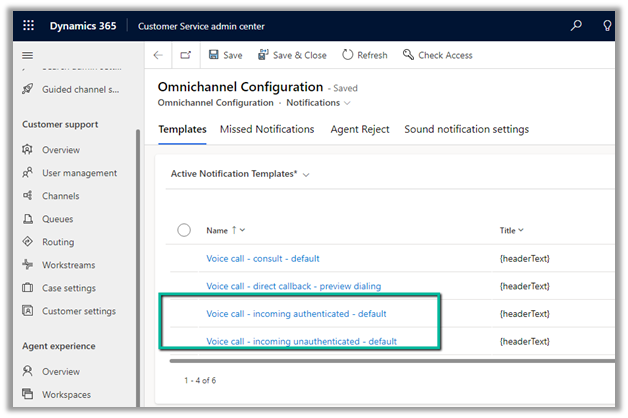
Here we can see the default template – authenticated and unauthenticated for the incoming voicemail. We cannot update these out-of-the-box templates, however, we can refer to these existing templates to create a new template.

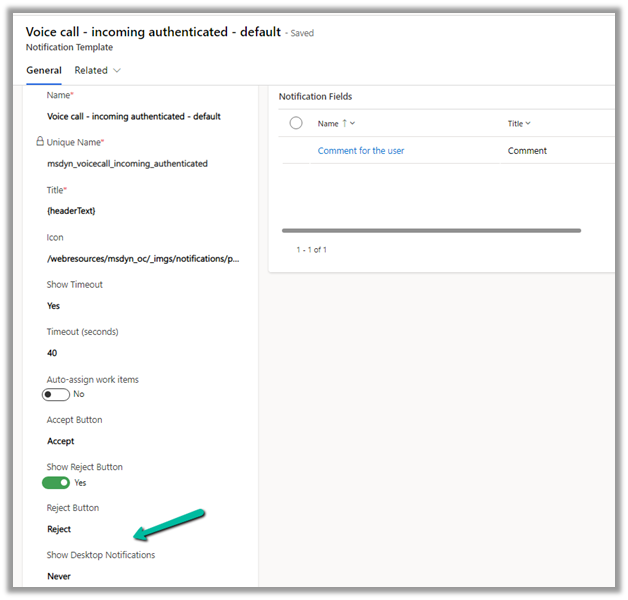
Let us open the existing incoming authenticated template.

The Voice call – incoming authenticated – default :-

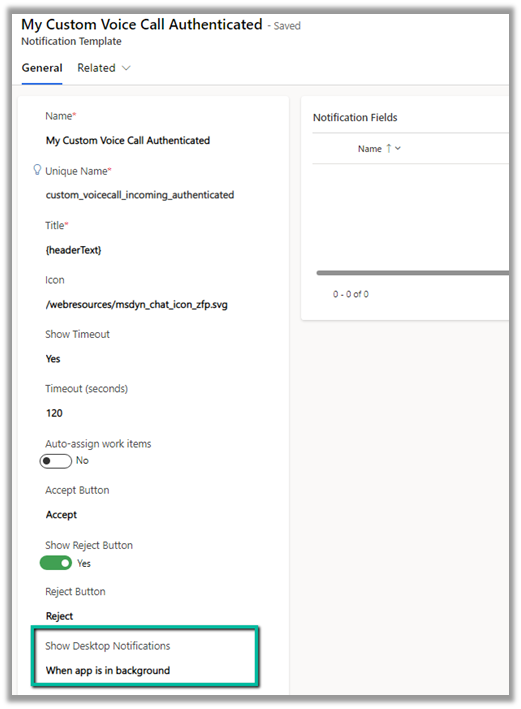
Let us create a new template, referring to the existing template, where we will set the Show Desktop Notifications = When the app is in the background.

Notice we can specify other values such as notification timeout, auto assign work items, show reject button as well as notification fields.

Below is our new notification template.


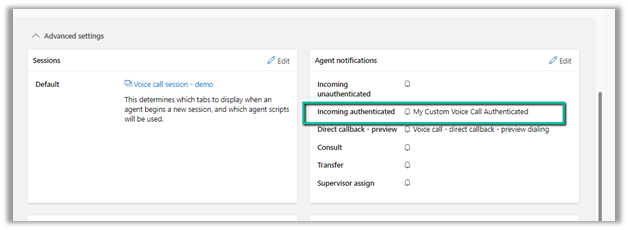
With the template created, navigate to the workstream to which we want to apply this template. In the Agent notification template, specify the custom notification template for the Incoming Authenticated.

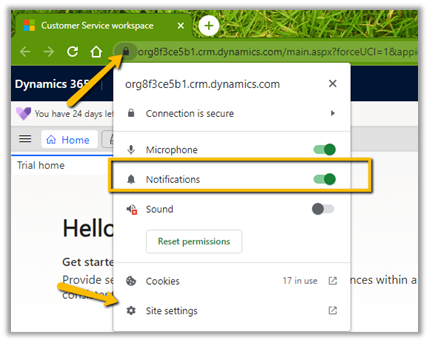
Also, enable Notifications for the app in the browser from Site Settings.

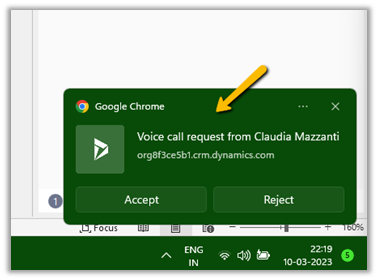
Here we can see the Desktop notification for the agent on the incoming call.

Learn more about it – https://learn.microsoft.com/en-us/dynamics365/app-profile-manager/notification-templates?tabs=customerserviceadmincenter#create-a-notification-template

To enable Sound Notification – https://nishantrana.me/2023/03/08/enable-sound-notifications-in-omnichannel-voice-and-other-channels-dynamics-365-for-customer-service/

Hope it helps..


Advertisements

Fixed – Automated messages not working in Voice Channel – Dynamics 365 Customer Service


Recently we were facing an issue with a customized automated message that we had configured for one of our voice channels. The message was not getting played and in fact, the default message was also not getting played for our customer.

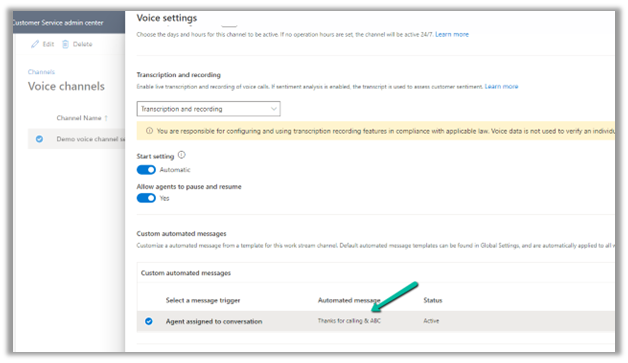
After some testing, we realized it was because the message had a “&” character in it.

Removing the “&” resolved the issue for us.

Hope it helps..

Advertisements

Enable Sound Notifications in Omnichannel (Voice and other channels) – Dynamics 365 for Customer Service


By default, this is how the notification appears for the agent when he is logged in to the app and is available.

There is no sound notification.

However, we enable sound notification here. This can be helpful in case the app is in the background and/or the agents are working on something else.

Navigate to Agent Experience >> Workspaces >> Notification Templates (Manage) in Customer Service Admin Center.

Let us enable sound notifications.

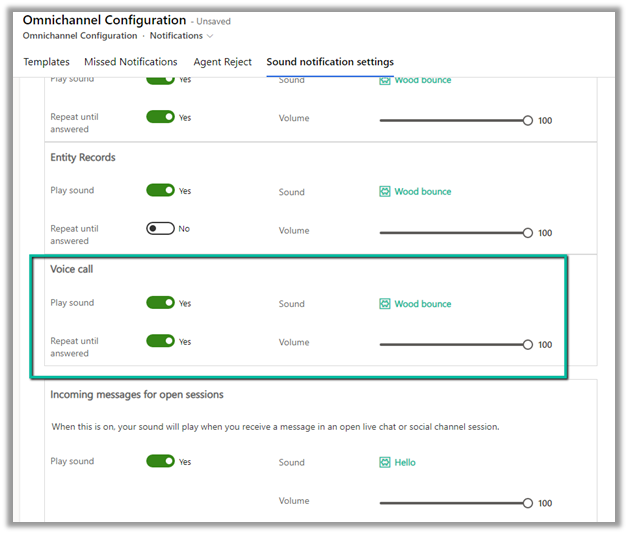
We can specify the following – Play sound, Sound to be played, whether the notification should keep on playing till the agent responds and the volume of the notification as shown below.

Here we also need to enable the Sound settings in the browser.

For the app, select Site Settings

Specify Allow for Notifications and Sound


Let us now call again, this time the agent hears the sound notifications, until he Accepts the call and that works even if the app/ the browser is minimized.

Hope it helps..

Advertisements

Understanding Overflow handling – Work item limit exceeds in Voice Channel – Omnichannel (Dynamics 365 Customer Service)


Say for one the Advanced Queue of type Voice we have the following Overflow handling defined (the queue has only 1 user assigned to it).

i.e.

Condition = Work item limit exceeds 1

Action = Voicemail

And it also has an Out of operation hours condition defined.

Now, if the customer calls during working hours and if the user’s presence is Available, the agent will receive the notification and the first conversation will have the Status as Active. If we make a second call its status will be open and it won’t go to Voicemail. Now if we make a 3rd call to that number it will go to Voicemail.

This is because we have set the Work item limit exceeds as 1, so it will keep one conversation in the open status, and any subsequent calls after that will go to the Voicemail.


Now here if the user is either in DND, Away, Offline, or not logged into CRM during work hours (if a customer calls outside work hours it will directly go to the Voicemail as we have the Out of operation hours condition defined), the first conversation will have the status as open and then any subsequent calls will go to the Voicemail.

In short,

More detail – Queue Overflow

Hope it helps..

Advertisements

How to – Configure Voicemail in Omnichannel Voice Channel – Dynamics 365 Customer Service


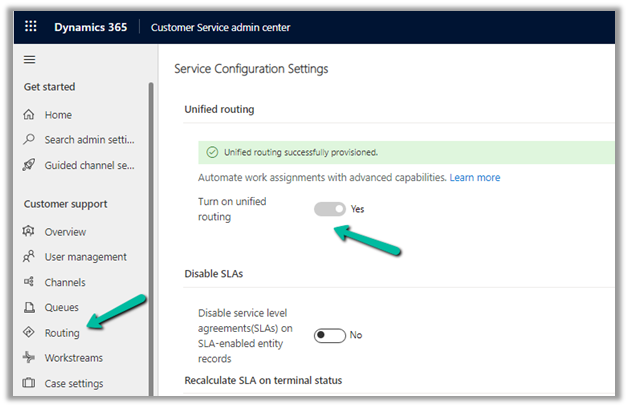
For voice mail to work, make sure Unified Routing is provisioned.
Next, we need to create a new Agent experience profile.

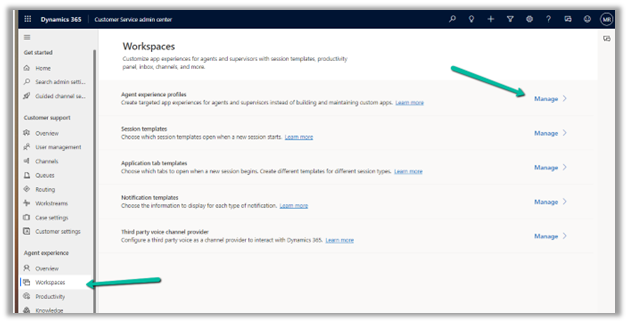
Navigate to Agent Experience >> Workspaces and select Manage for Agent experience profiles.
Create a new record.

Add the users to it. One user can be part of only one Agent experience profile record.

Click on edit for Inbox

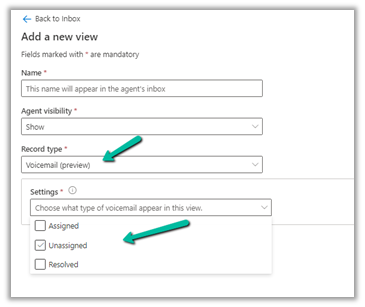
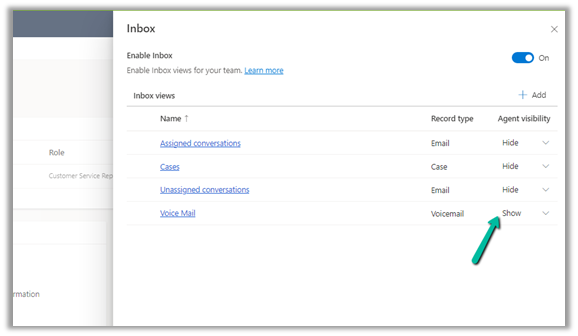
Enable Inbox, and add a view for Voice Mail.
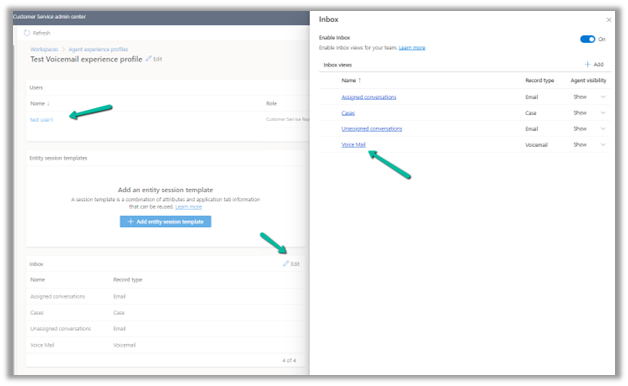
We can specify what views the agent can see in the inbox.
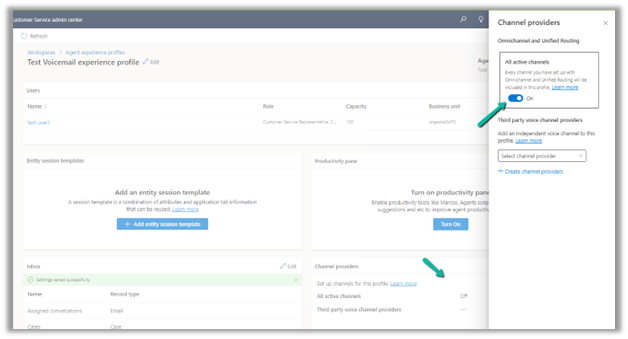
Also, switch on All active channels.
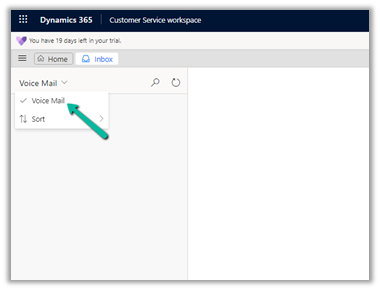
The agent inside Customer Service Workspace can now see the Voice Mail option in his Inbox.
Here we first tested the voice mail feature by calling the personal number assigned to the agent. The agent was not logged into the Customer Service Workspace app.

On calling we get the prompt that the agent is not available and to record the voice message.

After recording the message, if we log in to the CSW app, we can see a voicemail record created for the user.

The user can hear the recording, call back the customer using Return Call, Add to Queue, or close the voice mail.
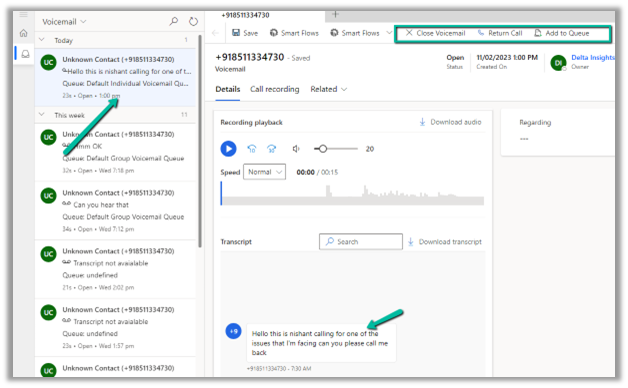
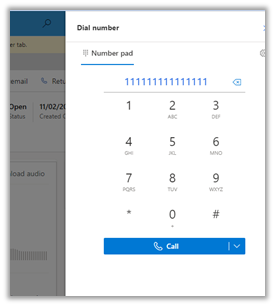
Return Call will launch the phone dialer, with the customer’s number populated.
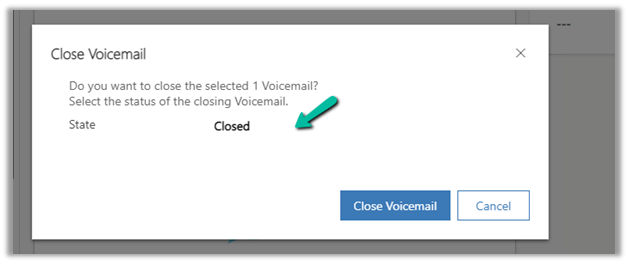
Close Voicemail will set the status of the voicemail record as Closed.
For this to work, we need to have a Record Routing configured for Voicemail.

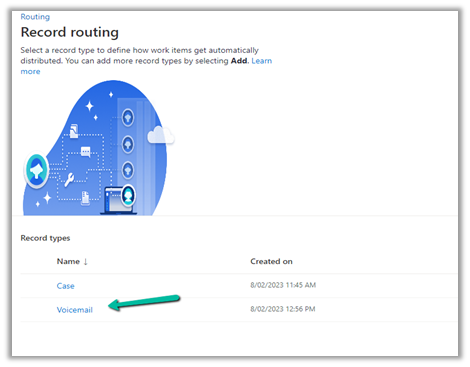
Navigate to Customer Support >> Routing >> Manage for Setup record routing.
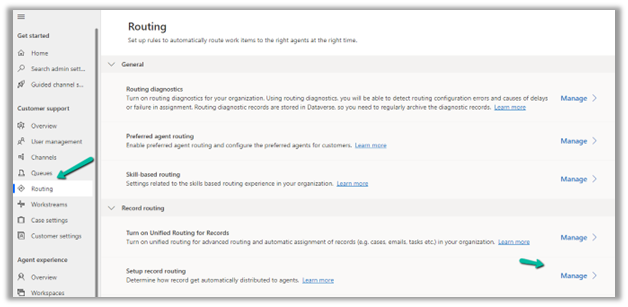
We have created routing rules for the Voicemail record type.

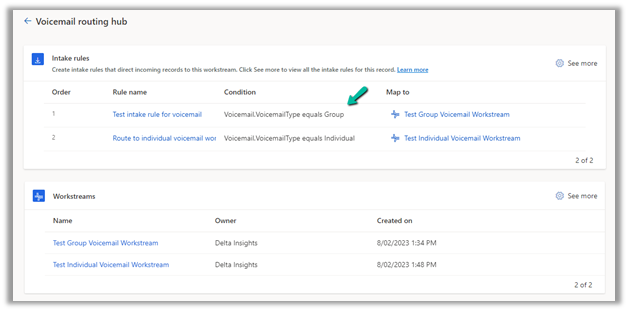
We have 2 intake rules configured, one for Voicemail type individual (which worked in our earlier scenario, when a customer called the personal number of the agent) and one for a group that would apply to Queue.
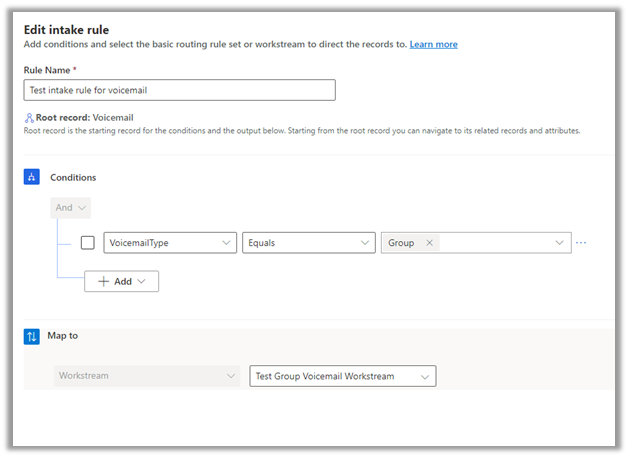
Intake rule for Group
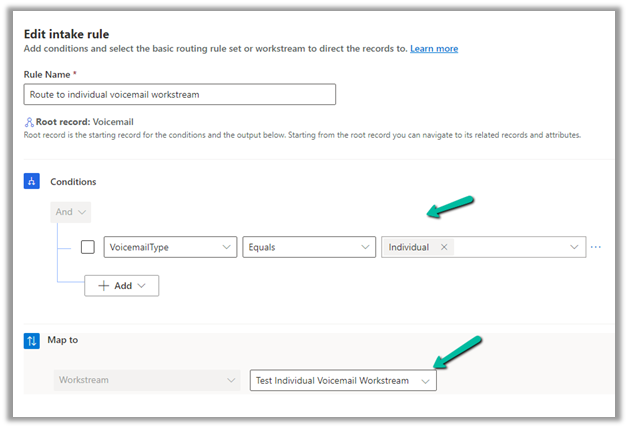
Intake rule for individual.
The workstream for the voicemail type individual
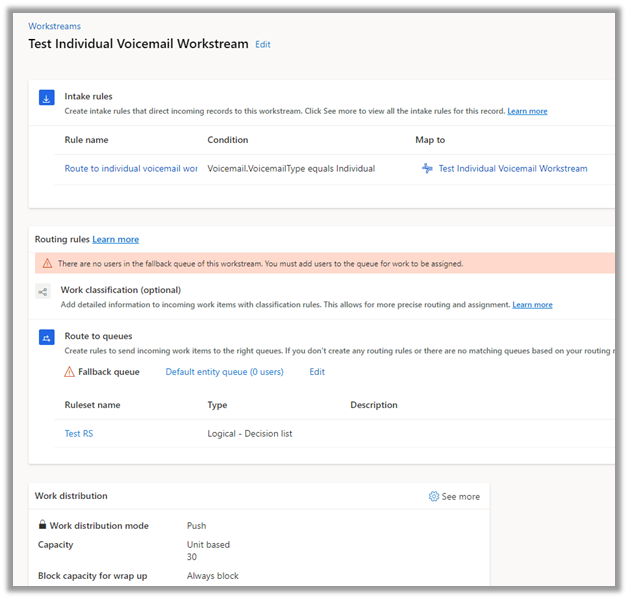
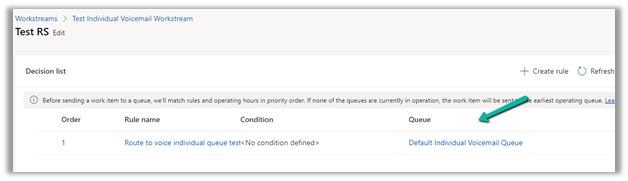
It routes to the Default Individual Voicemail Queue, which the agent is part of.
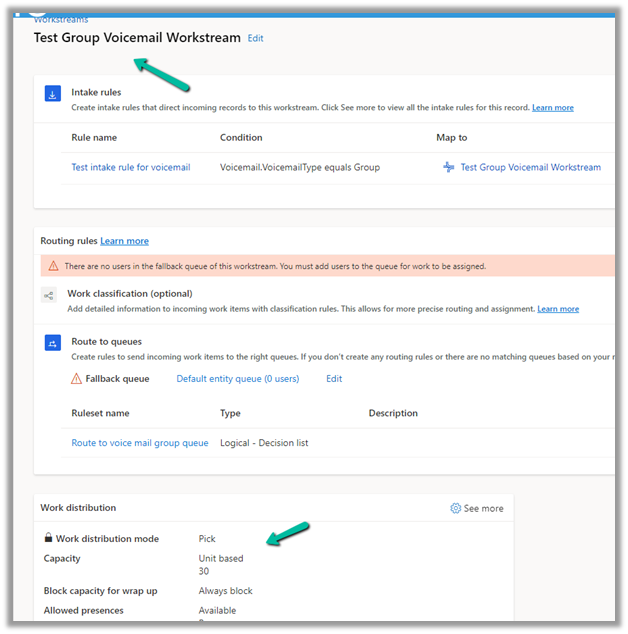
Similarly we have Workstream for Voicemail type Group
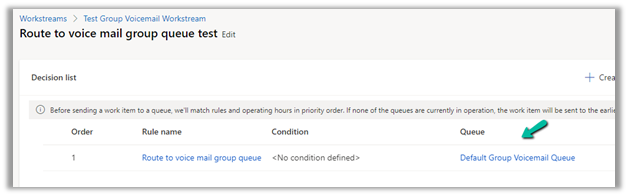
The ruleset in it routes to the Default Group Voicemail Queue.
Now to test it, we have created a queue, with only one user currently in it.

Most importantly we have configured an Overflow management rule to it along with operating hours.
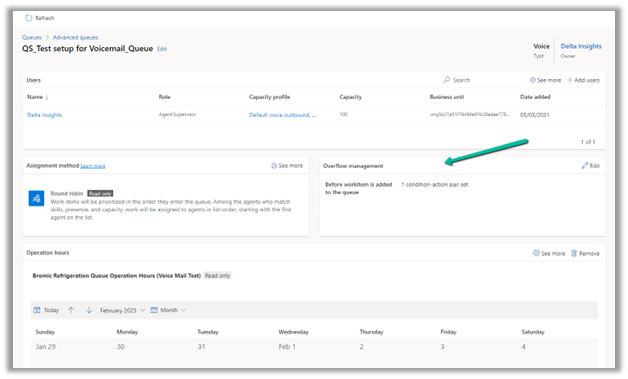
Basically if a customer calls out of operation hours, it should go to voicemail.
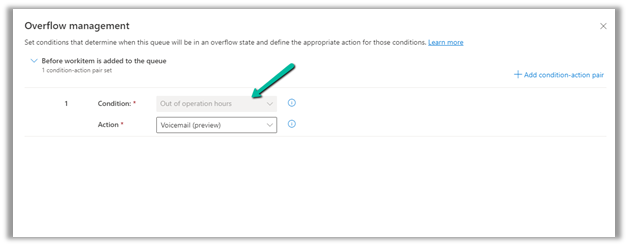
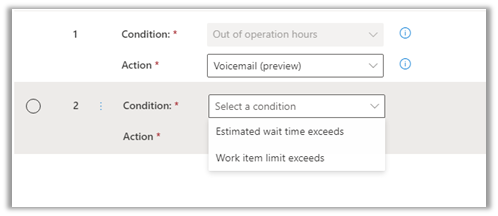
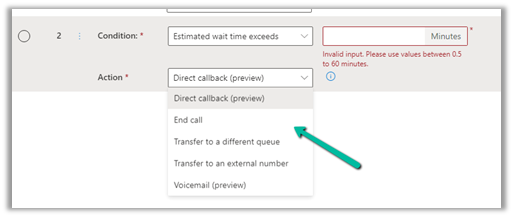
Here we can specify multiple condition-action pairs.

Conditions

Actions

Next, we created a workstream of the type voice channel, which routes to the above queue.
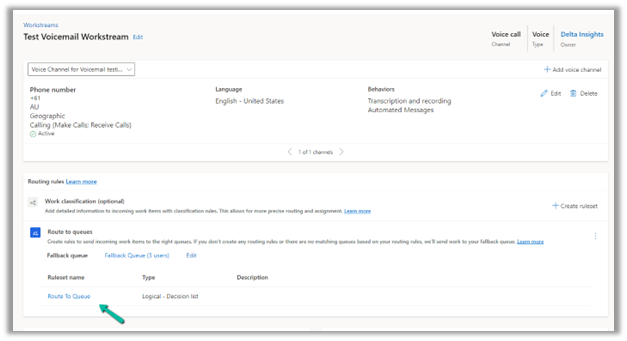
Now as soon as the customer calls the number, it goes to the queue with the overflow conditions, and if the agent is not logged in/out of operation hour condition is fulfilled, the customer is informed to record the message.

When the agent logs in to the CSW app, he can see a voice mail record created and assigned to the Default Group Voicemail Queue.
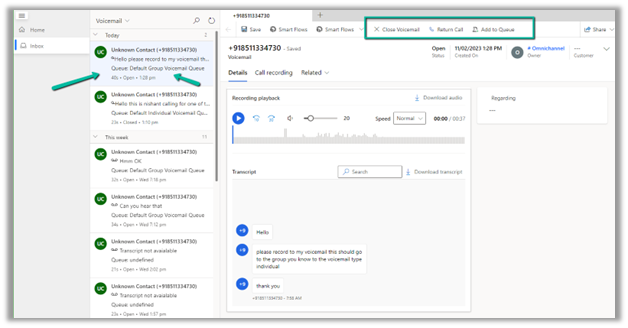
In short –

Enable

Unified Routing

Configure

Agent Experience Profile for the agent.

Enable Inbox.

Specify a view for Voicemail

2 Queues

Individual / Personal Phone Numbers

Group / Queue

2 Workstreams (type – Record)

(Voicemail)

Individual Workstream – Push Based.

Group / Queue Workstream – Pick Based.

2 Record Routing Rules (Voicemail)

Route – Voicemail type Individual to Individual Queue

Route – Voicemail type Group to Group Queue

Individual Call

Specify the Phone Number for the agent in the Omnichannel Tab – System User record

Group Call

Create a workstream and specify an overflow condition.

For configuring Call Recording please refer – https://nishantrana.me/2022/12/20/configure-azure-event-grid-system-topic-and-subscription-to-enable-call-recording-and-sms-in-dynamics-365-omnichannel-voice/

Get all the details – Configure Voicemail

Must read – https://neilparkhurst.com/2022/11/08/omnichannel-for-customer-service-voicemail/

Hope it helps..


Advertisements

How to – assign a personal phone number to agents in Voice Channel (Omnichannel)– Dynamics 365 Customer Service


The reason we would assign a personal phone number to the agents is that they can use that number to make an outbound call to the customers or in some scenarios, the customer wants to directly call the specific agent for direct follow-up on a particular case.

Let us first add a new phone number.

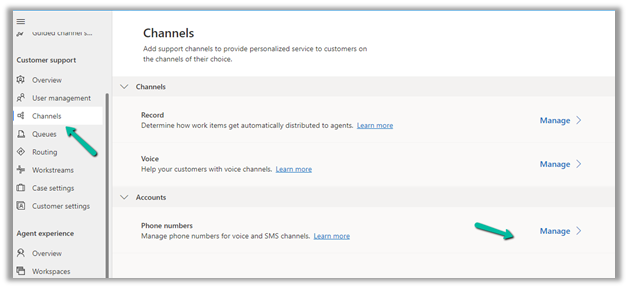
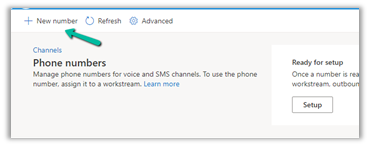
Navigate to Customer Service Admin Center >> Customer Support (Channels) >> Phone numbers (Manage)

Select + New number (in case we have purchased a number from Microsoft)

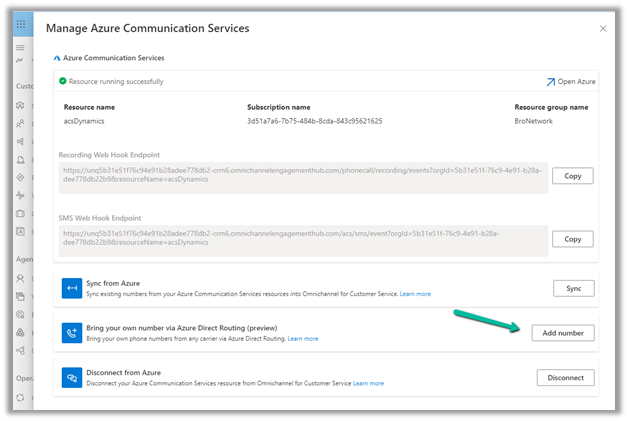
In case of Direct Routing, click on Advanced
>> Bring your own number via Azure Direct Routing

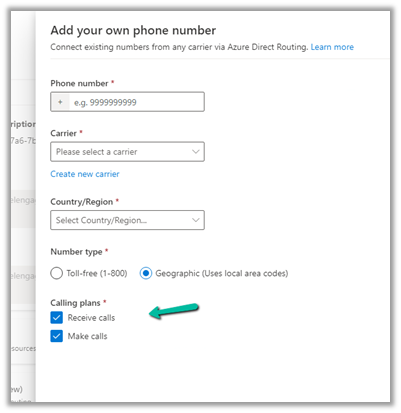
Specify the Phone Number, Carrier, Country / Region, and Number type, and select Receive calls and Make calls.

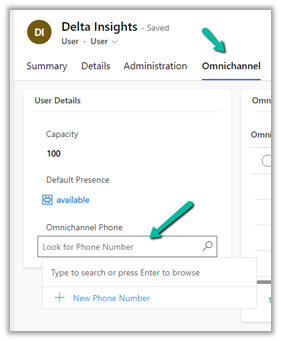
Open the system user’s record, and specify the phone number added in the Omnichannel Phone field in the Omnichannel tab.

Now login to Customer Service Workspace with the agent’s account.

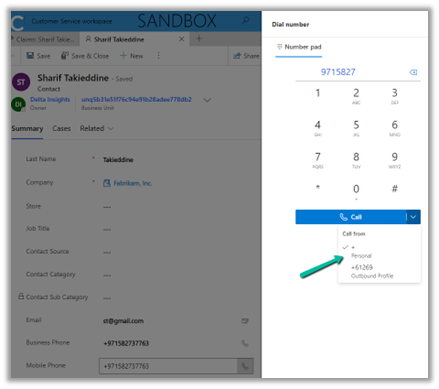
The agent will now have the option to make an outbound call using the personal number assigned.

Also, we can see the agent receiving a call on that number directly.

Get more details – https://learn.microsoft.com/en-us/dynamics365/customer-service/voice-channel-outbound-calling?tabs=customerserviceadmincenter#assign-personal-phone-numbers-to-agents

Hope it helps..

Advertisements