Auto-create SharePoint Folder (SharePoint Document Location) on record create using Power Automate Flow (Dataverse)


We recently had a requirement to create the SharePoint folder automatically on the Account records creation, instead of having the users click on the Documents tab to create it.

We could write a Power Automate flow to achieve this.

Here we have enabled the Share Point server-based integration. Also, the SharePoint Site and the main or parent folder for the Account are already created/configured.

Below is the corresponding Document location record for the parent Account folder.

  • So basically, we will create a new folder inside the Account folder in the SharePoint site configured in CRM.
  • Then create a new SharePoint Document Location record specifying the Account document location as a parent.
  • And then Associate / Relate the new account record created with this new document location record.

Below is how our Flow will look like –

  1. Triggers on Account record creation.

2. Create a new folder inside Account Folder, here for the name of the folder we are using the format “AccountName_AccountNumber

3. Create a new Document Location record, associating the Account document location with the parent location record. Here we are specifying the same folder name in the relative URL.

We can also fetch the GUID of the Account document location and/or use a variable to store the GUID.

4. Lastly, we are associating these 2 new records.

Below is our newly created account record.

Below we can see our flow ran successfully.

We can see the new folder created and associated.

Here if we click the Documents tab immediately after creating the account record, before our flow runs, we might have the OOB folder also getting created along with our custom folder (flow being asynchronous). If our custom folder is already created and associated before the user clicks on the documents tab, then CRM will not be creating a new folder.

Hope it helps..


Advertisements

Fixed – Power Automate flow not getting triggered


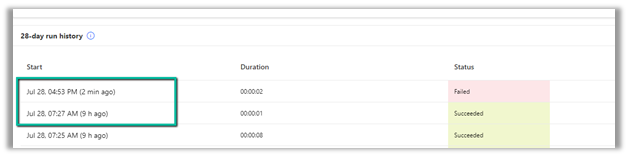
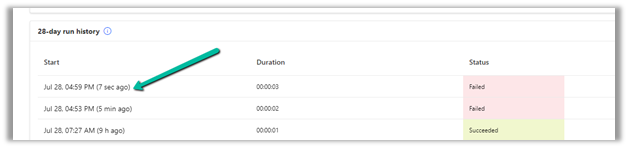
We had one flow on the creation of an account record, our flow was running fine, and then we made a few changes to it and saved it, after which it stopped getting triggered.

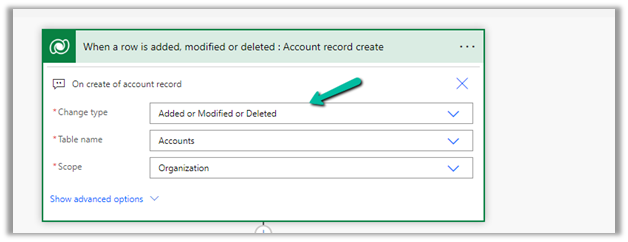
We could not figure out why it was not getting triggered so eventually we tried changing the Trigger Type to Added or Modified or Deleted, just to see if that will trigger it.

It ran this time on create of account record.

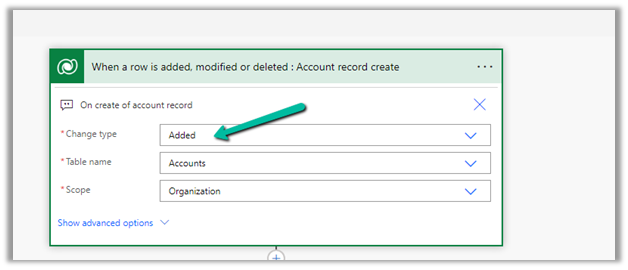
After which we changed it back to Added, the original definition.

And from that point onwards it was getting triggered as expected.

Also make sure if the Admin mode is turned off.

https://learn.microsoft.com/en-us/power-automate/triggers-troubleshoot#verify-if-admin-mode-is-turned-on

Hope it helps..

Advertisements

Resolved – Request to XRM API failed with server error: ‘Message: Timeout occurred when calling the XRM api’ Code: InnerError: Type: System.Threading.Tasks.TaskCanceledException Message: A task was canceled in Power Automate


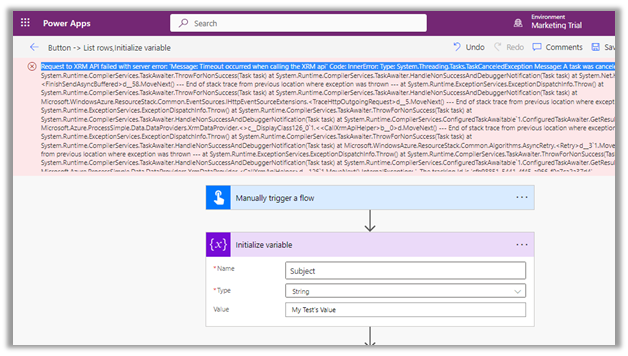
We were getting below Timeout error while trying to save our Power Automate flow.

Request to XRM API failed with server error: ‘Message: Timeout occurred when calling the XRM api’ Code: InnerError: Type: System.Threading.Tasks.TaskCanceledException Message: A task was canceled. 

It could be because of some issues at the product end – some outage or server load. It lasted for around 15-20 minutes for us, after which we were able to save and test our flow successfully.

Hope it helps..
Advertisements

How to – Use Recurrence trigger in Microsoft Flow


Schedule – Recurrence trigger inside Microsoft Flow makes it extremely easy and effective to write a recurring job specially in the context of Dynamics 365, wherein it isn’t straight forward. We can use Workflows with wait and timeout conditions but that isn’t the easiest and efficient way. Each approach has its own pros and cons though.

The scenario we are going to implement is getting basic details of all the leads record created every hour inside Dynamics 365 CE and create a Task in todoist to call that lead.

Login to Microsoft Flow

Navigate to My flows and select Create from blank

Search for recurrence trigger and select it.

Specify interval as 1 and frequency as hour and click on New step and select “Add an action

To get the records from Dynamics 365 CE, we need to use “Dynamics 365 – List records” action. Search for the same and add it.

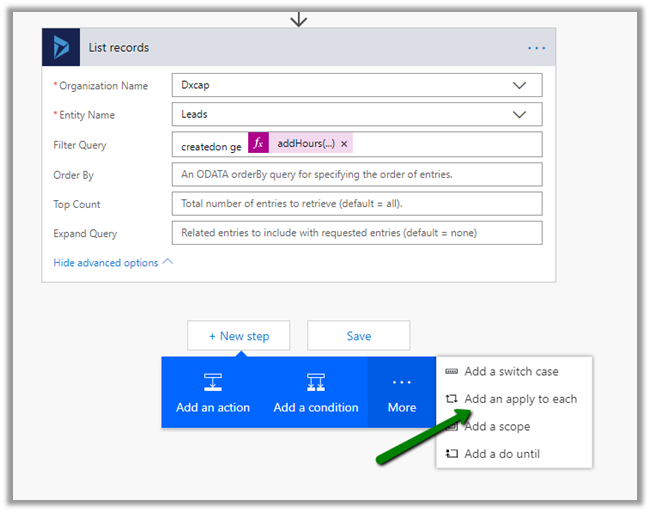
For List records action, select the organization in the Organization Name, Leads for the Entity Name and for filter query specify “createdon ge addHours(utcNow(), -1)“: i.e. lead records created in last one hour as shown below

Add a new step “Add an apply to each”

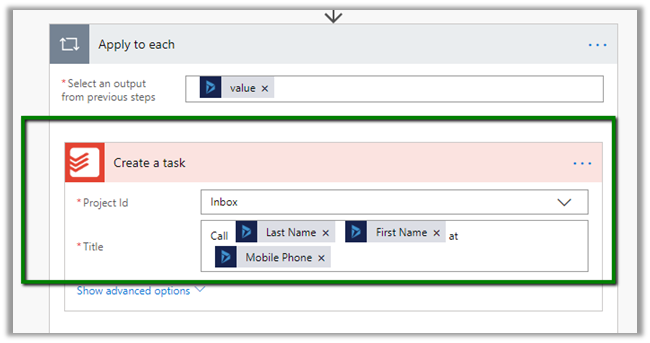
Select value (list of items) for “Select an output from previous steps” field of Apply to each and click on Add an action.

Search for todoist and select Create a task action. Login or create a new account in Todoist.

Specify Inbox as the Project Id and for the title use the dynamic value of lead i.e. Last Name, First Name and Mobile Phone.

Save the Flow and click on Test to see it in action.

The run activity will show the status of test run along with any error during the flow execution. In our case it has ran successfully.

Inside Todoist we can see the task created.

Hope it helps..

Advertisements