To use this saved view, you must remove criteria and columns that refer to deleted or non-searchable items error in CRM 2011


Hi,

Was working on Filtering Add Exiting Lookup and got the below error.

Here we need to make sure that we are referencing correct columns in the fetchxml and layoutxml while creating the view using JavaScript.

fetchXml: “<fetch
version=1.0
output-format=xml-platform
mapping=logical
distinct=false>” +

<entity name=new_mycustomentity>” +

<attribute name=new_customentityid />” +

<attribute name=new_name/>” +

<order attribute=new_name‘ descending=false />” +

<filter type=and>” +

<condition attribute=new_name‘ operator=like‘ value=%1% />” +

</filter>” +

</entity>” +

</fetch>“,

layoutXml: “<grid name=resultset‘ object=10001‘ jump=new_name
select=1‘ icon=1‘ preview=1>” +

<row name=result‘ id=new_customentityid’>” + <cell name=new_name‘ width=300 />” +

</row>” +

</grid>“,

Hope it helps.

Visio Stencils for Microsoft Dynamics CRM 2011


Hi,

Have a look at this awesome set of Visio Stencils for CRM 2011.

http://appstencils.codeplex.com/

Bye.


“This content cannot be displayed in a frame” error while hosting SharePoint 2013 pages in CRM


Hi,

I was getting the above error while trying to hosting the SharePoint 2013 online web part page inside an iframe within CRM’s Form.

The following post came to the rescue

http://blogs.msdn.com/b/officeapps/archive/2012/12/12/iframing-sharepoint-hosted-pages-in-apps.aspx

specifically the following tag

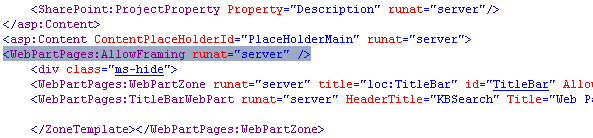
<WebPartPages:AllowFraming runat=”server” />

Hope it helps.

Searching SharePoint 2013 online portal from within CRM 2011 online


  1. Open the SharePoint Site and create a custom Web Part Page using SharePoint Designer 2013

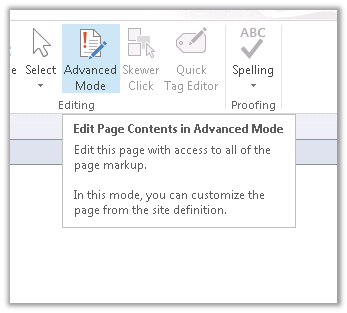
  1. Edit the created page in Advanced Mode

  1. Add the AllowFraming tag to the web part page to allow the page to be iframed from within CRM’s Form

Select preview in browser


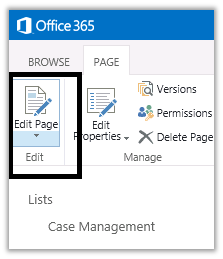
  1. Select Page à Edit Page


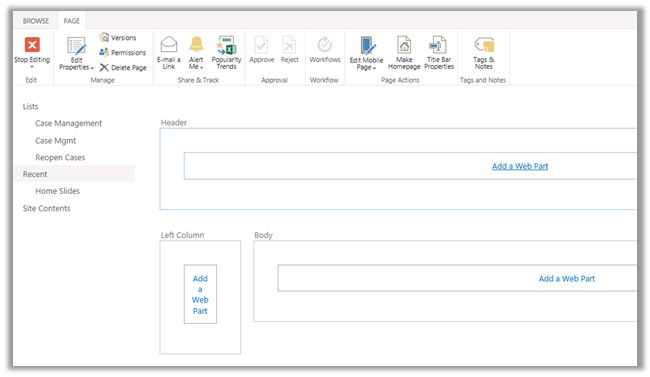
  1. Add Search Web Parts


  • Search Box in the Header
  • Refinement in the Left Column
  • Search Results in the Body


  1. Note the url of the Custom Search Page

https://xyz.sharepoint.com/sites/contoso/Search/SitePages/KBSearch.aspx

  1. Now we can use the above url in the Iframe within our CRM. Here k would be the query string parameter to which search keyword would be passed. We can dynamically set the value of the parameter k through JavaScript in the onload of a particular entity’s form to display the corresponding results in the CRM.


https://xyz.sharepoint.com/sites/contoso/Search/SitePages/KBSearch.aspx?k=searchTerm

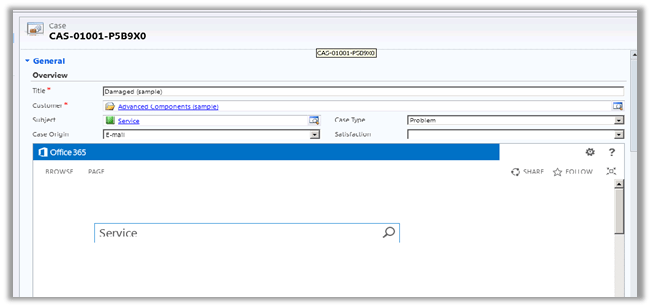
  1. Search page within Case Form in CRM

Hope it helps.


Sample code to update user’s calendar programmatically (work hours) in CRM 2011


Hi,

Below is the code that we can use to update user’s work hours for a specific day. Here we are setting the work hours of the user to be starting from 2 to ending at 7 p.m. for 1st of April.

IServiceManagement orgServiceManagement =
 ServiceConfigurationFactory.CreateManagement(new Uri("https://mycrm.crm5.dynamics.com/XRMServices/2011/Organization.svc"));

AuthenticationCredentials authCredentials = new AuthenticationCredentials();
 authCredentials.ClientCredentials.UserName.UserName = "username@onmicrosoft.com";
 authCredentials.ClientCredentials.UserName.Password = "password";
 AuthenticationCredentials tokenCredentials = orgServiceManagement.Authenticate(authCredentials);

OrganizationServiceProxy organizationProxy = new OrganizationServiceProxy(orgServiceManagement, tokenCredentials.SecurityTokenResponse);
 // Get the user id
 Guid userid = ((WhoAmIResponse)organizationProxy.Execute(new WhoAmIRequest())).UserId;

// Get the calendar id of the user
 Entity systemUserEntity = organizationProxy.Retrieve("systemuser", userid, new ColumnSet(new String[] { "calendarid"}));


// Retrieve the calendar of the user
 Entity userCalendarEntity = organizationProxy.Retrieve("calendar", ((Microsoft.Xrm.Sdk.EntityReference)(systemUserEntity.Attributes["calendarid"])).Id, new ColumnSet(true));

// Retrieve the calendar rules defined in the calendar
 EntityCollection calendarRules = (EntityCollection)userCalendarEntity.Attributes["calendarrules"];

// Create a new inner calendar
 Entity newInnerCalendar = new Entity("calendar");
 newInnerCalendar.Attributes["businessunitid"] = new EntityReference("businessunit", ((Microsoft.Xrm.Sdk.EntityReference)(userCalendarEntity["businessunitid"])).Id);
 Guid innerCalendarId = organizationProxy.Create(newInnerCalendar);

// Create a new calendar rule and assign the inner calendar id to it
 Entity calendarRule = new Entity("calendarrule");
 calendarRule.Attributes["duration"] = 1440;
 calendarRule.Attributes["extentcode"] = 1;
 calendarRule.Attributes["pattern"] = "FREQ=DAILY;COUNT=1";
 calendarRule.Attributes["rank"] = 0;
 calendarRule.Attributes["timezonecode"] = 190;
 calendarRule.Attributes["innercalendarid"] = new EntityReference("calendar", innerCalendarId);

// starting at 12:00 on 1 April
 calendarRule.Attributes["starttime"] = new DateTime(2013, 4, 2,0,0,0,DateTimeKind.Utc);
 calendarRules.Entities.Add(calendarRule);

// assign all the calendar rule back to the user calendar
 userCalendarEntity.Attributes["calendarrules"] = calendarRules;
 // update the user calendar entity that has the new rule
 organizationProxy.Update(userCalendarEntity);

Entity calendarRule1 = new Entity("calendarrule");

// duration of 5 hours
 calendarRule1.Attributes["duration"] = 300;
 calendarRule1.Attributes["effort"] = 1.0;
 calendarRule1.Attributes["issimple"] = true;

// offset 120 i.e. 2 hours from start time (12:00)
 calendarRule1.Attributes["offset"] = 120;
 calendarRule1.Attributes["rank"] = 0;
 calendarRule1.Attributes["subcode"] = 1;
 calendarRule1.Attributes["timecode"] = 0;
 calendarRule1.Attributes["timezonecode"] = -1;
 calendarRule1.Attributes["calendarid"] = new EntityReference("calendar", innerCalendarId);

EntityCollection innerCalendarRules = new EntityCollection();
 innerCalendarRules.EntityName = "calendarrule";
 innerCalendarRules.Entities.Add(calendarRule1);

newInnerCalendar.Attributes["calendarrules"] = innerCalendarRules;
 newInnerCalendar.Attributes["calendarid"] = innerCalendarId;
 organizationProxy.Update(newInnerCalendar);

Hope it helps.

“InsufficientMemoryException” An error has occurred issue while trying to open Organization.svc in CRM 2011.


Hi,

Got the below error while trying to open the organization.svc in browser. Although rest of the CRM was working properly.

Checked the event log and got this interesting error message over there.

Exception information:

Exception type: InsufficientMemoryException

Exception message: Memory gates checking failed because the free memory (208502784 bytes) is less than 5% of total memory. As a result, the service will not be available for incoming requests. To resolve this, either reduce the load on the machine or adjust the value of minFreeMemoryPercentageToActivateService on the serviceHostingEnvironment config element.

at System.ServiceModel.Activation.ServiceMemoryGates.Check(Int32 minFreeMemoryPercentage, Boolean throwOnLowMemory, UInt64& availableMemoryBytes)

at System.ServiceModel.ServiceHostingEnvironment.HostingManager.CheckMemoryCloseIdleServices(EventTraceActivity eventTraceActivity)

at System.ServiceModel.ServiceHostingEnvironment.HostingManager.EnsureServiceAvailable(String normalizedVirtualPath, EventTraceActivity eventTraceActivity)

As suggested by the error message, increasing the RAM resolved the issue.

Bye.