Custom Position Hierarchy in CRM 2015


To achieve the same security model that was implemented using Manager Hierarchy earlier

(https://nishantrana.me/2014/10/04/hierarchical-security-modelling-manager-hierarchy-in-crm-2015/)

in Custom Position Hierarchy we need to follow these steps.

To create Custom Position Hierarchy

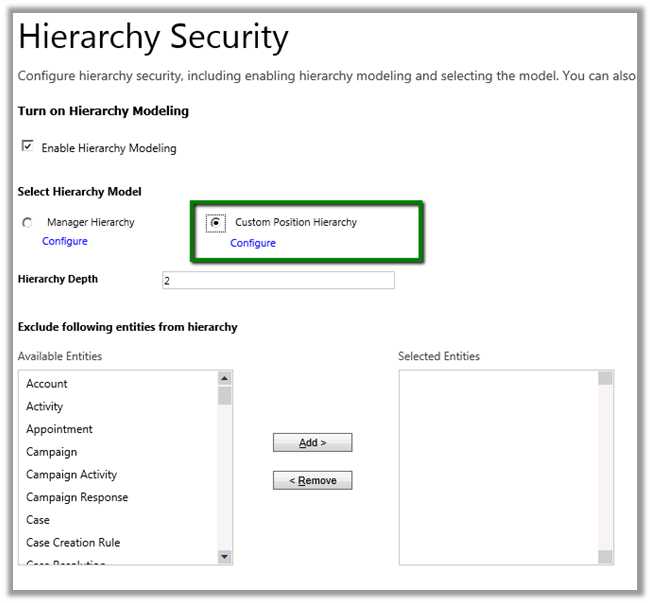
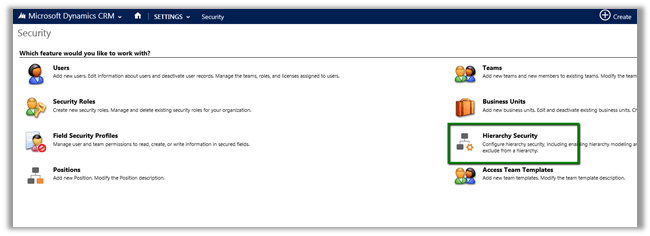
  • Open Settings à Security à Hierarchy Security
  • Select Custom Position Hierarchy à Configure (Set Hierarchy Depth as 2)
  • Create a new position record “position 1” and add a user to it “Ceo”
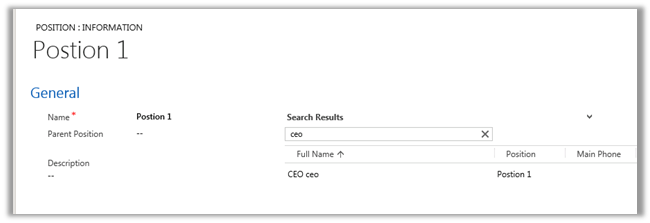
  • Similarly create Position 2 and Position 3 record add “Manager A” and “First Name”

The Hierarchy à
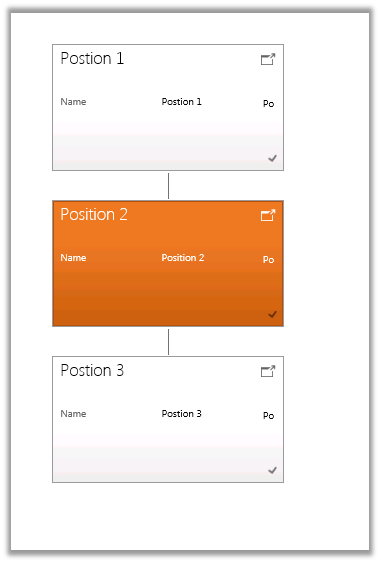
Record created by user at position 3 is read only for the CEO user at Position 1 and editable for Manager User in Position 2 as we have set the depth as 2.

Hierarchical Security Modelling (Manager Hierarchy) in CRM 2015


Hierarchical Security is a new security feature introduced in CRM.

It could be either

Manager Hierarchy or Custom Position Hierarchy based.

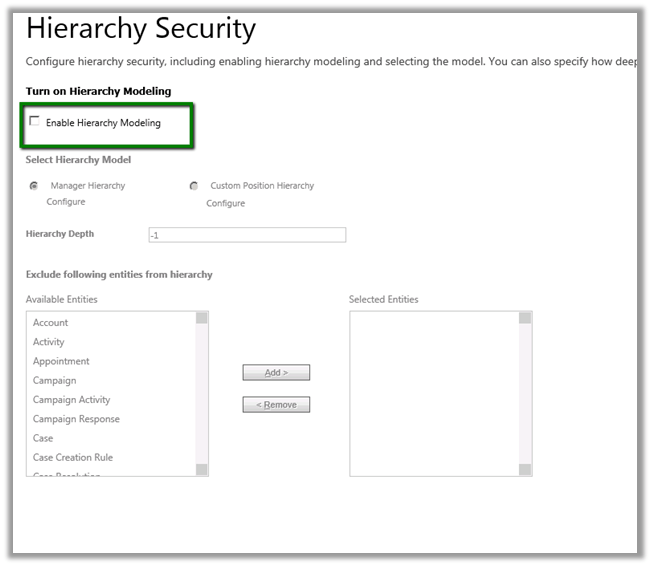
To enable it we need to go to

Settings à Security

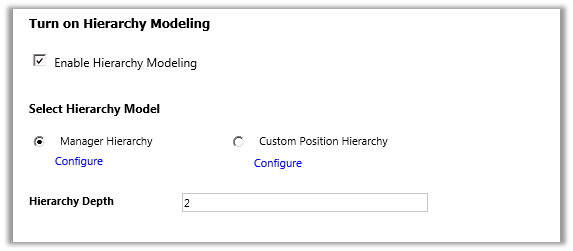
Let us enable Hierarchy Modelling and set the Hierarchy Depth as 2.

With depth we can specify up to what level the user can have read access to the records. Here the user will have write, update, append, append to access to those records only which are accessible to his direct report.


Let us say we have 3 users in our system.

  • User A, Manager A and CEO.
  • CEO is manager of Manager A and Manager A is manager of User A in our system.
  • CEO à manager à Manager A à manager à User A
  • User A is sales person and creates a contact record.
  • Now in our configuration we have set depth as 2 which means.
  • CEO user will have Write access to record that are accessible to Manager A and Read Access to those records accessible to User A.
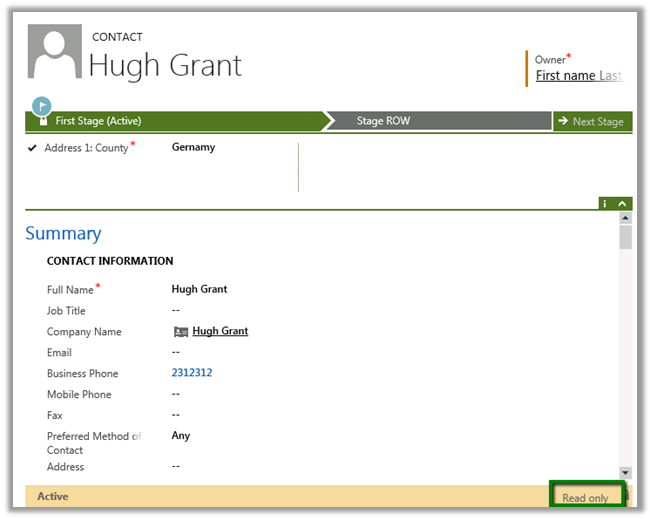
  • CEO opens a record created by User A. ( it is read only for him)

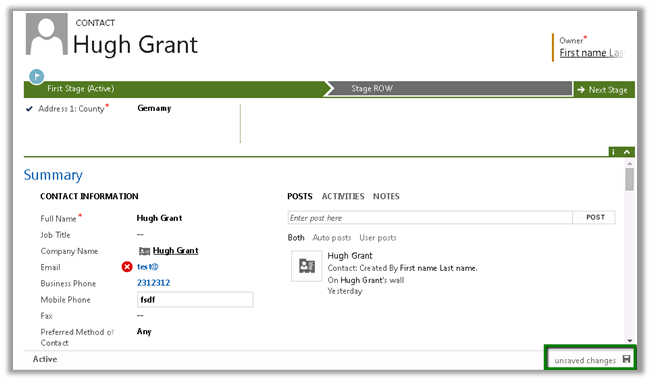
  • Manager A opens the same record (He can edit it)

  • Now Manager A creates a new contact record. This record will be editable for CEO as he is the manager of Manager A

Hierarchical Security Model works in conjunction with all the other existing security models.


Search in CRM 2015


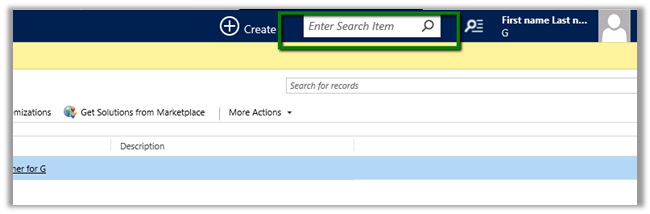
Global Search Box

Available in the Tool Bar.

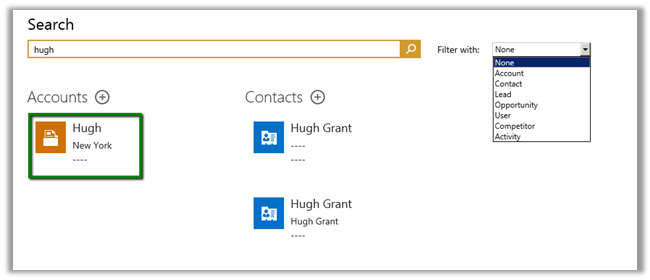
Multiple Entity Search

  • It is based on Quick Find.
  • Shows first three fields in the Quick Find View in the result. Can be filtered using the “filter with” drop down box.

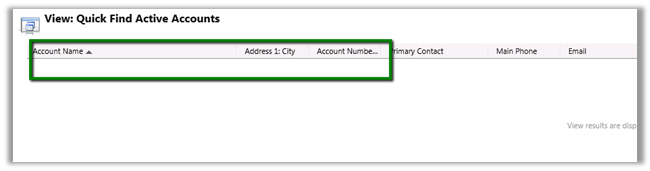
  • Clicking on the search result opens the respective record.
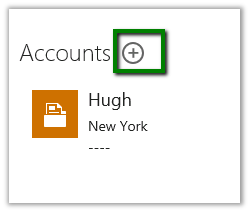
  • Clicking on + opens Quick Create form for that entity.


Enabling an entity for Search

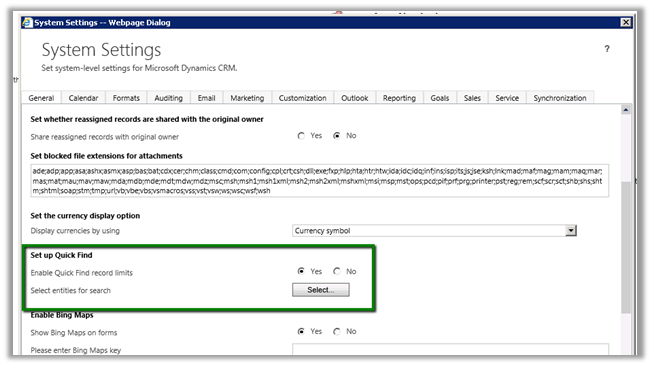
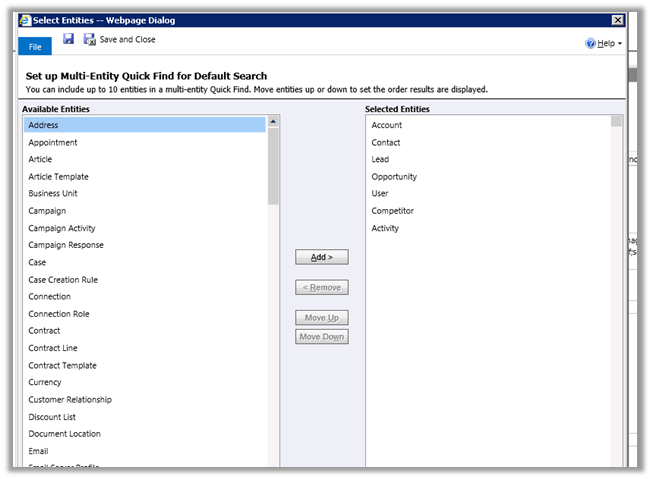
Go to Administration à System Settings


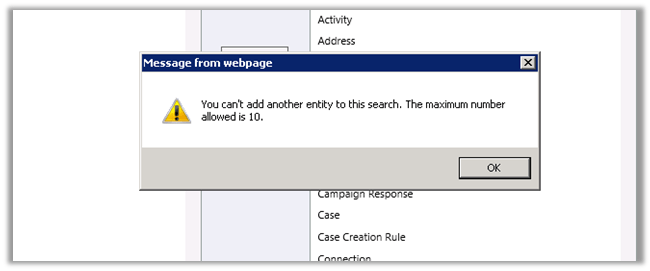
Supports max 10 entities at a time.


Business Process Flow Client Side Script Reference in CRM 2015


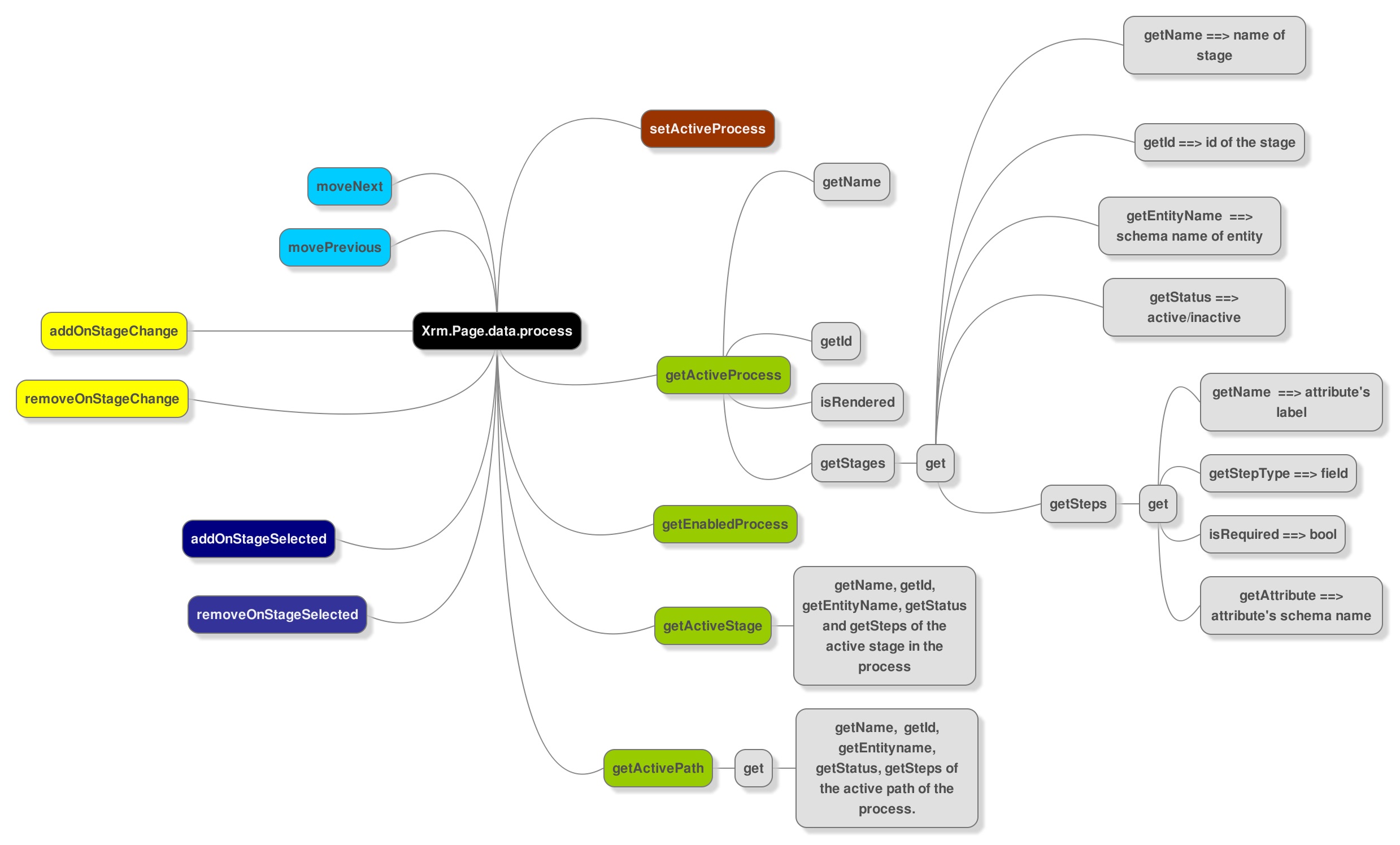
Sharing a mind map for quick and easy reference of new methods added for Business Process Flow in CRM 2015

(click for full screen)

ProcessClientReference


http://goo.gl/ukjhkn

My Notes on Business Process Flow in CRM 2015


  • In CRM 2013 we were restricted to only those Entities that were 1: n related.
  • In CRM 2015 we can select any entity on which Business Process Flow is enabled.
  • Here test is an entity which has business process flow enabled, however it is not related to Contact record i.e. our primary entity

  • The same restriction of having only 5 entities applies to CRM 2015 also.


  • The entity relationships supported are of type 1: n only and it is optional.
  • Each process can have maximum 30 stages.
  • And each stage can have maximum 30 steps.
  • There can only be one active process at a time.
  • No closed entity loop, the entity used earlier can be referenced again.


Branching in Business Process Flows in CRM 2015


CRM 2015 now provides rule based branching support for Business Process Flow.

In CRM 2013

In CRM 2015

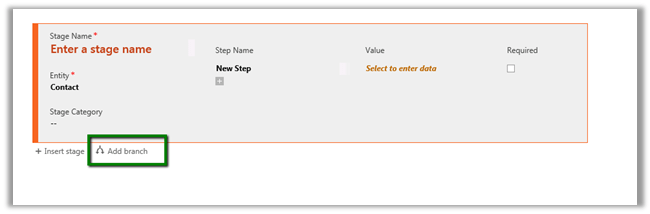
Using Add branch we can add conditions (rules)

Rule can govern the next stage in the business process flow.

For. e.g.

Based on the value specified for Address 1: Country field we can change the next Stage dynamically in the Business Process Flow.

Here if Country specified is India or China we change the Stage to “Stage Asia” and specify the Address1: Street 2 field to be mandatory.

If not then next Stage is set to “Stage ROW”, which expects value for Address 1: Street 3.

Inside the form, the next Stage changes dynamically based on value specified for country field.


We can combine multiple if and else conditions, however each branch cannot be more than 5 level deep i.e. cannot add more than 5 conditions for a particular  branch.

Hope it helps..