Nested Quick Create form in CRM 2015


Nested Quick Create form in CRM 2015

In CRM 2013,

If we click on Create button for Quick Create a record

Say for e.g. Contact record

And want to create a new Account record to be associated to it
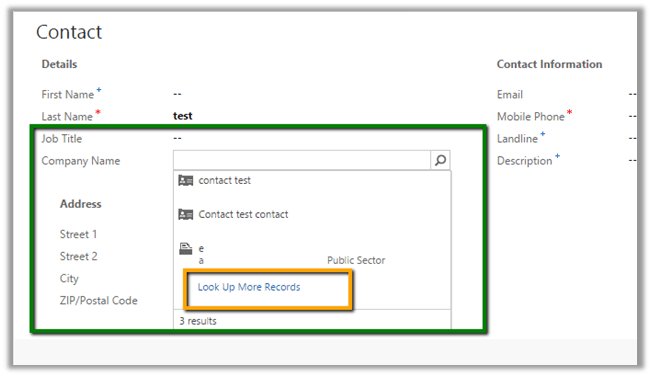
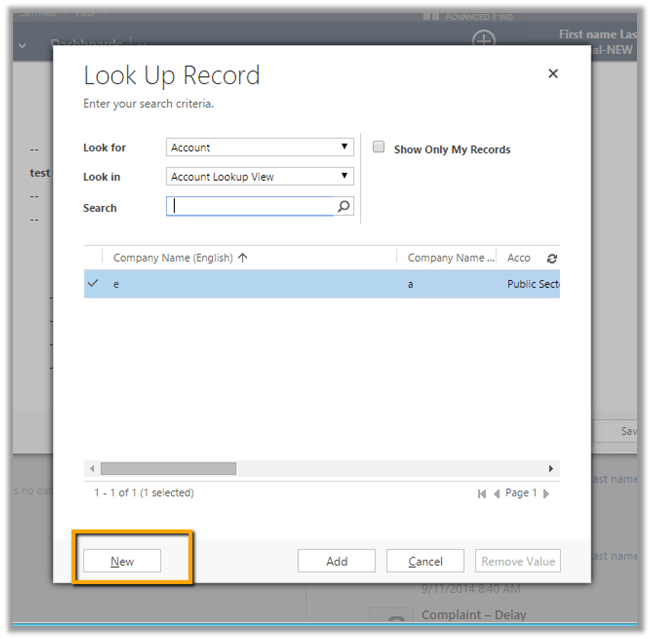
We need to click on “Look Up More Records” and then “New”
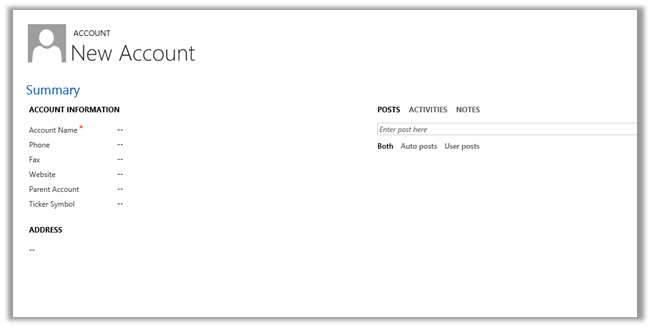
This opens up the default Contact form
 

However in CRM 2015,

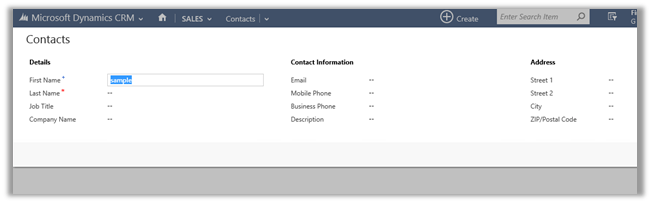
We have a New Button
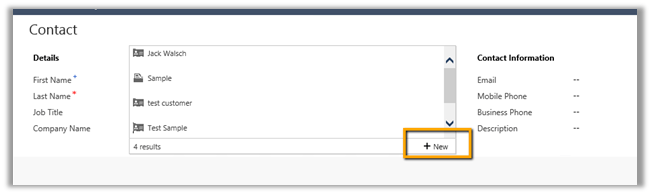
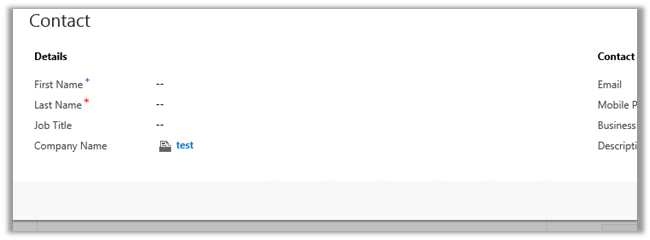
It will open the Quick Create Form for the account record instead of the default form as in the case of CRM 2013.
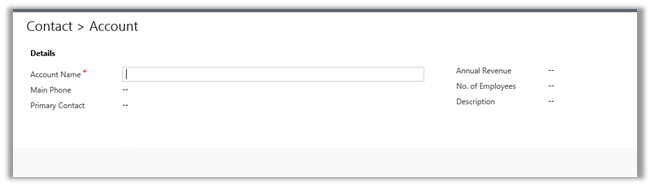
On creating and saving the account record, it will close the Account record and populate the lookup in Contact record
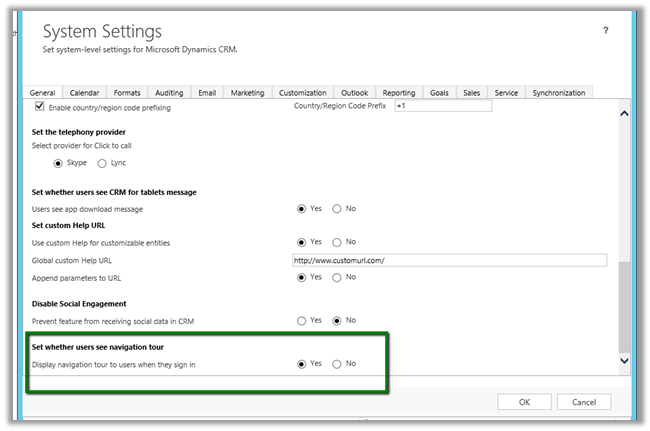
Hiding Navigation Tour in CRM 2015


Navigation Tour dialog box opens up when user sign in to CRM.

If we want to disable this,

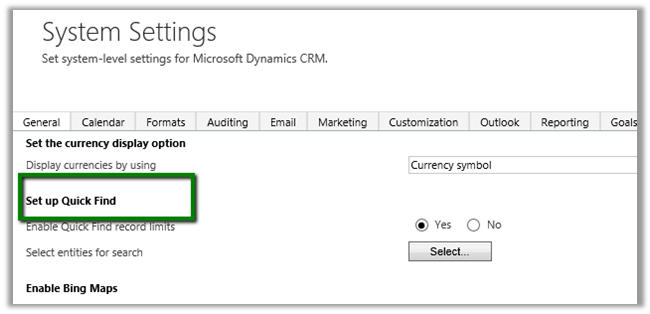
Go to Administration à System Setting à General Tab

Search Enhancements in CRM 2015


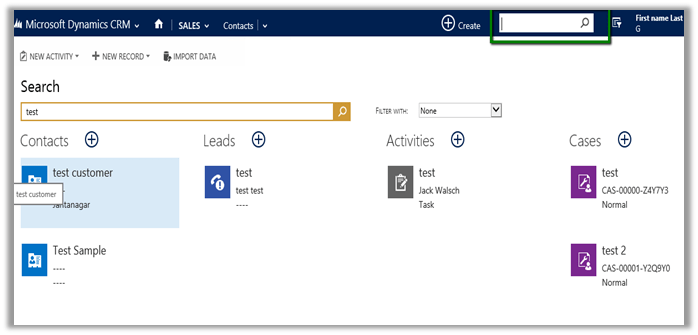
Multi Entity Search

CRM 2015 have added option for multi entity

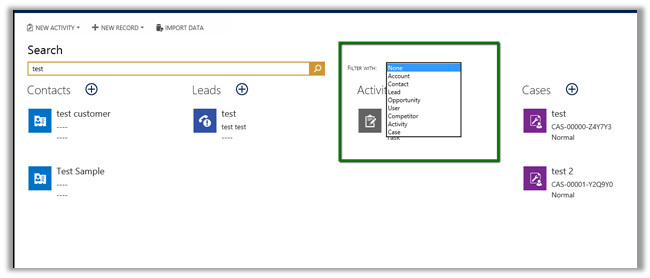
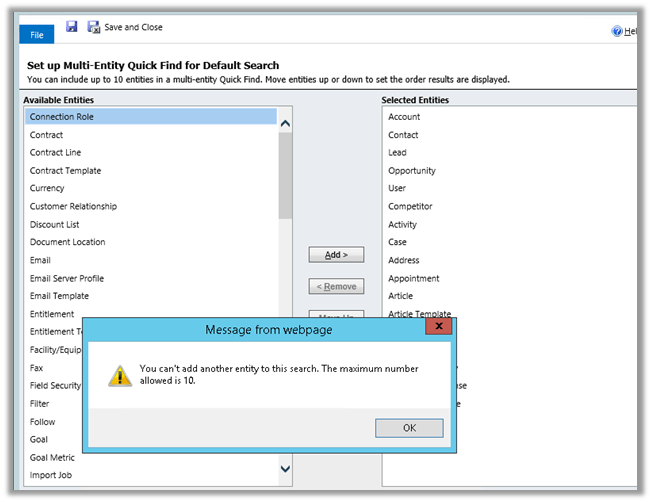
With Maximum 10 entities at a time (can also be used for filtering the result)

Clicking on “+” in the result opens the quick create form for that record

To set up Quick Find search, Go to à Adminsitration à System Settings

Click on Select to select the entity and specify the order for them.

Maximum of 10 entities can be added for search. (Supports custom entities)

The Search is based on Quick Find View of the respective entity. i.e. based on Find Columns defined in it.

The result displays first 4 column of the Quick Find View.

The pain of missing “Else If” condition in Business Rules in CRM 2013.


Let us take a simple example

There is a field say “Test Field” and 2 option set fields.

OptionSet1 è A1, A2, A3, A4

OptionSet2èB1, B2, B3, B4

Now the logic that we have to implement is

Show “Test Field” when

OptionSet1 = A1 and OptionSet2= B1

Or

OptionSet1 = A2 and OptionSet2= B2

Else

Field should be hidden

Logic in JavaScript

If (optionset1 == A1 && optionset2== B1)

Show field “Test Field”

Else if (optionset1 == A2 && optionset2== B2)

Show field “Test Field”

Else

Hide field “Test Field”

Logic in Business Rule

To implement the same in business we need write 6 business rules.

  1. If OptionSet1 = A1 and OptionSet2= B1 è Show “Test Field”
  2. If OptionSet1 = A2 and OptionSet2= B2 è Show “Test Field”
  3. If OptionSet1 != A1, A2 è Hide “Test Field”
  4. If OptionSet1 2= B1, B2 è Hide “Test Field”
  5. If OptionSet1 = A1 and OptionSet2= B2 è Show “Test Field”
  6. If OptionSet1 = A2 and OptionSet2= B1 è Show “Test Field”

Well the good news is that we now have “Else If” condition in CRM 2015.

https://nishantrana.me/2014/10/04/business-rules-in-crm-2015/


Notes on Rollup Fields in CRM 2015


Data Types and Function Supported

  • Whole Number à SUM, MIN, MAX, COUNT
  • Decimal NumberàSUM, MIN, MAX, COUNT
  • CurrencyàSUM, MIN, MAX
  • Date and TimeàMIN,MAX

Creating a Rollup Field

Check how many task activity are open for a particular contact record.

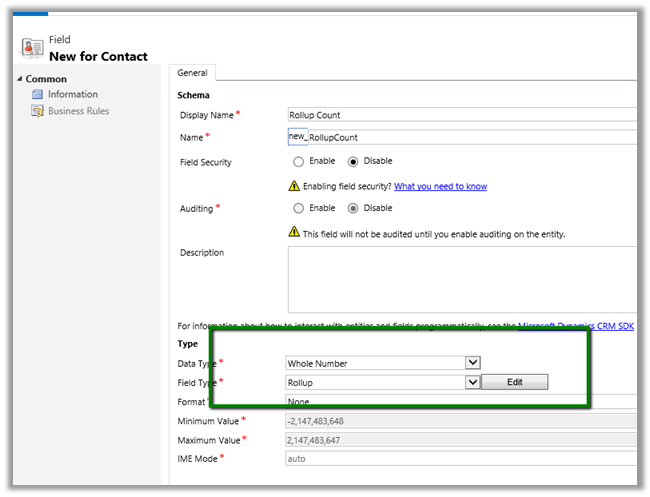
Click on Edit

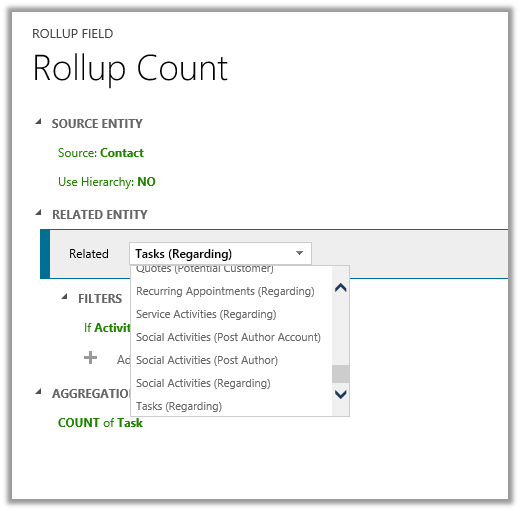
Select Task as related entity.

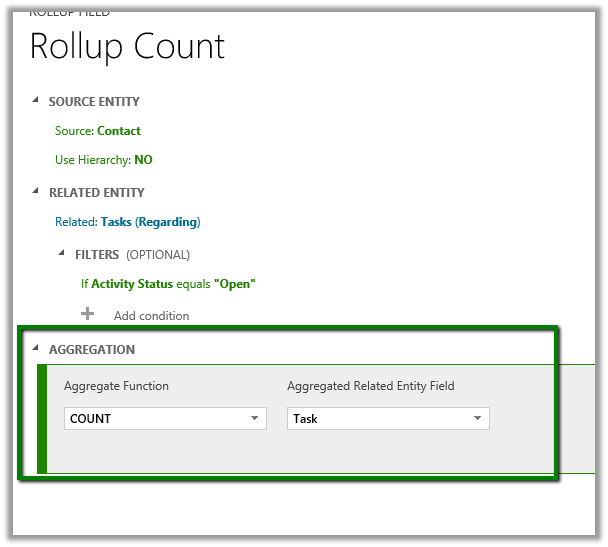
Set Filters to Open Task

Specify Count as Aggregation.

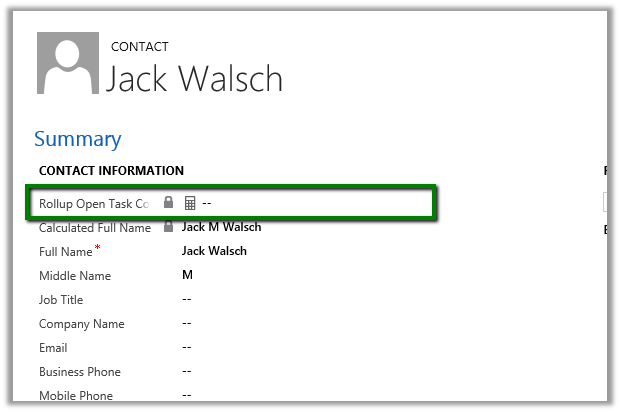
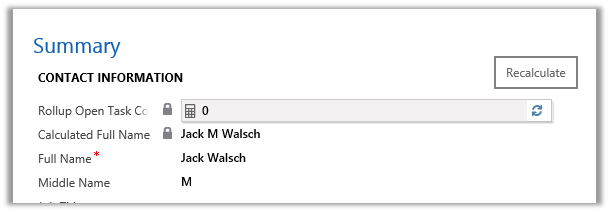
Add the field to Contact form.

Click on Recalculate will show the count.
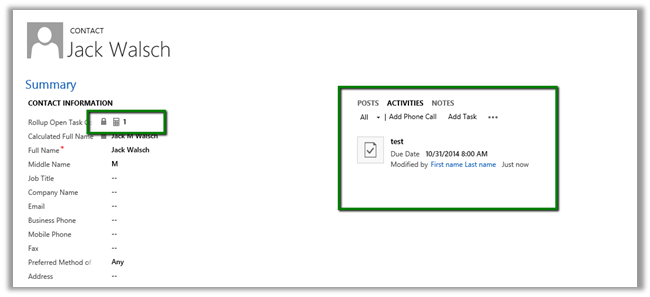
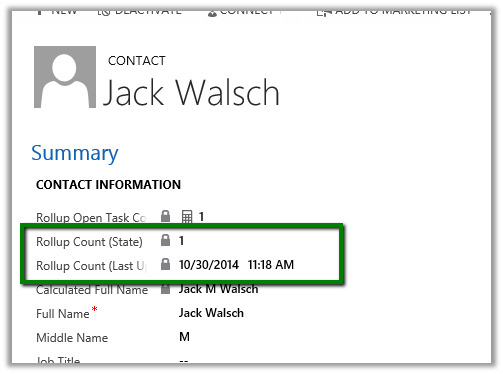
On Adding a Task and recalculating

Two new field State and Last Updated On are also created along with the roll up field. Adding them on form.

Different State value

0 Not Calculated
1 Calculated
2 Overflow Error
3 Other Error
4 Retry Limit Exceeded
5 Hierarchical Recursion Limit Reached
6 Loop Detected


  • Aggregated by System Account.
  • Read Only Field.
  • Asynchronous job runs approximately every 12 hours else it can be run manually using Recalculate button.


Notes on Calculated Fields in CRM 2015


Data Type supported

  • Single Line of Text
  • Option Set
  • Two Options
  • Whole Number
  • Decimal Number
  • Currency
  • Date and Time

Operator and Function Supported

Math Operator
à =, +, -, /, *

String Functions
àCONCAT, TRIMLEFT, TRIMRIGHT

Date Time
à ADDHOURS, ADDDAYS, ADDWEEKS, ADDMONTHS, ADDYEARS, SUBTRACTHOURS, SUBTRACTDAYS, SUBTRACTWEEKS, SUBTRACTMONTHS, SUBTRACTYEAS

Creating a new Calculated Field

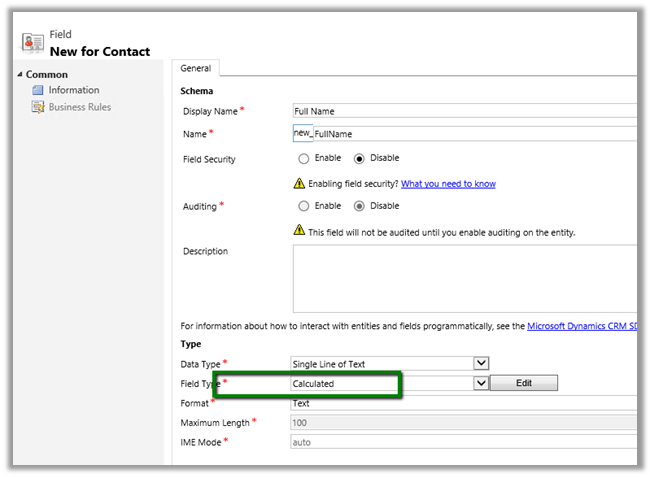
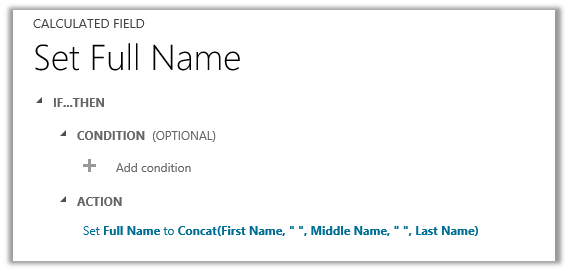
For e.g. let us create a calculated field of string type that will concat first name, middle name and last name for Contact Entity.

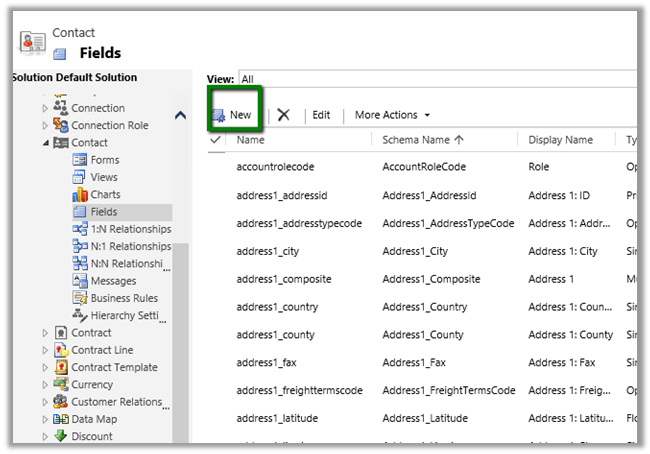
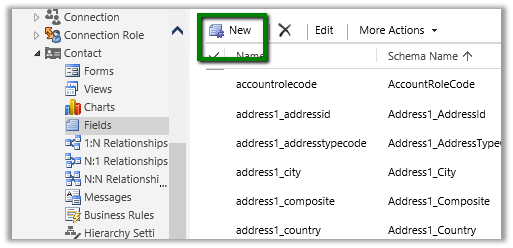
Open Contact entity for customization à Fields à Click on New

Click on Edit to define the Calculated Field

The editor has IntelliSense


Add the field to form.

  • Calculated Field are not saved in database.
  • They are executed during Retrieve.
  • Can be used by another calculated field.
  • Calculations is done using System Account.