“Cannot delete an active workflow definition” error while importing solution in Dynamics 365


Recently while trying to import a solution (managed) to one of our test environments we got the below error.

import

The reason being one of the SLA(s) that was part of the solution was in Active stage in the test environment to which solution was getting imported.

Deactivating the SLA and then importing the solution again worked properly.

Hope it helps..

Configuration Migration Utility not migrating all the records in Dynamics 365


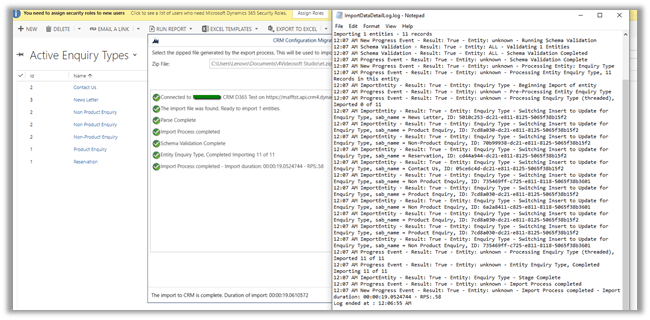
Recently while trying to move data for one of our entities, we saw that Configuration Migration Utility was only moving 7 records out of 11.

Even in the log, we couldn’t find any error message.

<<Drive>>:\Users\<<username>>\AppData\Roaming\Microsoft\Microsoft Dynamics® CRM Configuration Migration Utility

In fact, exporting and importing the records through excel was also only adding the 7 records.

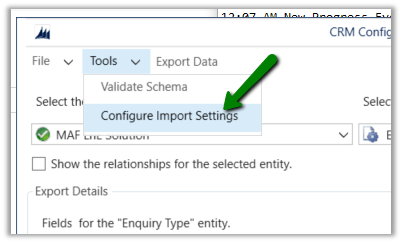
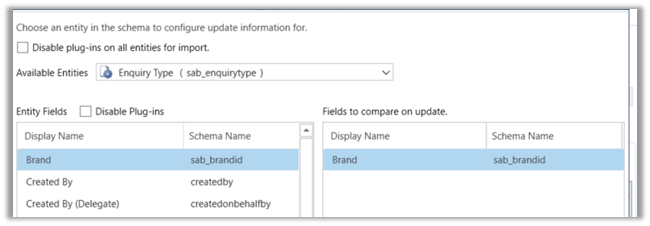
The way we fixed this issue was by specifying the primary field of the entity as the fields to compare on update.

Running the import again this time imported all the records.

Hope it helps..

Form now showing up properly after solution import in Dynamics 365.


Recently after moving our solution from dev to test, we saw that one of our lead forms was not showing up properly.

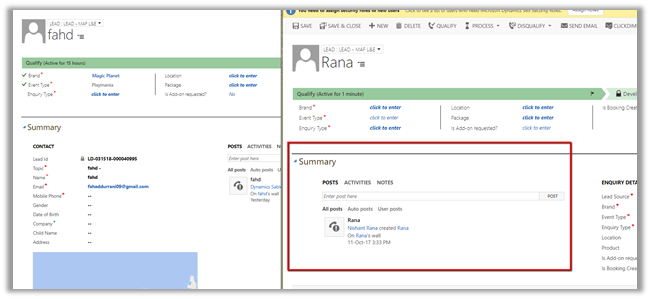
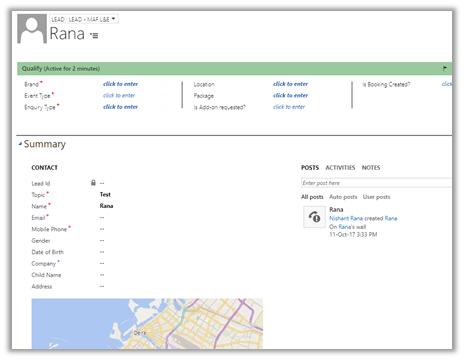
As we can see below, the contact section is missing and the Social Pane instead of being in center is left aligned below the Summary tab label.

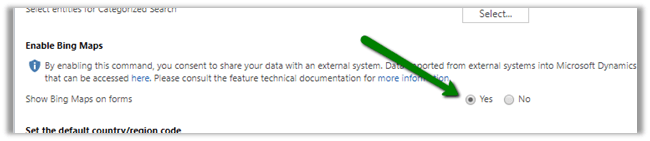
The fix for this was to enable the Bing Map from the System Settings in the Test.

The same record in our test, after enabling the Bing Map.

Hope it helps..

Solved – System.ArgumentNullException: Value cannot be null.Parameter name: SandboxAppDomainHelper.Execute: The plug-in type could not be found in the plug-in assembly in Dynamics 365


We got the below error while in one of our plugin assemblies. 

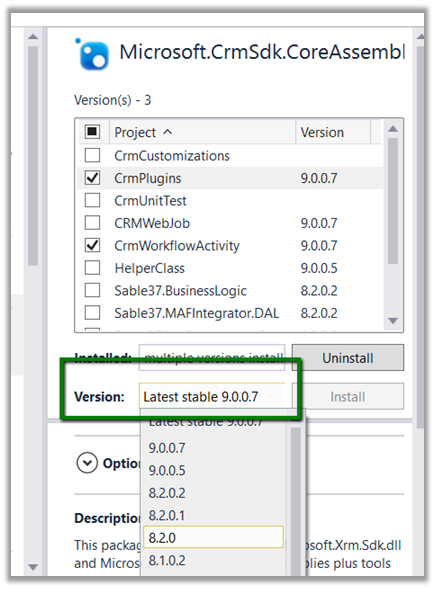
As it turned out we were referencing the latest, version 9 Dynamics 365 assemblies in our plugin project, against our Dynamics 365 Environment which was still in version 8.2.

Adding the appropriate NuGet Package (i.e. 8.2.0.0) fixed the issue for us.

The helpful post

http://blogs.it.ox.ac.uk/benwalker/2017/09/12/system-io-fileloadexception-error-in-plugin-deployed-by-crm-developer-toolkit-to-dynamics-2015/

Hope it helps..

Advertisements

Microsoft.Crm.CrmException: GetAssemblyMetadata: expected mdtAssemblyRef or mdtAssembly while registering plugin assembly in Dynamics 365


While registering a plugin assembly through plugin registration tool we got the below error

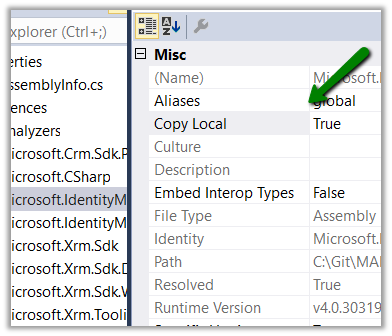
The reason being we were using MSBuild.ILMerge.Task Nuget package and there were few assemblies being referenced in the plugin project that had copy local set as true.

https://nishantrana.me/2017/05/17/using-ilmerge-for-plugin-in-crm/

So eventually the single plugin assembly that was getting build had these assemblies also being merged in it, which led to the above error.

Setting Copy Local as False for those assemblies fixed the issue.

Hope it helps.

Empty or Disable cache while working with Web resources in Dynamics 365 (Chrome)


Most of the time while developing Web Resource we need to frequently update and publish it. We need to make sure that it is not cached and our changes are reflected instantly on publish.

For Chrome,

Open the Developer Tools (F12)

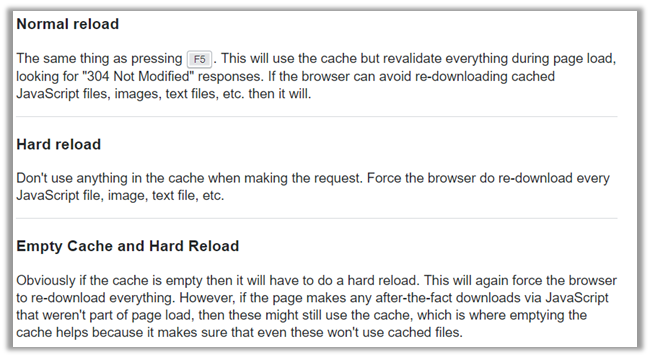
Press and hold the reload button and select “Empty Cache and Hard Reload” to have changes reflected.

https://stackoverflow.com/questions/14969315/whats-the-difference-between-normal-reload-hard-reload-and-empty-cache-a/14969509#14969509

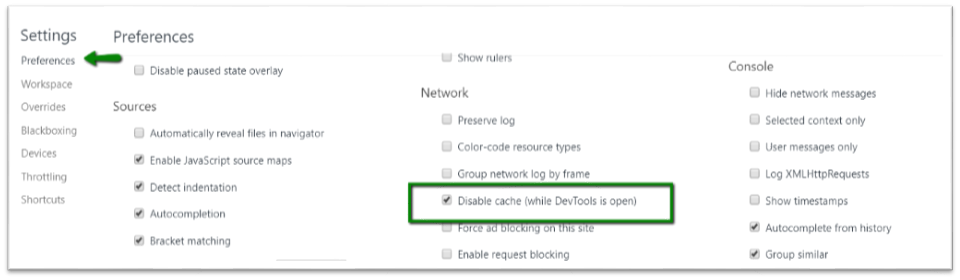
The other option à Developer tools – Settings – Preferences

Hope it helps..