“Create Dynamics Leads based on Tweets” using Microsoft Flow in CRM 2016


Microsoft Flow is a workflow management tool, using which we can create automated workflows between various services and apps.

With Dynamics CRM Online common scenarios could be

  • Create Dynamics CRM Leads from an Excel table.
  • When an opportunity is created post to Yammer.
  • Copy new Dynamic CRM Account to Common Data Model etc.

https://flow.microsoft.com/en-us/

https://flow.microsoft.com/en-us/services/shared_dynamicscrmonline/dynamics-crm-online/

  • Below are some of the templates available for CRM Online

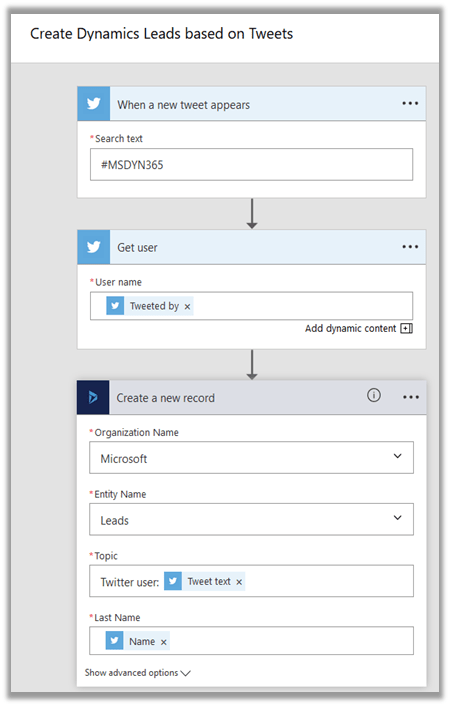
  • Let us take a Template that creates Leads based on Tweets

  • Connect to both the services

  • Configure it, for e.g. search for #msdyn365, get the Tweeter User Name and create the lead record. Map topic in lead with tweet text.
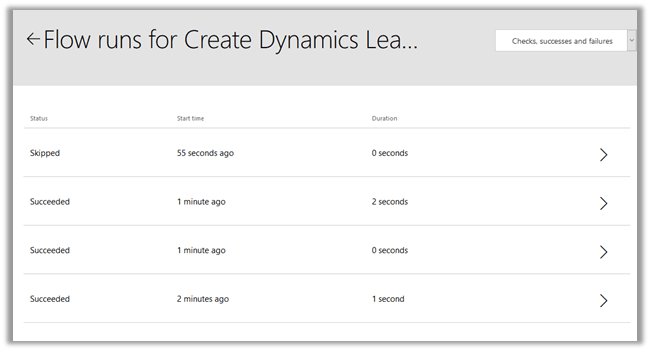
  • Check the status of the flow.

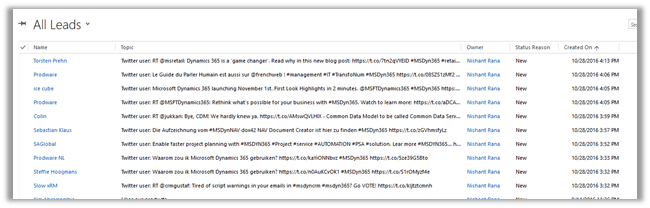
  • Leads created in CRM

Hope it helps..

How to – Dynamically add rows and columns to Grid View


Hi to add rows and columns to Gridveiw dynamically what
we will do is that

1) Create a DataTable object to which than we will bind the GridView
DataTable dt=new DataTable();

2) IF you need two columns than create two DataColumn object
DataColumn dCol1=new DataColumn(FirstC, typeof(System.String)); // string FirstC=”column1″
DataColumn dCol2=new DataColumn(SecondC, typeof(System.String)); // string SecondC=”column2″

Add it to the table

dt.Columns.Add(dCol1);
dt.Columns.Add(dCol2);

3)Run the loop for as many rows you want to add.

// say you want to add two rows

for(int i=0;i<2;i++)
{
DataRow row1 = dt.NewRow();
row1 [FirstC] = “One”;
row1 [SecondC] =”Two”
dt.Rows.Add(row1 );

}

Now iterate through each datacolumn and create a BoundField foreach column

foreach (DataColumn col in dt.Columns)
{
BoundField bField = new BoundField
bField.DataField = col.ColumnName;
bField.HeaderText = col.ColumnName;
GridView1.Columns.Add(bField);
}
GridView1.DataSource = dt;
//Bind the datatable with the GridView.
GridView1.DataBind();

Advertisements