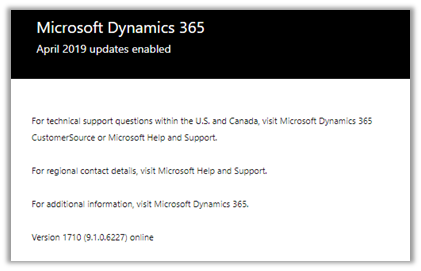
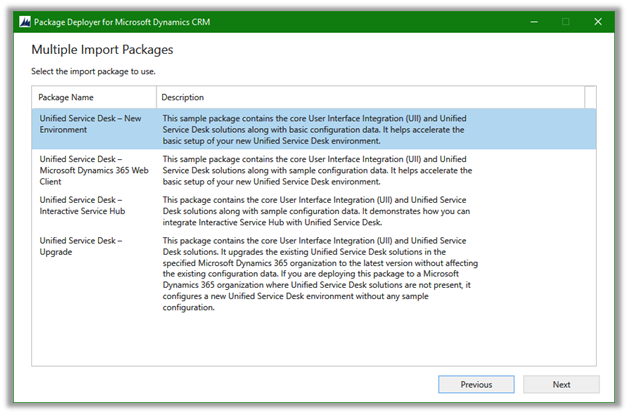
What is the maximum file size limit for Attachments in Dynamics 365 \ On Premise V9?


Recently was trying to figure out the maximum file size limit for the attachments.

It is 131072 (in kilobytes)

Can be defined at Settings – Administration – Email Tab.

Scroll down to Set file size limit for attachments section

MaxSize

Hope it helps..

Advertisements

How to – Use SARIF Viewer to read the static analysis results generated by Microsoft.PowerApps.Checker.PowerShell module


In the last post, we saw how we can use the Microsoft.PowerApps.Checker.PowerShell module to analyze the Solution (Unmanaged and Managed – Online or On-Premise) outside the PowerApps Maker Portal.

https://nishantrana.me/2019/07/12/using-the-powerapps-checker-powershell-module-to-validate-the-solution/

The reports generated by the tool are in SARIF format i.e. Static Analysis Results Interchange Format (JSON based) standard for the output format of the static analysis tool. This format originated at Microsoft.

To view the result, we can use the below tools

For Visual Studio :

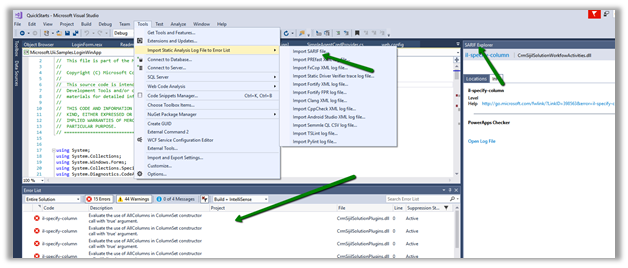
After installing the extension, navigate to Tools à Import Static Analysis Log files for Error List à Import SARIF file and select the result file generated.

It will list down the details in the Error List Window as shown below.

For Visual Studio Code :

For Visual Studio Code, after installing the SARIF Viewer, simply open the file

Below is how the result is displayed in the UI inside Visual studio code.

Hope it helps..
Advertisements

Using the PowerApps checker PowerShell Module to validate the solution


Using PowerApps Checker PowerShell Module we can perform the solution check functionality from outside the PowerApps Maker Portal. This can be useful for automated build and release pipelines. Apart from that some of the notable capabilities of the module include

  • Support for both managed and unmanaged solution.
  • Support for On-Premise.
  • Support for more than one solution at a time.

To get started à

Open the PowerShell (as administrator) and install the module

  • install-module Microsoft.PowerApps.Checker.Powershell

Next, we need to register an Azure Active Directory application in a tenant with PowerApps or Dynamics 365 licensing, even if it is on-premise environment (solution) against which we want to run it.

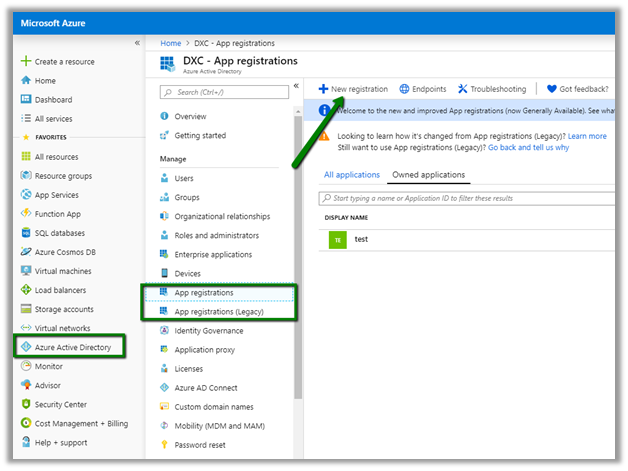
  • Login to Azure Portal

https://portal.azure.com

  • Click on New registration to register a new application

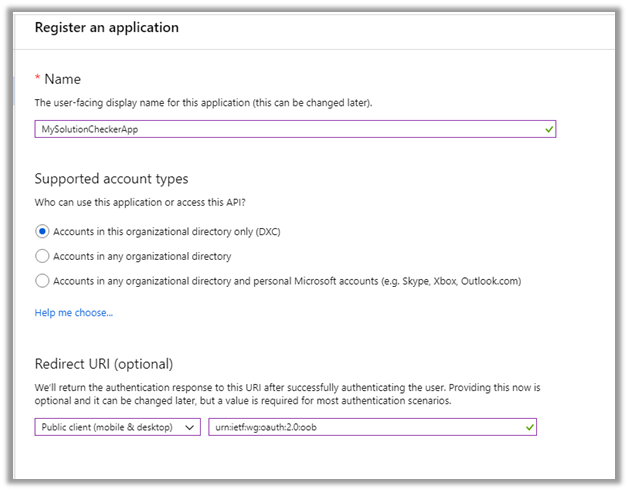
  • Provide the below details

Redirect URI

  • Type: Public client (mobile & desktop)
  • Redirect URI: urn:ietf:wg:oauth:2.0:oob

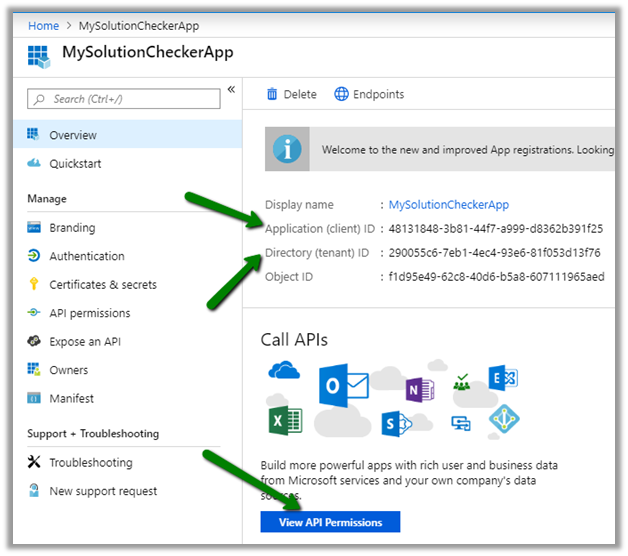
Copy the values of Application id and Directory (tenant) Id which we will use later and click on View API Permission to give the required permission to the app.

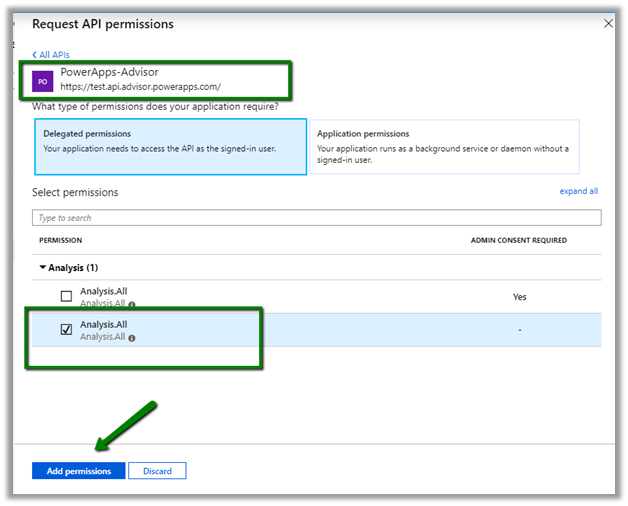
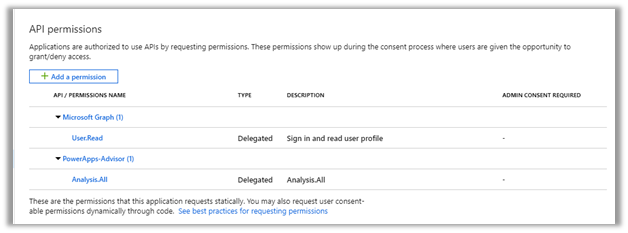
Click on Add a permission (we’d see Sign and read user profile added by default)

API level permissions to the PowerApps-Advisor first party Microsoft AAD application

  • Application permissions to Analysis.All

Permissions à

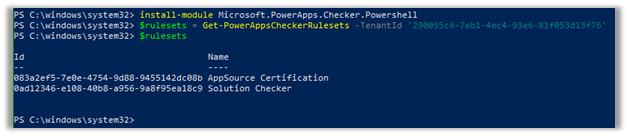
PowerApps solution checker uses Solution checker rule set. Here we are getting all the rulesets available passing our tenant’s id.

  • $rulesets = Get-PowerAppsCheckerRulesets -TenantId ‘290055c6-7eb1-4ec4-93e6-81f053d13f76’

We wil be using Solution Checker rule set here.

  • $rulesetToUse = $rulesets | where Name -EQ ‘Solution Checker’

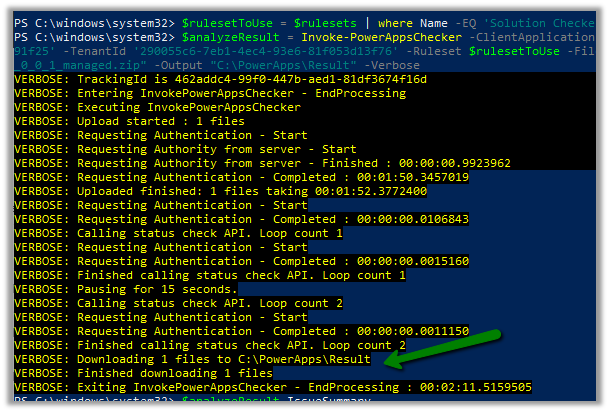
Now let us run it against the Solution Zip file as shown below

  • $analyzeResult = Invoke-PowerAppsChecker –ClientApplicationId ‘48131848-3b81-44f7-a999-d8362b391f25’ –TenantId ‘290055c6-7eb1-4ec4-93e6-81f053d13f76’ –Ruleset $rulesetToUse –FileUnderAnalysis “C:\PowerApps\Test_1_0_0_1_managed.zip” –Output “C:\PowerApps\Result” -Verbose

Give the required consent

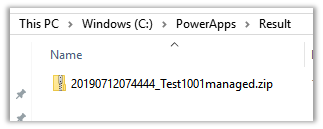
We can see the results download at the path specified

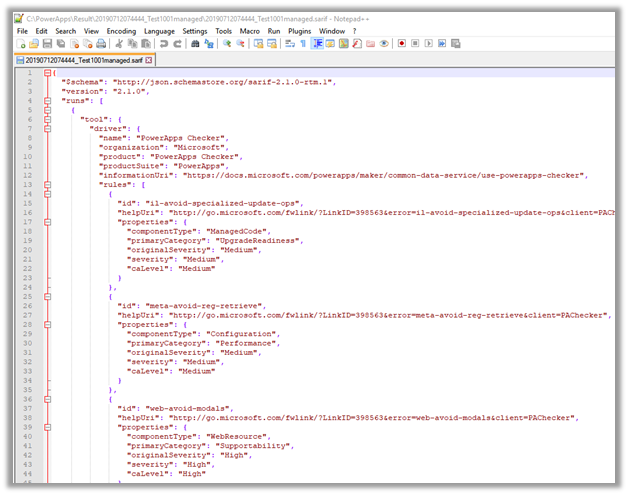
Result is in JSON format

IssueSummary to get the quick overview

Get all the details here

https://docs.microsoft.com/en-in/powershell/powerapps/overview?view=pa-ps-latest

Hope it helps..

Using PowerApps Solution Checker from the PowerApps maker portal


The PowerApps Solution Checker feature released for general availability on May 2019, can be used to perform static analysis of the Unmanaged solution for components like plugin, web resources, custom workflow activities and provide guidelines and recommendations around the issues found.

To get started à

Sign in to PowerApps maker portal

https://make.powerapps.com/home

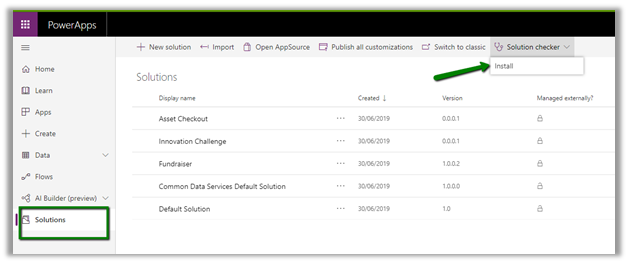
Select the Solutions in the left navigation pane and click on Install to install the Solution checker.

Click on GET IT NOW from the AppSource, specify the instance and the PowerApps Checker Solution will be installed in that Instance.

This will install the PowerApps Checker solution for the selected instance.

After the installation is done, we’d see the Solution checker menu enabled for the unmanaged solution.

Click on Run to run the test

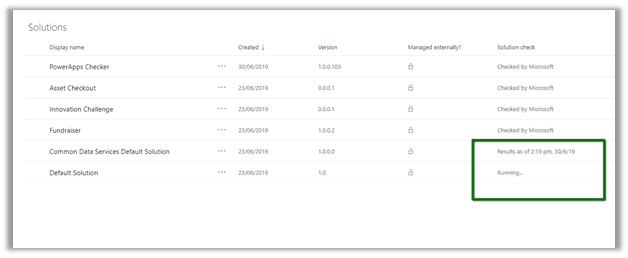
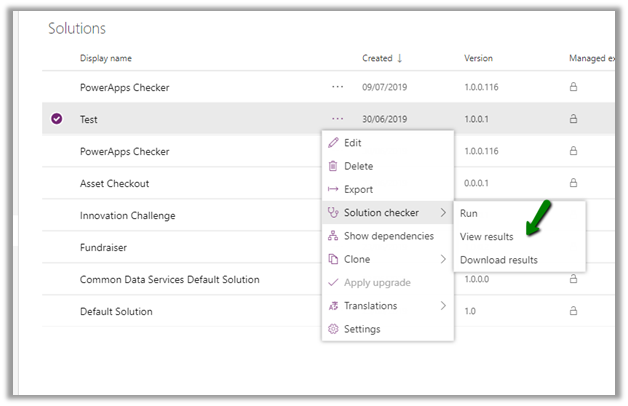
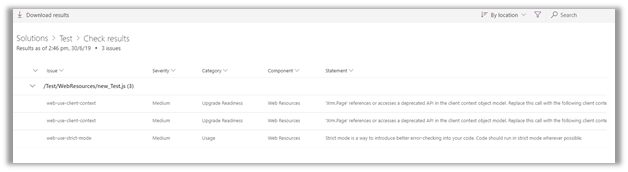
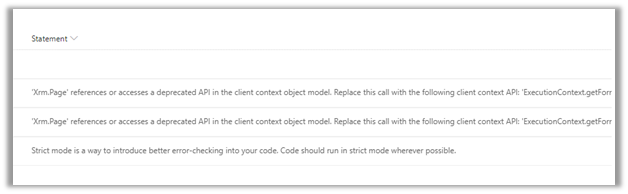
We can see the results in the portal and can download the same as shown below.

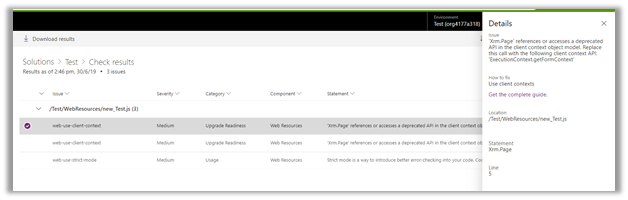
Result of running it against another solution in which we are still using Xrm.Page object model à

The results will be available in both Excel and CSV format on the download

csv à

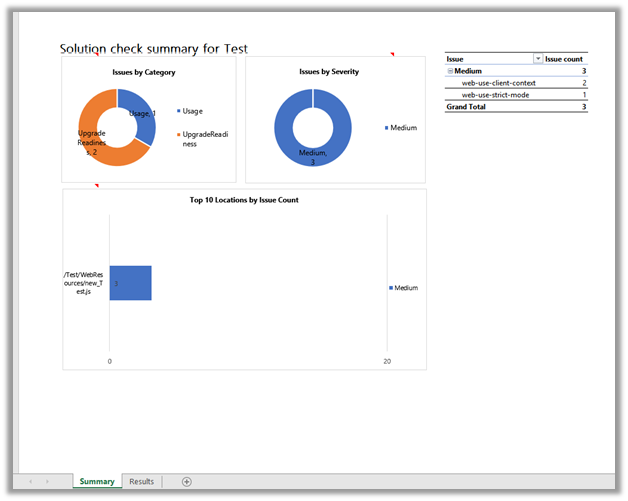
Excel will include a report as wellà

In the next post, we will see how to use the PowerApps Checker PowerShell Module to validate the solutions.

https://nishantrana.me/2019/07/12/using-the-powerapps-checker-powershell-module-to-validate-the-solution/

Hope it helps..

Fixed – Package Deployer (USD) not connecting to CRM Organization


Hi, while trying to set up USD in the Dynamics 365 Online environment

We were facing the issue with the USD’s Package Deployer, after login, it was showing the Organizations but on trying to connect to them, it was again taking back to the login screen.
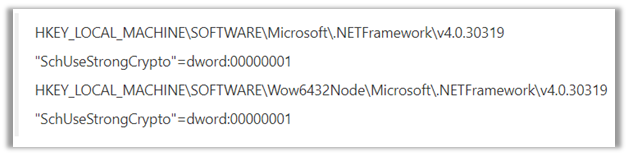
This was because we were using below old version of the Package Deployer

Dynamics365-USD-2.2.0.755-PackageDeployer

To get it working as suggested by Microsoft we had to update the registry and add the following key – “SchUseStrongCrpto

This makes the .NET application, in our case, the older version of the Package Deployer to use TLS 1.2 required for connecting to Version 9.0 of Dynamics 365.

After making the registry change, we were able to move forward.

We will not be facing the same issue with newer version of USD

https://community.dynamics.com/365/customerservice/b/unifiedservicedeskblog/posts/unified-service-desk-4-1-general-availability

Hope it helps.

Thanks Microsoft for the MVP (Business Applications) award once again!


Thanks Microsoft for this recognition and thanks to all the wonderful and passionate Dynamics 365 (CRM) professionals who have inspired and motivated me and others for several years, to keep learning and contributing in the community and to grow in the process!