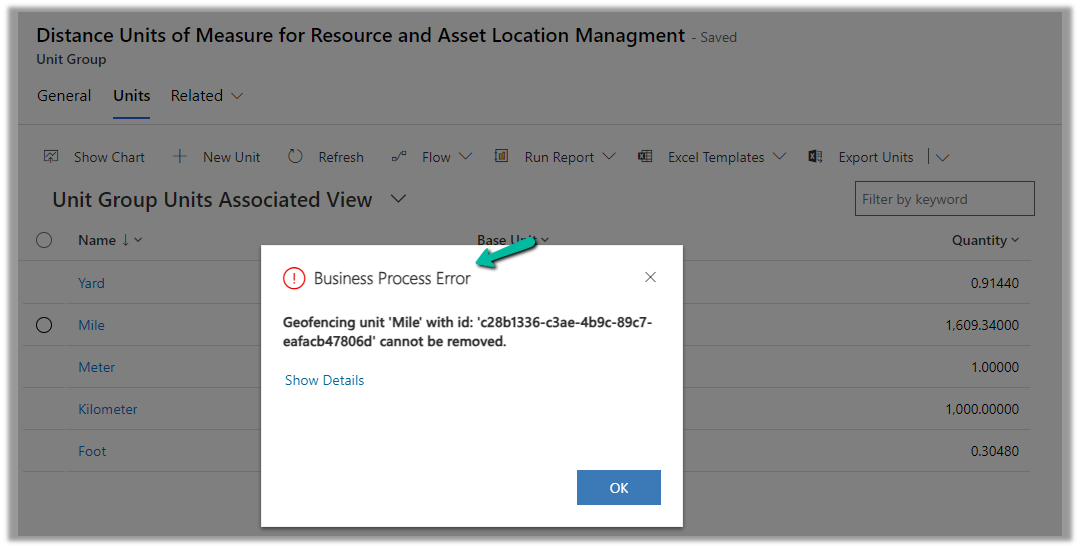
While trying to delete the Unit records related to the “Distance Units of Measure for Resource and Asset Location Management” unit group, we will get the below error
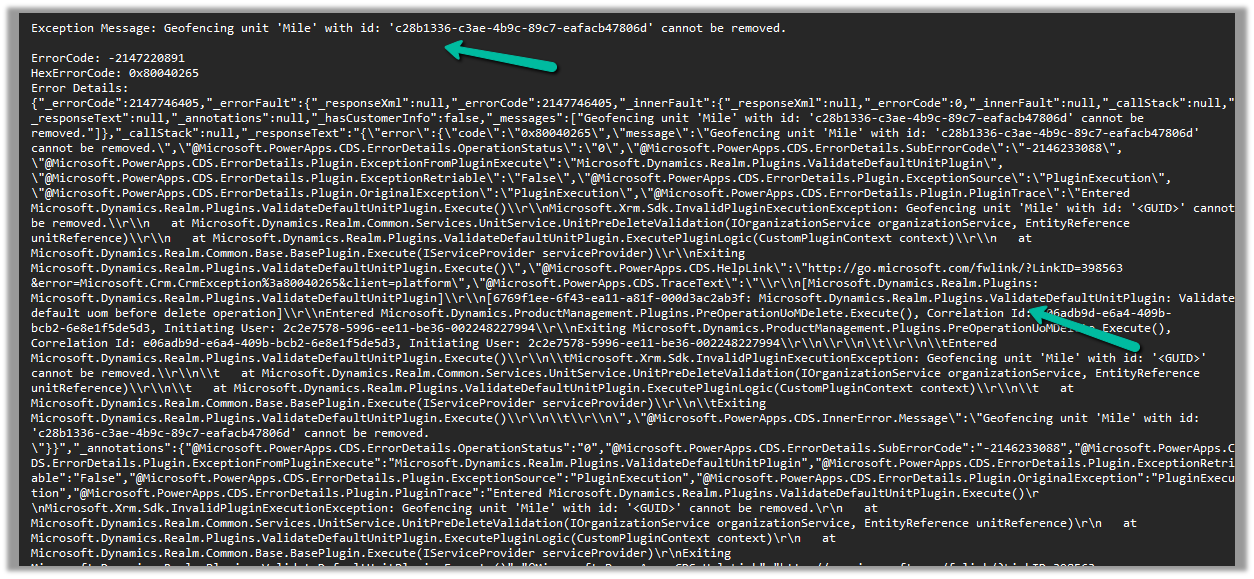
Geofencing unit ‘Mile’ with id: ‘<GUID>’ cannot be removed
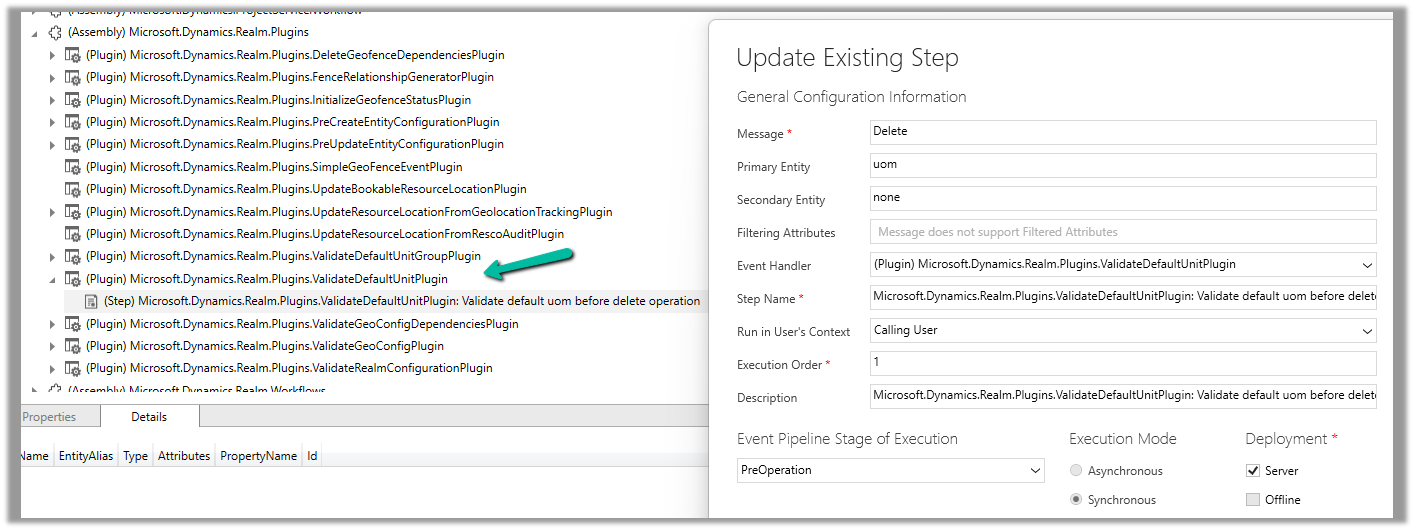
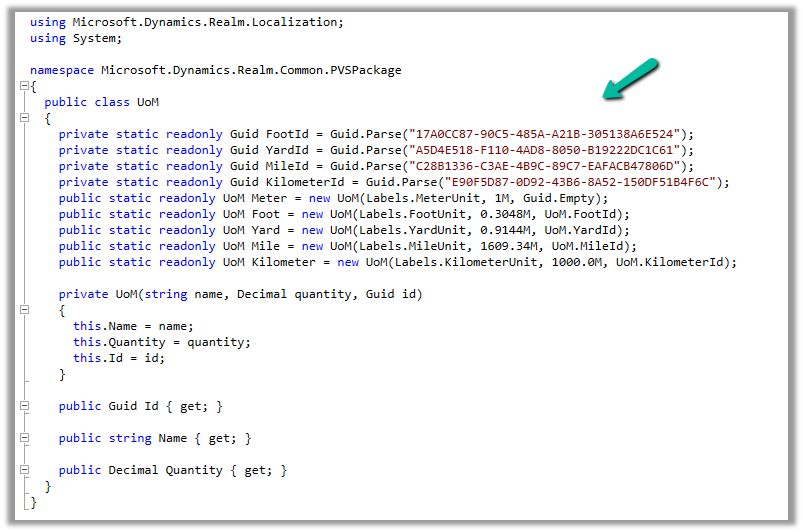
Below is the out of the box plugin that restricts the deletion of the unit
Recently we started getting the below error on the form load of the Work Order Service Task record, that also only in specific environments, and there was no changes made there.
Error Details:
Event Name: onload
Function Name: OnLoad
Web Resource Name: msdyn_/WorkOrderServiceTask/WorkOrderServiceTask.js
Solution Name: msdyn_FieldService_patch_update
Publisher Name: microsoftdynamics
From the error message also it was clear it was the error in the out-of-the-box javascript.
On raising the Microsoft Support Ticket, we were immediately informed that it was because of a change in the function definitions in the .js files along with its associated handlers which was done to prevent object definition collisions in the web resources.
This applied to forms of the below tables
Work Order (msdyn_workorder)
Work Order Service Task (msdyn_workorderservicetask)
Through booking rules, we can specify custom JavaScript methods, that can be used to run validation checks, before creation or update of a bookable resource booking record. Based on the result of the validation checks we can either warn the user or cancel the booking create or update event.
Booking rules are triggered when a resource is booked or a bookable resource booking record is either created or updated using the schedule board, schedule assistant, or booking form.
The booking rules are not triggered if the booking form has business process flow enabled. We can also disable the booking rule to be triggered on the save of the booking form by enabling the setting – msdyn_DisableProcessBookingRulesOnSaveBookingForm
Let us see it in action.
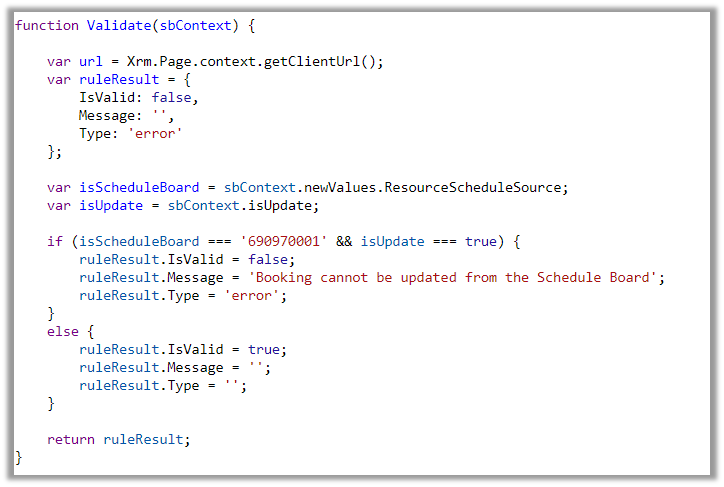
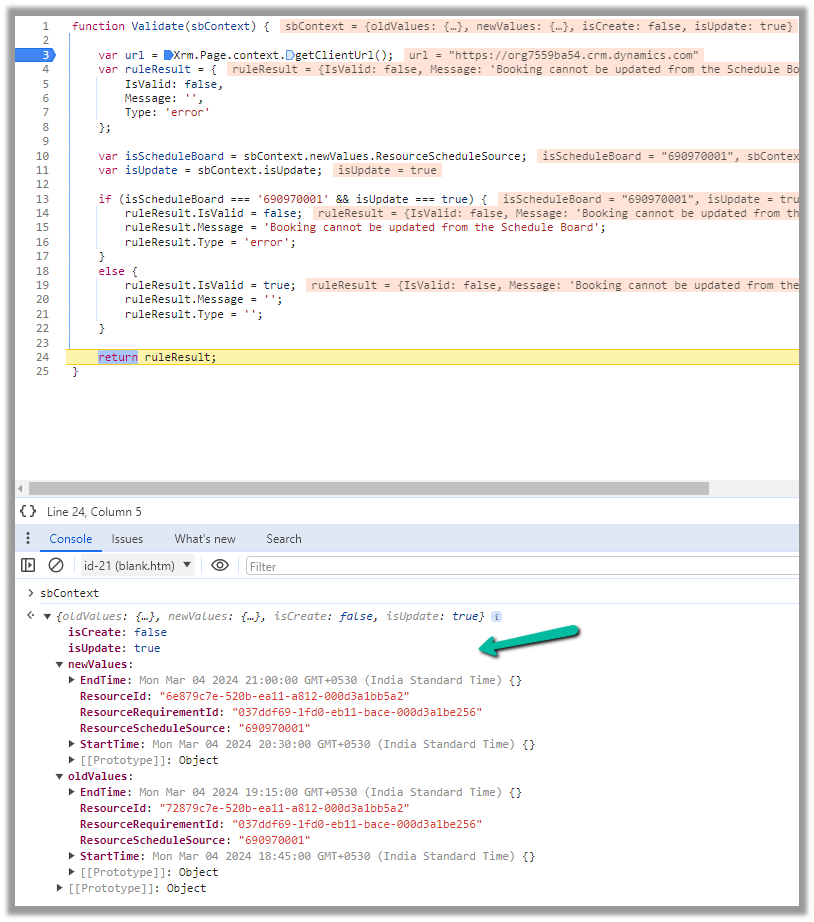
Below is our JavaScript method to be used as a Booking Rule.
function Validate(sbContext) {

    var url = Xrm.Page.context.getClientUrl();
    var ruleResult = {
        IsValid: false,
        Message: '',
        Type: 'error'
    };

    var isScheduleBoard = sbContext.newValues.ResourceScheduleSource;
    var isUpdate = sbContext.isUpdate;

    if (isScheduleBoard === '690970001' && isUpdate === true) {
        ruleResult.IsValid = false;
        ruleResult.Message = 'Booking cannot be updated from the Schedule Board';
        ruleResult.Type = 'error';
    }
    else {
        ruleResult.IsValid = true;
        ruleResult.Message = '';
        ruleResult.Type = '';
    }

    return ruleResult;
}
To create a Booking Rule, navigate to Resources >> Booking Settings >> Booking Rules inside the Dynamics 365 Field Service app and create a new booking rule, specifying the web resource and the method inside it.
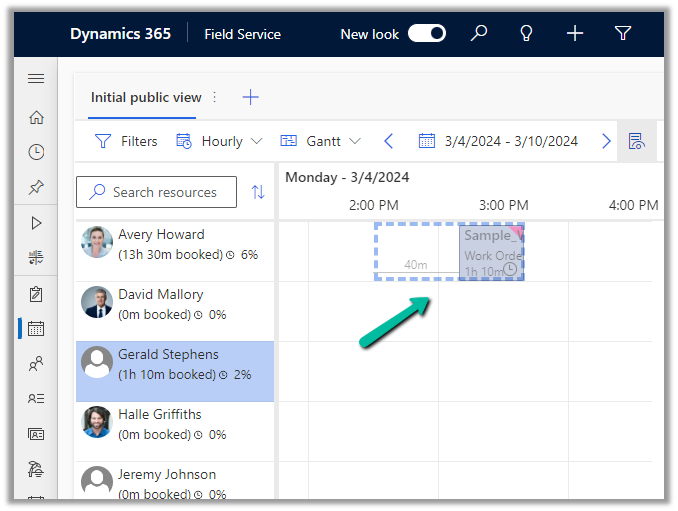
Let us try to update a booking from the schedule board.
This will trigger our booking rule and will pass the context object, which contains details like whether it is a create or update event, and details around old values and new values for start time, end time, resource details, etc. for that booking.
We can use these values passed in the context, fetch more details about the corresponding resource or work order, have our validation logic defined there, and finally pass the ruleResult object.
If we want to cancel the event, we can set IsValid as false, specify the error message, and set Type as an error in the ruleResult object. Similarly, if it passes the validation, we can set IsValid as true.
This is how the error message shows up, and the event is canceled inside the schedule board.
Below we can see the same booking rule being triggered from the Booking Resource Booking form.
We can deactivate the booking rule record created if we do not want it to trigger.
The Timestamp frequency defines when the Booking Timestamp record should be created from the Bookable Resource booking record.
Per Booking Status Change
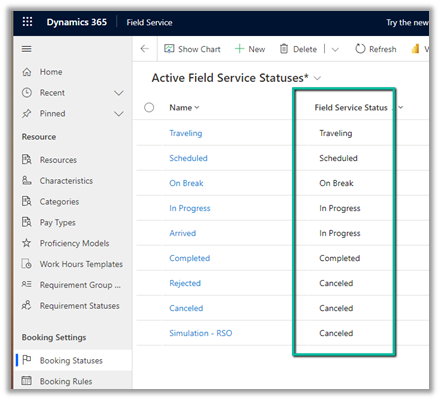
Per Field Service Status Change
By default, it is Per Field Service Status Change, in this case, the Booking Timestamp will be created on the change of Field Service Status.
Let us update a Bookable Resource Booking record’s status from In Progress to Arrived.
Here we will not see any Booking Timestamp record created as the Field Service Status remains the same – “In Progress”
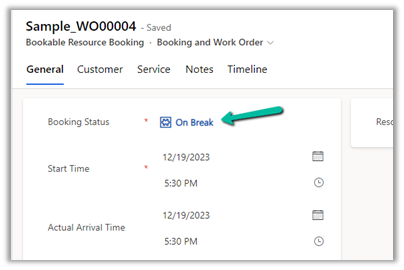
On changing it to On Break, we can see a new booking timestamp record created as that changes the Field Service Status.
The booking timestamp record :-
In the case of Timestamp Frequency as “Per Booking Status Change”, the booking timestamp record will be created on the change of the booking status in the Bookable Resource Booking record.
Also in the case of “Pre Booking Status Change”, the booking timestamp record created will have the Booking Status captured which is blank in the case of “Per Field Service Status Change” as shown below
Using Solution Health Hub we can validate the environment’s configuration, which might get modified over time, to get an idea about the state of that environment and detect and resolve any issues. Solution Health Hub enables rules-based validations, which we can run periodically or manually if we encounter any issues. The rules also get triggered automatically when solutions are installed or updated by Microsoft. The rules check if some of the required processes are disabled or owned by a disabled user, if some of the required web resources are missing, if certain plugin steps are not active etc.
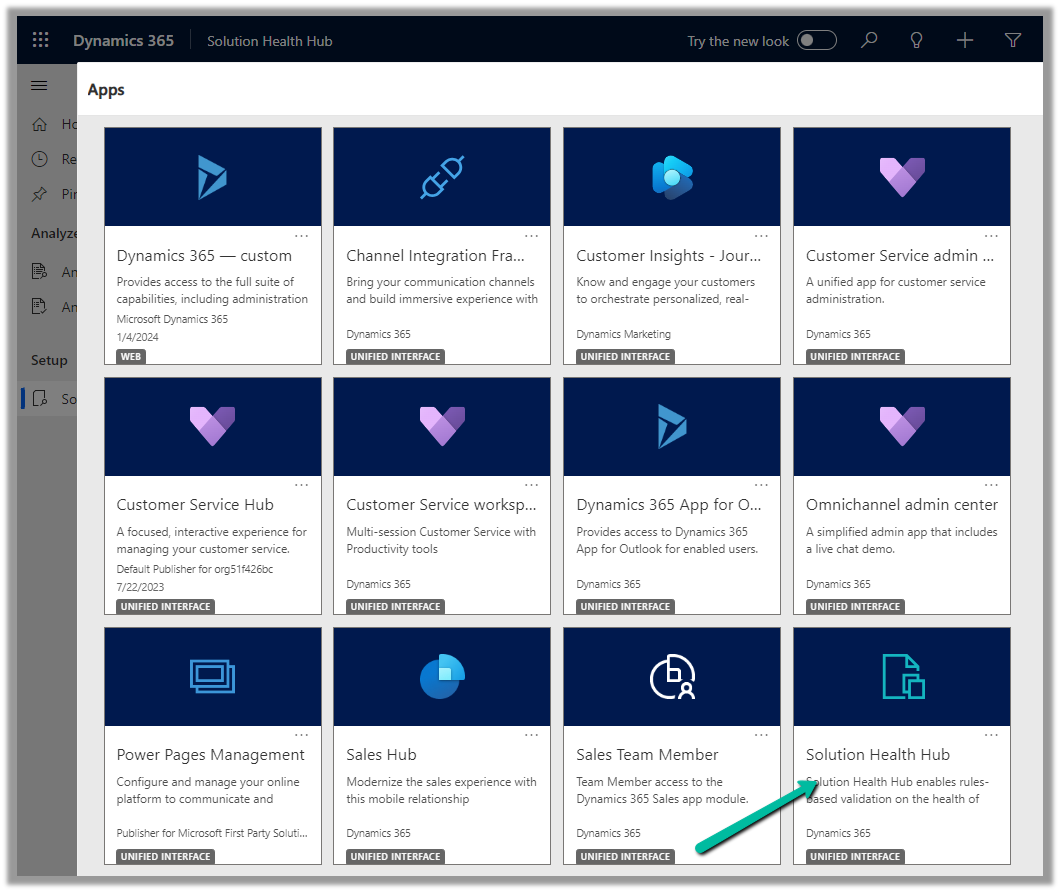
Let us open the Solution Health Hub app and see it in action.
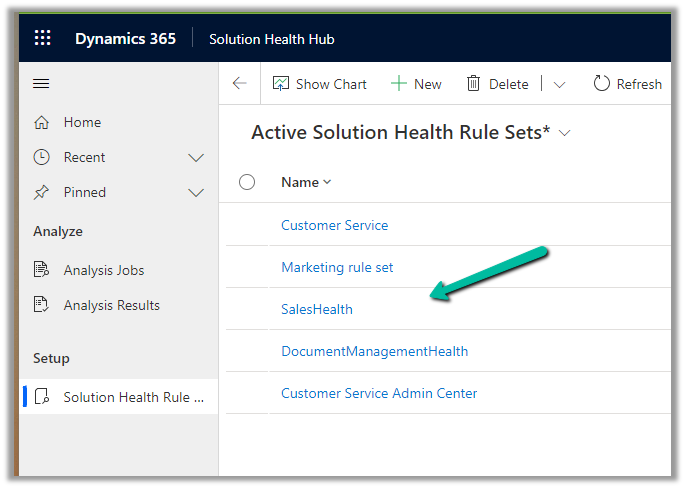
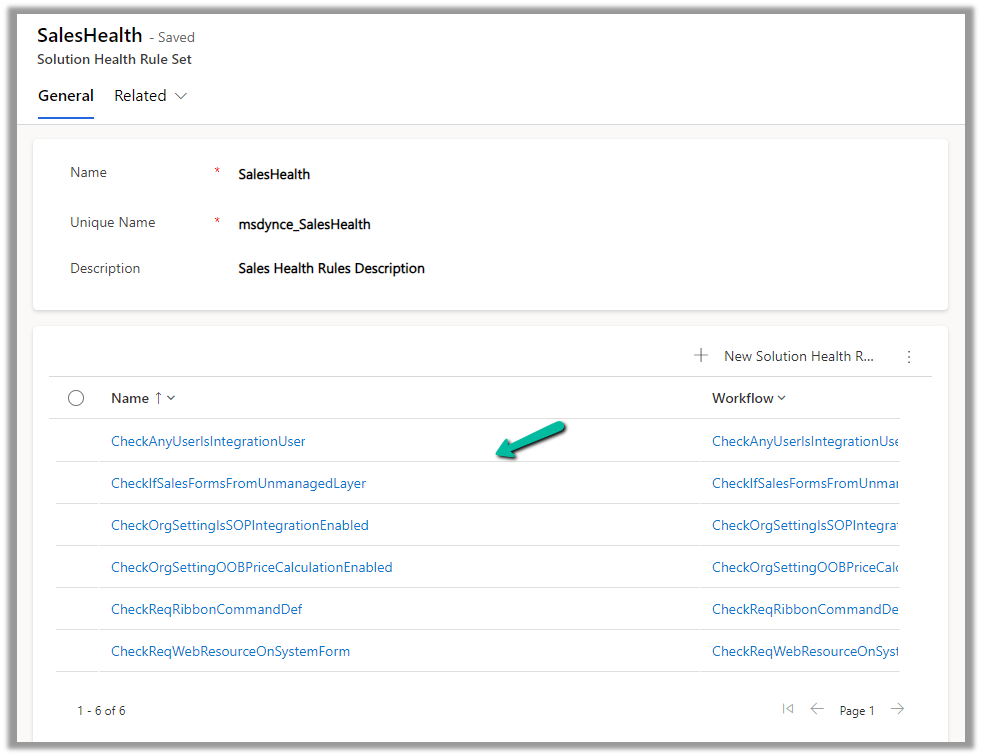
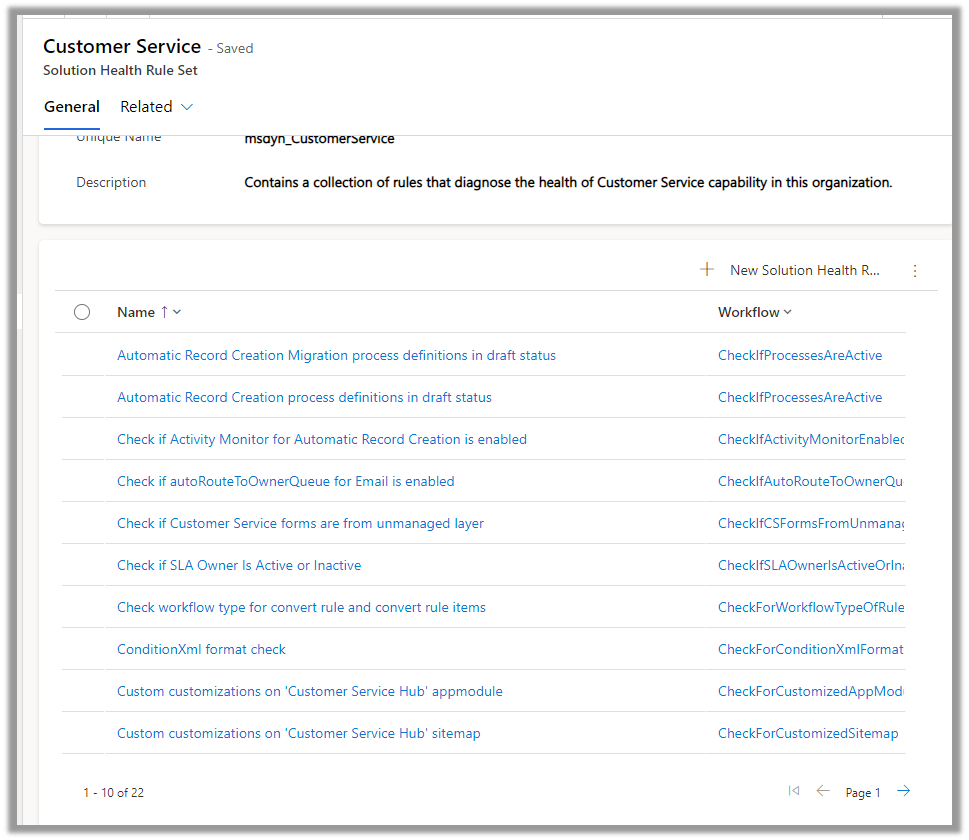
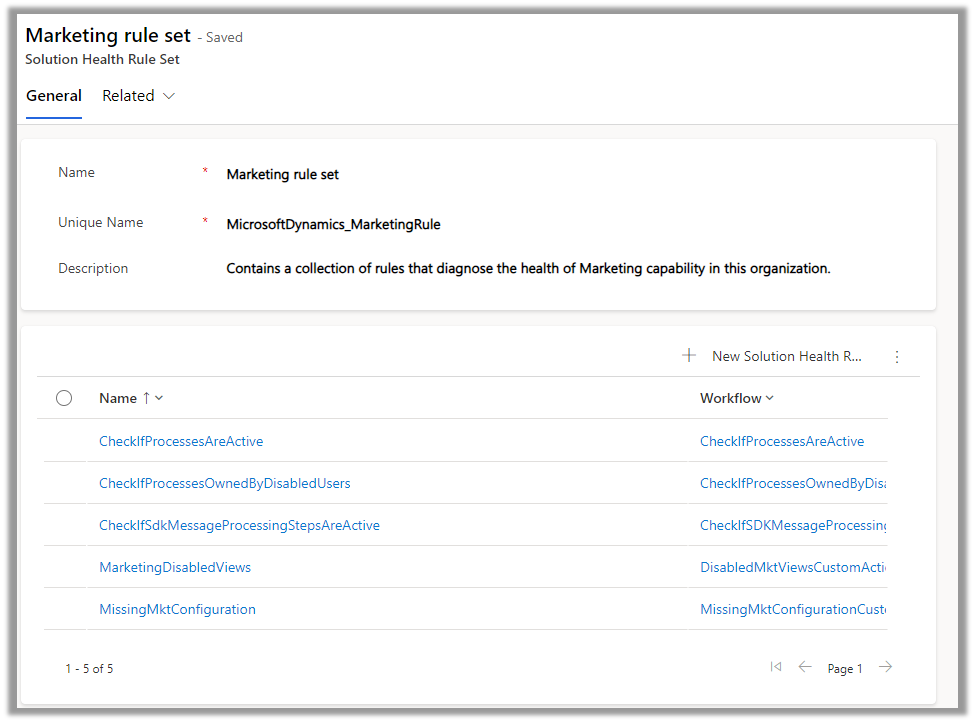
We can see the Rule Sets created specific to different areas (app) like Sales, Marketing, Customer Service, etc.
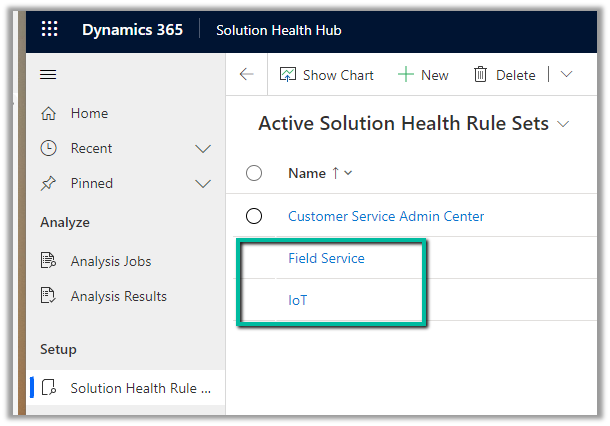
For an environment where Field Service is configured, we can see the following rule sets.
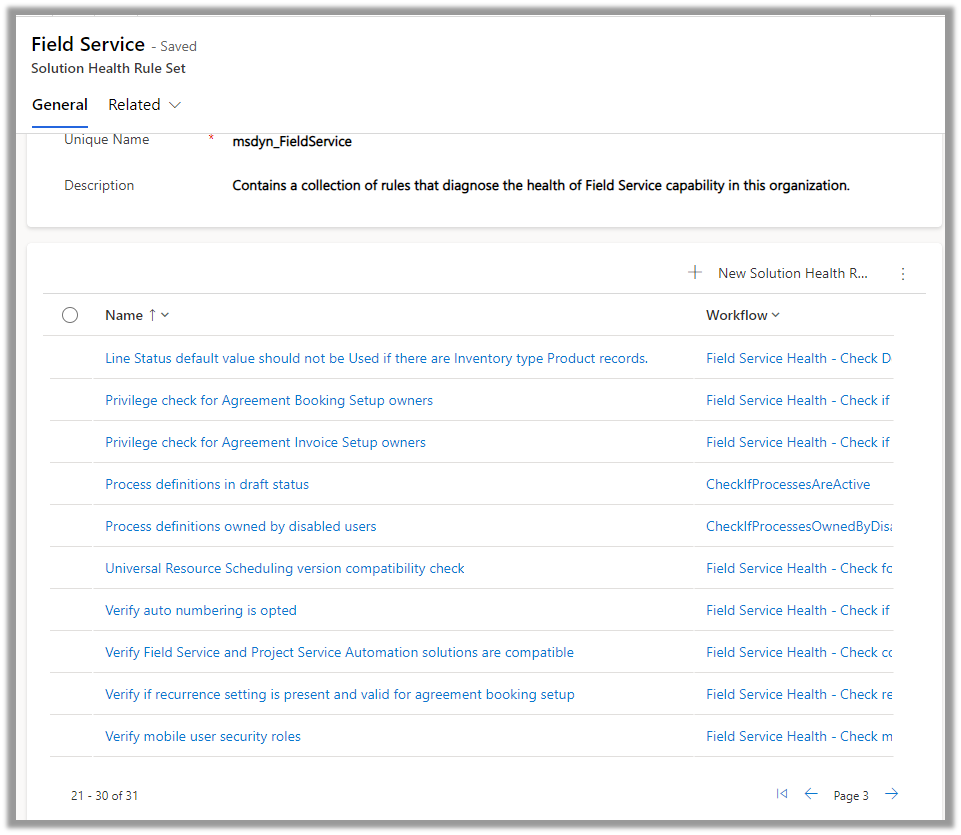
Let us open the Field Service Rule Set and see the rules defined for it.
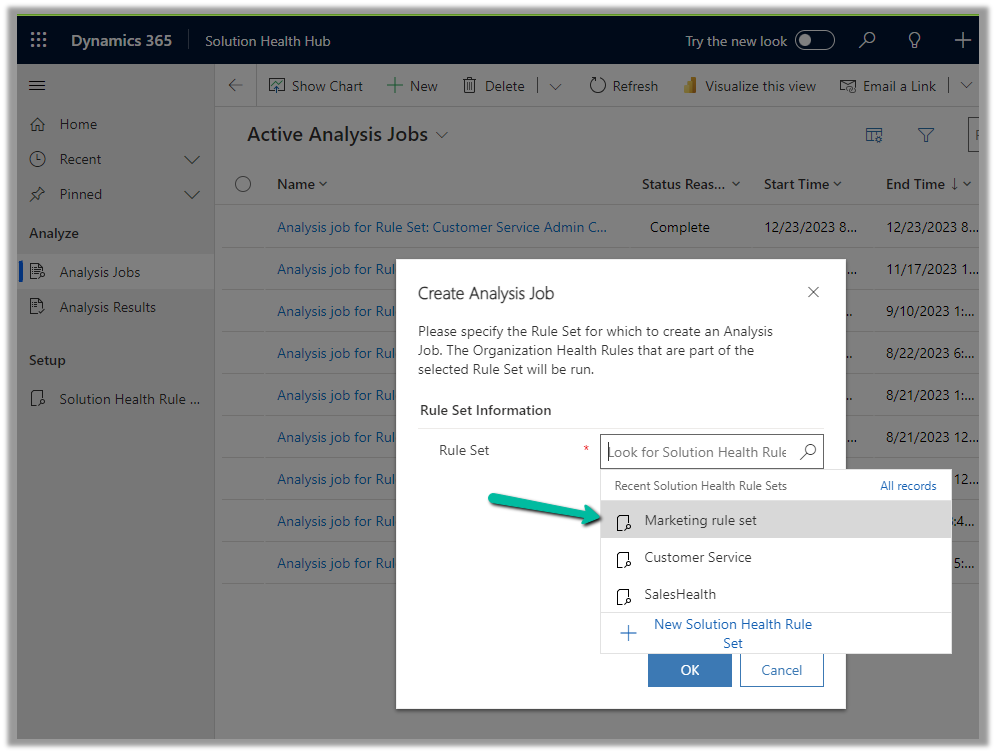
To run the Rules, we need to create a new Analysis Job record and select the corresponding Rule Set.
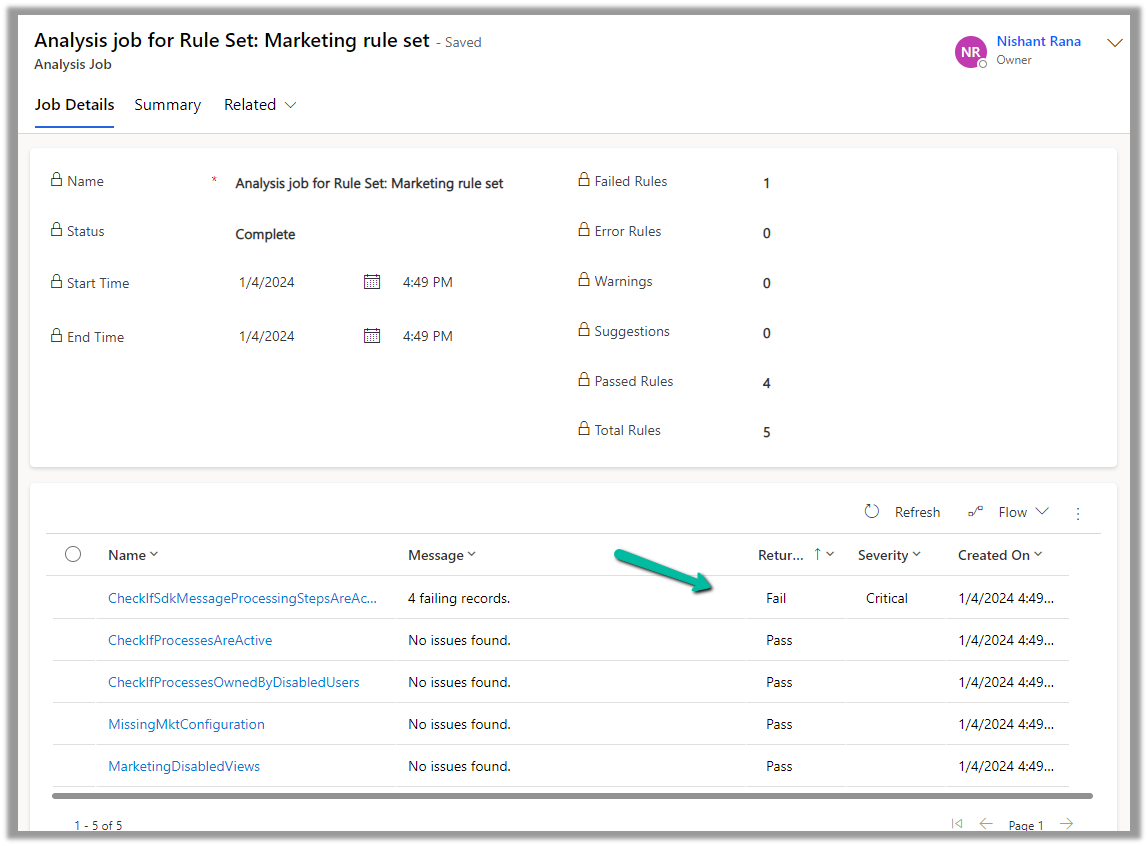
A summary of rule-set executions will be shown in a few seconds. (runs asynchronously)
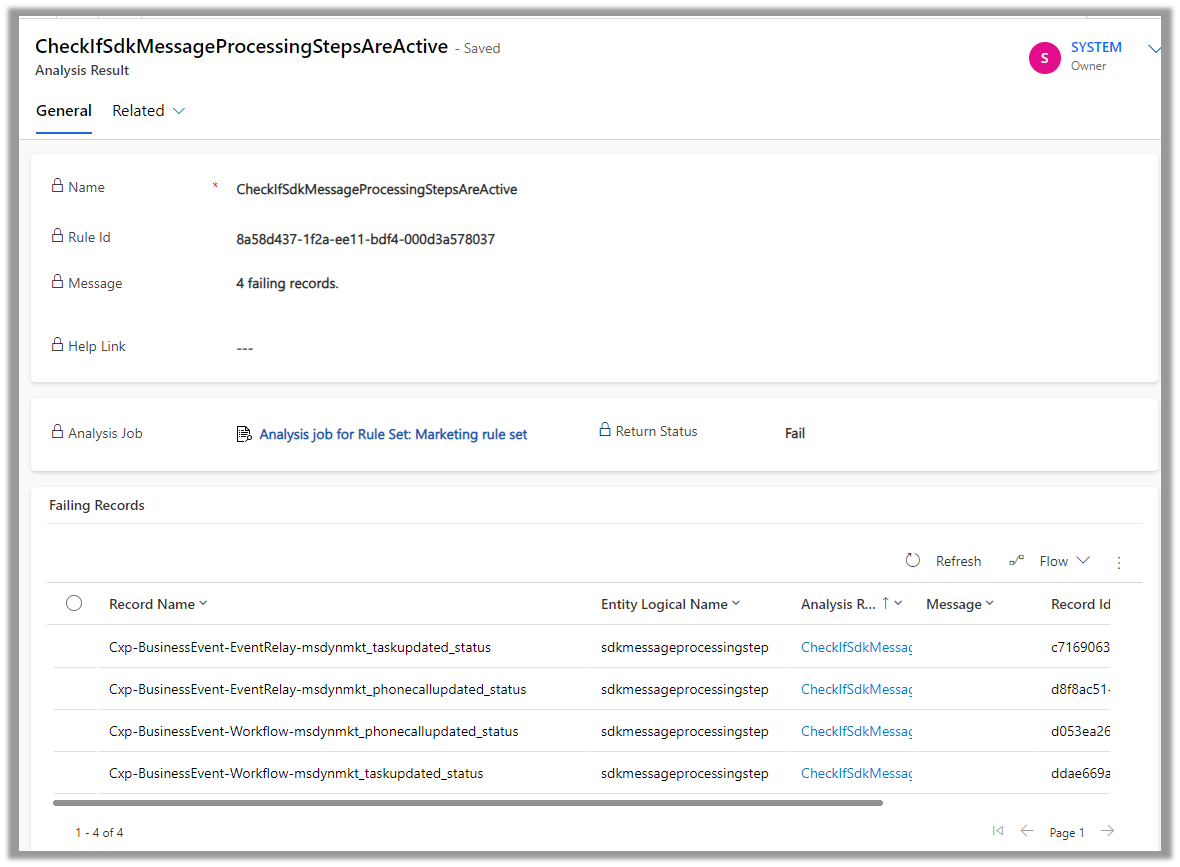
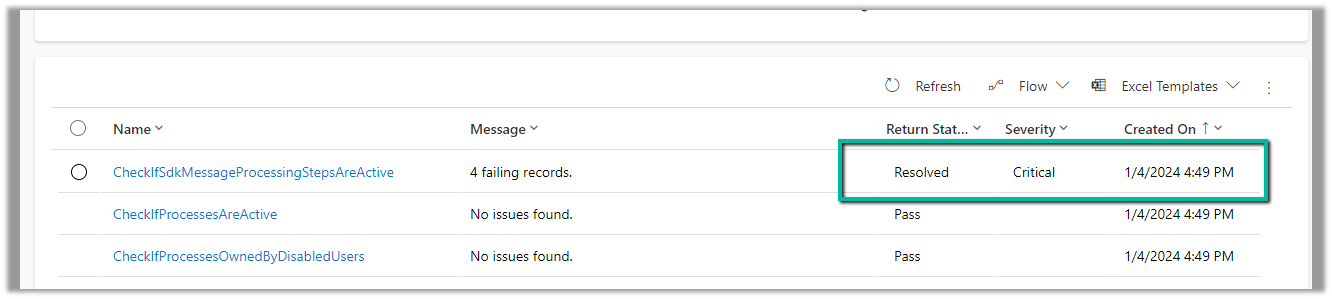
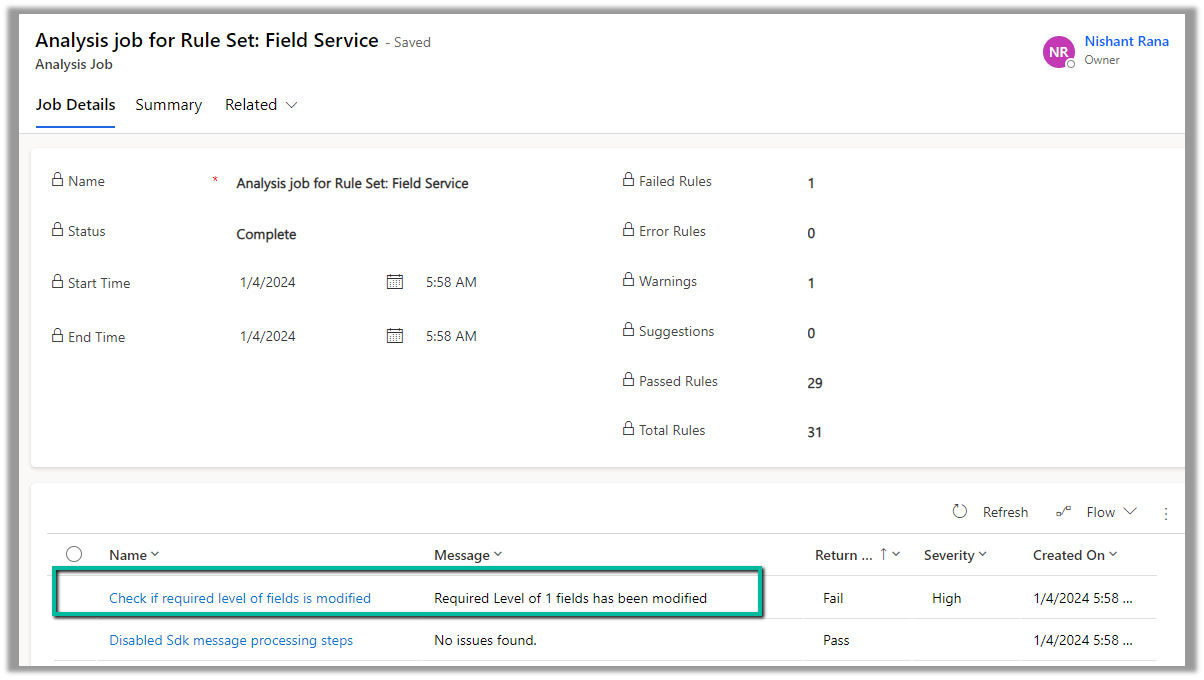
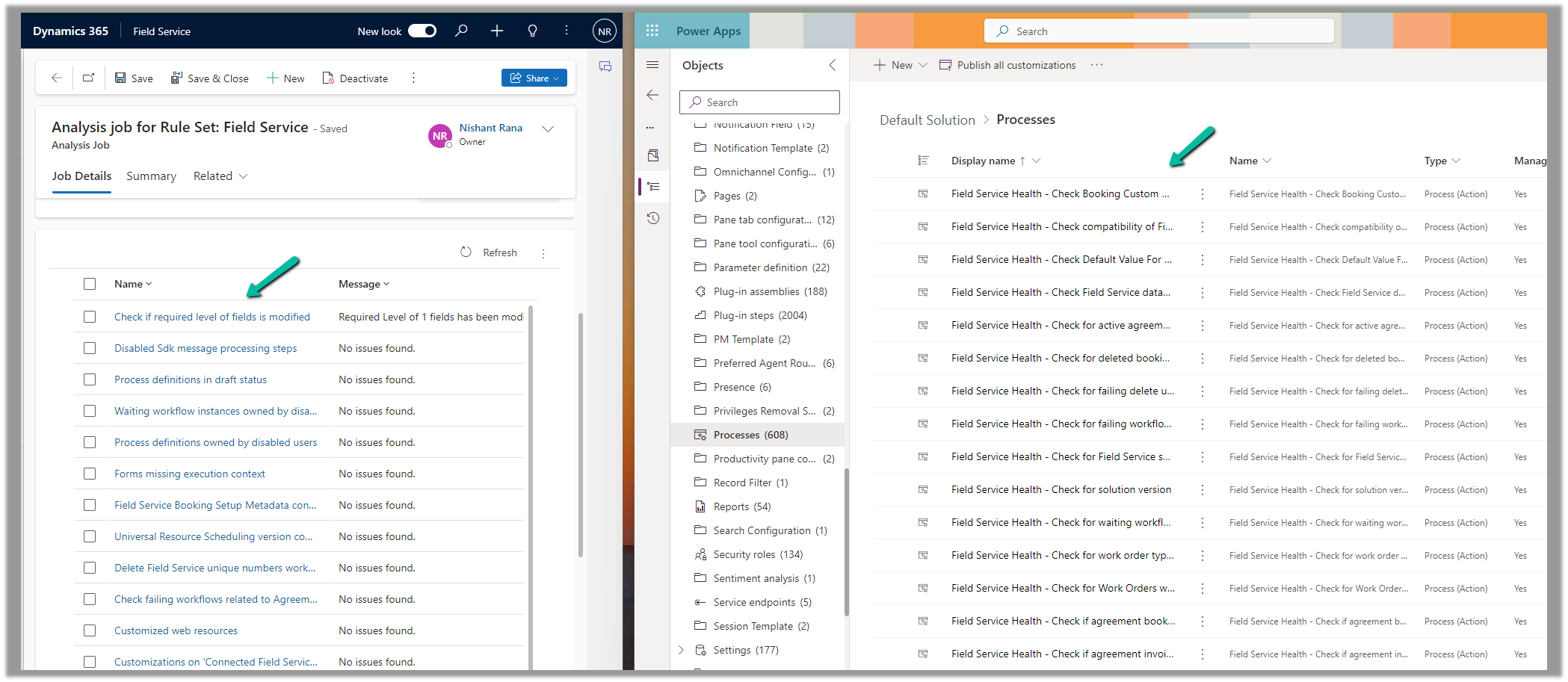
We can see one of the rules failed.
Opening the record, we can see the details.
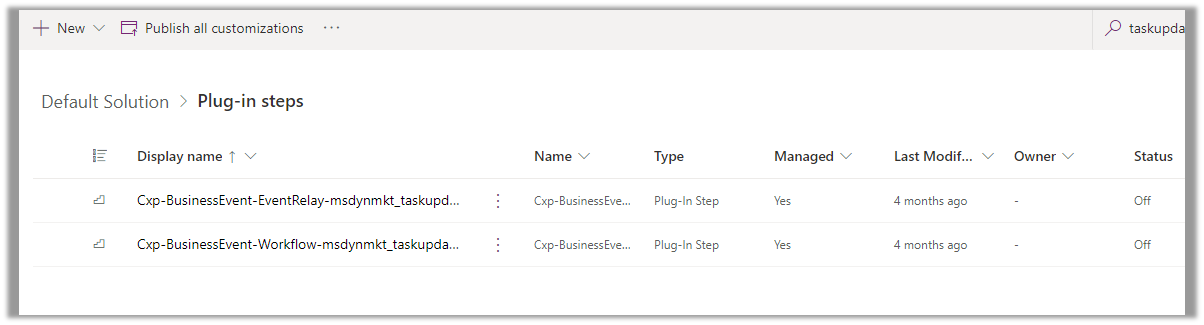
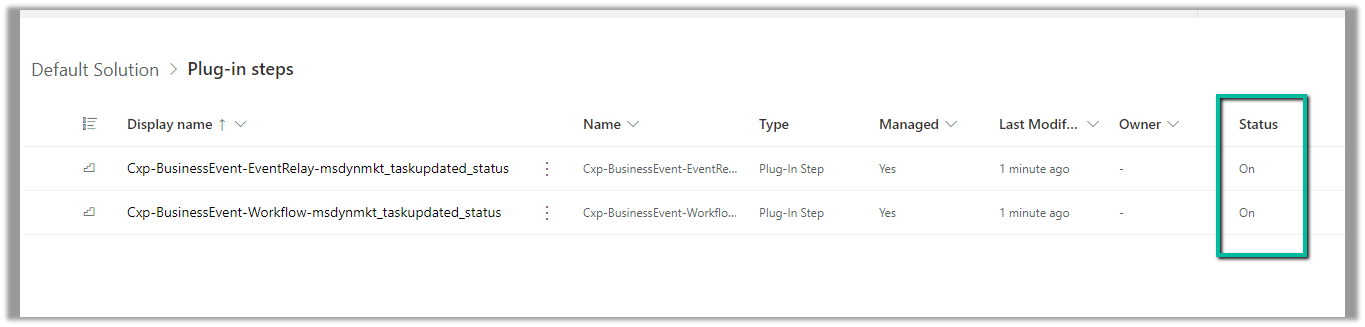
Back in our solution, we can see the steps in the disabled state.
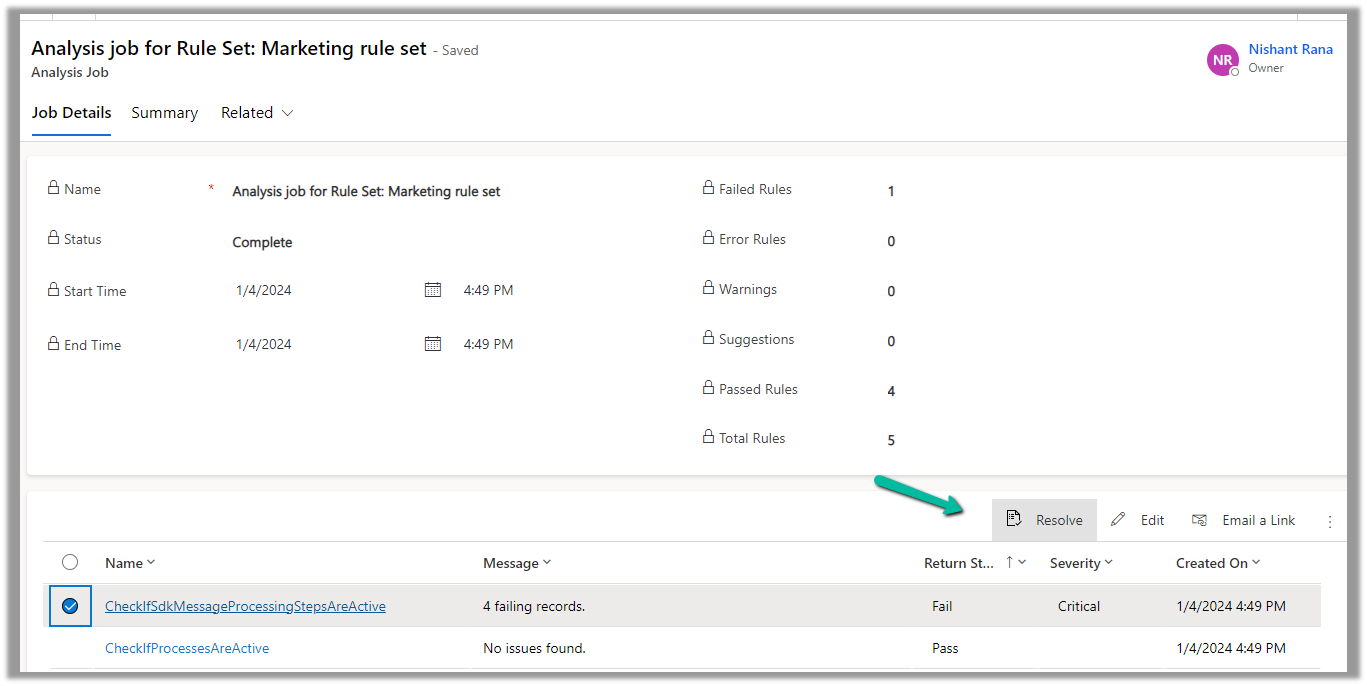
Back in our Analysis Job, let us select the failed rule and click on Resolve.
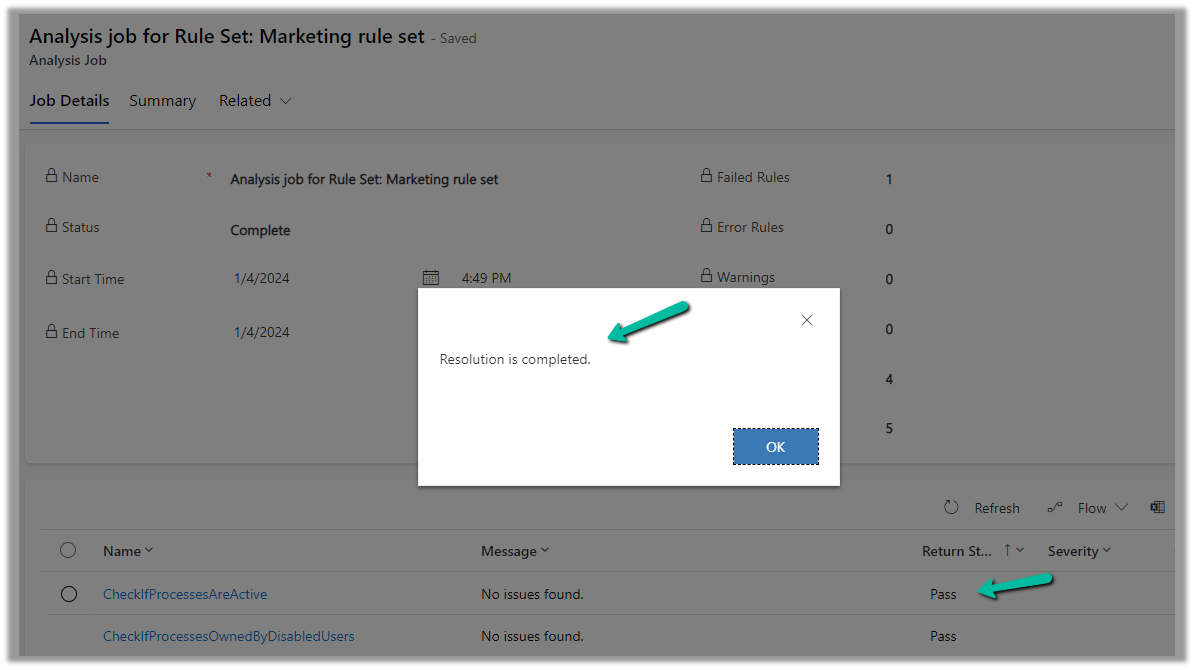
We can see the message “Resolution is completed.” and the rule passed.
Back inside our solution, we can also see the status as On for those steps.
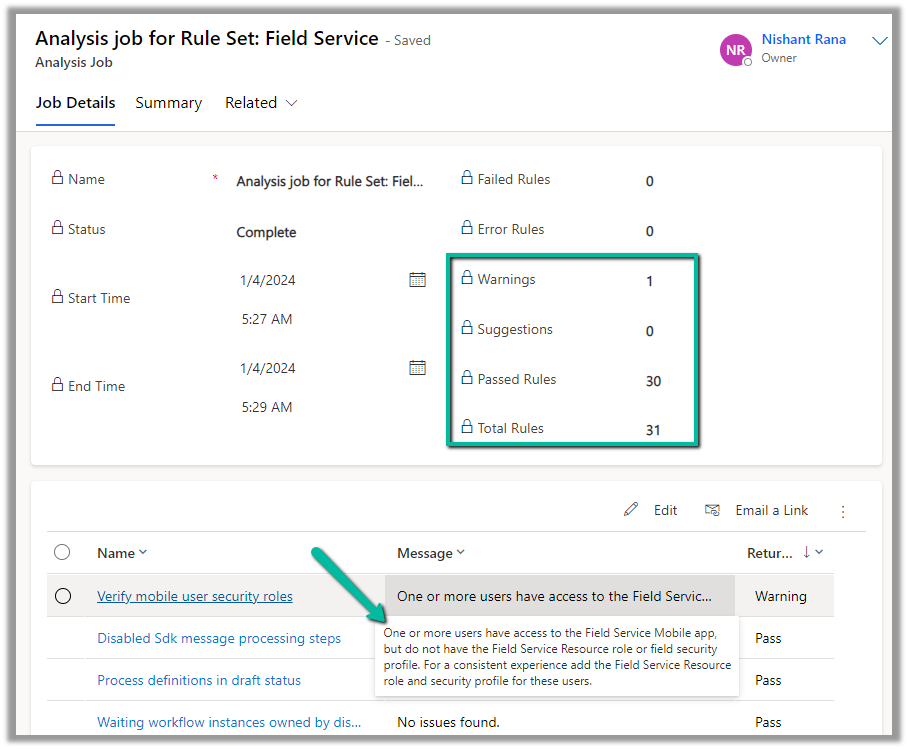
Now let us run an analysis job for Field Service
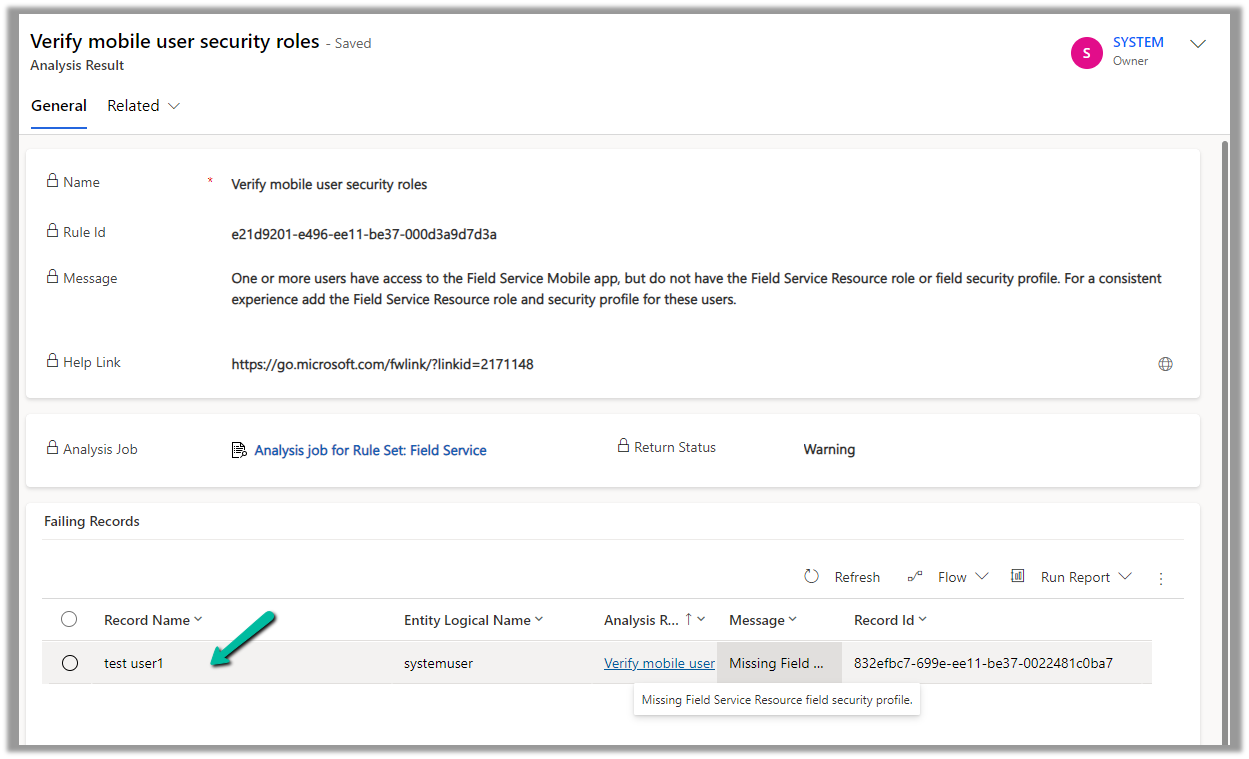
On opening the record, we can see the user for which the roles are missing.
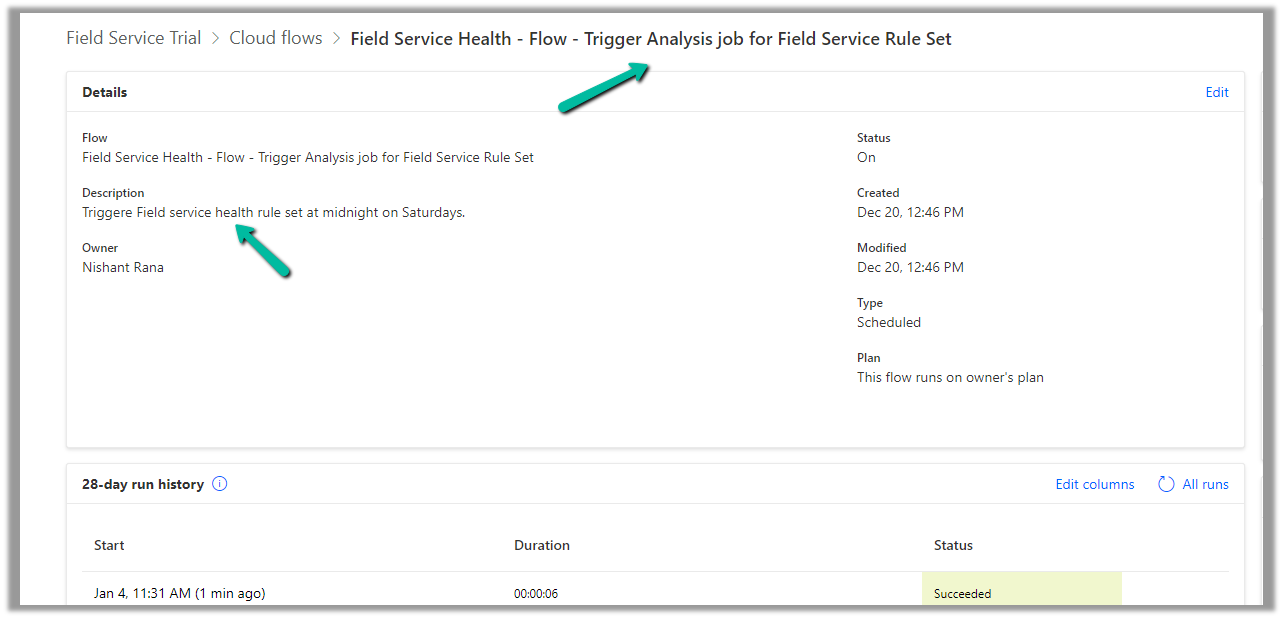
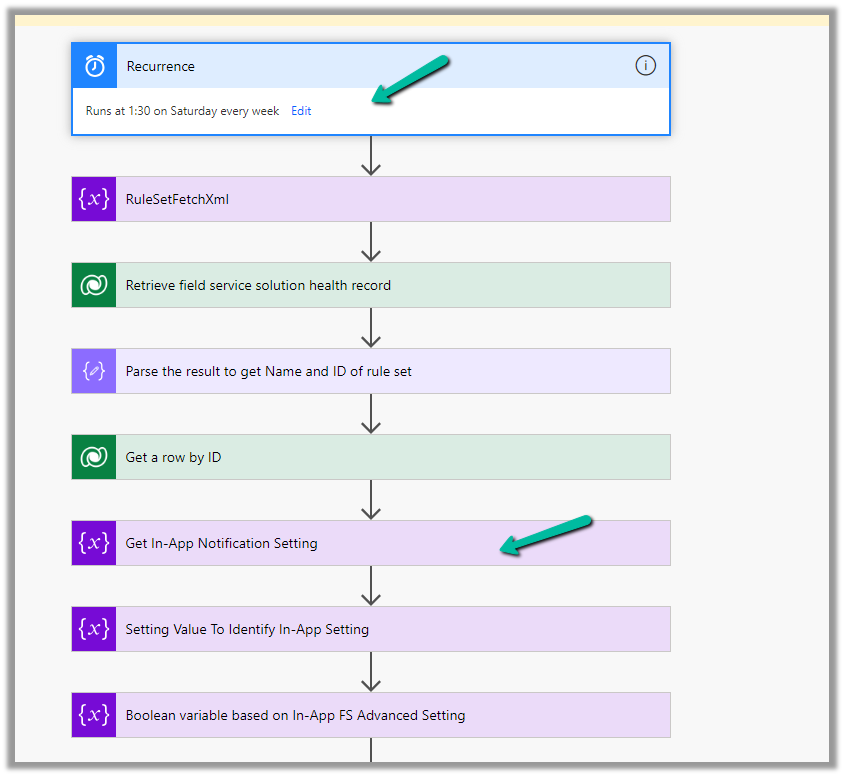
For Field Service, we can see an out-of-the-box cloud flow that runs at midnight on Saturdays to trigger the analysis job for the Field Service Rule Set.
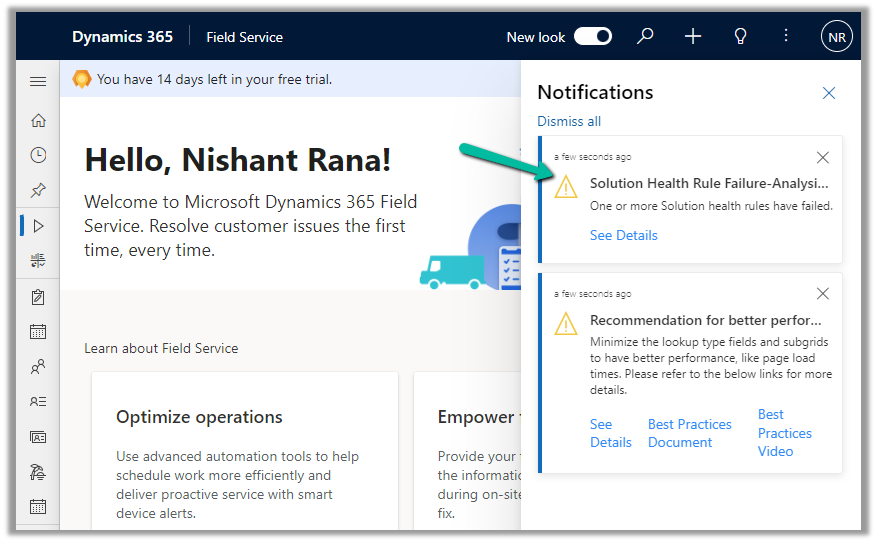
And sends the In-app notifications.
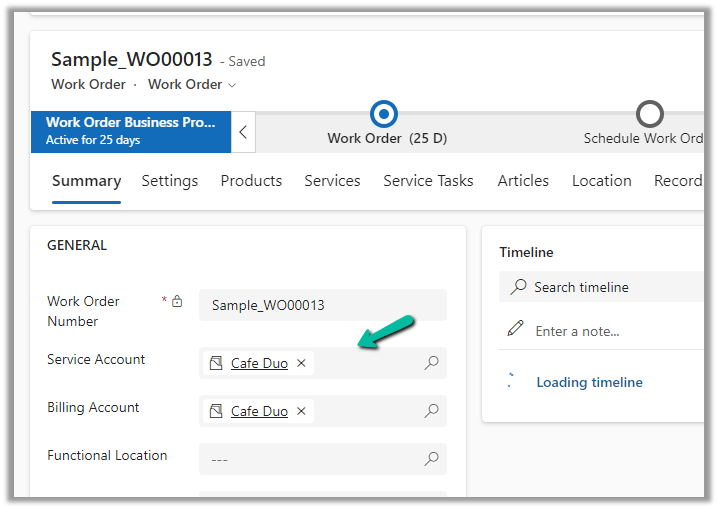
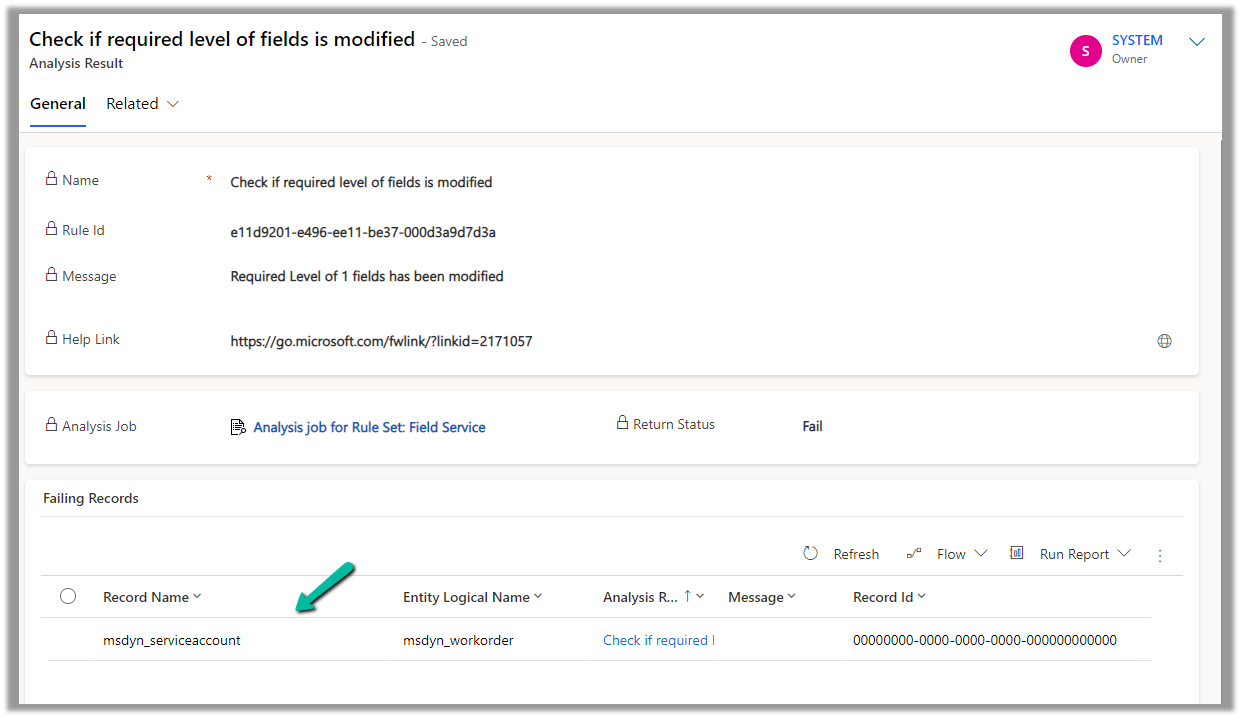
Now if a rule fails, we can get the in-app notifications, e.g. we had set the Service Account field as optional on the Work Order form.
















 Nishant Rana's Weblog