Filtered Lookup in CRM 2011


To get the filtered lookup functionality in CRM 2011 we can make use of the

addCustomView Method of Xrm.Page.ui control.


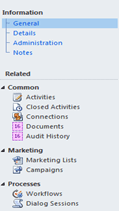
Something similar to this

Here we have a custom entity name Case which has 1-n relationship with Contact Entity.

Now we want to show only those contact records in lookup which are associated with a particular case record.

We can add the code to the onload of the Entity.

// View ID --> Generate and Assign a new guid.

var viewId = "{C0F1DD64-1BF3-450D-BCDE-DF4732DE1606}";

// Set the entity name
 var entityName = "contact";
 // Give a meaningful name to the custom view
 var viewDisplayName = "Case Member View";

// Create the Advanced find query and download the fetch xml
var fetchXml = "<fetch version='1.0' output-format='xml-platform' mapping='logical' distinct='false'>" +
"<entity name='contact'>" +
"<attribute name='fullname' />" +
" <attribute name='contactid' />" +
"<order attribute='fullname' descending='false' />" +
"<filter type='and'>" +
"<condition attribute='new_caseid' operator='eq' uiname='new case' uitype='new_case' value="+caseID+"/>" +
"</filter>" +
"</entity>" +
"</fetch>";

// specify the layout for the results and which field to display
var layoutXml = "<grid name='resultset' " +
"object='1' " +
"jump='name' " +
"select='1' " +
"icon='1' " +
"preview='1'>" +
"<row name='result' " +
"id='contactid'>" +
"<cell name='fullname' " +
"width='100' />" +
"</row>" +
"</grid>";
// specify the schemaname of the lookup control
var lookupControl = Xrm.Page.ui.controls.get('new_clientid');
// set the parameters

lookupControl.addCustomView(viewId, entityName, viewDisplayName, fetchXml, layoutXml, true);

Get value for OptionSet in CRM 2011


To get the value for OptionSet we can use the following function

private
string GetOptionsSetTextOnValue(IOrganizationService service, string entityName, string attributeName, int selectedValue)
{

RetrieveAttributeRequest retrieveAttributeRequest = new
RetrieveAttributeRequest
{

EntityLogicalName = entityName,

LogicalName = attributeName,

RetrieveAsIfPublished = true

};
// Execute the request.

RetrieveAttributeResponse retrieveAttributeResponse =(RetrieveAttributeResponse)
service.Execute(retrieveAttributeRequest);
// Access the retrieved attribute.

Microsoft.Xrm.Sdk.Metadata.PicklistAttributeMetadata retrievedPicklistAttributeMetadata =(Microsoft.Xrm.Sdk.Metadata.PicklistAttributeMetadata)

retrieveAttributeResponse.AttributeMetadata;// Get the current options list for the retrieved attribute.
OptionMetadata[] optionList =
retrievedPicklistAttributeMetadata.OptionSet.Options.ToArray();
string selectedOptionLabel = string.Empty;

foreach (OptionMetadata oMD in optionList)
{
if (oMD.Value == selectedValue)
{selectedOptionLabel = oMD.Label.UserLocalizedLabel.Label;

}

}
return selectedOptionLabel;

}

http://www.codeproject.com/Tips/553178/Get-the-OptionsetValue-and-OptionsetText-for-Dynam


Hope it helps !

Working with CRM Forms in IFrame in CRM 2011


Suppose this is our custom entity named “new_mycustomentity” and we would like to show it in inside iframe within a custom aspx page.

Users can create the new record from within the custom page.

So we set the Iframe src to the url for creating new my custom entity record i.e.

<iframe
id=”IFRAME_NEWCUSTOMENTITY” frameborder=”0″ runat=”server

src=”http://localhost/Contoso/main.aspx?etn=new_mycustomentity&pagetype=entityrecord”&gt;
 

However this is how it appears within in IFrame with no ribbons in it.
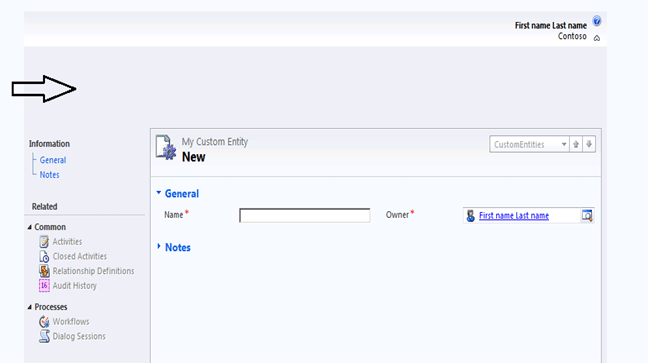
So the next step would be to hide the blank space on the top as well as left navigation bar.

Now we can use the following JavaScript that will hide the left navigation pane and blank ribbon.

http://bingsoft.wordpress.com/2010/09/09/mscrm-2011-hide-areas-of-a-form/ 


function HideArea() {


// Hide the Ribbon Toolbar and move the form Content area to the top of the window

window.parent.document.getElementById(“crmTopBar”).style.display = “none”;


window.parent.document.getElementById(“crmContentPanel”).style.top = “0px”;

// Move Form Content area up to top of window, initial style.top is 135px
// set it to the height of the iframe

window.parent.document.getElementById(‘contentIFrame’).style.height = “400px”;

 // Hide Left Hand Nav bar / pane
document.getElementById(“crmNavBar”).parentElement.style.display = “none”;
document.getElementById(“tdAreas”).parentElement.parentElement.parentElement.parentElement.colSpan = 2;
// Hide the Form Footer Bar
document.getElementById(“crmFormFooter”).parentElement.style.display = “none”;
}

Now the form looks like this within the IFrame
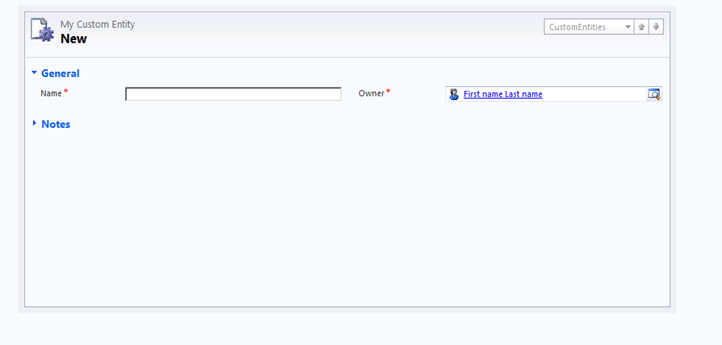
Next we will add an iframe in the entity’s form that will display a custom html page which has a Save Button in it to save the record.

However here we need to set the src of the IFrame dynamically through JavaScript in the form load otherwise our IFrame page won’t appear in the form.
So in form’s onload event add the following line

// set the IFrame src through JavaScript

crmForm.all.IFRAME_SAVE.src = http://server:port/CustomCRMPage/SavePage.htm&#8221;; 

This is how our custom page will now

 On the save button click add the following Jscript code to save the record.

<input
id=”btnSave” type=”button” value=”Save” onclick=”return Save()”
/>

function Save() {
// call crmForm.Save
parent.document.forms[0].Save();
}

Now let’s click on save and try to save the record,
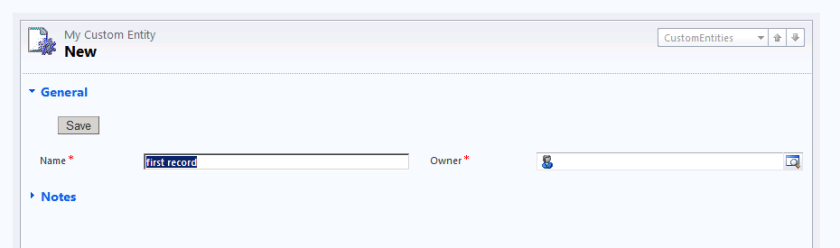
 The record gets saved but here we can see two issues.

The top bar still shows “My Custom Entity – New” there.

And value for Owner field shows blank.

So here first we need to remove the Top Bar from the form using the following jScript in form’s onload

// hide the top bar

document.getElementById(“recordSetToolBar”).parentElement.parentElement.parentElement.parentElement.parentElement.parentElement.parentElement.parentElement.parentElement.parentElement.parentElement.style.display = “none”;

Now for the owner field ( lookup) we will have to do the following workaround.

Create a text field on the form, on save of form assign the Owner lookup’s name value to it. Hide this text field in the form onload.

Now in the onload event of the check if crmForm.ObjectId is null or not.

If not null than set the value of name for the owner’s lookup to this new hidden field’s value.

In form’s on save event à

function setOwner() {

var lookupItem = new Array;

lookupItem = crmForm.all.ownerid.DataValue;
// set the owner name in a separated text field
crmForm.all.new_hf.DataValue = lookupItem[0].name;
}

 And in the onload do the following à

if (crmForm.ObjectId != null) {

var lookupItemOwner = new Array;

lookupItemOwner = crmForm.all.ownerid.DataValue;
var lookupData = new Array();
//Create an Object add to the array.
var lookupItem = new Object();
//Set the id, typename, and name properties to the object.
lookupItem.id = lookupItemOwner[0].id;
lookupItem.typename = lookupItemOwner[0].typename;
lookupItem.name = crmForm.all.new_hf.DataValue;
// Add the object to the array.
lookupData[0] = lookupItem;
// Set the value of the lookup field to the value of the array.
crmForm.all.ownerid.DataValue = lookupData;

 }

Hope this helps …

JavaScript to hide left navigation from form in CRM 2011


Use this

http://rajeevpentyala.wordpress.com/2011/12/12/hide-navigation-items-pane-on-form-in-crm-2011/

Things below were applicable for CRM 2011’s CTP Version (unsupported)

We can use the following JavaScript to hide the left navigation pane from form in CRM 2011

function LeftNav() {


// hide the left navigation pane

document.getElementById(“crmNavBar”).parentElement.style.display = “none”;


// after hiding the crmform’s content panel moves to left


// to set it back to full width set the colspan

document.getElementById(“tdAreas”).parentElement.parentElement.parentElement.parentElement.colSpan = 2;


// show only information section in the form


// hide the related section and the table below it.


document.getElementById(“crmFormNavSubareas”).parentElement.style.display = “none”;

document.getElementById(“crmFormNavSubareas”).parentElement.parentElement.previousSibling.style.display = “none”;


}

Hope it helps !

Calling WCF Service in Plugin in CRM


Suppose this is our simple WCF Service.

[ServiceContract]
   public interface IService1
   {
       [OperationContract]
       string GetData(); 
     
   }

public class Service1 : IService1
   {
       public string GetData()
       {
           return “Hello World”+DateTime.Now.ToLongTimeString();
       }
     
   }

Now if we add its service reference in our plugin and then deploy it, while running we would receive this error.

Could not find default endpoint element that references contract ‘ServiceReference1.IService1’ in the ServiceModel client configuration section. This might be because no configuration file was found for your application, or because no endpoint element matching this contract could be found in the client element.

The reason for this is because the configuration information for the WCF service from the client side is missing. As class library won’t have their own config file.

Suppose if we add service reference to the above Service in a windows application, we can find the following information being added to the app.config file

<?xml version=”1.0″ encoding=”utf-8″ ?>
<configuration>
    <!–<system.serviceModel>
        <bindings>
            <basicHttpBinding>
                <binding name=”BasicHttpBinding_IService1″ closeTimeout=”00:01:00″
                    openTimeout=”00:01:00″ receiveTimeout=”00:10:00″ sendTimeout=”00:01:00″
                    allowCookies=”false” bypassProxyOnLocal=”false” hostNameComparisonMode=”StrongWildcard”
                    maxBufferSize=”65536″ maxBufferPoolSize=”524288″ maxReceivedMessageSize=”65536″
                    messageEncoding=”Text” textEncoding=”utf-8″ transferMode=”Buffered”
                    useDefaultWebProxy=”true”>
                    <readerQuotas maxDepth=”32″ maxStringContentLength=”8192″ maxArrayLength=”16384″
                        maxBytesPerRead=”4096″ maxNameTableCharCount=”16384″ />
                    <security mode=”None”>
                        <transport clientCredentialType=”None” proxyCredentialType=”None”
                            realm=”” />
                        <message clientCredentialType=”UserName” algorithmSuite=”Default” />
                    </security>
                </binding>
            </basicHttpBinding>
        </bindings>
        <client>
            <endpoint address=”http://localhost:58844/Service1.svc” binding=”basicHttpBinding”
                bindingConfiguration=”BasicHttpBinding_IService1″ contract=”ServiceReference1.IService1″
                name=”BasicHttpBinding_IService1″ />
        </client>
    </system.serviceModel>–>
</configuration>

So now in case of our plugin we need to define the binding and endpoint information programmatically, something like this

try

{

BasicHttpBinding myBinding = new
BasicHttpBinding();

myBinding.Name = “BasicHttpBinding_IService1”;

myBinding.Security.Mode = BasicHttpSecurityMode.None;

myBinding.Security.Transport.ClientCredentialType = HttpClientCredentialType.None;

myBinding.Security.Transport.ProxyCredentialType = HttpProxyCredentialType.None;

myBinding.Security.Message.ClientCredentialType = BasicHttpMessageCredentialType.UserName;

EndpointAddress endPointAddress = new
EndpointAddress(http://localhost:58844/Service1.svc&#8221;);

ServiceReference1.Service1Client myClient = new ServiceReference1.Service1Client(myBinding, endPointAddress);

MessageBox.Show(myClient.GetData());

}

catch (Exception EX)

{


throw EX;

}


This way we would be able to access our WCF service inside plugin.

Hope it helps !

Using OrganizationServiceClient in CRM 2011


 Add Service Reference to the Organization WCF service in the application.

URL àhttp://servername:port/OrganizationName/xrmServices/2011/organization.svc 

Use the following code to perform various functions using OrganizationServiceClient 


Entity myContact = new Entity();

myContact.LogicalName = “contact”; 

AttributeCollection myAttColl = new AttributeCollection();

myAttColl.Add(new KeyValuePair<string, object>(“lastname”, “Rana”));

myContact.Attributes = myAttColl;
ClientCredentials credentials = new ClientCredentials();

Uri organizationUri = new Uri(http://servername:port/organizationname/xrmServices/2011/organization.svc&#8221;);

try
{
OrganizationServiceClient orgClient = new OrganizationServiceClient();
 

orgClient.ClientCredentials.Windows.ClientCredential = new System.Net.NetworkCredential(“username”, “password”, “domain”); 

orgClient.Create(myContact);

}
catch (Exception ex)
{

throw ex;

} 

Hope it helps.