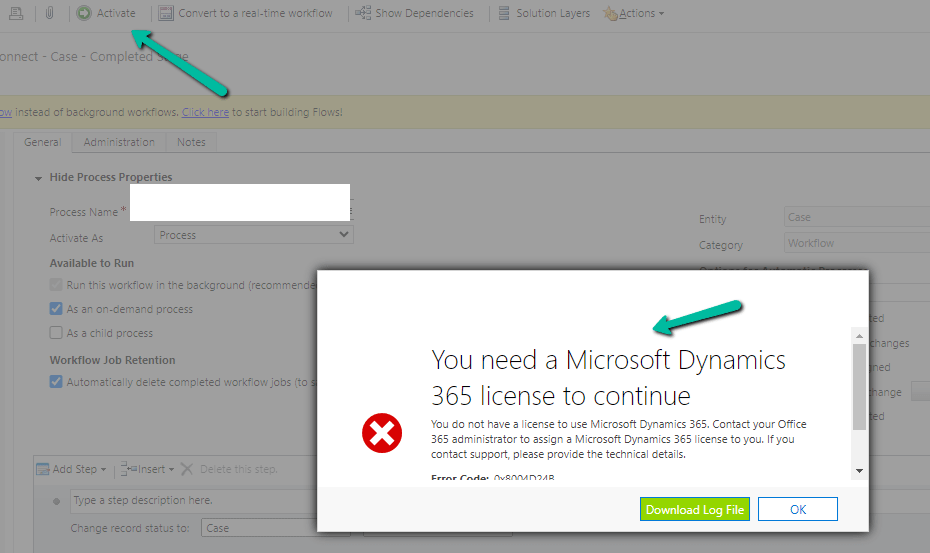
Recently while trying to Activate a Workflow we got the below error –
Turn on failed. The user with SystemUserId=xxxxxxxx-483e-eb11-bf70-000d3a795b83 in OrganizationContext=xxxxxxxx-a88f-4f40-b654-7bab4d5c1f95 is not licensed. Please contact your system administrator to add license to this user for the action to succeed. SystemUserAccessMode=0 is not either of (NonInteractive=4, SetupUser=1). User IsDisabled=True, IsLicensed=False. ImpersonatingSystemUserId=xxxxxxxx-9fe2-47b8-84a9-d87c65dc9dfd.
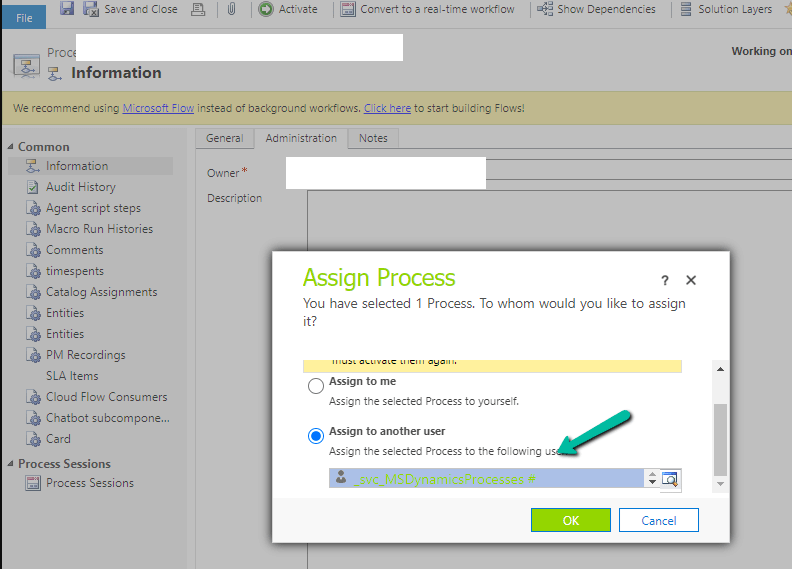
The user account through which we were trying to do so had a System Administrator role, however, it turned out that it was because of the Owner of the Workflow. The system user record set as Owner of the workflow was Inactive.
Assigning it to the other active user, fixed the issue for us.
Recently we got the below exception for one of our plugins.
Message: The plug-in execution failed because the Sandbox Worker process crashed. This is typically due to an error in the plug-in code. Please refer to this document: https://go.microsoft.com/fwlink/?linkid=2189390 Microsoft.Xrm.RemotePlugin.Grpc.ExceptionHandlers.SandboxFabricWorkerCommunicationException: Error communicating with SandboxFabric Worker —> Grpc.Core.RpcException: Status(StatusCode=”DeadlineExceeded”, Detail=”Deadline Exceeded”
If we refer to Microsoft Documentation below seems to be the cause of the issue in our case.
In our scenario, we had a Plugin that was Asynchronous and it was triggered on the Post Update of Work Order Service task. The plugin will fetch all the attachments (to notes associated with inspection attachments > inspection response > work order service task). There were many Service Tasks having more than 20 attachments exceeding 100 mb size total.
We were doing bulk updates which triggered the plugin creating too many requests eventually leading to that error.
Recently we got the below exception for one of our plugins Message: System.InvalidOperationException: Message size exceeded when attempting to send response to sandbox. Message Size 123 Mb. Max Allowed 128974848 Mb.
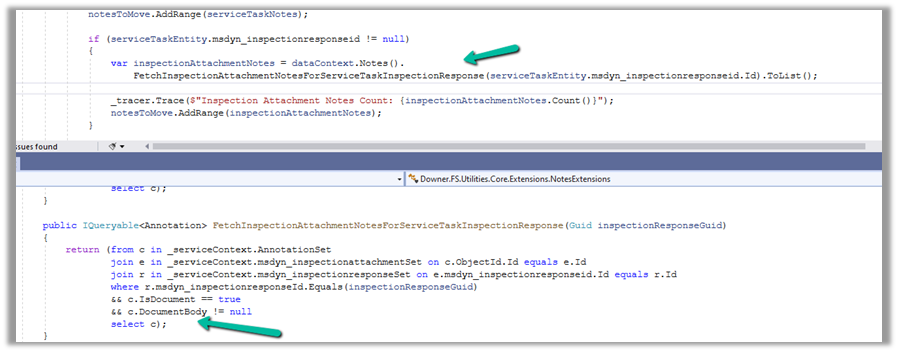
Below is the code where we were getting the error. We were retrieving the notes records associated with the inspection response/inspection attachments. (Dynamics 365 Field Service)
And if we had a total of all attachments to it more than 100 mb it was failing.
Below is the test Work Order Service Task record for which we were getting the error.
There were a couple of other attachments also to it making a total of more than 100 Mb.
Here to fix the error instead of fetching all the note details at once and then processing the notes attachments, we updated our logic to process the notes attachments one by one.
Select the New Plugin option in the Dataverse Accelerator app to create Automate Plugins.
We get the option to select the table, the event, define the behavior of the plugin using Power FX, specify pre or post-operation, and the solution as shown below.
To keep it simple, we have created a plugin on pre-operation that checks for null, the email address field in the Contact record on Create, and if blank throws an error.
On trying to create a contact record without an email address, we get the exception as specified in the plugin.
That’s all we are done with our plugin.
Now interestingly if we check our solution specified, we will not find our plugin there. We need to add them to the solution manually right now, here we need to look for FxExpression.
Low-code plug-in is a new experimental feature released by Microsoft, for early adopters, not meant to be used in production. As per Microsoft, “the experimental features can change radically or completely disappear at any time“.
There are 2 types of low-code plug-ins we can write – Instant and Automated.
Instant plug-ins are triggered manually and support parameters, whereas automated plug-in as the name suggests, runs when a particular event (create, update, or delete) occurs on a table and they do not support parameters.
As a prerequisite, we need to first install the Dataverse Accelerator
We can install it from Admin Center >> Resources >> Dynamics 365 Apps
Or from the App Source, look for Dataverse Accelerator and click Get in now.
Recently while trying to debug a plugin with Persist to Entity mode on the update step, we didn’t find any profile record getting created.
One option is to try to reinstall the profiler. This could happen when we are using a different version of the plugin registration tool and it has the Profiler already installed/configured from the other version of the tool.
If that doesn’t help, then opt for Exception mode, that has always worked.







 Nishant Rana's Weblog