While going through various videos on Microsoft Dynamics CRM, found these 2 nice videos on Package Deployer Tool and Configuration Tool.
Do check it out
Hope it helps..

While going through various videos on Microsoft Dynamics CRM, found these 2 nice videos on Package Deployer Tool and Configuration Tool.
Do check it out
Hope it helps..

Two of the most common requirements of the users while using OOB CRM and SharePoint integration have been
Finally we have a tool than enhances the Out the box integration between CRM and SharePoint and provides these features (in a fully supported manner)
Get all the details here :
The tool has been developed by one of my closest friends and now also a MVP for Microsoft Dynamics CRM – Debajit Dutta.

Hi,
I was getting below error while importing solutoin in my trial CRM 2016 Online Org. I tried with other browser and it was the same case. Infact I created a new trial and tried there but no success.
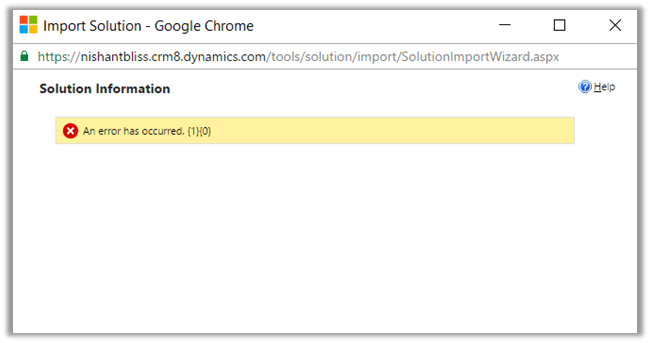
Without losing hope, tried the same in one of my VM (Windows Server 2012 Standard). It got successfully imported.
So went back to my workstation and cleared browser cache there.
And the Import was Successful.
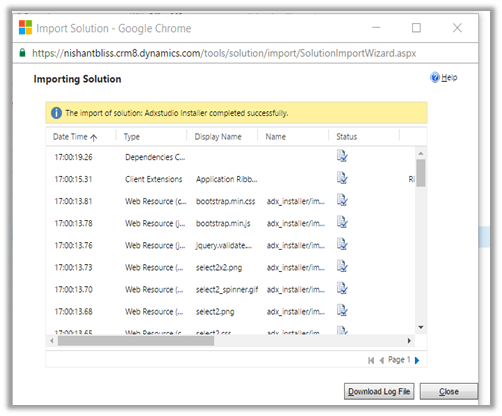
Hope it helps..

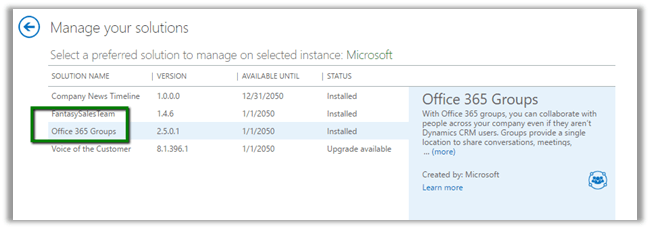
Go to CRM Admin Center à Solutions à Install the Office 365 Groups Solution
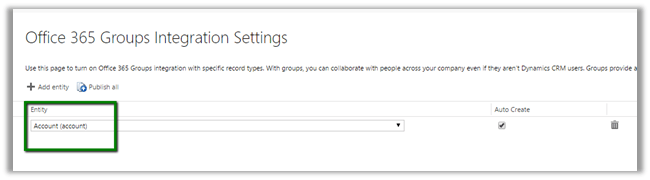
Once installed, go to Settings – Office 365 Groups to configure Entities.
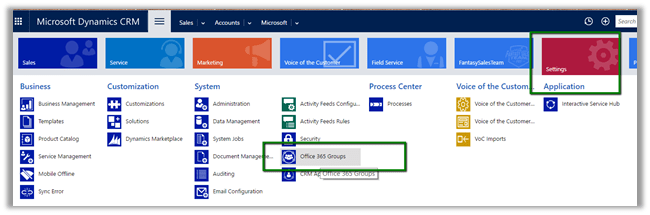
We have enabled it for Account (select entity and Publish All)
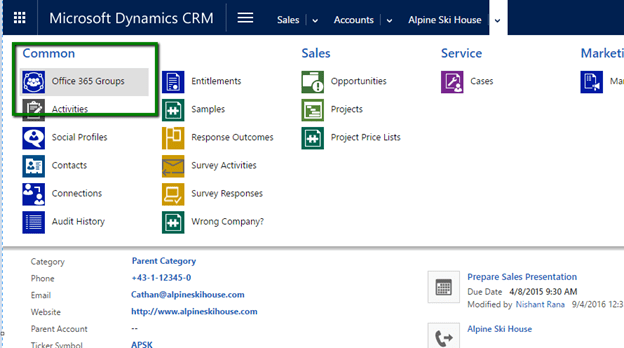
Open the Account Record and navigate to Office 365 Groups.
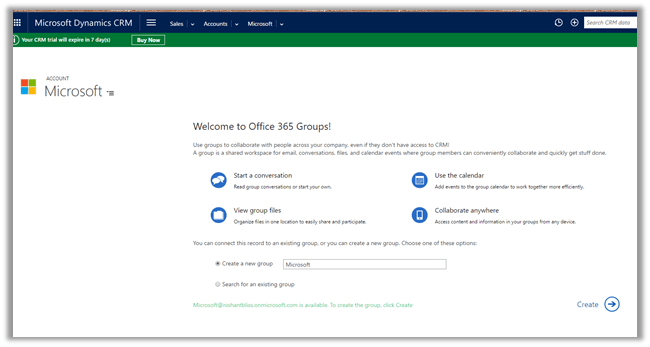
It will auto create a Group or we can specify an existing one.
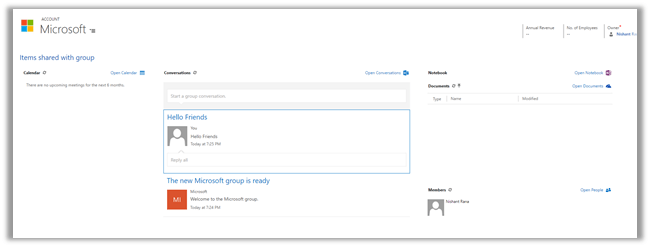
Once configured we can see the Calendar, Conversation, Notebook etc.
Hope it helps..

It is new feature introduced in CRM 2016 Update 1 for CRM Phone and Tablets that delivers news from Bing about the customers and categorize them.
Go to CRM Admin Center à Solutions to install the solution.
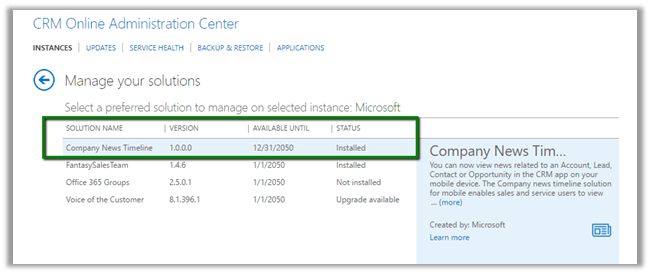

Once installed, open your mobile or tablet CRM App and open any of the existing Lead, Contact, Account or Opportunity record.
We could see all the news in Activity News.
In CRM App for Windows Phone à
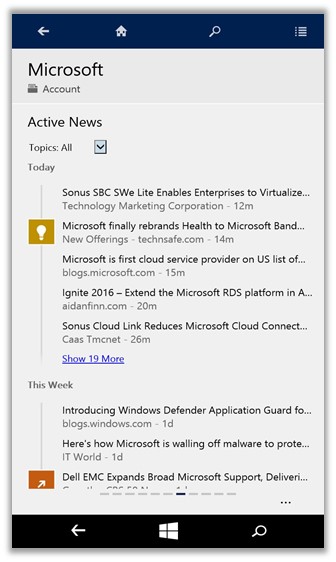
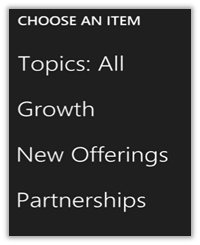
Different categories available
Hope it helps.

These are the new form types introduced in CRM 2016 as a part of new Interactive Service Hub.
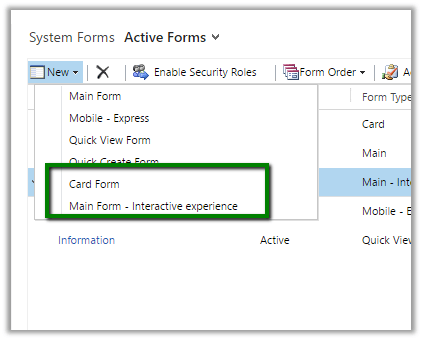
While creating a custom entity we need to check “Enable for Interactive experience” and select “Service” as ‘Area that display this entity’ to make this entity available in Interactive Service Hub.

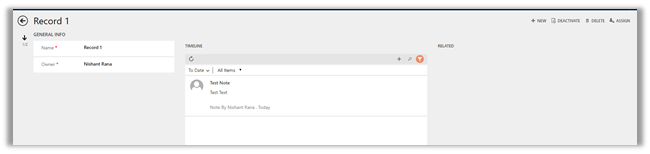
“Enable for interactive experience” option will auto create 2 new forms of type Card and Main – interactive experience.

Let us use these forms as it is without any change.
Publish the customizations and open the Interactive Service Hub
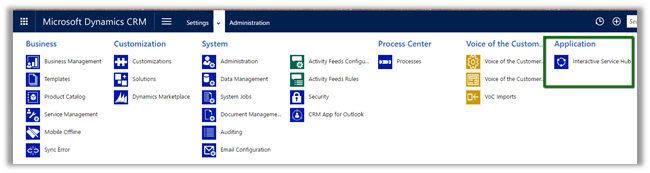
It will download the changes first.

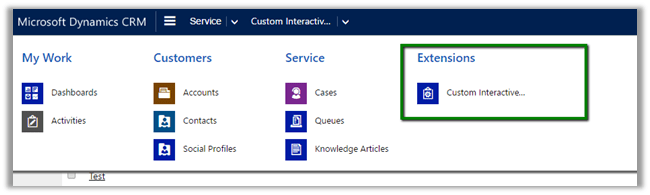
Our Custom Entity in Site Map under Extensions area

Main Interactive Experience Form
For Card,
we need to create a custom interactive dashboard and add the stream (view) in it. (add a chart as well)
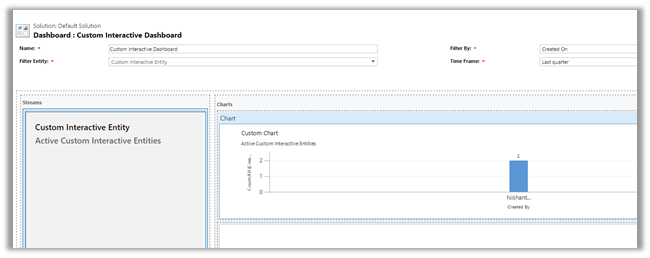
Publish the changes.
Our custom dashboard for our custom entity with Card form on left and the chart on right.

Hope it helps.

 Nishant Rana's Weblog