How to – Use RetrieveEntityChangeRequest to track changes in CRM 2015 / 2016.


As a first step,

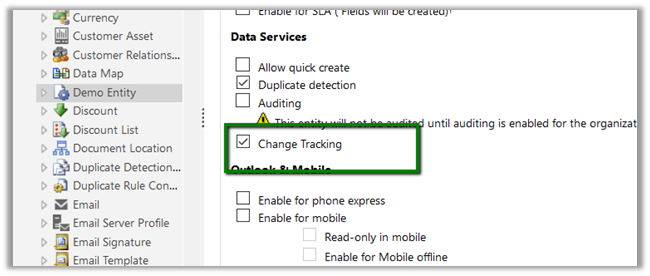
Enable Change Tracking for the entity, custom Demo Entity in our case here.
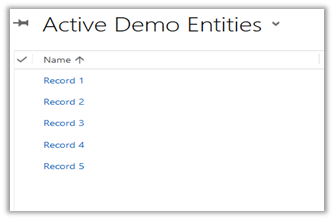
Suppose we have 5 records created for Demo Entity.
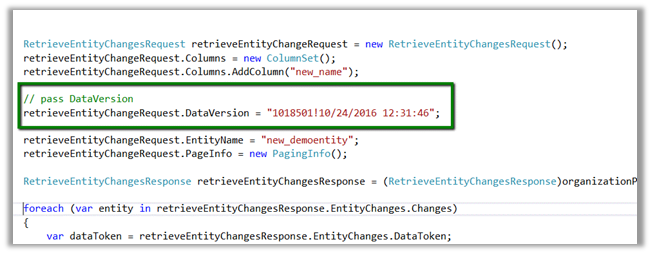
As we are calling it for the first time DataVersion is set as empty.
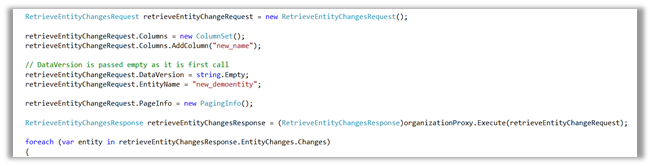
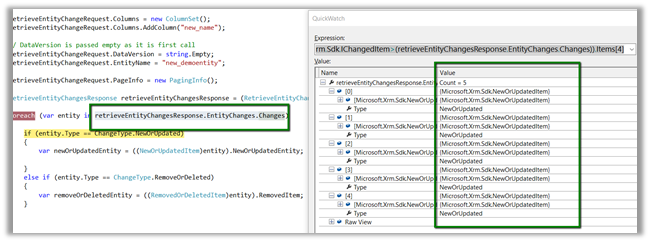
We got all the 5 records as new or updated item.
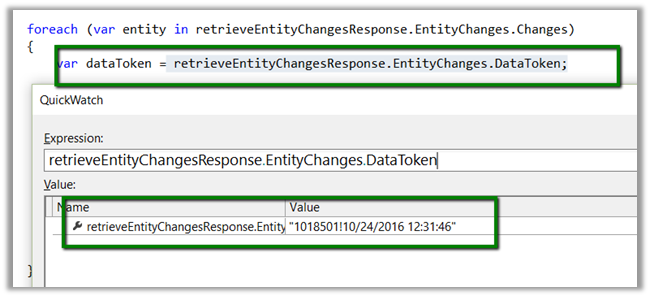
Save the DataToken to be used while determining the changes and to be passed next time.
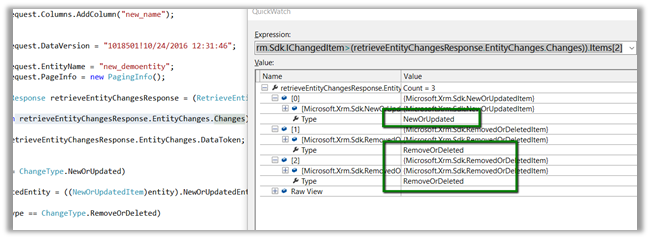
Now let us delete Record 1 and Record 2 and update Record 5 and run the code again this time passing the DataToken saved
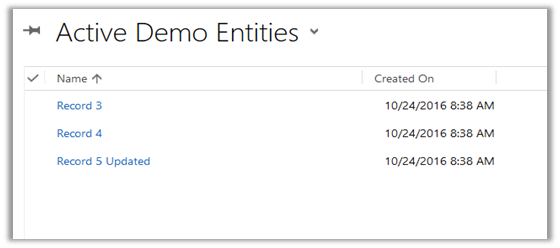
As expected we get 3 changes.
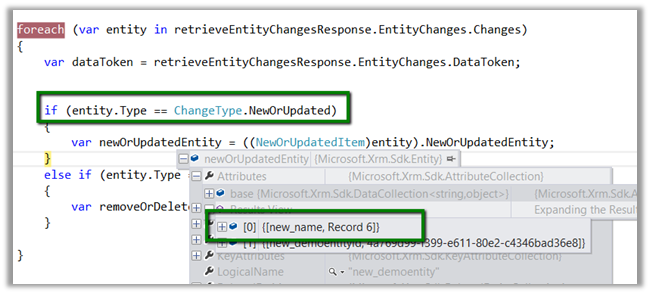
Now suppose we create a new record name Record 6 and still use the old Data Token

As expected we got 4 changes here, which includes the new record 6 as new or update.
Point to remember here is if no version is passed the system will return all the records as new, and system will consider records that are within 90 days, if it is older than 90 days all the records will be returned.

If we have a new record created and deleted before we retrieved for the changes and the record didn’t exist at the time of retrieval, we will still get the record as deleted.

Sample Code

</p>
<p>EntityCollection newOrUpdatedEntityCollection = new EntityCollection();<br />
EntityReferenceCollection removeOrDeletedEntityRefCollection = new EntityReferenceCollection();</p>
<p>RetrieveEntityChangesRequest retrieveEntityChangeRequest = new RetrieveEntityChangesRequest();<br />
retrieveEntityChangeRequest.Columns = new ColumnSet();<br />
retrieveEntityChangeRequest.Columns.AddColumn("new_name");</p>
<p>// pass DataVersion<br />
retrieveEntityChangeRequest.DataVersion = "1018501!10/24/2016 12:31:46";</p>
<p>retrieveEntityChangeRequest.EntityName = "new_demoentity";<br />
retrieveEntityChangeRequest.PageInfo = new PagingInfo();</p>
<p>RetrieveEntityChangesResponse retrieveEntityChangesResponse = (RetrieveEntityChangesResponse)organizationProxy.Execute(retrieveEntityChangeRequest);</p>
<p>foreach (var entity in retrieveEntityChangesResponse.EntityChanges.Changes)<br />
{<br />
var dataToken = retrieveEntityChangesResponse.EntityChanges.DataToken;</p>
<p>if (entity.Type == ChangeType.NewOrUpdated)<br />
{<br />
newOrUpdatedEntityCollection.Entities.Add(((NewOrUpdatedItem)entity).NewOrUpdatedEntity);<br />
}<br />
else if (entity.Type == ChangeType.RemoveOrDeleted)<br />
{<br />
removeOrDeletedEntityRefCollection.Add(((RemovedOrDeletedItem)entity).RemovedItem);<br />
}<br />
}</p>
<p>

Hope it helps ..

Advertisements

“Insights for Microsoft Dyanmics CRM Online” Solution for CRM 2016 – Quick Overview.


To configure it –

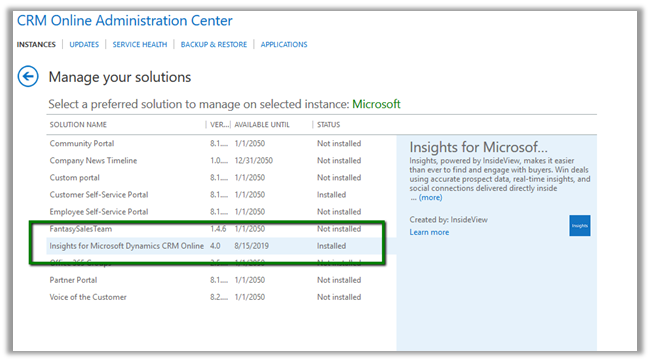
Go to CRM Admin – Manage your Solutions and Install “Insights for Microsoft Dynamics CRM Online”

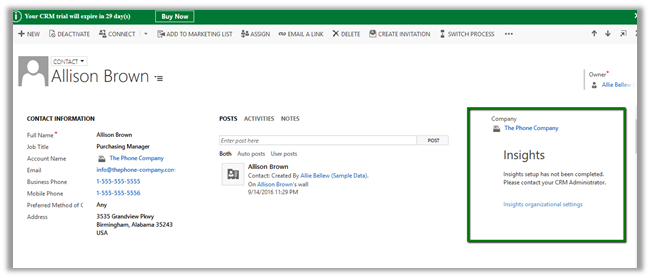
Once installed it will add a Web Resource to the forms for Lead, Contact, Account and Opportunity entity.

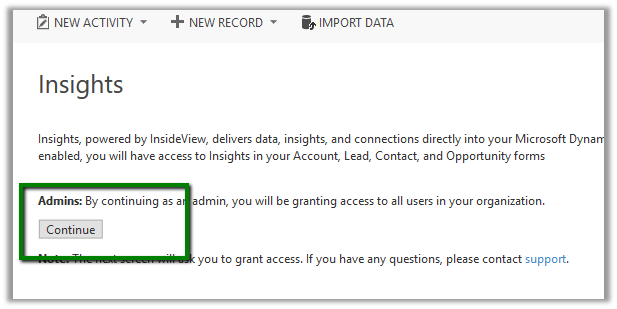
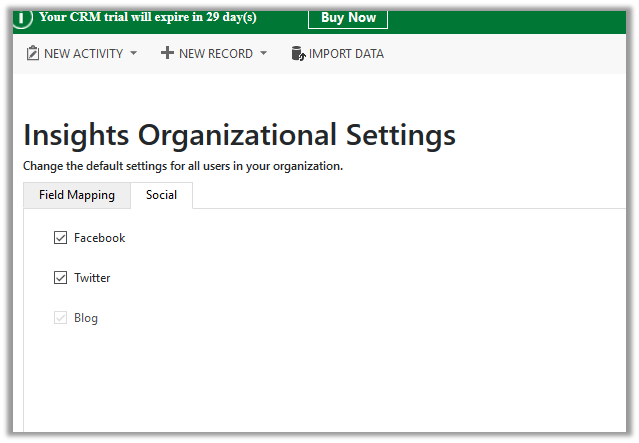
Click on Insights Organizational Settings in Insights Pane.

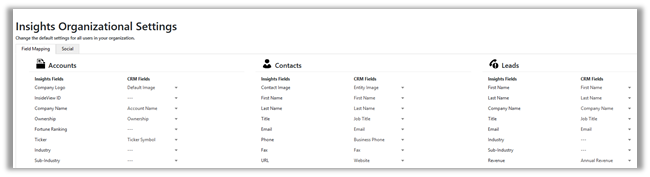
Configure the field mapping which can be used to update the CRM records.

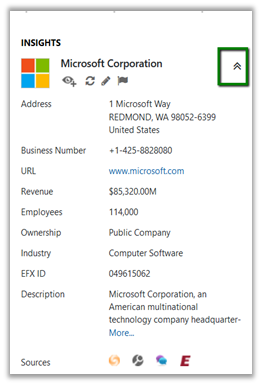
Once done with Organization Settings, on opening an Account Record for e.g. Microsoft

Clicking on Show Firmographics brings company details.

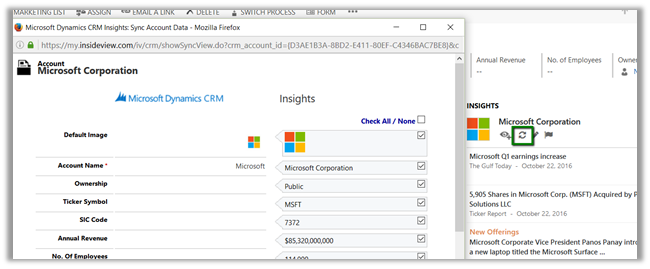
Sync or Update allows to update the CRM record.

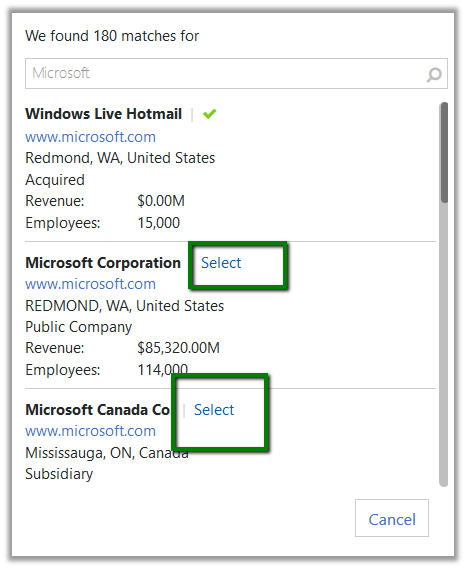
Edit button lets to select the correct contact\account etc. if incorrect

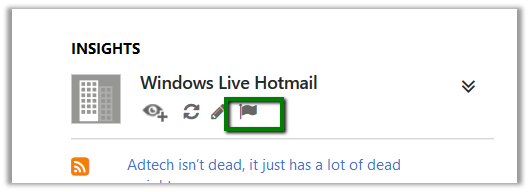
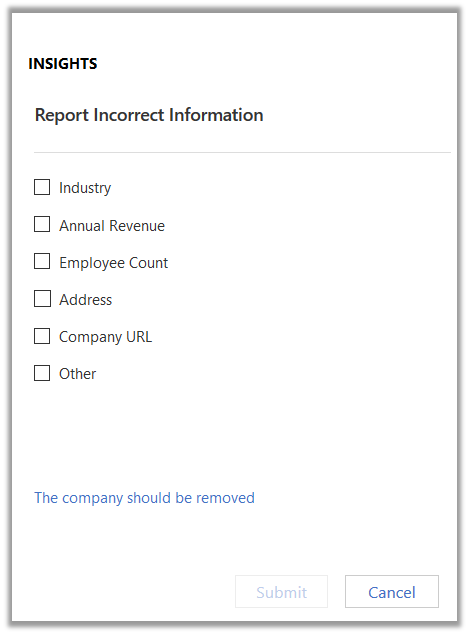
Flag can be used to report any incorrect information

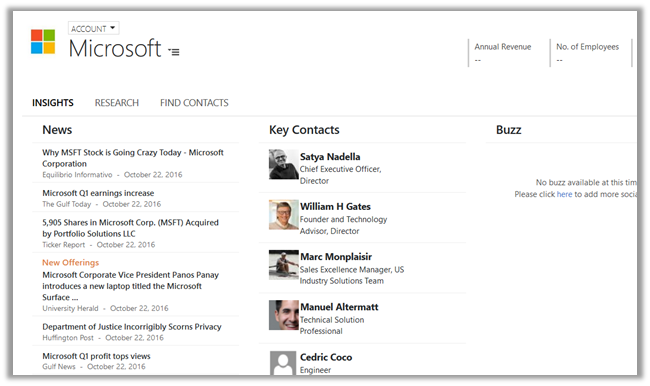
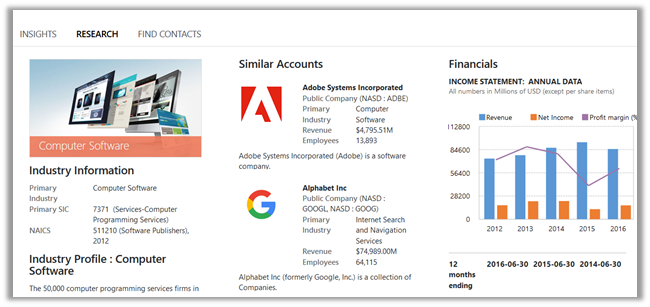
Clicking on Insights or any other options opens up a new page.

Insights: –

Research:-

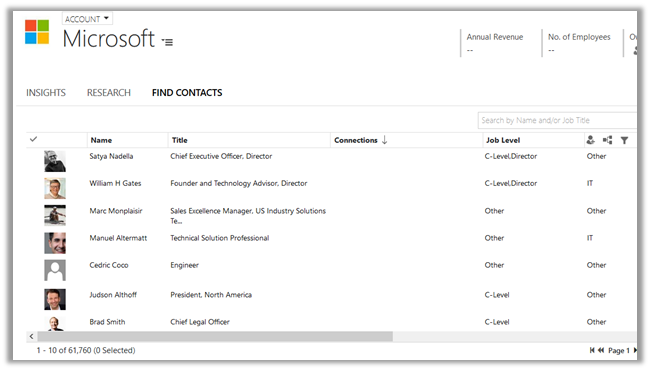
Find Contacts:-

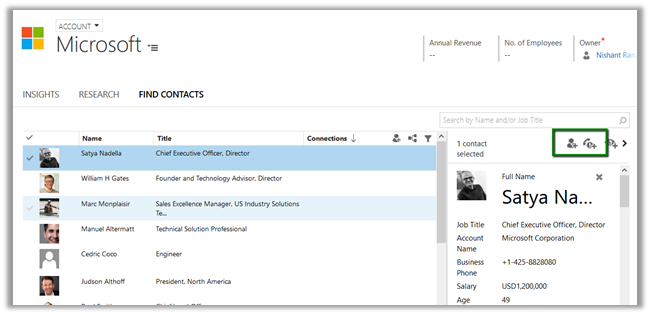
Selecting a contact, gives an option to add the selected contact as either contact or lead inside CRM.

In next blog posts, would try covering all the other aspects \ features of Insights solution.

Hope it helps..

CRM Manipulation Library – Custom Workflow Activities for CRM 2016


Hi,

Recently we used the CRM Manipulation Library for some Days related calculation.

https://manipulationlibrary.codeplex.com/

To use it in CRM 2016, we updated the references to use latest SDK assemblies. You could download it form here.

https://www.codeplex.com/Download?ProjectName=manipulationlibrary&DownloadId=1614740

While working with it we found a strange issue,

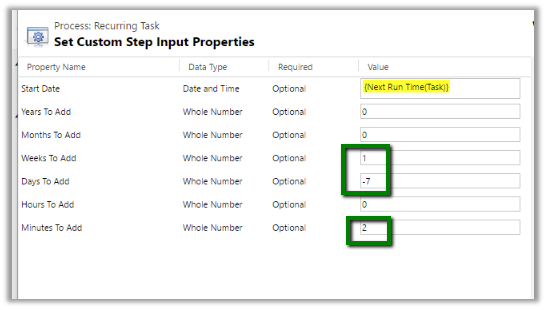
If we are using Add Days and we do not specify any value to Days to Add it will not perform any calculation. The workaround suggested was to add 1 Week and remove 7 days, something of that sort. Basically, we wanted to add 2 minutes here.

Thanks to this post for that

http://practical-crm.blogspot.in/2013/12/crm-manipulation-library-date.html

Hope it helps..

{New Utility} Record Privilege Checker for Dynamics CRM


Another awesome tool by Debajit Dutta (MVP)

Debajit's avatarDebajit's Dynamic CRM Blog

Recently I had a requirement where our client’s support and maintenance team wanted a feature through which they can view the privileges for a record for all active users in the system. Ok, let me take a moment to explain here.

Suppose the support team wants to run a regular security check and identify what privilege does a specific user have on specific account records. You might be thinking that is that this hard? After all we can go to the user and identify the security roles of the user. And then determine what access privilege does the security role have on the account

Simple isn’t it? Well it is not. And specially with CRM 2016, a user might end up getting a specific privilege on record through any of the following.

  • Security roles
  • Sharing
  • Access teams
  • Owner team association
  • Hierarchical relationship.

It can be really complex depending on how…

View original post 301 more words

How to – Delete Components from Managed Solution in Dynamics CRM 2016 without using Holding Solution.


Before the updates that we have received for solution in CRM 2016 the only way to delete components from managed solution was to use Holding Solution.

The following post nicely explains this.

https://blogs.msdn.microsoft.com/devkeydet/2012/05/29/deleting-things-from-a-deployed-crm-2011-managed-solution-package/

Now let us see how we can do this in CRM 2016 without using Holding Solution.

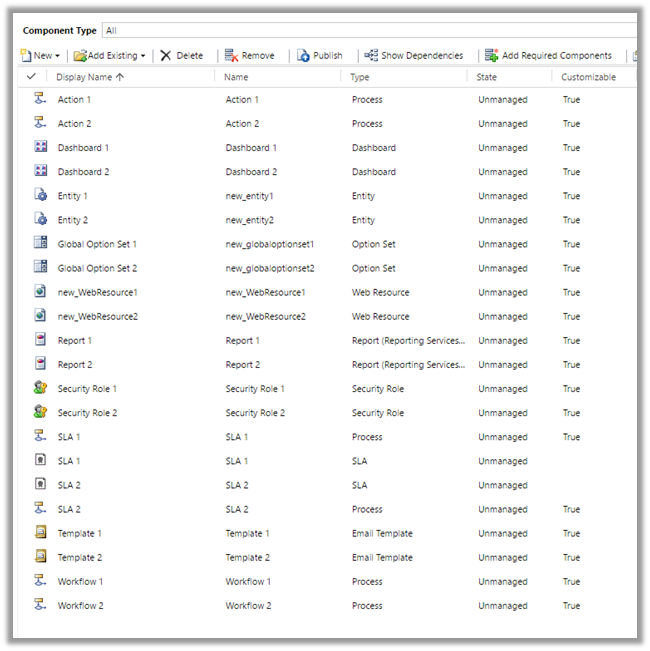
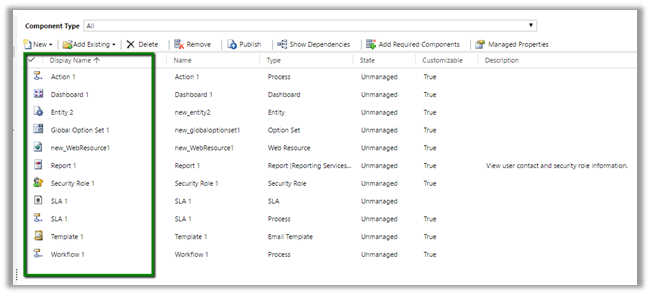
Suppose below is our managed solution that includes 2 Action, 2 Entity, 2 SLA, 2 Workflow.

Entity 2 with two forms.

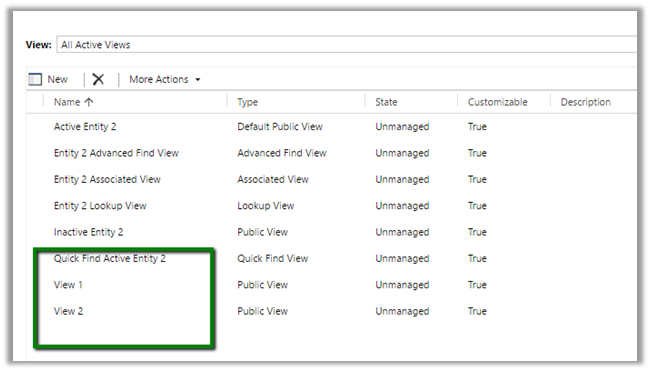
Entity 2 with 2 Views.

Entity 2 with two Fields.

Now import this solution as managed in destination org.

Now suppose we do not want following components in our Destination org – action 2, dashboard 2, Report 2, Security Role 2, Workflow 2 etc. along with View 2, Field 2 and Form 2 for Entity 2.

We remove some of the components and delete (field, form etc.) from our unmanaged solution (named Core Solution) which we had imported as Managed in our Destination Org.

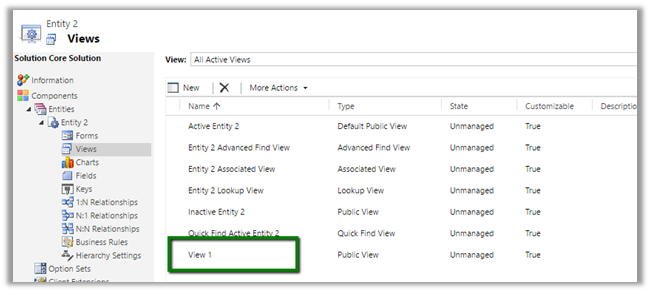
Deleted View 2

Deleted Field 2

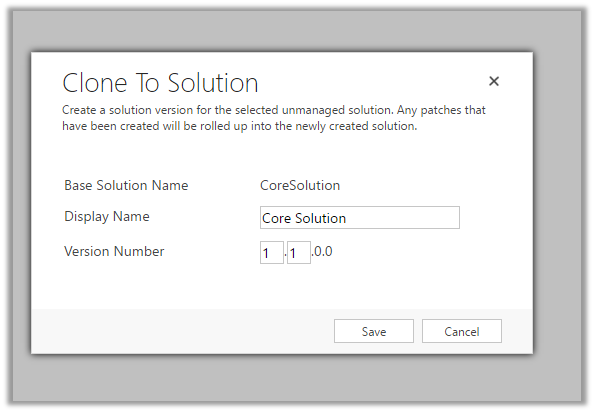
Now click on “Clone to Solution“. (This will increment the version number.)

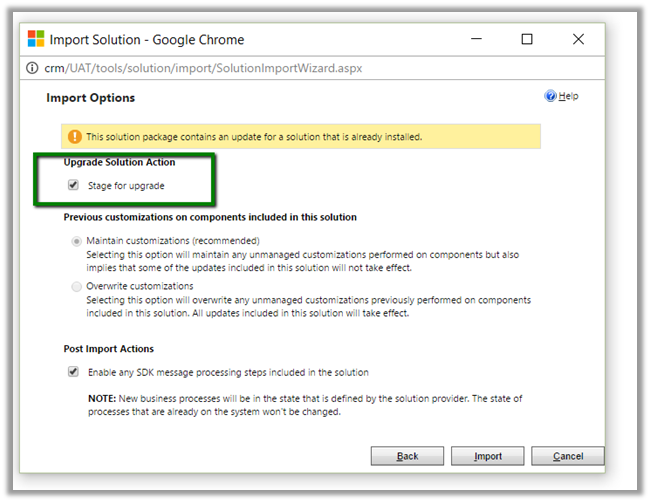
Now import this updated solution to our destination organization, and select “Stage for Upgrade

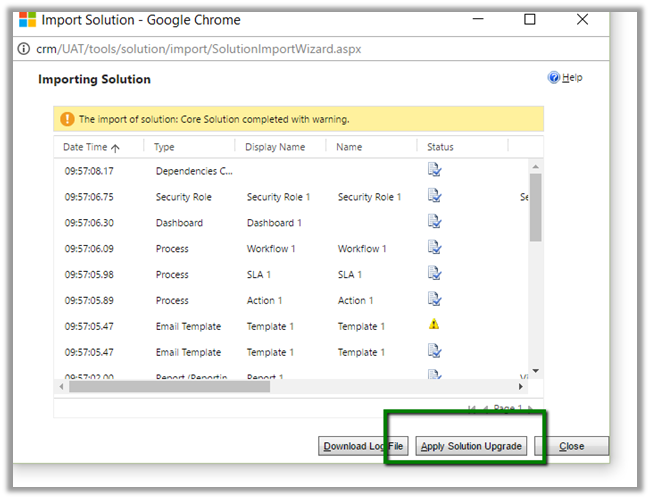
Click on “Apply Solution Upgrade

This will remove the components from our destination org.

The helpful post

http://www.inogic.com/blog/2016/08/how-to-delete-component-from-managed-solution-in-dynamics-crm-2016/

Hope it helps..

Role Based Views in Dynamics CRM – New version released


Debajit's avatarDebajit's Dynamic CRM Blog

Hi All,

Finally got some time around to work on the bug fixes in the my codeplex tool ‘Role Based Views in Microsoft Dynamics CRM’. The new version has been uploaded in codeplex site- https://rolebasedviews.codeplex.com

Thanks everyone for the huge downloads and making the tool so popular.

What’s fixed in this version

  • Error in the tool for users without security roles
  • Intermittent error in the lookup view of the entities configured for role based views
  • Compatibility with CRM 2015 online update 1

Please visit the link https://rolebasedviews.codeplex.com and go to ‘Downloads’ section and download the release – Role Based Views – CRM 2015 Version. Please download both the managed solution as well as the executable as using the new version of the managed solution with the old executable would give an error.

New to the tool? Please check for the Documentations tab at https://rolebasedviews.codeplex.com to learn how to use…

View original post 225 more words