Changing the target runtime version of Azure Functions


Azure Functions 2.x runtime is based on .NET Core 2 from .NET Framework 4.7 in 1.x. So, any application migrating from 1.x to 2.x needs to make sure that they are using and referring the compatible code and libraries.

We can also update our Azure Functions to target the appropriate runtime using the below steps à

Inside Azure Portal, select the Function App, click on Application Settings within Platform Features tab.

We can specify the version number for the APP SETTING NAME – FUNCTIONS_EXTENSION_VERSION

~ tilde à indicates that the latest version of that major version.

Get all the details here

https://docs.microsoft.com/en-us/azure/azure-functions/functions-versions

Hope it helps..

Fixed – Publish as Azure Web Job Option missing in Visual Studio 2017


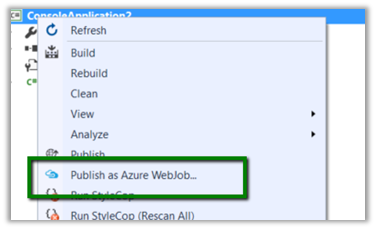
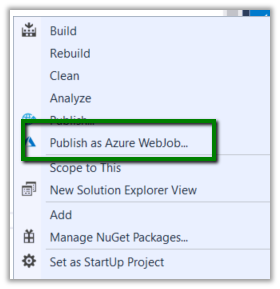
While trying to publish one of our console application to Azure as Web Job we couldn’t find the “Publish as Azure WebJob..” option

It was because Azure development tools were recently uninstalled from the system.

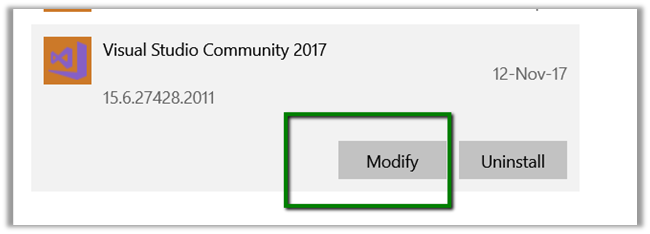
To install it, go to Windows à Program and Features à Select Visual Studio 2017 and click on Modify.

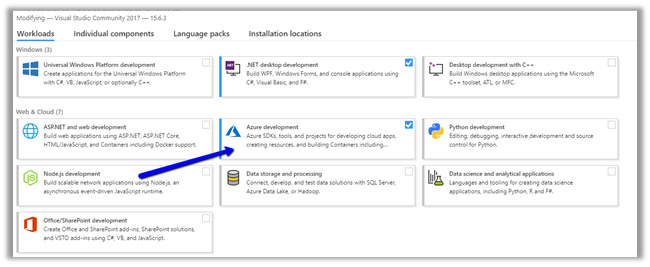
And select Azure Development for installation

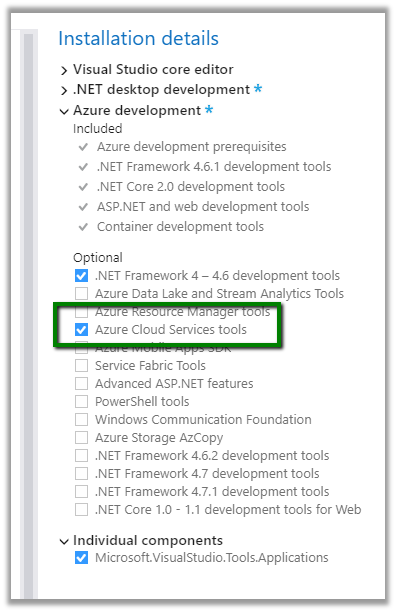
Select Azure Cloud Services tool.

After installation it will ask for restart.

After restart we’d see the option added in our Visual Studio.

Hope it helps.

Advertisements

Fixed – You are not authorized or do not have any subscriptions associated error while trying to access Kudo Sites in Azure


Today for one of our Azure WebJobs when we tried checking its log, we got the below error à

Seemed strange as being the Contributer of that Resource Group, I had access to all other functionality within that resource group.

After much struggle, in one of threads there was a suggestion to try in a different browser or in private browsing mode. And luckily that worked.

Out of all responses, this one makes the most sense for this issue

https://github.com/Azure/azure-functions-ux/issues/2244

Hope it helps..

Advertisements

How to – Stop an Azure Web Job using WEBJOBS_STOPPED and WEBJOBS_DISABLE_SCHEDULE configuration settings


We had one triggered web job running every 5 minutes that would pull the data from SQL On Prem DB and create lead records in CRM.

During testing we wanted to stop the running web job.

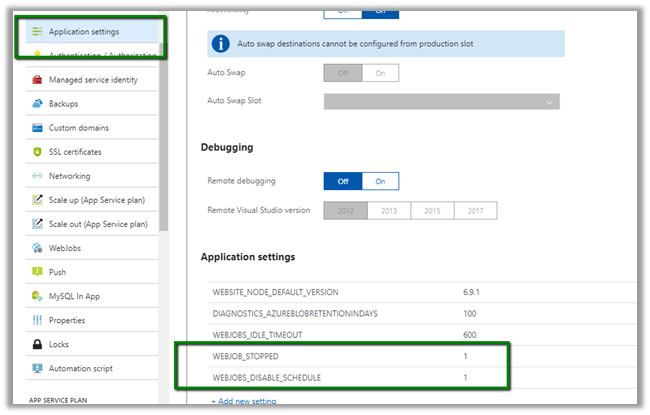
To do go to Application Settings for the App Service. Add WEBJOB_STOPPED and WEBJOBS_DISABLE_SCHEDULE setting with value 1.


We’d see our web job stop running.


Another option is to kill the process itself

Open à

https://[appname].scm.azurewebsites.net/ProcessExplorer


Get all the details here


https://github.com/projectkudu/kudu/wiki/WebJobs

Hope it helps..

Advertisements

How to – Update Schedule of existing Azure WebJobs (triggered)


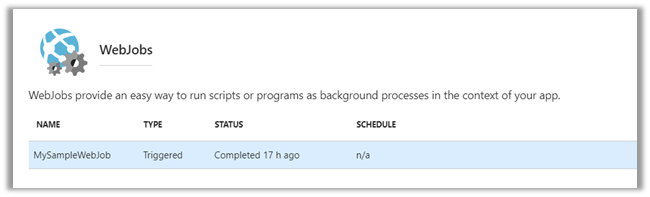
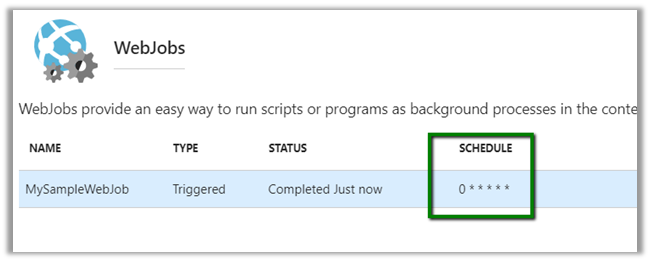
Suppose we have following WebJob deployed in Azure of type Triggered.

And now we want to update its schedule.

To do so,

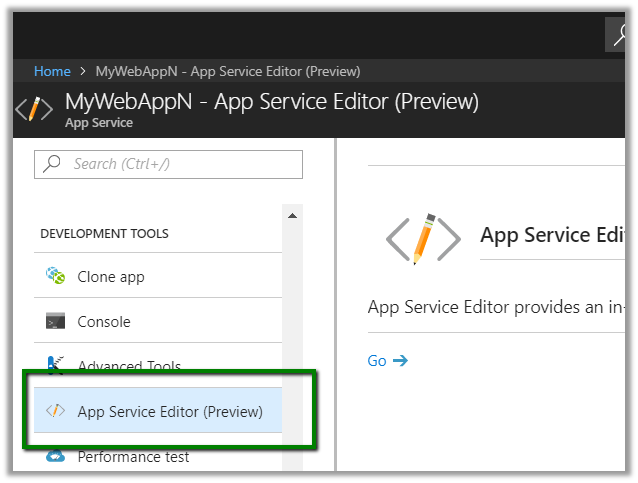
Open the App Service Editor

Update the CRON expression in settings.job (in case of scheduled web job), if the file is not there we can create and add it.

This makes the Webjob to run every 1 minute.

Back in our Webjob we can see the schedule updated.

Inside the logs à

More details –

https://github.com/projectkudu/kudu/wiki/WebJobs#scheduling-a-triggered-webjob

Hope it helps…

Advertisements

Using log4net with Azure WebJobs


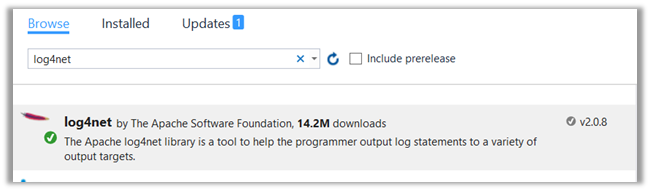
To get started, let us create a C# Console Application and add the NuGet Package for log4net.

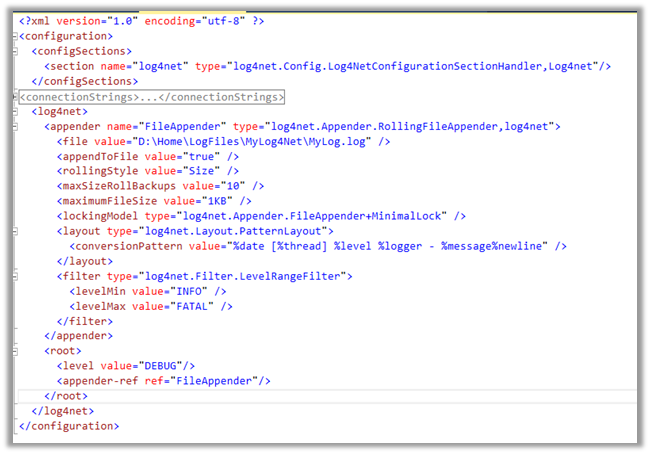
Update the App.Config with log4net configuration.

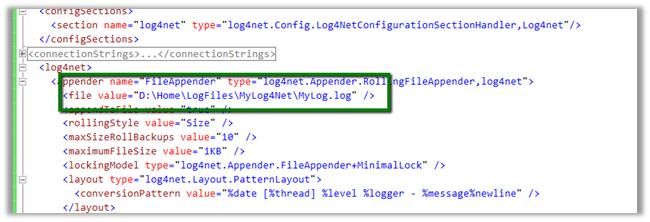
The most important part here is value of file.

The D:\Home\LogFiles is the path where our WebJob can write to.

https://docs.microsoft.com/en-us/azure/app-service/web-sites-enable-diagnostic-log#download

Inside our program.cs initialize the log4net.


Publish the WebJob to Azure.

Open the Kudo, we can see the Folder created

And our log file

Get all the details here

https://blogs.msdn.microsoft.com/benjaminperkins/2017/09/27/how-to-configure-log4net-on-azure-app-service/

Hope it helps..